Most WooCommerce stores treat black friday seo as a last-minute job: a new page, a banner and a hope that Google notices in time. It rarely does, because a page built in the final week has no history, no links and often prices that don’t match the feed.
Black Friday 2026 falls on Friday 27 November, with Cyber Monday on 30 November. That leaves about three and a half weeks, which is enough time to fix the decisions that matter most.
This guide shows you how to build one permanent sale hub that ranks year after year. It covers choosing the URL, redirecting old dated pages, and deciding between one page or two.
It also covers how to keep the page useful out of season without noindexing it. Most importantly, it shows how to keep prices consistent across your page, your schema and your Merchant Center feed.
That consistency now matters more than ever. Organic results, free product listings, AI Overviews, AI Mode and Google’s new US Universal Cart all read your product data, and a wrong sale price shows up quickly.
It is written for WooCommerce store owners, marketers and in-house SEOs in Australia, the UK, the USA and Bangladesh. The method works for any recurring sale, including 11.11 and Boxing Day.
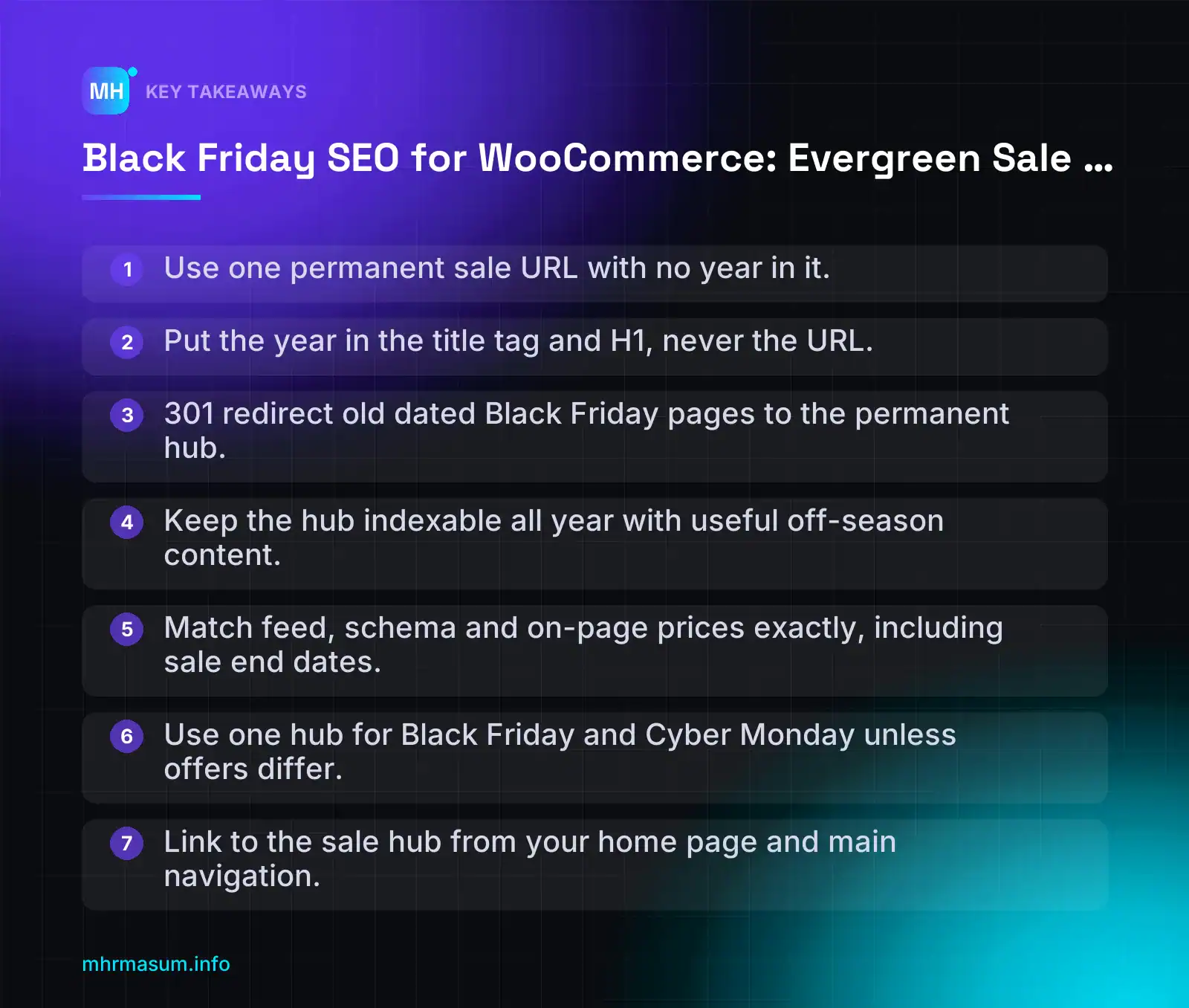
Key Takeaways
- Use one permanent sale URL with no year in it.
- Put the year in the title tag and H1, never the URL.
- 301 redirect old dated Black Friday pages to the permanent hub.
- Keep the hub indexable all year with useful off-season content.
- Match feed, schema and on-page prices exactly, including sale end dates.
- Use one hub for Black Friday and Cyber Monday unless offers differ.
- Link to the sale hub from your home page and main navigation.
What Black Friday SEO Means for a WooCommerce Store in 2026
Black Friday SEO is the work of making one sale hub and its products easy to find, correctly priced and consistent everywhere a shopper might see them. That includes organic results, free product listings, AI Overviews and AI Mode.
It is not a blog post about deals or a banner you add on Thursday night. It is a permanent page backed by correct product data.
Black Friday 2026 falls on Friday 27 November, and Cyber Monday on Monday 30 November. From today, 2 November, you have about three and a half weeks.
Organic, Shopping and AI surfaces you’re competing on
A WooCommerce store now competes on several surfaces at once. Each one reads your data in a slightly different way.
| Surface | What it mainly reads | What usually goes wrong |
|---|---|---|
| Organic web results | The sale hub page, title tag, internal links, page history | A new URL every year with no history or links |
| Free product listings (Shopping tab, product results) | Merchant Center feed plus on-page product structured data | Feed price and page price disagree |
| AI Overviews and AI Mode | Indexed pages, product data, Merchant Center information | Vague sale copy, out-of-date prices, thin hub pages |
| Gemini app shopping answers (US) | Google’s shopping data, which is built partly from merchant feeds | Expired sale prices still showing |
The common thread is consistency. The price in your feed, the price in your schema and the price a shopper sees in the cart should all match.
Why timing matters more than effort
Searches for seasonal deals usually start building from mid-October, well before the sale itself. Shoppers research products, compare stores and bookmark pages early.
Rankings depend partly on how long a page has existed and how many links point to it. You can’t build that in the final week. A hub that has been live and linked since last year has a head start that no late page can match.
If you are starting late, that is still workable. Focus on the permanent URL, correct prices and strong internal links. The checklist later in this guide includes a late-starter path.
Why Universal Cart raises the stakes for price accuracy
Google launched Universal Cart in the US on 15 October 2026, across Search (including AI Mode) and the Gemini app (Google Blog). Shoppers can add products from different stores to one cart.
The cart tracks price drops and finds promo codes. Shoppers can check out with Google Pay or send the cart to the merchant’s own site (Search Engine Roundtable).
This changes the risk. When a tool watches your prices on the shopper’s behalf, a wrong sale price is no longer a small error. A sale price that never ends, a strikethrough that doesn’t match the page, or a discount that fails at checkout becomes visible to the shopper straight away.
Keep the limits clear:
- It is US-only at launch. YouTube and Gmail are not part of it.
- Checkout through Google (UCP) needs separate merchant eligibility. Appearing in shopping results does not mean you can take orders inside Google.
- There is no confirmed UK date. Google has said Canada and Australia are coming, without a firm timetable.
- Don’t assume a WooCommerce store is eligible. Check the options shown in your own Merchant Center account.
For the wider picture, see my guide to agentic commerce and UCP for WooCommerce.
A note for Australia, the UK and Bangladesh
The method is the same in every market. Only the sale dates change.
- Bangladesh: 11.11 is often a bigger event than Black Friday. Use the same permanent-URL approach for an 11.11 hub.
- UK and Australia: Black Friday runs into Boxing Day sales. One evergreen hub per recurring event works better than a new page each time.
The Permanent-URL Strategy: One Sale Hub, No Year in the URL
This is the most important decision in Black Friday SEO, and it costs nothing.
Google’s Black Friday and Cyber Monday guidance recommends using a recurring URL rather than creating a new one for each event. For example, use /sale/black-friday rather than /sale/2020/black-friday. The same guidance says to link to the page internally, especially from the home page (Search Engine Journal).
John Mueller made the same point back in 2017. He said a generic URL builds up value over the years (Firewire Digital).
“A fresh /black-friday-2026 page signals freshness to Google.”
It doesn’t. A new URL starts with no history, no links and no ranking signals. Every year you throw away what the old page earned and start again.
Freshness comes from updated content, not a new address. Put the year in the title tag and H1, never in the URL.
Choosing the URL and page type
In WooCommerce you have three realistic options for the hub.
| Option | Crawling and indexing | Editing | Feeds | Best for |
|---|---|---|---|---|
| WordPress page with a product grid (/black-friday/) | Clean single URL. Fewer archive pagination issues. | Full control of copy, FAQs and layout, all year. | No direct link to the feed. Products are tagged separately. | Most stores. Easiest evergreen hub. |
| Dedicated product category (/product-category/black-friday/) | Automatic product listing, but pagination and filter URLs can multiply. | Products added by ticking a category. Copy is limited to the category description unless your theme supports more. | Many feed plugins can map a category to a custom label. Check yours. | Large catalogues with many discounted products. |
| Product tag (/product-tag/black-friday/) | Often noindexed by SEO plugins. Usually thin. | Quick to apply, but little room for content. | Rarely used for feed mapping. | Internal filtering only. Not a ranking hub. |
Decision rule: use a WordPress page as the ranking hub. If you have hundreds of discounted products, also use a category to manage them and embed it in the page. Keep the category from competing with the page. If you use filters on a category hub, control the parameter URLs as explained in my faceted navigation guide.
GOOD (permanent)
https://example.com/black-friday/
https://example.com/sale/black-friday/
https://example.com/shop/black-friday/        (category base changed to "shop")

BAD (new URL every year)
https://example.com/black-friday-2026/
https://example.com/sale/2026/black-friday/
https://example.com/bf-deals-nov-2026/

ARCHIVE (optional, for old deals)
https://example.com/black-friday/2025/

Title tag:  Black Friday 2026 Deals – Up to 40% Off | Example Store
H1:         Black Friday 2026 Sale
URL:        /black-friday/   (never changes)

Change the WooCommerce category base:
WordPress admin → Settings → Permalinks → Product category base
Be careful with the category base. Changing it changes the URL of every product category on the site, not just the sale one. Do it only with redirects for all old category URLs. Otherwise leave the default. Keep slugs short and lower case. My guide to SEO-friendly URLs in WordPress covers slug rules in detail.
If you want to keep old deals visible, follow the archive tip from the same Firewire source. Copy last year’s page to a dated URL such as /black-friday/2025/, and keep current deals on the generic URL.
Fixing old dated URLs with 301s
If you already have /black-friday-2024/ or /black-friday-2025/, don’t delete them. Redirect them permanently to the new hub so their links pass on.
Step 1: Find the old URLs.
- In Search Console, open Performance → Search results. Add a Page filter with “URLs containing”
black-friday, set the date range to the last 16 months, and note every URL that appears. - Open Indexing → Pages. Check the “Not found (404)” and indexed page examples for old sale URLs.
- Check your backlink tool or Search Console’s Links report for external links to old sale pages.
Page indexing data can lag, so don’t wait for the report to update. Use the URL Inspection live test to confirm the current status of each URL (Search Engine Journal).
Step 2: Add the redirects.
With the Redirection plugin, go to Tools → Redirection → Add new redirection. Enter the old path as the source and /black-friday/ as the target, and keep the type as 301.
At server level, the rules look like this:
# Apache (.htaccess, above the WordPress rules)
Redirect 301 /black-friday-2024/ https://example.com/black-friday/
Redirect 301 /black-friday-2025/ https://example.com/black-friday/

# Nginx (inside the server block)
location = /black-friday-2024/ { return 301 https://example.com/black-friday/; }
location = /black-friday-2025/ { return 301 https://example.com/black-friday/; }
Step 3: Test. Load each old URL and confirm one clean 301 hop, with no chains. Update internal links so they point straight to the new hub. The same redirect discipline applies to any URL change, as covered in my site migration guide.
Black Friday and Cyber Monday: one page or two?
Two near-identical pages with the same products compete with each other. Google may rank neither well, or switch between them.
Decision rule: use one hub for both events unless the offers really are different.
- One hub (for example /black-friday/ with “Black Friday & Cyber Monday 2026” in the title): same products, same discounts, sale runs straight through the weekend.
- Two hubs (/black-friday/ and /cyber-monday/): different product sets, different discounts or a separate Cyber Monday-only offer. Each page needs its own unique content and products.
If you choose two pages, both still follow the permanent-URL rule. Link between them, and make clear on each page which offer applies when.
Not sure whether your old sale URLs are leaking value? Run a free SEO check before you build anything new.
Building the Evergreen Sale Page: Off-Season vs In-Season Content
A permanent sale URL only works if the page is useful in every month of the year. If it is useful only in November, Google has little reason to keep it indexed well, and shoppers who land on it in June will leave.
The fix is simple. Keep one URL with two content states: an off-season version and an in-season version. You change the content on the page. You never change the URL.
“Nobody searches for Black Friday in summer, so I’ll noindex the page until November and switch it back on.”
This is one of the most damaging habits in seasonal SEO. Noindexing the page throws away the history the permanent URL is meant to build. When you remove the noindex, Google still has to recrawl and reprocess the page, and that can take longer than you have. Keep it indexable all year and make the off-season version worth reading.
What stays on the page all year
The off-season version answers one question for the shopper: “What should I know before the next sale?”
- When the next sale is expected. For example, “Our Black Friday sale usually starts in the last week of November.” Don’t promise exact dates until you have confirmed them.
- An email or notification sign-up. This gives the page a clear purpose out of season and builds a list you own.
- Last year’s best-selling categories. Link to those category pages so the page still helps people shop today.
- An FAQ about delivery and returns. Cover delivery times, return windows and whether sale items can be returned. Keep the answers consistent with your shipping and returns settings in Merchant Center (see Merchant Center Shipping and Returns: WooCommerce Data Guide).
- A short explanation of how your sale works. For example, whether discounts apply site-wide or to selected ranges, and whether discount codes are needed.
What changes in November
The in-season version answers a different question: “What is on offer right now, and until when?”
- Start and end dates with a time zone. Write “Runs from 00:00 GMT Friday 27 November to 23:59 GMT Monday 30 November 2026”, not “this weekend only”. If you sell to Australia or the USA, state which time zone applies.
- The main deals. Show the headline products or ranges, with the discount you are actually applying.
- Links to sale categories. Link to clean category URLs rather than filtered URLs full of parameters (more on that in Faceted Navigation SEO for WooCommerce).
- An honest discount policy. Explain what “up to 40% off” means and what the reduction is calculated from.
- Shipping cut-off dates. Shoppers buying gifts need to know the last order date for delivery before key dates.
| Page element | Off-season state | In-season state |
|---|---|---|
| URL | /sale/black-friday/ | /sale/black-friday/ (unchanged) |
| Indexing | Indexable | Indexable |
| Dates | Expected timing (“usually late November”) | Exact start and end, with time zone |
| Main content | How the sale works, last year’s best-selling categories | Current deals and discounts |
| Call to action | Email or notification sign-up | Shop the deals, with sign-up as a secondary option |
| Category links | Popular categories at full price | Sale categories and filtered ranges |
| FAQ | Delivery, returns, how discounts apply | Same, plus shipping cut-offs and sale-item returns |
| Title tag and H1 | “Black Friday Sale 2026: What to Expect” | “Black Friday Sale 2026: Up to 40% Off Footwear” |
Avoid the “coming soon” thin page
A page that only says “Black Friday deals coming soon!” gives a shopper nothing. Every version of the page must help someone make a decision or take an action.
If the page is thin for most of the year, it can drift out of the index. If that happens, use the steps in Crawled – Currently Not Indexed: How to Diagnose and Fix It.
Title, H1 and meta description patterns
Put the year in the title tag and H1, never in the URL. Update them when the content changes.
Off-season title:  Black Friday Sale 2026 | What to Expect | StoreName
In-season title:   Black Friday Sale 2026: Up to 40% Off Boots | StoreName
H1 (in-season):    Black Friday Sale 2026 – Ends 23:59 GMT, Monday 30 November
Meta description:  Save up to 40% on boots and 25% on jackets until 30 Nov.
                   Free UK delivery over £50. Order by 15 Dec for Christmas.
Write the meta description from the deals actually live on the page. If the description promises 50% off and the page shows 20%, you lose trust and clicks. Google may also rewrite the snippet anyway.
Showing Sale Prices Correctly in WooCommerce Product Schema
Your sale hub gets the visit, but the product pages carry the price data. Google reads that price from your product structured data and compares it with what the page shows.
If the markup is wrong, your sale may not appear as a sale in Search. Worse, a mismatch between schema, page and checkout can cause problems in Merchant Center.
How Google reads active and strikethrough prices
Google’s rule is set out in its merchant listing documentation (Google Search Central):
- The active price is the price the shopper pays now.
- When you add a second price marked
priceType: https://schema.org/StrikethroughPrice, Google treats the active price as a sale price automatically. - Never put
priceTypeon the active price. It belongs only on the higher, crossed-out price. - If you mark a list price with
priceType, you must also give a current sale price.
Here is the simplest valid pattern: an item on sale at £10 that normally costs £15.
{
  "@context": "https://schema.org",
  "@type": "Product",
  "name": "Merino Wool Socks",
  "sku": "MWS-001",
  "offers": {
    "@type": "Offer",
    "url": "https://example.com/product/merino-wool-socks/",
    "price": "10.00",
    "priceCurrency": "GBP",
    "availability": "https://schema.org/InStock",
    "priceSpecification": {
      "@type": "UnitPriceSpecification",
      "priceType": "https://schema.org/StrikethroughPrice",
      "price": "15.00",
      "priceCurrency": "GBP"
    }
  }
}
The Offer’s price (10.00) has no priceType. The strikethrough node (15.00) does. That is the whole signal.
ListPrice vs StrikethroughPrice
You may see ListPrice in older examples, including Google’s Merchant Center structured data help page (Google Merchant Center Help). That page still shows ListPrice.
The current Search Central documentation uses StrikethroughPrice and says ListPrice is still accepted during a transition period. For new work, use StrikethroughPrice. If your plugin outputs ListPrice, it is not broken today, but check for updates.
One more rule: a strikethrough price must not carry validForMemberTier. Member or loyalty pricing is a separate setup.
Adding sale dates with validFrom and validThrough
For a time-limited sale, tell Google when the sale price is valid. You have two options:
- Add
validFromandvalidThroughto the PriceSpecification node that holds the sale price. - If the Offer’s own
priceis the sale price, putvalidFromplusvalidThroughorpriceValidUntilon the Offer.
Here is the first option, with two UnitPriceSpecification objects:
{
  "@context": "https://schema.org",
  "@type": "Product",
  "name": "Merino Wool Socks",
  "sku": "MWS-001",
  "offers": {
    "@type": "Offer",
    "url": "https://example.com/product/merino-wool-socks/",
    "availability": "https://schema.org/InStock",
    "priceSpecification": [
      {
        "@type": "UnitPriceSpecification",
        "price": "10.00",
        "priceCurrency": "GBP",
        "validFrom": "2026-11-27T00:00:00+00:00",
        "validThrough": "2026-11-30T23:59:59+00:00"
      },
      {
        "@type": "UnitPriceSpecification",
        "priceType": "https://schema.org/StrikethroughPrice",
        "price": "15.00",
        "priceCurrency": "GBP"
      }
    ]
  }
}
The dates sit on the sale node, not the strikethrough node. Use the same time zone offset you state on the sale page. UK stores in November use +00:00. Australian and US stores need their own offsets.
Setting up a scheduled sale in WooCommerce
- Open the product and go to Product data > General.
- Keep the normal price in Regular price.
- Enter the reduced price in Sale price.
- Click Schedule and set the start and end dates.
- Check WooCommerce > Settings > General and Settings > General in WordPress, so the site time zone matches the time zone on your sale page.
When the start date arrives, WooCommerce switches the product’s active price to the sale price. When the end date passes, it switches back. This relies on WordPress scheduled tasks. On sites with unreliable cron or aggressive page caching, the change can show up late. Check a live product page shortly after the start time.
What ends up in the schema depends on your theme, WooCommerce version and SEO plugin. Don’t assume. Test it.
Checking what your theme or plugin actually outputs
Pick one sale product and run these checks once the sale is live:
- Rich Results Test: confirm the active price, currency, strikethrough price and any dates.
- Search Console URL Inspection > Test live URL: confirm Googlebot sees the same values. Use the live test rather than waiting for indexing reports to catch up.
- View the rendered HTML: look for duplicate Product blocks. A theme and an SEO plugin can each output one, with different prices.
- Check the cached version: if a page cache was built before the sale started, the page and schema may still show the old price.
If the output is wrong and you can’t trace the source, a free SEO check is a quick way to find which component is producing the markup.
Variable products
Variable products cause most sale-price mismatches. Each variation has its own Regular price, Sale price and Schedule, so a sale can be live on one size and not another.
- Check the price range shown on the parent product page during the sale.
- Check each variation by selecting it and confirming the price shown.
- Make sure the schema matches the variation the shopper sees. If a variation URL or selected option is shown in Shopping, its price in markup should be that variation’s sale price.
- Watch for variations where you forgot to set a schedule. They will show full price while others are discounted.
The one rule that matters
The schema price must equal the price on the page and the price the checkout charges. If any of the three differ, fix the source before the sale goes live.
Price mismatches are a common reason for Merchant Center problems. If items are already flagged, work through WooCommerce Merchant Center Diagnostics: Fix Disapprovals before Black Friday.
| Check | Where | Pass when |
|---|---|---|
| Active price | Rich Results Test | Equals the sale price on the page, with no priceType |
| Strikethrough price | Rich Results Test | Equals the regular price and is marked StrikethroughPrice (or ListPrice) |
| Sale dates | Rendered HTML | Match the WooCommerce schedule and the time zone on the sale page |
| Googlebot view | URL Inspection live test | Shows the same prices as the browser |
| Checkout | Test order or cart | Charges exactly the schema price |
Sale Prices in Google Merchant Center Feeds
Schema tells Google Search about your sale. Your product feed tells Merchant Center. Both must show the same price as the page, at the same moment.
Most Black Friday disapprovals in WooCommerce come from timing: the page changes at one time, the feed changes at another, and Google checks in between.
price, sale_price and sale_price_effective_date
Google’s guidance is clear. Keep sending the full, regular price in [price] and put the reduced price in [sale_price] (Google Merchant Center Help).
Do not overwrite [price] with the sale price. If you do, Google has no reference price to compare against.
The third attribute controls timing. If you send [sale_price] without [sale_price_effective_date], the sale price applies immediately and keeps applying until you remove it. That is how “Black Friday” prices end up still live in the feed in mid-December.
The effective date uses ISO 8601: a start and an end joined by a slash, each with a time-zone offset. Here are four examples for 27 to 30 November 2026. Use the one that matches your store’s time zone:
// UK (GMT in November)
sale_price_effective_date: 2026-11-27T00:00+00:00/2026-11-30T23:59+00:00

// US Eastern (EST in November)
sale_price_effective_date: 2026-11-27T00:00-05:00/2026-11-30T23:59-05:00

// Sydney / Melbourne (AEDT in November)
sale_price_effective_date: 2026-11-27T00:00+11:00/2026-11-30T23:59+11:00

// Bangladesh
sale_price_effective_date: 2026-11-27T00:00+06:00/2026-11-30T23:59+06:00

// Full example row (feed attributes)
id: TSHIRT-BLK-M
price: 40.00 GBP
sale_price: 30.00 GBP
sale_price_effective_date: 2026-11-27T00:00+00:00/2026-11-30T23:59+00:00
A few rules from the product data specification (Google Merchant Center Help):
- The start date must come before the end date. Swapped dates are a common copy-paste error.
- Do not put sale text or dates in
[title]or[description]. “Black Friday 25% OFF – ends Monday” belongs in the price attributes, not the product text. - Loyalty or member-only prices go in
[loyalty_program], not[sale_price].[sale_price]is for a price that every shopper gets.
If you update prices through an online inventory update feed instead of the main feed, send sale_price and sale_price_effective_date together in the same update (Google Merchant Center Help). Sending only one of them can leave the other attribute out of step.
When does Google show the strikethrough?
A valid [sale_price] does not guarantee a strikethrough “was” price in Shopping results. Google applies its own eligibility checks.
One third-party source (Store Growers) lists these conditions. Treat them as “verify in Merchant Center Help”, not as official rules:
| Reported condition | What it means for Black Friday | Status |
|---|---|---|
| Base price active for 30+ days | Don’t raise regular prices in late October. A recently raised base price may not qualify. | Verify in Merchant Center Help |
| Sale lasts 30 days or less | A sale that runs from early November into December may lose the annotation. | Verify in Merchant Center Help |
| Discount between 5% and 90% | Very small or very large markdowns may not show a strikethrough. | Verify in Merchant Center Help |
Search Merchant Center Help for “sale price annotations” and check the current wording before you plan the length of your sale.
Sale price vs Merchant Center Promotions
These are two different mechanisms, and mixing them up causes both feed errors and unhappy customers.
| Sale price (markdown) | Merchant Center Promotions | |
|---|---|---|
| What it is | The product itself is cheaper for everyone | An offer applied at checkout, often with a code |
| Where it lives | [sale_price] in the product feed |
Promotions set up in Merchant Center (or a promotions feed) |
| Product page shows | The reduced price | The regular price; the discount appears in the cart |
| Typical use | “All jackets now £60, was £80” | “BF20 for 20% off”, free shipping, buy one get one |
Decision rule: if the shopper sees the lower price on the product page without doing anything, use [sale_price]. If they need a code or a cart condition, use Promotions.
Promotions availability and review times vary by country, so check the Promotions section in your Merchant Center account early rather than in peak week.
Avoiding price mismatch disapprovals at midnight
Google compares the feed price with the price on your landing page. If they differ, items can be disapproved for price mismatch at exactly the moment you want them visible.
In WooCommerce, three clocks need to agree:
- WooCommerce/WordPress time zone. Go to Settings > General > Timezone in WordPress. Scheduled sale dates on products (Product data > General > Schedule) follow this setting. Use a city such as “London” or “Sydney” rather than a fixed UTC offset, so daylight-saving changes are handled.
- Your feed plugin’s schedule. Check when it regenerates the feed file and whether it writes
sale_price_effective_datefrom the WooCommerce schedule dates. - Merchant Center fetch schedule. If Google fetches your feed file on a schedule, check the fetch time and the time zone set on that schedule.
Here is the risk in practice. Your sale starts at 00:00 on 27 November. Merchant Center last fetched the feed at 23:00 on the 26th, without an effective date. For hours, the page shows the sale price while the feed shows the full price. The same problem happens in reverse when the sale ends on the 30th.
How to reduce it:
- Send
[sale_price]with[sale_price_effective_date]a few days early. Google then switches at the right time, not when the next fetch happens to run. - Use the same start and end times in WooCommerce and in the effective date.
- Check that scheduled sales actually fire. WooCommerce applies scheduled sales through a background scheduled task. On low-traffic sites WP-Cron can run late, so test one product with a scheduled sale before Black Friday and confirm it changes on time.
- Avoid manual price edits during peak week unless you also push a feed update straight away.
- On 1 December, check that regular prices have returned on the page and in the feed.
If items do get disapproved, work through the item issues in Merchant Center. My guide to WooCommerce Merchant Center diagnostics covers how to trace each disapproval back to the plugin, the feed or the page.
Internal Linking Timeline for the Sale Hub
A permanent URL builds value over the years. Internal links decide how quickly Google finds the current version of the page and how important it looks compared with the rest of the site.
Google’s own Black Friday guidance recommends building internal links to the sale page, especially from the home page (Search Engine Journal).
The trick is to add links in layers. Some stay all year. Others are added for the run-up and removed afterwards.
Year-round links
These links keep the hub crawled and connected in the off-season, when it shows the evergreen version of the page.
- A footer link or a “Deals” item in the main menu, pointing to
/black-friday/or your chosen hub URL. - Contextual links from relevant buying guides, for example “When do our jackets go on sale?” linking to the hub.
- A link from your FAQ or delivery page, if you answer questions about sale timing there.
“I’ll only link to the sale page in November. Nobody needs it before then.”
A page with no internal links for ten months looks unimportant. Google may crawl it rarely, and when you update it in November the changes can take longer to show. One permanent link costs nothing and keeps the page part of your site. If the hub has fallen out of the index, see Crawled – Currently Not Indexed.
Pre-sale links
Normally you would add these in October. If you are reading this in early November, add them now: you still have more than three weeks before 27 November.
- A home page banner or module with a plain HTML link to the hub.
- Links from your top category pages, for example a short line above the product grid: “See our Black Friday deals”.
- Links from blog gift guides and seasonal posts.
Check that the home page link is crawlable. Google follows <a href> links. A slider that only changes the page with JavaScript click events may not pass a link Google can follow.
<!-- Crawlable: a real link with an href -->
<a href="/black-friday/">Black Friday 2026 deals – see what's on sale</a>

<!-- Risky: no href, navigation happens only in JavaScript -->
<div class="slide" onclick="location.href='/black-friday/'">Shop the sale</div>
To check, open the home page, view the source or use URL Inspection in Search Console, and confirm the hub URL appears inside an href in the rendered HTML.
Use descriptive anchor text such as “Black Friday deals” rather than “click here”. It tells shoppers and Google what the page is.
Peak-week links
From around 20 November to Cyber Monday, make the hub as easy to reach as possible.
- Header link or announcement bar linking to the hub, visible on every page.
- Links from product pages that are part of the sale, for example “Part of our Black Friday sale – see all deals”.
- Links out from the hub to sale categories and key discounted products. This is where the hub passes value back down to the pages that actually sell.
When the hub links to filtered sale listings, link to clean category URLs rather than long filter parameter strings. My guide to faceted navigation SEO for WooCommerce explains how to keep those filter URLs under control.
After the sale
- Remove the home page banner, header link and product page notices once the sale ends.
- Keep the footer or “Deals” menu link and the buying guide links. These are what carry the page through to next year.
- Do not redirect or delete the hub. Switch it back to the off-season version instead.
Internal link timeline at a glance
| Link | Where it sits | Add | Remove |
|---|---|---|---|
| Footer or “Deals” menu link | Sitewide footer or main menu | Once, at launch | Never |
| Buying guide links | Relevant blog posts and guides | Year-round | Never (update wording) |
| Home page banner or module | Home page, above the fold | October (or now, if late) | 1–2 December |
| Category page links | Top category pages | October (or now) | 1–2 December |
| Gift guide links | Seasonal blog posts | October to early November | Keep; update text after the sale |
| Header or announcement bar | Every page | Around 20 November | 1 December |
| Product page notices | Discounted product pages | Sale start, 27 November | When the sale price ends |
| Hub links out to sale categories | The hub itself | In-season content switch | Replace with evergreen links |
If you are not sure whether your home page and menus produce crawlable links, a free SEO check will show what Google can actually see before peak traffic arrives.
Week-by-Week Checklist: October to Cyber Monday 2026
Black Friday 2026 falls on Friday 27 November, and Cyber Monday is Monday 30 November. Work backwards from those dates.
Google needs time to crawl, index and trust your hub page. Merchant Center needs time to review your feed. Most Black Friday SEO problems come from doing the right things too late, not from doing the wrong things.
The plan below starts in early October. If you are reading this on 2 November, skip to the late-starter section at the end.
Weeks of 5 and 12 October: audit and set up
Use these two weeks to find out what worked last year and fix the foundations.
- Pull last Q4’s sale queries. In Search Console, go to Performance > Search results. Set the date range to October–December 2025. Click + Add filter > Query > Custom (regex), choose Matches regex and paste the pattern below.
- Export the queries and pages. Note which URLs ranked for sale terms. If several old pages split the traffic, that is your consolidation list.
- Map old URLs to the permanent hub. Every dated page such as /black-friday-2024/ should 301 to your single hub, unless you are deliberately keeping it as an archive.
- Check the hub is indexable. No noindex, a self-referencing canonical, and the URL listed in your XML sitemap.
(?i)black friday|cyber|deal|saleThe (?i) prefix makes the match case-insensitive. Add your brand name to a separate filter later if you want to split branded and non-branded demand (see branded vs non-branded SEO in Search Console).
A simple redirect for old dated pages on Apache looks like this. Most WordPress sites can do the same with a redirect plugin instead.
Redirect 301 /black-friday-2024/ /sale/black-friday/
Redirect 301 /black-friday-2025/ /sale/black-friday/
Redirect 301 /cyber-monday-deals-2025/ /sale/black-friday/
Weeks of 19 and 26 October: publish and link
- Refresh the hub content. Update the year in the title tag and H1, not the URL. Add the dates, shipping cut-offs, returns window and the categories that will be on sale.
- Add internal links. Link from the home page, the main navigation or header bar, and your top category pages. Google’s own Black Friday guidance specifically mentions the home page (Search Engine Journal).
- Request indexing. Run URL Inspection on the hub, click Test live URL, then Request indexing. If you use Bing, submit it through IndexNow as well (Bing Webmaster Tools and IndexNow setup).
- Test the 301s. Each old URL should return one 301 hop to the hub, not a chain.
Weeks of 2 and 9 November: schema, feeds and speed
This is the technical fortnight. Test with a product that has a scheduled sale price set in WooCommerce, so you see what Google will see.
- Test product schema. Run a sale product through the Rich Results Test and the URL Inspection live test. Confirm the active price is the sale price and the original price is marked as a strikethrough or list price.
- Check feed attributes. Open a sample of items in Merchant Center. Confirm price holds the regular price, sale_price holds the reduced price, and sale_price_effective_date matches your WooCommerce schedule.
- Run a diagnostics check. Clear existing disapprovals now, before the sale adds new ones. My WooCommerce Merchant Center diagnostics guide covers the common fixes.
- Test mobile speed. Run the hub and two top product pages through PageSpeed Insights on mobile. Check field data, not just the lab score.
- Audit third-party scripts. List every script loading from another domain: chat, reviews, heatmaps, monitoring, ad tags. Remove anything you no longer use.
The script audit is not optional. The reported DNS hijack affecting DebugBear’s real-user-monitoring script is a clear reminder that a script you trust can change without you touching your site (Search Engine Journal). Peak traffic is the worst time to find out.
Watch the timezone in your effective date. Merchant Center uses an ISO 8601 interval, so match the offset to your store’s timezone.
Australia (AEDT):  2026-11-27T00:00+11:00/2026-12-01T23:59+11:00
UK (GMT):          2026-11-27T00:00+00:00/2026-12-01T23:59+00:00
US Eastern (EST):  2026-11-27T00:00-05:00/2026-12-01T23:59-05:00
Weeks of 16 and 23 November: lock down and launch
From Monday 16 November, freeze anything that can break the site.
- No URL or slug changes.
- No theme updates.
- No plugin updates, unless it is a security fix you have tested on staging.
- No new tracking scripts or tag manager experiments.
- No changes to permalink, canonical or SEO plugin settings.
Use the time for content and stock instead. Confirm the sale schedules in WooCommerce, check stock levels, and brief whoever handles support on shipping cut-offs.
“We should update everything before Black Friday so the site is in its best shape.”
The opposite is safer. Update in October, test in early November, then stop. A plugin update that breaks checkout on 26 November costs more than any feature it adds.
27 to 30 November: monitor live
- Spot-check five sale products each morning: page price, schema price (live test) and Merchant Center price should all match.
- Watch Merchant Center for new price issues.
- Check GA4 Realtime for sessions landing on the hub.
- Test checkout on mobile at least once a day.
- If a sale ends early, update WooCommerce and the feed at the same time.
Starting late? The two-week minimum
If you are starting on 2 November, you have about three and a half weeks. Do only the things that move the needle, and leave everything else.
- Reuse your existing URL. If last year’s page still exists and has links, update it rather than creating a new one. Change the year in the title and H1 only.
- Link it from the home page. One clear link or banner is enough.
- Request indexing through URL Inspection once the content is updated.
- Check prices on a handful of products across page, schema and feed.
Skip redirect projects, redesigns and new plugins this year. Put them in your diary for next October.
| Week | Task | Where to do it | Done / owner |
|---|---|---|---|
| 5 Oct | Pull last Q4’s sale queries with regex filter | Search Console > Performance | ☐ / SEO |
| 12 Oct | Map and set up 301s from old dated URLs | Server config or redirect plugin | ☐ / Developer |
| 19 Oct | Refresh hub content, year in title and H1 | WordPress editor | ☐ / Content |
| 26 Oct | Add home page and navigation links; request indexing | WordPress menus; URL Inspection | ☐ / SEO |
| 2 Nov | Test sale schema on sample products | Rich Results Test; URL Inspection | ☐ / SEO |
| 2 Nov | Check price, sale_price and effective dates | Merchant Center > Products | ☐ / Store manager |
| 9 Nov | Clear diagnostics issues | Merchant Center > Needs attention | ☐ / Store manager |
| 9 Nov | Mobile speed test and third-party script audit | PageSpeed Insights; browser DevTools | ☐ / Developer |
| 16 Nov | Change freeze begins | Whole team | ☐ / Owner |
| 23 Nov | Confirm sale schedules and stock | WooCommerce > Products | ☐ / Store manager |
| 27–30 Nov | Daily price, feed and checkout checks | Site, Merchant Center, GA4 Realtime | ☐ / SEO + store |
Tracking Results in Search Console, GA4 and Merchant Center
You need three views of the sale. Search Console shows visibility, GA4 shows behaviour and revenue, and Merchant Center shows whether your products are eligible to appear at all.
Set these up before 27 November. Building reports during the sale means you miss the baseline.
Search Console reports to watch
Compare the hub year on year. This is where a permanent URL pays off: you can compare the same page across years.
- Go to Performance > Search results.
- Click + Add filter > Page and enter the exact hub URL.
- Open the date selector, choose Compare, then Custom.
- Align the days of the week, not the calendar dates.
- Switch on Clicks, Impressions, CTR and Position, then open the Queries tab.
This year:  Mon 23 Nov 2026 – Mon 30 Nov 2026
Last year:  Mon 24 Nov 2025 – Mon 1 Dec 2025
(Black Friday 2025 was 28 Nov; Cyber Monday was 1 Dec)
Add a second filter, Query > Custom (regex), with the same sale pattern from October. That isolates sale demand from people searching for your brand or individual products. For more on reading this data honestly, see Search Console-first rank reporting.
Use URL Inspection’s live test for today’s status. Search Console has been reported to show lagging Page indexing data, so the summary report may not reflect what happened this week (Search Engine Journal). The live test checks the page as Google fetches it now.
If the hub shows as crawled but not indexed, work through the checks in Crawled – Currently Not Indexed before the sale starts.
Check the shopping enhancement reports. In the left menu under Shopping, open Merchant listings and Product snippets. Look for:
- Invalid or missing price fields.
- Warnings about price specification or offer data.
- A sudden drop in valid items after you scheduled the sale.
Click any issue to see example URLs, fix them, then use Validate fix.
GA4 setup for the sale
Build one exploration you can reuse every year.
- Go to Explore > Free form.
- Add dimensions: Landing page + query string, Session default channel group, Date.
- Add metrics: Sessions, Ecommerce purchases, Purchase revenue.
- Add a filter: Landing page + query string contains /sale/black-friday.
- Put channel group in rows and filter or highlight Organic Search.
- In the date range picker, switch on Compare and use the same aligned dates as Search Console.
If your property offers annotations on report charts, add notes for the sale start, the email launch and any price changes. If not, keep a simple dated log in a shared sheet. Either way, record what changed and when, or you will be guessing in January.
Tag every email and social link to the hub with UTM parameters. Untagged campaign traffic tends to end up as Direct or Unassigned, which hides what actually worked. My GA4 Unassigned traffic audit explains the common causes.
https://example.com/sale/black-friday/?utm_source=newsletter&utm_medium=email&utm_campaign=black-friday-2026Merchant Center diagnostics
In Merchant Center, open Products and select the Needs attention tab. Check it daily from 23 November.
| Issue type | Likely cause in WooCommerce | What to do |
|---|---|---|
| Price mismatch between page and feed | Page updated before the feed synced, or caching served an old price | Clear the page cache, resync the feed, check timezone in effective dates |
| Missing or invalid sale information | sale_price sent without dates in an update feed, or end date before start date | Send sale_price and sale_price_effective_date together; fix the date order |
| Sale price not shown as a strikethrough | Annotation rules not met | Check the eligibility rules on Google’s sale price annotation help page |
| Product disapproved after sale ends | Sale price kept applying because no end date was set | Add an end date or remove sale_price once the sale is over |
Fix the cause, not just the item. One timezone error in your feed plugin can affect every product on sale.
If you want a second pair of eyes on your setup before the freeze, run a free SEO check or book a free consultation.
What to Do With the Sale Page After Cyber Monday
Cyber Monday ends on 30 November 2026, but the work does not. The days after the sale decide whether the hub keeps its value for next year or loses it.
There are three jobs. Get prices back to normal without errors. Return the hub to its off-season version. Leave the URL alone.
Revert prices cleanly
If you followed the earlier sections, most of this happens without you doing anything. Scheduled sale end dates in WooCommerce and the effective dates in your feed end the sale on time.
- WooCommerce: sale prices with a “Schedule” end date (Product data → General → Sale price → Schedule) are removed by WordPress’s scheduled tasks (WP-Cron). WP-Cron only runs when the site gets requests, so a quiet store or a disabled cron can delay the switch.
- Merchant Center: once the end of
[sale_price_effective_date]passes, Google stops using[sale_price]and uses your[price]again (Google Merchant Center Help).
A feed value for a sale that ended at midnight on 30 November in Sydney looks like this:
sale_price_effective_date: 2026-11-27T00:00+11:00/2026-11-30T23:59+11:00On the morning of 1 December, check a sample. Do not assume it worked.
- Open 10–20 products from different categories, including variable products. Make sure the regular price shows and the “Sale!” badge has gone.
- View the same products while logged out or in a private window, so you see what your cache serves to visitors.
- In Merchant Center, open a few of the same products and compare the price Google shows with the price on your site.
- Check Merchant Center’s product issues for price mismatch warnings over the next 48 hours.
If prices have not reverted, run the scheduled sales event manually with WP-CLI, then clear your caches (see the next section):
wp cron event run woocommerce_scheduled_salesTurn the hub back into its off-season version
Swap the hub to its off-season content within a day or two of Cyber Monday. A page that still shouts “Ends tonight!” in mid-December disappoints visitors and can show stale prices in snippets.
- Remove the countdown timer, deal grids and “ends” banners.
- Restore the off-season copy: what the sale usually includes, when it usually runs, and a sign-up form for early access.
- Change the title tag and H1 so they no longer promise live deals, for example “Black Friday Sale – Returning November 2027”.
- Keep useful links to bestselling categories so the page still helps someone who lands on it in March.
If you want a record of this year’s deals, copy the page to a dated archive URL such as /black-friday/2026 and keep the generic URL for current and future content (Firewire Digital). The archive is optional. The generic hub is not.
Never delete, redirect or noindex the hub
“Redirect the sale page to the home page once the sale ends.”
This is the most common post-sale mistake. A redirect throws away the page’s history: its links, its indexing and the trust it built. Next November you start from zero.
Google’s own Black Friday guidance recommends a recurring URL rather than a new one each year (Search Engine Journal). John Mueller has said a generic URL gains value over the years (Firewire Digital). That only works if the page keeps existing.
The same applies to noindex and deletion. Leave the hub live, indexable and linked from your footer or a “Sales” menu.
Clean up schema and record what worked
| Task | How to check |
|---|---|
| Remove expired sale schema | Make sure product pages no longer output a StrikethroughPrice node or a past validThrough date. Test a few URLs in the Rich Results Test. |
| Confirm strikethrough prices have gone | Search for a few products in Google Shopping and check the “was” price no longer shows. Allow a few days for updates. |
| Confirm Google sees the new version | Use the URL Inspection live test on the hub. Page indexing reports can lag, so the live test is more reliable (Search Engine Journal). |
| Record what worked | Export queries, clicks and positions for the hub, plus Merchant Center clicks and GA4 revenue. Note launch dates, issues and fixes. |
Write the notes down now, while you remember the details. For a reporting method that does not depend on third-party rank trackers, see rank tracking with a Search Console-first report.
Common Mistakes and How to Fix Them
Most Black Friday SEO problems fall into three groups: wrong price data, URL and indexing decisions, and sites that slow down or show stale content at peak. Each one has a clear symptom you can check for.
| Mistake | Symptom | Cause | Fix |
|---|---|---|---|
| Dated URL each year | New sale page ranks slowly; last year’s page still appears in results | URLs like /black-friday-2025/ and /black-friday-2026/ split links and history |
Use one generic URL such as /black-friday/. Put the year in the title and H1 only. 301 old dated pages to the hub if they have no archive value. |
| Off-season hub set to noindex | Hub missing from results until late November | noindex added after last year’s sale |
Remove noindex, add useful off-season content, request indexing with URL Inspection. |
priceType on the sale price |
No sale annotation; sale price read as the old price | StrikethroughPrice placed on the active price |
Leave the active price without priceType. Mark only the higher reference price as StrikethroughPrice. |
sale_price without the full price |
No strikethrough in Shopping; discount not visible | [price] overwritten with the reduced price |
Keep the full price in [price] and the reduced price in [sale_price]. |
| Time-zone mismatch | Price mismatch issues or disapprovals at the start or end of the sale | Feed dates in UTC or the wrong offset while WooCommerce switches on local time | Add the correct UTC offset to [sale_price_effective_date] and match it to Settings → General → Timezone. |
| “Was” price raised just before the sale | Customer complaints; strikethrough may not show; possible legal risk | Inflated reference price to make the discount look bigger | Use a genuine price the product actually sold at for a meaningful period. |
| Hub links only inside a JS slider | Deal products discovered late or not at all | Links rendered by JavaScript or without real <a href> elements |
Add plain HTML links to key categories and products below or beside the slider. |
| Caching serves old prices | Visitors see full prices after the sale starts, or sale prices after it ends | Page cache or CDN not purged when prices change | Purge caches right after each scheduled switch (see below). |
Price and schema problems
Google’s merchant listing documentation is clear. Your active price becomes a sale price automatically when you add a second price marked https://schema.org/StrikethroughPrice (Google Search Central).
The correct shape during the sale looks like this:
"offers": {
  "@type": "Offer",
  "price": 79.00,
  "priceCurrency": "GBP",
  "priceSpecification": [
    {
      "@type": "UnitPriceSpecification",
      "price": 79.00,
      "priceCurrency": "GBP",
      "validFrom": "2026-11-27T00:00:00+00:00",
      "validThrough": "2026-11-30T23:59:59+00:00"
    },
    {
      "@type": "UnitPriceSpecification",
      "priceType": "https://schema.org/StrikethroughPrice",
      "price": 99.00,
      "priceCurrency": "GBP"
    }
  ]
}
Points to watch:
- Google still accepts
ListPriceduring a transition period. The older Merchant Center structured data page still showsListPrice(Google Merchant Center Help), so do not panic if your plugin outputs either value. - A strikethrough price cannot carry
validForMemberTier. Member prices are a separate setup. - If you mark a reference price with
priceType, you must also give a current sale price.
Do not assume what WooCommerce, Yoast or Rank Math outputs. Test your own product pages in the Rich Results Test and the URL Inspection live test, both before and during the sale.
In feeds, keep sale and date text out of titles and descriptions. Google’s product data specification does not allow it, and it requires the start date to come before the end date (Google Merchant Center Help). If you send online inventory updates, send sale_price and sale_price_effective_date together (Google Merchant Center Help). For a deeper fix list, see WooCommerce Merchant Center diagnostics.
Real reference prices matter twice
First, for Google. One third-party guide says the strikethrough only shows if the base price was active for 30+ days, the sale lasts 30 days or less and the discount is between 5% and 90% (Store Growers). Treat these as figures to verify on Google’s sale price annotation help page in Merchant Center, not as official rules.
Second, for the law. The UK, Australia and the US all have consumer protection rules against misleading “was” prices and fake discounts. The details differ by country, and in the US also by state.
- Use a reference price you genuinely charged, for a real period, before the sale.
- Keep records of past prices so you can prove it.
- Check your local regulator’s guidance (for example, the CMA in the UK, the ACCC in Australia and the FTC in the US) or ask a legal adviser.
URL and indexing problems
If your hub uses a dated slug, fix it now, not in the week before the sale. Read SEO-friendly URLs in WordPress before you change slugs, and add a 301 from the old URL.
If the hub shows “Crawled – currently not indexed”, it usually needs stronger internal links and more useful content, not repeated indexing requests. The steps are in Crawled – Currently Not Indexed.
To check whether a slider is the problem, view the page source (not the inspected DOM) and search for your product URLs. If they only appear after JavaScript runs, add plain links:
<ul>
  <li><a href="/product-category/headphones/">Headphone deals</a></li>
  <li><a href="/product-category/speakers/">Speaker deals</a></li>
</ul>
Performance at peak
Caching is the main reason shoppers see the wrong price at midnight on Black Friday. The scheduled sale updates the database, but cached pages still hold the old HTML.
Clear caches in this order when a sale starts and again when it ends:
- Confirm the price change ran. Check one product in the admin. If needed, run the scheduled sales event with WP-CLI.
- Flush the object cache if you use Redis or Memcached:
wp cache flush. - Purge the page cache in your caching plugin or host panel. Include product, category, shop, home and hub pages.
- Purge the CDN (for example, Cloudflare) for the same URLs, or purge everything if many products changed.
- Regenerate the product feed if your feed plugin caches files, so feed prices match the site.
- Spot-check logged out from a private window and a mobile connection.
If your store switches at midnight, set a reminder or schedule the purge. Scheduled sales do not always trigger a cache purge on their own.
Also audit third-party scripts before peak traffic. The recent DebugBear DNS hijack showed how a trusted monitoring script can become a risk (Search Engine Journal). Remove scripts you no longer use and review the ones you keep.
If you want a second pair of eyes on your hub, schema and feed before 27 November, start with a free SEO check.
Advanced Tips: AI Mode, Universal Cart and Product Data Quality
The basics in the earlier sections get your hub indexed and your prices shown correctly. This section covers what happens next, now that more Black Friday shoppers start in AI answers and agent-style shopping tools.
None of this replaces the basics. AI features draw on the same indexed pages, structured data and Merchant Center product data you have already been fixing. If those are messy, AI answers inherit the mess.
Make deals readable for AI answers
AI Overviews, AI Mode, ChatGPT, Gemini and Perplexity summarise what they can read and verify. A deal hidden inside a banner image or a countdown script is a deal they cannot quote.
Put the facts shoppers ask about in plain HTML text on the hub:
- Sale dates with day, date and time zone, such as “Friday 27 November to Monday 30 November 2026, ending 23:59 GMT”.
- Terms: which categories are included, any exclusions, whether discounts stack with codes.
- Delivery cut-offs per region if you ship to more than one country.
- Returns: whether sale items follow the normal return window or a different one.
A short, factual block near the top of the hub works well:
<h2>Black Friday 2026: key dates and terms</h2>
<ul>
  <li>Sale runs: Fri 27 Nov – Mon 30 Nov 2026 (ends 23:59 GMT)</li>
  <li>Discounts: 20–40% off selected kitchenware; no code needed</li>
  <li>Excluded: gift cards and pre-order items</li>
  <li>UK delivery before Christmas: order by Fri 18 Dec</li>
  <li>Returns: sale items have the same 30-day returns as full-price items</li>
</ul>
Replace the dates and terms with your real ones. Only state what is true and what your checkout actually enforces. If the hub says “no code needed” but checkout asks for one, you lose trust with shoppers and with any system comparing your page to your product data.
“AI search reads everything on the page, so a nice graphic is enough.”
Not reliable. Some systems can interpret images, but plain text is the format every crawler, parser and AI system handles consistently. Use the graphic for people and the text for both. For more on visual content, see Multimodal SEO for AI Search.
Keep shipping and returns consistent everywhere
Shipping costs and return policies are common deal questions. Hold them in Merchant Center and in your product schema, and make sure both match the hub text.
| Information | Hub page (plain text) | Product schema | Merchant Center |
|---|---|---|---|
| Sale dates | Yes | validFrom / validThrough or priceValidUntil | [sale_price_effective_date] |
| Sale price | Ranges or examples | Active price + StrikethroughPrice | [price] + [sale_price] |
| Shipping cost and speed | Summary and cut-offs | shippingDetails | Shipping settings or [shipping] |
| Returns | Summary | hasMerchantReturnPolicy | Return policy settings |
| Promo codes | Code and terms | Not in price markup | Promotions (separate from sale price) |
If these sources disagree, fix Merchant Center first, because it feeds Shopping surfaces directly. The full setup is in Merchant Center Shipping and Returns: WooCommerce Data Guide.
To see whether AI tools are already sending shoppers to the hub, set up the reports in Track AI Referral Traffic in GA4 before the sale starts. You then have a baseline from early November.
Preparing for Universal Cart if you sell into the US
Google launched Universal Cart in the US on 15 October 2026, across Search (including AI Mode) and the Gemini app (Google blog; Search Engine Roundtable).
Shoppers can add products from different stores to one cart. It tracks price drops, finds promo codes, and lets them either check out with Google Pay or send the cart to the merchant’s own site. YouTube and Gmail are not part of this launch.
Outside the US, there is nothing to switch on yet. There is no confirmed UK timetable. In May, Google said Canada and Australia were coming, but without a date (PPC Land). Bangladesh-based stores selling into the US should follow the US steps for their US feed only.
Why clean sale_price history matters
A cart that tracks price drops depends on your price history being honest and readable. In practice:
- Do not raise the base [price] in the weeks before the sale to make the discount look bigger. Leave the normal price stable.
- Use [sale_price] with [sale_price_effective_date] instead of editing [price] down and back up.
- Avoid flipping prices several times a day during the sale. Each change is another data point that has to be reconciled.
- End sales with the scheduled end date, not by manual edits days later.
The same habits also protect your strikethrough eligibility, covered in the feeds section.
Check for the UCP integration hub
Checkout inside Google uses the Universal Commerce Protocol (UCP), and UCP checkout has its own merchant eligibility, separate from simply having products in Merchant Center. Google is rolling out a UCP integration hub in Merchant Center gradually to US merchants.
- Sign in to Merchant Center with an admin user on the account that serves your US feed.
- Look through the main navigation and any notifications for a UCP, agentic checkout or Universal Cart integration option. Google may label or place it differently as the rollout continues.
- If you see it, read the eligibility requirements before connecting anything. Note what it asks for in terms of checkout, payments and order data.
- If you do not see it, it has not reached your account. There is nothing to force.
Do not assume a WooCommerce store is eligible, and do not install a plugin that claims to “enable Universal Cart” without checking the requirements in Merchant Center itself. A product in Universal Cart that hands off to your site still benefits from a correct feed even if native checkout is not available to you. For background on UCP and WooCommerce, see Agentic Commerce and UCP for WooCommerce.
Use custom labels to report on Black Friday products
Merchant Center supports five custom label attributes, [custom_label_0] to [custom_label_4]. Shoppers never see them. They let you group products for Google Ads campaigns and reporting.
A simple scheme for the sale:
custom_label_0: black-friday        (product is in the sale)
custom_label_1: discount-20-29      (discount band)
custom_label_2: hero                (featured on the hub)
custom_label_3: margin-high (internal margin band)- Keep the year out of the label value if you want to reuse the same campaign structure next year, as with the hub URL.
- Set labels from your feed plugin’s attribute mapping, or with feed rules in Merchant Center if your plugin cannot do it.
- Check where you can filter by custom label in your own Merchant Center and Google Ads reports before the sale, so you know the data will be there on 1 December.
Never use custom labels to carry sale text into titles or descriptions. Google’s product data rules say sale and date text must not go in descriptions. If labels cause issues, see WooCommerce Merchant Center Diagnostics.
Plan for hosting load before peak traffic
Many small WooCommerce stores run on shared hosting. A slow or failing site during the sale costs more than any ranking gain. Do this at least a week before 27 November:
- Page caching on for the hub, category and product pages. Exclude cart, checkout and my-account pages, as WooCommerce needs those to stay dynamic.
- Object caching (Redis or Memcached) if your host supports it, to cut database load from logged-in and cart sessions.
- Image compression: resize hero banners and product images, serve WebP or AVIF, and lazy-load images below the fold. Sale banners are often the heaviest file on the page.
- Staging test: copy the site to staging, switch on the sale prices and banners, and run through browse, add to cart and checkout on mobile.
- Check scheduled tasks: sale start and end dates rely on WordPress cron and WooCommerce’s Action Scheduler. Make sure WooCommerce → Status → Scheduled Actions has no long list of failed or overdue jobs.
- Audit third-party scripts: remove tags you no longer use. The recent DebugBear incident is a reminder that every external script is a risk on your busiest days (Search Engine Journal).
- Ask your host whether they throttle or suspend accounts on traffic spikes, and whether a temporary plan upgrade is possible for the sale week.
Freeze plugin and theme updates from a few days before Black Friday until after Cyber Monday, unless a security fix is involved.
If you want a second pair of eyes on your hub, schema and feed before the sale, start with a free SEO check or book a free consultation.
Frequently Asked Questions
When should I start Black Friday SEO for my WooCommerce store?
Ideally a year ahead, by keeping a permanent hub live and linked all year. Seasonal deal searches usually start building from mid-October. If you are starting in November, focus on the permanent URL, correct prices and strong internal links rather than new content volume.
Should I put the year in my Black Friday page URL?
No. Google's own guidance recommends a recurring URL such as /black-friday/ so the page keeps its history and links each year. Show the year in the title tag and H1 instead, and update them each season.
Should I noindex or delete my Black Friday page after the sale ends?
Neither. Switch the page to an off-season version with a sign-up form, expected sale timing, delivery and returns FAQs and links to popular categories. Removing or noindexing it throws away the ranking history you are trying to build.
Do I need separate Black Friday and Cyber Monday pages?
Only if the products or discounts are genuinely different. Two near-identical pages compete with each other and can both rank poorly. If you do use two, give each a permanent URL, unique content and links to the other.
Should my Black Friday hub be a WordPress page or a product category?
For most stores, a WordPress page is the better ranking hub because you control the copy, FAQs and layout all year. Large catalogues can also use a category to manage discounted products and embed it in the page. Make sure the category does not compete with the page for the same searches.
How do I stop old sale prices showing in Google Shopping after Black Friday?
Set start and end dates on WooCommerce scheduled sales and make sure your feed passes the sale price and its effective dates to Merchant Center. Then check that the page price, structured data and feed all match. After the sale, confirm in Merchant Center that products have returned to their regular price.
Does Google's Universal Cart affect stores outside the USA?
At launch it is US-only, with no confirmed UK date and no firm timetable for Canada or Australia. Price accuracy still matters everywhere, because shopping results and AI surfaces read your feed and page data. Check your own Merchant Center account for any new options rather than assuming eligibility.
Final Thoughts
Start with the decision that costs nothing: one permanent sale URL. Redirect any old dated pages to it, link to it from your home page and set the year only in the title and H1.
Next, check that the sale price on the page, in your structured data and in your Merchant Center feed match, with clear start and end dates. Test a few products at checkout before the sale goes live.
After Cyber Monday, don’t remove the page. Switch it to its off-season version so it keeps building value for next November, or for 11.11 and Boxing Day in your market.
If you want a second pair of eyes on your sale hub, redirects or product feed before 27 November, run a free SEO check or get in touch.
Want help applying this to your site? Run the free SEO check or book a free consultation with MD Harunur Rashid. Free SEO check · Book a free consultation