Your products are disapproved in Merchant Center, and the message says something about identifiers. Most WooCommerce GTIN problems come down to the wrong code in the wrong field, or a code that should never have been sent at all.
It is an easy mistake to make. WooCommerce now has its own GTIN field and a core Brands taxonomy, but no MPN field. Older plugins may still hold their own copies of the same data.
This guide explains what GTIN, MPN and brand actually are, and why your SKU is not one of them.
You will see where each identifier lives in WooCommerce today and which identifiers each type of product needs. You will also learn when to set identifier_exists to no instead of inventing codes.
It is written for WooCommerce store owners, marketers and in-house SEOs who sync products to Google Merchant Center. That includes stores selling branded stock, private label, handmade items or books.
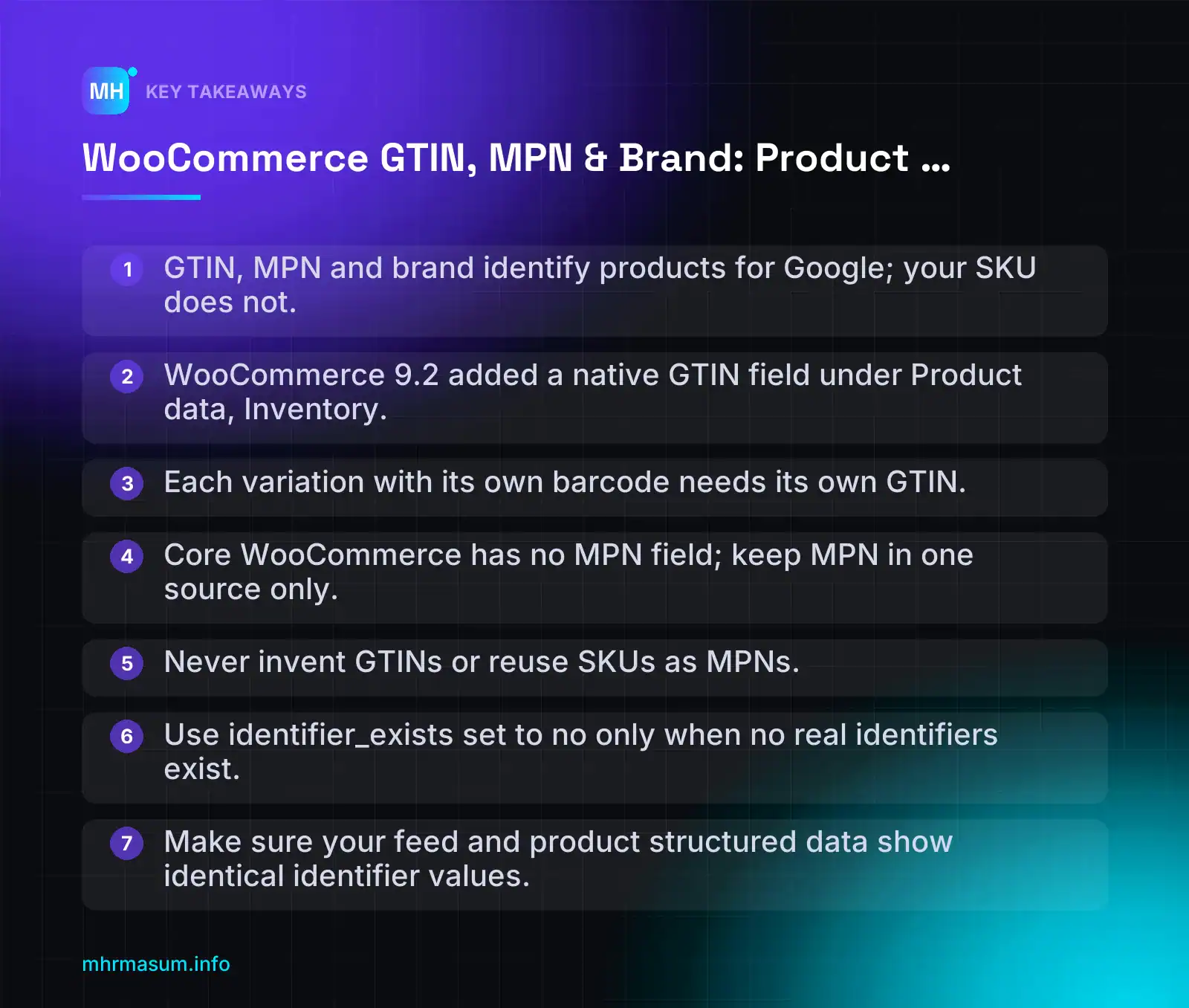
Key Takeaways
- GTIN, MPN and brand identify products for Google; your SKU does not.
- WooCommerce 9.2 added a native GTIN field under Product data, Inventory.
- Each variation with its own barcode needs its own GTIN.
- Core WooCommerce has no MPN field; keep MPN in one source only.
- Never invent GTINs or reuse SKUs as MPNs.
- Use identifier_exists set to no only when no real identifiers exist.
- Make sure your feed and product structured data show identical identifier values.
What GTIN, MPN and Brand Mean (and Why a SKU Is Not One of Them)
Product identifiers tell Google exactly which item you sell. Three of them matter for Shopping: GTIN, MPN and brand. A fourth code, the SKU, is often confused with them, but it does a different job.
The key difference is who assigns the code.
- GTIN (Global Trade Item Number) is issued through GS1. The manufacturer or brand owner licenses a GS1 company prefix and assigns a GTIN to each product.
- MPN (Manufacturer Part Number) is set by the manufacturer for its own catalogue. It is not globally unique on its own.
- Brand is the name of the brand that makes or markets the product.
- SKU is your internal stock code. You create it, and no one outside your business uses it.
| Identifier | Who assigns it | Typical length | Example format | Merchant Center attribute | schema.org property |
|---|---|---|---|---|---|
| GTIN (UPC, EAN, ISBN, GTIN-14) | Manufacturer, using a GS1 prefix | 8, 12, 13 or 14 digits | 5012345678900 | gtin |
gtin, or gtin8, gtin12, gtin13, gtin14 |
| MPN | Manufacturer | Varies (letters, digits, dashes) | AB-2045-BLK | mpn |
mpn |
| Brand | Brand owner | Up to 70 characters in Merchant Center | Acme Outdoor | brand |
brand (a Brand object with name) |
| SKU | You (the retailer) | Whatever you choose | ACM-TENT-2P-GRN | None. Often used as id |
sku |
The example values above only show the format. They are not real products.
GTIN formats: UPC, EAN, ISBN, GTIN-14
“GTIN” is the family name. The barcode on a product is one member of that family:
- UPC (GTIN-12): 12 digits. Mostly used in North America.
- EAN (GTIN-13): 13 digits. Used in Europe, the UK, Australia, Bangladesh and much of the rest of the world.
- EAN-8 (GTIN-8): 8 digits, for very small packaging.
- ISBN: books. Use the 13-digit form that starts with 978 or 979. It counts as a GTIN in Merchant Center (Google Merchant Center Help).
- GTIN-14: 14 digits. Usually found on cases and multipacks rather than single retail units.
The last digit of every GTIN is a check digit calculated from the other digits. If one digit is mistyped, the check digit fails and Google treats the value as invalid (Google Merchant Center Help).
GTIN-8   96385074
GTIN-12  012345678905     (UPC-A)
GTIN-13  5012345678900    (EAN-13)
ISBN-13  9781234567897
GTIN-14  10012345678902   (outer case)
MPN and brand as a pair
An MPN only makes sense next to the brand that issued it. Two manufacturers can both use “X100”. Brand plus MPN together is what identifies the item.
Only send MPNs the manufacturer assigned. Do not make one up or reuse your SKU as an MPN (Google Ads Help).
SKU vs GTIN
Your SKU is useful for stock control, and WooCommerce uses it to match rows during CSV imports. It is not a product identifier for Google, because it means nothing outside your store.
“I can put my SKU in the GTIN field.”
You can’t. A SKU in the GTIN field will usually fail the length or check-digit test, or it will clash with a real product’s GTIN. Either way, it is a common cause of identifier disapprovals.
Since WooCommerce 9.2, the native “GTIN, UPC, EAN, or ISBN” field must also be unique across your store, just like the SKU field. So the field cannot work as a second SKU box. If a product has no real GTIN, leave the field empty.
Why Identifiers Matter for Google Shopping and Product Search
Google lists the same product for thousands of retailers. Identifiers let it work out that your listing and everyone else’s listing are the same item.
Identifiers match you to the right catalogue item
When your feed reaches Merchant Center, Google uses the GTIN, or the brand and MPN pair, to link your offer to the product it already knows about. That match lets Google show your offer next to the correct specs, images and reviews.
If the identifiers are missing or wrong, Google may:
- match your offer to the wrong product
- not match it at all
- flag it with an identifier issue such as “Incorrect product identifier”
Offers without accurate identifiers stay disapproved until you fix them (Google Merchant Center Help). For the full diagnosis workflow, see WooCommerce Merchant Center Diagnostics: Fix Disapprovals.
What free listings require
Google’s free listings rules are conditional. Each identifier is required only when it applies to the product (Google Merchant Center Help):
| Attribute | Required when… | Typical WooCommerce example |
|---|---|---|
brand |
The product has a clear brand | Branded headphones you resell |
gtin |
The manufacturer assigned a GTIN | Anything with a retail barcode |
mpn |
There is no GTIN | Spare parts from a manufacturer that doesn’t use barcodes |
Some products really have no identifiers, such as handmade items or custom prints. Those need identifier_exists set to no instead of invented codes. Section 4 explains when to use it.
Strong identifiers and the Shopping knowledge panel
Google describes a GTIN, or an MPN with a brand, as a strong identifier. Products with strong identifiers can appear in the Shopping knowledge panel, where Google groups offers for the same item (Google Merchant Center Help).
Google does not publish a guaranteed visibility gain for this. In practice, if you don’t match the catalogue item, you can’t be grouped with it.
Structured data backs up the feed
Your product page and your feed should say the same thing. Google’s merchant listing structured data documentation lists brand.name, the gtin properties and mpn as recommended Product properties.
Product structured data must also follow two rules (Google Merchant Center Help):
- GTINs must have the correct length and a valid check digit.
- Brand goes inside a Brand object.
{
  "@context": "https://schema.org",
  "@type": "Product",
  "name": "Acme Two-Person Tent, Green",
  "sku": "ACM-TENT-2P-GRN",
  "gtin13": "5012345678900",
  "mpn": "AB-2045-GRN",
  "brand": { "@type": "Brand", "name": "Acme Outdoor" }
}
If the page says one GTIN and the feed says another, you create a mismatch that Merchant Center can flag. Section 9 shows how WooCommerce outputs these values and what to check in your installed version.
Accurate identifiers matter most just before peak trading, when disapprovals cost the most. If you are preparing sale pages as well, pair this with Black Friday SEO for WooCommerce. If you are still on an older Google connection, check the Content API to Merchant API migration guide too.
Where Identifiers Live in WooCommerce Today
Before you add or import anything, you need to know where each identifier is stored. WooCommerce core now handles GTIN and brand natively, but not MPN. That gap is where most data conflicts start.
The core GTIN, UPC, EAN, or ISBN field
WooCommerce 9.2 (August 2024) added a native identifier field (WordPress.org support forum). You will find it here:
- Go to Products and open a product.
- Scroll to the Product data box.
- Open the Inventory tab.
- Look for the field labelled GTIN, UPC, EAN, or ISBN.
On variable products, each variation has its own copy of the field. Go to Product data > Variations, expand a variation and enter its code. Each size or colour that has its own barcode needs its own GTIN.
The value is stored as post meta under the key _global_unique_id. Like a SKU, it must be unique across the store, so WooCommerce will not let two products or variations share the same value (AdTribes).
To check what is actually saved for a product or variation, you can use WP-CLI:
wp post meta get 123 _global_unique_idReplace 123 with the product or variation ID.
Core Brands taxonomy
Brands became a core product_brand taxonomy in WooCommerce 9.4, and it has been switched on by default since 9.6 (LearnWoo).
- Manage brands under Products > Brands.
- Assign a brand in the Brands box on the product edit screen.
- Use the exact brand name the manufacturer uses. Do not create “Nike” and “NIKE” as separate terms.
If you used an older brands plugin or a “Brand” attribute, you may now have brand data in two places. Pick the core taxonomy and retire the rest, then check which source your feed plugin reads.
Where MPN comes from
Core WooCommerce has no MPN field. You have three realistic options:
| Option | Good for | Watch out for |
|---|---|---|
| Custom product attribute (e.g. a global “MPN” attribute) | Stores with no feed plugin | Shows on the product page unless you untick “Visible on the product page”. Awkward for per-variation values. |
| Google for WooCommerce product fields | Stores syncing to Merchant Center with that extension | Field names and locations change between versions. Check the current UI. |
| Feed or SEO plugin fields | Stores already using a feed plugin for several channels | Each plugin stores the value under its own meta key. |
My default is the MPN field in whichever tool generates your Merchant Center feed. That is where MPN is actually used, and those tools usually support per-variation values. I only use a custom attribute when there is no feed plugin at all.
Whatever you choose, keep one source of truth. If MPN lives in an attribute and a plugin field, they will drift apart, and you won’t know which one Google received.
Older GTIN values from Google for WooCommerce
Before WooCommerce 9.2, many stores entered GTINs in Google for WooCommerce’s own field. Newer versions of the extension include a background migration (a migrate_gtin job) intended to move those values into the core field.
Verify this on your own site before relying on it. Go to WooCommerce > Status > Scheduled Actions, search for migrate_gtin, and confirm the actions completed. Then spot-check a few products to make sure the core field holds the right value.
Decide Which Identifiers Each Product Needs (and When to Use identifier_exists)
Not every product has a GTIN, and that is fine. The goal is to send the identifiers the product genuinely has, and to tell Google honestly when it has none. That is the job of the identifier_exists attribute.
Google’s rules in plain terms
- If you leave
identifier_existsout, Google treats it as “yes”. - Set it to
no(orfalse) only for new products that have no assigned identifiers. - Even when it is set to
no, still send any identifiers you do have, such as brand. - Typical “no” cases: media without a GTIN (an ISBN counts as a GTIN), apparel with no brand, and any product with no GTIN and no MPN + brand pair.
Source: Google Merchant Center Help and Google Ads Help.
For free listings, brand is required where the product has a clear brand, GTIN is required where the manufacturer assigned one, and MPN is required where there is no GTIN (Google Merchant Center Help). Only send MPNs the manufacturer assigned, never your own SKU.
Decision table
| Product type | gtin | brand | mpn | identifier_exists |
|---|---|---|---|---|
| Branded item you resell | Yes, the manufacturer’s GTIN | Yes, the manufacturer’s brand | Send if known | Omit (defaults to yes) |
| Own brand with GS1 GTINs | Yes, your GS1-issued GTIN | Yes, your brand | Optional, if you assign part numbers as the manufacturer | Omit |
| Private label, brand + manufacturer MPN, no GTIN | No | Yes | Yes | Omit (MPN + brand pair exists) |
| Private label, brand only, no GTIN or MPN | No | Yes | No | no |
| Handmade or custom-made | No | Your shop brand if you market under it | Usually no | no |
| Books and media with ISBN or barcode | Yes, ISBN or other GTIN | Publisher or label where relevant | Not needed | Omit |
| Books and media without a GTIN | No | If clear | No | no |
| Apparel with no brand | No | No | No | no |
| Bundle you assemble yourself | No GTIN of its own. Never invent one. | Main item’s brand | Main item’s MPN if relevant | Check Google’s current bundle guidance (is_bundle) in Merchant Center Help |
| Manufacturer-made bundle or gift set | Yes, the set’s own GTIN | Yes | If known | Omit |
The mistake that causes disapprovals
“If I set identifier_exists to no, Google stops asking for GTINs and my warnings go away.”
Not true. If you set no but Google finds evidence that the product has a GTIN, you get a warning (Google Merchant Center Help). For an “Incorrect product identifier” issue, the fix is to add the correct GTIN and set identifier_exists to true. Offers stay disapproved until the identifiers are accurate (Google Merchant Center Help).
Never use no as a blanket setting across the whole catalogue. Set it per product, based on the table above. If you are already seeing these errors, my guide to WooCommerce Merchant Center diagnostics walks through the fixes.
Example feed entries
A branded resale item. Note there is no identifier_exists line, because the default is yes:
<item>
  <g:id>SKU-1042</g:id>
  <g:brand>ExampleBrand</g:brand>
  <g:gtin>05012345678900</g:gtin>
  <g:mpn>EB-200-BLK</g:mpn>
</item>
An own-brand handmade item with no GTIN or MPN. The brand is still sent:
<item>
  <g:id>HM-0077</g:id>
  <g:brand>Your Shop Name</g:brand>
  <g:identifier_exists>no</g:identifier_exists>
</item>
The GTIN above is a placeholder, so always use the real barcode from the product or supplier. If your feed reaches Google through the API rather than an XML file, the same logic applies. See my Merchant API migration guide for how attributes map there.
If you would rather have someone classify a large catalogue for you before the holiday rush, you can book a free consultation.
How to Add GTIN, MPN and Brand to a Single Product
Start with one product before you touch a spreadsheet. A single, correct product shows you exactly where each value is stored, and that tells you what to map later in a bulk import.
Where to get the identifiers
- GTIN: the barcode number on the retail packaging, the supplier’s spec sheet or price file, or the manufacturer’s product data.
- MPN: the manufacturer’s part or model number, usually found on the spec sheet or the manufacturer’s website. Only use an MPN the manufacturer assigned (Google Merchant Center Help). Your own SKU is not an MPN.
- Brand: the brand printed on the product, not your shop name. The exception is products you make yourself, which section 8 covers.
Never make up a GTIN or borrow one from a similar product. Google checks GTINs against global product data. A made-up or mismatched number causes more trouble than leaving the field empty.
Step-by-step for a simple product
- Go to Products > All Products and open the product.
- In the Product data box, open the Inventory tab.
- Enter the barcode number in GTIN, UPC, EAN, or ISBN. Use digits only.
- In the right-hand sidebar, find the Brands box and tick the correct brand. If it isn’t listed, add it under Products > Brands first so you don’t create near-duplicates such as “Bosch” and “BOSCH”.
- Add the MPN in the place you chose in section 3. Core WooCommerce has no MPN field, so the common options are:
- a custom product attribute called MPN (Product data > Attributes)
- the attribute fields that Google for WooCommerce adds to the product edit screen
- a field provided by your feed or SEO plugin
Pick one source and stick to it. Field labels change between plugin versions, so check the screen in your installed version.
- Click Update. Because the GTIN field must be unique, like a SKU (WordPress.org support forum), WooCommerce will refuse a value that another product or variation already uses.
- Open the live product page, view the source (Ctrl+U or Cmd+Option+U) and search for
gtin,mpnandbrandin the JSON-LD block.
The output in step 7 depends on your WooCommerce version and SEO plugin. Some reports say core schema leaves brand out unless you add a filter. Don’t panic if one value is missing. Section 9 explains how to check the output and fix it.
Check the GTIN before you save
| Format | Digits | Typical source |
|---|---|---|
| GTIN-8 (EAN-8) | 8 | Small packs |
| GTIN-12 (UPC-A) | 12 | North American products |
| GTIN-13 (EAN-13, ISBN-13) | 13 | Europe, Australia, Asia, books |
| GTIN-14 | 14 | Cases and multipacks |
- Keep leading zeros.
012345678905and12345678905are different numbers, and the second one is invalid. - Digits only. Remove spaces, hyphens and any “EAN:” prefix you copied from a spec sheet.
- Length must be 8, 12, 13 or 14. A 10-digit ISBN is the old format, so use the 13-digit ISBN printed above the book’s barcode.
- The last digit is a check digit. Google expects a valid check digit in structured data (Google Merchant Center Help), so a single typo makes the whole code invalid.
Bulk-Import Identifiers With the WooCommerce 11.2 CSV Importer
Typing identifiers in one at a time doesn’t scale past a few dozen products. WooCommerce 11.2.0, released on 7 October 2026, made the built-in CSV importer much more useful for this job (WooCommerce 11.2.0 release notes).
How GTIN matching works
When Update existing products is ticked, the importer now matches a row to a product in this order:
- ID
- SKU
- GTIN, UPC, EAN, or ISBN (the Global Unique ID), used only when the row has no ID and no SKU
If the box is not ticked, no matching happens and the importer treats rows as new products.
This means a supplier price file that only contains barcodes can update your catalogue directly, without a VLOOKUP to add your SKUs first. 11.2 also changed import cleanup. It now removes only that import’s temporary placeholder products and no longer runs site-wide orphan deletes (WooCommerce.com).
| ID cell | SKU cell | GTIN cell | What happens |
|---|---|---|---|
| Valid | Any | Any | Matched by ID |
| Empty | Valid | Any | Matched by SKU |
| Empty | Empty | Valid | Matched by GTIN |
| Empty | Filled but matches nothing | Valid | Reportedly no GTIN fallback, so test this on staging |
The last row comes from third-party reports (LearnWoo). If an ID or SKU cell holds any value, that value is used, even when it matches no product. If you want to match by GTIN, delete the ID and SKU columns entirely. Don’t just leave stale values in them.
Step-by-step import
- Update to WooCommerce 11.2.1 or later. 11.2.1 (9 October 2026) fixed two checkout regressions from 11.2.0 (WooCommerce developer blog).
- Take a full backup. 11.2 includes a database update (pre-release notes).
- Export the catalogue from Products > All Products > Export so you can see the exact column headers your store uses.
- Edit the file. Keep only the identifier column and the fields you are changing.
- Run the import on a staging copy first: Products > All Products > Import, choose the file and tick Update existing products.
- On the mapping screen, check the identifier column. It may default to “Do not import”, and an unmapped column is skipped without any warning. Map it to GTIN, UPC, EAN, or ISBN.
- Run the import, then open the import log and read every skipped or failed row.
- Spot-check five to ten products in the admin and on the front end. Include a product whose GTIN starts with zero.
- Repeat the import on the live site.
Here is a supplier price update keyed only by GTIN. The ID and SKU columns are left out entirely:
"GTIN, UPC, EAN, or ISBN","Regular price","Sale price","Stock"
5012345678900,49.00,39.00,120
0012345678905,18.50,,64
96385074,7.25,,300
The header needs quotes because it contains commas. These GTINs are illustrative only. Use the numbers from your supplier.
If you are preparing a sale, run this well before the rush. Price and stock changes still need to reach Merchant Center. See the Black Friday SEO guide for WooCommerce.
Spreadsheet traps
- Excel deletes leading zeros.
0012345678905becomes12345678905. Format the column as Text before you paste, or use Data > From Text/CSV and set the column type to Text. - Scientific notation. Excel can display long codes as
5.01235E+12and save them that way, which destroys the number. Formatting the column as Text prevents this. - Hidden spaces. Supplier files often contain trailing spaces. Use
=TRIM()or find and replace. - Duplicate GTINs are rejected. The field must be unique, so a duplicated row fails. The import log will name it. Check whether it is a genuine duplicate or a variation that inherited the parent’s code (see section 7).
- Save as CSV UTF-8. This keeps brand names with accents intact.
After a large import, watch Merchant Center for new identifier warnings. The Merchant Center diagnostics guide explains how to read them. If you’d like a second pair of eyes on your catalogue first, book a free consultation.
GTINs on Variable Products
Variable products cause more identifier errors than any other product type. A t-shirt in four sizes and three colours is twelve different items to Google, and each one that has its own barcode needs its own GTIN.
Put the GTIN on the variation, not the parent
The native GTIN, UPC, EAN, or ISBN field works on each variation as well as on simple products (WordPress.org support forum). To add it:
- Open the product and go to Product data > Variations.
- Expand a variation, for example “Blue / Medium”.
- Enter the barcode from that size and colour’s packaging in the GTIN, UPC, EAN, or ISBN field.
- Repeat for every variation, then click Save changes.
The field must be unique, like a SKU. If WooCommerce rejects a value, another product or the parent may already hold that GTIN. Search your products for the number before you overwrite anything.
The parent usually has no GTIN
The parent product is a container. You don’t buy “the t-shirt”. You buy a specific size and colour. Leave the parent’s GTIN field empty unless the manufacturer really assigned a barcode to the whole product, which is rare.
| Field | Parent (variable product) | Each variation |
|---|---|---|
| GTIN | Usually empty | The barcode for that exact size or colour |
| MPN | Only if the manufacturer uses one number for all versions | The manufacturer’s part number for that version, if one exists |
| Brand | Set once via the Brands taxonomy | Carried down by the feed |
| SKU | Optional, internal | Recommended, internal (not an identifier for Google) |
Check that your feed plugin isn’t copying the parent GTIN
Some feed plugins can make variations inherit the parent’s GTIN (AdTribes). If the parent holds a GTIN, every variation could be sent with the same number. Google then sees twelve different items claiming to be one barcode.
Open your feed preview or the generated XML/CSV file and look at the variation rows:
WRONG (parent GTIN inherited)
id        title                      gtin
TS-BL-S   Tee – Blue / Small         5012345678900
TS-BL-M   Tee – Blue / Medium        5012345678900
TS-BL-L   Tee – Blue / Large         5012345678900

RIGHT (each variation has its own GTIN)
id        title                      gtin
TS-BL-S   Tee – Blue / Small         5012345678917
TS-BL-M   Tee – Blue / Medium        5012345678924
TS-BL-L   Tee – Blue / Large         5012345678931
If you see repeated GTINs, check the plugin’s GTIN field mapping and any “use parent value” or fallback option. Plugin menus change between versions, so confirm the setting in your installed version rather than relying on old screenshots.
Brand: set once, confirm it reaches every variation
Brands are assigned to the parent product through the core product_brand taxonomy. Variations don’t get their own brand term. The feed has to carry the parent’s brand down to each variation row. Most feed tools do this, but check the preview. An empty brand column on variation rows is a common cause of “Missing value [brand]” warnings.
Bulk-updating variation GTINs
If you use the WooCommerce 11.2 CSV importer for variations, remember that it matches on ID first, then SKU, then GTIN. A row with a stale SKU in the cell won’t fall back to GTIN matching, according to third-party reports. Test a few variation rows on staging first.
How variations are grouped in Merchant Center (item_group_id) and how variant schema is structured are covered in our separate guide to product variants. This section deals only with the identifiers themselves.
Private-Label and Own-Brand Products
If you sell products under your own brand, you are the manufacturer as far as Google is concerned. That means you are responsible for assigning identifiers, and the rules are different from reselling someone else’s goods.
Get a GS1 company prefix if you sell widely
Own-brand manufacturers need a GS1 company prefix to create legitimate GTINs (AdTribes). This applies if you sell through Google Shopping, marketplaces or retailers that require barcodes.
Avoid cheap resold UPCs. These are numbers originally licensed to another company. When Google checks the GTIN against barcode data, it may find a different brand or product, and you get a GTIN mismatch (AdTribes).
GS1 is organised by country (GS1 UK, GS1 US, GS1 Australia, GS1 Bangladesh). Check fees and licence terms with your local GS1 office. They differ by region and change over time.
Use exactly the same brand name everywhere
Google compares the brand across your feed, your product page, your structured data and its own understanding of the product. Small differences make your data look inconsistent.
| Place | Consistent | Inconsistent |
|---|---|---|
| Packaging | Northleaf | Northleaf |
| Brands taxonomy (Products > Brands) | Northleaf | NorthLeaf Co. |
Feed brand |
Northleaf | Northleaf Store |
Schema brand.name |
Northleaf | northleaf.com.au |
Pick one spelling and capitalisation and use it everywhere. Brand can be up to 70 characters (Google Merchant Center Help), but short and exact is better.
Only send an MPN if it’s a real part number
Google asks you to send only MPNs the manufacturer assigned (Google Merchant Center Help). As the manufacturer, you can assign one. That only counts if it’s a real, stable part number that appears on your packaging, spec sheets or wholesale catalogue.
Copying your store SKU into the MPN field to clear a warning is not a fix. It is invented data.
No GTIN and no MPN: brand plus identifier_exists=no
Many small own-brand products, such as handmade goods, small-batch cosmetics or custom prints, have neither. In that case:
- Send
brandwith your own brand name. - Leave
gtinandmpnempty. - Set
identifier_existstono.
id: NL-CANDLE-CEDAR
title: Northleaf Cedar & Sage Soy Candle 200g
brand: Northleaf
gtin:
mpn:
identifier_exists: no
Google allows no for products in categories with no GTIN and no MPN+brand pair (Google Merchant Center Help). Use it only when the product genuinely has no assigned identifiers. If Google finds evidence of a GTIN, the product gets a warning. If you later register GTINs, add them and remove the no.
Don’t use your store name as the brand for third-party products
“It’s my shop, so I can put my store name as the brand on everything.”
No. The brand is whoever makes the product. If you sell Bosch drills and your own-label drill bits, the drills get “Bosch” and only the drill bits get your brand. Putting your store name on third-party products conflicts with the real GTIN data and can lead to identifier disapprovals.
If you are already seeing these errors, our WooCommerce Merchant Center diagnostics guide shows how to find and fix them. If you’d like a second pair of eyes on a mixed own-brand and resale catalogue, you can book a free consultation.
How Identifiers Carry Through to Product Schema and Merchant Center
Adding a GTIN in WooCommerce is only half the job. That value has to reach two places: the Product structured data on your product page and the product feed Google reads in Merchant Center.
If either one is missing or different, Google sees conflicting signals about the same item.
What core WooCommerce outputs
WooCommerce builds its Product JSON-LD in the WC_Structured_Data class. Third-party analysis reports that core takes the Global Unique ID, removes any non-digit characters, and outputs gtin only if the result is 8, 12, 13 or 14 digits long (Anglera).
The same source reports that core Brands are not added to the schema automatically, and core has no MPN field at all.
Treat this as something to verify, not a fact. Schema output changes between releases. To check your own store:
- Open a product page that has a GTIN and a brand assigned.
- Run it through the Rich Results Test.
- Expand the detected Product item and look for
gtin,brandandmpn. - If you want to be certain, read
includes/class-wc-structured-data.phpin your installed version.
Google’s own guidance says structured data GTINs must be the right length with a valid check digit, and brand belongs in brand.name inside a Brand object (Google Merchant Center Help). For the current list of supported Product properties, check Google’s merchant listing structured data documentation.
This is the shape you are aiming for:
{
  "@context": "https://schema.org/",
  "@type": "Product",
  "name": "Trail Runner 2 – Blue / UK 9",
  "sku": "TR2-BLU-09",
  "gtin": "012345678905",
  "mpn": "TR2-4471-BL",
  "brand": {
    "@type": "Brand",
    "name": "Northpeak"
  },
  "offers": {
    "@type": "Offer",
    "price": "89.00",
    "priceCurrency": "GBP",
    "availability": "https://schema.org/InStock"
  }
}
Note that sku and gtin are separate properties. Your SKU is your internal code; it never goes in the gtin property.
Adding brand and MPN to schema
If your test shows brand or MPN missing, you can add them with the woocommerce_structured_data_product filter. The example below reads the first term from the core product_brand taxonomy and an MPN from a custom meta key.
Test this on staging first. Replace _mpn with whatever key your MPN plugin or attribute actually uses, and check that your SEO plugin isn’t already outputting a second Product block.
<?php
// Test on staging. Adds brand and MPN to WooCommerce Product schema.
add_filter( 'woocommerce_structured_data_product', function ( $markup, $product ) {

    // Brand from the core product_brand taxonomy (only if not already set).
    if ( empty( $markup['brand'] ) ) {
        $terms = get_the_terms( $product->get_id(), 'product_brand' );
        if ( ! empty( $terms ) && ! is_wp_error( $terms ) ) {
            $markup['brand'] = array(
                '@type' => 'Brand',
                'name'  => $terms[0]->name,
            );
        }
    }

    // MPN from a custom meta key. Change '_mpn' to match your setup.
    $mpn = $product->get_meta( '_mpn' );
    if ( ! empty( $mpn ) ) {
        $markup['mpn'] = sanitize_text_field( $mpn );
    }

    return $markup;
}, 10, 2 );
Add it with a code snippets plugin or a small custom plugin, not your parent theme’s functions.php, so updates don’t wipe it.
Feed mapping and Final attributes
Your feed plugin, whether Google for WooCommerce or a third-party feed tool, needs each identifier mapped to the right source. Check the plugin’s current attribute-mapping screen, because field names change between versions.
| Feed attribute | Map it from | Notes |
|---|---|---|
gtin |
The native GTIN, UPC, EAN, or ISBN field (_global_unique_id) |
Map at variation level for variable products. |
brand |
The core Brands taxonomy | Up to 70 characters (Google Help). |
mpn |
Your chosen attribute or meta field | Only manufacturer-assigned MPNs. |
identifier_exists |
Calculated by the plugin, or set per product | Use no only for products with no assigned identifiers. |
Then confirm what Google actually received. In Merchant Center, go to Products, open a single product, and review the final attributes Google is using. Compare the GTIN, brand and MPN with the values in your page’s JSON-LD.
The page and the feed must match character for character. A brand of “Northpeak” in the feed and “North Peak” in schema is an avoidable mismatch.
If you are moving your feed integration because of the Content API shutdown, recheck these mappings afterwards. The Merchant API migration guide covers that switch.
Checking and Troubleshooting Identifier Problems
Identifier errors rarely announce themselves inside WooCommerce. You find them in Google’s tools, usually after products have already been limited or disapproved.
This section covers identifier issues only. For shipping, pricing, policy and other disapprovals, use the WooCommerce Merchant Center diagnostics guide.
Where to look
| Tool | What it tells you | How to use it |
|---|---|---|
| Rich Results Test | Whether one page outputs gtin, mpn and brand correctly | Test a simple product and a variable product. Check every identifier property. |
| Search Console > Merchant listings report | Structured data errors and warnings across all product pages | Open each issue, review example URLs, fix, then click Validate fix. |
| Merchant Center > Products > issues | Feed-level identifier problems and affected products | Filter by issue, then download the product list as a CSV to work through in a spreadsheet. |
| WooCommerce CSV import results and log | Rows that were skipped or failed during a bulk identifier import | Review the results screen after every import. Don’t assume a “done” message means every row updated. |
After a bulk import, spot-check a few products manually. Third-party reports suggest that if a row’s ID or SKU cell has any value, that value wins even if it matches nothing, and the importer won’t fall back to the GTIN. An unmapped identifier column, left on “Do not import”, is also skipped silently (LearnWoo). Test this on staging, and make sure you are on WooCommerce 11.2.1 or later.
Fixing “Incorrect product identifier”
This issue means Google believes the identifier you sent is wrong or missing for that product. The fix is direct: add the correct GTIN and set identifier_exists to true. Offers without accurate identifiers stay disapproved until you fix them (Google Merchant Center Help).
- Download the affected products from Merchant Center as a CSV.
- Find the real barcode on each product’s packaging or in your supplier’s data sheet.
- Enter it in the GTIN, UPC, EAN, or ISBN field on the product or variation.
- Remove any
identifier_exists = nooverride for those products. - Resync the feed and recheck the final attributes in Merchant Center.
“If Google keeps complaining about GTINs, just set identifier_exists to no for the whole catalogue.”
This makes things worse. Google’s guidance is to use no only for products that genuinely have no assigned identifiers, and if Google finds evidence of a GTIN for a product marked no, that product gets a warning (Google Merchant Center Help).
Common identifier mistakes
| Mistake | What happens | Fix |
|---|---|---|
| SKU entered in the GTIN field | Invalid length or check digit, or a GTIN that belongs to another product | Keep SKUs in the SKU field. Only real barcodes go in GTIN. |
| Leading zeros lost in a spreadsheet | 012345678905 becomes 12345678905, an 11-digit invalid value |
Format the column as Text before pasting. Re-import affected rows. |
| Invalid check digit | Rejected in the feed and in structured data | Verify with the GS1 check digit calculator, then correct the source data. |
| Made-up MPN | Misleading identifier that doesn’t match the manufacturer’s records | Send only manufacturer-assigned MPNs. Leave it blank otherwise. |
| Inconsistent brand spelling | “Northpeak”, “NorthPeak” and “North Peak” look like three brands | Merge duplicate terms under Products > Brands and use one spelling. |
Blanket identifier_exists = no |
Warnings on products that do have GTINs | Set it per product, only where no identifiers exist. |
| Parent GTIN on every variation | Duplicate GTINs across sizes and colours | Enter a unique GTIN on each variation and check the feed plugin isn’t inheriting the parent’s value. |
Work through issues in order of revenue: fix your best-selling products first, then clear the long tail.
If you want a second pair of eyes on a feed with hundreds of identifier errors, you can book a free consultation and we can go through the Merchant Center export together.
Pre-Holiday Identifier Audit and Advanced Tips
Peak season is when you push the most feed updates: new prices, sale dates, stock changes and new products. Fix identifier problems before those updates start, because one bad import can disapprove hundreds of offers at the worst possible time.
Run this audit at least two weeks before your first big promotion. If you are also building sale pages, pair it with the Black Friday SEO for WooCommerce guide.
Pre-season identifier checklist
| Check | Why it matters | How to check |
|---|---|---|
| WooCommerce is on 11.2.1 or later | 11.2.0 had two checkout regressions that were fixed in 11.2.1 (WooCommerce Developer Blog) | Dashboard > Updates, or Plugins > Installed Plugins |
| Full backup taken | 11.2 includes a database update (release notes) | Host snapshot plus a database export |
| No missing GTINs on branded products | Free listings need a GTIN where the manufacturer assigned one (Google Merchant Center Help) | SQL or WP-CLI query below |
| GTINs are the right length and pass the check digit | Google requires the correct length and a valid check digit (Google Merchant Center Help) | Validation query and check-digit test below |
| Variations have their own GTINs | Some feed plugins let variations inherit the parent’s GTIN (AdTribes) | Compare variation GTINs in the feed preview |
| Brand set and 70 characters or fewer | Brand is required where a product has a clear brand, with a 70-character limit (Google Help) | Products > Brands; filter the product list by brand |
| MPNs are manufacturer-assigned | Google says to send only MPNs the manufacturer assigned | Spot-check against supplier or manufacturer data |
identifier_exists set to no only where correct |
A “no” on a product Google links to a GTIN triggers a warning (Google Merchant Center Help) | Filter the feed for identifier_exists = no |
| Schema GTIN matches feed GTIN | Conflicting values send mixed signals | Rich Results Test against the feed value for 10 sample products |
| Merchant Center diagnostics are clear | Disapproved offers stay disapproved until fixed | Merchant Center product issues view |
Find products with no GTIN (SQL)
WooCommerce stores the native GTIN field as the meta key _global_unique_id. Products and variations still live in the posts table, even with HPOS turned on for orders.
This query lists published simple products and variations with no GTIN. It skips variable parent products, because the GTIN belongs on each variation. Change the wp_ prefix if your site uses a different one.
SELECT p.ID, p.post_type, p.post_title, sku.meta_value AS sku
FROM wp_posts p
LEFT JOIN wp_postmeta g
  ON g.post_id = p.ID AND g.meta_key = '_global_unique_id'
LEFT JOIN wp_postmeta sku
  ON sku.post_id = p.ID AND sku.meta_key = '_sku'
WHERE p.post_type IN ('product', 'product_variation')
  AND p.post_status = 'publish'
  AND (g.meta_value IS NULL OR g.meta_value = '')
  AND p.ID NOT IN (
    SELECT tr.object_id
    FROM wp_term_relationships tr
    JOIN wp_term_taxonomy tt ON tt.term_taxonomy_id = tr.term_taxonomy_id
    JOIN wp_terms t ON t.term_id = tt.term_id
    WHERE tt.taxonomy = 'product_type' AND t.slug = 'variable'
  )
ORDER BY p.post_type, p.post_title;
You can run it from the command line with WP-CLI. The wp db query command uses the credentials in wp-config.php:
wp db query "SELECT ... (paste the query above)" > missing-gtin.tsvFor a quick count without SQL, this WP-CLI command finds items where the meta key does not exist at all. Note that it misses rows where the key exists but is empty, so the SQL version is more complete.
wp post list --post_type=product,product_variation --post_status=publish \
  --meta_key=_global_unique_id --meta_compare='NOT EXISTS' \
  --fields=ID,post_title,post_type --format=csv
Not every result is a problem. Own-brand items, handmade goods and custom products may correctly have no GTIN. Mark those for identifier_exists review rather than inventing a number.
Find GTINs with the wrong format
This query flags values that contain non-digits or are not 8, 12, 13 or 14 digits long:
SELECT post_id, meta_value
FROM wp_postmeta
WHERE meta_key = '_global_unique_id'
  AND meta_value <> ''
  AND (meta_value NOT REGEXP '^[0-9]+$'
       OR CHAR_LENGTH(meta_value) NOT IN (8, 12, 13, 14));
If core schema strips non-digits and drops any GTIN of the wrong length, as third-party analysis reports, these products may be outputting no GTIN at all in your structured data. Confirm the behaviour in the WC_Structured_Data class of your installed version.
How the GTIN check digit works (mod 10)
“If the GTIN has the right number of digits, Google will accept it.”
Not true. The last digit of every GTIN is a check digit calculated from the others. A single typo usually breaks the check digit, and Google requires a valid one.
The rule works the same for GTIN-8, 12, 13 and 14:
- Remove the last digit (the check digit).
- Starting from the right, multiply the digits by 3, 1, 3, 1 and so on.
- Add up the results.
- The check digit is the number needed to reach the next multiple of 10. If the sum is already a multiple of 10, the check digit is 0.
Worked example with the EAN-13 4006381333931:
| Digit (right to left, excluding check digit) | 3 | 9 | 3 | 3 | 3 | 1 | 8 | 3 | 6 | 0 | 0 | 4 |
|---|---|---|---|---|---|---|---|---|---|---|---|---|
| Weight | 3 | 1 | 3 | 1 | 3 | 1 | 3 | 1 | 3 | 1 | 3 | 1 |
| Result | 9 | 9 | 9 | 3 | 9 | 1 | 24 | 3 | 18 | 0 | 0 | 4 |
The sum is 89. The next multiple of 10 is 90, so the check digit is 1. That matches the last digit, so the GTIN is valid.
Here is the same logic in PHP for a custom audit script:
function mhr_gtin_is_valid( $gtin ) {
    if ( ! preg_match( '/^(\d{8}|\d{12}|\d{13}|\d{14})$/', $gtin ) ) {
        return false;
    }
    $digits = str_split( $gtin );
    $check  = (int) array_pop( $digits );
    $sum    = 0;
    foreach ( array_reverse( $digits ) as $i => $d ) {
        $sum += (int) $d * ( $i % 2 === 0 ? 3 : 1 );
    }
    return ( ( 10 - ( $sum % 10 ) ) % 10 ) === $check;
}
A valid check digit proves the number is well-formed. It does not prove the GTIN belongs to your product. Resold UPCs bought from third parties can pass the check and still cause mismatches in Merchant Center.
Watch for spreadsheet damage
- Leading zeros: spreadsheet apps often treat a UPC like
012345678905as a number and drop the zero. Format the GTIN column as text before pasting. - Scientific notation: long numbers can display as
4.00638E+12and save that way. Check the raw CSV in a text editor. - Hidden spaces: trailing spaces fail the format query above. Trim the column before import.
Use supplier files keyed by GTIN for price and stock updates
Many suppliers send price and stock files keyed by barcode, not by your SKU. Since WooCommerce 11.2, the CSV importer can match existing products by GTIN, UPC, EAN or ISBN when “Update existing products” is ticked and a row has no ID or SKU. It checks ID first, then SKU, then the Global Unique ID (WooCommerce 11.2.0 release notes).
A safe workflow:
- Build a lean CSV with only the columns you are updating, for example GTIN, Regular price and Stock.
- Remove the ID and SKU columns entirely. Third-party reports say any value in those cells wins, even if it matches no product, and the importer does not fall back to GTIN (LearnWoo). Test this on staging.
- Go to Products > Import, choose the file and tick “Update existing products”.
- On the mapping screen, map the GTIN column to the GTIN, UPC, EAN or ISBN field. It reportedly defaults to “Do not import”, and an unmapped column is skipped without any warning.
- Run the import on staging first and compare 10–20 products before and after.
- Read the results screen for skipped and failed rows. Unmatched GTINs usually mean the barcode is missing or different in your store.
11.2 also changed import cleanup so it removes only that import’s temporary placeholder products, rather than running site-wide orphan deletes (pre-release notes). That makes repeated supplier imports safer, but a backup is still essential.
Schedule sale prices with the “Sale price dates” columns rather than overwriting regular prices. That keeps your price history clean and your feed consistent with the page.
Re-check Merchant Center after every bulk import
A bulk import changes prices, stock and sometimes identifiers in one go. Treat every import as a feed change that needs checking.
- Wait for your feed plugin or Google for WooCommerce to sync. Check its sync status rather than assuming a fixed delay.
- Open the product issues view in Merchant Center and filter for identifier and price issues.
- For “Incorrect product identifier”, add the correct GTIN and set
identifier_existsto true. These offers stay disapproved until fixed (Google Merchant Center Help). - Look for price or availability mismatches between the page and the feed. These often follow supplier imports.
- Test a few changed URLs in the Rich Results Test to confirm the schema price and GTIN match the feed.
For a full walkthrough of each issue type, use the WooCommerce Merchant Center diagnostics guide. Shipping and returns warnings often appear in the same view, and the Merchant Center shipping and returns guide covers those. If your feed connector still relies on the old Content API, check the Merchant API migration guide before peak season.
Advanced tips
- Keep one source of truth. Store GTINs in the native field, not in a plugin field as well. Two fields drift apart over time.
- Do not use
identifier_exists = noas a quick fix. Use it only for products with no assigned identifiers, and still send any identifiers you do have. - Own-brand products need a GS1 company prefix if you want real GTINs. Do not buy resold barcodes.
- Re-run the missing and invalid GTIN queries monthly, not only before the holidays. New products are where gaps creep back in.
If you want a second pair of eyes on your feed, schema and identifiers before peak season, start with a free SEO check or book a free consultation.
Frequently Asked Questions
Is a GTIN required for Google Shopping?
Only when the manufacturer has assigned one. If a product has no GTIN, Google expects the brand and manufacturer MPN instead. If neither exists, set identifier_exists to no rather than making up a code.
Where do I add a GTIN in WooCommerce?
From WooCommerce 9.2 onwards, open the product and go to Product data, then the Inventory tab, and use the GTIN, UPC, EAN, or ISBN field. For variable products, expand each variation under the Variations tab and enter its own code there.
Can I use my SKU as a GTIN or MPN?
No. A SKU is your internal stock code and means nothing outside your store. In the GTIN field it usually fails the length or check-digit test. As an MPN it breaks Google's rule that only manufacturer-assigned part numbers should be sent.
Do I need to buy barcodes for my own-brand products?
Not always. If you want GTINs as the brand owner, license a company prefix through your local GS1 organisation. If your products have no assigned identifiers, such as handmade items, you can send your brand and set identifier_exists to no.
Does WooCommerce have an MPN field?
Not in core. Most stores store MPN in their feed tool, such as Google for WooCommerce or a feed plugin, or in a custom product attribute. Pick one location and use it consistently so your feed always sends the right value.
Why does Merchant Center say my product identifier is incorrect?
Common causes include a mistyped GTIN that fails the check digit, a SKU entered as a GTIN, or a GTIN belonging to a different product. Mismatched brand names and conflicting values between your feed and page markup can also trigger it.
Should I set identifier_exists to no to avoid errors?
Only if the product genuinely has no GTIN and no brand plus MPN pair. Using it on products that do have identifiers misleads Google and can cause problems. If you leave the attribute out, Google treats it as yes.
Final Thoughts
Start with an audit. Export your products and check every GTIN for the correct length and a valid check digit. Remove any SKUs sitting in identifier fields, and confirm that each variation with its own barcode has its own GTIN.
Next, consolidate your data. Use the core GTIN field and the core Brands taxonomy, keep MPN in one place, and confirm which sources your feed plugin actually reads. If you are coming from an older Google for WooCommerce setup, check that the migrate_gtin actions have completed.
Finally, apply the decision table to each product type. Set identifier_exists to no only where it is genuinely true. Then watch Merchant Center diagnostics over the following days to confirm the identifier issues are clearing.
Want help applying this to your site? Run the free SEO check or book a free consultation with MD Harunur Rashid. Free SEO check · Book a free consultation