A visitor clicks your result, reads for a few seconds and presses back. Instead of returning to the search results, they are stuck on your page or sent somewhere they never asked to go. That is exactly what back button hijacking is, and Google now treats it as spam.
Since April 2026, Google’s spam policies name it as an explicit violation under malicious practices. Enforcement began on 15 June 2026, and on 23 November Google added a five-question FAQ that removed most of the remaining grey areas.
The awkward part for WordPress owners is that you may not have added the script yourself. Ad networks, recommendation widgets, exit popups and funnel builders can all manipulate browser history without you noticing.
Google judges what the page does, not who wrote the code. So the responsibility sits with you.
This guide explains what the policy covers, what the new FAQ changed, how hijacking works under the hood, and how to audit and fix a WordPress or WooCommerce site step by step.
It is written for small business owners, publishers, WooCommerce store owners and in-house SEOs who run ads, recommendation tools or paid social landing pages.
Key Takeaways
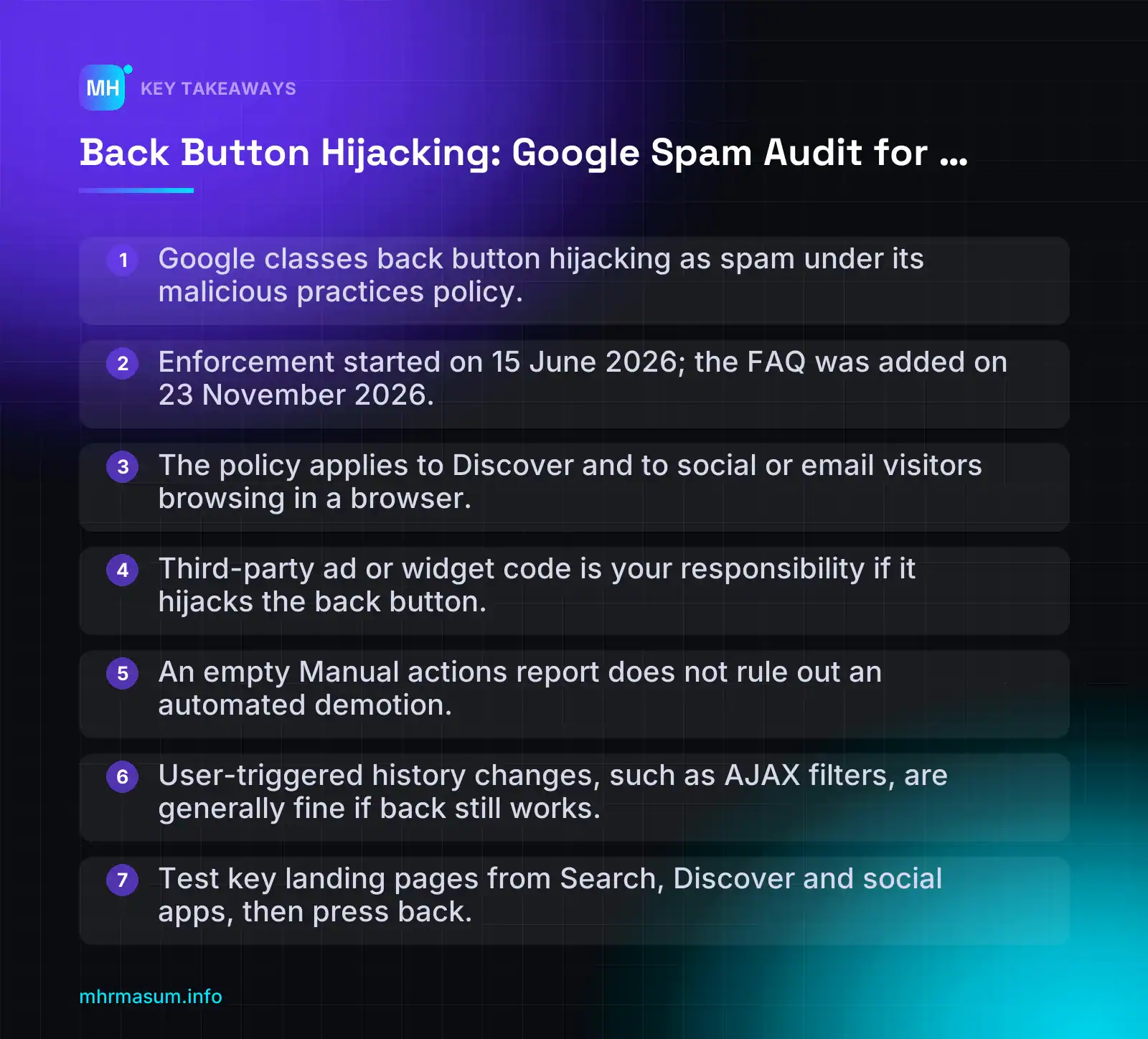
- Google classes back button hijacking as spam under its malicious practices policy.
- Enforcement started on 15 June 2026; the FAQ was added on 23 November 2026.
- The policy applies to Discover and to social or email visitors browsing in a browser.
- Third-party ad or widget code is your responsibility if it hijacks the back button.
- An empty Manual actions report does not rule out an automated demotion.
- User-triggered history changes, such as AJAX filters, are generally fine if back still works.
- Test key landing pages from Search, Discover and social apps, then press back.
What Google Means by Back Button Hijacking
Most visitors press the back button without thinking. They expect to land on the page they just left, whether that was a Google results page, a Facebook post or another site.
Back button hijacking breaks that expectation on purpose. Since April 2026, Google has named it explicitly as spam. A WordPress site that does it can lose visibility in Search.
The official definition in plain English
Google’s spam policies describe back button hijacking as a site interfering with browser navigation by manipulating browser history or other browser functions. The result is that the user cannot press back and return straight to the page they came from (Google Search Central).
The policy sits under malicious practices, in the same group as malware and unwanted software. Google is not treating this as a small UX complaint. It is classed with behaviour that works against the user.
Google also notes that deceptive history manipulation already broke Search Essentials. The April 2026 change made it a named, explicit violation (Google Search Central Blog).
In practice, visitors on an affected page experience one or more of these:
- Extra history entries that were added as soon as the page loaded, so back has to be pressed two, three or more times.
- Being sent to a page they never visited, such as a “you might also like” page, another article or a category page.
- Unrequested ads or recommendation overlays that appear when they press back, instead of leaving.
- Back doing nothing at all: the URL may flicker, but the visitor stays on the same page.
If you have ever pressed back on your own site and ended up somewhere unexpected, treat that as a warning sign and keep reading.
What is in scope and what is not
The November 2026 FAQ clarified where the policy applies. Here is the short version:
| Situation | In scope? | Why |
|---|---|---|
| Visitor arrives from Google Search results in a browser | Yes | The core case the policy was written for |
| Visitor arrives from Google Discover | Yes | Google says Discover is part of Google Search, so spam policies apply |
| Visitor arrives from social media, email or a referral and browses in a browser | Yes | The FAQ says the policy applies if hijacking happens while the user is browsing in a browser |
| Page opens an external app, or uses “open in app” behaviour | No | The FAQ places this outside the policy |
| User-triggered history changes (AJAX filters, tabs, galleries, SPA routing) where back still returns to the previous page | Generally no | The user made the change, and normal back navigation still works |
One grey area: the FAQ does not say directly whether in-app browsers count as “browsing in a browser”. These are the built-in webviews inside Facebook, Instagram and TikTok. Do not assume they are exempt. Check the current FAQ wording on the spam policies page, and test those environments anyway.
“It only matters if the visitor came from Google.”
This is wrong. The FAQ answer on non-Search channels is clear: if the hijacking happens while the user is browsing in a browser, the policy applies, whatever the traffic source (Search Engine Journal). A script that only fires for social visitors can still put the page at risk.
Manual action or automated demotion: why it matters
Google can enforce this policy in two ways. It can issue a manual spam action, or it can apply an automated demotion.
This changes how you diagnose a traffic drop:
- Manual action: it appears in Search Console under Security & Manual Actions > Manual actions. You fix the issue and submit a reconsideration request.
- Automated demotion: no message, no report entry and no reconsideration path. You remove the behaviour and wait for Google’s systems to process the change.
An empty Manual actions report does not mean you are in the clear. If rankings fell after 15 June 2026, audit for this behaviour alongside the other policies. My policy-by-policy spam recovery audit covers that wider check.
What Changed: Google’s New Back Button Hijacking FAQ
On 23 November 2026, Google updated the spam policies documentation. The changelog entry reads: “Added an FAQ to the back button hijacking spam policy” (Search Engine Roundtable).
The FAQ has five questions. Each one answers something site owners had been unsure about since enforcement began.
The five questions and what each means for you
| FAQ question (summarised) | Practical meaning for a WordPress owner |
|---|---|
| Can I keep working with ad platforms and loading their hosted code? | Yes. Google only acts on pages that show the hijacking behaviour. Keep your ad network, but test the pages where its code runs. |
| How can users report hijacking? | Through Google’s spam report form. Competitors and annoyed visitors can flag your pages, so expect scrutiny. |
| Does the policy apply to Discover? | Yes. Discover is part of Google Search. Publishers who depend on Discover traffic are fully covered. |
| What about visitors from non-Search channels such as social media? | If hijacking happens while the user is browsing in a browser, the policy applies. Facebook, Instagram, email and paid social landing pages all count. |
| Is opening an external app covered? | No. Opening an app, or “open in app” behaviour, is outside the policy. Deep links into your own mobile app are not the target. |
The ad platform answer is the one most site owners will care about. Google’s April post had already said that some hijacking may come from included libraries or advertising platforms, and that the site owner is still responsible for removing it (Google Search Central Blog).
Put those two answers together and you get the rule for this whole audit:
Google judges what the page does, not who wrote the script.
“My ad network added it” is not a defence. It is a reason to audit every third-party tag. My third-party script audit guide for WordPress explains how to list them.
Timeline from April to November 2026
| Date | What happened |
|---|---|
| February 2026 | AdSense added extra vignette triggers, including one tied to the browser back button (AdSense Help). |
| 13 April 2026 | Google announced back button hijacking as an explicit violation under the malicious practices policy. |
| 7 May 2026 | Google said the AdSense back-button vignette trigger would be removed on 15 June (Search Engine Roundtable). |
| Before 15 June 2026 | Search Console warnings were reportedly sent to some sites (PPC Land). |
| 15 June 2026 | Enforcement started. The AdSense back-button trigger was removed automatically for publishers with “Allow additional triggers for vignette ads” switched on. |
| 23 November 2026 | Google added the five-question FAQ to the policy. |
Two points about AdSense. Only the back-button trigger was removed, and other vignette triggers still exist. Also, removing the trigger fixes AdSense only. It does nothing about other ad or recommendation scripts on the same page.
PPC Land also reported that Taboola ended its “Explore More” product (PPC Land). The pattern is clear: vendors are adjusting. Still, confirm in your own browser what each of your scripts actually does today.
Why the social and Discover answers matter
Many publishers and WooCommerce stores run different scripts depending on the traffic source. Common examples include exit offers for paid social visitors, “recommended for you” pages for Facebook clicks, and extra monetisation on Discover traffic.
Before the FAQ, some people assumed these setups were safe because Googlebot and Search visitors never triggered them. That assumption no longer holds.
- Publishers: Discover traffic is now clearly covered. Hijacking that only appears for Discover or social visitors still counts.
- WooCommerce stores running Facebook or Instagram ads: landing pages with back-button exit popups or “wait, don’t go” redirects are in scope if the visitor is browsing in a browser.
- Agencies running paid social: check the landing page builders and funnel tools your clients use, not only the main theme.
A practical test, as suggested by Search Engine Journal: open a page with ad code by clicking a link from a social post, then press back. Repeat the test arriving from Discover (Search Engine Journal). Here is a simple test log to keep:
URL: /blog/example-post/
Entry: Facebook post link (Chrome, Android)
Back press 1: returned to Facebook?  YES / NO
Unexpected page or overlay?          YES / NO
Repeat: Discover, Instagram in-app browser, desktop Search
If social traffic is already hard to read in your analytics, sort that out first so you know which landing pages to test. My guide to fixing GA4 unassigned traffic helps. If you would like a second pair of eyes, start with a free SEO check.
How Back Button Hijacking Works Under the Hood
You do not need to be a developer to audit for this. You only need to understand how the browser decides where “back” goes.
Every browser tab keeps a list of the pages you visited in that tab. Think of it as a stack. Each new page goes on top. Pressing back removes the top entry and shows the one underneath.
Normal visit
[Google results] → [Your article]
Back → Google results ✔

Hijacked visit
[Google results] → [Your article] → [Your article (fake entry added on load)]
Back → still on your article, script detects it → redirects to an offer page ✘
The visitor never asked for that extra entry. A script added it the moment the page loaded. That fake entry sits between the visitor and the page they came from.
history.pushState, replaceState and popstate
Three parts of the browser’s History API do most of the work:
- history.pushState() adds a new entry to the stack without loading a new page. The URL can stay the same or change.
- history.replaceState() swaps the current entry for a different one. It can rewrite where the visitor appears to have been.
- popstate is an event that fires when the visitor moves through history, for example by pressing back.
On their own, these are normal tools. The problem is the pattern: an entry is pushed on page load, before the user does anything, and a popstate listener then redirects or shows an overlay when back is pressed.
Example of what NOT to do:
// BAD PATTERN – EXAMPLE OF WHAT NOT TO DO
// Adds a fake history entry as soon as the page loads
window.addEventListener('load', function () {
  history.pushState({ trap: true }, '', location.href);
});

// When the visitor presses back, send them somewhere else
window.addEventListener('popstate', function () {
  window.location.href = 'https://example.com/special-offer/';
});
The visitor presses back expecting Google or Facebook. Instead they land on an offer page. This is exactly the behaviour Google’s policy describes.
Legitimate History API use vs hijacking
Modern sites use the same functions honestly every day. A WooCommerce filter that updates the product grid without a full reload often pushes a new URL so the filtered view can be shared and bookmarked.
The difference is simple: the user triggers the entry, and back undoes the last action.
// SAFE PATTERN – entry is only added when the user clicks a filter
document.querySelectorAll('.filter-link').forEach(function (link) {
  link.addEventListener('click', function (event) {
    event.preventDefault();
    var url = new URL(link.href);
    loadProducts(url.search);                        // fetch and render filtered products
    history.pushState({ filter: url.search }, '', url);
  });
});

// Back restores the previous filter state – it never redirects elsewhere
window.addEventListener('popstate', function () {
  loadProducts(location.search);
});
Here, back removes the filter the visitor just applied. Press back again and they leave the site normally, returning to wherever they came from.
| Who added the history entry? | Where does back go? | Verdict |
|---|---|---|
| User (click on filter, tab, gallery image) | Previous state on the same page | Fine |
| User | Eventually to the previous site/page with extra presses matching their own actions | Fine |
| Script, on page load | Same page, then redirect or overlay | Hijacking – fix it |
| Script, on page load | A page the visitor never visited (offer, feed, “you may also like”) | Hijacking – fix it |
| Script, after a timer or scroll with no click | Anywhere other than the previous page | Treat as hijacking – remove |
WooCommerce AJAX product filters, infinite scroll and image galleries often use the History API legitimately. Do not rip them out in a panic. Test them: apply a filter, scroll, open a gallery, then press back repeatedly and check you reach the previous site. If you are reworking filter URLs anyway, my guide to faceted navigation SEO for WooCommerce covers the indexing side.
Other techniques: redirect chains and fake entries
pushState is the most common method, but not the only one. Google’s wording covers manipulating “browser history or other browser functions”, so look out for these too:
- Redirect chains: a page that instantly redirects using
location.hrefinstead oflocation.replace(). The redirecting page stays in history, so back lands on it and it bounces the visitor forward again. - Multiple fake entries: several pushState calls on load, so the visitor must press back three or four times to escape.
- Hash changes on load: a script that adds
#somethingto the URL automatically, creating an extra entry the visitor did not ask for. - replaceState tricks: rewriting the current entry so that back appears to “return” to a page on your site rather than the referrer.
The test is always the same: after arriving on a page and doing nothing, one press of back should return the visitor to where they came from.
Where It Hides on a WordPress Site
Most site owners never write history-manipulating code themselves. It arrives through plugins, ad code, pasted snippets or malware.
Google’s April announcement is clear that some hijacking may come from included libraries or advertising platforms, but the site owner is still responsible for removing it (Google Search Central Blog). So you need to know where to look.
Plugins
These plugin categories deserve a closer look, because their features can rely on intercepting navigation:
- Exit-intent and popup builders: some offer a “show popup when the user tries to leave” or back-button trigger, especially on mobile.
- “Back button redirect” or “traffic recovery” plugins: their whole purpose is to send leaving visitors to another page. Remove them.
- Push-notification prompts: some subscription flows add history entries or overlays on exit.
- Related-content widgets: “before you go” recommendation screens shown on back.
- Affiliate link cloakers: redirect pages built with
location.hrefcan leave bounce-back entries in history. - Some AMP or SPA-style themes: custom routing can push entries on load if it is poorly built.
A plugin being in one of these categories does not make it guilty. Check the settings for any back-button, exit or “recover visitors” option, and test the behaviour.
Ad networks and recommendation widgets
Ad code is the area most site owners worry about. Google’s FAQ, added on 23 November 2026, says you can keep working with ad platforms and loading code they host. Google only acts on pages that actually show the hijacking behaviour (Search Engine Land).
Check each layer of your ad stack:
- AdSense vignette settings: AdSense added a browser back-button vignette trigger in February 2026 and then removed it on 15 June 2026. The removal applied automatically to publishers with “Allow additional triggers for vignette ads” switched on. Other vignette triggers still exist (AdSense Help). Review your Auto ads settings anyway.
- Google Ad Manager: check creatives and any custom interstitial or out-of-page formats you have set up.
- Third-party header bidding wrappers: these load code from many demand partners. Ask your provider in writing whether any unit uses back-button triggers.
- Native and recommendation widgets loaded by ad partners: ppc.land reported that Taboola ended its “Explore More” product (ppc.land). If you use any recommendation vendor, confirm what their current code does on your pages.
Header/footer snippets and Google Tag Manager
Pasted code is easy to forget. Somebody adds a script three years ago and nobody remembers why.
- “Insert Headers and Footers”-type plugins: open each snippet and read it.
- Theme
functions.phpand child theme files: look forwp_headorwp_footerhooks that echo inline scripts. - Google Tag Manager Custom HTML tags: any tag containing pushState, replaceState or a popstate listener needs explaining.
One clarification: GTM’s built-in History Change trigger only listens for history changes so it can fire tags. Listening is not the same as creating entries. It is the Custom HTML tags you need to inspect.
If you have not reviewed your scripts recently, my third-party script audit for WordPress walks through a full inventory, which also helps with slow interactions covered in fixing INP on WooCommerce.
Hacked sites and injected scripts
Malware is the nastiest source, because it is designed to stay hidden from you.
“I checked the site on my laptop and back works perfectly, so we’re clean.”
That proves very little. Injected JavaScript commonly fires only for mobile visitors, visitors referred from Google or social media, or visitors who are not logged in. It may also set a cookie so it runs once per visitor. A logged-in admin on desktop may never see it.
Typical hiding places are wp_options (widget content, theme options), wp_posts (script tags inside post content) and theme or plugin files. If you have server access, a quick text search is a starting point:
grep -rn "pushState\|replaceState\|popstate" wp-content/ --include=*.php --include=*.jsSELECT option_name FROM wp_options
WHERE option_value LIKE '%pushState%' OR option_value LIKE '%popstate%';
SELECT ID, post_title FROM wp_posts
WHERE post_content LIKE '%<script%';Your table prefix may not be wp_, so adjust it. Also remember that obfuscated malware often hides these words using eval, atob or String.fromCharCode, so search for those too. Always back up before changing anything in the database.
| Source | Where to look in WordPress | Typical sign |
|---|---|---|
| Popup / exit-intent plugin | Plugins > plugin settings > triggers | “On back button” or “on exit” trigger enabled, especially for mobile |
| Traffic recovery / back redirect plugin | Plugins > Installed Plugins | Back sends visitors to a fixed offer or listing page |
| Ad network or wrapper | Ad plugin settings, AdSense Auto ads, vendor dashboard | Full-screen ad or feed appears when back is pressed |
| Recommendation widget | Widget, plugin or ad partner code in templates | “Before you go” content list on back |
| Header/footer snippet | Snippet plugin, functions.php, child theme files |
Inline script with pushState on load |
| GTM Custom HTML tag | Tag Manager > Tags > filter by Custom HTML | Tag fires on All Pages and contains a popstate listener |
| Malware | wp_options, wp_posts, theme and plugin files, unknown files in uploads |
Only happens on mobile or from Google/social referrals; obfuscated code |
If you find signs of a hack, treat it as a security incident first and an SEO issue second. My policy-by-policy spam recovery audit covers what to check once the site is clean.
Step 1: Inventory Every Script That Can Touch Browser History
You cannot fix what you have not found. The first job is a complete list of every piece of code that runs on your front end, including your own files, plugins, your tag manager and ad partners.
This matters because the hijacking code is often not in your theme. Google’s April announcement says some of it may come from libraries or advertising platforms you include, and that you are still responsible for removing it (Google Search Central Blog).
“It’s the ad network’s script, so it isn’t my problem.”
Google does not accept that argument. If the behaviour happens on your page, the page is affected. Your contract with the vendor is a separate matter.
Search your files and database
Back up first. Every command below only reads data, but a fresh backup protects you if you start editing later. Run the commands on staging where you can.
- Export the active plugin list. Go to Plugins > Installed Plugins and filter by Active, or run
wp plugin list --status=active --format=csv > active-plugins.csv. - List must-use plugins and drop-ins. These do not appear on the normal Plugins screen. Run
wp plugin list --status=must-useandwp plugin list --status=dropin, or look insidewp-content/mu-plugins/. - Note the theme and child theme. Run
wp theme list --status=active,parent. Child themes often hold old snippets that nobody remembers adding. - Search the files for the history and redirect methods that hijacking scripts use.
# Run from the WordPress root. Lists matching files only (-l)
grep -rlE "pushState|replaceState|popstate|onbeforeunload|location\.replace|history\.go" \
  wp-content/ --include=*.js --include=*.php --include=*.html

# Show line numbers for one file you want to inspect
grep -nE "pushState|replaceState|popstate" wp-content/themes/your-child-theme/functions.php

# Minified files have very long lines. Print only the match and nearby text
grep -oE ".{0,80}(pushState|popstate).{0,80}" wp-content/plugins/example-plugin/assets/app.min.js
Expect many results. Sliders, galleries, AJAX filters and checkout scripts use these methods legitimately. A hit is a lead, not a verdict. You are looking for code that adds history entries on page load, or listens for popstate and then redirects or shows an overlay.
Next, search the database. Header and footer injection plugins, theme options, Custom HTML widgets and Custom HTML blocks all store scripts there.
# Backup (writes a file, does not change the database)
wp db export backup-before-audit.sql

# Read-only searches
wp db search "pushState" --all-tables
wp db search "popstate" --all-tables
wp db search "pushState|replaceState|popstate|onbeforeunload|location\.replace|history\.go" --regex --all-tables
Do not use wp search-replace at this stage. You are only gathering evidence.
Check GTM and ad partner tags
Scripts loaded through Google Tag Manager never appear in your WordPress files. Open the container and work through it carefully.
- In Tags, sort by type and open every Custom HTML tag. Read the code for the strings above and for external script URLs.
- Open Templates and list every third-party (Community Template Gallery) template in use. Note who publishes each one.
- For each tag, check its triggers. Does it fire on All Pages, on specific templates, or only after consent?
- Check Versions to see when tags were added and by whom.
- List every ad partner, recommendation widget and monetisation script your header plugin or ad plugin loads, even if you think it is harmless.
If you have never done a full review, my third-party script audit for WordPress walks through the wider process.
Build a script register
Put everything into one table. It becomes your working document for testing in Step 2 and cleanup in Step 3.
| Script | Loaded by | Pages | Touches history? (Y/N) | Owner | Action |
|---|---|---|---|---|---|
| Display ad network tag | GTM Custom HTML | All posts | Y (popstate listener) | Marketing | Test in Step 2, ask vendor |
| Product gallery script | Theme | Product pages | Y (on click only) | Developer | Keep, confirm back works |
| Exit-intent popup | Popup plugin | Home, blog | Unknown | Marketing | Test, likely replace |
| Old “footer scripts” snippet | Header/footer plugin (database) | Sitewide | Y (pushState on load) | Nobody | Remove |
Every row needs a named owner. Scripts with no owner are the ones that cause trouble later.
Step 2: Test Back-Button Behaviour Like a Real Visitor
Code search tells you what could happen. Testing tells you what does happen. Google acts on pages that show the behaviour, so the real visitor experience is what counts.
Many hijacking scripts only fire under certain conditions: a specific referrer, a mobile device, a new visitor or an ad that has rotated in. Your test has to cover those conditions.
The test matrix: Google, Discover, social, direct
Google’s new FAQ confirms that Discover is part of Search, and that the policy applies when visitors arrive from other channels such as social media, as long as the hijacking happens while they browse in a browser (Search Engine Journal). So test every entry route, not just Google results.
| Entry source | How to simulate | Desktop Chrome | Android Chrome | iOS Safari |
|---|---|---|---|---|
| Google Search | Search a page title, click your result | Pass / Fail | Pass / Fail | Pass / Fail |
| Discover | Open your article from the Discover feed if it appears | Mostly mobile | Pass / Fail | Pass / Fail (Google app) |
| Post the link privately or send it in a message | Pass / Fail | Pass / Fail | Pass / Fail | |
| Link in bio or story link | n/a | Pass / Fail | Pass / Fail | |
| X / LinkedIn | Post or DM the link to a test account | Pass / Fail | Pass / Fail | Pass / Fail |
| Email link | Email yourself, open in webmail and in the mail app | Pass / Fail | Pass / Fail | Pass / Fail |
A pass means one press of back returns you straight to the page you came from. Anything else — a redirect, an overlay, an “are you sure” page, or needing two or three presses — is a fail.
Follow these rules on every run:
- Log out. Many ad and popup plugins hide themselves from administrators.
- Use a private or incognito window and clear cookies between runs, so you are a new visitor each time.
- Repeat each test at least three times. Ads rotate and frequency caps apply, so one clean run proves little.
- Behave like a reader. Scroll, wait 20–30 seconds, then press back. Some scripts wait for scroll depth or a timer.
- Test both consent choices. Accept and reject the cookie banner, because ad code often loads only after consent.
- Cover key templates: home, blog post, product, category, cart and checkout.
DevTools checks and a console snippet
When a page fails, you need to know which script did it. Paste this into the Chrome DevTools Console straight after the page opens:
(function () {
  console.log('history.length now:', history.length);

  ['pushState', 'replaceState'].forEach(function (method) {
    var original = history[method];
    history[method] = function (state, title, url) {
      console.warn('[history.' + method + ']', {
        url: url,
        state: state,
        lengthBefore: history.length
      });
      console.trace('Called from:');
      return original.apply(this, arguments);
    };
  });

  window.addEventListener('popstate', function (e) {
    console.warn('[popstate fired]', location.href, e.state);
  });
})();
The stack trace under each warning shows the file and line that made the call. Click it to open the code in the Sources panel.
There is a limit. The snippet only catches calls made after you paste it. To catch calls made during load, add the same code as the first script in <head> on staging, or use Chrome’s Local Overrides.
Two quick extra checks:
- Check
history.lengthon load, then again after 30 seconds without touching the page. If it grows with no clicks, something is adding entries. - Run
getEventListeners(window).popstatein the Console. It lists everypopstatelistener, and you can click through to the source.
If back leads to a redirect, open the Network panel with Preserve log ticked. The Initiator column shows which script started the new navigation.
Then isolate the cause. Right-click a suspect request and choose Block request URL or Block request domain, or use the Network request blocking drawer. Block one script at a time, reload and repeat the back test until the problem disappears. Record the result in your script register.
Mobile, logged-out and in-app browser tests
Desktop emulation is not enough. Test on a real Android phone and a real iPhone, logged out, in a private tab.
In-app browsers need extra care. The FAQ says the policy applies when hijacking happens while the user browses in a browser, but it does not say directly whether in-app webviews in Facebook, Instagram or TikTok count (Search Engine Roundtable). Check Google’s spam policy page for any update before you decide.
Until it is clear, test both:
- Open the link inside the app’s built-in browser and press back.
- Use “Open in browser” and repeat the test in Chrome or Safari.
Treat a failure in either one as a risk to fix. The same script usually runs in both, so the clean answer is to remove it rather than argue about definitions.
If a page keeps failing and you cannot trace the cause, run a free SEO check or book a call and I will help you pinpoint it. If you are checking several spam policies at once, use the policy-by-policy spam audit alongside this one.
Which Ad Platform Code Is Fine to Keep
Once your inventory is complete, you will usually find that most of the history-touching code comes from ads and content widgets. Many site owners respond by panicking and ripping out all of it.
That is rarely necessary. Google’s new FAQ says you can keep working with ad platforms. What matters is how each unit behaves on your pages.
What Google’s FAQ actually allows
Google added a five-question FAQ to the back button hijacking policy on 23 November 2026. The first answer covers advertising. Site owners can keep working with ad platforms and keep loading the code those platforms host. Google only acts on pages that actually show the hijacking behaviour (Search Engine Roundtable).
This permission is narrower than it sounds:
- The test is behaviour, not the vendor. A well-known ad network can still trigger the policy if one of its units intercepts the back button on your page.
- Responsibility stays with you. Google’s April announcement says hijacking can come from included libraries or ad platforms, and that the site owner must still remove it (Google Search Central Blog).
- Traffic source does not protect you. The FAQ says the policy applies to Discover, and to visitors from social media and other channels when the hijacking happens in a browser (Search Engine Journal).
The FAQ does not say whether in-app browsers count as a “browser”. Examples include the Facebook, Instagram and TikTok webviews. Until Google clarifies this, treat in-app browsers as in scope and test in them. Check the policy page for updates.
“If Google sells the ad, it can’t break Google’s policy.”
That is wrong, and AdSense shows why. In February 2026, AdSense added extra vignette triggers, including one linked to the browser back button. After the spam policy was announced, Google said on 7 May 2026 that it would remove this trigger on 15 June 2026, the day enforcement started (PPC Land). A Google ad product had to change to fit a Google Search policy. A vendor’s brand is never proof of compliance.
AdSense vignette settings after June 2026
Google says the back-button trigger was removed automatically for publishers who had Allow additional triggers for vignette ads switched on. The other additional vignette triggers still exist (AdSense Help).
The automatic change does not replace your own checks. Do this anyway:
- In AdSense, go to Ads > By site and open the edit view for each site.
- Under Auto ads, find the overlay formats and open the Vignette ads settings.
- Note whether additional triggers are switched on. Record the setting for each site in your audit sheet.
- Run the back-button tests from Step 2 on pages that show vignettes. Run them on mobile, from a social link and from Discover.
- If any vignette appears when you press back, switch off the additional triggers. Then retest and report the issue to AdSense support.
Menu labels in AdSense change from time to time. If you cannot find these exact names, use the AdSense Help article linked above as your reference.
Keep, configure or remove: a decision table
| Ad or widget type | Default decision | What to check |
|---|---|---|
| Standard display ads (in-content, sidebar) | Keep | These rarely touch history. Still confirm that back works on pages with heavy ad density. |
| Vignettes and interstitials | Configure | Check which triggers are enabled. Nothing should fire when the visitor presses back. |
| Anchor (sticky) ads | Keep | Confirm they can be closed and do not cover navigation. |
| Recommendation widgets (“more stories”, feeds) | Configure and test | Look for any “back to more content” or exit feature. Taboola has reportedly ended “Explore More” (PPC Land). Check your own vendor’s current settings. |
| Exit-intent ad units that react to the back button | Remove | If the unit needs to intercept back navigation to work, it cannot be made compliant. |
Questions to ask third-party ad and widget vendors
Get answers in writing. A written answer gives you a record, and it forces the vendor to check their own code. Use or adapt this template:
Subject: Confirmation needed – browser history and back navigation

Hi [Vendor name],

Google now treats back button hijacking as a violation of its
malicious practices spam policy. Enforcement started on 15 June 2026.

For the tags you supply on [domain], please confirm in writing:

1. Do any of your scripts call history.pushState or
   history.replaceState without a user click? (Yes/No)
2. Do any of your scripts listen for popstate or otherwise
   intercept the browser back button? (Yes/No)
3. Which account setting or tag parameter controls these
   features, and what is its current value on our account?
4. Will you notify us before releasing any change that affects
   browser history or back navigation?

If any answer is "yes", please disable the feature on our
account and tell us when it is done so we can retest.

Thanks,
[Name]
Vendors that cannot or will not answer clearly are a risk. Our third-party script audit guide for WordPress explains how to decide which ones stay.
Step 3: Clean Up and Replace Risky Features
You now know which scripts touch browser history and which of them break the back button. This step removes the problem properly and replaces what you lose with something that still converts.
Remove or reconfigure the offending code
Removal must happen at the source. Hiding a popup with CSS or display:none does not stop the script from running. The history entries and the popstate listener stay active even when nothing is visible.
- Clone the site to staging. Most managed hosts offer one-click staging. Otherwise, use a backup and migration plugin.
- Disable one suspect at a time. Deactivate the plugin, pause the tag in Google Tag Manager, or remove the vendor snippet from your header or footer injection.
- Confirm that back works. Repeat the Step 2 tests. One press of back should return you to the page you came from.
- Look for a setting first. If the feature is useful, check whether the vendor offers a toggle that turns off the history behaviour, and retest with it switched off.
- Apply the change on live. Delete the plugin rather than leaving it deactivated. Publish the GTM container version that has the tag removed.
- Log it. Write down what you removed, the date and the URLs affected. You will need this record for a reconsideration request.
Fix custom code: user action first, no redirect on popstate
The risky pattern adds a history entry on page load, then catches the back press:
// RISKY – do not use
history.pushState(null, '', location.href);   // runs on load, no user action
window.addEventListener('popstate', function () {
  window.location.href = '/special-offer/';    // hijacks the back press
});
A compliant version calls pushState only after a click. On popstate, it simply restores the previous view:
// COMPLIANT – tabs that update the URL only when the user clicks
document.querySelectorAll('[data-tab]').forEach(function (btn) {
  btn.addEventListener('click', function () {
    var tab = btn.dataset.tab;
    showTab(tab);
    history.pushState({ tab: tab }, '', '?tab=' + tab);
  });
});

window.addEventListener('popstate', function (e) {
  // Restore the earlier view. Never redirect or open an overlay here.
  showTab(e.state && e.state.tab ? e.state.tab : 'overview');
});
Once the visitor has stepped back through the states they created, the next press of back must leave your site. The same rule applies to AJAX product filters. Our faceted navigation guide covers filter URLs in more detail.
Compliant alternatives to exit-intent tricks
You can still capture leads and sales without touching history:
- Desktop mouse-leave overlay. Show the overlay once per session when the cursor leaves the top of the window. It uses no history API, and the back button still works normally.
- Inline offers. Place an email sign-up or discount box inside the content, for example after the second paragraph or below the add-to-cart button.
- Timed slide-in. Slide in a small corner panel after a sensible delay. Give it an obvious close button.
// Desktop-only exit overlay, once per session, no history changes
if (window.matchMedia('(pointer: fine)').matches) {
  document.addEventListener('mouseout', function (e) {
    if (!e.relatedTarget && e.clientY <= 0 &&
        !sessionStorage.getItem('exitShown')) {
      sessionStorage.setItem('exitShown', '1');
      openOfferModal(); // must have a visible close button
    }
  });
}
These alternatives still have to follow Google’s guidance on intrusive interstitials. This matters most on mobile, where a full-screen overlay that hides the content can cause a different problem. Keep overlays small, easy to close and secondary to the content. If you are running sale campaigns, see Black Friday SEO for WooCommerce for offer placement that does not depend on popups.
If you find malware
Sometimes the redirect code is something nobody on your team added, such as obfuscated JavaScript in theme files, the database or wp-config.php. In that case, treat it as a compromise, not a configuration issue:
- Restore clean files, or replace WordPress core, themes and plugins with fresh copies from official sources.
- Search the database (
wp_options,wp_posts) for injected<script>tags. - Rotate all admin, hosting, FTP/SFTP and database passwords. Then generate new salts in
wp-config.php. - Update core, every plugin and every theme. Remove anything you no longer use.
- Check Search Console > Security & Manual Actions > Security issues and follow any instructions shown there.
Purge caches and re-test
Your fix is not live until every cached copy of the old code has gone. Clear caches in this order:
| Layer | What to purge |
|---|---|
| Optimisation plugin | Minified and combined JS bundles. Old bundles can still contain the removed script. |
| Page cache | Purge all pages using your caching plugin and any server-level cache from your host. |
| CDN | Purge everything, or at least all HTML and JS files. |
| Tag manager | Confirm the published container version no longer includes the tag. |
Next, run the full Step 2 test matrix again in a private window. Test direct visits, Google Search, Discover, a social link, and mobile in-app browsers. Record the results for each template, including the home page, posts, products and categories.
If you would like a second pair of eyes before you request a review, start with a free SEO check. For a wider policy review, follow our spam update recovery audit.
If a Manual Action Arrives: Search Console Steps and Reconsideration
Most sites that clean up early will never see a penalty. If you do receive one, the order in which you act matters more than how fast you act. Rushing a reconsideration request before the fix is complete is the most common way to lose weeks.
ppc.land reported that Google sent Search Console warnings about back button hijacking before enforcement began (ppc.land). If you received one of those warnings and ignored it, treat this section as urgent.
Confirm whether it is a manual action or a demotion
Google’s April announcement says the penalty can be either a manual spam action or an automated demotion (Google Search Central Blog). The two need different responses, so confirm which one you have before doing anything else.
- Open Search Console and go to Security & Manual Actions > Manual actions.
- If you see “No issues detected”, there is no manual action on that property.
- Check the Messages panel (the bell icon) for warnings or notices about the malicious practices policy.
- Search the email inbox of every verified owner. Notices often reach an agency or developer mailbox that nobody monitors.
- Check every property you own: the domain property, plus any older URL-prefix properties for www, non-www, http or subdomains.
| Manual action | Automated demotion | |
|---|---|---|
| How you find out | Listed in the Manual actions report, usually with a Search Console message and email | No notice. You see a traffic drop in the Performance report with no manual action listed |
| Can you request review? | Yes, through the Request Review button in the report | No. There is no reconsideration path for algorithmic demotions |
| What to do | Fix every affected page, document the work, then submit one request | Fix every affected page, keep the site clean, and wait for Google’s systems to reprocess it |
A traffic drop alone does not prove a demotion. Rule out tracking breaks, core updates and seasonality before you blame the policy. If you are unsure which situation you are in, a technical SEO audit can separate the causes before you spend time on the wrong fix.
Writing the reconsideration request
Google’s help documentation asks you to fix the issue on all affected pages first, then choose Request Review (Search Console Help). A good request explains the exact issue, the steps you took to fix it, and the outcome.
Be specific and factual. The reviewer needs evidence that you found the cause and removed it, not an apology.
Issue found:
Visitors pressing the browser back button were sent to a full-screen
"recommended articles" overlay instead of the page they came from.
This affected all single post templates.

Root cause:
A content recommendation plugin called history.pushState() on page
load and listened for popstate to show its overlay. The same script
was also loaded by a Google Tag Manager tag (tag name: "Recs widget").

What we removed:
- Deactivated and deleted the plugin (all post and page templates)
- Paused and deleted the GTM tag and its trigger; published a new
  container version
- Purged the page cache, minified JS bundles and the CDN cache

How we tested:
- Sources: Google Search, Google Discover, Facebook link, direct visit
- Devices: Android Chrome, iPhone Safari, desktop Chrome and Firefox
- Logged out, in private windows, from AU, UK, US and BD via VPN
- Result: on every test, one back press returned to the referring page

Prevention:
- New plugins and ad tags now require a back-button test before launch
- Monthly scheduled re-test of top templates from social and Discover
- Alert set on any script calling pushState before user interaction
What happens after you submit
- Send one request. Do not submit another while one is pending.
- Expect several days or weeks. Google says reviews usually take that long (Search Console Help).
- Watch Search Console for review status messages. Keep the site unchanged during the review. Do not add new ad units or widgets.
If the request is rejected, do not resubmit the same text. Re-audit from scratch. Rejections often trace back to behaviour you could not see from your own location or device: geo-targeted ad creatives, mobile-only units, or scripts that fire only for referred visitors. The troubleshooting steps below cover these.
Common Mistakes and Troubleshooting
Most failed clean-ups are not caused by hidden malware. They are caused by testing in conditions that real visitors never experience. Ad and widget code is built to behave differently for different audiences, so your test must vary in the same ways.
Mistakes that keep sites at risk
| Mistake | Why it misses the problem | Fix |
|---|---|---|
| Testing while logged in to WordPress | Many ad and caching plugins disable ads or serve different markup to logged-in users | Test in a private window, logged out |
| Testing only on desktop | Interstitial and back-trap units are often mobile-only | Test on real Android and iPhone devices |
| Testing only Google traffic | Google’s FAQ says the policy applies to visitors from social media and other channels if they are browsing in a browser | Arrive from Google Search, Discover, a social link and a direct visit |
| Testing once | Ad auctions rotate creatives and partners, so one clean test proves little | Repeat across several days and times |
| Removing the plugin but leaving its GTM tag | The same script keeps loading from your tag manager | Search GTM for the vendor’s domain and delete the tag and trigger, then publish |
| Forgetting cached JS bundles | Optimisation plugins and CDNs may keep serving the old combined file | Purge page cache, minified or combined assets, and the CDN |
Search Engine Journal suggests testing pages with ad code by arriving from a social link and pressing back, then repeating from Discover (Search Engine Journal). Discover is part of Google Search, so the spam policies apply there too.
One open question: the FAQ does not directly say whether in-app browsers count (for example, the browsers built into the Facebook, Instagram or TikTok apps). Until Google clarifies, assume they do and include them in your tests. Note that “open in app” behaviour is outside the policy (Search Engine Land).
When you cannot reproduce the problem
If a warning or a user complaint says your site hijacks the back button but your tests look clean, the behaviour is probably conditional. Work through these checks:
- Change your location. Ads may be geo-targeted. Use a VPN to test from Australia, the UK, the USA and Bangladesh.
- Change your journey. Some scripts fire only on the second pageview, after a scroll, or only for visitors with a referrer. Arrive from a search result, read one article, open a second, then press back twice.
- Use remote mobile debugging. Connect an Android phone and open
chrome://inspectin desktop Chrome, or use Safari’s Web Inspector with an iPhone. Watch the console and network panels while you press back. - Log history calls. Paste this into the console before interacting, then reload with the console preserved:
['pushState','replaceState'].forEach(fn => {
  const orig = history[fn];
  history[fn] = function () {
    console.trace('history.' + fn, arguments);
    return orig.apply(this, arguments);
  };
});
window.addEventListener('popstate', e => console.log('popstate', e.state));
The stack trace shows which script file made each call, which tells you which plugin or vendor to deal with.
Watch for false alarms. Legitimate history entries created after a click, such as filters, tabs or gallery images, are fine as long as back still lets the visitor return to the page they came from.
“Chrome skips the fake history entries anyway, so our code is harmless.”
Chrome includes an intervention that can skip history entries added without user interaction when someone presses back. Verify the current behaviour in Chrome’s own documentation, but either way, a browser workaround does not make the code compliant. Other browsers and in-app webviews may behave differently, and the policy targets the manipulation itself.
Finally, remember that anyone can report you. Google’s FAQ confirms users can report hijacking through the spam report form (Search Engine Roundtable). Frustrated visitors and competitors both use it. You can use the same form to report a competitor’s site, but describe the exact URL, the referral source and the device so the report is actionable. Keeping your own site clean is the only reliable defence. If your stack has many plugins and tags, our WordPress SEO services include this kind of script clean-up.
Keep It Fixed: Monitoring and Prevention
Cleaning up back button hijacking once is not enough. The behaviour usually comes back through routine changes, such as a plugin update, a new popup tool, a fresh ad partner or a GTM tag added on a Friday afternoon.
Google’s April post says the site owner stays responsible even when the code comes from an included library or ad platform (Google Search Central Blog). Prevention therefore means controlling what reaches your live site and testing it before it does.
A pre-update checklist
Before you install or update any plugin, popup, ad partner script or GTM tag, run a five-minute back-button test on staging. Do it every time, including for “minor” updates.
- Apply the change on staging, not on production.
- Clear any page cache and script optimisation cache, so you test the new code and not a cached copy.
- Open a private window. Go to a neutral start page, such as a test page on staging or a search results page.
- Click through to a homepage, a blog post, a product page and a category page.
- Wait 10–15 seconds on each page and scroll. Some scripts wait for time on page or scroll depth before they run.
- Press back once. You should land on the start page straight away. You should not see an overlay, an “are you sure” screen, a recommendation page or a second page on your own site.
- Repeat on a real mobile phone. Many ad and popup scripts act differently on mobile.
If anything other than a clean return happens, do not push the change live. Roll it back on staging, then check the vendor’s settings or contact their support.
The same habit protects you during bigger maintenance work, such as when you update the PHP version in WordPress and WooCommerce. Several plugins often update together at that point.
Automated back-button tests
Manual tests catch most problems. Automated tests catch the ones that arrive without you changing anything, for example when an ad partner changes the code it serves from its own servers.
The example below uses Playwright. For each page, it opens a start page, goes to the target page with that start page as the referrer, waits for scripts, scrolls, and presses back. Then it checks that the URL matches the referrer.
// tests/back-button.spec.js
import { test, expect } from '@playwright/test';

const START = 'https://staging.example.com/back-test-start/';
const PAGES = [
  'https://staging.example.com/',
  'https://staging.example.com/blog/sample-post/',
  'https://staging.example.com/product/sample-product/',
  'https://staging.example.com/product-category/sample-category/',
];

for (const url of PAGES) {
  test(`back returns to referrer: ${url}`, async ({ page }) => {
    await page.goto(START);
    const before = await page.evaluate(() => history.length);

    await page.goto(url, { referer: START, waitUntil: 'load' });
    await page.waitForTimeout(8000);      // let delayed ad/popup scripts run
    await page.mouse.wheel(0, 1500);      // some scripts wait for scroll
    await page.waitForTimeout(2000);

    const after = await page.evaluate(() => history.length);
    expect(after - before, 'extra history entries added on load').toBeLessThanOrEqual(1);

    await page.goBack();
    await page.waitForLoadState('load');
    expect(page.url()).toBe(START);
  });
}
Here is how to get the most from it:
- Run it in two device profiles. Add a mobile project in
playwright.config.js(for example, Playwright’s built-in Pixel or iPhone device descriptors) next to desktop Chrome. - Run it in CI before every deployment and on a schedule against production, for example daily. A scheduled run is what catches changes on the vendor side.
- Allow ad scripts to load. Do not block third-party requests in the test, or you will hide the exact code you need to check.
- Treat a failure as a stop signal. Look at the trace (
npx playwright show-trace) to see which script calledpushStateorreplaceState.
A simple scheduled run in GitHub Actions looks like this:
on:
  schedule:
    - cron: '0 6 * * *'
  workflow_dispatch:
jobs:
  back-button:
    runs-on: ubuntu-latest
    steps:
      - uses: actions/checkout@v4
      - uses: actions/setup-node@v4
        with:
          node-version: 20
      - run: npm ci
      - run: npx playwright install --with-deps chromium
      - run: npx playwright test tests/back-button.spec.js
Automation has limits. It cannot fully reproduce in-app browsers such as the Facebook, Instagram or TikTok webviews. The FAQ says the policy applies when hijacking happens while the user is browsing in a browser (Search Engine Journal). It does not say directly whether in-app webviews count. Check Google’s policy page for any clarification, and keep testing social links by hand on real phones.
Optional hardening
Fewer people and fewer routes that can change front-end code means fewer surprises. These steps are optional, but they work well on most business sites.
- Limit who can publish in Google Tag Manager. In GTM, go to Admin > User Management and give container “Publish” permission to only one or two people. Everyone else can stay on “Edit” or “Read”.
- Turn off the WordPress file editor. Add this to
wp-config.php, so nobody can paste scripts into theme or plugin files from the dashboard.
define( 'DISALLOW_FILE_EDIT', true );- Consider
DISALLOW_FILE_MODSonly if updates go through a deployment process. It also blocks plugin installs and updates from the dashboard, which can leave the site unpatched if nobody updates it another way. - Use file integrity monitoring. Use a security plugin that alerts you to changed core, theme or plugin files. You can also run WP-CLI checks on a schedule:
wp core verify-checksums
wp plugin verify-checksums --all
The plugin checksum check only covers plugins hosted on WordPress.org. Premium and custom plugins need a separate method, such as version control or your host’s file-change alerts.
Quarterly audit routine
Once a quarter, run a short audit and keep a record of it. If a manual action ever arrives, that record also gives you evidence for a reconsideration request.
| Check | What to do | Owner | Done |
|---|---|---|---|
| Script register reviewed | Compare live plugins, theme code, GTM tags and ad partners against your register. Remove anything with no owner or purpose. | Developer / marketer | ☐ |
| Test matrix run | Manual back-button test on desktop and mobile, starting from a search results page, a social link and Discover where you get Discover traffic. Confirm that the automated tests passed all quarter. | SEO | ☐ |
| Manual actions report checked | Search Console > Security & Manual Actions > Manual actions. Also check Messages for any warnings. | SEO | ☐ |
| Vendor confirmations on file | Get written confirmation from each ad, popup and recommendation vendor that their code does not change browser history on load. Check that settings such as AdSense’s vignette triggers are as expected. | Account owner | ☐ |
| Access reviewed | Review GTM publish rights, WordPress administrators and file editor status. | Site owner | ☐ |
Print it, date it, and keep each completed copy. A dated audit trail shows a pattern of responsible maintenance, which an unwritten “we check now and then” cannot show.
If you would rather hand this routine to someone else, see the SEO services I offer for ongoing WordPress and WooCommerce monitoring.
Frequently Asked Questions
What is back button hijacking in Google’s spam policies?
It is when a page manipulates browser history or other browser functions so the visitor cannot press back and return straight to the page they came from. Google lists it under malicious practices, alongside malware and unwanted software.
Will Google penalise my site for back button hijacking?
It can. Google may issue a manual spam action, which appears in Search Console, or apply an automated demotion with no notification. Either can reduce your visibility in Search and Discover.
How do I check if my WordPress site hijacks the back button?
Open a page from a Google result, a social post and Discover, then press back once. If you stay on the page, see an unexpected overlay or land on a page you never visited, investigate. Test on mobile and desktop and in in-app browsers such as Facebook and Instagram.
Can AdSense or other ad networks cause back button hijacking?
Yes, ad and recommendation scripts can add history entries or back-button triggers. AdSense removed its back-button vignette trigger on 15 June 2026, but that does not cover other scripts on the page. Google says the site owner must remove the behaviour, whoever wrote the code.
Does the policy apply if the visitor did not come from Google?
Yes. Google’s FAQ says the policy applies if the hijacking happens while the user is browsing in a browser, whatever the traffic source. A script that only fires for Facebook or email visitors can still put the page at risk.
Are AJAX product filters and single-page app routing a problem?
Generally no, as long as the user triggers the history change and back returns them to the previous state. The issue is entries pushed on page load, before the visitor does anything, combined with redirects or overlays on back.
How long does recovery take after removing the script?
Google gives no fixed timeline. For a manual action, fix the issue and submit a reconsideration request in Search Console. For an automated demotion, remove the behaviour and wait for Google’s systems to reprocess your pages.
Final Thoughts
Start by listing every third-party script on your WordPress site, especially ad networks, recommendation widgets, exit popups and landing page builders. Then test your top landing pages by pressing back from Search, Discover and social apps, and record the results.
Remove or reconfigure anything that adds history entries on load or redirects visitors when they press back. Check Search Console for manual actions, but do not treat an empty report as proof you are safe.
If your traffic dropped after 15 June 2026 and you are not sure why, run this audit alongside a full spam policy review. If you would like an expert to check your site, start with a free SEO check.
Want help applying this to your site? Run the free SEO check or book a free consultation with MD Harunur Rashid. Free SEO check · Book a free consultation