Your WooCommerce store has 300 products, yet Search Console reports thousands of URLs you never created. Faceted navigation SEO is about fixing that gap: deciding which filter, sort and pagination URLs Google should crawl, which it should index, and which it should never see.
Every colour, size, price or sort option a shopper clicks can create a new URL. Multi-select filters multiply those URLs quickly, and Googlebot treats each one as a page it could crawl.
The result is wasted crawling, slower discovery of new products, duplicate category pages in the index and extra load on shared hosting.
This guide shows how WooCommerce builds filter URLs, how to list every parameter your store creates, and which control fits each job: robots.txt, URL fragments, canonical tags or noindex.
It also covers the combinations that cancel each other out, so you don’t block the very signals you are relying on.
It is written for WooCommerce store owners, marketers and in-house SEOs who want filters that help shoppers without flooding Google with near-duplicate pages.
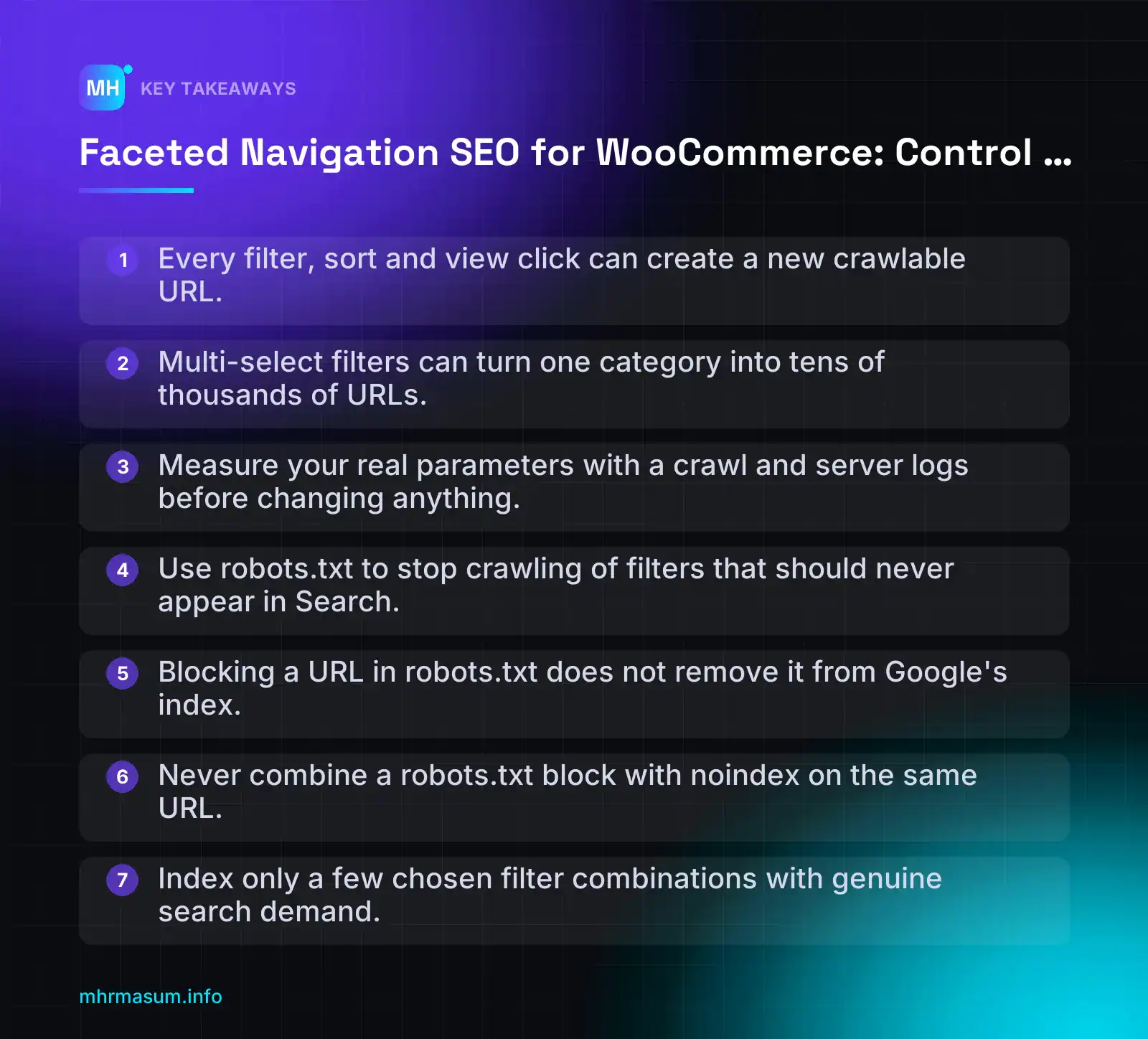
Key Takeaways
- Every filter, sort and view click can create a new crawlable URL.
- Multi-select filters can turn one category into tens of thousands of URLs.
- Measure your real parameters with a crawl and server logs before changing anything.
- Use robots.txt to stop crawling of filters that should never appear in Search.
- Blocking a URL in robots.txt does not remove it from Google's index.
- Never combine a robots.txt block with noindex on the same URL.
- Index only a few chosen filter combinations with genuine search demand.
What faceted navigation looks like in a WooCommerce store
Faceted navigation is the set of filters, sort options and view controls on your shop and category pages. Shoppers use these to narrow a long product list down to what they want.
In a WooCommerce store, that usually means:
- Attribute filters: colour, size, material and any other global product attribute.
- Price filters: a slider or minimum and maximum fields.
- Rating filters: “4 stars and up”.
- Stock filters: “In stock only” or “On sale”.
- Brand filters: from a brand taxonomy or a brand attribute.
- Sorting, view and pagination: price low to high, grid or list view, products per page, and page 2, 3, 4.
Each time a shopper clicks one of these, the store usually creates a new URL. For Googlebot, every new URL is a new page it could crawl.
Filter, sort, view and pagination parameters
WooCommerce core filtering uses query parameters. According to the WooCommerce documentation, attribute filters use filter_ plus the attribute slug, with a matching query_type_ parameter. Price uses min_price and max_price, and sorting uses orderby (WooCommerce.com).
https://example.com/product-category/t-shirts/?filter_color=blue,red&query_type_color=or
https://example.com/product-category/t-shirts/?min_price=20&max_price=50
https://example.com/product-category/t-shirts/?orderby=price
https://example.com/product-category/t-shirts/page/2/?filter_size=large&orderby=price-desc
Two details matter here.
- The attribute name drops the
pa_prefix. A global attribute stored aspa_colorappears in the URL asfilter_color. Write your robots.txt rules and crawler filters with the shorter name. - Multiple values are separated by commas. Google recommends the standard
&separator, because commas, semicolons and brackets are hard for crawlers to recognise as separators (Google crawling documentation). Core WooCommerce does not follow that advice. This is one reason most stores should block these URLs instead of trying to make them indexable.
The rating filter may add its own parameter, often rating_filter. Check this on your live store by applying the rating filter and reading the URL, rather than assuming.
Parameters fall into four groups. Each group needs different handling later in this guide.
| Type | What it does | Examples | Usually worth indexing? |
|---|---|---|---|
| Filters (narrowing) | Reduce the product set | filter_color, min_price, max_price, plugin keys such as ?brands= |
Only a few chosen combinations |
| Display (reordering or presentation) | Same products, different order or layout | orderby, per_page, shop_view (theme-dependent) |
No |
| Pagination | Splits the list into pages | /page/2/, ?paged=2, ?product-page=2 |
Yes for the plain category, rarely for filtered views |
| Action | Performs an action, not a page view | ?add-to-cart=123, wishlist or compare parameters |
Never |
The names per_page and shop_view come from themes and plugins, not WooCommerce core. Your store may use different names.
Why the number of filter URLs gets so large
Take one hypothetical category, /product-category/t-shirts/, with 5 colours, 6 sizes, 4 brands and 6 sort options.
If shoppers can pick only one value per filter, or skip that filter, you get:
Colour: 5 values + "none" = 6
Size:   6 values + "none" = 7
Brand:  4 values + "none" = 5
Sort:   6 options

6 × 7 × 5 × 6 = 1,260 URLs for one category
Most filters allow more than one value at a time, which changes the numbers sharply:
| Scenario | Calculation | URLs |
|---|---|---|
| Single value per filter, plus sort | 6 × 7 × 5 × 6 | 1,260 |
| Multi-select (any subset of each filter) | 2⁵ × 2⁶ × 2⁴ = 32,768 | 32,768 |
| Multi-select plus 6 sort options | 32,768 × 6 | 196,608 |
Plus value order (blue,red vs red,blue) and parameter order |
Many times higher | Hundreds of thousands or more |
Add pagination, price ranges, query_type switching between and and or, and several categories. A store with a few hundred products can expose millions of crawlable URLs.
How to list every filter URL your store creates
Do not guess which parameters exist. Measure them.
- Crawl the site with a desktop crawler such as Screaming Frog or Sitebulb. Set it to follow query-string URLs, and set a URL limit so it doesn’t run forever.
- Export all URLs that contain
?to a spreadsheet. Include URLs found in internal links, not only those in the sitemap. - Split each URL into parameter names. Use a formula or a “text to columns” split on
?and&, then on=. - Count URLs per parameter name with a pivot table. You will quickly see which parameters create the most URLs.
- Compare with what your theme and filter plugin should create. Click every filter, sort and view control on a live category page and note each parameter. Anything in the crawl that you can’t explain, such as old plugin parameters or tracking tags, needs investigation.
- Cross-check with Google’s view. Open Search Console > Indexing > Pages and look at example URLs under statuses such as “Crawled – currently not indexed” and “Duplicate, Google chose different canonical than user”. If you see many filter URLs there, the problem is already reaching the index. My guide to Crawled – Currently Not Indexed explains how to read those samples.
If your server logs are available, filter them for requests containing filter_, orderby or add-to-cart. Verify Googlebot by reverse DNS before you trust a user-agent string, because fake crawlers often pretend to be Googlebot.
Why filter URLs cause crawling and indexing problems
Filters help shoppers. Without controls, though, they produce more URLs than search engines need, and most of those URLs have no unique value.
Google’s documentation names two main problems: overcrawling and slower discovery (Google crawling documentation). Google has also said that faceted navigation is by far the most common source of overcrawling that site owners report to it (Google Search Central Blog).
Overcrawling and slower discovery
Overcrawling means Googlebot spends requests on URLs that add nothing new. Every filter URL looks new, so Google has to crawl some of them before it can learn that they are low value.
Slower discovery is the result. While Googlebot works through ?filter_color=red,blue&orderby=price-desc, it may be slower to find your new products, updated prices and new category pages.
For a WooCommerce store, that matters in practical ways:
- New products take longer to appear in organic results.
- Stock and price changes are picked up later on product pages. Product feeds help with Shopping listings, but organic results still depend on crawling.
- Important category pages are refreshed less often if crawling is spread across thousands of variants.
Index bloat and duplicate category pages
A filtered archive is usually a near-duplicate of its category page. It has the same title, the same description, the same template, and a subset of the same products.
When some of these URLs are indexed, three things go wrong:
- They compete with the main category. Google may show
/t-shirts/?filter_color=bluefor “t-shirts” instead of/t-shirts/. - Signals are split. Internal links and external links point at many versions instead of one strong page.
- Your Page indexing report fills with noise. It becomes harder to spot real problems among thousands of “Duplicate” and “Crawled – currently not indexed” filter URLs.
Clean, consistent URLs make this easier to control. My guide to SEO friendly URLs in WordPress covers the basics for the pages you do want indexed.
Server load on shared WooCommerce hosting
Filtered archives are some of the most expensive pages a WooCommerce store serves. Each one runs product queries across taxonomies, attributes, price and stock status, then builds counts for every filter widget.
Page caching rarely helps much. Each unique query string is usually a separate cache entry, and many hosts skip caching for query-string URLs altogether. So most bot requests to filter URLs reach PHP and the database.
On budget or shared hosting, this can lead to:
- Slower pages for real shoppers during heavy crawling.
- CPU or process limit warnings from the host.
- 5xx errors, which can make Googlebot slow its crawling of the whole site, including product pages.
“Our store only has 300 products, so crawl budget doesn’t matter.”
The number of products is not the number of URLs. As the calculation above shows, one category with a few multi-select filters can create tens of thousands of URLs. Three hundred products across ten filterable categories can still expose a very large crawl space.
Small stores are often more exposed, because they tend to run on cheaper hosting with less headroom.
A simple decision rule
Compare what Googlebot requests with what you actually want crawled:
| What you see | What it means |
|---|---|
| Googlebot requests mostly products, categories and a few pagination pages | Filters are under control |
| Filter URLs are a noticeable share of requests, but products are refreshed regularly | Monitor, and tighten controls on new filters |
| Googlebot requests far more filter URLs than products plus categories | You have a faceted navigation problem. Act on it. |
To get your baseline, count published products and product categories in WordPress. Then compare that figure with the filter URLs that Googlebot requests in your verified server logs and the samples in the Crawl Stats report. Section 10 shows how to do this step by step.
If you want a second opinion before changing robots.txt or plugin settings, start with a free SEO check of your store.
The controls you can use and what each one does
Several tools are available for managing filter URLs, and each one does a different job. Most faceted navigation problems happen when a store uses the wrong control, or combines two controls that cancel each other out.
Google’s faceted navigation guide describes two approaches (Google crawling documentation):
- Stop crawling of facet URLs that don’t need to appear in Search, using robots.txt or URL fragments.
- Make crawlable facet URLs follow best practice when they need to be crawled and indexed.
For the first approach, Google suggests letting crawlers reach only your product pages and one unfiltered listing page.
robots.txt disallow
A Disallow rule tells Googlebot not to request matching URLs. This is the most direct way to stop crawl waste from filter parameters.
User-agent: *
Disallow: /*?*filter_
Disallow: /*?*orderby=
Blocking a URL does not remove it from the index. Google can still index a blocked URL without its content if other pages link to it.
Choose it when: a filter parameter should never appear in Search and you can match it with a clean pattern.
URL fragments and AJAX state
If your filter updates the product grid with JavaScript and stores its state after a #, the server sees only one URL. Google Search generally does not support fragments in crawling and indexing (Google crawling documentation).
https://example.com/product-category/shoes/#color=blue&size=9Choose it when: the filter exists only for shoppers and you control how the filter plugin or theme writes its URLs.
rel=canonical
A canonical tag on a filter URL tells Google which version you prefer to have indexed. Google can then consolidate signals such as links into that version.
It is a hint, not a directive. Google may ignore it if the filtered page looks very different from the canonical target.
Choose it when: a filter URL must stay crawlable, for example for shared links, and closely matches the page it points to.
meta robots noindex
A noindex meta tag or X-Robots-Tag header keeps a page out of the index. It only works if Google can crawl the page and see the tag.
So never put a robots.txt block and a noindex on the same URL. The block hides the noindex, and the URL can stay indexed.
Choose it when: you are cleaning up URLs that are already indexed. Remove them first, then block crawling afterwards if you need to.
rel=nofollow on filter links
Adding rel="nofollow" to filter links signals that you don’t want those URLs crawled. However, Google notes that nofollow only works if every link to that URL carries it, including internal and external links.
A single followed link in a sitemap, a breadcrumb or a social share can undo it.
Choose it when: you need an extra signal alongside a stronger control. It should never be your only control.
404 for empty or invalid combinations
Google recommends returning a real 404 status for these URLs:
- filter combinations with no results
- duplicate filters
- nonsensical combinations
- pagination pages that don’t exist
Serve the 404 at the requested URL. Don’t redirect to a general “not found” page.
Choose it when: a URL has no valid product set behind it.
| Control | Stops crawling? | Stops indexing? | Consolidates signals? | Best use | Main limitation |
|---|---|---|---|---|---|
| robots.txt disallow | Yes | No | No | Filters that are only for shoppers, matched by parameter | Blocked URLs can still be indexed without their content |
| URL fragment / AJAX | Yes (no separate URL is created) | Yes | Not needed | New or rebuilt filter interfaces | Needs JavaScript filters and support from your plugin or theme |
| rel=canonical | No | Usually, but only as a hint | Yes | Near-duplicate filter URLs that must stay crawlable | Google may ignore it, and still has to crawl the URL to see it |
| noindex | No | Yes | No | Removing filter URLs that are already indexed | Fails if the URL is also blocked in robots.txt |
| rel=nofollow | Partly | No | No | A supporting signal | Fails if any followed link to the URL exists |
| 404 | No | Yes | No | Empty, duplicate or invalid combinations | Only suitable for URLs that have no valid content |
Google describes canonical and nofollow as generally less effective in the long term than stopping crawling with robots.txt or fragments. Treat them as supporting controls, not your main defence.
“A canonical tag pointing to the category stops Google crawling filters.”
It doesn’t. A canonical is a hint about indexing, and Google has to crawl the filter URL to read it. If you have thousands of filter URLs, Googlebot still requests them, and your crawl waste stays the same.
How to decide which filter combinations deserve an indexable page
Most filter combinations should never be indexed. A small number may deserve their own page because people actually search for them.
The rule of thumb: if a filter combination has real search demand, give it its own proper page instead of leaving it as a parameter URL. Every other combination exists only for shoppers using the store.
Five tests a filter page must pass
A combination only deserves an indexable page if it passes all five tests:
- Clear search demand. People search for this combination in their own words, for example “black leather sofa” or “nike running shoes”.
- Enough products that stay in stock. A page with two products that sell out next month will soon be thin or empty.
- Intent that differs from the parent category. If the parent category already answers the search well, a separate page only competes with it.
- Unique content you can keep up to date. You need a distinct title, a useful introduction, and possibly buying guidance. Pages with only a product grid and nothing else often end up as Crawled – Currently Not Indexed.
- A planned internal link. Decide where the page will be linked from, such as the category page, the menu or a buying guide. If nothing links to it, it shouldn’t exist.
Decision table by facet type
The table below shows the default action for each facet type. Change a default only when the five tests above clearly support it.
| Facet type | Example (hypothetical) | Default action | Notes |
|---|---|---|---|
| Brand | /shoes/?filter_brand=acme | Index as a dedicated brand or brand + category page | Brand searches are common. Build a clean page, don’t index the parameter. |
| Single key attribute + category | /sofas/?filter_color=black | Index selectively | Only where the five tests pass. Block the parameter version. |
| Two-attribute combinations | ?filter_color=black&filter_material=leather | Block or fragment | Make an exception only for a proven combination, and give it its own page. |
| Price ranges | ?min_price=50&max_price=150 | Block or fragment | The number of possible combinations is endless. Most “under £100” searches are better answered by a curated page. |
| Rating | rating filter (check the parameter on your store) | Block or fragment | This is not search intent. |
| In-stock / on sale | ?stock_status=instock | Block or fragment | Results change daily. Check your plugin’s actual parameter name. |
| Sort | ?orderby=price | Block or fragment | Same products, different order. |
| View / per_page | ?view=list&per_page=48 | Fragment or block | Pure display settings. |
| Pagination | /shoes/page/3/ | Keep crawlable on unfiltered listings, return 404 beyond the last page | Pagination helps Google discover products. Block pagination on filtered views. |
| Empty or invalid combination | ?filter_color=blue,blue | 404 | Return the 404 at the requested URL. |
Note that WooCommerce core joins multiple values with commas, for example ?filter_color=blue,red&query_type_color=or (WooCommerce.com). Google advises using the standard & separator because commas are harder for crawlers to read as separators. This is one more reason not to index core filter URLs.
Where to find demand data
Use your own data. Don’t rely on volume thresholds borrowed from someone else’s blog, because a niche store and a mass-market store need very different cut-offs.
- Search Console Performance report. Open the category page, go to Queries, and look for attribute words people already use when they find you.
- Regex query filters. In Search results, choose + Add filter > Query > Custom (regex), then enter a pattern such as
(?i)\b(black|white|leather|oak)\b. You can group the results further with Search Console query groups, and separate brand demand using branded vs non-branded analysis. - Merchant Center search terms. If your account shows a search terms report in the performance or insights area, check which attribute phrases trigger your products.
- Site search logs. Your store’s own search box shows how shoppers describe products, including combinations your filters don’t yet offer.
If you would like a second opinion on which filter pages are worth building, start with a free SEO check.
Building indexable filter landing pages the right way
Once a filter combination passes your demand and inventory tests, give it a proper page instead of indexing the raw filter URL. A URL like ?filter_colour=blue,navy&query_type_colour=or is unstable. Parameter order, the comma separator and the extra query_type_ value can all change, and that creates duplicates.
A real taxonomy term gives you one clean URL that you control. It stays the same however the shopper arrives at it.
Use real taxonomies: categories, brands, tags
For most stores, sub-categories are the safest home for high-value combinations. If people search for “waterproof hiking boots” and you stock enough of them, create that sub-category under Hiking Boots and assign the products to it.
- Product categories: use these for the main ways customers shop, such as type, use or gender. Example:
example.com/product-category/boots/hiking-boots/waterproof/. - Brands: use these when brand + category is a real search pattern. Recent WooCommerce versions include a built-in Brands taxonomy, which used to be a separate extension. Check under Products in your admin and in the WooCommerce documentation for your version to confirm it is available before you plan around it.
- Tags: use them sparingly. Tags tend to multiply without anyone noticing and end up as thin archives. Only keep the tag archives you are willing to optimise.
Keep the slugs short and readable. My guide to SEO friendly URLs in WordPress covers how to choose slugs and the pitfalls with non-Latin characters.
Attribute archives: when to enable them
Global attributes (Products > Attributes) have an Enable archives? setting. When you tick it, WooCommerce creates a public archive for every term in that attribute, for example example.com/pa_colour/blue/. The exact path depends on your permalink settings.
Turn it on only for attributes you plan to optimise. Enabling archives for size gives you an indexable page for every size, and many of those pages will be thin or near-duplicates.
- Good candidate: a material or style attribute that people actually search for, such as “merino wool”.
- Poor candidate: sizes, pack quantities or internal codes.
- Check your theme: many themes show attribute archives with no description and no breadcrumb. Fix the template before you enable archives.
On-page and sitemap requirements
Every filter landing page you choose to index should meet this checklist:
| Requirement | What to check |
|---|---|
| Self-referencing canonical | The canonical points to the page’s own clean URL, not to the parent category. |
| Unique title and H1 | For example “Waterproof Hiking Boots”, not the generic category template. |
| Short useful intro | Two or three sentences that help people choose, such as fit or care notes. Avoid keyword padding. |
| Product grid | A normal crawlable grid of product links. ItemList markup is optional. The visible products are what matter. |
| XML sitemap | The term archive appears in your SEO plugin’s taxonomy sitemap. |
| Internal link | Linked from the parent category with a normal <a href>, not only through a JavaScript filter. |
Plugins that create SEO filter URLs need the same discipline. Premmerce SEO Product Filter, for example, can turn filter_ parameters into path segments when “Use permalinks” is on. Allow only the combinations you have chosen. Then either noindex or block the rest, but don’t use both on the same URL.
“Every filter combination we index is another long-tail page that can rank.”
This is the mistake to avoid. Auto-generating hundreds of “Blue Size 10 Brand X” pages creates thin, near-identical listings. They waste crawl budget and often end up as Crawled – currently not indexed. Ten strong pages are worth more than a thousand empty ones.
robots.txt patterns for WooCommerce filter URLs
For filters that exist only to help shoppers, robots.txt is the most direct way to stop Googlebot crawling them. Google’s faceted navigation guide lists it as a main option for facet URLs that don’t need to appear in Search (Google crawling documentation).
Remember that blocking stops crawling. It does not remove URLs that are already indexed. Cleanup is covered later in this guide.
Starter rules for WooCommerce core parameters
WooCommerce core filters use filter_{attribute}, query_type_{attribute}, min_price, max_price and orderby (WooCommerce.com). Multiple values are separated by commas, for example ?filter_color=blue,red. Google advises against commas as separators, which is one more reason not to index these URLs.
User-agent: *
Disallow: /*?*filter_
Disallow: /*?*query_type_
Disallow: /*?*min_price=
Disallow: /*?*max_price=
Disallow: /*?*orderby=
Disallow: /*?*per_page=
Disallow: /*?*shop_view=
Disallow: /*?*add-to-cart=
Here is how the wildcard works. * matches any sequence of characters, including none, so /*?*filter_ means “any path, then a ?, then anything, then filter_“.
That single rule matches the parameter in both positions:
- Straight after the question mark:
/shop/?filter_colour=blue - Later in the query string, after an ampersand:
/shop/?orderby=price&filter_colour=blue
A few of these parameters need extra checks:
per_pageandshop_viewusually come from themes, not WooCommerce core. Check which names your theme actually uses.- Check on your live store whether
rating_filterappears when you use the rating widget. If it does, add a rule for it. - Plugins often use their own keys, such as a custom
?brands=key or?price=10-150. Your rules must match each plugin’s own parameter names.
Allowing the filter URLs you want indexed
If you deliberately keep one parameter URL indexable, add an Allow rule for it:
User-agent: *
Disallow: /*?*filter_
Allow: /product-category/boots/?filter_colour=black$
When rules conflict, Google uses the most specific rule, meaning the one with the longest path. If the matching rules are the same length, Google uses the least restrictive one (Google robots.txt specification).
The $ anchors the end of the URL. That keeps the Allow rule from opening up variations with extra parameters added. In most cases, though, a real sub-category is the cleaner solution.
Where to edit robots.txt in WordPress
| Method | How it behaves |
|---|---|
| Physical file in the site root | WordPress stops generating its virtual robots.txt. Lines added by plugins (Premmerce, for example) will not appear, so you must add them by hand. |
| Yoast or Rank Math editor | Convenient. Yoast’s file editor works with a physical file. Rank Math edits the virtual output and cannot be used while a physical file exists. Check which one applies to your setup. |
robots_txt filter |
Version-controlled code that keeps WordPress’s own lines in place (WordPress developer reference). |
Here is a minimal example using the robots_txt filter:
add_filter( 'robots_txt', function ( $output, $public ) {
    if ( ! $public ) {
        return $output; // Site set to discourage search engines.
    }
    $output .= "\nUser-agent: *\n";
    $output .= "Disallow: /*?*filter_\n";
    $output .= "Disallow: /*?*query_type_\n";
    $output .= "Disallow: /*?*orderby=\n";
    $output .= "Disallow: /*?*add-to-cart=\n";
    return $output;
}, 10, 2 );
This appends a second User-agent: * group. Google combines groups that name the same user agent, so the new rules are added to the existing ones.
There is one important gotcha. If your file has a User-agent: Googlebot group, Googlebot ignores the * group completely. Copy your filter rules into that group as well.
Also keep any existing AI-crawler groups intact. That includes the shared AI training control Google said it will support (Google Search Central blog). My guide to AI crawler control for WordPress explains how to structure those groups.
Testing before and after deployment
- Before you go live, load the draft rules into a desktop crawler’s custom robots.txt setting. Crawl the store and see which URLs would be blocked.
- Check a sample of filter, sort and add-to-cart URLs. Each one should be blocked.
- Confirm that important pages are still allowed: categories, products, brand pages, images, CSS and JavaScript. Google needs CSS and JS to render your pages.
- After you deploy, open Search Console > Settings > robots.txt. Confirm that Google has fetched the new version and reports no errors.
- Run URL Inspection on a blocked filter URL and on an important category. The filter URL should show as blocked by robots.txt, and the category should not.
Watch out for patterns that are too broad. A rule such as Disallow: /*filter would also block /product-category/water-filters/. Always include the ? so the rule only matches query strings.
When you check server logs, verify Googlebot by its IP address before trusting the user-agent string. Bot impersonation is common.
If you want a second pair of eyes on your rules before they go live, start with a free SEO check.
Settings for popular WooCommerce filter plugins
Every filter plugin builds its URLs differently. Your robots.txt rules, canonical settings and indexable pages only work if they match the exact URL format your plugin produces.
So before you copy any rule from this article, open your shop, apply two or three filters, and write down the URL you see in the address bar.
WooCommerce core Product Filters blocks and widgets
Core WooCommerce filtering (the Product Filters blocks and the older layered navigation widgets) uses query parameters. According to WooCommerce.com, these are the main ones (WooCommerce.com):
- filter_{attribute}: the attribute slug without the
pa_prefix, for examplefilter_color - query_type_{attribute}:
andororlogic for that attribute - min_price and max_price: the price filter
- orderby: sorting
If you select more than one value, they are separated with commas:
https://example.com/shop/?filter_color=blue,red&query_type_color=or
https://example.com/shop/?filter_color=red,blue&query_type_color=or
https://example.com/shop/?query_type_color=or&filter_color=blue,red
All three URLs can show the same products. The commas also go against Google’s advice to use the standard & separator, because commas, semicolons and brackets are hard for crawlers to recognise as separators (Google crawling documentation).
Many stores also have a rating filter. Load a filtered URL on your own live store to check whether a parameter such as rating_filter appears, and add it to your rules if it does.
Core gives you no setting to noindex a single filter or combination. You have two ways to control it:
- robots.txt: block crawling of filter parameters on stores that have chosen dedicated taxonomy landing pages instead of raw filter URLs (covered in the previous section).
- An SEO plugin that can set noindex or a canonical on URLs with parameters. Check what your plugin actually outputs by viewing the page source of a filtered URL.
Do not use both on the same URL during a cleanup. Google cannot see a noindex on a page it is blocked from crawling.
A typical robots.txt group for a core-only store looks like this:
User-agent: *
Disallow: /*?*filter_
Disallow: /*?*query_type_
Disallow: /*?*min_price=
Disallow: /*?*max_price=
Disallow: /*?*orderby=
If your robots.txt also has a User-agent: Googlebot group, Googlebot follows only that group and ignores the * group. Copy the filter rules into every group that applies to Google (Google robots.txt specification).
Edit carefully and keep your existing groups. robots.txt is now also used for AI controls. Google announced on 30 October 2026 that it will support a shared AI training control in the file (Google Search Central Blog). My guide to AI crawler control for WordPress covers those groups.
Premmerce SEO Product Filter
The WooCommerce.com documentation describes these SEO-related behaviours (WooCommerce.com):
- “Use permalinks” mode turns
filter_query parameters into path segments. Filtered pages then look like normal folders rather than?filter_URLs. Your parameter-based robots.txt rules will no longer match them. - robots.txt lines: the plugin adds its rules to the robots.txt that WordPress generates.
- Canonical: the documentation lists a filter hook for changing the canonical URL the plugin outputs. Copy the exact hook name from the doc rather than guessing it.
There is one common trap. If a physical robots.txt file exists in your web root, WordPress does not generate its own, so the plugin’s lines never appear.
To fix it:
- Open
https://yourdomain/robots.txtand check whether the plugin’s lines are there. - If they are missing, check your server for a physical file (via FTP or your host’s file manager).
- Either copy the plugin’s rules into that file by hand, or delete the file and add custom rules with the WordPress
robots_txtfilter hook.
add_filter( 'robots_txt', function ( $output, $public ) {
    if ( $public ) {
        $output .= "\nDisallow: /*?*orderby=\n";
    }
    return $output;
}, 20, 2 );
This appends to the last group in the generated output. Check the final file in your browser to confirm that every rule sits under the right User-agent line.
Product Filters for WooCommerce
This plugin lets you set a custom URL key for each filter, for example ?brands= instead of a filter_ name. The price slider can use either a single ?price=10-150 parameter or separate min-price/max-price parameters (WooCommerce.com).
Your robots.txt rules must use the keys you configured, not WooCommerce core names. A rule for min_price= (underscore) will not match min-price= (hyphen).
User-agent: *
Disallow: /*?*brands=
Disallow: /*?*price=
Note that /*?*price= matches price=, min-price= and max-price=, because the pattern only needs that text somewhere in the URL. Keep in mind it would also match any other parameter ending in “price”.
Other AJAX filter plugins: what to check
FacetWP, YITH Ajax Product Filter, HUSKY (formerly WOOF), Filter Everything and similar plugins all have their own URL formats and settings, and these change between versions. Check each item against the plugin’s current documentation and your live store:
- URL prefix or format: query parameter, custom prefix, or path segments?
- Does the URL update on AJAX? If it changes, every filter state is a potential crawlable URL.
- Hash or no-URL option: can filter state be stored in a
#fragment, or not in the URL at all? - SEO or indexable rule builder: can you mark specific combinations as indexable with their own title and description?
- Canonical output: what canonical appears on a filtered URL? View the source to check.
- Hiding empty terms: does it hide options that would return zero products?
- Link markup: are filter options
<a href>links or buttons and checkboxes? Inspect the element to see.
Record what you find in a table like this, and recheck it after every plugin update:
| Plugin | Parameter pattern | Indexable rules | robots.txt line | Verified on (date) |
|---|---|---|---|---|
| WooCommerce core | ?filter_color=blue,red&query_type_color=or |
None (no per-filter setting) | Disallow: /*?*filter_ |
… |
| Product Filters for WooCommerce | ?brands=…, ?price=10-150 |
… | Disallow: /*?*brands= |
… |
| Your plugin | … | … | … | … |
If you would rather have someone check your current filter setup, start with the free SEO check.
Turning filters that exist only for shoppers into fragments or non-link controls
Most filters help shoppers narrow a list. They do not need to rank. Sort order, grid or list view, price sliders and size filters with dozens of values are good examples.
For these, the cleanest fix is to never create a crawlable URL in the first place. Blocking a URL in robots.txt is a second line of defence.
How fragments keep filters out of crawling
Google says its Search generally does not support URL fragments (the part after #) for crawling and indexing. It lists fragments as one way to keep facet URLs from being crawled (Google crawling documentation).
https://example.com/shop/hiking-boots/#color=blue&size=9
https://example.com/shop/hiking-boots/#sort=price-asc
To Google, both are simply /shop/hiking-boots/. The filter state lives only in the browser, and your JavaScript reads the fragment to show the right products.
The server never receives the fragment either. That means filtering must happen client-side or through an AJAX request that your script builds from the fragment.
“If I switch my filters to AJAX, Google can’t see the filter URLs any more.”
Not necessarily. Many AJAX filters use history.pushState() to write ?color=blue into the address bar. Those are real URLs. As soon as they appear in an <a href> anywhere (pagination, “clear filter” links, breadcrumbs, a shared link on another site, your XML sitemap), Google can discover and crawl them.
Buttons and forms instead of crawlable links
Google finds URLs mainly by following <a> elements with an href. A control that is not a link gives it nothing to follow.
<!-- Crawlable: Google can discover this URL -->
<a href="/shop/hiking-boots/?filter_color=blue">Blue</a>

<!-- Not a link: updates results through AJAX, no URL to discover -->
<button type="button" data-filter="color" data-value="blue">Blue</button>

<!-- Checkbox that sets a fragment instead of a query string -->
<label>
  <input type="checkbox" name="color" value="blue"
         data-filter="color"> Blue
</label>
Keep these points in mind:
- Use real
<button>or<input>elements, not<div onclick>. They work with keyboards and screen readers. - Check rendered HTML, not just your template. Some plugins output buttons on the server and then replace them with links in JavaScript. Use the URL Inspection tool in Search Console and view the rendered HTML.
- Remove filtered URLs from internal links. One leftover “View all blue boots” link in a menu brings the URL back.
For the landing pages you chose to index, do the opposite. Use plain <a href> links to their clean taxonomy URLs so Google can find them. Clean slugs matter here too; see SEO friendly URLs in WordPress.
Trade-offs: sharing, analytics and the back button
Moving filters out of crawlable URLs has costs. Plan for them before you switch.
| Area | What changes | What to do |
|---|---|---|
| Sharing | With buttons and no URL change, shoppers cannot copy or bookmark a filtered view. | Use fragments if sharing matters. A fragment URL still restores the view. |
| GA4 page views | Query-string filters can create a separate page_view per state. With fragments or buttons, those views may stop or merge into one page path. |
Check in DebugView. Track filter use with a custom event (for example filter_apply with filter name and value) instead of relying on page paths. |
| Back button | Buttons without history updates mean “Back” leaves the category entirely. Fragment changes add history entries. | Test on mobile and desktop. Decide whether each filter click should add a history entry. |
| Page reloads | Fragment state must be re-read on load, or the shopper sees unfiltered results. | Test reload, open in a new tab and deep links. |
If filtered views currently send traffic to odd page paths in your reports, read my guide to tracking traffic in GA4 before you change how page views fire, so your before-and-after data stays comparable.
Decision rule
- Fragments or controls that are not links: sort order, grid/list view, items per page, price sliders, and facets with many values (size, width, minor attributes).
- Real, crawlable URLs: only the filter landing pages you chose to index. Build them as taxonomy pages with clean URLs.
- robots.txt: a safety net for any parameter URLs that still leak out.
If Google has already indexed many filter URLs, changing the controls stops new ones from appearing but does not remove old ones. The cleanup steps come later in this article. My guide to Crawled – currently not indexed explains how to read the related Page indexing statuses.
Returning 404 for empty and invalid filter combinations
Some filter URLs should not exist at all. A shop page filtered to “purple” and “size XXS” with zero matching products is one example. So is a URL with the same filter repeated, or a filter for an attribute the category doesn’t have.
Google’s faceted navigation guidance is direct on this point. Return a real HTTP 404 for filter combinations with no results, duplicate filters, nonsensical combinations and pagination pages that do not exist (Google crawling documentation).
The same guidance says to serve the 404 at the requested URL. Do not redirect empty filter URLs to a generic not-found page. A redirect adds another hop to crawl and hides the real status of the URL you are trying to retire.
Why soft 404s keep getting crawled
By default, a WooCommerce shop or category page with no matching products shows a message like “No products were found matching your selection”. It still returns HTTP 200.
To a crawler, that is a valid page at a unique URL. Google may later classify it as a soft 404, but it has to fetch the URL to find that out. Because filters multiply, there can be thousands of these URLs.
“If a filter returns no products, Google will just ignore that page.”
Google can only ignore a page after it has crawled it. A 200 status tells Google the URL is a real page worth checking again. A clear 404 gives a definite answer, and Google will normally crawl that URL less often over time.
This matters most for filter URLs you allow Google to crawl. If a URL is already blocked in robots.txt, Googlebot never fetches it and never sees the 404. Both controls are still useful: robots.txt for patterns you never want crawled, and 404 for empty results on crawlable patterns.
A WooCommerce code example
The snippet below runs on template_redirect. It checks for three things:
- The request is for a product archive (the shop page or a product category, tag or attribute archive).
- At least one
filter_parameter or a price parameter is present. - The main query returned no products.
If all three are true, it marks the request as a 404 and sends the 404 status.
<?php
/**
 * Return 404 for WooCommerce filter URLs with no matching products.
 * Starting point only: test on staging before using on a live store.
 */
add_action( 'template_redirect', function () {

    if ( is_admin() || ! function_exists( 'is_shop' ) ) {
        return;
    }

    // Only product archives: shop page, product categories, tags, attributes.
    if ( ! ( is_shop() || is_product_taxonomy() ) ) {
        return;
    }

    // Is any core WooCommerce filter parameter present?
    $has_filter = false;
    foreach ( array_keys( $_GET ) as $key ) {
        if ( 0 === strpos( $key, 'filter_' ) || in_array( $key, array( 'min_price', 'max_price' ), true ) ) {
            $has_filter = true;
            break;
        }
    }

    if ( ! $has_filter ) {
        return;
    }

    global $wp_query;

    // The main query found products, so this is a real page.
    if ( $wp_query->have_posts() ) {
        return;
    }

    $wp_query->set_404();
    status_header( 404 );
    nocache_headers();
} );
Before you rely on it, check these points on staging:
- Does your filter change the main query? The snippet only works if filtering happens in WordPress’s main query. Some block-based product grids and AJAX plugins run their own query, so the main query may still contain products. If so, you need a hook from that plugin instead.
- Does the 404 template load? Because
set_404()runs before the template is chosen, your theme’s 404 template should appear. Make it helpful, with a link back to the unfiltered category. - Are plugin parameters covered? If your plugin uses its own keys, such as a custom brand key or a
pricerange, add them to the check. Use the URL formats you wrote down in the previous section. - Does a valid filter still return 200? Test a combination you know has products.
Duplicate and nonsensical filters, such as ?filter_color=blue,blue or an attribute that isn’t used in that category, often still return products. You can add rules for them, but that means custom validation of every parameter. Start with empty results, which are the most common case.
WordPress already returns 404 for most paginated archive pages beyond the last page. Check this with a URL such as /product-category/shoes/page/999/, especially when filters are applied.
The UX alternative: don’t link to empty results
The cleanest empty URL is one that nobody links to. Hide or disable filter options that would return zero products in the current context.
- Turn on product counts in your filter blocks or widgets so shoppers can see what’s available.
- Look for a “hide empty terms” or “hide options with no products” setting in your filter plugin.
- Where an option must stay visible, show it disabled rather than as a working link.
This helps shoppers avoid dead ends. It also means crawlers find fewer empty combinations to begin with. Keep the 404 rule as a backstop for old links, bookmarks and URLs crawlers already know.
Caching and CDN considerations
A correct 404 in PHP is no use if your cache serves a stored copy with status 200.
- Page cache plugins: check whether they cache query-string URLs and whether they store 404 responses. If they do cache 404s, confirm they keep the 404 status and don’t save only the HTML.
- CDN rules: “cache everything” rules can store a 200 response from before your change. Purge the cache after you deploy.
- Edge or HTML caching on managed hosts: ask your host how status codes are cached for archive URLs with parameters.
Verify from the outside with curl -I. Run it twice so the second request is likely to come from cache:
curl -I "https://example.com/product-category/shoes/?filter_color=purple&filter_size=xxs"

HTTP/2 404
content-type: text/html; charset=UTF-8
cache-control: no-cache, must-revalidate, max-age=0
...

curl -I "https://example.com/product-category/shoes/?filter_color=black"

HTTP/2 200
...
Look at the cache headers your stack adds, often something like a cache status or age header. They show whether the response came from cache. In every case, the status line must read 404 for the empty combination.
Then test the same URL with URL Inspection in Search Console and run a live test. It should report that the page was not found (404). If it says the URL is blocked by robots.txt, Google won’t see the 404. That is fine if blocking is your plan for that pattern.
Measuring wasted crawling in the Crawl Stats report
Google has said that faceted navigation is by far the most common source of overcrawling reported to it (Google Search Central Blog). Before you change robots.txt or add 404 rules, measure how much of Googlebot’s activity your filters actually take up.
Without a baseline, you can’t tell whether your changes worked.
Finding the report and setting a baseline
In Search Console go to Settings > Crawl stats > Open report (Search Console Help). The report works for root-level properties. If you use a Domain property, choose the host your shop runs on, such as www.example.com.
The report covers a recent rolling period. Third-party guides often say about 90 days, so check the date range shown in your own report. Older data disappears, so record your baseline before you make changes.
Save these figures with the date:
- Total crawl requests, total download size and average response time from the chart.
- Host status, especially any robots.txt fetch or server connectivity problems.
- Screenshots of each breakdown table, with example URLs exported or copied where the report allows.
Reading by response, by purpose and by file type
The report breaks crawl requests down by response, file type, purpose and Googlebot type. Clicking a row shows example URLs.
By purpose is the best place to start:
- Open By purpose and click Discovery. These are URLs Google had not crawled before.
- Scan the example URLs for
filter_,query_type_,min_price,max_price,orderbyand your plugin’s own parameters. - Count roughly how many of the examples are filter URLs compared with new products and categories.
- Repeat for Refresh, which covers recrawls of URLs Google already knows. Filter URLs here mean Google keeps returning to them.
If most Discovery examples are filter combinations while new products are rare, Googlebot is spending its discovery effort on your filters.
Next, open By response:
- Not found (404): after you add the rule from the previous section, filter URLs should start appearing here. That is expected.
- Moved (301/302): filter URLs here usually mean a plugin or theme is redirecting parameter URLs. Check whether that is intended.
- OK (200): look for filter URLs you meant to block or return 404 for.
By file type is mostly a sense check. AJAX filter plugins can create a lot of JSON or other non-HTML requests, and you’ll see them here.
Confirming the numbers with server logs
The example URLs in Crawl Stats are only a sample, not a full list. For exact counts you need your server access logs. Most hosts let you download them from the control panel.
Here is a simple starting point for a standard combined log format. Adjust the parameter list to match your plugin:
# All requests claiming to be Googlebot
grep -i "googlebot" access.log | wc -l

# Googlebot requests to filter, price or sort URLs
grep -i "googlebot" access.log \
  | grep -E "[?&](filter_|query_type_|min_price=|max_price=|orderby=)" \
  | wc -l

# Most-crawled filter parameters (top 20)
grep -i "googlebot" access.log \
  | grep -oE "[?&](filter_[a-z0-9_-]+|query_type_[a-z0-9_-]+|min_price|max_price|orderby)=" \
  | sort | uniq -c | sort -rn | head -20
Divide the second number by the first to get the share of Googlebot requests going to filter URLs. Some servers log URLs encoded, so check a few raw lines first.
User-agent strings are easy to fake. Google’s Gary Illyes said recently that AI has made bot impersonation worse. Verify Googlebot before you trust the numbers. Use a reverse DNS lookup on the IP, then a forward lookup on the hostname:
host 66.249.66.1
1.66.249.66.in-addr.arpa domain name pointer crawl-66-249-66-1.googlebot.com.

host crawl-66-249-66-1.googlebot.com
crawl-66-249-66-1.googlebot.com has address 66.249.66.1
The hostname should end in googlebot.com or google.com, and the forward lookup should return the same IP. Exclude anything that fails this check. If fake bots are hitting your filters hard, see AI crawler control for WordPress.
Cross-checking the Page indexing report
Crawl Stats shows activity. The Page indexing report shows what happened afterwards. Open Indexing > Pages and check these reasons for filter URLs:
| Reason | What it means for filter URLs | What to do |
|---|---|---|
| Indexed, though blocked by robots.txt | Blocked filter URLs are still in the index, usually because of links | Plan cleanup (next section). Don’t add noindex while the block is in place. |
| Duplicate without user-selected canonical | Google sees filter pages as duplicates and you haven’t set a canonical | Add canonicals or stop the URLs being crawled |
| Crawled – currently not indexed | Google spent crawl effort and decided not to index | Usually a sign of low-value filter URLs; see this diagnosis guide |
| Soft 404 | Empty filter pages are returning 200 | Apply the 404 rule above |
Before-and-after comparison
Write down the date you deployed each change. Then compare the same metrics 4–8 weeks later, using periods of the same length.
| Metric | Where to measure | Baseline | After 4–8 weeks | Direction you want |
|---|---|---|---|---|
| Share of verified Googlebot requests to filter URLs | Server logs | __% | __% | Lower |
| Average response time | Crawl Stats | __ ms | __ ms | Stable or lower |
| Discovery crawls of new product URLs | Crawl Stats examples plus logs | __ | __ | Higher share of total |
| Indexed filter URLs | Page indexing report and site: spot checks | __ | __ | Only the filter pages you chose to index |
| 404 responses from filter URLs | Crawl Stats By response | __ | __ | Higher at first, then falling |
Don’t expect a fixed improvement. Results depend on the size of the store, how many filter URLs Google already knows, and how often you add products. Sales, new product ranges and server changes can also affect the figures, so note them alongside your dates.
If the numbers don’t move after eight weeks, check that your robots.txt rules match the real URLs and that the cache is serving 404s. If you’d like a second opinion, start with a free SEO check or book a call to go through your logs together.
Cleaning up filter URLs that are already indexed, plus common mistakes
Many stores only notice faceted navigation problems after thousands of filter URLs are already in Google’s index. The cleanup order matters more than the controls you choose. If you do the steps in the wrong order, the URLs can stay indexed for months.
The right order: noindex or 404 first, block later
Blocking a URL in robots.txt stops Google from crawling it. It does not remove the URL from the index. Google also cannot see a noindex tag on a page it is not allowed to fetch. If you add a robots.txt block first, the noindex is never read and the URL can stay indexed without any content.
Use this sequence instead:
- Decide the fate of each filter pattern. Keep it as a landing page, add noindex, or return 404/410 because it should not exist.
- Keep the unwanted URLs crawlable. Do not add robots.txt rules for them yet.
- Add
noindexto valid but unwanted filter pages. Return a real 404 or 410 for empty, duplicate or nonsensical combinations, as described in the previous section. - Wait for Google to recrawl them. Track progress in Search Console under Indexing > Pages. Check the “Excluded by ‘noindex’ tag” and “Not found (404)” groups, and use URL Inspection on a few sample URLs.
- Add the robots.txt block once most of the sample URLs show as not indexed.
If your filter plugin or SEO plugin cannot add noindex to filtered archives, a small snippet can do it. This example uses the core wp_robots filter and assumes WooCommerce’s core filter_, min_price, max_price and orderby parameters. Change the list to match your plugin’s parameter names.
add_filter( 'wp_robots', function ( $robots ) {
    if ( ! function_exists( 'is_shop' ) ) {
        return $robots;
    }
    if ( ! ( is_shop() || is_product_taxonomy() ) ) {
        return $robots;
    }
    $filter_params = array( 'min_price', 'max_price', 'orderby' );
    foreach ( array_keys( $_GET ) as $key ) {
        if ( 0 === strpos( $key, 'filter_' ) || in_array( $key, $filter_params, true ) ) {
            $robots['noindex'] = true;
            $robots['follow']  = true;
            break;
        }
    }
    return $robots;
} );
Afterwards, view the page source of a filtered URL. Confirm that there is only one robots meta tag and that your SEO plugin is not outputting a conflicting index value.
“I’ll use the Removals tool to clear the filter URLs out of Google quickly.”
The Removals tool only hides URLs temporarily. It does not fix the cause. Once the temporary removal expires, the URLs can come back unless they return noindex or 404.
If you are not sure why some filter pages are excluded rather than indexed, see Crawled – Currently Not Indexed: How to Diagnose and Fix It.
Common mistakes table
| Mistake | Why it hurts | Fix |
|---|---|---|
Blocking CSS, JS or /product-category/ in robots.txt |
Google cannot render the page properly. A category block can remove your most valuable listing pages from Search. | Block only the filter parameters. Never block theme, plugin or WooCommerce asset folders. |
Rules that only match ?param |
Disallow: /*?filter_ misses /shop/?orderby=price&filter_color=blue. |
Add a rule for both positions: /*?filter_ and /*&filter_. |
nofollow on some filter links but not all |
Google says nofollow only helps if every link to the URL carries it, including internal and external links (Google crawling documentation). | Use robots.txt, or use non-link controls for filters that only shoppers need. |
| Paginated pages canonicalised to page 1 | Products on page 2 and later can be harder for Google to find. | Give each paginated page a self-referencing canonical. |
| Filter URLs in the XML sitemap | You are telling Google these URLs are important while also trying to remove them. | Sitemaps should list only products, categories and approved landing pages. |
| Filter URLs as Merchant Center feed links | Product links should go to product pages, not to filtered listings. | Check the link attribute in your feed. See WooCommerce Merchant Center Diagnostics. |
A physical robots.txt file overriding plugin rules |
WordPress does not generate its virtual file, so rules added by the plugin never appear. | Add the rules to the physical file by hand, or delete it and manage rules with the robots_txt hook. |
| Staging robots file pushed to live | A Disallow: / line blocks the whole store. |
Check example.com/robots.txt after every deployment and migration. |
A safe pattern for WooCommerce core filters looks like this:
User-agent: *
Disallow: /*?filter_
Disallow: /*&filter_
Disallow: /*?min_price=
Disallow: /*&min_price=
Disallow: /*?max_price=
Disallow: /*&max_price=
Disallow: /*?orderby=
Disallow: /*&orderby=
When you edit robots.txt, keep any existing groups exactly as they are. Many sites now have separate AI crawler groups. Google announced on 30 October 2026 that it will support a shared AI training control in robots.txt (Google Search Central Blog), so these files are likely to get more complex, not simpler. See AI Crawler Control for WordPress before you merge rules.
Troubleshooting checklist
Filter URLs are still being crawled after you added the block.
- Caching: Google generally caches robots.txt for up to 24 hours (Google robots.txt specification). Wait before you decide the rule has failed.
- User-agent group: if your file has a
User-agent: Googlebotgroup, Googlebot follows only that group and ignoresUser-agent: *. Copy the filter rules into every relevant group. - Pattern match: test real URLs from Crawl Stats against your rules, including
&positions and the plugin’s own parameter names. - Fake Googlebot: in server logs, confirm hits with a reverse DNS check. Do not trust the user-agent string alone. Google has said bot impersonation has become more common.
- External links: links from other sites can keep blocked URLs indexed as “Indexed, though blocked by robots.txt.” If that is a problem, temporarily remove the block so Google can see noindex or 404.
Indexed filter pages are still ranking.
- Check Search Console Performance for clicks and queries on those URLs.
- If a page gets real demand, promote it to a proper landing page with a clean URL, unique copy and a self-canonical.
- If not, consolidate it with noindex. Use a 301 redirect only if a close equivalent page exists.
Product discovery is slow.
- Confirm that every product is in the XML sitemap with an accurate
lastmod. - Check that category and paginated pages link to products with normal
<a href>links. - In Crawl Stats, compare the share of Discovery and Refresh requests before and after the change.
Rollout checklist
- Audit: list filter parameters, indexed filter URLs and Crawl Stats samples.
- Decide: choose which combinations become landing pages and which are noindexed or removed.
- Build landing pages: use clean URLs, unique content and self-canonicals.
- Configure the plugin: set parameter names, the separator and the link type.
- Apply noindex and 404s: wait for deindexing.
- Add robots.txt rules: cover
?and&, and protect existing groups. - Test: check URL Inspection, the robots.txt report, page source and sitemaps.
- Measure: review Crawl Stats and the Pages report monthly.
If you want a second pair of eyes before you change robots.txt on a live store, start with a free SEO check or book a free consultation.
Frequently Asked Questions
Should WooCommerce filter URLs be indexed?
Usually not. Most filtered archives are near-duplicates of the main category page and compete with it. Index only a small number of chosen combinations that match real searches, and give those a unique title, description and clean URL.
Is robots.txt or noindex better for WooCommerce filter pages?
They do different jobs. robots.txt stops Googlebot requesting the URLs, which saves crawling and server load. noindex keeps pages out of the index but only works if Google can crawl them, so pick one per URL pattern rather than both.
How do I remove filter URLs that are already indexed?
Leave them crawlable and serve noindex until Google has recrawled them and dropped them from the index. Check progress in the Page indexing report in Search Console. Once they have gone, you can add a robots.txt disallow to stop further crawling.
Does a canonical tag stop Google crawling filter URLs?
No. A canonical tag is a hint about which version to index, and Google still has to crawl the filter URL to read it. It helps consolidate signals but does little to reduce crawl waste on large filter sets.
Do AJAX filters solve the faceted navigation problem?
Only if the filter state is stored after a # fragment or not written to the URL at all. Many AJAX filter plugins still push query parameters into the address bar and into links. Apply a filter on a live page and check the URL before assuming you are safe.
Does faceted navigation matter for a small WooCommerce store?
Yes. The number of URLs depends on filters and their combinations, not product count. Small stores often run on cheaper hosting, so heavy crawling of filter URLs can slow pages for real shoppers.
How can I see which filter URLs Googlebot is crawling?
Check example URLs in Search Console under Indexing > Pages and the samples in the Crawl Stats report. For a fuller picture, filter your server logs for parameters such as filter_ and orderby, and verify Googlebot by reverse DNS.
Final Thoughts
Start by measuring. Crawl your store, list every query parameter, and compare what you find with what Googlebot requests in Search Console and your server logs.
Then sort each parameter into filters, display, pagination or actions, and give each group one clear control. Block what should never be crawled, noindex what is already indexed, and index only the few combinations with real demand.
Test every robots.txt change against live URLs before you publish it, and recheck the Page indexing and Crawl Stats reports over the following weeks to confirm Googlebot is spending its time on products and categories.
Want help applying this to your site? Run the free SEO check or book a free consultation with MD Harunur Rashid. Free SEO check · Book a free consultation