You open Search Console and find hundreds of pages, or one important page, marked Crawled – currently not indexed. Google reached those URLs and then decided not to add them to its index.
The usual reaction is to click Request Indexing and hope. That rarely changes anything, because Google is asked to re-evaluate the same page and reach the same verdict.
This guide treats the status as a decision to understand, not an error to clear. It starts by checking whether the report is even current, since the Page indexing report has lagged by weeks more than once.
You will then triage which URLs should never be indexed, and diagnose the rest across four areas: rendering, duplication, internal linking, and quality.
It is written for small business owners, WooCommerce store owners and in-house SEOs working on an existing domain. If the problem began after a domain move, you need a migration-specific diagnosis instead.
Key Takeaways
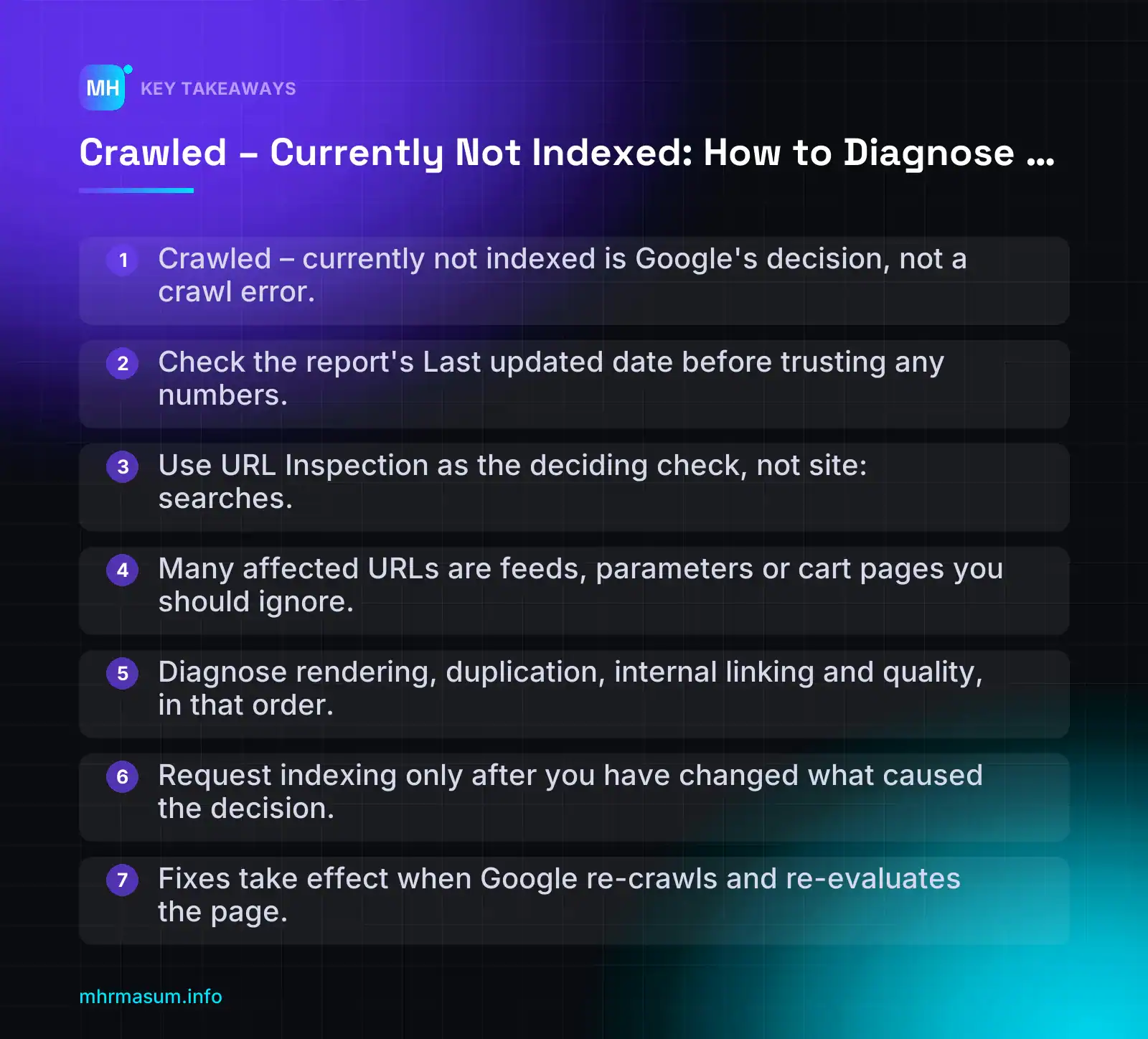
- Crawled – currently not indexed is Google's decision, not a crawl error.
- Check the report's Last updated date before trusting any numbers.
- Use URL Inspection as the deciding check, not site: searches.
- Many affected URLs are feeds, parameters or cart pages you should ignore.
- Diagnose rendering, duplication, internal linking and quality, in that order.
- Request indexing only after you have changed what caused the decision.
- Fixes take effect when Google re-crawls and re-evaluates the page.
What ‘Crawled – currently not indexed’ means (and what it does not)
Google’s Page indexing help document defines the status in one line: the page was crawled by Google but not indexed. It may or may not be indexed in the future, and there is no need to resubmit the URL for crawling (Google Search Console Help).
Googlebot reached the URL, fetched it and evaluated it. Then Google decided not to add it to the index, at least for now.
This is a decision, not a crawl error. The server responded, and nothing was blocked or broken in a way Google chose to report. The useful question is not “what failed?” but “why did Google judge this page not worth indexing?”
That judgement usually comes from one of four areas, which later sections cover in order:
- Rendering: Googlebot saw a thinner or emptier page than your visitors see.
- Duplication: the page looks too similar to another URL on your site or elsewhere.
- Internal linking: the page is orphaned or buried, so it looks unimportant.
- Quality and originality: the page, or the site as a whole, does not add enough value.
How it differs from ‘Discovered – currently not indexed’
The two statuses look alike, but they describe different stages. ‘Discovered – currently not indexed’ means Google knows the URL exists but has not crawled it yet. That is why the last crawl date is empty for Discovered URLs (Google Search Console Help).
If URL Inspection shows a last crawl date, Google has seen the page. Your problem is then about evaluation, not discovery.
Use this table to separate the most commonly confused statuses before you change anything.
| Status | Last crawl date present? | Typical cause | First check |
|---|---|---|---|
| Discovered – currently not indexed | No | Google found the URL in links or a sitemap but has not crawled it yet. Common on large sites, new sections and weakly linked pages. | Internal links to the URL, sitemap inclusion and server response times. |
| Crawled – currently not indexed | Yes | Google fetched the page and chose not to index it. Causes include thin rendered content, near-duplication, weak internal linking or low perceived value. | URL Inspection: confirm the status, then view the crawled page’s rendered HTML. |
| Excluded by ‘noindex’ tag | Yes | The page, or its HTTP header, tells Google not to index it. This is often intentional. Sometimes a plugin or theme setting causes it by mistake. | Page source and response headers for noindex. Then decide whether you want it indexed at all. |
| Duplicate, Google chose different canonical than user | Yes | You declared one canonical, but Google picked another URL as the main version. | The Google-selected canonical in URL Inspection, compared with your declared canonical. |
| Soft 404 | Yes | The page returns 200 OK but looks empty or “not found”. Examples are out-of-stock pages with no content and empty search or filter results. | What the page actually shows. Then either return a real 404/410 or add genuine content. |
Why ‘currently’ matters
The word “currently” is literal. The status reflects Google’s latest evaluation, not a permanent verdict. URLs can move in and out of this bucket as Google re-crawls them and as your site changes.
This has three practical consequences:
- A few URLs in this bucket is normal. Almost every site has some, and many of them are pages you would not want indexed anyway.
- A sudden rise is worth investigating. It is especially important when it affects one template, such as all product pages or all blog posts.
- Fixes take effect on re-crawl, not instantly. Google has to come back, re-evaluate the page and reach a different decision.
“It’s an error. Just click Request Indexing.”
This is the most common reaction, and it rarely works. Google states that there is no need to resubmit these URLs. Google has already crawled the page.
Requesting indexing for an unchanged page asks Google to repeat the same evaluation on the same content. You should expect the same outcome.
Request indexing only after you have changed something that addresses the cause. That could be rendered content, a canonical, internal links or the substance of the page. For more on why there are no shortcuts here, see Google Indexing API in 2026: Quotas, Rules and Safe Alternatives.
Scope note: this guide covers existing domains. If the problem started after moving to a new domain, the diagnosis is different. Use Site Migration SEO: Fix a WordPress Domain That Won’t Index instead.
Step zero: confirm the data before you diagnose
Before you rewrite content or restructure links, make sure the problem is real. The Page indexing report is not a live view of Google’s index. It can lag, and it has lagged badly.
Ten minutes of checking here can save you weeks of fixing pages that are already indexed.
Check the report’s last updated date
In Search Console, go to Indexing > Pages. Look for the “Last updated” date near the top of the report.
Compare that date with today. Google’s About Search Console data help page says collected data is normally available within 2–3 days. If the date is much older than that, treat every number in the report as historical.
This is not a theoretical risk. Search Engine Journal reported on 30 October 2026 that the Page indexing report fell weeks behind in late 2025 and again in June 2026. In one Reddit case, a site owner said the report had not updated since October, while Google’s Data anomalies page listed “No recent issues” (Search Engine Journal).
John Mueller’s comment in that coverage is important: “We don’t back-fill indexing data.” When the report catches up, the missing period stays missing.
Do not read a trend across that gap. A sudden jump after a stale period may simply be the report catching up, not a change on your site.
Confirm with URL Inspection
Next, check individual URLs, which usually reflect fresher index data.
- In Indexing > Pages, scroll to “Why pages aren’t indexed” and click Crawled – currently not indexed.
- From the example list, pick 5–10 URLs that you actually care about. Include different templates where possible, such as a product, a category and a post.
- Open each one in URL Inspection, using the inspect icon or the search bar at the top.
- Record the result, the page indexing status and the “Last crawl” date.
Use a simple log like this:
URL                               | Report says             | URL Inspection says | Last crawl
/product/blue-wool-scarf/         | Crawled – not indexed   | URL is on Google    | 28 Oct 2026
/category/scarves/?colour=blue    | Crawled – not indexed   | URL is not on Google| 14 Oct 2026
/blog/how-to-wash-wool/           | Crawled – not indexed   | URL is not on Google| 02 Oct 2026
If URL Inspection says “URL is on Google”, the report is stale for that URL and nothing needs fixing. If most of your sample shows this, wait for the report to refresh before going further.
Only the URLs that URL Inspection confirms as not indexed move on to triage.
Cross-check the Performance report
According to Search Engine Journal’s SEO Pulse, Mueller pointed people to the report dates. He also said indexing changes show up first in performance reports (Search Engine Journal).
- Go to Performance > Search results.
- Click Add filter > Page, choose Exact URL and paste the URL.
- Set the date range to the last 28 days and check Impressions.
Impressions mean the page was indexed and shown for at least one query. Zero impressions does not prove the opposite, though. An indexed page that ranks for nothing will also show zero.
Use impressions as a positive signal, and URL Inspection as the deciding check. For more on reporting from Search Console data, see Rank Tracking Accuracy: A Search Console-First SEO Report.
Why not just use a site: search?
Many people check indexing with site:example.com/page-url. It is a poor test for this job.
- The site: operator is a search feature, not a diagnostic tool, and it is not designed to list every indexed URL.
- Result counts are rough estimates and can change between searches.
- An indexed URL can fail to appear, and the result can vary by location or data centre.
Use site: for a quick look if you like, but never base a decision on it.
Check for known Google-side issues
Finally, check two places for known problems:
- The Data anomalies in Search Console help page lists known reporting issues and their dates. As the October 2026 case shows, though, “No recent issues” does not guarantee your report is current.
- The Google Search Status Dashboard shows incidents affecting crawling, indexing and serving.
If both are clear and URL Inspection confirms the pages are not indexed, the problem is real and on your side. If you want a second opinion before going deeper, start with a free SEO check.
Triage: which URLs should not be indexed anyway
Before you diagnose anything, split the affected URLs into two piles. Many URLs under “Crawled – currently not indexed” are URLs you never wanted in Google. In those cases, Google has made the decision you would have made yourself.
“Every URL in this report is a problem I need to fix.”
That assumption is wrong. A store with 40 products can easily show hundreds of affected URLs. Most come from sorting parameters, cart links and feeds. Fixing them means controlling what gets crawled, not forcing them into the index.
URLs you can safely ignore
Use this table to sort the obvious cases. The action column is about reducing crawl waste. It is not about getting these URLs indexed.
| URL type | Typical pattern | Why it appears | Action |
|---|---|---|---|
| WordPress feeds | /feed/, /comments/feed/, /category/x/feed/ |
Linked in the page <head> on every page |
Ignore. Feeds are not landing pages. |
| Comment reply links | ?replytocom=123 |
Threaded comment “Reply” links | Ignore, or make sure your SEO plugin removes or noindexes them |
| Attachment pages | /product-name/image-1/ |
Older WordPress sites create a page for each upload | Redirect to the file or parent post, or disable attachment pages |
| Internal search results | ?s=, /search/term/ |
Search URLs linked or shared somewhere | Noindex. Do not link to search result pages. |
| Add to cart | ?add-to-cart=456 |
Crawlable “Add to cart” buttons on archives | Ignore. Never index. Avoid listing them in sitemaps. |
| Sorting | ?orderby=price, ?orderby=popularity |
Sort dropdown on shop and category pages | Ignore. Canonical points to the unsorted category. |
| Cart, checkout, account | /cart/, /checkout/, /my-account/ |
Linked from header and menus | Noindex (check page source to confirm it is present) |
| Wishlist, compare, share | ?wishlist=, /compare/, ?share= |
Plugin buttons on product pages | Noindex by default |
| Images and resources | .jpg, .webp, .js, .css |
Non-HTML files can appear in the report | Usually harmless. Ignore. |
Wishlist, compare and share URLs deserve special mention. On 26 October 2026, Google added a section called “Only index content meant for Search” to its spam prevention guide. It says pages made for sharing, collaboration or utility should be kept out of Search by default with noindex (meta tag or X-Robots-Tag) or a robots.txt block (Search Engine Journal). This is a help-guide change, not a new ranking policy. Still, WooCommerce share and wishlist URLs fit that description exactly.
Choose noindex over robots.txt for URLs that are already known to Google. Google’s own documentation notes that robots.txt does not guarantee a page stays out of the index. To keep a page out, allow crawling and use noindex (Google Search Console Help).
If an old shared PDF or file is the issue rather than an HTML page, my PDF SEO guide covers when to index files and when to hide them.
URLs that are a real problem
Act when the affected URL is one you want people to land on from Google. These are your money pages:
- Product pages that are in stock and listed in your sitemap.
- Key category pages that target real search demand, such as “men’s leather wallets”.
- Service pages that describe what you sell and who it is for.
- Location pages for areas you genuinely serve.
- Cornerstone posts: the guides you link to most and expect to rank.
Here is the decision rule I use:
If you would not want the URL as a landing page from Google, the status is a symptom of crawl waste, not an indexing problem. Clean up links and directives, then move on. If you would want it as a landing page, it goes into the sample you build next.
Build a sample: export, group by template, prioritise
You cannot inspect hundreds of URLs one by one, and you do not need to. The goal is a small, organised sample that shows patterns. Patterns tell you where the cause lives.
Export the example URLs
- Open Google Search Console and select the correct property.
- Go to Indexing > Pages.
- Scroll to the table “Why pages aren’t indexed”.
- Click Crawled – currently not indexed.
- Click Export in the top right and choose Google Sheets, Excel or CSV.
The export contains example URLs, not necessarily every affected URL. It is capped at a fixed number of rows (commonly 1,000). Check the row count in your file against the total shown in the report. If the total is much higher, treat the export as a sample, not a complete list.
There is no bulk API for the Page indexing report. That is another reason to work from patterns rather than trying to check every URL.
Filter by sitemap
At the top of the Page indexing report, there is a dropdown set to All known pages by default. Change it to All submitted pages, or pick a single sitemap such as product-sitemap.xml.
Then click the “Crawled – currently not indexed” reason again and export.
This removes most of the noise from the triage table above. Submitted URLs are the URLs you have told Google you want indexed. If they are affected, that matters. If your sitemap includes tag archives or thin pages you do not care about, that is a sitemap problem worth fixing too.
Run one export per important sitemap. Products, categories and posts often have different causes.
Group by page template and URL pattern
Put the export into a spreadsheet and add these columns:
| Column | Where to get it | What it tells you |
|---|---|---|
| URL | Search Console export | The affected page |
| Template | Regex on the URL (see below) | Product, category, tag, filter, post or page |
| Word count | Site crawler (e.g. Screaming Frog) | Thin pages cluster together |
| Inlinks | Site crawler | Orphaned or buried pages |
| Canonical | Site crawler | Pages pointing somewhere else |
| Last crawl | Search Console export | Recently crawled vs long-stale |
| Impressions | Performance > Search results > Pages | Pages that once earned visibility and lost it |
Use regex patterns to label the template. Order matters: put the more specific patterns first.
/product-tag/        WooCommerce product tag archive
/product-category/   WooCommerce category
\?filter_            WooCommerce layered nav filter
\?orderby=           Sort parameter
/tag/                Post tag archive
/author/             Author archive
/page/\d+/           Paginated archive
/\d{4}/\d{2}/        Date archive (or date-based post permalinks)
/product/            Single product
In Google Sheets, a formula like this assigns the label automatically:
=IFS(
  REGEXMATCH(A2,"/product-tag/"),"product tag",
  REGEXMATCH(A2,"\?filter_"),"filter",
  REGEXMATCH(A2,"/tag/"),"tag",
  REGEXMATCH(A2,"/author/"),"author",
  REGEXMATCH(A2,"/page/\d+/"),"pagination",
  REGEXMATCH(A2,"/product/"),"product",
  TRUE,"other"
)
One edge case: if your post permalinks include the date, /\d{4}/\d{2}/ will match real posts as well as date archives. Check your setting under Settings > Permalinks before trusting that label. My guide to SEO friendly URLs in WordPress explains the structure options.
Author archives are a common cluster on multi-author blogs. If they are thin, see author pages SEO in WordPress before deciding to noindex them.
Prioritise what to fix first
Create a pivot table counting URLs by template. Then sort your work in this order:
- Submitted money-page templates with past impressions.
- Submitted money-page templates with no impressions.
- Unsubmitted templates you still want indexed.
- Everything else (usually triage candidates).
If most affected URLs share one template, fix the template, not individual pages. Two hundred affected product tag archives are not two hundred problems. They are one decision about product tags.
If you would like a second pair of eyes on your export, run a free SEO check first. It helps confirm which templates are worth your time before you move to the decision tree.
The decision tree: four causes in the right order
Once you have removed the URLs that should never be indexed, you have a smaller list of pages that should be in Google. Now diagnose them in a fixed order, from the cheapest and most objective checks to the most subjective.
The order matters. If you start by rewriting content, you may spend weeks improving pages that Google could not render properly in the first place.
Branch 1: Can Google render the main content?
- Run a live test in URL Inspection on one sample URL from the template.
- Look for the main content in the rendered HTML and the screenshot. This means the body text, product description and price.
- No: you have a rendering cause. Fix it first, then retest. See the next section.
- Yes: move to Branch 2.
Branch 2: Is it a duplicate or near-duplicate?
- Check the canonical you declared against the content of the page.
- Ask whether another URL on your site, such as a variant, a parameter version or a near-identical page, serves the same purpose.
- Yes: you have a duplication cause. Consolidate, canonicalise or differentiate the page (Google Search Central).
- No: move to Branch 3.
Branch 3: Is it properly linked internally?
- Find out whether the URL is linked from relevant pages through normal HTML
<a href>links. A sitemap entry alone does not count. - Count how many clicks it takes to reach the page from the homepage or a main category.
- No, or the page is buried deep: you have an internal linking cause. Add contextual links from strong, related pages.
- Yes, well linked: move to Branch 4.
Branch 4: Is it original and useful enough?
- Compare the page with what already ranks for its topic. Then compare it with your own similar pages.
- Answer the originality, substance and added-value questions in Google’s self-assessment (Google Search Central).
- No: improve, merge or remove the page.
- Yes: give it time, strengthen its internal links and monitor. The official documentation says the page may or may not be indexed in the future (Search Console Help).
Why quality comes last
Weak or unoriginal content is usually the most common cause, but it is the hardest to prove. No report tells you “this page is not good enough”.
Rendering, duplication and linking can each be confirmed in minutes with a tool. Rule them out first. Then, when you reach the quality branch, you know the problem is the content and not something technical hiding behind it.
Quick reference table
| Signal you see | Likely cause | Tool to confirm | Fix |
|---|---|---|---|
| Screenshot is blank, shows a spinner or a consent overlay | Rendering | URL Inspection > Test live URL > View tested page | Serve the main content in the HTML and unblock resources |
| Body text missing from the rendered HTML | Rendering (JavaScript or AJAX) | Rendered HTML tab, then search for a unique sentence | Render on the server or load the content without user interaction |
| Many URLs differ only by parameter or variant | Duplication | Page indexing export grouped by pattern; URL Inspection canonical fields | Canonicalise, consolidate or control crawling of parameters |
| URL appears in the sitemap but nowhere in your navigation or content | Internal linking (orphan page) | Site crawler’s inlinks report | Add contextual links from related, indexed pages |
| Page renders well, is unique and linked, but is thin or generic | Quality or originality | Manual review using Google’s helpful content questions | Add original substance, merge with a stronger page, or remove |
| Problem spreads across many unrelated templates | Site-wide quality | Page indexing report trend plus a template-level breakdown | Audit and prune low-value sections across the site |
The site-level check
Before you finish, look at the pattern across your whole sample. If only one template is affected, such as tag archives, the cause is usually local to that template.
If blog posts, product pages, categories and landing pages are all affected at once, suspect site-wide quality. In one case Google’s John Mueller discussed, the real problem was old, irrelevant, low-quality pages on the site, not the change the owner blamed (Search Engine Journal). The same thinking applies to an established domain. A large amount of weak content can hold back indexing of your good pages. If you have recently moved domains, use my site migration SEO guide instead.
Rendering causes: what Googlebot actually sees
Your browser and Googlebot can see very different pages. You see a finished product page. Googlebot may see an empty template, because the description, reviews or price arrive later through JavaScript that failed, timed out or was blocked.
When Google renders a page and finds almost nothing useful, it has little reason to index it.
Read the live test’s rendered HTML and screenshot
Use this path in Search Console:
- Open URL Inspection and paste the URL.
- Click Test live URL.
- When the test finishes, click View tested page.
- Check the three tabs: HTML, Screenshot and More info.
Here is what to look for in each tab:
| Tab | What to check | Warning sign |
|---|---|---|
| HTML | Search (Ctrl/Cmd + F) for a unique sentence from the body, the product description, the price and a review snippet | The sentence is missing, or you see only empty containers |
| Screenshot | Check whether the main content is visible above the fold | A blank area, a loading spinner, or a cookie or consent overlay covering everything |
| More info > Page resources | Look for resources that could not be loaded, and the reason given | Theme CSS, key JavaScript or admin-ajax.php blocked by robots.txt or failing |
| More info > JavaScript console messages | Look for errors that stop scripts from running | Uncaught errors in the script that injects your content |
Treat the live test as a close approximation. It shows how Google can render the page now, which is enough to spot missing content.
Live tests have a daily limit per property, so do not test every URL. Test one representative URL per template. If the product template fails, all products built on it most likely fail the same way.
How near-empty output leads to “not indexed”
This is the kind of rendered HTML that causes trouble on a JavaScript-heavy product page:
<main id="product">
  <h1>Organic Cotton T-Shirt</h1>
  <div class="price" data-load="ajax"></div>
  <div id="description-tab"></div>
  <div id="reviews-widget"></div>
</main>
Google sees a heading and three empty boxes. A page like this can be treated as a soft 404 because it looks empty (Google Search Central). It can also sit under “Crawled – currently not indexed” because it adds nothing.
Google’s JavaScript SEO basics explains how crawling, rendering and indexing work for JavaScript sites. The safe rule is simple: important content should be in the HTML, or load without any click or scroll.
WordPress and WooCommerce rendering traps
- Tabs loaded by AJAX. WooCommerce’s default description and reviews tabs are normally in the HTML and only hidden with CSS, which is fine. Some themes and tab plugins fetch tab content only when the tab is clicked. Googlebot does not click.
- Page builders. Some builder widgets, sliders and “dynamic content” blocks render text with JavaScript. Check that the text is present in the rendered HTML, not just visible in your browser.
- Consent walls. A cookie banner that covers the page, or a script that holds back content until the visitor accepts, can leave Google with an overlay and nothing behind it.
- Lazy-loaded content. Lazy-loading images with the native
loading="lazy"attribute is fine. Text, related products or reviews that load only on scroll may never appear for Googlebot, because it does not scroll the way people do. - Blocked
/wp-content/resources. Old robots.txt templates often block/wp-content/,/wp-includes/oradmin-ajax.php. That can stop themes and plugins from rendering. - Third-party review widgets. Reviews served in an iframe or by an external script may not count as content on your page. Check the rendered HTML to see whether they are there.
- Security and bot-protection plugins. Firewalls that challenge unusual traffic can serve Googlebot a challenge page instead of your content. The screenshot will show this.
A quick check of robots.txt catches the most common WordPress trap:
# Risky: blocks theme, plugin and AJAX resources
User-agent: *
Disallow: /wp-content/
Disallow: /wp-includes/
Disallow: /wp-admin/

# Safer default for most WordPress sites
User-agent: *
Disallow: /wp-admin/
Allow: /wp-admin/admin-ajax.php
After a fix, run the live test again on the same template URL. Confirm the content now appears in the rendered HTML before you move on to the duplication branch.
If your product descriptions render correctly but are thin or copied from the manufacturer, that is a quality problem, not a rendering one. My guide to improving WooCommerce product listings covers that. If you would like a second pair of eyes on your templates, start with a free SEO check.
Duplication causes: canonicals, variants and parameters
If the page renders properly, the next question is whether Google sees it as a copy of something else. Google does not need to index ten pages that say the same thing. It picks one and leaves the rest out.
Sometimes Google reports this clearly with a duplicate status. Often it does not. A page that is “almost the same” as another page can sit in Crawled – currently not indexed with no explanation.
Compare user-declared and Google-selected canonicals
Open URL Inspection for a sample URL and expand Page indexing. Look at two fields:
- User-declared canonical: the URL your canonical tag points to.
- Google-selected canonical: the URL Google chose to treat as the main version.
If the two differ, the URL usually appears under “Duplicate, Google chose different canonical than user” rather than Crawled – currently not indexed. That is a separate problem with its own fix (Google Search Central).
If the URL is in Crawled – currently not indexed, the Google-selected canonical may not be shown at all, because the page is not indexed. In that case, look for near-duplicates by hand. Put the sample page next to its closest siblings and compare the main content, not the header and footer.
Common near-duplicate patterns:
- The same product in several categories, if your permalinks include the category and the product resolves under more than one path.
- Colour or size variants published as separate products with identical descriptions.
- Supplier descriptions copied word for word, which also appear on many other stores.
- Protocol and slash versions:
http://andhttps://, or/shoesand/shoes/, both returning 200. - Sorting and pagination parameters such as
?orderby=priceor/page/2/with thin, repeated intros.
“If I add a canonical tag, Google will index the page I want.”
Not necessarily. A canonical tag is a strong hint, not a command. If the canonical page is weak, has conflicting signals (such as a noindex), or is barely linked internally, Google may ignore your choice or index neither version.
WooCommerce variations, attributes and parameters
WooCommerce creates many URL variations by default. A variable product can generate URLs like these:
/product/linen-shirt/
/product/linen-shirt/?attribute_pa_colour=blue
/product-category/shirts/?orderby=popularity
/product-category/shirts/page/3/
/product-category/shirts/?filter_colour=blue&filter_size=m
Most of these should point back to a clean URL. The default canonical tag on the main product looks like this:
<link rel="canonical" href="https://example.com/product/linen-shirt/" />In Yoast SEO or Rank Math, you can override this per page in the editor sidebar. Go to the Advanced tab and fill in Canonical URL. Leave it empty to keep the self-referencing default, which is right for most pages.
For site-wide rules, both plugins provide filters. This example keeps Rank Math from changing anything except on sorted category URLs:
add_filter( 'rank_math/frontend/canonical', function ( $canonical ) {
    if ( is_product_category() && isset( $_GET['orderby'] ) ) {
        return get_term_link( get_queried_object() );
    }
    return $canonical;
} );
The Yoast equivalent uses the wpseo_canonical filter. Test on staging first and check the output in the page source.
| Pattern | Fix |
|---|---|
| Same product, several category paths | One URL per product. Remove the category from the product permalink or make sure other paths redirect. |
| Colour variants as separate products | Merge into one variable product, or write genuinely different copy for each. |
| Supplier descriptions | Rewrite with your own specs, use cases, sizing notes and photos. |
| http/https, slash versions | 301 redirect to one version. Update internal links. |
?orderby and sorting |
Canonical to the clean category URL. Do not link to sorted URLs in menus. |
| Paginated pages | Self-referencing canonical on each page. Do not canonicalise page 2 to page 1. |
Two more rules matter here:
- Avoid internal links to parameter URLs. Every link to
?orderby=or a filter combination tells Google that URL matters. Link to clean URLs in menus, breadcrumbs and content. - Do not canonicalise filter pages that have real search demand. If people search for “blue linen shirts”, give that page a clean URL, a unique heading and intro, and a self-referencing canonical. Handle all other filter combinations as described in Google’s guide to faceted navigation.
Clean URL structure makes all of this easier. If your slugs are messy, see SEO friendly URLs in WordPress.
Internal linking causes: orphaned and buried pages
If the page renders and is not a duplicate, check how your own site treats it. Internal links are one of the clearest signals you control about which pages matter. A page that your site barely links to is a page Google has little reason to prioritise.
This is why a URL listed only in the XML sitemap sends a weak signal. A sitemap tells Google that a URL exists and that you would like it crawled. It says nothing about where the page fits, what it is about, or how important it is compared with your other pages. Internal links supply that context through placement, anchor text and the page they come from.
“It’s in the sitemap, so Google knows it’s important.”
A sitemap helps discovery. It does not replace links. Google has crawled the page, so discovery was never the problem. The problem is what happens after crawling.
Find orphans and deep pages
An orphan page is one that no other page on your site links to. To find orphans, compare the URLs in your sitemap with the URLs a crawler finds by following links.
In Screaming Frog:
- Go to Configuration > Spider > Crawl and enable Crawl Linked XML Sitemaps (or add your sitemap URL directly).
- Run the crawl from your homepage.
- Run Crawl Analysis when the crawl finishes.
- Open the Sitemaps tab and filter by Orphan URLs.
Sitebulb offers a similar comparison when you add the sitemap as a crawl source. Either tool works. Cross-check the orphan list against your Crawled – currently not indexed export.
Next, check depth. In the crawler, sort by Crawl Depth. Pages five or more clicks from the homepage deserve a closer look, especially if they are commercial pages.
Watch for pagination-only access. A product that can only be reached through /product-category/shirts/page/14/ is technically linked, but it is buried. This is common on stores with large categories and no subcategories.
Then use Search Console. Go to Links > Internal links > Top linked pages. This shows which pages receive the most internal links according to Google. It is a sample, not a complete list, but it tells you quickly whether your money pages are near the top or nowhere at all.
| Finding | What it means | Priority |
|---|---|---|
| In sitemap, zero internal links | True orphan | High |
| Linked only from paginated archives | Buried, weak context | High for products |
| Crawl depth 5+ | Low prominence | Medium |
| Linked only from other non-indexed pages | Links carry little value | Medium |
| Linked from nav and relevant hubs | Linking is probably not the cause | Move to quality checks |
Strengthen links from relevant, indexed pages
The source of a link matters. A link from an indexed, relevant page is worth far more than a link from another page Google has ignored. Use URL Inspection to confirm the linking page is indexed before relying on it.
Practical fixes:
- Contextual links from hubs. Add links from indexed guides, category pages or pillar posts that cover the same topic. Use descriptive anchor text, such as “linen shirts for hot weather”, not “click here”.
- Breadcrumbs. Enable breadcrumbs in Yoast, Rank Math or your theme so every product and post links back to its category and parent.
- Related products and posts. Use WooCommerce related products, upsells and cross-sells, and related-post blocks on articles. Make sure they are relevant, not random.
- Navigation for key categories. Your most important categories should appear in the main menu, not only in a sidebar widget.
- Subcategories for large catalogues. Split huge categories so products sit two or three clicks from the homepage instead of fourteen pages deep.
Here is a simple contextual link in a blog post:
<p>For humid summers, our <a href="https://example.com/product-category/linen-shirts/">linen shirts</a> stay cooler than cotton blends.</p>Building links around topics, rather than one page at a time, also helps Google understand what your site covers. See topic-level authority SEO for how to plan hubs and clusters.
If you are not sure where your orphan or deep pages are, a free SEO check is a good starting point. Once the linking is fixed and the page still is not indexed, move on to the final branch: quality and originality.
Quality and originality causes: page-level and site-level
If the page renders, is not a duplicate and is well linked, you are left with the hardest cause. Google crawled the page and decided it was not worth a place in the index.
This is not a penalty. It is a judgement about value. The fix is not technical, so do not start here. Rule out rendering, duplication and linking first.
“If I add more words, Google will index it.”
Length is not the test. A 2,000-word page that repeats what every other result says can stay out of the index. A 300-word page with original data or a specific answer can get in. What matters is what the page adds that other pages do not.
Run the helpful content self-assessment
Google publishes a list of self-assessment questions (Google Search Central). Take five sample URLs from one template and answer these questions honestly for each one:
- Original information: does the page give original information, reporting, research or analysis?
- Substantial value: does it cover the topic in a substantial, complete way, or is it a short summary?
- Beyond the obvious: does it offer insight a searcher would not find on the first five results?
- First-hand detail: does it show real experience, such as tested steps, real photos, measurements or actual product use?
- Meets the need: would a searcher leave with enough to finish their task, or would they go back and search again?
- Not a rewrite: if it draws on other sources, does it add real value rather than rephrase them?
Score each answer as yes, partly or no. If most pages in a template score “no” on originality and first-hand detail, the problem is the template’s content model, not the individual URLs.
Decide: improve, merge, noindex or delete
Every weak page needs one decision. Base it on two things: does the page have value to users, and is there search demand for its topic? Check demand in Search Console under Performance → Search results. Look at queries for similar indexed pages, plus any impressions the URL itself had before.
| Page value | Search demand | Action | How |
|---|---|---|---|
| Useful topic, thin execution | Yes | Improve | Add original data, steps, examples, photos or comparisons. Keep the URL. |
| Overlaps a stronger page | Yes, but the same intent | Merge | Move the useful parts into the stronger page, then 301 redirect. Update internal links to the new target. |
| Useful to visitors, not to searchers | No | Noindex | Keep the page, add noindex, remove it from the sitemap, keep it crawlable. |
| No value to anyone | No | Delete | Return 410 (or 404). Remove internal links and sitemap entries. |
Two rules make this table work:
- Only redirect to a genuinely relevant page. Redirecting dozens of unrelated pages to the homepage may be treated as a soft 404 and passes nothing useful.
- Do not noindex pages you actually want to rank. Noindex is for pages with no search purpose, not a way to hide content you have not improved yet.
Warn yourself about bulk AI rewrites
It is tempting to run 500 weak pages through an AI tool and republish them. This does not fix originality. It produces new text with the same lack of information.
At scale, it can also fit Google’s description of scaled content abuse: many pages generated mainly to manipulate rankings rather than help people (Google spam policies). If you have already done this, my spam update recovery audit covers how to review it.
AI can help with structure and editing. The facts, experience and examples must come from you.
When the whole site is held back
Sometimes good pages are not indexed either. That points to a site-level quality signal, not a page-level one.
In one case shared by Search Engine Journal, John Mueller looked at a site whose rankings fell after a domain move. The cause was existing irrelevant, low-quality sections on the site, not the move itself (Search Engine Journal). The lesson applies to any domain: weak sections can affect how Google treats the rest of the site. If you are dealing with a migration specifically, see my guide to fixing a WordPress domain that won’t index after migration.
Marie Haynes put forward a related theory in October 2026. She suggests that Google’s quality standards have become stricter and that originality now matters most (Search Engine Journal). Her advice is to rule out technical causes first, then publish a small number of truly original articles. Treat this as an expert theory, not a Google statement. The advice is still sensible either way.
A practical site-level plan:
- List every section of the site (blog categories, tag archives, location pages, old landing pages).
- Mark sections that do not fit your core topics or that you would not show a client.
- Apply the decision table to whole sections, not single URLs.
- Strengthen what remains around clear topics. My guide on topic-level authority explains how.
- Publish fewer, better pages. Expect change over weeks or months, not days.
WordPress and WooCommerce examples: tags, archives and filters
On WordPress sites, most of the Crawled – currently not indexed list usually comes from a few templates. Fix the template, and hundreds of URLs are dealt with at once.
Thin tag, date and author archives
WordPress creates archive pages automatically. Most of them add little that the posts themselves do not already provide.
| Template | Example URL | Typical problem | Rule |
|---|---|---|---|
| Tag archive | /tag/gbp-photos/ |
1–2 posts, no intro, same excerpts as the category page | Noindex below a post threshold, or stop creating one-off tags |
| Date archive | /2025/03/ |
A list of posts sorted by date, matching no search intent | Noindex or disable |
| Author archive | /author/admin/ |
Same list as the blog page on a single-author site | Noindex or disable, unless it is a real author profile |
| Attachment page | /product-x/photo-1/ |
A page holding one image and no text | Redirect to the file or the parent post |
| Category archive | /category/local-seo/ |
Fine if curated | Index with a unique intro and enough posts |
Author archives are worth keeping on multi-author sites when they work as real profiles. My guide to author pages SEO in WordPress shows how to build them.
Since WordPress 6.4, new installs have attachment pages turned off by default. Older sites keep their existing setting, so check what your site actually returns for an attachment URL.
Product tags and layered-navigation filter URLs
WooCommerce adds two more URL sources: product tags and filter parameters from layered navigation.
/product-category/t-shirts/                          → index (unique intro, 20+ products)
/product-tag/summer/                                 → noindex if thin or overlaps a category
/product-category/t-shirts/?filter_color=red         → noindex
/product-category/t-shirts/?filter_color=red&filter_size=m  → noindex
/shop/?orderby=price&min_price=10&max_price=50       → noindex
/wishlist/?share=abc123                              → noindex (utility page)
/compare/?products=12,45,78                          → noindex (utility page)
Use one rule per template:
- Index category pages that have unique intro copy and enough products to be a useful choice. For copy ideas that avoid generic text, see my WooCommerce product listing guide.
- Noindex thin product tags and any tag that duplicates a category.
- Noindex filter combinations. One colour on one category might deserve its own page. If it does, build it as a proper category with its own URL and copy, not as a parameter.
- Keep crawlers out of infinite combinations. Colour × size × price × sort creates more URLs than Google will ever process. Google’s faceted navigation guide covers when to block crawling of filter URLs.
- Noindex share, wishlist and compare URLs by default. Google’s October 2026 spam guide update added advice to keep pages made for sharing, collaboration or utility out of the index (Search Engine Journal). This is help-guide advice, not a ranking change, but it fits these WooCommerce URLs well.
“I’ll just block the filter URLs in robots.txt. That keeps them out of the index.”
It does not. robots.txt controls crawling, not indexing. A blocked URL can still be indexed without its content if links point to it (Search Console Help). And if Google cannot crawl the page, it cannot see a noindex tag on it (Google Search Central).
So pick one approach per URL group:
- Already indexed or reported? Allow crawling, add noindex, and wait until they drop out.
- Infinite combinations Google has not touched yet? Blocking crawling in robots.txt is reasonable to save crawl effort. Accept that you are controlling crawling, not indexing.
Code: noindex templates with wp_robots
WordPress core has a wp_robots filter (added in 5.7) that controls the robots meta tag. This snippet noindexes tag and product-tag archives with fewer than a set number of items, plus any WooCommerce filter or sort URL. Links still pass because follow is kept.
<?php
/**
 * Noindex thin tag archives and WooCommerce filter URLs.
 * Add to a child theme's functions.php or a small custom plugin.
 */
add_filter( 'wp_robots', function ( $robots ) {

    $min_items = 5; // Adjust the threshold for your site.

    // 1. Thin post tags and product tags.
    $is_product_tag = function_exists( 'is_product_tag' ) && is_product_tag();

    if ( is_tag() || $is_product_tag ) {
        $term = get_queried_object();
        if ( $term instanceof WP_Term && (int) $term->count < $min_items ) {
            $robots['noindex'] = true;
            $robots['follow']  = true;
        }
    }

    // 2. Layered-navigation filters, price filters and sort order.
    $noindex_params = array( 'orderby', 'min_price', 'max_price', 'rating_filter' );

    foreach ( array_keys( $_GET ) as $key ) {
        $key = sanitize_key( $key );
        if ( 0 === strpos( $key, 'filter_' )
            || 0 === strpos( $key, 'query_type_' )
            || in_array( $key, $noindex_params, true ) ) {
            $robots['noindex'] = true;
            $robots['follow']  = true;
            break;
        }
    }

    // 3. Date archives.
    if ( is_date() ) {
        $robots['noindex'] = true;
        $robots['follow']  = true;
    }

    return $robots;
} );
Before you deploy it, check three things:
- SEO plugin conflicts. Yoast and Rank Math manage the robots tag themselves. If one is active, use its own filter instead (
wpseo_robotsin Yoast,rank_math/frontend/robotsin Rank Math). Confirm the exact usage in the plugin’s developer docs. - One robots tag only. View the page source of a test URL and make sure there is a single robots meta tag with the expected value.
- Confirm with URL Inspection. Run a live test and check that it reports the page as excluded by the noindex tag.
Settings paths in Yoast and Rank Math
If you prefer settings to code, these are the usual locations. Menu labels change between versions, so match on the setting name.
| Template | Yoast SEO | Rank Math |
|---|---|---|
| Tags | Yoast SEO → Settings → Categories & tags → Tags → “Show tags in search results” off | Rank Math → Titles & Meta → Tags → Robots Meta: No Index |
| Product tags | Yoast SEO → Settings → Categories & tags → Product tags | Rank Math → Titles & Meta → Product Tags |
| Date archives | Yoast SEO → Settings → Advanced → Date archives | Rank Math → Titles & Meta → Misc Pages → Date Archives |
| Author archives | Yoast SEO → Settings → Advanced → Author archives | Rank Math → Titles & Meta → Authors |
| Attachment pages | Yoast SEO → Settings → Advanced → Media pages | Rank Math → General Settings → Links → Redirect Attachments |
Finally, remove noindexed URLs from your XML sitemaps. A sitemap tells Google “please index this”, while noindex says the opposite. Both plugins usually drop noindexed taxonomies from their sitemaps when you use the settings above. URLs you noindex with custom code may stay in the sitemap, so open the sitemap index and check each child sitemap by hand.
If you would like a second pair of eyes on which templates to keep, our free SEO check includes a quick indexing review.
After the fix: request indexing, validate and monitor
Once you have fixed a cause, the next job is to let Google see the change and then measure whether it worked. Most of the result depends on Google recrawling and reassessing the page. Your tools only help that happen sooner and show you the outcome.
When to use Request Indexing
Google’s own help page says there is no need to resubmit a “Crawled – currently not indexed” URL for crawling (Search Console Help). Google already knows the page exists. Requesting indexing only asks for a fresh crawl.
Use the Request Indexing button in URL Inspection only when both of these are true:
- You made a material change. Examples: you fixed a rendering failure, removed a wrong canonical, added internal links from strong pages, or rewrote thin content into something original.
- The URL is a priority. Think key category pages, top products, service pages and cornerstone articles. Not every tag archive.
Before you click it, run Test Live URL and check the rendered HTML, the user-declared canonical and the indexing allowed field. If the live test still shows the problem, the request is wasted.
Requesting indexing does not guarantee indexing. It moves the page into the crawl queue. Google still decides whether the page deserves a place in the index.
Don’t use the Indexing API as a workaround for normal pages. It is meant for specific content types, as covered in Google Indexing API in 2026: Quotas, Rules and Safe Alternatives. If you also want Bing and other IndexNow engines to pick up the change, see Bing Webmaster Tools & IndexNow for WordPress.
How Validate Fix works for this status
In the Page indexing report, open the “Crawled – currently not indexed” row. If a Validate Fix button is shown, clicking it asks Google to recheck the affected URLs and track the progress.
Expect it to be slow. Validation can take weeks, because Google recrawls the URLs on its own schedule, not all at once.
| Validation state | What it means | What to do |
|---|---|---|
| Started | Google has begun rechecking the URLs. | Wait. Don’t restart it. |
| Looks good / Passed | The rechecked URLs no longer show this status. | Confirm with URL Inspection on a few key URLs, and check impressions in the Performance report. |
| Failed | At least one rechecked URL still shows the status. | Open the URL list, inspect failures, and work out whether the fix was incomplete or the page is still judged low value. |
For this status, a “Failed” result often has nothing to do with a broken fix. Your technical repair may be correct, but Google can still judge some URLs as not worth indexing. That points you back to the quality branch of the decision tree, or to the triage question: should this URL be indexed at all?
Run validation per fix, not per hope. If you fixed rendering on product pages, validate after that fix is live across the template. Don’t validate a mixed group of tag archives, filters and articles and expect a clean pass.
Ongoing monitoring
URL Inspection checks one URL at a time in the interface. For a larger sample, use the URL Inspection API to re-check status programmatically. It also works one URL per request, and has daily and per-minute quotas per property. Check the current limits in the Search Console API documentation before you build a script around them.
Track results by template, monthly, using the same sample you built earlier. A simple log is enough:
Month     Template          Sample  Indexed  Crawled-not-indexed  Discovered-not-indexed  Notes
2026-11   Blog posts        50      38       10                   2                       Added links from hub pages
2026-11   Product pages     80      71       7                    2                       Fixed variant canonicals
2026-11   Category pages    30      27       3                    0                       Rewrote intro copy on 12
2026-11   Tag archives      40      0        0                    0                       Noindexed by design
Before you read any trend, check the “Last updated” date on the Page indizing report. The report has fallen weeks behind more than once, and Google has said it does not back-fill indexing data (Search Engine Journal). John Mueller has also pointed out that indexing changes show up first in performance reports (Search Engine Journal). So pair the Page indexing report with page-level impressions in the Performance report. My guide to Search Console-first SEO reporting covers how to set this up.
Finally, watch for unexpected spikes in indexed or not-indexed counts. Google’s spam guide, updated on 26 October 2026, recommends exactly this, alongside keeping sharing, collaboration and utility pages out of the index by default (Search Engine Journal). A sudden jump in indexed URLs can mean wishlist, share or search URLs are leaking into the index. A sudden jump in not-indexed URLs often follows a theme, plugin or template change.
Common mistakes and a troubleshooting table
Most failed fixes for crawled currently not indexed come from a small set of repeat mistakes. Check this list before you spend more time on content changes.
Mistakes to avoid
- Requesting indexing again and again. Repeated requests for an unchanged page do not change Google’s assessment. Request once after a material change, then wait.
- Blocking in robots.txt and expecting the page to drop out. robots.txt controls crawling, not indexing. Google’s help page says a robots.txt block does not guarantee a page stays out of the index. To remove it, lift the block and use
noindexso Google can crawl the page and see the tag (Search Console Help). - Combining noindex with a canonical to another URL. “Don’t index this” plus “this is a copy of that” sends mixed signals. Choose one. Use a canonical for genuine duplicates and noindex for pages that should not be in search at all.
- Leaving noindexed URLs in your XML sitemap. A sitemap says “please index these”. Remove noindexed, redirected and canonicalised URLs so the sitemap only lists pages you want indexed.
- Diagnosing from a stale report. If the “Last updated” date is weeks old, confirm the current status with URL Inspection before you change anything.
- Deleting pages that have backlinks. A weak page with good external links is often worth improving, merging or redirecting to the closest relevant page. Check links in Search Console’s Links report or your backlink tool first.
“Once a page is indexed, it stays indexed.”
Not true. The status can fluctuate. Google reassesses pages over time, and an indexed page can drop back to “Crawled – currently not indexed”. This is common after a site’s overall quality changes, or when a page becomes less useful compared with others on the same topic. A single URL moving in and out is not usually a crisis. A whole template moving is worth investigating.
If a large share of a site keeps dropping out, look at site-wide quality, not just single pages. Low-value pages already on the domain can hold the rest back. My policy-by-policy site audit is a useful structure for that review. If the problem started after a domain move, use the site migration guide instead.
Troubleshooting table
| Symptom | Likely cause | What to check | Fix |
|---|---|---|---|
| New blog posts stay “crawled, not indexed” for weeks | Weak internal linking, or posts too similar to existing content | Links from the homepage, category and related posts; compare with your own older posts on the same topic | Link from relevant hub pages; merge overlapping posts; add original detail, examples or data |
| Parent products indexed, variant URLs not | Variants are near-duplicates, or canonicalise to the parent | User-declared and Google-selected canonical in URL Inspection | Usually expected. Index the parent; only give variants their own pages if they have distinct search demand and content |
| Sudden jump after a theme or plugin update | Rendering change, new noindex or canonical rules, or new URL patterns being generated | Live test rendered HTML; view source for robots meta and canonical; compare URL patterns before and after | Roll back or reconfigure the setting; fix the template; then validate the fix |
| Filter and sort URLs flood the report | Faceted navigation creating endless combinations | URL parameters in the example list | Follow Google’s faceted navigation guidance; noindex or block low-value combinations |
| Wishlist, compare or share URLs listed | Utility pages that were never meant for search | URL patterns such as ?add_to_wishlist= or /compare/ |
Noindex by default with meta robots or X-Robots-Tag; usually no further action needed |
| Images or PDFs appear in the report | Non-HTML resources crawled but not indexed as pages | File type of the example URLs | Usually harmless. For PDFs you want ranked, see PDF SEO |
| Previously indexed pages dropped back | Google reassessed value at page or site level | Impressions trend in Performance; similar pages on the site | Improve or consolidate the pages; review site-wide low-value content |
| Report numbers haven’t moved for weeks | Report data lag | “Last updated” date; URL Inspection on sample URLs | Diagnose from URL Inspection and Performance until the report catches up |
For utility pages, a simple header rule is often cleaner than editing templates:
X-Robots-Tag: noindexOr in the page head:
<meta name="robots" content="noindex">If you have worked through the decision tree and a priority template still won’t index, a second pair of eyes helps. Start with a free SEO check, or book a free consultation to go through your sample together.
Frequently Asked Questions
What does crawled currently not indexed mean in Google Search Console?
It means Googlebot fetched and evaluated the page but chose not to add it to the index for now. The server responded and nothing was blocked. The status can change on a later crawl if Google's assessment of the page changes.
Should I click Request Indexing for crawled but not indexed pages?
Not until you have changed something. Google says there is no need to resubmit these URLs, and requesting indexing for an unchanged page usually produces the same result. Fix the cause first, such as thin rendered content, a conflicting canonical or missing internal links, then request indexing for the pages that matter.
Is it normal to have pages crawled but not indexed?
Yes. Almost every site has some, and many are feeds, sorting parameters, cart links or internal search URLs you would not want indexed anyway. A sudden rise, especially across one template such as all product pages, is the signal worth investigating.
What is the difference between discovered and crawled currently not indexed?
Discovered means Google knows the URL exists but has not crawled it yet, so URL Inspection shows no last crawl date. Crawled means Google has fetched the page and decided against indexing it. The first is usually a discovery or crawl priority problem; the second is about how Google judged the page.
Can the Page indexing report show pages as not indexed when they are?
Yes. The report is not a live view and has fallen weeks behind in the past, and Google does not back-fill missing indexing data. Inspect a sample of URLs individually; if URL Inspection says the URL is on Google, the report is simply out of date.
How long does it take for a fixed page to get indexed?
There is no fixed timeline. Google has to re-crawl the page, re-evaluate it and reach a different decision, which depends on how often it visits your site and how important the page appears. Strong internal links and a sitemap entry help Google find the updated page sooner.
Why are WooCommerce filter and sorting URLs in this report?
Sort dropdowns, filters, add-to-cart buttons and wishlist links create crawlable URL variations of the same products. Google often crawls them and declines to index them, which is usually the right outcome. Make sure they canonicalise to the main category or carry noindex, rather than trying to get them indexed.
Final Thoughts
Start with the data. Confirm the report’s last updated date, then inspect a sample of URLs you actually care about. Only pages URL Inspection confirms as not indexed need work.
Next, set aside the feeds, parameters, cart pages and utility URLs that should stay out of Google. For the pages that remain, work through rendering, duplication, internal linking and quality, and change what is weak.
Request indexing only once a page has genuinely improved, then give Google time to re-crawl it. If you want a second pair of eyes on your Search Console data before you start, a free SEO check is a sensible first step.
Want help applying this to your site? Run the free SEO check or book a free consultation with MD Harunur Rashid. Free SEO check · Book a free consultation