Your favicon is not showing in Google, and your results carry a grey globe, the WordPress “W” or a logo you replaced months ago. A favicon not showing in Google is almost never random. It usually comes down to a few things on one page.
That page is your root home page, not the post or product that ranks. Google reads both your favicon and your site name from there.
This guide explains how Google picks both. It covers the 27 October 2026 documentation update on home page redirects and how WordPress redirect chains can hide your icon.
You will get Google’s favicon requirements as a checklist, a curl test for redirects and the steps to confirm a fix in Search Console.
It is written for WordPress and WooCommerce store owners, marketers and in-house SEOs who want the real cause fixed, not another plugin installed.
Key Takeaways
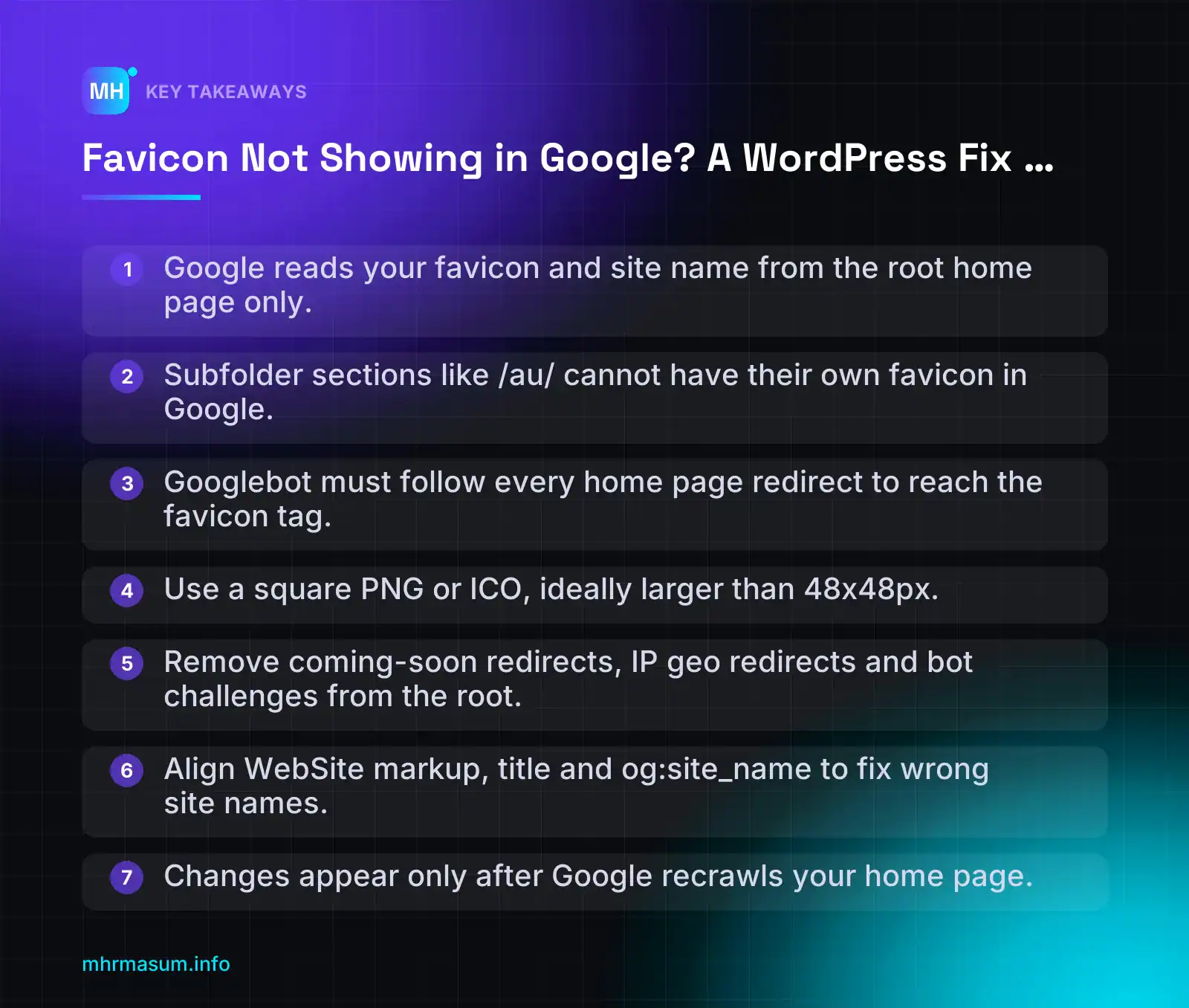
- Google reads your favicon and site name from the root home page only.
- Subfolder sections like /au/ cannot have their own favicon in Google.
- Googlebot must follow every home page redirect to reach the favicon tag.
- Use a square PNG or ICO, ideally larger than 48x48px.
- Remove coming-soon redirects, IP geo redirects and bot challenges from the root.
- Align WebSite markup, title and og:site_name to fix wrong site names.
- Changes appear only after Google recrawls your home page.
How Google picks your favicon and site name (both come from the home page)
When your favicon or site name looks wrong in Google, the instinct is to inspect the page that ranks. That is usually the wrong page to check.
Google reads both the favicon and the site name from your root home page, not from the blog post or product page shown in results. Every result from your site shares the same favicon and site name, and both come from one place.
“Home page” means the root of a domain or subdomain:
- Supported:
https://example.com/andhttps://shop.example.com/ - Not supported: subdirectory home pages such as
https://example.com/news/orhttps://example.com/au/
This matters if you run separate sections or regional stores in folders. A folder cannot have its own favicon or site name in Google Search. It inherits whatever the root home page provides (Google Search Central, Google Search Central).
What Google reads for the favicon
The process has two stages, and each one is a separate place it can fail.
- Googlebot crawls the home page and looks for a favicon
<link>tag in the<head>. - Googlebot-Image fetches the icon file referenced in that tag.
Google accepts three rel values: icon, apple-touch-icon and apple-touch-icon-precomposed. The href can be relative or absolute.
<link rel="icon" href="https://example.com/wp-content/uploads/2026/10/cropped-icon-32x32.png" sizes="32x32" />
<link rel="icon" href="https://example.com/wp-content/uploads/2026/10/cropped-icon-192x192.png" sizes="192x192" />
<link rel="apple-touch-icon" href="https://example.com/wp-content/uploads/2026/10/cropped-icon-180x180.png" />
This is the kind of output WordPress prints through wp_site_icon() once you set a Site Icon. If no Site Icon is set, there may be no favicon tag in your head at all. Requests to /favicon.ico are then handled by core’s do_favicon(), which can fall back to a WordPress logo (WordPress Developer Resources). Open yoursite.com/favicon.ico in a browser to see what your install actually returns.
Google looks for the favicon, and updates it, whenever it crawls your home page. A change you make today will not appear until that recrawl happens.
What Google reads for the site name
The site name is the brand label shown above the URL in results. Google builds it from several signals on the home page:
- WebSite structured data, which is the primary signal:
name,urland optionalalternateName. - The title element of the home page.
- Headings on the home page.
- The
og:site_namemeta tag.
When these signals disagree, Google has to guess. A common case is a home page titled “Shop Online – Best Deals” while the structured data says “Burnt Toast Shop”. If Google cannot settle on a confident name, it may fall back to showing your domain.
Google also generally avoids giving two global sites the same site name. That is why alternateName exists: it gives Google fallback options in your order of preference. Section 7 covers the markup. For the wider picture of how your brand appears in search, see the brand SERP audit guide.
Symptom vs likely cause
| What you see in Google | Most likely cause |
|---|---|
| Grey globe icon | No valid favicon tag on the home page, the icon file is blocked to Googlebot-Image, or the file is in an unsupported format such as SVG or WebP |
| WordPress “W” logo | No Site Icon set, so WordPress serves its fallback at /favicon.ico, or a plugin is outputting a default icon |
| Old logo after a rebrand | The home page has not been recrawled yet, the theme or a plugin still prints the old tag, or the new icon reuses an old cached URL |
| Domain shown instead of brand name | Missing or conflicting WebSite markup, title, headings and og:site_name |
| Wrong or shortened brand name | Inconsistent names across home page signals, or another site already uses that name and no alternateName is given |
| Generic default icon despite a valid file | Google replaced imagery it considers inappropriate |
“A core update removed my favicon.”
This comes up after almost every update, and it is not the cause. John Mueller has said core updates are not why favicons disappear (GSQi). Look at crawl access, redirects, file format and markup on the home page instead. Those are the things you can actually fix.
What changed on 27 October 2026: home page redirects must be followable
On 27 October 2026, Google updated the crawl requirement in its favicon documentation. It now spells out that Googlebot must be able to follow redirects from your home page to the page where the favicon is specified (Google Search Central).
The new wording, in short: Googlebot must be able to crawl the home page and follow any redirects from it to the page where the favicon is declared. Googlebot-Image must be able to crawl the favicon file. None of these URLs can be blocked by robots.txt or any other means.
| Before 27 October 2026 | From 27 October 2026 |
|---|---|
| Googlebot-Image must be able to crawl the favicon file. | Googlebot-Image must be able to crawl the favicon file. |
| Googlebot must be able to crawl the home page. | Googlebot must be able to crawl the home page and follow any redirects from it to the page where the favicon is specified. |
| Redirects not mentioned. | None of these URLs may be blocked by robots.txt or other means. |
A clarification, not a new penalty
Barry Schwartz describes this as a clarification of existing behaviour, not something new (Search Engine Roundtable). It is not a ranking change, and your rankings will not move because of it.
What it does give you is a clear diagnostic rule. If your home page redirects and Googlebot cannot complete that journey, Google never sees your favicon tag.
WordPress sites are especially exposed. Redirects stack up from hosting settings, .htaccess rules, CDN rules, SEO plugins, redirect plugins and store switchers. Each layer is sensible on its own, but together they can form a chain that breaks. If you have moved domains or switched to HTTPS recently, the WordPress site migration guide covers how to clean up those chains.
WordPress redirects to check on the home page
- HTTP to HTTPS: this should be one server-side 301, not a hop through a plugin after WordPress loads.
- Non-www to www (or the reverse): combine it with the HTTPS redirect where possible, so
http://example.comgoes straight tohttps://www.example.com/. - Trailing slash: make sure the home page does not bounce between
/and/index.phpor a duplicate URL. - Geo or language redirects: AU, UK and US store switchers that send visitors to
/au/or/uk/based on IP address. Googlebot mostly crawls from US IPs, so it may only ever see one version, or it may be caught in a loop. - Coming-soon and maintenance plugins: these often send a 302 to a holding page, or return a 503, to everyone who is not logged in. That includes Googlebot. One left active after launch can hide your favicon for weeks.
- Age gates and cookie walls: any gate that redirects to
/age-check/or a consent page before the real home page loads. Consent tools that inject scripts are worth reviewing in a third-party script audit. - Security plugins and CDN challenges: bot challenges that return a 403, or that redirect to a challenge page instead of serving the home page.
Decision rule
Googlebot must reach a 200 HTML page that contains the favicon tag, in a few clean server-side hops.
- Use 301 or 308 for permanent redirects such as protocol and host changes.
- Do not use JavaScript-only redirects or meta refresh on the home page.
- Do not use IP-based geo redirects on the root. Serve the home page to everyone, and offer a visible store or region switcher instead.
- Do not let any URL in the chain, or the icon file itself, be blocked in robots.txt.
- Make sure the final page in the chain prints the favicon tag. WordPress outputs it through
wp_headon every page, but custom landing templates sometimes skip it.
Test the chain with curl
Run this from a terminal. The -I flag fetches headers only, and -L follows redirects.
A clean chain looks like this:
$ curl -I -L http://example.com/

HTTP/1.1 301 Moved Permanently
Location: https://www.example.com/

HTTP/2 200
content-type: text/html; charset=UTF-8
That is one permanent hop, then a 200 HTML page. This is what you want.
A broken chain looks more like this:
$ curl -I -L http://example.com/

HTTP/1.1 301 Moved Permanently
Location: https://example.com/

HTTP/2 301
location: https://www.example.com/

HTTP/2 302
location: https://www.example.com/coming-soon/

HTTP/2 302
location: https://www.example.com/au/?country=AU

HTTP/2 403
content-type: text/html
That chain has two separate host hops, a forgotten maintenance redirect, an IP-based store redirect and a security block at the end. Googlebot never reaches the favicon tag.
You can also add a Googlebot user agent with -A "Mozilla/5.0 (compatible; Googlebot/2.1; +http://www.google.com/bot.html)" to catch rules keyed on user agent. A spoofed user agent does not reproduce Google’s IP addresses, though. For the definitive answer, use the URL Inspection live test in Search Console on your home page, which section 8 walks through.
If you would rather have the redirect chain and favicon setup checked for you, start with a free SEO check.
Google’s favicon requirements checklist
Most “favicon not showing in Google” problems come from breaking one of a short list of rules. Check every rule before you touch plugins or caches, because a single failed requirement is enough for Google to show a generic globe icon instead of yours.
The rules below come from Google’s favicon documentation (Google Search Central). The third column shows how to check each one on a WordPress site.
| Requirement | What Google says | How to check in WordPress |
|---|---|---|
| Favicon declared on the home page | Add a <link> tag in the <head> of the home page. Accepted rel values are icon, apple-touch-icon and apple-touch-icon-precomposed. |
View the source of your root home page and search for rel="icon". |
Relative or absolute href |
Both are accepted. | WordPress core prints absolute URLs, which is fine. |
| Supported file format | BMP, GIF, ICO, PNG, JPEG, PPM or TIFF. | Open the href URL and check the file extension and content type. A .svg or .webp file will not work. |
| Square shape | 1:1 aspect ratio, at least 8x8px. Larger than 48x48px is recommended. | Open the image in a new tab and check its pixel dimensions. |
| One favicon per site | Google shows a single favicon for each site (domain or subdomain). | Make sure your theme, SEO plugin and Site Icon don’t all print different icons. |
| Stable URL | Don’t change the favicon URL frequently. | Check that the URL doesn’t carry a version string that changes on every deploy. |
| Crawlable home page and file | Googlebot must crawl the home page and follow any redirects from it. Googlebot-Image must crawl the favicon file. | Test robots.txt, your CDN and your security plugin. This is covered in detail later in this guide. |
| Appropriate imagery | Inappropriate images, such as pornography or hate symbols, are replaced with a default icon. | Use your real logo mark, not a sensitive or misleading image. |
Supported formats: why an SVG-only setup fails
Google’s documentation lists the supported formats as BMP, GIF, ICO, PNG, JPEG, PPM and TIFF. This list was added to the docs in August 2026. Google said the supported formats themselves did not change; the documentation simply spells them out now (Search Engine Roundtable).
Two popular modern formats are missing from that list:
- SVG is not supported. Google confirmed this to Search Engine Roundtable.
- WebP is not on the list either.
This catches many sites that were built with modern tooling. Plenty of themes and front-end frameworks ship only a favicon.svg, and browsers render it perfectly.
“The favicon shows in my browser tab, so Google can use it.”
That assumption is wrong. A working browser tab icon proves nothing about Search. Chrome, Firefox and Safari all render SVG favicons, but Google Search does not use them. If SVG is the only icon your home page declares, Google has nothing it can use.
The fix is simple. Keep the SVG if you like it, but always declare a PNG or ICO alongside it.
Size and shape
“Your favicon must be a multiple of 48px: 48×48, 96×96, 144×144 and so on.”
That rule is outdated. Google’s documentation used to require multiples of 48px, but the wording changed in October 2024 (GSQi). The current rules are:
- Square (1:1 aspect ratio). A wide horizontal logo squeezed into a favicon slot will not qualify.
- At least 8x8px. That is the technical minimum, not a sensible target.
- Larger than 48x48px is recommended. A larger source scales down cleanly on high-density screens.
A practical setup that covers Google, browsers and mobile home screens looks like this:
- Create a 512×512 PNG master of your logo mark. Use a simple, bold symbol, because fine text becomes unreadable at 16px.
- Generate a multi-size
favicon.icocontaining 16, 32 and 48px versions for older browsers and direct requests to/favicon.ico. - Let WordPress generate the PNG sizes from the 512px master (see the next section).
If you have ImageMagick installed, one command builds the ICO file from your master PNG:
magick icon-512.png -define icon:auto-resize=48,32,16 favicon.icoIf your logo has a transparent background, check how it looks on both light and dark backgrounds. Google’s results pages support dark mode, and a dark logo on a transparent background can disappear.
Stable URL and one icon per site
Google updates the favicon when it crawls your home page. A favicon URL that keeps changing gives Google a moving target, so keep it stable.
The usual culprit is cache-busting. Some build pipelines, optimisation plugins and CDNs append a version string such as ?v=1730612345 that changes on every deploy. That is useful for CSS and JavaScript, but not for a favicon. If you need to bust a browser cache after a real logo change, change the URL once, deliberately, and then leave it alone.
Also make sure your site declares one consistent icon. It’s common to find three sources competing in the same <head>:
- the WordPress Site Icon
- a hard-coded tag in the theme’s
header.php - a favicon field in a page builder, SEO plugin or “header scripts” plugin
Several <link> tags are fine if they point to sizes of the same image. They become a problem when they point to different images, such as an old logo in the theme and a new one in the Site Icon. Untangling these conflicts is covered in the next part of this guide. If you’re unsure what your plugins inject into the head, a third-party script audit will show you.
Here is a safe pattern for the home page <head>. The PNG and ICO do the work for Google; the SVG is an optional extra for browsers, never the only icon.
<!-- Primary icon Google can use: square PNG, larger than 48x48 -->
<link rel="icon" href="/favicon-192x192.png" sizes="192x192" type="image/png">

<!-- ICO fallback (multi-size 16/32/48) -->
<link rel="icon" href="/favicon.ico" sizes="any">

<!-- Apple home screen icon -->
<link rel="apple-touch-icon" href="/apple-touch-icon.png">

<!-- Optional extra for modern browsers. Never use this alone. -->
<link rel="icon" href="/favicon.svg" type="image/svg+xml">
Step-by-step: set the favicon correctly in WordPress
WordPress has a built-in favicon feature called Site Icon. For most sites, it’s the cleanest option, because core generates the sizes and prints the tags for you.
Where you find it depends on your WordPress version and theme type.
| Your setup | Where to set the Site Icon |
|---|---|
| WordPress 6.5 or later (any theme, especially block themes) | Settings > General > Site Icon |
| Classic theme | Appearance > Customize > Site Identity (also available alongside the General Settings option on 6.5+) |
| Block theme on an older WordPress version | The Site Logo block settings in the Site Editor may offer a “use as site icon” option. Updating WordPress is the better fix. |
If you’re behind on core updates because of an old PHP version, deal with that first. See how to update PHP in WordPress and WooCommerce without SEO loss.
Settings > General > Site Icon (WordPress 6.5+)
- Prepare a square PNG of at least 512x512px. WordPress asks for this minimum so it can produce sharp smaller sizes.
- In your dashboard, go to Settings > General.
- Find Site Icon and click Choose a Site Icon.
- Upload your PNG (or select it from the Media Library).
- If the image isn’t perfectly square, WordPress shows a cropper. Crop to the logo mark, then confirm.
- Click Save Changes at the bottom of the page.
- Clear your page cache and any CDN cache so the home page HTML includes the new tags.
Two upload mistakes undo all of this:
- Don’t upload WebP. WordPress will happily use a WebP file as the Site Icon, and every generated size will also be WebP. Google doesn’t list WebP as a supported favicon format, so your icon looks fine in the browser and fails in Search.
- Don’t upload SVG. Core doesn’t allow SVG uploads by default. If a plugin enables them, an SVG Site Icon still won’t work in Google Search.
Also watch image optimisation plugins. Some convert uploads to WebP automatically or serve WebP in place of PNG. Exclude your Site Icon files from conversion, or check that the generated favicon URLs still return PNG.
Customizer > Site Identity (classic themes)
- Go to Appearance > Customize.
- Open Site Identity.
- Under Site Icon, click Select site icon.
- Upload or choose your 512×512 PNG and crop if prompted.
- Click Publish.
- Clear page and CDN caches.
The Customizer and General Settings store the same option, so you only need to set it in one place.
What WordPress generates and prints
From your upload, WordPress creates several square sizes, including 32×32, 180×180, 192×192 and 270×270 (Make WordPress Core). The wp_site_icon() function then prints the tags into wp_head. The output typically looks like this:
<link rel="icon" href="https://example.com/wp-content/uploads/2026/11/cropped-icon-32x32.png" sizes="32x32" />
<link rel="icon" href="https://example.com/wp-content/uploads/2026/11/cropped-icon-192x192.png" sizes="192x192" />
<link rel="apple-touch-icon" href="https://example.com/wp-content/uploads/2026/11/cropped-icon-180x180.png" />
<meta name="msapplication-TileImage" content="https://example.com/wp-content/uploads/2026/11/cropped-icon-270x270.png" />
Every one of those is a square PNG with a stable URL. That covers the core requirements from the checklist above.
If you see no tags at all, your theme may not call wp_head(), or a plugin may be removing wp_site_icon. Both are covered in the conflicts section that follows.
Check the output in your home page source
Setting the icon is only half the job. You need to confirm the tag is in the raw HTML of the final home page URL, because that is what Googlebot reads.
Use the page source, not the browser’s DevTools Elements panel. DevTools shows the DOM after JavaScript has run, so a tag injected by a script will appear there even if it isn’t in the HTML the server sends.
- Open a private browser window so you’re logged out and see the cached public version.
- Go to
view-source:https://example.com/(replace with your domain). - Press Ctrl+F (Cmd+F on Mac) and search for
rel="icon"andapple-touch-icon. - Open each
hrefin a new tab. It should load an image directly, without a login page, a 403 or a 404.
Next, confirm which URL is actually your final home page. If http://, www or a language redirect sends visitors elsewhere, the tag must be present on the page at the end of that chain. You can trace it from the command line:
curl -sIL https://example.com/ | grep -iE "^(HTTP|location)"

curl -s https://www.example.com/ | grep -iE 'rel="(icon|apple-touch-icon)'
The first command lists each hop and the final status. The second fetches the final URL’s HTML and shows any icon tags. If the redirect chain is long or loops, fix that first. The guide on site migration SEO for WordPress covers clean redirect setups.
What /favicon.ico returns on your site
Browsers, apps and some crawlers request /favicon.ico directly, whether or not your HTML declares it. It’s worth knowing exactly what that URL returns.
When no physical file exists, the request falls through to WordPress, and core’s do_favicon() handles it (WordPress Developer Resources). In recent versions of core, it redirects to your Site Icon (the 32px PNG). If no Site Icon is set, it redirects to a default WordPress logo image in wp-includes. Behaviour can change between releases, so check the function reference for your version and test your own site:
curl -sIL https://example.com/favicon.ico | grep -iE "^(HTTP|location|content-type)"Read the result like this:
| What you see | What it means | Action |
|---|---|---|
200 with image/x-icon or image/vnd.microsoft.icon |
A real favicon.ico file is in the web root. |
Open it and confirm it’s your current logo, not an old one. |
302 to a cropped-…-32x32.png in uploads |
WordPress is redirecting to your Site Icon. | This works, but a real file is more robust. |
302 to a WordPress logo in wp-includes |
No Site Icon is set. Visitors and apps see the WordPress logo. | Set a Site Icon and add a real favicon.ico. |
404, 403 or an HTML page |
A server rule, security plugin or CDN is interfering. | Add a real file and check your firewall rules. |
My recommendation is to upload a real multi-size favicon.ico to the web root, the same folder as wp-config.php. The server then serves it directly with a 200, without loading WordPress, following a redirect or depending on a plugin. Make sure it matches your Site Icon so you still have one consistent icon across the site.
Once the tags and the file check out, the next step is making sure nothing else on the site, such as your theme, another plugin or your SEO plugin, overrides them. If you’d rather have someone check the whole setup for you, start with a free SEO check.
Fixing theme, plugin and SEO plugin favicon conflicts
Once the basic rules are met, the next most common problem is too many favicon tags on the home page. WordPress sites often collect icon tags from several places over the years, and they don’t always point to the same file.
Google’s documentation says to use one favicon for the site (Google Search Central). If your head contains three different icons in three different formats, you are relying on Google to pick the right one.
Where duplicate favicon tags come from
These are the usual sources on a WordPress site:
- Theme options panels. Many premium themes have their own favicon field, separate from the core Site Icon.
- Page builders. Elementor, Divi and similar builders have site settings or theme options. Some write to the core Site Icon, while others may print their own tag. Check what yours does.
- PWA plugins. These add a web app manifest and often extra
apple-touch-icontags. - Favicon generator plugins. These output a full set of tags, sometimes including an SVG icon.
- Header and footer code plugins. Someone pasted a favicon snippet years ago and forgot about it.
- Hard-coded tags in
header.php. Common in older custom themes and child themes. - A physical
favicon.icoin the web root. Your server returns this file directly, so WordPress never handles the request. It may still show old artwork.
SEO plugins usually don’t print favicon tags. They do often set a logo for Organization structured data, which is a separate thing. Changing the logo in your SEO plugin does not change your favicon.
How to find every icon tag on the home page
- Open your root home page (for example
https://example.com/) in a private window so you avoid logged-in variations. - Press
Ctrl+U(orCmd+Option+Uon a Mac) to view the source. - Search for each of these strings in turn:
rel="icon",shortcut icon,apple-touch-iconandmanifest. - Write down every
hrefyou find, then open each one in a new tab. - Open
https://example.com/favicon.icodirectly as well. - Repeat the check in your browser’s DevTools Elements panel. This view catches tags that scripts inject after the page loads.
If you use a page cache or CDN, purge it before you check. Otherwise you may be looking at an old copy of the head.
The decision rule: one source of truth
Keep one source of favicon tags, preferably the core Site Icon, and remove the rest. Core is the most stable option. It survives theme changes and outputs standard tags through wp_site_icon().
| Source found | Action |
|---|---|
| Core Site Icon (PNG) | Keep this as your single source. |
| Theme options favicon field | Clear the field so the theme stops printing its own tag. |
| Page builder favicon setting | Clear it, or confirm it simply writes to the core Site Icon. |
| Favicon generator plugin | Deactivate it, then recheck the source. |
| PWA plugin icons | Keep the plugin if you need it, but use the same artwork as the Site Icon. |
| Header/footer code snippet | Delete the snippet. |
Hard-coded tag in header.php |
Remove it in a child theme. Don’t edit the parent theme, because updates overwrite your changes. |
Old physical /favicon.ico |
Replace it with a current ICO version of the same artwork, or delete it. |
Every tag that remains must point to the same artwork in a supported format. SVG is not supported for Search, even though it looks fine in a browser tab (Search Engine Roundtable).
Example: a messy head vs a clean head
This is a typical messy head. It has an SVG icon from the theme, an old PNG from a snippet, and the WordPress Site Icon, all with different artwork:
<!-- Theme options panel -->
<link rel="icon" type="image/svg+xml" href="/wp-content/themes/acme/assets/favicon.svg">

<!-- Old header/footer snippet -->
<link rel="shortcut icon" href="/favicon-2019.png">

<!-- WordPress core Site Icon -->
<link rel="icon" href="https://example.com/wp-content/uploads/2026/05/cropped-icon-32x32.png" sizes="32x32" />
<link rel="icon" href="https://example.com/wp-content/uploads/2026/05/cropped-icon-192x192.png" sizes="192x192" />
<link rel="apple-touch-icon" href="https://example.com/wp-content/uploads/2026/05/cropped-icon-180x180.png" />
This is the clean version. Only the core Site Icon output remains:
<link rel="icon" href="https://example.com/wp-content/uploads/2026/05/cropped-icon-32x32.png" sizes="32x32" />
<link rel="icon" href="https://example.com/wp-content/uploads/2026/05/cropped-icon-192x192.png" sizes="192x192" />
<link rel="apple-touch-icon" href="https://example.com/wp-content/uploads/2026/05/cropped-icon-180x180.png" />
<meta name="msapplication-TileImage" content="https://example.com/wp-content/uploads/2026/05/cropped-icon-270x270.png" />
If a plugin was injecting tags you didn’t know about, it is worth checking what else it loads. My third-party script audit guide for WordPress covers how to find and remove leftovers like this.
Mistake to avoid: updating the logo but not the Site Icon
“I rebranded and uploaded the new logo in the theme, so Google will pick up the new favicon.”
It won’t. The theme logo and the Site Icon are separate settings. The logo appears in your header. The Site Icon produces the favicon tags.
After a rebrand, update all of these:
- Theme or Customizer logo
- Site Icon (Settings > General > Site Icon, or Appearance > Customize > Site Identity on classic themes)
- Any PWA manifest icons
- The physical
/favicon.ico, if one exists - The Organization logo in your SEO plugin
Let Googlebot and Googlebot-Image through: robots.txt, CDN and security plugins
Since the 27 October 2026 documentation update, Google’s favicon guideline spells out three access requirements (Google Search Central):
- Googlebot must be able to crawl the home page.
- Googlebot must be able to follow any redirects from the home page to the page where the favicon is specified.
- Googlebot-Image must be able to crawl the favicon file.
None of these URLs may be blocked by robots.txt or by other means. Barry Schwartz describes this as a clarification of existing behaviour, not a new rule (Search Engine Roundtable). It is also not a ranking change. However, “other means” covers a lot of WordPress tooling, so it is worth checking each layer.
robots.txt rules that block favicons
The core Site Icon lives in /wp-content/uploads/. Any rule that blocks the uploads folder also blocks your favicon.
These are the patterns to look for:
# BAD: blocks the Site Icon and every other uploaded image
User-agent: *
Disallow: /wp-content/uploads/

# BAD: blocks Google's image crawler entirely
User-agent: Googlebot-Image
Disallow: /

# BAD: an old "hardening" rule that blocks all of wp-content
User-agent: *
Disallow: /wp-content/
This fixed version keeps the admin area out of the crawl and leaves uploads open:
User-agent: *
Disallow: /wp-admin/
Allow: /wp-admin/admin-ajax.php

Sitemap: https://example.com/sitemap_index.xml
If you need to keep some images out of Google Images, block those specific paths only. Don’t block a whole crawler or the whole uploads folder.
Also check robots.txt on the host that serves the file. A favicon on a CDN host is allowed, but that host’s robots.txt and bot rules apply too. If your icon is at cdn.example.com, open https://cdn.example.com/robots.txt and check it.
Cloudflare and CDN bot protection
CDNs can block Google without any robots.txt rule at all. Check these settings in your CDN dashboard:
- Bot fight and challenge modes. Check whether verified search engine bots are exempt. Custom WAF rules that challenge “all bots” can catch Googlebot.
- Country blocks. Googlebot crawls mostly from US IP addresses. If your Australian, UK or Bangladeshi site blocks or challenges US traffic, you are blocking Googlebot.
- Rate limiting. Aggressive limits can return 429 errors to crawlers during busy crawl periods.
- “Under attack” or JavaScript challenge modes. A crawler that receives a challenge page instead of your home page can’t see your favicon tag.
- Hotlink protection. Check whether it allows requests without a referrer (see below).
Wordfence, hotlink protection and firewalls
Security plugins and server firewalls cause the same problems at the WordPress level.
- Wordfence and similar plugins. Review rate limiting and blocking rules. Look for the setting that controls how Google’s crawlers are treated, and make sure verified Google crawlers are not throttled.
- Hotlink protection. Rules in
.htaccess, Nginx or the host panel often return 403 when a request has no referrer. Crawlers usually don’t send one, so Googlebot-Image gets a 403 on your favicon. - Host-level firewalls. Some managed hosts block IP ranges or user agents on their side. Ask your host if your logs show blocks you didn’t configure.
- Login or maintenance plugins. If these redirect the home page to a login screen, Googlebot can’t reach the favicon tag.
Never block or allow traffic by user agent alone unless you verify real Googlebot with a reverse DNS lookup. Anyone can fake a Googlebot user agent. Verify like this:
$ host 66.249.66.1
1.66.249.66.in-addr.arpa domain name pointer crawl-66-249-66-1.googlebot.com.

$ host crawl-66-249-66-1.googlebot.com
crawl-66-249-66-1.googlebot.com has address 66.249.66.1
The reverse lookup should end in googlebot.com or google.com, and the forward lookup must return the same IP address.
How to verify Google can fetch your favicon
Use two sources of evidence: your server logs and Search Console.
1. Server logs. Filter your access log for Googlebot-Image requests to the favicon URL:
grep "Googlebot-Image" access.log | grep -E "favicon|cropped-icon"| Status code | What it means | What to do |
|---|---|---|
| 200 | The file was served correctly. | Access is fine. Look at format, size and duplicate tags instead. |
| 301 / 302 | The favicon URL redirects. | Point the tag directly at the final URL and keep it stable. |
| 403 | Blocked by a firewall, hotlink rule or CDN. | Check hotlink protection, WAF rules and country blocks. |
| 404 | The file doesn’t exist at that URL. | Re-upload the Site Icon and recheck the head. |
| 429 | Rate limited. | Relax rate limits for verified crawlers. |
| 5xx | Server error. | Fix server stability first. Check the PHP version and error logs. |
If you see no Googlebot-Image hits at all, that can mean robots.txt blocks the file or Google hasn’t fetched it yet. Check robots.txt first.
2. Crawl stats in Search Console. Go to Settings > Crawl stats and open the report. Check the breakdowns by response and by Googlebot type. Look at your home page host for blocked or failed responses, and check whether Image crawler requests are succeeding.
3. URL Inspection. Run a live test on your home page. Make sure the page is fetched successfully and that the rendered HTML contains your single favicon tag. If the home page itself has crawl problems, my guide to diagnosing “Crawled – currently not indexed” covers the wider checks.
If your logs and Search Console point in different directions, or you can’t find which layer is blocking Google, run a free SEO check or book a free consultation and I’ll help you trace it.
Fixing the site name: WebSite structured data with alternateName
The favicon and the site name appear side by side in Google results, and both come from your home page. If the icon is fixed but Google still shows your domain, an old brand name or a shortened version, the site name needs attention.
Google’s main signal is WebSite structured data on the home page. It also reads other home page sources, including the title tag, headings and og:site_name (Google Search Central).
Structured data is your preference, not an order. Google compares it with everything else on the page. That is why consistency matters as much as the markup.
What to put in name and alternateName
The markup only needs three properties:
- name: the site name you want shown in results.
- url: the canonical URL of your home page.
- alternateName (optional): one text value, or a list of fallback names ordered by preference.
Here is a minimal example. Add it to the home page only, not to every page through a site-wide template.
{
  "@context": "https://schema.org",
  "@type": "WebSite",
  "name": "Burnt Toast",
  "alternateName": ["BT", "B-T", "Burnt Toast Shop"],
  "url": "https://www.example.com/"
}
Rules for choosing the values:
- Use the name people actually call your business, not a keyword phrase such as “Best Plumber Sydney Cheap”.
- Make
urlmatch your home page exactly: protocol, www or non-www, and trailing slash. - Put the most preferred alternative first in
alternateName. Acronyms and the full legal name are common choices. - Don’t add a tagline. “Burnt Toast | Fresh Bread Daily” is a title, not a site name.
Use one WebSite node, not two
Most WordPress SEO plugins already output a WebSite node inside a @graph. If you paste the example above as a second block, your home page will contain two WebSite entities with possibly different names.
Google’s documentation says to add the properties to your existing WebSite markup rather than creating a duplicate (Google Search Central). In practice, a plugin graph with alternateName added looks like this:
{
  "@context": "https://schema.org",
  "@graph": [
    {
      "@type": "WebSite",
      "@id": "https://www.example.com/#website",
      "url": "https://www.example.com/",
      "name": "Burnt Toast",
      "alternateName": ["BT", "Burnt Toast Shop"],
      "publisher": { "@id": "https://www.example.com/#organization" }
    },
    {
      "@type": "Organization",
      "@id": "https://www.example.com/#organization",
      "name": "Burnt Toast",
      "url": "https://www.example.com/"
    }
  ]
}
To check what you already have, view the home page source and search for "WebSite". If you find more than one, remove the extra block before you change anything else.
Keep the name consistent everywhere on the home page
Google takes signals from several places. If they disagree, it may pick one you didn’t intend.
| Location | What to check | Example |
|---|---|---|
| Title tag | Brand name appears in the same form | Burnt Toast – Artisan Bakery in Leeds |
| og:site_name | Exact preferred name | Burnt Toast |
| H1 or logo text / alt text | Same spelling and spacing | Burnt Toast |
| WebSite schema name | Preferred name | Burnt Toast |
| Organization schema name | Same brand name | Burnt Toast |
| WordPress Site Title (Settings > General) | Many themes and plugins reuse this value | Burnt Toast |
The last row catches many sites. Plugins often fill og:site_name and the schema name from the WordPress Site Title. If that still says “My Blog” or an old company name, it leaks into several signals at once.
For a wider view of how your brand appears across Google and AI tools, see the brand SERP audit guide.
Setting it in Yoast, Rank Math or code
Most major SEO plugins have a Website name field and an Alternate website name field in their general or site representation settings. These feed the WebSite node the plugin already outputs, so you don’t need any extra code.
Menu labels change between plugin versions, so check the location in your plugin’s current documentation rather than relying on an old screenshot. After saving, view the home page source and confirm the values appear in the JSON-LD.
If your plugin has no alternate name field, or you need several alternate names, developers can add them with a filter. For Yoast SEO, the WebSite piece can be modified with the wpseo_schema_website filter:
// Add to a child theme's functions.php or a small custom plugin.
add_filter( 'wpseo_schema_website', function ( $data ) {
    $data['alternateName'] = array( 'BT', 'Burnt Toast Shop' );
    return $data;
} );
For Rank Math, the JSON-LD array can be changed with the rank_math/json_ld filter:
add_filter( 'rank_math/json_ld', function ( $data, $jsonld ) {
    if ( is_front_page() && isset( $data['WebSite'] ) ) {
        $data['WebSite']['alternateName'] = array( 'BT', 'Burnt Toast Shop' );
    }
    return $data;
}, 99, 2 );
Check both filter names and array keys against the plugin’s current developer documentation before deploying. Test on staging first, because a PHP error in functions.php can take the whole site down.
If no plugin outputs WebSite markup at all, you can print it yourself on the front page only:
add_action( 'wp_head', function () {
    if ( ! is_front_page() ) {
        return;
    }
    $schema = array(
        '@context'      => 'https://schema.org',
        '@type'         => 'WebSite',
        'name'          => 'Burnt Toast',
        'alternateName' => array( 'BT', 'Burnt Toast Shop' ),
        'url'           => home_url( '/' ),
    );
    echo '<script type="application/ld+json">' . wp_json_encode( $schema ) . '</script>' . "\n";
} );
Use this only when nothing else outputs a WebSite node. Otherwise you are back to duplicates.
When Google still ignores your preferred name
“If I add alternateName and name to the schema, Google has to show the name I chose.”
It doesn’t. Google treats the markup as a strong hint and can still choose a different name. The common reasons are:
- The name isn’t unique. Google generally avoids giving two global sites the same site name. If a larger site already uses “BT”, Google may not give it to you as well (Google Search Central).
- The name is generic. Descriptive phrases such as “Online Shoes” are hard for Google to treat as a brand name.
- Signals conflict. The title, og:site_name, logo text and schema disagree.
- The page hasn’t been recrawled yet. Changes only count after Google crawls and processes the home page again.
This is why alternateName is useful. It gives Google acceptable fallbacks instead of leaving it to invent one.
If none of your preferred names are accepted, Google suggests a last resort: use your domain name as the site name, for example “burnttoast.co.uk” (Google Search Central Blog). It is less elegant, but it is unique by definition.
Subdomains yes, subdirectories no
Site names work at domain level and subdomain level. shop.example.com can have its own WebSite markup and its own name.
Subdirectories are not supported. A section such as example.com/au/ or example.com/blog/ will show the site name of the root domain, whatever markup you add there. The favicon follows the same rule.
Testing and asking Google to recrawl
Once the favicon tags and the site name markup are in place, check that Google can see them. What you see in your browser is not proof. Caching plugins, CDNs and security rules can serve Googlebot something different.
Work through these checks in order. Each one rules out a separate failure point.
Step 1: Inspect the exact home page URL
In Google Search Console, open URL Inspection and enter your home page exactly as it is canonically served. https://www.example.com/ and https://example.com/ are different URLs.
- Confirm the result says the URL is on Google (indexed).
- Open Page indexing and compare User-declared canonical with Google-selected canonical. They should match your home page.
- If Google has selected a different canonical, fix that first. The favicon and site name are read from the home page Google actually uses.
If the home page isn’t indexed at all, the favicon is a symptom, not the cause. The guide to Crawled – Currently Not Indexed covers that diagnosis. If you recently moved domains or switched to HTTPS, also review your redirects with the site migration SEO checklist.
Step 2: Run a live test and read the HTML
The indexed version may be old. Click Test Live URL, then View tested page and open the HTML tab.
Search the rendered HTML for these items:
| Search for | You should find |
|---|---|
rel="icon" |
One icon tag pointing to a supported format (PNG or ICO, for example), not SVG or WebP |
apple-touch-icon |
Optional, but if present it should be the same image |
"WebSite" |
Exactly one WebSite node with your name, alternateName and url |
og:site_name |
The same name as the schema |
If the tags appear in your browser source but not here, something is treating Googlebot differently. Check page caching, CDN bot rules and security plugins, as covered in the previous section.
Also check the More info tab for page resources that couldn’t be loaded. A blocked favicon file sometimes shows up there.
Step 3: Validate the structured data
Paste the home page URL into the Schema Markup Validator. It shows every entity on the page, which makes duplicate WebSite nodes easy to spot.
Look for:
- Syntax errors (a stray comma breaks the whole block).
- Two WebSite entities with different names.
- A
urlthat doesn’t match the canonical home page. - An
alternateNamethat is empty or still contains placeholder text.
You can also run the Rich Results Test. Site names are not a rich result type in the usual sense, so don’t expect a “site name” report there. Use it to confirm Google can fetch and render the page, and that the JSON-LD parses without errors.
Step 4: Check the favicon URL directly
Open the favicon URL from your icon tag, not just /favicon.ico. Then check the headers from the command line:
curl -I https://www.example.com/wp-content/uploads/2026/10/cropped-icon-192x192.png

HTTP/2 200
content-type: image/png
cache-control: max-age=31536000
What you want to see:
- Status 200. Not 403, 404 or 5xx.
- An image Content-Type, such as
image/png,image/x-iconorimage/vnd.microsoft.icon. - No redirect to an HTML page. A 302 to a login screen, a bot challenge or a “page not found” template means Googlebot-Image gets HTML instead of an image.
Follow any redirects on the home page itself too, because Googlebot must be able to follow them to the page where the favicon is specified (Google Search Central):
curl -IL http://example.com/You want a short chain ending in a 200 on your canonical home page. Loops, chains through a geolocation or cookie page, or a final 403 all need fixing.
Step 5: Request indexing of the home page
When everything passes, go back to URL Inspection and click Request indexing on the home page. Google’s favicon documentation says it looks for and updates the favicon whenever it crawls the home page, and that you can request indexing after a change (Google Search Central).
Then allow time for recrawl and processing. Google does not publish a fixed timeframe, and requesting indexing is not a guarantee of when the result will change. Requesting it repeatedly doesn’t speed it up.
The Indexing API is not a shortcut here either. It is limited to specific content types, as explained in Google Indexing API in 2026.
Mistake to avoid: changing the favicon URL while you wait
“It’s been a week and the old icon is still there. I’ll upload a new version and try again.”
This is one of the most common reasons favicon fixes appear to fail. Google asks for a stable favicon URL. Each time you upload a new file, WordPress usually creates a new URL, and Google has to discover and process it again.
Better practice:
- Fix everything first, then test it with the five steps above.
- Request indexing once.
- Leave the favicon file, the icon tags and the WebSite markup unchanged while Google recrawls.
- Note the date of your request so you can judge progress honestly.
- Don’t connect a missing favicon to a core update. John Mueller has said core updates are not why favicons disappear (GSQi).
Quick testing checklist
| Check | Tool | Pass condition |
|---|---|---|
| Home page indexed | URL Inspection | URL is on Google |
| Canonical correct | URL Inspection > Page indexing | Google-selected canonical = your home page |
| Icon tag present | Live Test > View tested page > HTML | One icon tag, supported format |
| WebSite JSON-LD present | Live Test HTML + Schema Markup Validator | One WebSite node, no errors |
| Favicon file reachable | curl -I or browser dev tools | 200, image Content-Type, no redirect to HTML |
| Home page redirects followable | curl -IL | Short chain ending in 200 |
| Recrawl requested | URL Inspection > Request indexing | Requested once, date noted |
If you would like a second pair of eyes on these checks, run the free SEO check. It is a quick way to spot crawl blocks and markup problems on your home page.
Troubleshooting table: symptom, cause, fix
Most favicon and site name problems come from a short list of causes. Always check in the same order: page source, redirects, robots rules, file format, then CDN or security layers. That order finds the problem fastest, because each step depends on the one before it.
Use the table below as a diagnosis sheet. Find your symptom, run the first check, then apply the fix.
| Symptom | Check first | Likely cause | Exact fix |
|---|---|---|---|
| Generic globe icon in results | View the home page source. Search for rel="icon". Open the href URL directly. |
No icon tag, a broken file URL, an unsupported format (SVG or WebP), a non-square image, or the file blocked for Googlebot-Image. | Set a square PNG or ICO Site Icon in WordPress. Confirm the file returns 200 and is not disallowed in robots.txt. Request indexing of the home page. |
| WordPress “W” logo | Open /favicon.ico in a private window. Check whether a Site Icon is set in WordPress. |
No Site Icon is set, so a fallback is being served. On many installs, the core /favicon.ico handler falls back to a WordPress logo. Check what yours actually returns. |
Upload a Site Icon (Settings > General or Customizer > Site Identity). Or place a real favicon.ico file in the web root, which bypasses WordPress. |
| Old logo still showing | Compare the icon URL in the live source with the one in Google’s cached view or URL Inspection’s rendered HTML. | Google has not recrawled the home page yet, or an old icon tag is still printed by the theme or a plugin alongside the new one. | Remove duplicate icon tags so only one set remains. Purge page and CDN caches. Request indexing of the home page and allow time for recrawl. |
| Favicon on desktop but not mobile | Fetch the home page with a smartphone user agent. Use URL Inspection’s live test, which crawls as Googlebot Smartphone. | A mobile theme, AMP version or dynamic-serving plugin outputs a different <head> without the icon tags. |
Make every home page variant print the same icon tags. Disable separate mobile themes where possible and use one responsive theme. |
| Icon shows for www but not the subdomain | View the source of the subdomain’s own home page (for example shop.example.com/). |
Each domain and subdomain home page is assessed separately. The subdomain home page has no icon tag, or blocks crawlers. | Add icon tags to the subdomain home page. Check that subdomain’s own robots.txt, which is separate from the main domain’s. |
| Site name shows the domain | Run the home page through the Rich Results Test and look for a WebSite item. |
No WebSite markup, conflicting signals (title, headings, og:site_name), or the name is too similar to another site’s. |
Add WebSite structured data with name, url and alternateName. Align the title tag and og:site_name with it. |
| Site name shows an old brand | Search the home page source for the old brand: title, H1, footer, og:site_name, logo alt text, schema. |
The old name still appears in home page sources Google reads, often in an SEO plugin field or Organization schema. | Update every home page mention, including the SEO plugin’s website name field. Request indexing of the home page. |
| Favicon gone after a migration or HTTPS move | Trace the redirect chain from the old home page URL to the new one. Check the new home page source and robots.txt. | Redirect chains or loops, a staging robots.txt left in place, or a new theme that does not print the icon tags. | Follow the migration checks below. |
How to check redirects and robots quickly
Since the 27 October 2026 documentation update, Google spells out that Googlebot must be able to follow any redirects from the home page to the page where the favicon is specified, and Googlebot-Image must be able to fetch the icon file (Google Search Central). This is a clarification, not new behaviour or a ranking change (Search Engine Roundtable).
A quick command-line check shows every hop:
curl -sIL -A "Mozilla/5.0 (compatible; Googlebot/2.1; +http://www.google.com/bot.html)" http://example.com/

# Look for:
# - One hop at most (http -> https, or non-www -> www)
# - A final "HTTP/2 200"
# - No 403, 429 or 503 responses
Faking the user agent only tests rules based on user agent. Firewalls that check Google’s real IP ranges can behave differently, so always confirm with URL Inspection’s live test.
Migration note: domain or HTTPS changes
After a domain move or switch to HTTPS, Google has to recrawl the new home page before the icon and site name can carry over. Work through these checks:
- Open the new home page source and confirm the icon tags and WebSite schema are present, with URLs on the new domain.
- Confirm the old home page redirects to the new home page in a single 301, not via the old homepage’s sub-pages or a chain of hops.
- Check that the new robots.txt is the live version, not a staging file with
Disallow: /. - Open the icon file URL on the new domain and confirm it returns 200 with an image content type.
- Verify the new property in Search Console, inspect the home page and request indexing.
If the whole domain is struggling to index after a move, the favicon is a symptom, not the cause. My guide to fixing a WordPress domain that won’t index after migration covers the wider checks.
Advanced tips for WooCommerce, multisite and multi-region sites
Simple brochure sites rarely have favicon problems once the Site Icon is set. Stores, networks and multi-region sites are different. Anything that changes what the home page returns, depending on who asks, can hide the icon from Google.
WooCommerce stores with geo or currency redirects
Some stores redirect the home page by IP: Australian visitors go to /au/, UK visitors to /uk/. Googlebot mostly crawls from US IP addresses, so it may never see the root home page at all.
That matters because Google reads the favicon and site name from the domain’s home page. Subdirectory home pages such as example.com/au/ are not supported for favicons or site names (Google Search Central).
“Googlebot can follow redirects, so a geo redirect on the home page is fine.”
It can follow them, but every hop must be crawlable, and a forced redirect to a regional subdirectory means Google evaluates the wrong page. It also hides your other regions from both users and crawlers.
The safer pattern:
- Serve the root home page with a 200 to everyone, including Googlebot. Do not create a crawler-only exception, as serving different content to crawlers and users is risky.
- Show a banner or region switcher (“Shopping from the UK? Switch to GBP”) instead of an automatic redirect.
- Let currency plugins change prices in place, using a cookie, rather than redirecting the home page URL.
- Put identical icon tags and WebSite schema on the root and every regional version.
If your store relies on geolocation scripts or pop-ups, check their impact on speed too. My guide to fixing INP on WooCommerce shows how to find slow interactions those scripts cause.
Multisite and subdomain stores
WordPress Multisite behaves differently depending on how subsites are structured.
| Setup | Example | Favicon in Google | What to do |
|---|---|---|---|
| Subdomain network | shop.example.com |
Each subdomain can have its own icon and site name | Set a Site Icon in each subsite’s own Settings > General. Add WebSite schema to each subsite home page. |
| Subdirectory network | example.com/shop/ |
Uses the root domain’s icon and site name | Subsite icons still work in browser tabs but won’t appear in Search. Get the root site right. |
| Separate WooCommerce subdomain (non-multisite) | store.example.com on a different install |
Assessed independently | Treat it as its own site: own icon tags, own robots.txt, own WebSite schema. |
Google allows one favicon per site, and generally avoids giving two sites the same name. For a subdomain store, an alternateName array gives Google fallback options:
{
  "@context": "https://schema.org",
  "@type": "WebSite",
  "name": "Example Shop",
  "alternateName": ["Example Store", "Example"],
  "url": "https://shop.example.com/"
}
Headless, cached and alternate home page versions
In a headless build (Next.js, Astro, Gatsby), the WordPress Site Icon setting does not reach the front end automatically. The front end must print the icon tags and WebSite schema itself. Check the built HTML, not the WordPress admin.
For cached sites, check every version that can be served:
- The full-page cache for desktop and mobile, if your cache plugin stores them separately.
- CDN edge copies, especially after a theme change.
- AMP home pages, if you still run AMP.
- Logged-out versions, since you normally view the site logged in.
Optimisation plugins that combine or delay <head> output can strip or move tags. My third-party script audit for WordPress explains how to review what these plugins inject.
Keep the favicon URL stable
Google asks for a stable favicon URL. Frequent URL changes give it a new file to fetch each time.
<!-- Good: stable path -->
<link rel="icon" href="/wp-content/uploads/2026/11/cropped-site-icon-192x192.png" sizes="192x192">

<!-- Avoid: version strings that change on every deploy -->
<link rel="icon" href="/assets/favicon.png?ver=8f3a2c">
Handle browser cache busting separately. Set sensible cache headers on the icon file, and change the file name only when the design actually changes. When it does, request indexing of the home page.
Final pre-launch checklist
- Home page source shows one set of icon tags with a square PNG or ICO, ideally larger than 48x48px.
- No SVG or WebP as the only icon option.
- Home page returns 200, or reaches the icon page through clean, crawlable redirects.
- robots.txt allows the home page, the icon file and its folder.
- CDN and security plugins do not challenge Googlebot or Googlebot-Image.
- WebSite schema with
name,urlandalternateName, matching the title andog:site_name. - Every subdomain home page has its own tags.
- Cached, mobile and alternate versions print the same tags.
- Home page inspected and indexing requested in Search Console.
The favicon and site name are part of how your brand appears across search. For the full picture, see my brand SERP audit guide. If you want a second pair of eyes on a tricky store or network setup, run a free SEO check or book a free consultation.
Frequently Asked Questions
Why is my favicon not showing in Google search results?
The usual causes are a missing favicon tag on the home page, an icon file blocked to Googlebot-Image, an unsupported file format or a home page redirect Googlebot cannot complete. Check your root home page source for rel="icon", then open the icon URL and test the redirect chain.
How long does it take for a new favicon to appear in Google?
There is no fixed timeframe. Google picks up favicon changes when it next crawls your home page, so it can take days or weeks. Running a URL Inspection live test on the home page and requesting indexing can prompt an earlier recrawl, but it does not guarantee an immediate update.
Why does Google show the WordPress W logo instead of my icon?
This normally means no Site Icon is set, so WordPress serves its fallback when /favicon.ico is requested. Set a Site Icon in WordPress, then open yoursite.com/favicon.ico and your home page source to confirm your own icon is now referenced.
Can I use an SVG or WebP file as my favicon for Google?
Neither appears in Google's documented list of favicon formats, so do not rely on them alone. Provide a square PNG or ICO as your main favicon. You can keep an SVG for browsers that support it, as long as a supported format is also declared.
Does a missing favicon affect my Google rankings?
No. The favicon is a display element, not a ranking factor, and the 27 October 2026 update was a documentation clarification rather than a ranking change. It can still affect how recognisable and trustworthy your results look, which is worth fixing.
Why is Google showing my domain instead of my brand name?
Google shows the domain when it cannot settle on a confident site name. Add WebSite structured data with your preferred name, keep your home page title, headings and og:site_name consistent, and include an alternateName if another site already uses your name.
Can a subfolder or regional store have its own favicon in Google?
No. Google only supports favicons and site names at the root of a domain or subdomain, such as example.com or shop.example.com. A folder like example.com/uk/ inherits the root home page's favicon and site name.
Final Thoughts
Start with the home page, because that is the only page Google uses for your favicon and site name. Confirm the favicon tag is present, the file is a supported square image and nothing blocks Googlebot or Googlebot-Image.
Next, run the curl test and remove any extra hops, coming-soon redirects, geo redirects or bot challenges between your domain and a 200 home page. Then align your WebSite markup, title and og:site_name.
Finally, run a URL Inspection live test in Search Console, request indexing and give Google time to recrawl. If you would like a second pair of eyes on the redirect chain and favicon setup, start with a free SEO check.
Want help applying this to your site? Run the free SEO check or book a free consultation with MD Harunur Rashid. Free SEO check · Book a free consultation