Ranking one shop on Google is hard enough. Multi location SEO is harder, because every branch has to compete in its own local pack, on its own map, against its own competitors.
The common symptoms are familiar. Head office shows up for a suburb 40 minutes away. Two listings exist for the same branch. AI answers quote an old phone number or the wrong opening hours.
These problems usually have one cause: signals that do not agree with each other. The Business Profile says one thing, the location page says another, and directories say something else.
This guide treats each branch as a bundle of five assets: a Google Business Profile, a location page, LocalBusiness schema, a master NAP record, and a tagged review and website link.
You will learn which branches qualify for a profile, how to create and verify them (including bulk verification for 10+ locations), how to name and categorise them, and how to keep everything consistent.
It is written for owners, marketers and in-house SEOs running five, twenty or two hundred branches in Australia, the UK, the USA or Bangladesh.
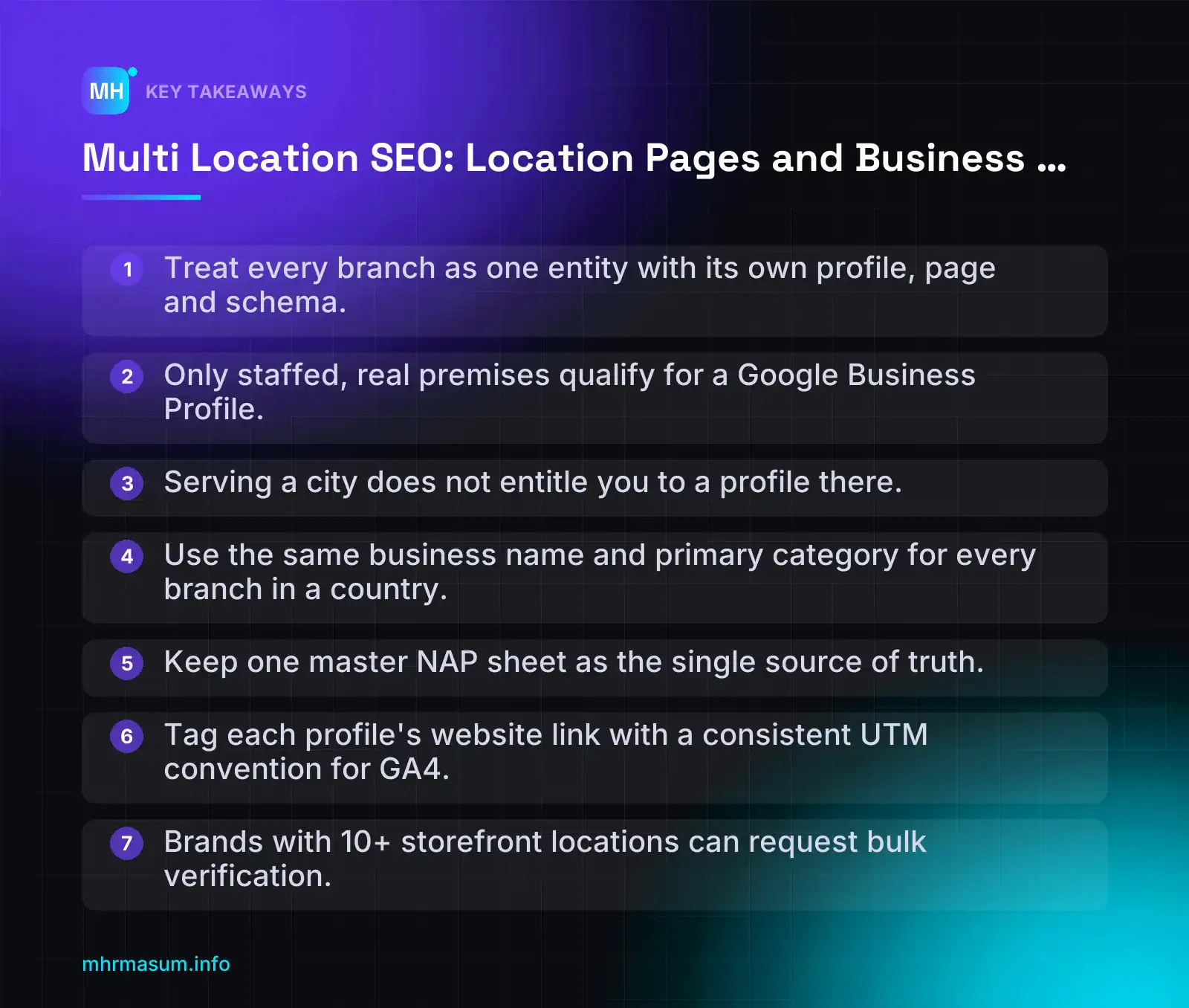
Key Takeaways
- Treat every branch as one entity with its own profile, page and schema.
- Only staffed, real premises qualify for a Google Business Profile.
- Serving a city does not entitle you to a profile there.
- Use the same business name and primary category for every branch in a country.
- Keep one master NAP sheet as the single source of truth.
- Tag each profile's website link with a consistent UTM convention for GA4.
- Brands with 10+ storefront locations can request bulk verification.
What multi-location SEO actually involves (one entity per branch)
Multi location SEO is a system, not a single task. Each branch gets its own Google Business Profile, landing page, schema block, NAP record, review stream and reporting slice. All of them tie back to one brand entity.
Ranking one shop is mostly about one profile and one website. With five, twenty or two hundred branches, the hard part is keeping every signal pointing at the right branch.
Why one entity per branch matters
When someone searches “dentist near me” or “plumber Parramatta”, Google is not ranking your brand. It is choosing one specific location to show in the local pack, on Maps or in an AI answer.
To make that choice with confidence, Google needs signals that agree with each other:
- The Business Profile address matches the address on the location page.
- The location page’s schema describes that branch, not head office.
- Directory listings show the same phone number as the profile.
- Reviews mention the branch, its staff and its area.
Mixed signals cause two typical failures. Either the wrong branch ranks, such as head office showing for a suburb 40 minutes away, or no branch ranks because Google cannot tell which listing is the real one.
The same applies to AI search. Google AI Overviews, AI Mode, ChatGPT, Gemini and Perplexity need to resolve “your brand in Manchester” to one address, one phone number and one set of opening hours. If your own data contradicts itself, they may repeat the wrong details. To check what AI tools currently say about you, run a brand SERP audit.
How it differs from single-location and service area SEO
| Model | What you manage | Main risk |
|---|---|---|
| Single location | One profile, one site, one address | Weak profile or thin site |
| Service area business (SAB) | One profile with a hidden address and a defined service area | Claiming areas you cannot realistically serve |
| Multi-location | Many profiles, many pages, many records under one brand | Duplicates, inconsistent NAP, doorway pages, wrong branch ranking |
If you have not set up a single profile or a service area profile before, start with the service area business Google Business Profile setup guide. This article goes deeper into running many branches at once.
The five assets every branch needs
Treat every branch as a bundle of five assets. If one is missing or contradicts another, that branch is weaker than it should be.
| Asset | What it is | What must match |
|---|---|---|
| Google Business Profile | One verified profile per eligible branch | Name, address, phone, hours, primary category |
| Location page | A unique page on your site for that branch | Same NAP and hours as the profile, with real local content |
| LocalBusiness JSON-LD | Structured data on the location page | Visible page content and the profile details |
| Master NAP row | One row per branch in a central sheet | The single source of truth for all of the above |
| Review link and UTM | The branch’s review request link and a tagged website URL on the profile | Points to the correct profile and the correct location page |
A tagged website link on each profile lets you separate profile traffic by branch in GA4. For example:
https://example.com/locations/leeds/?utm_source=google&utm_medium=organic&utm_campaign=gbp-leeds
https://example.com/locations/york/?utm_source=google&utm_medium=organic&utm_campaign=gbp-york
Pick one UTM convention and use it on every branch. Inconsistent tags are a common cause of messy channel data. See GA4 unassigned traffic if your sessions are landing in the wrong bucket.
The rest of this guide builds these five assets in order, starting with the question that comes before everything else: which branches are allowed a profile at all?
Step 1: Audit which branches qualify for a Business Profile
Do this audit before you create a single profile. Ineligible listings are one of the fastest routes to suspension, and a suspension on one location can cause problems across the whole account.
Google’s rules are clear on the core point. Do not create more than one profile for each location, either in one account or across several accounts (Google Business Profile guidelines).
Eligibility decision table
List every address you trade from, then sort each one into a row below.
| Scenario | Profile? | What to do |
|---|---|---|
| Staffed storefront or office where customers visit during stated hours | Eligible | Create one profile and one location page |
| Service area office with its own staff and its own service area | Eligible | One SAB profile per location, with the address hidden if customers do not visit |
| Virtual office, PO box or remote mailbox | Not eligible | No profile. Do not use the address anywhere as a branch |
| Co-working desk with no signage, no staff on site and no customers received | Not eligible | No profile until it is a genuine, staffed, signed location |
| City you serve from another branch | Not eligible | Add it to the serving branch’s service area and, if useful, build a genuine service page |
| Department inside a branch, or an individual practitioner | Special rules | Check the department and practitioner sections of the guidelines before creating anything |
Google’s guidelines state that PO boxes and remote mailboxes are not eligible. A third-party summary from Vendasta says co-working spaces qualify only with signage, staff on site and customers received during hours. It also says Google may suspend accounts that hold several profiles for the same business in one metro area. Check both points against the official guidelines before you rely on them, because Google updates that page.
Decision rule: if there are no real, staffed premises, there is no profile. Everything else in this guide depends on this rule.
“We serve Leeds, so we can open a Leeds profile.”
This is the most common wrong assumption. Serving a city does not make you eligible for a profile there. Eligibility comes from a staffed location where you meet customers, or a separate SAB base with its own staff. If Leeds customers are served from your Bradford branch, Leeds belongs in the Bradford profile’s service area and on your website. It does not get its own listing.
Naming and category rules for chains
For chains, the guidelines set three rules (Google Business Profile guidelines):
- Same name for every location in a country. Use “Brightsmile Dental” on all branches, not “Brightsmile Dental Leeds City Centre – Best Dentist”.
- One shared primary category. All locations should use the category that best represents the business as a whole. You can still add relevant secondary categories per branch.
- No combined brands. If a branch houses two brands, such as a café inside a bookshop, do not merge them into one profile. Each brand follows its own eligibility check.
Put the branch distinction in the address, the location page and the reviews, not in the business name. Adding city names or keywords to the name is a common trigger for suspension. If that has already happened, follow the Google Business Profile reinstatement steps.
Service area branches with separate staff
Plumbers, cleaners, mobile mechanics and similar businesses can run several profiles. The guidelines allow one profile per location when each location has its own service area and its own staff.
Test each SAB branch against these checks:
- Is there a real base, not a home address used only for verification or a mailbox?
- Do staff work from that base, rather than all working from head office?
- Does the branch have its own service area that does not simply copy another branch’s areas?
- Does the service area stay within roughly two hours’ drive of the base, as the guidelines describe?
If any answer is no, merge that “branch” into the location that actually serves the customers. Record your decision for every address in the master sheet:
branch_id | address               | type       | staffed | signage | decision
LDS-01    | 12 Park Row, Leeds    | storefront | yes     | yes     | profile
YRK-01    | Regus desk, York      | co-working | no      | no      | no profile
HRG-00    | (served from LDS-01)  | city page  | n/a     | n/a     | page only
If you are unsure whether a branch qualifies, a free SEO check is a quick way to get a second opinion before you create anything.
Step 2: Create, group and verify profiles (under 10 vs bulk verification)
Once you know which branches qualify, set the profiles up in a way that will still be manageable in two years. The structure you choose now decides who can edit what, how you verify, and how cleanly you can report later.
Two rules from the Google Business Profile guidelines shape everything below. You must not create more than one profile per location, whether in one account or across several. All locations in the same country must use the same business name and share the one category that best represents the business.
Fewer than 10 locations
With fewer than 10 branches, you add and verify each profile individually. Do it from one central owner account so the brand never loses control when a branch manager leaves.
- Sign in with an owner account on your brand domain (for example, gbp@yourbrand.com.au), not a personal Gmail address. Add a second owner from the same domain as a backup.
- Open Business Profile Manager at business.google.com and choose the option to add a single business. Menu labels change, so look for “Add business” if the wording differs.
- Enter the business name exactly as it appears on your signage and stationery. Do not add suburbs or keywords to the name, such as “Brand Plumbing Parramatta Emergency Plumber”.
- Set the primary category you chose for the brand. Use the same primary category for every branch in that country.
- Enter the full street address. PO boxes and remote mailboxes are not eligible.
- Assign a store code in the profile’s advanced information. Use a short, permanent code like
AU-NSW-PAR-01. It should never change, even if the branch moves. - Add a unique local phone number that connects to that branch as directly as possible. A single national call centre number makes every branch look the same.
- Add the website URL for that branch’s own page (see the URL section below), then add hours.
- Complete the verification method Google offers. The method depends on the business and is set by Google, so you cannot always choose it.
Service-area businesses follow a different setup. If a branch has no customer-facing premises, use our service area business Google Business Profile guide instead of the steps for storefronts.
10+ locations: bulk verification checklist
The Business Profile API documentation states that if you own more than 10 locations of the same business, they must be verified individually or through bulk verification. Bulk verification saves you from verifying every branch one by one, but the eligibility rules are strict.
Based on the Google Business Profile Community guide to bulk verification, check each point before you request it:
| Requirement | What to check | Status |
|---|---|---|
| 10 or more locations | Count only brick-and-mortar branches that customers visit. | ☐ |
| Storefronts only | Service-area businesses (SABs) do not qualify for bulk verification. | ☐ |
| No problem listings | Remove or fix suspended profiles and any listing waiting for re-verification first. | ☐ |
| One business group | All locations must sit in the same business group before you request. | ☐ |
| Proof of ownership for DBAs | If branches trade under “doing business as” names, prepare documents proving common ownership. | ☐ |
| Consistent data | Same brand name and primary category per country; real addresses; branch phone numbers. | ☐ |
If any branch is suspended, fix that separately. Our Google Business Profile reinstatement guide walks through the steps.
File early. Google publishes no timeline for bulk verification reviews. If you are opening branches before a peak season or a launch, request verification as soon as the data is clean, not the week before you need the profiles live.
“Bulk verification will let us add our franchisees’ home offices and mobile vans too.”
It will not. Bulk verification is for eligible brick-and-mortar locations of one business. It does not relax the guidelines on addresses, names or service areas. If anything, one bad listing can hold up the whole request.
Business groups, roles and store codes
For 10+ branches, the bulk upload spreadsheet is your source of truth. Build it before you touch Business Profile Manager. A simplified layout:
store_code     | name   | address_line_1        | address_line_2 | locality     | region | postcode | country | phone             | website_url                                                  | primary_category | hours
AU-NSW-PAR-01  | Brand  | 12 Example Street     | Shop 4         | Parramatta   | NSW    | 2150     | AU      | +61 2 XXXX XXXX   | https://example.com.au/locations/nsw/parramatta/             | Dentist          | Mon-Fri 08:00-18:00; Sat 09:00-13:00
UK-MAN-CC-01   | Brand  | 5 Example Road        |                | Manchester   |        | M1 XXX   | GB      | +44 161 XXX XXXX  | https://example.co.uk/branches/manchester-city-centre/       | Dentist          | Mon-Fri 08:30-17:30
BD-DHK-GUL-01  | Brand  | House X, Road X       | Gulshan 1      | Dhaka        | Dhaka  | 1212     | BD      | +880 X XXXX XXXX  | https://example.com.bd/branches/dhaka/gulshan/               | Dentist          | Sat-Thu 10:00-20:00
Download Google’s current bulk upload template from Business Profile Manager rather than building your own column headings. Use the layout above to prepare and check the data first.
Business groups let several people manage the same set of locations without sharing a login. Use them deliberately:
- Owners: two or three people at head office, all on brand domain emails.
- Managers: branch managers get manager access to their own branch only, not the whole group.
- Agencies: invite the agency’s account as a manager. Never hand them the owner login.
- No shared logins. A shared password means no audit trail, and when a staff member leaves you cannot tell who changed what.
- Review access every quarter. Remove people who have left the business or no longer manage a branch.
The store code ties everything together. Use the same code in your GBP, your location page CMS, your schema and your reporting sheet, and you can match any branch across every system in seconds.
URL structure for location pages in AU, UK, US and Bangladesh
Each branch profile needs a dedicated page to link to. A clear, shallow URL structure helps people and Google understand how your branches relate to each other, and it stops you from drifting into thousands of thin city pages.
Recommended hierarchy
Use three levels at most: a store locator hub, an optional region level, and the branch page.
example.com/locations/                     ← store locator hub (all branches)
example.com/locations/{region}/            ← only if several branches in that region
example.com/locations/{region}/{branch}/   ← one page per real branch
Apply this decision rule:
- Add a state or region level only when you have several branches there. One branch in Queensland does not need a /qld/ page.
- Name the branch slug after how customers know it: the suburb, town or centre name, plus a qualifier if two branches share a city (
austin-downtown,austin-north). - Avoid postcode-level URLs and suburb-spam pages for areas where you have no branch. Those are the pages that cause doorway problems.
- Keep slugs lowercase, short and hyphenated. Once live, do not change them without 301 redirects.
For slug rules in WordPress, including whether to use Bengali characters, see SEO friendly URLs in WordPress.
Market examples
The same pattern adapts to how each country describes places.
Australia (states matter to searchers):
https://example.com.au/locations/nsw/parramatta/

United Kingdom (few branches, so no region level):
https://example.co.uk/branches/manchester-city-centre/

United States (state level with several Texas branches):
https://example.com/locations/tx/austin-downtown/

Bangladesh (city, then area):
https://example.com.bd/branches/dhaka/gulshan/

Store locator hub:
https://example.com/locations/| Market | Typical middle level | When to skip it |
|---|---|---|
| Australia | State abbreviation (nsw, vic, qld) | Only one or two branches nationally |
| UK | Usually none; sometimes city | Most small chains: use branch name directly |
| USA | State abbreviation (tx, ca, ny) | All branches in one state |
| Bangladesh | City (dhaka, chattogram) | All branches in one city, e.g. only Dhaka areas |
Pick either /locations/ or /branches/ and use it consistently on that site. The word matters less than never mixing both.
Subfolders vs subdomains vs separate domains
| Option | Example | Use when |
|---|---|---|
| Subfolders (recommended) | example.com/locations/tx/austin-downtown/ | Almost always. One site, one set of links, simpler maintenance. |
| Subdomains | austin.example.com | Rarely. Usually only when a separate platform forces it. |
| Separate country domains | example.com.au, example.co.uk | You run genuinely different country businesses with different pricing, stock, currency or legal terms. |
| Separate domain per branch | example-parramatta.com.au | Avoid. Multiple near-identical sites match Google’s doorway examples. |
Google’s spam policies list “multiple websites with slight variations to the URL and home page” as a doorway example. A domain per suburb is exactly that pattern.
Use hreflang only for genuinely different country or language versions, such as an Australian site and a UK site with local prices and terms. Do not add hreflang between branch pages in the same country. Parramatta and Penrith are different places, not language alternatives.
If you are moving from subdomains or separate domains to subfolders, treat it as a migration with a full redirect map. Our site migration SEO guide covers the checks.
Make the store locator hub crawlable
Many locators show branches only inside a JavaScript map widget. Google may not follow those as links, and users on slow phones struggle with them.
List every branch as a plain HTML link on the hub, grouped by region, with the map as an extra:
<h2>New South Wales</h2>
<ul>
  <li><a href="/locations/nsw/parramatta/">Parramatta</a></li>
  <li><a href="/locations/nsw/penrith/">Penrith</a></li>
</ul>
This gives you the “browseable hierarchy” the spam policy contrasts with doorway pages. Link the hub from your main navigation or footer, and link each branch page back to its region and the hub.
“The more city pages we publish, the more local searches we will rank for.”
Pages targeting areas where you have no branch, funnelling everyone to the same contact form, match Google’s doorway examples. Build pages for real branches. If you have already published lots of city pages, our spam update recovery audit shows how to review them.
Link each profile to its own branch page
In each profile’s website field, link to that branch’s page, not the home page. The branch page carries the matching address, phone, hours and schema, so Google and customers land on information that agrees with the profile.
Some businesses add UTM parameters to the GBP website link so profile clicks are easier to separate in GA4. If you do, keep a self-referencing canonical on the branch page without the parameters.
Not sure whether your current location URLs are crawlable and indexed? Run a free SEO check before you build out new branch pages.
Step 3: Build branch pages that are not doorway pages
Each verified Business Profile needs a page on your site to link to. That page is where a branch becomes a real, distinct place to Google and to customers.
The risk is building 20 near-identical pages with only the city name swapped. That is the classic doorway pattern, and it can pull down the whole location section.
What Google’s doorway policy says
Google’s spam policies list four examples of doorway abuse (Google Search Central):
- Several domains or sites with only slight differences in the URL or home page.
- Pages targeted at specific regions or cities that funnel users to one page.
- Pages built to funnel visitors to the usable or relevant part of a site.
- Substantially similar pages that are closer to search results than a clearly defined, browseable hierarchy.
Scaled content abuse sits on the same policy page. That covers producing many pages mainly to manipulate rankings, whether a person, a template or AI writes them. A location section built by find-and-replace can trigger both policies at once.
If Google takes manual action, the Manual actions report in Search Console groups doorway problems under “Thin content with little or no added value”.
“Rewrite 30% of the template and it’s safe.”
No such threshold exists. Google does not judge compliance by a percentage of changed words. Spinning sentences to reach a “uniqueness score” only produces a different version of the same thin page.
What makes a branch page legitimate is a real branch with useful information that applies only to that branch. If you cannot fill the page with facts about that location, the page probably should not exist.
Unique content checklist per branch
Use this table as the minimum for every branch page. Collect the details from branch managers, not from a copywriter guessing.
| Element | What to include | Why it matters |
|---|---|---|
| Branch photos | Shopfront, signage, interior, team at work. Your own photos, not stock. | Helps people recognise the place and confirms it exists. |
| Team or manager | Branch manager’s name, role and a short bio. Key staff where relevant. | Shows who is accountable at this location. |
| Parking and transport | Parking options, nearest station or bus stop, accessibility notes. | Practical detail that is different for every branch. |
| Hours, including holidays | Regular hours plus public holiday and seasonal changes for that state, country or region. | Prevents wasted trips. Must match GBP. |
| Services offered there | Only the services this branch actually provides. Note any that are not available. | Stops misleading claims copied from the head office page. |
| Local stock or appointments | Stock checker, click-and-collect or a booking widget filtered to this branch. | Gives the page a job beyond “we are here”. |
| Embedded map | Map of this exact address, plus a “Get directions” link. | Confirms the location and helps navigation. |
| Branch reviews | Reviews written about this branch, shown on the page. | Local proof. Do not reuse company-wide reviews. |
| FAQs | Questions customers actually ask this branch (loading bay, after-hours pickup, languages spoken). | Answers that differ by location. |
| Local phone | The branch’s direct number, matching its Business Profile. | Consistent NAP and a faster route to the right people. |
Which template parts can be shared
A shared template is fine. Consistent layout helps users. The problem is shared content pretending to be local.
- Can be shared: header, footer, navigation, brand intro (kept short), trust badges, booking widget code, page layout and the schema template.
- Must be unique: address, phone, hours, photos, team, directions, services list, reviews, FAQs and the opening paragraph describing the branch.
A quick test: hide the header and footer, then remove the city name. If two branch pages are now hard to tell apart, keep working on them.
City pages without a branch
Areas you serve but have no premises in are where most doorway problems start. Use this rule:
- No branch, no branch page. Never create a page that implies a physical location you do not have.
- Cover served areas with one strong service-area page per branch, or an “Areas we cover” section on the nearest branch page.
- Only build a separate area page if you have genuinely different information for it, such as local projects, different pricing or regulations.
- Do not mass-produce suburb, county or upazila pages from a list.
If you already have dozens of thin suburb pages, consolidate them into the service-area page with 301 redirects, or apply noindex to the weak ones while you decide. For service-area businesses, the profile side is covered in our service area business Google Business Profile guide.
Search Engine Roundtable reported that Google has completed the September 2026 spam update (Search Engine Roundtable). Open Search Console → Security & Manual actions → Manual actions now.
If location pages lost visibility around that update without a manual action, work through our policy-by-policy spam update recovery audit. If many branch pages sit in “Crawled – currently not indexed”, that often points to pages being too similar. See how to diagnose Crawled – currently not indexed.
Step 4: Add LocalBusiness schema for each branch
Structured data tells Google in machine-readable form which business each page describes. The goal is one clearly identified entity per branch, linked to one parent brand.
Schema does not replace a good page or a verified profile. It confirms what they already say.
Required and recommended properties
Google’s LocalBusiness documentation lists only two required properties (Google Search Central):
nameaddress(aPostalAddress)
Recommended properties include:
telephoneurlgeo(latitude and longitude)openingHoursSpecificationpriceRangedepartmentaggregateRatingandreviewmenuandservesCuisine(food businesses)
Use the most specific subtype that fits, such as Dentist, HardwareStore or AutoRepair, rather than plain LocalBusiness.
Use department only for real departments inside a branch, such as a pharmacy inside a supermarket. Google recommends naming them “{store name} {department name}”, for example “Example Hardware Parramatta Garden Centre”. Do not invent departments to add keywords.
Country codes and phone formats matter for multi-country brands:
| Country | addressCountry | E.164 telephone pattern |
|---|---|---|
| Australia | AU | +61 then the number without the leading 0 |
| United Kingdom | GB (not UK) | +44 then the number without the leading 0 |
| United States | US | +1 then the 10-digit number |
| Bangladesh | BD | +880 then the number without the leading 0 |
Linking branches to the parent Organization
Give every branch its own @id based on its page URL. Give the brand one Organization @id on the home page. Then point each branch at it with parentOrganization.
This builds a clear graph: one brand, many branches, each with a stable identifier. Here is a full example for one branch (placeholder data):
{
  "@context": "https://schema.org",
  "@type": "HardwareStore",
  "@id": "https://www.example.com/locations/parramatta/#branch",
  "name": "Example Hardware Parramatta",
  "url": "https://www.example.com/locations/parramatta/",
  "telephone": "+61200000000",
  "image": "https://www.example.com/images/parramatta-shopfront.jpg",
  "priceRange": "$$",
  "address": {
    "@type": "PostalAddress",
    "streetAddress": "1 Example Street",
    "addressLocality": "Parramatta",
    "addressRegion": "NSW",
    "postalCode": "2150",
    "addressCountry": "AU"
  },
  "geo": {
    "@type": "GeoCoordinates",
    "latitude": -33.8150,
    "longitude": 151.0010
  },
  "openingHoursSpecification": [
    {
      "@type": "OpeningHoursSpecification",
      "dayOfWeek": ["Monday", "Tuesday", "Wednesday", "Thursday", "Friday"],
      "opens": "07:00",
      "closes": "17:30"
    },
    {
      "@type": "OpeningHoursSpecification",
      "dayOfWeek": "Saturday",
      "opens": "08:00",
      "closes": "16:00"
    }
  ],
  "parentOrganization": {
    "@id": "https://www.example.com/#organization"
  }
}
On the home page, the matching Organization markup carries that same @id, plus the brand name, logo and sameAs links to official profiles. The @id strings must match exactly, including the trailing slash.
Take the geo coordinates from the pin on the verified Business Profile, not from a rough city centre point. For holiday closures, the Google documentation shows how to use validFrom and validThrough in openingHoursSpecification. Check the current examples there before adding them.
Keeping schema in sync with the page and GBP
Google’s general structured data rules say markup must represent content visible on the page. If the schema says you open at 7:00 and the page says 8:00, you have a trust problem, not an SEO feature.
The fix is to store each branch’s details once and output both the visible text and the JSON-LD from that single record. In WordPress:
- Create a Branch custom post type.
- Add ACF (or similar) fields: name, street, locality, region, postcode, country, phone, latitude, longitude and hours.
- Have the page template print those fields in the visible address and hours blocks.
- Generate the JSON-LD from the same fields in
wp_head.
add_action( 'wp_head', function () {
    if ( ! is_singular( 'branch' ) ) {
        return;
    }
    $url = get_permalink();
    $data = array(
        '@context' => 'https://schema.org',
        '@type'    => get_field( 'schema_type' ) ?: 'LocalBusiness',
        '@id'      => $url . '#branch',
        'name'     => get_field( 'branch_name' ),
        'url'      => $url,
        'telephone'=> get_field( 'phone_e164' ),
        'address'  => array(
            '@type'           => 'PostalAddress',
            'streetAddress'   => get_field( 'street' ),
            'addressLocality' => get_field( 'locality' ),
            'addressRegion'   => get_field( 'region' ),
            'postalCode'      => get_field( 'postcode' ),
            'addressCountry'  => get_field( 'country_code' ),
        ),
        'parentOrganization' => array( '@id' => home_url( '/#organization' ) ),
    );
    echo '<script type="application/ld+json">' . wp_json_encode( $data ) . '</script>';
} );
Test this on staging first. If an SEO plugin already outputs LocalBusiness markup, disable one source so you do not publish two conflicting entities. Our MHR LumeRank SEO plugin is one option if you want this handled without custom code.
When a branch changes hours or phone number, update the Branch record and the Business Profile on the same day. The master location sheet in Step 5 makes that routine.
Before going live, validate every branch template:
- Rich Results Test: checks what Google can read and flags errors.
- Schema Markup Validator (validator.schema.org): checks general schema.org validity, including the
parentOrganizationlink.
Do not mark up reviews that are not shown on the page, and do not copy Google review ratings into aggregateRating unless those reviews are displayed there. Leave the property out until you have real, visible branch reviews.
Not sure whether your current location pages output clean, matching schema? Run a free SEO check and start there.
Step 5: Keep NAP consistent with a master location sheet
NAP means name, address and phone number. With one branch, keeping it consistent is easy. With 15 branches across two countries, it drifts quickly.
One branch moves, another changes its phone line, a third shuts. Each change has to reach Google Business Profile, your location page, your schema and every directory listing. Without a single record of the truth, conflicting data builds up, and both customers and search engines end up with the wrong details.
The single source of truth
Create one master location sheet. It can be a shared spreadsheet or a table in your CRM. Every other system copies from it. Nobody edits a listing directly without updating the sheet first.
| Column | What goes in it | Why it matters |
|---|---|---|
| Store code | Your internal ID, e.g. AU-NSW-001 |
Matches the store code field in GBP and makes bulk edits safe |
| Legal name | The registered company name | Used for verification and proof of ownership |
| Display name | The real-world brand name on signage | Must be the same for every branch in a country |
| Address | Full postal address in local format | Copied exactly into GBP, the page and schema |
| Phone | Primary number and any additional numbers | Records which number is tracking and which is the real line |
| URL | The branch page, e.g. /locations/parramatta/ |
The website link in GBP points here, not to the home page |
| Hours | Regular hours plus planned special hours | Prevents wrong opening times on public holidays |
| Categories | Primary category plus additional ones | Keeps the shared primary category consistent |
| GBP ID | The profile or location ID | Lets you find the right profile instantly |
| Status | Open, moved, temporarily closed, closed | Triggers the update process below |
Google’s guidelines say all locations in the same country should use the same business name and share the primary category that best represents the business (Google Business Profile Help). Your sheet makes that easy to check by sorting a single column.
“NAP has to match character for character everywhere, or rankings drop.”
That is an overstatement. “St” versus “Street” is rarely the real problem. The real damage comes from conflicting facts: an old address still live on a directory, two different phone numbers, or a closed branch shown as open. Fix those first.
Phone and address formats by country
Pick one format per country, record it in the sheet and use it everywhere. These examples use placeholder numbers.
AUSTRALIA
Address:  12 Example Street, Parramatta NSW 2150
State:    NSW, VIC, QLD, WA, SA, TAS, ACT, NT (abbreviated)
Postcode: 4 digits, after the state
Phone:    (02) 9xxx xxxx      → international +61 2 9xxx xxxx
Mobile:   04xx xxx xxx        → international +61 4xx xxx xxx

UNITED KINGDOM
Address:  12 Example Road, Manchester M1 1AA
Postcode: upper case, single space before the last three characters
Phone:    0161 xxx xxxx       → international +44 161 xxx xxxx
London:   020 xxxx xxxx       → international +44 20 xxxx xxxx

UNITED STATES
Address:  123 Example Ave, Suite 200, Austin, TX 78701
State:    2-letter code (TX, CA, NY)
ZIP:      5 digits (ZIP+4 optional, but use it consistently or not at all)
Phone:    (512) 555-01xx      → international +1 512-555-01xx

BANGLADESH
Address:  House 12, Road 5, Dhanmondi, Dhaka 1205
Order:    house/road → area or thana → district/city → 4-digit postcode
Phone:    01712-xxxxxx        → international +880 1712-xxxxxx
Dhaka:    02-xxxxxxx          → international +880 2-xxxxxxx
In schema, use the international format for telephone. On the visible page, use the format local customers expect. Both describe the same number, so they are consistent.
For Bangladesh, choose whether you write the area (for example Dhanmondi) or the thana, and stick to it. Mixing “Dhanmondi”, “Dhanmondi R/A” and “Dhanmondi Thana” across listings is a common source of duplicates.
Tracking numbers: primary versus additional
Call tracking is useful for multi-location reporting. It shows which calls came from Google Business Profile for each branch. The risk is that the tracking number does not match the number on your website and directories.
The common approach is:
- Primary phone in GBP: the tracking number for that branch, so you can measure calls from Google.
- Additional phone in GBP: the real local number for that branch.
- Website, schema and citations: the real local number.
This keeps the real number connected to the profile, so it still matches the dozens of other listings that show it. Use a local-area tracking number, not a national call-centre line. Google’s guidelines prefer local numbers wherever possible (Google Business Profile Help). If you ever stop using the tracking provider, switch the primary number back before cancelling. Otherwise a dead number sits on your profile.
Citations and data aggregators to check
Citations are listings of your business on other platforms. Beyond Google, two platforms matter in most markets:
- Apple Business Connect – feeds Apple Maps and Siri.
- Bing Places for Business – feeds Bing and services that use Bing’s data. If you have not set up Bing yet, see Bing Webmaster Tools and IndexNow for WordPress.
After that, which directories matter depends on your country and your industry. There is no universal must-have list. To find yours:
- Search your brand name plus each branch’s suburb or city.
- Note which directories appear on page one and in AI answers.
- Search a main competitor the same way and note where they are listed.
- Check industry bodies and chambers of commerce in each country.
- Add every confirmed listing, with its login owner, to a citations tab in the master sheet.
In Bangladesh, local map and directory use differs a lot by city, so check what customers in Dhaka and Chattogram actually use before investing time. A brand SERP audit is a quick way to see which third-party sites already show your branches.
Process for moves and closures
When the status column changes, follow the same order every time.
- Update Google Business Profile first. For a move, edit the address (expect that Google may ask you to verify again). For a permanent closure, mark the profile as permanently closed instead of deleting it.
- Update the location page. For a move, change the address, map, directions and photos on the same URL. For a closure, decide between a closure notice with the nearest branch, or a 301 redirect.
- Update LocalBusiness schema on that page so it matches the visible content.
- Update citations: Apple Business Connect, Bing Places, then each directory on your citations tab.
- Set redirects for closed branches to the nearest relevant branch page or the locations hub, not the home page. The redirect checks in site migration SEO apply here on a smaller scale.
- Record the date and what changed in the sheet, so anyone can see the history.
If a move leads to a suspension, the steps in Google Business Profile suspended explain how to prepare evidence for reinstatement.
Step 6: Run a review strategy per location
Reviews belong to individual profiles, not to your brand as a whole. A busy city-centre branch with 400 reviews does nothing for a new suburban branch with six.
Each branch needs its own steady flow of genuine reviews. Each one also needs its own responses. Treat reviews as a branch-level process, with links, owners and rules set for every location.
Per-branch review links and QR codes
Every Business Profile has its own review link. To get it:
- Sign in to the Google account that manages the profile.
- Open the profile from your Business Profile Manager, or search the business name on Google.
- Select the option to ask for reviews (labelled “Ask for reviews” or “Get more reviews”; labels change, so look for the share-a-review-link option).
- Copy the link and paste it into the master sheet against the correct store code.
Then put that branch’s link wherever that branch’s customers are:
- Post-visit or post-delivery emails sent from that branch.
- Printed and digital receipts.
- A QR code at the counter, labelled with the branch name.
- SMS follow-ups after appointments.
Never send customers to the wrong branch. This happens when a central email template uses one link for every location. The Parramatta customer ends up reviewing the Sydney CBD profile. That review describes a visit that never happened there, and the branch they used gets nothing.
Pull the link from the store code in your CRM or booking system, not from a hard-coded template. Test it by sending yourself the email for three different branches.
Response workflow and ownership
Unanswered reviews look like an unmanaged branch. Head-office replies to every review often sound generic. The fix is clear ownership.
| Role | Responsibility |
|---|---|
| Branch responder (named person) | Replies to all reviews for their branch within your agreed target |
| Backup responder | Covers leave and busy periods |
| Regional or marketing lead | Handles escalated reviews and checks reply quality monthly |
| Legal or senior management | Reviews involving safety, legal claims, data or media risk |
Set your own response time target, for example within two working days, and write it into the process. Then add escalation rules:
- 1–2 star reviews: branch responder drafts, regional lead approves before posting.
- Reviews mentioning staff by name, injury, discrimination or refunds: escalate before replying.
- Reviews that appear fake or break policy: report through the profile, do not argue in public.
Good replies mention something specific to that branch, such as the suburb, the service or the team. Never paste customer data, booking details or medical information into a public reply.
What not to do
“We only ask happy customers for reviews. That’s just good marketing.”
That is review gating, and it breaks Google’s review rules. Ask every customer, or none.
Avoid these mistakes at every branch:
- Review gating: sending a satisfaction survey first and only sharing the Google link with people who score you highly.
- Incentives: discounts, free items, prize draws or staff bonuses tied to customers leaving reviews.
- Staff reviews: employees or owners reviewing their own branch, or other branches of the same business.
- Moving reviews between branches: asking customers to review a better-performing branch, or trying to merge review histories when a branch closes.
- Bulk requests from a single device: handing a shop tablet to customers to post reviews at the counter.
Before you launch any review programme, read Google’s prohibited and restricted content policy for Business Profile reviews in the Business Profile Help Centre. Breaches can lead to reviews being removed or the profile being restricted.
Show branch reviews on the location page
Selected reviews from that branch’s customers make the location page more useful and more distinct. That also helps with the doorway risk covered in Step 3.
- Show reviews about that branch only, never brand-wide testimonials repeated on every page.
- Prefer first-party reviews you collected yourself, with the customer’s permission to publish.
- Check the terms of any platform before copying its reviews onto your site.
- Only add
revieworaggregateRatingmarkup if the reviews are visible on the page and the markup matches them exactly.
Be aware that Google does not show star rich results for reviews a business publishes about itself on its own LocalBusiness or Organization pages. Honest markup is still fine, but do not build the page around winning stars in search.
If you are not sure whether your location pages, schema or review setup are sending mixed signals, run a free SEO check as a starting point.
Step 7: Report by location in Search Console and GA4
Multi-location SEO only works if you can see which branches are winning and which are stuck. Site-wide totals hide branch-level problems. A strong Sydney branch can mask a Manchester page that has lost half its traffic.
The aim is simple. Each branch should have its own row in every report: clicks from Google Business Profile, organic visits to the location page, and the actions that matter, such as calls, directions and bookings.
UTM-tag every Business Profile link
By default, a click on the website button in a Business Profile is mixed in with ordinary organic search traffic. You can’t tell a profile click from a normal search result click. Tagging the URL fixes this.
Add this pattern to the website link of each profile. Use the store code from your master location sheet:
https://example.com/locations/parramatta/?utm_source=google&utm_medium=organic&utm_campaign=gbp&utm_content=syd-parramatta- utm_source=google and utm_medium=organic keep the traffic in the Organic Search channel, so your channel totals stay comparable.
- utm_campaign=gbp separates profile clicks from other organic clicks.
- utm_content=store-code tells you which branch sent the visit.
In GA4, open Reports → Acquisition → Traffic acquisition and switch the primary dimension to Session campaign. Add Session manual ad content as a secondary dimension to split by branch. Tag appointment and menu links the same way, with a different utm_campaign value if you want them reported separately.
“Google Business Profile traffic shows up as direct, so you can’t measure it.”
It shows up as organic search, mixed in with everything else. Without tags you can’t separate it. With tags you can. If unexplained direct or unassigned traffic is growing, work through GA4 unassigned traffic causes before you trust branch numbers.
Search Console page filters and regex
In Search Console, go to Performance → Search results. Click + Add filter → Page → Custom (regex), choose Matches regex and enter your location folder:
/locations/|/branches/To look at a single branch, filter on its slug, for example /locations/parramatta/. Then compare query types with a query regex filter:
| Query type | Example regex | What it tells you |
|---|---|---|
| Brand + city | brandname.*(parramatta|penrith) |
People who already know you and want a specific branch |
| Near me | near me|nearby|closest |
Proximity discovery. This is where the profile and branch page support each other |
| Service + city (non-brand) | ^(?!.*brandname).*(parramatta|penrith) |
Competitive local demand you are winning or losing |
Search Console uses RE2 syntax, which doesn’t support lookaheads such as (?!…). For non-brand queries, use the Doesn’t match regex option with your brand terms instead. Export each branch’s results monthly. For a reporting structure built on Search Console data, see Search Console-first SEO reporting.
GA4 explorations by branch
GA4 doesn’t know what a branch is until you tell it. You have two clean options:
- Content group from the URL. Send a
content_groupparameter based on the location slug. Every location page then rolls up under its branch name. - Custom dimension from a data layer variable. Push the store code on each location page, read it in Google Tag Manager and send it as an event parameter. Then register it under Admin → Data display → Custom definitions as an event-scoped dimension.
<script>
  window.dataLayer = window.dataLayer || [];
  dataLayer.push({ branch: 'syd-parramatta' });
</script>
Next, track the actions that matter as events: tel: link clicks, clicks on directions or map links, and booking form submissions. Send the branch parameter with each one, then mark them under Admin → Data display → Events as key events.
Build a Free form exploration with branch as rows and key events, sessions and session campaign as values. That single table shows which branches convert, not just which get visits. Custom dimensions only collect data from the date you create them, so set them up before you need the report.
Business Profile Performance
Some actions happen on Google and never reach your site. Calls from the profile and direction requests are the main ones. Open each profile’s Performance view and record, per month:
- Calls made from the profile
- Direction requests
- Website clicks (check these against your tagged GA4 sessions)
- Bookings, chats and menu or product views, where available
- Views split by Search and Maps
A call in this report means someone tapped the call button. It doesn’t mean the call was answered. With more than a handful of locations, export from the Business Profile Manager or pull the data through the Business Profile Performance API into the same sheet as your GA4 and Search Console figures.
Be aware of the current limits for AI search. Search Engine Roundtable reported that Gary Illyes implied click and query data are unlikely to come to Search Console’s AI performance reporting (Search Engine Roundtable). Google has also said it has no news on AI click reporting (Search Engine Journal). For now, judge AI visibility per branch by trends in branded and near-me queries, profile actions and tagged sessions, not by a dedicated metric.
Common mistakes and troubleshooting
Most multi-location problems fall into three groups: the wrong page ranks, a profile disappears, or location pages never get indexed. Diagnose the cause before you change anything. Editing a profile or rewriting pages in a panic can turn one problem into two.
| Symptom | Likely cause | Fix |
|---|---|---|
| Home page ranks instead of the branch page | The profile links to the home page, the branch page is thin or the page is poorly linked internally | Point the profile’s website URL at the branch page, link to it from the location hub and main navigation and add unique local content |
| Two branches swap places for the same queries | Near-identical pages targeting overlapping areas | Make each page distinct (staff, services, area served, directions, photos) and make sure each page targets only its own suburb or town |
| Profile suspended after an edit | A name, address or category change triggered a review, or the edit broke a guideline | Undo any non-compliant change, then request reinstatement with evidence |
| Duplicate listings merged or one disappeared | Two profiles for the same location, often created by staff or imported from old data | Keep the verified profile with the most history, then remove or report the duplicate |
| “Crawled – currently not indexed” on location pages | Google sees the pages as low value or too similar to each other | Differentiate content, strengthen internal links and consolidate branches that can’t support a full page |
| Schema hours don’t match the profile | Hours were updated in one place only | Update the master sheet first, then the profile, the visible page and the schema together |
Wrong branch ranks or pages cannibalise
Start in Search Console. Filter by the query and open the Pages tab. If two or more location URLs share impressions for the same query, they are competing with each other.
- Check the profile link first. Each profile should link to its own branch page with the UTM tag, not to the home page or a shared “Locations” page.
- Link from the hub. The location hub should link to every branch page with descriptive anchor text, such as “Dental clinic in Parramatta” rather than “Click here”.
- Differentiate the content. Use different services, team members, parking and transport notes, local photos and FAQs that only make sense for that branch.
Pages that only swap the city name match Google’s doorway examples, including substantially similar pages that are closer to search results than a browseable hierarchy (Google Search Central). If a manual action appears, it will be listed in the Manual actions report under “Thin content with little or no added value”. Search Engine Roundtable reported that Google completed its September 2026 spam update (Search Engine Roundtable). If traffic to your location pages dropped around that time, audit them against the spam policies.
Suspended or merged profiles
Look back at what changed just before the suspension. Common triggers are adding keywords or a city to the business name, an address change, a category change, or several profiles for the same business in one area.
- Bring the profile back in line with the Google Business Profile guidelines: the same business name across locations in the country, no PO boxes or virtual offices, and one profile per location.
- Collect evidence: photos of permanent signage, the shopfront and the interior, a business licence or registration, and a utility bill or lease in the business name at that address.
- Submit the reinstatement request once, with all the evidence. Don’t create a new profile while you wait.
The full process is covered in Google Business Profile suspension reinstatement.
If Google merged two listings, check whether they really were the same location. If they were, keep one and remove the other. If they were separate branches, for example two branches at nearby addresses, make sure each has a distinct address, phone number and verification, then contact Business Profile support with evidence.
Location pages not indexed
Use the URL Inspection tool on two or three branch pages. If the status is “Crawled – currently not indexed”, Google has seen the page and chosen not to index it. That is almost always a quality or duplication signal, not a technical fault. If the status is “Discovered – currently not indexed”, work on internal links and your sitemap. Work through the crawled-not-indexed diagnosis step by step.
Also check the basics: the page returns 200, isn’t blocked by robots.txt or a noindex tag, has a self-referencing canonical and appears in your XML sitemap.
Handling a moved or closed branch
A branch change touches four places. Do them in this order:
- Master location sheet: record the new address or the closure date.
- Business Profile: for a move, update the address. Expect that it may need re-verification. For a closure, mark the profile as permanently closed. Don’t delete it, and don’t reuse it for a different location.
- Location page: for a move, update the content at the same URL if the slug still fits. For a closure, 301 redirect the URL to the nearest relevant branch or to the location hub.
- Schema and listings: update or remove the
LocalBusinessmarkup and then fix directory citations. Check which citation sources matter in each country rather than relying on a generic list.
Closed: /locations/penrith/  → 301 →  /locations/parramatta/  (nearest branch)
No nearby branch:  /locations/leeds/  → 301 →  /locations/   (hub)
If you would like a second pair of eyes on your branch pages, start with a free SEO check.
Advanced: entity signals for AI search and scaling past 50 locations
Once the basics are working, the next problem is ambiguity. Every branch needs to be one clear, unambiguous thing, with the same facts wherever a person, a search engine or an AI system looks.
This section covers how to make each branch a clean entity, how to stop manual edits from breaking down at scale, and what to check every quarter.
Making each branch a clear entity
AI Overviews, AI Mode, ChatGPT and Perplexity all try to answer questions like “is the Parramatta branch open on Sunday?” or “which store near me does same-day repairs?”. To answer, they have to match the question to a specific branch. If your site, your Business Profile and third-party listings disagree, the answer can be wrong. It can also come from a directory instead of from you.
This matters more for brand searches now. Search Engine Roundtable has reported that AI Overviews for many brand queries have moved to the right-hand column (Search Engine Roundtable). A brand-plus-branch search can now show an AI summary next to your Business Profile and organic results. Wrong hours or an old phone number in that summary sit right beside your own listing.
“AI search reads the whole web, so schema and NAP consistency don’t matter any more.”
The opposite is true. AI systems still rely on crawlable pages and consistent sources, and Google’s John Mueller has said technical SEO remains key for AI search (Search Engine Journal). Clear, consistent branch facts are what make a correct answer possible.
Use these signals together:
- A stable
@idper branch. Use the branch page URL plus a fragment, such ashttps://www.example.com.au/locations/parramatta/#branch. Never change it, even if you redesign the page. - A stable
@idfor the parent brand. Define the Organization once, usually on the home page, and refer to it by@idfrom every branch. parentOrganizationon each branch, pointing to the brand’s@id. This tells parsers “this is one branch of that business”, not a separate company.hasMapwith the Google Maps URL for that branch’s Business Profile. It is a valid schema.org property. Google does not list it among the LocalBusiness properties it uses for rich results, so treat it as a connecting signal, not a ranking switch.- The same NAP everywhere: the page text, the schema, the Business Profile and your citations. Copy it from the master location sheet. Don’t retype it.
Here is a branch-level example that builds on the schema from Step 4:
{
  "@context": "https://schema.org",
  "@type": "Plumber",
  "@id": "https://www.example.com.au/locations/parramatta/#branch",
  "name": "Example Plumbing Parramatta",
  "url": "https://www.example.com.au/locations/parramatta/",
  "telephone": "+61 2 0000 0000",
  "address": {
    "@type": "PostalAddress",
    "streetAddress": "1 Example Street",
    "addressLocality": "Parramatta",
    "addressRegion": "NSW",
    "postalCode": "2150",
    "addressCountry": "AU"
  },
  "hasMap": "https://maps.google.com/?cid=0000000000000000000",
  "parentOrganization": {
    "@id": "https://www.example.com.au/#organization"
  },
  "openingHoursSpecification": [{
    "@type": "OpeningHoursSpecification",
    "dayOfWeek": ["Monday","Tuesday","Wednesday","Thursday","Friday"],
    "opens": "08:00",
    "closes": "17:00"
  }]
}
Two rules keep this honest. First, every value in the markup must match what is visible on the page, as Google’s structured data guidelines require. Second, follow the Business Profile naming rule: all locations in the same country use the same business name (Google Business Profile Help). The branch suffix in your schema name is a website choice. Do not add suburb names to the profile name itself.
Use this table to check where each fact lives:
| Branch fact | Location page (visible) | Schema | Business Profile | Citations |
|---|---|---|---|---|
| Business name | Brand name plus branch label | name |
Brand name only, same across the country | Brand name |
| Address | Full postal address | address |
Verified address | Identical format |
| Phone | Branch number | telephone |
Primary phone | Same branch number |
| Hours | Regular and holiday hours | openingHoursSpecification |
Regular and special hours | Where the site supports it |
| Map link | “Get directions” link | hasMap |
Source of the Maps URL | Not applicable |
Then check what the AI answers actually say. Search “brand + branch + hours” and “brand + branch + phone” in Google, AI Mode, ChatGPT and Perplexity for your top branches. Note the sources each one cites. My brand SERP audit guide has a repeatable way to record this.
Don’t expect Search Console to measure this for you. Gary Illyes has implied that click and query data are unlikely to come to the Search Console AI performance report (Search Engine Roundtable). Google has also said it has no news on AI click reporting (Search Engine Journal). For the visits you can see, track AI referral traffic in GA4 and break it down by landing page, so each branch page gets its own row.
Automation with the Business Profile API
Past roughly 50 locations, manual editing breaks down. One person updates hours in the dashboard and another updates the website, and the two drift apart within weeks.
The fix is one source of truth. If location data already lives in an ERP, PIM or store database, push from there to everything else. Don’t let each channel be edited separately.
- Define the feed. One row per branch with fixed fields:
store_code, brand name, branch label, address lines, locality, region, postcode, country, phone, regular hours, special hours, page slug, GBP location ID, Maps URL and status (open, temporarily closed, permanently closed). - Use the store code as the join key. The same
store_codeshould exist in your ERP, in each Business Profile and in your CMS. That is how you match records without guessing. - Push profile edits in bulk. For occasional changes, the bulk spreadsheet upload in Business Profile Manager works. Check the current template and field names in Google’s help centre before each upload. For frequent changes, use the Business Profile APIs, which need an approved API access request.
- Generate the page and the schema from the same row. The template that prints the visible address and hours should also print the JSON-LD. If they come from one variable, they cannot disagree.
- Log every change. Record who changed what, and when. When a profile gets an edit you didn’t make, the log shows whether it came from your feed or from outside.
A typical API call to set Christmas Day as closed for one branch looks like this:
PATCH https://mybusinessbusinessinformation.googleapis.com/v1/locations/{locationId}?updateMask=specialHours

{
  "specialHours": {
    "specialHourPeriods": [
      {
        "startDate": { "year": 2026, "month": 12, "day": 25 },
        "closed": true
      }
    ]
  }
}
Run that across the whole feed and holiday hours are set everywhere in one job. The same nightly or weekly sync then regenerates the location pages, so the website shows the same closure.
Mind the edge cases:
- Closures: mark a closed branch as permanently closed in its profile. Redirect or update its page deliberately. Don’t silently delete the row.
- New branches: create the profile, verify it, then publish the page. Don’t publish 30 empty pages ahead of openings.
- Bulk verification: it applies to 10+ brick-and-mortar locations in one business group. Service-area businesses don’t qualify (Google Business Profile Community). Google publishes no turnaround time, so don’t promise one internally.
- Scaled pages: automation makes it easy to create thin, near-identical pages. Every generated page still needs branch-specific content from Step 3. Otherwise you are building exactly what the doorway and scaled content abuse policies describe (Google Search Central).
Maintenance calendar
Multi-location SEO decays quietly. Hours go stale, photos age, and someone edits a citation. A fixed quarterly routine catches most of this before it costs you calls.
| Task | What to check | Where | Owner |
|---|---|---|---|
| Holiday hours | Special hours set for every public holiday in the next quarter, per country and state or region | Business Profile (via API or bulk upload), location pages | Ops or local manager |
| Photos | Recent exterior, interior and team photos for each branch. Remove outdated signage. | Business Profile | Local manager |
| Review responses | Unanswered reviews, response time and recurring complaints by branch | Business Profile, review dashboard | Branch lead |
| Citation spot checks | Sample 5–10 branches against the master sheet on the main directories you have verified for each country | Directory listings | SEO |
| Schema validation | No errors, @id unchanged, values match the visible page |
Rich Results Test, Schema Markup Validator | SEO or developer |
| GSC coverage | Every live location URL indexed. Investigate any branch page in “Crawled – currently not indexed”. | Search Console Pages report, URL Inspection | SEO |
| Doorway self-audit | Compare pages for near-duplicate text. Check each page has unique, useful branch content. | Crawler plus manual review | SEO |
| AI answer check | Brand + branch queries return correct hours, phone and address | Google, AI Mode, ChatGPT, Perplexity | SEO |
A few notes on doing this well:
- Filter Search Console by URL prefix, such as
/locations/. That way, index problems on branch pages don’t hide inside site-wide numbers. If pages drop out, my guide to Crawled – currently not indexed walks through the causes. - Check the Manual actions report too. Doorway problems appear there under “Thin content with little or no added value”.
- Review the spam policies page itself. Search Engine Roundtable reported that Google completed the September 2026 spam update (Search Engine Roundtable). Re-read the doorway examples each quarter and check the “last updated” date on the page for yourself. If location pages lost visibility around an update, use the policy-by-policy spam recovery audit.
- Verify citation sources per country. The directories that matter in Australia, the UK, the USA and Bangladesh are different. Build each country’s list from what actually ranks for your branch searches. Don’t copy a generic list.
- Watch for unexplained profile changes. Repeated edits you didn’t make, or sudden verification requests, can come before a suspension. Act early, and keep the reinstatement steps to hand.
Save the results of each quarter’s check in the master location sheet, with the date. After a year, you will see which branches drift and which processes fail.
If you run 50+ locations and want a second pair of eyes on your feed, schema and page templates, you can book a free consultation to go through it together.
Frequently Asked Questions
Do I need a separate Google Business Profile for each location?
Yes, if each location is a real, staffed premises where you serve customers, or a separate service area base with its own staff. Each eligible branch gets exactly one profile. Never create duplicates for the same location, even across different accounts.
Can I create a Google Business Profile for a city I serve but have no office in?
No. Serving customers in a city does not make you eligible for a profile there. Add that city to the service area of the branch that actually serves it, and cover it with a genuine, useful page on your website if it makes sense.
Can I add the suburb or city name to each branch's business name?
No. Google expects chains to use the same business name for every location in a country. Show the branch distinction through the address, the location page and the reviews instead. Adding locations or keywords to the name is a common trigger for suspension.
Does every location need its own page on my website?
Yes. Each profile should link to a unique location page with the same name, address, phone number and hours as the profile. The page needs real local content, such as staff, services, directions and parking, so it is not a thin doorway page.
How do I track Google Business Profile traffic for each branch in GA4?
Add a UTM-tagged URL as the website link on each profile, with a campaign value that identifies the branch, such as gbp-leeds. Use one naming convention across every branch. Inconsistent tags are a common cause of unassigned or misattributed traffic.
What is bulk verification and who qualifies?
Bulk verification lets a business with 10 or more locations verify them together rather than one by one. It is for storefront locations only, so service area businesses do not qualify. All locations must sit in one business group with no suspended or pending listings. Check the current requirements in Google's help documentation before you apply.
Should every branch use its own phone number?
Ideally, yes. A unique local number that reaches the branch directly helps Google and customers tell your locations apart. A single national call centre number makes every branch look the same across profiles, pages and directories.
Final Thoughts
Start with the audit, not the profiles. List every address you trade from, decide which ones genuinely qualify, and record each decision in your master NAP sheet.
Then build the five assets for each eligible branch in order: profile, location page, LocalBusiness schema, NAP record, and tagged review and website links. Make sure every asset matches the master sheet exactly.
Finally, review the setup regularly. Check for duplicate listings, changed hours and drifting directory data, and confirm what AI search tools say about each branch. Consistent data across every branch is what lets Google show the right location to the right customer.
Want help applying this to your site? Run the free SEO check or book a free consultation with MD Harunur Rashid. Free SEO check · Book a free consultation