Your restaurant’s Google Business Profile food ordering links may be sending hungry customers to a delivery app you left months ago. Google business profile food ordering settings decide where diners go when they tap Order online or Place an order in Search and Maps.
Most owners never check this section. They assume Google shows whatever they set up years ago.
In practice, many links come from provider feeds, not from your own choices. Partner integrations are switched on by default, so old marketplaces, a previous manager’s sign-ups and commission-charging apps can all sit next to your own ordering site.
On 28 October 2026, Google announced that restaurants can now hide individual providers for pickup and delivery directly in the dashboard. You no longer have to send a removal request and wait for the provider to act.
This guide explains what each Food ordering control does and what it does not do. It also covers where ordering links come from and how to audit every location step by step.
It is written for restaurant owners, multi-location operators and the marketers who manage their profiles in Australia, the UK, the USA and Bangladesh.
Key Takeaways
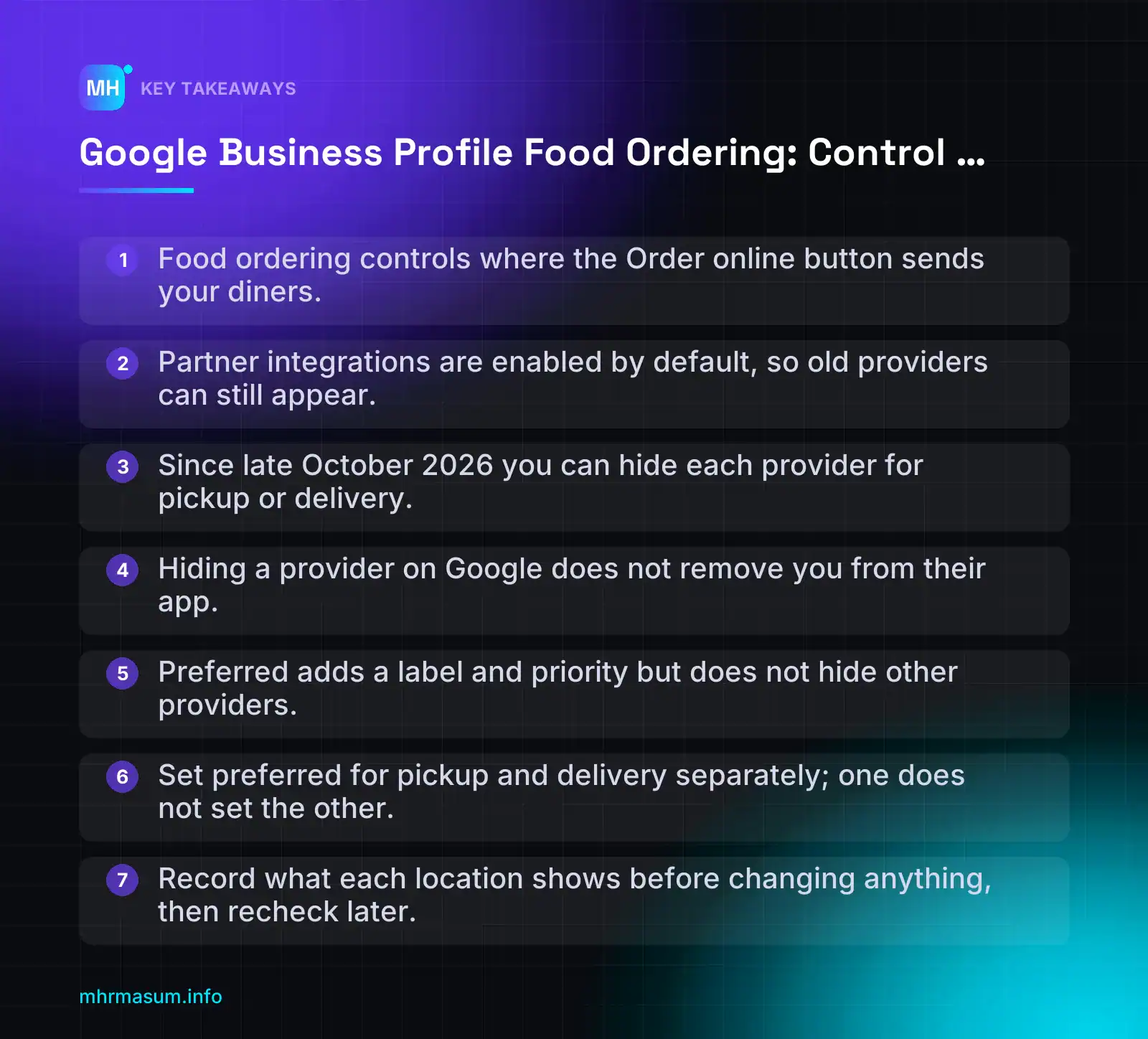
- Food ordering controls where the Order online button sends your diners.
- Partner integrations are enabled by default, so old providers can still appear.
- Since late October 2026 you can hide each provider for pickup or delivery.
- Hiding a provider on Google does not remove you from their app.
- Preferred adds a label and priority but does not hide other providers.
- Set preferred for pickup and delivery separately; one does not set the other.
- Record what each location shows before changing anything, then recheck later.
What the Food ordering section in Google Business Profile controls
The Food ordering section decides which ordering links diners see when they tap the Order online or Place an order button on your restaurant’s profile in Google Search and Google Maps.
Those links send customers, and their money, somewhere. They might go to your own ordering site, which keeps the margin with you. Or they might go to a third-party marketplace that charges commission.
Most restaurant owners never open this section. They assume Google shows whatever they set up years ago. In practice, the list is often built from provider feeds, not from your own choices, so it is worth knowing exactly what each control does.
Where to find Food ordering in Search and Maps
You manage Food ordering from the same place you edit the rest of your profile. Google’s help page describes it as part of the profile’s ordering settings (Google Business Profile Help).
- Sign in with the Google account that owns or manages the profile.
- Search for your restaurant’s name on Google Search, or open your profile in the Google Maps app.
- Open the profile editing options (usually Edit profile).
- Look for the ordering or Food ordering section.
Labels and menu positions change, and they can differ between Search, the Maps app and individual accounts. Treat the steps above as a guide and follow what your own dashboard shows.
If you cannot see the section at all, check that the profile is verified and that its primary category is a food business. If the profile is in trouble for other reasons, fix that first. My guide to Google Business Profile suspension and reinstatement covers that process.
Order online and Place an order buttons by region
Diners do not see a section called “Food ordering”. They see a button. Google’s help documentation says the label varies by region, for example Order online or Place an order (Google Business Profile Help).
Availability varies too:
- Google’s restaurant page says merchants in Australia, Canada, Germany, Japan, the UK and the US can work with ordering providers, and existing partners appear automatically (Google Business Profile for restaurants).
- The Actions Center documentation says food ordering is available wherever Search and Maps are (Google Actions Center).
- In Bangladesh, check your own dashboard. Do not assume local delivery apps are integrated with Google. You may only be able to add your own link.
Before you write instructions for staff or clients, open the live profile on a phone in that market and note the exact button text.
The controls and what each one does
Here is how the controls fit together. The last column matters most, because each control is often assumed to do more than it does.
| Control | What it does | What it does NOT do |
|---|---|---|
| Accept orders on your profile (master switch) | When switched off, hides all third-party ordering options and links from your profile (Google Help). | Does not remove you from Uber Eats, DoorDash or any other app. It only affects what Google shows. |
| Show provider to customers (per provider) | Shows or hides one provider, with separate pickup and delivery options (Search Engine Roundtable). | Does not end your contract with that provider or close your store on their platform. |
| Preferred for pickup | Labels one link as your preferred pickup option and gives it priority in the display. | Does not hide the other providers. They can still appear. |
| Preferred for delivery | Labels one link as your preferred delivery option. This is a separate toggle from pickup (Google Help). | Does not set pickup preference automatically. You must set both. |
| Add a link | Adds your own ordering URL, even if that system has no API integration with Google (Google Business Profile Community). | Does not make the link preferred. Does not stop provider feeds adding their own links. |
| Order with Google (where available) | Lets diners order through Google’s interface using an integrated provider. | Not offered in every market or for every provider. Check whether your dashboard shows it before planning around it. |
“I set my own website as preferred, so Google won’t show the delivery apps any more.”
That is a common misreading. Preferred adds a label and priority; it does not switch other providers off, according to Blaksheep Creative. Google’s own platform policy also says that when several providers serve the same merchant, Google shows all of them and lets users choose (Google Actions Center). To hide a provider, you need the show and hide controls.
What changed in late October 2026 and why every restaurant profile needs checking
On 28 October 2026, Google’s Lisa Landsman announced on LinkedIn that restaurants can now switch off specific third-party ordering providers directly in the Business Profile dashboard (Search Engine Journal).
Her screenshot showed separate pickup and delivery buttons under Show provider to customers. A Google product manager said every country gets the feature (Search Engine Journal).
This sounds like a small interface update. For restaurants, it changes who controls the ordering links on their own profile.
Before: removal requests and the 5 business day wait
Under the older process, you could not switch off a provider yourself. You chose Remove link, and the request went to the provider.
Google’s help page describes a window of 5 business days for providers to process removal (Google Business Profile Help). In practice, that meant:
- The unwanted link stayed live while you waited.
- You depended on the provider acting on the request.
- A provider’s feed could add the link back later, and you had to start again.
For a restaurant that had left a marketplace, this meant diners could keep landing on a store page it no longer used.
Now: per-provider pickup and delivery toggles
The new controls let you hide each provider for pickup, delivery or both. Search Engine Roundtable names Uber Eats, DoorDash, Instacart and Grubhub as examples (Search Engine Roundtable).
Olo, an ordering technology vendor, says the new dashboard setting overrides provider feeds and keeps a link off until the business turns it back on (Olo). That is Olo’s description, so check that hidden providers stay hidden on your own profile over the following weeks.
The split between pickup and delivery is useful. For example, you might:
- Keep a marketplace for delivery, because you have no drivers of your own.
- Hide the same marketplace for pickup, because customers can collect through your own site without commission.
One limit to remember: Olo notes that removing a link from Google does not remove your restaurant from the third-party app. If you want to leave a platform, you still need to end that relationship with the provider.
Partner integrations are on by default
This is why every restaurant profile needs checking, including ones nobody has touched in years.
Google’s ordering provider policy states that “All partner integrations are enabled by default”. Merchants can now enable or disable individual integrations through product controls, and providers must still drop any restaurant that asks to leave their feed (Search Engine Journal).
Google’s help page adds that providers that state they have an authorised relationship with the business are listed automatically (Google Business Profile Help). As a result, a profile can show:
- Apps the restaurant stopped using months ago.
- Providers a previous owner or manager signed up with.
- Marketplace links sitting above the restaurant’s own ordering site.
Be careful before switching everything off. DoorDash’s commission-free Online Ordering (Storefront) integration with Google is enabled by default for eligible merchants, and DoorDash tells them to mark it as preferred (DoorDash Merchant Help). That is your own ordering channel, not the DoorDash marketplace. Confirm which one each entry is before you hide it.
Before you change anything, write down what the profile shows now. A simple note per location is enough:
Location: Main Street, Leeds
Date checked: 3 Nov 2026
Button label shown: Order online
Providers listed:
  - Own site (Add a link)     pickup: shown   delivery: shown   preferred: none
  - Uber Eats                 pickup: shown   delivery: shown
  - DoorDash Storefront       pickup: shown   delivery: shown   (first-party - keep)
  - Old marketplace (left 2025) pickup: shown delivery: shown   (hide both)
Action: hide old marketplace, set own site preferred for pickup + delivery
Finally, verify the labels in your own dashboard. When this article was written, Google’s help page still described the older Remove link flow alongside the preferred and Add a link options. The control names you see may differ from the screenshot in the announcement, or may still be rolling out to your account.
If you manage several restaurant locations and want a second pair of eyes on the setup, you can book a free consultation.
How ordering links get onto your profile
Before you change anything, it helps to know where each link came from. Most ordering links on a restaurant profile were never added by the restaurant. They arrive through three routes, and each needs a different action.
Provider feeds and authorised relationships
Third-party ordering platforms such as Uber Eats, DoorDash, Grubhub or Instacart send data feeds to Google through the Actions Center Ordering Redirect integration. Google matches each feed entry to a Business Profile and shows the provider as an ordering option.
Google’s help page explains that providers stating they have an authorised relationship with your business are listed automatically (Google Business Profile Help). Google’s ordering provider policy also says all partner integrations are enabled by default (Search Engine Journal).
That is why old contracts can keep showing. A platform you stopped using two years ago may still send your restaurant in its feed.
When several providers serve the same restaurant, Google’s Actions Center platform policy says it shows all of them and lets the diner choose (Google Actions Center). Google does not pick the cheapest channel for you. If you do nothing, your own site sits in the same list as every marketplace.
“If I cancel my contract with a delivery app, it disappears from Google automatically.”
Not reliably. Removal depends on the provider updating its feed. Until the late October 2026 change, that meant waiting for the provider to process the request. Now you can switch it off yourself, which is covered in Step 2.
Custom ordering links you add
You can add your own ordering link in the dashboard using Add a link. Google’s community guide confirms you can do this even if your ordering system has no API integration with Google (Google Business Profile Community).
Typical examples are your WooCommerce ordering page, a branch-specific page on your website, or a white-label ordering platform.
First-party storefronts that look like third parties
This is the edge case that catches people out. Some links carry a delivery company’s name but work as your own commission-free channel.
DoorDash’s Online Ordering (Storefront) integration with Google is enabled by default for eligible merchants. DoorDash tells those merchants to mark it as preferred by the business (DoorDash Merchant Help).
If you use DoorDash Storefront, treat it as first-party for margin purposes. Do not switch it off just because you are removing the DoorDash marketplace. Check the link destination and your DoorDash merchant portal to tell the two apart.
Menu link vs ordering links
The menu link and the ordering links do different jobs:
| Field | Purpose | Where it should point |
|---|---|---|
| Menu link | Lets diners browse dishes and prices | Your own menu page for that branch |
| Ordering links | Lets diners place a pickup or delivery order | Your ordering page or a contracted provider’s branch menu |
Keep the menu link on your own website. Some industry guides say Google does not want menu URLs to point straight to a third-party ordering or delivery service. Check the current Business Profile guidelines before you treat that as a hard rule, but pointing the menu at your own page is the safe choice either way.
Step 1: Audit the Food ordering section
An audit shows you what diners actually see today. Do this before you switch anything off, so you have a record of the starting point and can undo mistakes.
Get the right access first
Food ordering controls are only available to people with enough access. A Google account with no role on the profile will not see them.
- Sign in with a Google account that is an owner or manager of the Business Profile.
- Search your exact business name on Google, or open business.google.com and select the location.
- Open the Food ordering section from the profile editing options. Labels change, so look for “Food ordering” or “Order online” if you can’t see it straight away.
- Confirm that Accept orders on your profile is switched on. Google’s help says that switching it off hides all third-party options and links (Google Business Profile Help).
- Take a screenshot of the full provider list before you change anything.
If the profile is suspended or unverified, fix that first. See Google Business Profile Suspended? Step-by-Step Reinstatement.
In Bangladesh and other markets, check your own dashboard. Don’t assume local delivery apps are integrated. Google’s restaurant page names Australia, Canada, Germany, Japan, the UK and the US for ordering providers (Google Business).
Record every provider in an audit table
Make a row for each provider and each custom link. Here is an example for one branch:
| Provider | Contract active (Y/N) | Pickup shown | Delivery shown | Link goes to correct location menu (Y/N) | Preferred | Action |
|---|---|---|---|---|---|---|
| Own website (custom link) | Y | Yes | Yes | Y | No | Set as preferred (Step 3) |
| DoorDash Storefront | Y | Yes | Yes | Y | No | Keep on |
| Uber Eats | Y | Yes | Yes | N (opens other branch) | No | Switch off, ask provider to fix |
| Grubhub | N | Yes | Yes | N (homepage) | No | Switch off both |
Now click every link on a phone and a desktop. Each one must open that branch’s menu, not a provider homepage, a search page, or another location.
Good:  provider.example/store/your-restaurant-gulshan-branch
Bad:   provider.example/                      (homepage)
Bad:   provider.example/search?q=your+restaurant  (search results)
Bad:   provider.example/store/your-restaurant-dhanmondi (wrong branch)
Homepage redirects are not just a poor experience. Google’s Actions Center integration policy says provider links must not redirect to the homepage or unrelated pages (Google Actions Center). Note any you find, because they are worth reporting to the provider.
The decision rule
Apply one simple rule to every row:
- No live contract: switch it off.
- Broken link: switch it off.
- Duplicate of another link: switch off the duplicate.
- Wrong location or homepage: switch it off until the provider fixes it.
- Live contract and correct branch menu: keep it, then decide on pickup and delivery in Step 2.
If you manage many branches and want a second pair of eyes on the audit, you can book a free consultation.
Step 2: Use the per-provider pickup and delivery toggles
Once your audit shows which providers appear on your profile, decide what each one should do. Each provider can now be switched on or off for pickup and delivery separately, so you no longer have to keep or remove a provider entirely.
Google’s Lisa Landsman announced on 28 October 2026 that restaurants can switch off specific third-party ordering providers directly in the Business Profile dashboard, without waiting for each provider to process a removal request (Search Engine Journal). Her screenshot showed separate pickup and delivery buttons under Show provider to customers.
To find the controls:
- Open your profile on Google Search or Maps while signed in as an owner or manager.
- Select Food ordering.
- Select a provider from the list.
- Look for Show provider to customers and set pickup and delivery on or off.
- Repeat for every provider, then reload the profile in a private window to check the result.
The official help page still describes the older process (Google Business Profile Help). Labels may differ from what you see, so trust your dashboard and note the exact wording for your records.
Decision rules for each provider
Google’s ordering provider policy says all partner integrations are enabled by default (Search Engine Journal). That means every provider on your list is showing unless someone has changed it. Go through them one by one using this table.
| Scenario | Pickup | Delivery | Preferred? |
|---|---|---|---|
| No contract or relationship with the provider | Off | Off | No |
| Delivery-only partner (you use them for drivers, not collection) | Off | On | No |
| You run your own pickup ordering system | Off for all third parties | Depends on your delivery setup | Your own link, for pickup |
| Marketplace you need for reach and new customers | On | On | No |
| Provider is your own commission-free storefront (for example DoorDash Online Ordering) | On | On if you deliver | Yes |
The last row matters. DoorDash’s commission-free Online Ordering (Storefront) integration with Google is enabled by default for eligible merchants, and DoorDash tells those merchants to mark it as preferred (DoorDash Merchant Help). Don’t mistake your own DoorDash storefront for the DoorDash marketplace and switch it off by accident.
The trade-off is simple to state but needs a real decision:
- Turning providers off protects margins and stops orders arriving through channels your kitchen can’t handle at peak times.
- Leaving providers on gives diners choice. Some people only order through the app they already have an account with.
You don’t have to cut everything. Search Engine Roundtable notes that a mix of trusted providers can still help restaurants (Search Engine Roundtable). The goal is to show the providers you actually work with, for the services they actually perform.
“If I switch Uber Eats off on Google, my Uber Eats listing disappears too.”
It doesn’t. Olo says removing a provider’s link from Google does not remove the restaurant from the third-party app, and that the dashboard setting overrides the provider’s feed until you turn it back on (Olo). Your listing inside the app stays live.
Equally, these toggles don’t cancel contracts. If you want to end a relationship with a provider, do it with the provider directly. Providers must still drop any restaurant that asks to leave their feed (Search Engine Journal), but that request goes to them, not to Google.
Pickup off, delivery on: a common split
This is the setting many restaurants will want. Collection orders cost nothing to fulfil with your own system, so there is little reason to pay a marketplace commission on them.
Example setup for a restaurant that takes its own collection orders but uses a marketplace for drivers:
Food ordering
  Own website (first-party)   Pickup: On   Delivery: Off   Preferred for pickup
  Uber Eats                   Pickup: Off  Delivery: On
  DoorDash marketplace        Pickup: Off  Delivery: On
  Grubhub (no contract)       Pickup: Off  Delivery: Off
Diners who want collection see your own link first. Diners who want delivery still get the apps your drivers come from. Write the settings into a simple log with the date, so you can spot it if a provider feed or a team member changes something later.
Step 3: Set your first-party ordering link as preferred
Toggles decide who appears. Preferred decides who you want diners to notice first. Use both together and you control the list properly.
Preferred for pickup and Preferred for delivery
Google’s help page describes Set as preferred with two separate toggles: Preferred for pickup and Preferred for delivery (Google Business Profile Help). The steps are:
- Open your profile and select Food ordering.
- Select your own ordering link or your first-party storefront (for example, your website ordering page or a commission-free storefront).
- Select Set as preferred.
- Switch on Preferred for pickup, Preferred for delivery, or both, depending on what your own system handles.
- Save, then check the result on Search and Maps from a phone.
If your own link isn’t in the list yet, you’ll add it in Step 4. Olo recommends setting the first-party site as preferred for both pickup and delivery (Olo). That only makes sense if you genuinely offer both through that site.
Example: a pizza restaurant runs its own drivers and takes orders through its own website. It sets its own link as preferred for both pickup and delivery, keeps one marketplace switched on for delivery to reach app users, and switches off every provider it has no contract with.
What the Preferred by business label does and doesn’t do
“Once my link is preferred, the delivery apps disappear from my profile.”
They don’t. Setting a link as preferred adds a label and gives it priority in the display, but it does not switch the other providers off (Blaksheep Creative). This matches Google’s Actions Center platform policy, which says that when several providers serve the same merchant, Google shows all of them and lets users choose (Google Actions Center).
| Preferred does | Preferred doesn’t |
|---|---|
| Add a label showing the business prefers this option | Hide other enabled providers |
| Give the link priority in how options are displayed | Guarantee diners pick your link |
| Work separately for pickup and delivery | Fix a slow or broken ordering site |
So if you want a short list, use the Step 2 toggles to remove providers, then use Preferred to highlight your own link among what’s left.
Before you set it, apply one decision rule: only make your own link preferred if it beats the apps for the diner. Check that it:
- Loads quickly and works well on a phone. Look at real-user field data, not just a lab score (see lab vs field data in PageSpeed Insights).
- Takes payment online without sending people to a dead end or a phone number.
- Shows accurate opening hours, delivery areas and menu prices that match your Business Profile.
- Lands on the ordering page for this location, not your homepage. Google’s integration policy says links must not redirect to a provider’s homepage or unrelated pages (Google Actions Center), and the same standard is sensible for your own link.
If any of these fail, fix the ordering site first. Promoting a frustrating checkout pushes diners back to the apps, or away from you entirely. Plan how you’ll measure orders from Google too, so you aren’t left with untagged visits like the ones covered in GA4 unassigned traffic. Step 4 covers tracking.
Readers in Bangladesh and other markets not named on Google’s restaurant page should check their own dashboard. Don’t assume Preferred or local delivery apps are available until you see them in Food ordering. If you manage several locations and want a second pair of eyes on the setup, you can book a free consultation.
Step 4: Add custom ordering links and track them
Switching off unwanted providers only covers half the job. The other half is making sure the link you want diners to use is on the profile and points to the right place.
This matters most when your own ordering system has no direct integration with Google. In that case it will not appear automatically, and you have to add it yourself.
Adding a link with no Google integration
You do not need an API partnership to list your own ordering page. Google’s community guide confirms that a business can add an ordering link even when that system has no integration with Google (Google Business Profile Community).
The official help page describes the process (Google Business Profile Help). Menu labels have been changing since the October 2026 update, so check the wording in your own dashboard.
- Sign in as an owner or manager and open your profile on Google Search or Maps.
- Select Food ordering. In some dashboards it sits under Edit profile.
- Choose Add a link.
- Paste the location-specific ordering URL for this branch. If the form asks, pick whether it is for pickup, delivery or both.
- Save, then follow Step 3 to mark it Preferred for pickup and/or Preferred for delivery if it is your main channel.
Use one link per location. Never point every branch to a generic brand ordering page. A diner who finds your Manchester branch should land on the Manchester menu, prices and hours. They should not have to pick a store again, and they should never be sent to a page that defaults to the wrong branch.
“If the link goes to our ordering homepage, customers can choose their branch themselves.”
In practice, every extra step loses some orders. A generic page also makes it hard to tell which profile sent the order. Google’s own integration policy for ordering partners says links must not redirect to a provider’s homepage or unrelated pages (Google Actions Center). Hold your own links to the same standard.
Tagging links for GA4
Without tagging, orders from your profile usually blend into general Google traffic. Add UTM parameters so you can separate Business Profile ordering visits by location.
https://order.example.com/manchester-deansgate/?utm_source=google&utm_medium=organic&utm_campaign=gbp-food-ordering&utm_content=manchester-deansgate

https://order.example.com/leeds-city-centre/?utm_source=google&utm_medium=organic&utm_campaign=gbp-food-ordering&utm_content=leeds-city-centre
With utm_medium=organic, GA4 still groups these visits under Organic Search, so the channel report stays tidy. The campaign value separates them from ordinary search clicks, and utm_content identifies the branch.
Before you rely on the data, check two things:
- Do the UTMs survive redirects? Many ordering platforms redirect to a store selector or a session URL. Paste your tagged link into a private window and check whether the parameters are still in the final address bar. If they are stripped, ask your platform how it passes campaign data.
- Is GA4 actually on the ordering pages? If ordering runs on a third-party domain, your GA4 tag must be installed there, often with cross-domain measurement. If it is not, visits can show up as unassigned or as self-referrals. Our guide to fixing GA4 unassigned traffic covers the usual causes.
To find the traffic, go to Reports > Acquisition > Traffic acquisition. Change the primary dimension to Session campaign, then filter for gbp-food-ordering. Business Profile’s own performance view may also show ordering-related figures, but the metrics vary, so check what your dashboard actually reports rather than assuming a specific number exists.
Step 5: Test what diners see on Search and Maps
The dashboard shows your settings. It does not show what a hungry customer sees on their phone. Those two can differ for days, and they can differ between surfaces.
Google’s platform policy states that when several providers serve the same merchant, Google shows all of them and lets users choose (Google Actions Center). A preferred label changes priority. It does not hide other providers. Only testing will confirm the result.
Mobile Search, Maps app and desktop
Test like a diner, not like the account owner:
- Use a logged-out or private browser, so manager views and personalisation do not affect what you see.
- Test from the restaurant’s own city, or ask a staff member at the branch to do it. Local results and ordering options vary by location.
- Remember that labels vary by region. You may see Order online or Place an order.
| Surface | Device | What to check | Pass / Fail |
|---|---|---|---|
| Brand search, e.g. “[restaurant] [suburb]” | Mobile browser | Order button appears; only approved providers listed | |
| Google Maps app | iOS and Android | Ordering option on the place card matches the dashboard | |
| Knowledge panel | Desktop | Ordering links match mobile; no disabled provider visible | |
| Pickup tab | Mobile | Providers switched off for pickup are absent | |
| Delivery tab | Mobile | Providers switched off for delivery are absent | |
| Preferred label | All | Your first-party link shows the preferred label | |
| Provider order | All | Which provider appears first, recorded by name |
Then click every visible link through to the menu. Confirm that each one reaches the correct branch, current prices and the right opening hours. If you use DoorDash’s commission-free Online Ordering (Storefront), check that it still works. DoorDash treats it as a first-party channel and tells merchants to mark it as preferred (DoorDash Merchant Help).
Allow time for changes to show
Do not assume changes are instant. Settings, caches and provider feeds can take time to update. Under the older removal process, providers had up to 5 business days to act (Google Business Profile Help).
- Run the checklist straight after making changes and record the results.
- Take dated screenshots of each surface. Include the device, the location and the date in the file name, e.g.
2026-11-03_leeds_maps-android_delivery.png. - Re-test after a few days, and again after a week if anything was still wrong.
- Escalate only when a setting has clearly not taken effect. The troubleshooting section below covers that.
For agencies, those screenshots are your evidence for clients. They show what was fixed and when, and they help if a provider reappears later. If you manage many locations and want a second pair of eyes on the setup, you can book a free consultation.
Common mistakes and myths
Most ordering problems on restaurant profiles come from a few misunderstandings about what each control does. Each control does one specific job, and mixing them up either leaves unwanted apps visible or hides your own ordering link.
Myth: “preferred” hides the other apps
“Setting my own link as preferred removes DoorDash and Uber Eats from my profile.”
It doesn’t. Preferred is a label and a display priority, not a hide control. Your link gets marked as the business’s choice and is given priority. Every other enabled provider still appears beneath it (Blaksheep Creative).
This matches Google’s platform policy. When several providers serve the same merchant, Google shows all of them and lets the diner choose (Google Actions Center).
To actually remove an app, use that provider’s pickup and delivery toggles under “Show provider to customers”, as covered in Step 2. Then set your own link as preferred.
Mistake: switching off “Accept orders on your profile” to remove one app
This is the blunt option, and it usually causes more harm than the problem it was meant to fix. According to Google’s help page, switching off “Accept orders on your profile” hides all third-party options and links (Google Business Profile Help).
Check carefully what is still visible after you use it. If your own ordering link is no longer showing, diners have lost the direct route to order from you. Leave this master switch on, and use the per-provider toggles to remove individual apps.
Mistake: switching off your own storefront because it carries an app’s name
Some providers run two separate products: a commission-based marketplace and a first-party ordering storefront. DoorDash’s commission-free Online Ordering (Storefront) integration with Google is enabled by default for eligible merchants. DoorDash tells those merchants to mark it as preferred by the business (DoorDash Merchant Help).
If you see the DoorDash name and switch everything off, you may remove your own commission-free channel as well. Before you toggle anything, open each link and check where it lands.
- A link that lands on the marketplace app or the marketplace website is the marketplace listing.
- A link that lands on a page branded as your restaurant, run by the provider, is likely your storefront.
- If you are unsure, check your provider’s merchant portal to see which products you have active.
Mistake: using a third-party ordering URL as the menu link
The menu link should show your menu, not send people to a delivery app. One agency reports that menu URLs should point to the restaurant’s own menu and not directly to a third-party ordering or delivery service (Blaksheep Creative).
That report comes from a third party, so confirm the current wording in Google’s Business Profile guidelines before you treat it as policy. Even so, the safer practice is simple. Point the menu link to a menu page on your own website, and keep ordering links in the Food ordering section.
Mistake: nobody actually owns the profile
Ordering controls only help if someone on your team can reach them. Restaurants often find that a former manager, an old agency or an ordering vendor still holds the primary owner role.
- List every user on the profile and note their role.
- Make sure a business-owned email account is the primary owner.
- Give vendors and agencies manager access, not ownership.
- Remove anyone who no longer works with you.
Access disputes become much harder to solve if the profile is ever restricted. If that has already happened, see our guide to Google Business Profile suspension and reinstatement.
| Mistake | What happens | Correct action |
|---|---|---|
| Relying on “preferred” to hide apps | Other providers stay visible | Use the per-provider toggles |
| Turning off “Accept orders on your profile” | All third-party options and links are hidden | Leave it on and switch off individual providers |
| Disabling a provider storefront by mistake | You lose your own ordering channel | Open each link and check where it lands |
| Delivery app URL used as the menu link | Diners are sent to an app instead of your menu | Link to the menu page on your own site |
| No clear profile owner | Nobody can change the settings | Make a business-owned account the primary owner |
Troubleshooting ordering links that won’t behave
The new controls are meant to work directly from your dashboard. In practice, you may see delays, missing options or links that come from provider feeds. Work through the problems below in order.
A provider you switched off still appears
First, rule out the simple causes.
- Reopen the Food ordering section and confirm that the provider is off for both pickup and delivery. These are separate toggles, so switching off only one leaves the other active.
- Make sure the change has saved. Reload the dashboard and check the provider’s status again.
- Wait before you test. Changes may take time to reach Search and Maps.
- Test again in a private window and in the Maps app, while signed out.
According to Olo, the dashboard setting overrides provider feeds and keeps a link off until you turn it back on (Olo). Olo is a vendor, so treat this as Olo’s description of the feature. If the link still shows after a reasonable wait, fall back on the older process.
- Use Remove link in the Food ordering section. Google’s help page gives providers a 5 business day removal window (Google Business Profile Help).
- If the provider doesn’t act, use the violation report form linked from that same help page.
- Providers must still drop any restaurant that asks to leave their feed (Search Engine Journal). Send them the request in writing as well.
Keep a short record of each test. That gives you evidence if you need to escalate.
Date/time:      3 Nov 2026, 14:10
Location:       Main Street branch
Provider:       [provider name]
Dashboard:      Pickup OFF, Delivery OFF (saved)
Search result:  Still showing under Order online
Maps app:       Not showing
Action:         Remove link requested; re-test in 5 business days
You can’t see the per-provider toggles
This feature is new, and Google’s official help page still describes the older process. Check the current labels in Help before you assume something is broken. Then work through the checks below.
| Check | What to look for |
|---|---|
| User role | Your account has owner or manager access, not limited access |
| Primary category | Restaurant, or a specific restaurant category |
| Verification | The profile is fully verified |
| Profile type | Whether you are editing a single location or working inside a location group |
| Rollout | A Google product manager said every country will get the feature (Search Engine Journal), but availability can arrive at different times |
If you manage locations in a group, open one location directly and check whether the toggles appear there.
Wrong location or broken link from a feed
A provider link sometimes opens the wrong branch, or a page that isn’t for your restaurant at all. Google’s integration policy says links must not redirect to the provider’s homepage or to unrelated pages (Google Actions Center).
- Switch off that provider’s display for the affected location, for both pickup and delivery.
- Contact the provider and ask them to fix the location match in their feed.
- Once they confirm the fix, switch the provider back on and test the link.
Removing the link from Google does not remove your restaurant from the provider’s own app (Olo). That means existing app customers are not affected while the fix is in progress.
Bangladesh and other markets with few integrations
Google’s restaurant page lists merchants in Australia, Canada, Germany, Japan, the UK and the US as able to work with ordering providers (Google Business Profile). Don’t assume local delivery apps in Bangladesh are integrated. Check your own dashboard, and note that the button label may read “Order online” or “Place an order”, depending on your region.
If your market has no integrated provider, add your own ordering page as a custom link. Tag it with UTM parameters, and check how those visits appear in GA4. Our guide to fixing GA4 unassigned traffic shows how to keep those visits correctly attributed.
If you are still stuck after these checks, book a free consultation and we can review your profile settings together.
Monthly Food ordering checklist for agencies managing several locations
Food ordering settings change even when nobody at the agency touches them. Third-party provider integrations are enabled by default, so a new partner can appear on a profile as soon as it reports an authorised relationship with the business (Search Engine Journal; Google Business Profile Help).
For one restaurant, a quick look each month is enough. Across 20 or 200 locations you need a repeatable routine, clear owners and evidence you can show the client.
Monthly checks per location
Run these checks from the Business Profile dashboard and from a logged-out browser on Search and Maps. Button and toggle labels vary by region and change over time, so record what the dashboard actually says, not what this table calls it.
| Check | Frequency | Owner | Evidence |
|---|---|---|---|
| New providers appearing in the Food ordering section (on by default) | Monthly, and after any new contract | Local SEO specialist | Dated screenshot of the full provider list |
| Pickup and delivery toggle states compared with the client’s contract list | Monthly | Local SEO specialist | Provider list marked “matches contract” or “mismatch” in the log |
| Preferred link set for pickup and for delivery | Monthly | Local SEO specialist | Screenshot showing the preferred label on the first-party link |
| Each link resolves to the correct branch, not a homepage or another location | Monthly | Local SEO specialist | Final URL after redirects, noted per link |
| UTM-tagged traffic from custom ordering links in GA4 | Monthly | Analyst | GA4 exploration export filtered by campaign or source |
| What diners see on Search and Maps (desktop and mobile) | Monthly | Account manager | Screenshots of the ordering button and provider choices |
| User access review on the profile | Quarterly, and when staff or agencies change | Account manager with client | List of owners and managers, with removals noted |
A few details make these checks worth doing properly:
- Contract list first. Ask the client for a written list of providers they actually use, per location, split by pickup and delivery. Without it you cannot tell whether a provider on the profile is wanted or not.
- Do not switch off a first-party channel by mistake. DoorDash’s commission-free Online Ordering (Storefront) integration is enabled by default for eligible merchants and is separate from the DoorDash marketplace (DoorDash Merchant Help). Confirm which one you are looking at before toggling.
- Test the final URL, not the displayed one. Google’s integration policy says links must not redirect to the provider’s homepage or unrelated pages (Google Actions Center). A link that lands on a generic page is worth reporting to the provider.
- Tag only the links you control. You can add UTM parameters to custom links you add yourself. Provider-managed links usually can’t be tagged. If ordering visits show up as direct or unassigned, work through the GA4 unassigned traffic audit.
- Business Profile performance data. Check which ordering-related metrics your own dashboard shows for each location. They differ by account and region, so don’t promise clients a figure the dashboard doesn’t give you.
Here is a consistent UTM pattern for custom ordering links:
https://order.example.com/manchester-deansgate?utm_source=google&utm_medium=organic&utm_campaign=gbp-order-pickup
https://order.example.com/manchester-deansgate?utm_source=google&utm_medium=organic&utm_campaign=gbp-order-delivery
Use the same naming across every client so monthly reports can be compared. If you already report on Search Console data, add these numbers to the same report rather than a separate deck (see Search Console-first SEO reporting).
Which locations to check first
If you can’t check every profile in the first week of the month, prioritise in this order:
- High-volume locations, where a wrong link costs the most orders.
- Any profile where a provider was recently added or removed, including removals still within a provider’s processing window. Google Help gives providers 5 business days to process removal requests (Google Business Profile Help).
- Locations with open diner complaints about wrong menus, closed branches or unexpected prices.
- Everything else, on a rotating schedule.
Re-check outside the monthly cycle
Don’t wait for the next monthly check if any of these happen:
- The client signs or ends a delivery contract.
- A POS or ordering platform migration, which often changes ordering URLs and branch IDs.
- A menu change, especially one that removes items or changes pricing structure.
- A new location opening, which can bring provider links into the wrong profile.
For Bangladesh clients, check the dashboard itself rather than assuming local delivery apps are integrated. Google lists ordering providers for specific markets such as Australia, the UK and the US (Google Business Profile for restaurants). Note in the log what the Food ordering section shows for each profile.
Change log and client sign-off
Every toggle change should be traceable. When a client asks why Uber Eats disappeared from their profile three months ago, you want the answer in seconds.
Keep one shared spreadsheet per client, with one row per change:
Date       | Location          | Change                                   | Reason                         | Requested by | Approved by       | Verified on Search/Maps
2026-11-03 | Leeds City Centre | Grubhub delivery toggled off             | Contract ended 31 Oct          | Ops manager  | Client owner      | 2026-11-04, screenshot #12
2026-11-03 | Leeds City Centre | First-party link set preferred (both)    | Monthly audit: label missing   | Agency       | Client owner      | 2026-11-04, screenshot #13
2026-11-05 | Bristol Harbour   | Custom pickup link added with UTM        | New ordering platform launched | Marketing    | Marketing manager | Pending
Agree sign-off rules at the start of the engagement:
- Switching a provider off needs written client approval. It affects revenue and possibly a contract, so the agency shouldn’t decide it alone.
- Fixing a broken link or restoring a missing preferred label can be pre-approved as routine maintenance.
- Remind clients that hiding a provider on Google does not remove them from that provider’s app. Olo makes this point in its guidance (Olo). Ending a listing on the app itself is a separate conversation with the provider.
- Close each row only after you have verified the result on Search and Maps.
The access review belongs in the same log. Remove former staff and previous agencies, and keep at least two client-side owners. A profile that loses its only owner is much harder to recover, as the Business Profile suspension and reinstatement guide shows.
If you manage restaurant profiles across several markets and want a second pair of eyes on the setup, book a free consultation or see how local SEO fits into our SEO services.
Frequently Asked Questions
How do I remove Uber Eats or DoorDash from my Google Business Profile?
Open your profile's Food ordering section and find the provider under the show or hide controls. Switch it off for pickup, delivery or both. If your dashboard still only offers Remove link, the request goes to the provider and can take up to 5 business days.
Why does a delivery app I never use appear on my Google listing?
Providers that state they have an authorised relationship with your business are listed automatically, and partner integrations are on by default. A previous owner or manager may have signed up, or an old contract may still be in the provider's feed. Check the profile and hide anything you no longer use.
Does hiding a provider on Google close my store on that delivery app?
No. It only changes what Google shows on your profile. To leave a platform, you must end the relationship with the provider directly.
Can I add my own website as an ordering link?
Yes. Use Add a link in the Food ordering section to add your own ordering page, even if your system has no API integration with Google. Adding it does not make it preferred, so set the preferred options separately.
Does marking my own link as preferred stop Google showing other providers?
No. Preferred labels your link and gives it priority, but other providers can still appear. Google shows all providers serving a restaurant and lets diners choose, so use the hide controls for any you do not want listed.
Why can't I see the Food ordering section in my dashboard?
Check that you are signed in with an owner or manager account, that the profile is verified and that the primary category is a food business. Availability and labels also vary by country, account and between Search and the Maps app. In Bangladesh, you may only be able to add your own link.
Should I hide the DoorDash Storefront link?
Usually not. DoorDash's Online Ordering (Storefront) is a commission-free first-party channel, not the marketplace, and DoorDash advises eligible merchants to mark it as preferred. Confirm what each entry is before you hide it.
Final Thoughts
Start with an audit. For each location, open the live profile on a phone, note the button label and list every provider with its pickup, delivery and preferred status.
Then hide providers you no longer use, keep the channels that still earn their commission and set your own ordering link as preferred for both pickup and delivery. Check whether entries such as a DoorDash Storefront are first-party before switching them off.
Recheck each profile over the following weeks to confirm hidden providers stay hidden, because control names and rollout timing may differ by account. If you manage several locations and want the setup reviewed, a free consultation is available.
Want help applying this to your site? Run the free SEO check or book a free consultation with MD Harunur Rashid. Free SEO check · Book a free consultation