
You have real customers leaving real reviews, yet your product pages show no stars in Google and AI assistants barely mention your products. WooCommerce product reviews SEO is mostly about making sure each review reaches every place it can help: the product page, the structured data, Google results and AI shopping answers.
The problem is rarely the reviews themselves. It is usually a switched-off setting, a product with reviews closed after an import, duplicate Product markup, or identifiers that do not match in Merchant Center.
One broken link in that chain is enough to stop stars from showing anywhere.
This guide follows a review from the moment a customer submits it to the point where Google or an AI tool uses it. It covers native WooCommerce settings, the schema core outputs, eligibility rules, moderation and Merchant Center product ratings.
It is written for WooCommerce store owners, marketers and in-house SEOs who want clear steps they can check in their own admin panel today, not theory.
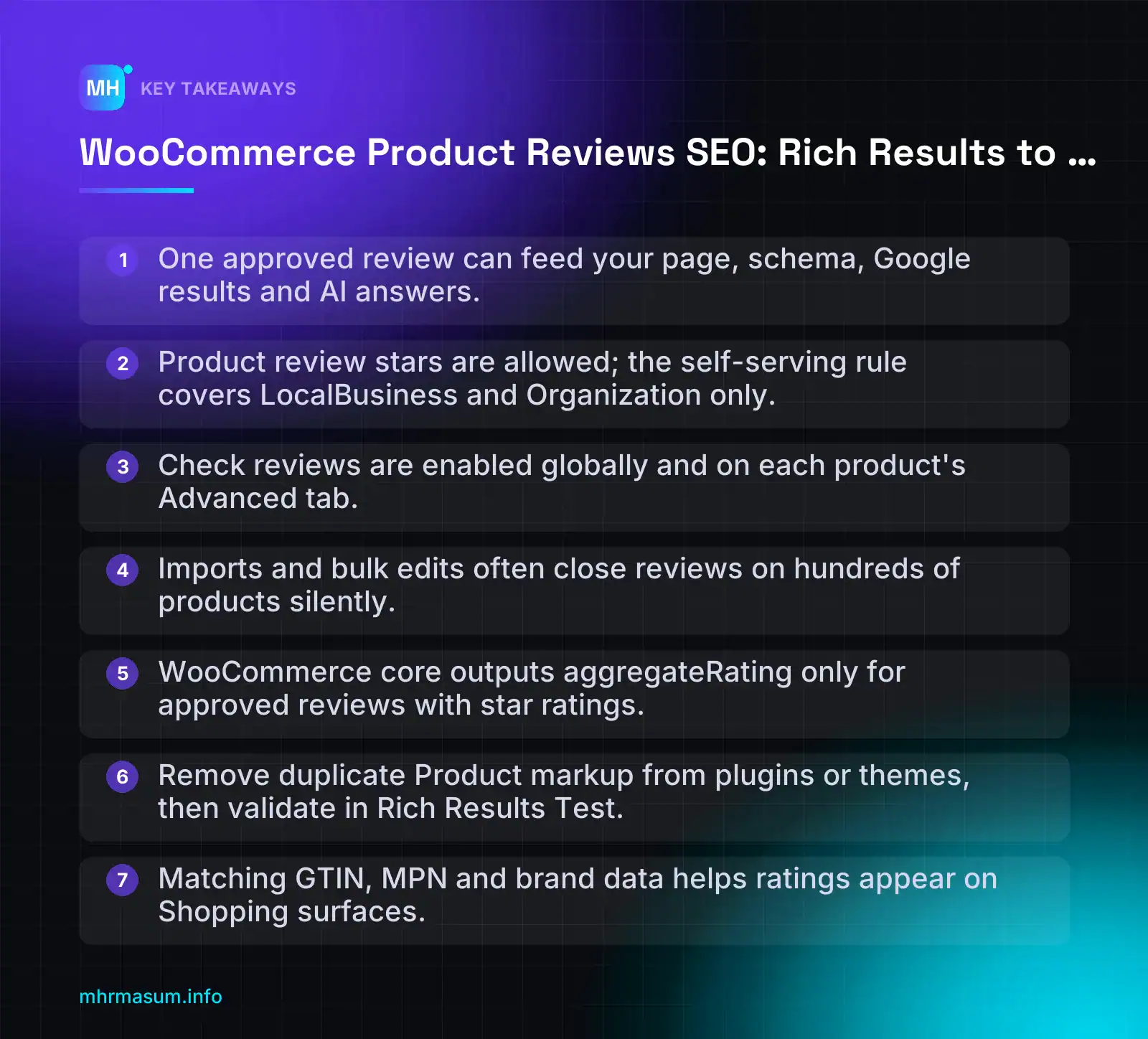
Key Takeaways
- One approved review can feed your page, schema, Google results and AI answers.
- Product review stars are allowed; the self-serving rule covers LocalBusiness and Organization only.
- Check reviews are enabled globally and on each product’s Advanced tab.
- Imports and bulk edits often close reviews on hundreds of products silently.
- WooCommerce core outputs aggregateRating only for approved reviews with star ratings.
- Remove duplicate Product markup from plugins or themes, then validate in Rich Results Test.
- Matching GTIN, MPN and brand data helps ratings appear on Shopping surfaces.
What WooCommerce product reviews do for SEO and AI shopping
A product review is written once by a customer, but it can be used in several places. One approved review on a product page can feed your structured data, your Google listings and the AI tools that summarise products for shoppers.
To understand WooCommerce product reviews SEO, it helps to follow that chain from start to finish.
- A customer leaves a review on the product page. WooCommerce stores it as a WordPress comment on that product.
- You approve it, and it appears in the Reviews tab on the page.
- WooCommerce adds it to Product JSON-LD as
aggregateRating(the average and the count) andreviewentries. Section 3 covers this markup in detail. - Google reads the markup and may show star ratings in organic results if the page meets the review snippet rules.
- Merchant Center can use review data for product ratings on Shopping surfaces, as long as identifiers such as GTIN, MPN and brand match.
- AI shopping tools read the page and feed data to describe products, compare options and answer questions such as “does this run small?”
If any link in the chain breaks, the steps after it break too. For example, reviews may be switched off on that product, or the markup may be missing, or the identifiers may not match. Most of this article is about keeping each link working.
Three places reviews show up: product page, Google results, AI answers
| Where | What the shopper sees | What it depends on |
|---|---|---|
| Product page | Star average, review count, written reviews, verified owner labels | Reviews enabled globally and per product, approved reviews, a theme that shows the Reviews tab |
| Google results | Review stars in organic results; product ratings in Shopping and free listings | Valid Product markup that matches visible reviews; Merchant Center data with matching identifiers |
| AI answers | Summaries such as “buyers say it’s comfortable but runs small”, ratings in product cards | Crawlable pages, clear review text, consistent feed and page data |
The third row is where reviews do something your own copy cannot. Reviews add fresh, specific text in the words shoppers actually use. Customers write about fit, sizing, durability, smell, noise and setup time. They also describe real use cases, such as “used it on a 3-day hike” or “fits a 15-inch laptop with a case”.
Shoppers ask AI assistants questions in that same language. A product page that only has a manufacturer description has little to match those questions. A page with 40 honest reviews has a lot more to work with.
Some third-party research, such as Peec AI’s analysis, suggests ChatGPT’s shopping results draw product, price and rating data from Google Shopping. Treat that as an outside finding, not an official statement. The practical point holds either way. Clean Merchant Center data and good on-page reviews help across more than one AI surface. If you are preparing for agent-led checkout as well, see Agentic Commerce and UCP for WooCommerce.
Why product reviews are not ‘self-serving’ reviews
“Google stopped showing stars for reviews hosted on your own website, so there’s no point marking up product reviews.”
This is a common misreading. The self-serving restriction applies to LocalBusiness and Organization markup only. It covers a business marking up reviews about itself on its own site, such as a homepage showing “4.9 stars from our customers”.
It does not cover Product reviews. Google’s review snippet documentation (Google Search Central) lists Product as a supported type. Reviews of the products you sell on your own store can still earn stars.
Google’s 2019 announcement (Google Search Central Blog) also explains what happens to self-serving LocalBusiness and Organization reviews. Google simply stops showing those stars. You do not get a manual action just for having that markup.
Product stars still have to follow the rules. The reviews must be genuine and visible on the page. Fake reviews and undisclosed incentivised reviews are not allowed. Section 4 covers eligibility.
This article covers product reviews only. Reviews of your shop or office on Google Business Profile work under different rules and a different system. For profile setup and visibility, start with Service Area Business Google Business Profile: Full Setup.
Configure native WooCommerce review settings correctly
Many review problems start with a single checkbox. Before you look at schema or plugins, confirm that reviews are switched on in the right places and set up for how your customers actually buy.
Global settings under WooCommerce > Settings > Products
- In WordPress admin, go to WooCommerce > Settings.
- Open the Products tab.
- Find the Enable reviews and Product ratings groups. In many versions they sit in the General sub-section. Older installs and some newer builds may label or group them differently.
- Set the five options as shown below and click Save changes.
Check the wording in your own WooCommerce version (Dashboard > Updates or Plugins shows the version number). If you can’t find the options under Products > General, look for a separate Reviews section in the Products tab.
| Setting | Recommended | Why |
|---|---|---|
| Enable product reviews | On | With this off, there is no review form, no reviews and no rating markup. Nothing later in the chain can work. |
| Show “verified owner” label on customer reviews | On | The label builds trust with shoppers and helps you separate real buyers from drive-by comments during moderation. |
| Reviews can only be left by “verified owners” | Depends on checkout (see the rule below) | It cuts spam, but it blocks guest buyers. This setting is off by default. |
| Enable star rating on reviews | On | Without star ratings there is no average to show, so there is no aggregateRating and no stars. |
| Star ratings should be required, not optional | On | It stops text-only reviews that add to the count but not the average, and it keeps your rating data consistent. |
Per-product switch in Product data > Advanced
The global setting is not enough on its own. Each product has its own review switch, and it overrides what you expect from the global setting.
- Go to Products > All Products and edit a product.
- In the Product data box, open the Advanced tab.
- Tick Enable reviews and click Update.
Bulk-disabled reviews on old or imported products are one of the most common reasons reviews go missing. This happens often after a migration. A CSV import with the “Allow customer reviews?” column set to 0, or a past bulk edit, can quietly close reviews on hundreds of products.
To fix this in bulk, go to Products > All Products. Select the affected products and choose Bulk actions > Edit. Set Comments to Allow, then click Update.
If you have database access, this read-only query counts the published products with reviews closed. It assumes the default wp_ table prefix:
SELECT COUNT(*) FROM wp_posts
WHERE post_type = 'product'
  AND post_status = 'publish'
  AND comment_status = 'closed';
If you sell the same items in other channels, check your identifiers while you are cleaning up. Ratings in Merchant Center depend on them, as explained in WooCommerce GTIN, MPN & Brand.
Verified owner label vs verified-owners-only
These two settings sound alike, but they do very different jobs.
- Verified owner label: anyone allowed to review can do so. Reviews from confirmed buyers get a badge.
- Verified-owners-only: only confirmed buyers see the review form at all.
The trade-off is volume. Verified-owners-only relies on the customer being logged in to an account that placed the order. Customers who used guest checkout can’t leave a review. On a store where most orders are guest orders, turning this on can mean far fewer reviews.
Use this decision rule:
| Your store | Verified-owners-only | Verified label | Moderation |
|---|---|---|---|
| Guest checkout allowed | Off | On | Approve reviews manually (Section 6) |
| Accounts required for every order | On | On | Light review for abuse and off-topic posts |
| Under a spam attack, guest checkout allowed | Off, but tighten Settings > Discussion and add anti-spam | On | Hold all reviews for approval |
Not sure whether review settings, markup or indexing is holding your product pages back? Run a free SEO check before you change anything else.
How WooCommerce outputs review schema (and what it looks like)
WooCommerce creates Product structured data on its own. You do not need a plugin to get a rating into your markup. You do need to know what core outputs, so you can spot gaps and duplicates.
Default Product JSON-LD with aggregateRating and review
On a single product page, WooCommerce builds a Product entity with the name, URL, description, image, SKU and offer details. Ratings are added on top of that.
Below is a simplified example of what a reviewed simple product usually looks like. Your exact output will depend on your WooCommerce version, product type and extensions.
{
  "@context": "https://schema.org/",
  "@type": "Product",
  "@id": "https://example.com/product/merino-hiking-socks/#product",
  "name": "Merino Hiking Socks",
  "url": "https://example.com/product/merino-hiking-socks/",
  "description": "Cushioned merino wool socks for long walks.",
  "image": "https://example.com/wp-content/uploads/merino-socks.jpg",
  "sku": "SOCK-MER-01",
  "offers": [{
    "@type": "Offer",
    "price": "24.00",
    "priceCurrency": "GBP",
    "availability": "https://schema.org/InStock",
    "url": "https://example.com/product/merino-hiking-socks/",
    "seller": { "@type": "Organization", "name": "Example Outdoor" }
  }],
  "aggregateRating": {
    "@type": "AggregateRating",
    "ratingValue": "4.67",
    "reviewCount": 3
  },
  "review": [{
    "@type": "Review",
    "reviewRating": {
      "@type": "Rating",
      "ratingValue": "5",
      "bestRating": "5",
      "worstRating": "1"
    },
    "author": { "@type": "Person", "name": "Sarah K." },
    "reviewBody": "Warm, no blisters after a 20 km day.",
    "datePublished": "2026-09-14T08:12:00+00:00"
  }]
}
The key behaviour: core only adds aggregateRating and review when the product has approved, rated reviews and star ratings are enabled. A product with no reviews gets Product and Offer markup, but no rating.
In the WooCommerce versions I have worked with, core also limits the review array to a handful of the most recent approved top-level reviews that carry a star rating. Replies and unapproved comments are left out. Verify this against the WC_Structured_Data class in your installed version, because the logic can change between releases.
Practical consequences:
- If you switch off Enable star rating on reviews, the rating properties can disappear from your markup.
- If Star ratings should be required is off, text-only reviews may show on the page but not count towards the rating.
- Pending reviews in Products > Reviews do nothing for your schema until you approve them.
How to check what your page actually outputs
- Open a reviewed product page, right-click and choose View page source (not Inspect, which shows the rendered DOM).
- Press Ctrl+F or Cmd+F and search for
application/ld+json. - Count the blocks. Note which ones contain
"@type": "Product"and where the rating appears. - Paste the URL into Google’s Rich Results Test. It shows what Google can use for rich results, including Product snippets and Merchant listings.
- Run the same URL through the Schema Markup Validator (validator.schema.org). It checks general schema.org validity, beyond Google’s feature list.
If caching or a CDN is active, test a fresh review on a staging copy too. A cached page can show yesterday’s rating count long after you have approved new reviews.
When plugins and themes add a second Product block
Duplicates are one of the most common problems I find on WooCommerce stores. Several tools can output their own Product entity:
- SEO plugins with WooCommerce integrations, such as Yoast (with its WooCommerce add-on) or Rank Math.
- Review plugins that replace native reviews with their own widget and schema.
- Themes and page builders with built-in “schema” options.
Some of these merge their data into the WooCommerce output. Others add a completely separate block. Two Product entities with different ratings, prices or review counts send mixed signals, and the Rich Results Test will often list two Product items for one page.
| What you see in the test | Likely cause | What to do |
|---|---|---|
| Two Product items, one with a rating and one without | SEO plugin and WooCommerce both outputting | Keep the more complete source, disable the other |
Two different reviewCount values |
Third-party review plugin plus native reviews | Use the review plugin’s schema only if its reviews are the ones shown on the page |
| Product item from the theme with no offers | Theme schema setting | Turn off theme schema |
The decision rule: the schema source should match the reviews visible on the page. If shoppers see native WooCommerce reviews, keep WooCommerce (or a plugin that extends it). If shoppers see a third-party widget, use that provider’s markup and remove the native rating.
Adjusting the output with the woocommerce_structured_data_product filter
WooCommerce passes the Product markup through the woocommerce_structured_data_product filter before printing it. You can add, change or remove properties there.
Example: a review plugin already outputs ratings, so you remove only the rating properties from WooCommerce and keep everything else.
<?php
// Add to a small custom plugin or child theme functions.php.
add_filter( 'woocommerce_structured_data_product', function ( $markup, $product ) {
    // Remove core ratings because a review plugin outputs them.
    unset( $markup['aggregateRating'], $markup['review'] );
    return $markup;
}, 10, 2 );
If another plugin outputs the full Product entity, returning an empty array from this filter usually stops WooCommerce adding its own Product block. Confirm that in your version before relying on it.
Always test on staging first, then re-run the Rich Results Test on several product types: simple, variable, out of stock and a product with no reviews.
Review snippet eligibility rules for product pages
Valid markup is only the entry ticket. Google also applies content rules to review snippets. Breaking them can mean stars never show, or that structured data is ignored on your site.
Rules from Google’s review snippet guidelines
Product is a supported type for review snippets in Google’s documentation (Google Search Central). Check the “last updated” date at the bottom of that page before you audit, as the guidelines do change.
Use this checklist on every product template:
| Rule | What it means on a WooCommerce product page | How to check |
|---|---|---|
| Reviews visible on the same page | The reviews behind the rating must be readily available on the marked-up page, for example in the Reviews tab | Load the page logged out and confirm the reviews show |
| Rating about this specific product | No store-wide, brand-wide or category rating on a product page | Compare the reviewCount with the reviews listed for that product |
| No fake or undisclosed incentivised reviews | No staff-written, bought or AI-generated reviews, and disclose any incentive | Review your collection process (section 7) |
| No cherry-picking | Do not mark up only the 5-star reviews while hiding the rest | Check that the average in the markup matches the average shown |
| Average rating supplied | aggregateRating needs ratingValue plus a count |
Rich Results Test, Product item details |
| Author name present | Each Review needs a real author name, not “Customer” or a promo phrase |
Inspect the author.name values |
A common reason stars don’t show is a rating badge with no visible review list. For example, a widget may display “4.8 from 212 reviews” while the reviews themselves sit on a separate site. If shoppers can’t read the reviews on that page, don’t mark them up there.
Category and shop pages
Google asks for review information about a specific item, not a category or list of items. A shop or category page should not carry one aggregate rating for the whole collection.
WooCommerce core does not add Product rating markup to archives, but some themes and review widgets do. If you see an aggregateRating on /product-category/ URLs, remove it. This matters even more if filter URLs are indexable, as covered in my faceted navigation guide for WooCommerce.
Why product stars can show but homepage stars can’t
Google’s self-serving rule applies to LocalBusiness and Organization reviews when the business controls the reviews about itself. It does not apply to Product reviews. That is why product stars from your own store can appear, while stars on your homepage or “About us” page usually won’t.
Since 2019, Google simply does not show those self-serving LocalBusiness or Organization review snippets (Google Search Central Blog). Having them is not by itself a reason for a manual action. However, misleading or fake reviews are a different matter. If you are cleaning up after a spam update, my policy-by-policy spam audit covers the wider checks.
“Our schema passes the Rich Results Test, so Google has to show our stars.”
Not true. Valid markup makes a page eligible, not guaranteed. Google decides whether to show a rich result based on the query, the device, page quality and how much it trusts the site’s structured data. A clean test plus correct content gives you the best chance. Nothing more.
Merchant listings vs product snippets
Google’s Product structured data documentation describes two experiences:
- Product snippets: richer results for pages about a product, including review and editorial pages. Ratings and review info show here.
- Merchant listing experiences: for pages where a shopper can buy the product. These draw on price, availability, shipping, returns and ratings.
A WooCommerce product page is a buyable page, so it falls under merchant listing experiences. Your aggregateRating and review data can feed those listings as well as the classic star snippet. In the Rich Results Test you may see both “Product snippets” and “Merchant listings” detected for the same URL.
Ratings on merchant listings also depend on product matching. Accurate GTIN, MPN and brand values help Google connect your reviews to the right product. My WooCommerce GTIN, MPN and brand guide shows how to add them. Section 8 covers sending reviews through Merchant Center.
If you are not sure which rules your templates break, a free SEO check is a quick way to get a second pair of eyes on your product markup.
Fix common review schema validation errors and warnings
Most review markup problems on WooCommerce stores come from plugin overlap, caching and theme changes, not from WooCommerce core. Diagnose from Search Console first. Then trace each issue back to the plugin or template that produces it.
Search Console reports to check
Product and review markup is spread across several reports. Report names and menu groups do change, so check what your property currently shows in the left-hand menu.
- Shopping > Product snippets: product markup for organic results, including ratings, price and availability.
- Shopping > Merchant listings: product markup used for shopping-style results, which has stricter requirements for offers and shipping/returns details.
- Enhancements > Review snippets: appears when Google detects standalone
RevieworAggregateRatingmarkup that is not nested inside a Product.
Open each report and look at the Invalid and Valid with warnings groups separately. Errors stop an item from being eligible. Warnings only mean optional fields are missing.
Error and warning table
| Issue | Likely cause in WooCommerce | Fix |
|---|---|---|
| Missing field “review” or “aggregateRating” (warning) | The product has no approved reviews yet, so core does not output rating properties. | Nothing to fix in the markup. Collect genuine reviews. This is a warning, not an error, as long as offers is present. |
| Invalid value for “ratingValue” | A review plugin outputs a decimal comma ("4,6") from locale settings, an empty string, or a value outside the declared scale. |
Output a plain number with a dot decimal, within worstRating and bestRating. Check the plugin’s schema setting or disable its schema. |
| Missing field “name” (in “author”) | Reviews imported with no reviewer name, or a plugin that leaves the author empty for anonymous reviews. | Require a name in the review form. Use the name the reviewer chose, such as a first name and initial. Don’t invent names. |
| ratingCount or reviewCount doesn’t match the page | Cached HTML showing old numbers, counts including reviews from other sites, or counts that include pending reviews. | Purge page and object cache after moderating. Make sure the markup only counts reviews visible on that page. |
| Duplicate Product items | WooCommerce core, an SEO plugin and a review plugin each output their own Product entity. | Keep one source of Product schema. Disable schema in the other plugins, or merge them with a shared @id. |
| Rating in markup but no reviews visible | Reviews loaded by JavaScript only after a click, inside an iframe widget, or removed from the template while the markup stays. | Render the review list in the HTML of the product page. A standard tab whose content is in the page source is normally fine. |
| itemReviewed on the wrong type | A site-wide review widget marks product reviews as reviews of the Organization or LocalBusiness. |
Nest reviews inside the Product entity. Organisation reviews you collect yourself are treated as self-serving and won’t show stars. |
Google’s review snippet rules require the reviews behind a rating to be about the specific item and visible to users (Google Search Central). That is why a single rating applied to a whole category page is a problem. If you need help controlling those archive URLs, see my guide to faceted navigation SEO for WooCommerce.
Here is the difference between a broken and a valid rating block:
// Invalid: comma decimal, count as text, no scale
"aggregateRating": {
  "@type": "AggregateRating",
  "ratingValue": "4,6",
  "reviewCount": "twelve"
}

// Valid
"aggregateRating": {
  "@type": "AggregateRating",
  "ratingValue": 4.6,
  "reviewCount": 12,
  "bestRating": 5,
  "worstRating": 1
}
Don’t fake ratings to clear warnings
“Add a default 5-star rating to every product so Search Console stops showing warnings.”
This is the worst fix you can make. Google says ratings in markup must reflect real reviews shown on the page. Placeholder ratings create misleading structured data, which can lead to a manual action that removes rich results across the site. A warning costs you nothing, but fake markup can cost you all your stars.
Steps to validate a fix
- Deploy the fix and purge every cache layer: page cache, CDN and any object cache.
- Paste the product URL into the Rich Results Test. Confirm there is one Product item and the error is gone.
- In Search Console, run URL Inspection > Test live URL. Check the detected structured data items on the live result.
- Go back to the report, open the issue and click Validate fix. Google then recrawls the affected URLs, which can take days or weeks.
If many affected products aren’t being recrawled at all, the cause may be indexing rather than markup. My guide to Crawled – currently not indexed covers that diagnosis.
Moderation, spam and review integrity
Rich results and Merchant Center ratings both depend on trust. A review section full of spam or suspiciously perfect scores hurts conversions before it hurts SEO. Good moderation protects both.
In recent WooCommerce versions, reviews have their own screen at Products > Reviews, separate from blog comments. You can filter by All, Pending, Approved, Spam and Trash. Hovering over a review shows actions such as Approve, Reply, Quick Edit, Spam and Trash. Check your version, because older installs list reviews under Comments.
WordPress discussion settings that affect reviews
WooCommerce reviews are built on WordPress comments. That means Settings > Discussion controls much of how they are moderated. The settings that matter most are listed below.
| Setting | Recommended | Why |
|---|---|---|
| Comment author must have a previously approved comment | On | Holds first-time reviewers for approval and lets repeat genuine customers through. |
| Comment must be manually approved | On for small stores, optional for large ones | Full control, but it creates a queue you must clear every day. |
| Hold a comment in the queue if it contains X or more links | 1 | Real product reviews rarely contain links. Spam usually does. |
| Disallowed comment keys | Add known spam terms | Matching reviews go straight to Trash. Use this carefully so you don’t catch genuine words. |
| Users must be registered and logged in to comment | Usually off | If it’s on, guest-checkout buyers can’t leave reviews. |
Turn on Email me whenever a comment is held for moderation so pending reviews don’t sit unseen for weeks. Unanswered pending reviews mean lost content and frustrated customers.
Spam filtering and verification
- Install Akismet or a similar anti-spam plugin. It filters review spam the same way it filters comment spam.
- Use the verified owner label. It shows shoppers which reviewers bought the product.
- Consider “Reviews can only be left by verified owners”. Remember the trade-off: buyers who check out as guests may not be able to review, so you could lose genuine reviews.
- Review the Spam folder weekly. Filters sometimes catch genuine reviews, especially short ones or ones written in Bengali or another non-English script.
Incentives, negative reviews and legal basics
Follow these rules on every store:
- Publish negative reviews. If you only approve 5-star reviews, the rating is misleading, and shoppers can tell.
- Reply publicly and calmly. State the facts, offer a fix and move details to email.
- Never edit a review’s meaning. Removing profanity or personal data is fine. Changing “arrived broken” to “arrived fine” is not.
- Disclose incentives. Google says not to include fake reviews or undisclosed incentivised reviews in the page or the markup (Google Search Central). If you offered a discount for a review, label those reviews and don’t make the reward depend on a positive score.
A sensible reply to a negative review looks like this:
Hi Sarah, sorry the socks shrank after washing. That shouldn't happen
at 30°C. We've emailed you about a replacement. – Store team
If you plan to send ratings to Google Shopping, Merchant Center’s Product Ratings policies are stricter. They don’t allow reviews mainly generated by AI or an automated program. They also don’t allow you to convert a rating scale with fewer than 5 points into a 5-star scale (Google Merchant Center Help). AI can help you write product copy, as covered in my WooCommerce AI Product Advisor guide, but it must never write customer reviews.
Fake reviews are also a legal issue:
- USA: the FTC’s 2024 rule on consumer reviews and testimonials.
- UK: the fake review provisions of the Digital Markets, Competition and Consumers Act, in force from 2025.
- Australia: ACCC guidance on online reviews under consumer law.
This is not legal advice. Read the official FTC, CMA/GOV.UK and ACCC pages for current requirements in each market you sell to.
Mistake to avoid: importing reviews from elsewhere
“We have hundreds of reviews on Amazon and Daraz, so we’ll import them to our product pages.”
Importing reviews from marketplaces usually breaks their terms. It can also break consumer law, because the reviews describe a different seller and a different buying experience. Copying reviews from a competitor’s listing for the same product is worse. It is plainly fake.
Review manipulation is also a pattern to rule out after an algorithmic drop. My spam update recovery audit covers it alongside other policy risks.
Build ratings only from your own verified customers. The next section covers how to collect more of them without breaking these rules.
Collect more product reviews without breaking the rules
A product page with no reviews has nothing to mark up and nothing for Google or AI tools to summarise. The goal is a steady flow of genuine, detailed reviews, not a sudden spike of five-star ratings.
The rules are clear. Google’s review snippet guidelines say you must not include fake reviews or incentivised reviews that are not disclosed, either on the page or in the markup (Google Search Central). Merchant Center also bans reviews that are mainly generated by AI or an automated program (Google Merchant Center Help).
Consumer law applies as well. The US FTC rule on fake reviews (2024), the UK’s DMCC Act fake review provisions (2025) and ACCC guidance in Australia all deal with fake, bought and suppressed reviews. Read the official regulator pages for each market you sell into before you change how you collect reviews. This article is not legal advice.
“If we only email happy customers, we’ll get better stars.”
This is called review gating. It distorts your rating, and regulators in several markets treat hiding or filtering out negative reviews as a problem. Ask every buyer, publish every genuine review, and reply to the critical ones. A 4.6 average with some honest complaints is more believable to shoppers than a perfect 5.0.
Post-purchase review requests
Timing matters most. If you ask before the customer has used the product, you get empty “arrived fast” reviews or no reply at all. Base the request on when the product can actually be judged, not on the order date.
| Product type | When to ask | Why |
|---|---|---|
| Clothing, shoes | 3–7 days after delivery | Fit and fabric can be judged quickly, and it’s still inside the return window |
| Skincare, supplements | 3–6 weeks after delivery | Results take time, so earlier reviews say little |
| Electronics, appliances | 2–4 weeks after delivery | Covers setup and first real use |
| Food, consumables | 5–10 days after delivery | Usually used soon after arrival |
| Furniture, large items | 2–3 weeks after delivery | Allows time for assembly and daily use |
Send your first request based on the delivered date, not the order or shipped date. That matters most for cross-border orders to Australia, the UK and the USA, where delivery can take longer. If your store doesn’t record delivery, use the “Completed” order status plus a realistic transit buffer.
Your tooling options:
- WooCommerce core emails. Check WooCommerce > Settings > Emails on your version. Core transactional emails cover order statuses. A dedicated, scheduled review request usually needs an extension or plugin.
- Customer Reviews for WooCommerce. This plugin offers automated review reminders, photo and video uploads and review display widgets, depending on the version and plan. Check its current feature list and settings before you rely on any particular feature.
- Marketing automation extensions such as AutomateWoo. These let you build workflows triggered by order status, with delays and conditions such as “don’t ask if the order was refunded”.
Before you switch anything on, check these points:
- If you enabled “Reviews can only be left by verified owners”, buyers who used guest checkout can’t review through the standard form. Use a plugin that sends a tokenised review link, or allow account creation at checkout.
- Send one reminder at most, and stop it once a review is submitted.
- Exclude refunded, cancelled and replacement orders.
- If you offer any incentive, such as entry into a prize draw, offer it for leaving a review of any rating. Disclose it clearly next to the review.
- Don’t add “write my review with AI” helpers. Given Merchant Center’s policy on reviews generated by AI or automated programs, this creates a real risk.
Prompts that produce useful review text
An empty comment box tends to get “Great product!” in reply. Specific prompts produce the phrases real shoppers search for, such as “true to size”, “good for wide feet” or “quieter than my old one”. AI shopping tools draw on that same kind of language when they summarise and compare products.
Use two or three optional prompts above or inside the review field. Don’t use ten required fields, because a long form gets fewer submissions.
Review form prompts (pick 2–3 per product category)

Fit / size:     How did the size compare to what you usually wear?
Use case:       What did you buy it for, and how is it working?
Who it suits:   Who would you recommend this to (or not)?
Comparison:     How does it compare to what you used before?
Durability:     How has it held up after a few weeks?
Some review plugins support custom questions or rating attributes such as “Fit: runs small / true / runs large”. If you use them, check where those answers end up. Text that only loads inside a JavaScript widget may not be crawled the same way as plain HTML review text.
Photo and video reviews help shoppers, but they also bring two technical risks:
- Markup: check whether the plugin outputs its own Product or Review JSON-LD alongside WooCommerce’s. Run the product URL through the Rich Results Test and look for duplicate Product entities or mismatched rating counts.
- Speed: galleries, lightboxes and third-party scripts can hurt LCP and CLS. Compare field data before and after you install the plugin, not just a single lab score. The PageSpeed Insights lab vs field data guide explains which numbers to trust.
Send product reviews to Google Merchant Center
On-page review markup helps your organic product results. Merchant Center Product Ratings is a separate system. It shows star ratings on Shopping ads and free listings, and the reviews are matched to products by their identifiers, not by URL.
Product Ratings eligibility and setup
Here are the main requirements from Google’s Product Ratings help pages (Google Merchant Center Help; Google Merchant Center Help):
- At least 50 reviews across all your products, not 50 per product.
- Sign up through the Product Ratings interest form or Merchant Center’s add-ons area. This is shown as Settings > Add-ons in many accounts, but menu names change, so check what your account shows.
- Send reviews either through an approved review aggregator or with a direct product review feed.
- Keep the data updated. Regular updates, monthly or more often, may be required.
- Your reviews go through a policy review. Onboarding can take up to two weeks.
The content policies matter as much as the setup (Google Merchant Center Help):
- No reviews that are mainly generated by AI or an automated program.
- You can’t convert a rating scale with fewer than 5 points into a 5-star scale. For example, a 3-point scale can’t be stretched to 5.
- Reviews should be displayed on your active product pages. Don’t send reviews that shoppers can’t see on your site.
“No Product Ratings programme means no stars in Shopping.”
That’s not quite right. Google says aggregate ratings can appear on free listings even if you are not in the programme. Joining gives Google a direct, structured source of your reviews, which may improve how many of your products get matched with ratings. It doesn’t guarantee stars on any particular product.
Matching reviews with GTIN, MPN and brand
Google says whether stars show depends on accurate GTIN, MPN and brand data. If the identifiers in your product feed don’t match those in your review data, the reviews won’t attach to the product. This is the most common reason a store with plenty of reviews still shows no stars in Shopping.
On the WooCommerce side:
- Add GTINs in the product data. Recent WooCommerce versions include a core GTIN/UPC/EAN/ISBN field under Product data > Inventory, including on variations. Check that your version has it, and check which field your feed plugin actually reads.
- For products without a GTIN, such as own-brand or handmade items, make sure MPN and brand are filled in consistently.
- Use exactly the same values in your product feed and your review feed. “Nike” and “NIKE Inc.” can fail to match.
- Watch out with variable products. WooCommerce stores reviews on the parent product, but your feed usually submits each variation with its own GTIN. List every variation’s GTIN in the review’s product identifiers.
This is a simplified example of one review entry in a direct product review feed. Check element names against Google’s current product review feed specification before you build your own feed.
<review>
  <review_id>wc-review-48211</review_id>
  <reviewer><name>Sarah K.</name></reviewer>
  <review_timestamp>2026-10-14T09:12:00Z</review_timestamp>
  <content>True to size, good grip on wet pavements.</content>
  <review_url type="singleton">https://example.com/product/trail-shoe/#comment-48211</review_url>
  <ratings><overall min="1" max="5">5</overall></ratings>
  <products><product>
    <product_ids>
      <gtins><gtin>05012345678900</gtin><gtin>05012345678917</gtin></gtins>
      <mpns><mpn>TS-200</mpn></mpns>
      <brands><brand>Example Outdoor</brand></brands>
    </product_ids>
    <product_url>https://example.com/product/trail-shoe/</product_url>
  </product></products>
</review>
For a full walkthrough of the identifier fields, see the WooCommerce GTIN, MPN and brand guide. If identifier problems are already showing as item issues in Merchant Center, work through them with the Merchant Center diagnostics guide. If your feed plugin still uses the old Content API, also check its Merchant API migration status.
| Product Ratings | Store ratings | On-page review snippets | |
|---|---|---|---|
| What is rated | Individual products | Your shop as a seller | The product on that page |
| Data source | Review aggregator or direct product review feed | Merchant-level review sources. Check Merchant Center Help for the current list | Product JSON-LD with aggregateRating and review |
| Matched by | GTIN, MPN, brand, SKU | Your store/domain | The page URL |
| Where it shows | Shopping ads and free listings | Shopping and ads surfaces | Organic product results |
| Main requirement | 50+ reviews, policy review, regular updates | Enough recent store reviews. Verify the current threshold | Visible reviews that match the markup |
If you’re not sure which of these three is holding back your stars, a free SEO check will show whether the problem is in your markup, your feed or your identifiers.
Get review content in front of AI shopping tools
AI shopping answers in Google AI Mode, ChatGPT, Gemini and Perplexity summarise products in shopper language: “comfortable for wide feet”, “runs small”, “battery lasts all day”. Reviews are where that language already exists on your store.
The question is whether these systems can read your reviews, connect them to the right product, and trust the data.
A useful framework comes from a Search Engine Journal webinar with seoClarity on AI shopping. It covers four steps: make pages retrievable, use shopper language, connect feeds with pages, and test (Search Engine Journal). The same session claimed that up to 80% of a catalogue can be invisible to conversational search. Treat that as a vendor claim, not a measured fact. Use it as a reason to check your own store, not as a benchmark.
Make reviews retrievable
If review text is not in the HTML a crawler receives, it may not exist for that crawler. Google renders JavaScript, but you should not assume every AI crawler does.
- Render reviews in server HTML. Native WooCommerce reviews are WordPress comments, so they are output in the page HTML by default. Many third-party review apps instead load reviews with lazy JavaScript widgets or iframes.
- Avoid iframe-only review widgets. Content inside an iframe belongs to the iframe’s source URL, not your product page.
- Check that markup and visible reviews match. If the widget injects JSON-LD but the review list only appears after a click or scroll event, crawlers may see a rating with no supporting reviews.
To check what a non-rendering crawler sees, fetch the raw HTML and search for a sentence from a real review:
curl -s -A "OAI-SearchBot" https://example.com/product/merino-hiking-socks/ | grep -i "kept my feet dry"

curl -s -A "Storebot-Google" https://example.com/product/merino-hiking-socks/ | grep -i "aggregateRating"
If the phrase appears in your browser but not in the curl output, the review is client-side only. Ask your review plugin vendor whether it offers server-side rendering or a native WooCommerce sync.
Handle review pagination carefully
If Settings > Discussion > Break comments into pages is enabled, WordPress can create URLs such as /product/merino-hiking-socks/comment-page-2/. These are near-duplicates of the product page with a different block of reviews.
- For most stores, leave comment pagination off and show reviews on the main product URL.
- If a product has hundreds of reviews and you must paginate, make sure those URLs canonicalise to the main product URL. Check your SEO plugin’s output with URL Inspection.
- Show the most recent or most helpful reviews on the first page. That is the page that gets indexed.
- Don’t create separate “all reviews” pages for each product unless they add something real. Otherwise you are adding thin URLs to your crawl, as with filter URLs in faceted navigation.
Robots and firewall checks
Each AI and shopping system uses its own crawler. Blocking the wrong one can quietly remove your products from a channel.
| User-agent token | Used for | What blocking it does |
|---|---|---|
| Googlebot | Google Search, including AI Overviews and AI Mode | Removes pages from Google Search |
| Storebot-Google | Google Shopping crawling | Can affect Shopping surfaces and checks of product pages |
| Google-Extended | Controls use of your content for Gemini models and related AI products | Does not affect inclusion or ranking in Google Search |
| OAI-SearchBot | ChatGPT search results | Products may not appear in ChatGPT search answers |
| GPTBot | OpenAI model training | Opts out of training; separate from OAI-SearchBot |
The crawler roles above follow the summary in this scandiweb guide. Confirm current tokens on Google’s and OpenAI’s own crawler documentation before you edit robots.txt.
“If I block Google-Extended, my products will disappear from Google Search and AI Overviews.”
That is not how it works. Google-Extended is a control token for Gemini-related use. It is not a separate crawler that Search depends on. AI Overviews and AI Mode are part of Google Search and rely on Googlebot.
A simple robots.txt that allows the search and shopping crawlers looks like this:
User-agent: Googlebot
Allow: /

User-agent: Storebot-Google
Allow: /

User-agent: OAI-SearchBot
Allow: /

User-agent: *
Disallow: /cart/
Disallow: /checkout/
Disallow: /my-account/
Robots.txt is only half the check. CDN bot protection, security plugins and hosting firewalls often block unfamiliar user agents with a 403 error. Check your firewall logs for blocked requests from these crawlers.
Turn review language into product page copy
Reviews tell you how buyers describe the product. That is often different from how the manufacturer describes it. AI tools match conversational prompts to the language they find.
- Export reviews for a product or category. They are comments, so you can export them from Products > Reviews with a plugin or a direct database query.
- Group repeated phrases into themes: fit, durability, use cases, problems, comparisons.
- Answer each theme in your own words in the description, specifications or a product FAQ.
- Where reviews show a weakness, address it honestly. For example, “runs small, order one size up” is useful information to include.
| Repeated review phrase | Where to use it | Your own wording |
|---|---|---|
| “Didn’t slip down on long walks” | Description | Reinforced cuff designed to stay in place on long hikes. |
| “Runs a bit small” | Size guide / FAQ | If you are between sizes, choose the larger size. |
| “Fine in a hot climate” | FAQ | Are these too warm for summer? Merino wicks moisture, so many buyers wear them year-round. |
| “Washed 20 times, no holes” | Specs / care | Machine washable at 30°C; reinforced heel and toe. |
Don’t paste review text into your description as if it were your own copy, and don’t invent claims that reviews don’t support. If you want to quote a review, show it as an attributed customer quote. For a structured way to improve listings without generic AI wording, see this guide to the WooCommerce AI product advisor.
Keep feeds, pages and schema consistent
AI shopping systems compare several sources: your product page, your structured data and your Merchant Center feed. Conflicting data gives them a reason to trust a competitor instead.
Third-party research from Peec AI suggests that products, prices and aggregated ratings in ChatGPT Shopping are drawn from Google Shopping data (Peec AI). This is not confirmed by OpenAI or Google, so treat it as a signal rather than a rule. Even so, it suggests that a clean Merchant Center setup may help beyond Google.
- Identifiers: the GTIN, MPN and brand in your feed, schema and review data must match. Product Ratings rely on these values to connect reviews to products. See the WooCommerce GTIN, MPN and brand guide.
- Price and availability: the feed, schema
offersand visible price must agree, including sale prices. - Rating values: the visible average and count must match
aggregateRating. Don’t show a rounded “5.0” on the page while the schema says 4.6. - One product, one URL: the feed link should be the canonical product URL, not a variation or tracking URL that redirects.
The fourth step is testing. That belongs in your monitoring routine, covered next.
Measure and troubleshoot review visibility
Review work is only useful if you can see its effect. Measure three layers separately: whether Google reads your review markup, whether it shows it, and whether reviewed products convert better.
Technical foundations still matter here. Google’s John Mueller has said technical SEO remains important for AI search (Search Engine Journal). Crawlable, indexable product pages with valid markup come first.
Search Console: what Google detects and shows
- Shopping reports. Look for Merchant listings and Product snippets in the left menu under Shopping. They list valid items, items with warnings and invalid items. Missing
aggregateRatingorreviewfields usually show as warnings, not errors. - Performance filter. Go to Performance > Search results > + Add filter > Search appearance. Choose options such as Product snippets, Merchant listings or Review snippet, depending on what your property lists. Compare CTR for pages with and without these appearances.
- URL Inspection. Inspect a product URL, click Test live URL, then check the detected structured data and View tested page > HTML. This confirms whether Googlebot sees the reviews and the JSON-LD.
After fixing an error, use Validate fix in the relevant report. Validation can take days or weeks. Don’t change the markup again mid-validation unless the fix was wrong.
GA4: do reviewed products convert better?
GA4 has no built-in “has reviews” dimension. You need to add one or join the data yourself.
Option 1: item-scoped custom parameter. Add review data to the item in your view_item event:
{
  "event": "view_item",
  "ecommerce": {
    "items": [{
      "item_id": "SOCK-MER-01",
      "item_name": "Merino Hiking Socks",
      "price": 18.00,
      "review_count": 27,
      "review_band": "20+"
    }]
  }
}
Then register review_band under Admin > Data display > Custom definitions as an item-scoped custom dimension. Bands such as “0”, “1–4”, “5–19” and “20+” are easier to analyse than raw counts. Data only collects from the date you register the dimension.
Option 2: export and join. Export item data from Reports > Monetization > E-commerce purchases. Use Items viewed, Items added to cart, Items purchased and Item revenue. Then join it with a WooCommerce product export that contains review counts, using a spreadsheet or Looker Studio.
Either way, compare the items purchased ÷ items viewed rate across review bands. Use an Exploration (Free form) with the review band as rows and the item metrics as values.
Be careful about cause and effect. Best-sellers collect more reviews because they already sell well. To reduce that bias:
- compare products in the same category and price range,
- compare a product’s rate before and after it reached five reviews.
If your source data looks messy, fix attribution first using the GA4 unassigned traffic audit.
AI visibility testing
Search Console reports AI Overviews and AI Mode traffic together with normal web results. Gary Illyes has implied that separate AI click data is unlikely to arrive in Search Console (Search Engine Roundtable). Manual testing is the practical option for now.
- Write 10–20 shopper-style prompts per key category. For example: “best merino hiking socks for hot weather under £20” or “socks that don’t slip on long walks”.
- Each month, run them in Google AI Mode, ChatGPT, Gemini and Perplexity. Use a logged-out or clean session and note the country.
- Log the results in a sheet: date, tool, prompt, whether your product appeared, its position, price and rating shown, and the phrases used to describe it.
- Check whether the description repeats themes from your reviews. If the price or rating is wrong, check your feed.
Combine this log with referral data from AI referral tracking in GA4 for a fuller picture.
Monitoring checklist
| Frequency | Check | Where |
|---|---|---|
| Weekly | Pending reviews moderated; spam cleared | Products > Reviews |
| Weekly | New invalid items or warnings | Search Console > Merchant listings / Product snippets |
| Monthly | CTR for product snippet appearances | Performance > Search appearance filter |
| Monthly | Product Ratings status and identifier issues | Merchant Center product diagnostics |
| Monthly | AI prompt log updated | AI Mode, ChatGPT, Gemini, Perplexity |
| Quarterly | Conversion rate by review band | GA4 Exploration |
| After plugin/theme updates | JSON-LD still valid; reviews still in raw HTML | Rich Results Test, URL Inspection, curl |
Troubleshooting: stars not showing
“My markup passes the Rich Results Test, so Google has to show my stars.”
Valid markup makes a page eligible; it does not guarantee a rich result. Rule out the technical causes in order before deciding Google has chosen not to show them.
| Step | Check | How to confirm | Fix |
|---|---|---|---|
| 1 | Reviews disabled | WooCommerce > Settings > Products, and Product data > Advanced > Enable reviews on the product | Enable both the global setting and the product-level setting |
| 2 | No approved reviews | Products > Reviews, filtered to the product; check the Pending tab | Approve genuine reviews. Without approved reviews, core outputs no rating |
| 3 | Schema missing | Rich Results Test shows Product without aggregateRating |
Check whether a theme, SEO plugin or custom filter removed WooCommerce’s structured data |
| 4 | Schema duplicated or conflicting | Two Product items with different ratings in the test | Keep one source: WooCommerce core, your SEO plugin or the review app |
| 5 | Reviews not visible | Rating exists in JSON-LD, but no review list appears in raw HTML | Render reviews on the page; remove badge-only markup |
| 6 | Page not indexed | URL Inspection shows “URL is not on Google” | Fix indexing first; see Crawled – currently not indexed |
| 7 | Merchant Center mismatch | Product Ratings shows unmatched reviews or identifier issues | Align GTIN, MPN and brand across the feed and review data; see Merchant Center diagnostics |
| 8 | Google chose not to show them | Valid, indexed and visible, but no stars after several weeks | Improve review volume and quality, check site-wide quality, and wait. Avoid repeated markup changes |
Also check the date of the problem. If stars disappeared across the site around a Google update, such as the September 2026 spam update (Search Engine Roundtable), review your site against Google’s policies and your review integrity, not just your markup.
If you have worked through the table and still can’t find the cause, a free SEO check can identify markup, indexing and feed conflicts on your store.
Advanced tips for larger WooCommerce catalogues
On a store with 50 products you can check reviews by hand. With 5,000 products, variations and several countries, small structural decisions repeat across thousands of pages.
Make these decisions once, write them down, and apply them through templates, feeds and plugin settings rather than product by product.
Variations and shared reviews
In WooCommerce, a variable product is one product post with child variations. Reviews are attached to the parent product, not to individual variations. A review of the “Blue / Size 9” shoe is stored against the main shoe product.
That is usually the right model. Shoppers and search engines treat a T-shirt in five colours as one product with options.
Decide where reviews live using this rule:
| Product setup | Where reviews should live | Why |
|---|---|---|
| Variable product (colour, size) | Parent product page | Variants are the same item. Splitting reviews thins the count on every option. |
| Grouped product (a bundle page listing separate items) | Each child product’s own page | Each child is a separate product with its own reviews. Don’t add the children’s ratings together on the grouped page. |
| Variants that differ in performance (e.g. 500 W vs 2000 W model) | Consider separate simple products | A rating for one model can mislead buyers of the other. |
For structured data, Google supports ProductGroup markup with hasVariant, variesBy and productGroupID for variant products. Check Google’s product variant structured data documentation in Search Central for the current required properties before you build it.
The key rule for review counts: give one honest aggregate rating for the group. Don’t repeat the full parent count on each variant as if each variant had earned it separately, and don’t invent per-variant counts.
{
  "@context": "https://schema.org",
  "@type": "ProductGroup",
  "name": "Trail Runner Shoe",
  "productGroupID": "TRS-100",
  "variesBy": ["https://schema.org/color", "https://schema.org/size"],
  "aggregateRating": {
    "@type": "AggregateRating",
    "ratingValue": "4.6",
    "reviewCount": "128"
  },
  "hasVariant": [
    { "@type": "Product", "sku": "TRS-100-BLU-9", "color": "Blue", "size": "9" }
  ]
}
Most SEO plugins and WooCommerce core do not output ProductGroup by default. If you add it, remove the duplicate Product block so the page doesn’t send two conflicting ratings.
“Every variation needs its own star rating to rank.”
Not true. Variants usually share one product page and one review pool. Splitting reviews across variants lowers the count each one shows and makes the data harder for Google to match.
In Merchant Center, variants share an item_group_id, but review matching relies on identifiers. Every variant needs a correct GTIN, MPN and brand, and those identifiers must match your review data. See the WooCommerce GTIN, MPN and brand guide for how to store them per variation.
Multi-country stores
If you sell in Australia, the UK and the USA, treat each market as its own data set. Product Ratings eligibility and display are evaluated per country, so strong stars in one market don’t carry over automatically to another.
In Merchant Center, check the Product Ratings status for each target country separately. Also check how the 50-review activation threshold applies to your account, as the help pages describe it (Google Merchant Center Help).
Keep these three layers consistent for each country:
- Pages: the country version shows the local currency, language and price.
- Feeds: the feed for that country uses the same currency, price and landing page URL.
- Reviews: the review feed points to the same product identifiers and the same landing page.
A common failure is a UK feed in GBP linking to a page that shows AUD, with reviews that point to the US URL. Each mismatch gives Google another reason not to connect the data. The Merchant Center diagnostics guide shows where these mismatches appear.
For languages:
- Show reviews in their original language. If you show translated reviews, label them as translations.
- Don’t rewrite or “improve” reviews with AI. Merchant Center policies don’t allow reviews that are mainly generated by AI or an automated program (Google Merchant Center Help).
- Don’t submit the same review twice under two country URLs to inflate counts.
Performance: fast reviews that stay crawlable
Products with hundreds of reviews can produce heavy pages. Review plugins that load third-party widgets can hurt Largest Contentful Paint and Interaction to Next Paint.
Use this approach:
- Render the first 5–10 reviews in the HTML, not only through JavaScript after the page loads.
- Paginate the rest with real links, or add a “load more” button that also has a crawlable paginated URL. WordPress comment paging is under Settings > Discussion > Break comments into pages.
- Cache review output with page caching and, on larger stores, a persistent object cache (Redis or Memcached).
- Load review photos lazily and serve them at the correct size.
- Limit how many reviews appear in the JSON-LD. The rating summary matters more than listing every review.
If your markup lists too many reviews, you can trim it with the woocommerce_structured_data_product filter. Test on staging first:
add_filter( 'woocommerce_structured_data_product', function( $markup, $product ) {
    if ( ! empty( $markup['review'] ) && is_array( $markup['review'] ) ) {
        $markup['review'] = array_slice( $markup['review'], 0, 5 );
    }
    return $markup;
}, 10, 2 );
After you install or change a review plugin, check Core Web Vitals field data in Search Console under Experience > Core Web Vitals, not only a single lab test. The lab vs field data guide explains why the two often disagree.
10-item action checklist for large catalogues
| # | Action | Where to check |
|---|---|---|
| 1 | Document where reviews live for variable, grouped and bundled products | Internal SEO spec |
| 2 | Output one aggregate rating per product page (no duplicate Product blocks) | Rich Results Test |
| 3 | If using ProductGroup, follow Google’s current variant documentation | Google Search Central |
| 4 | Confirm GTIN, MPN and brand on every variation | Product data > Variations |
| 5 | Match review feed identifiers to product feed identifiers | Merchant Center diagnostics |
| 6 | Check Product Ratings status for each target country | Merchant Center |
| 7 | Align currency, language and URL across page, feed and reviews per country | Feed vs live page spot checks |
| 8 | Render initial reviews in HTML with crawlable pagination | View source / URL Inspection |
| 9 | Cache review output and trim review arrays in JSON-LD | Caching plugin, staging tests |
| 10 | Review Core Web Vitals field data after any review plugin change | Search Console > Core Web Vitals |
If you want a second pair of eyes on review markup, feeds and variant setup across a large catalogue, book a free consultation and we can go through it together.
Frequently Asked Questions
Why are my WooCommerce review stars not showing in Google?
Start with the chain: reviews enabled, reviews approved, star ratings on, and aggregateRating present in the page source. Then test the URL in Google’s Rich Results Test and look for errors or duplicate Product blocks. Even with valid markup, Google decides whether to show stars, so valid markup makes a page eligible but does not guarantee it.
Do I need a plugin to add product review schema in WooCommerce?
No. WooCommerce core adds Product markup with aggregateRating and review entries once a product has approved, rated reviews. A plugin is only worth adding if it fills a real gap, and you should make sure it does not output a second Product entity alongside the core one.
Is it against Google’s rules to mark up reviews on my own store?
Not for products. The self-serving review restriction applies to LocalBusiness and Organization markup, where a business rates itself. Reviews of the products you sell can still earn stars, provided they are genuine, visible on the page and not undisclosed incentivised reviews.
Should I only allow verified owners to leave reviews?
Only if customers must create an account to order. Verified-owners-only blocks guest checkout buyers from reviewing, which can sharply cut review volume. Most stores with guest checkout get better results by showing the verified owner label and approving reviews manually.
Do product reviews help my products appear in ChatGPT, Gemini or Google AI Mode?
Reviews give AI tools specific, shopper-style text about fit, durability and real use, which a manufacturer description rarely provides. Clean Merchant Center data and crawlable review content support this across several surfaces. No tool publishes a guaranteed formula, so treat reviews as better input rather than a ranking switch.
Why did my reviews disappear after importing or migrating products?
Imports and bulk edits can set the comment status to closed, which hides the review form and existing reviews. Check the Advanced tab on an affected product, then use Bulk actions > Edit and set Comments to Allow. A read-only database query can show how many published products are affected.
How long does it take for review stars to appear after fixing my markup?
There is no fixed timeframe, because Google has to recrawl and reprocess the page first. Clear any page cache, confirm the live page passes the Rich Results Test, then use URL Inspection in Search Console to request indexing for key products. Monitor the relevant rich result reports in Search Console over the following weeks.
Final Thoughts
Work through the chain in order. Confirm review settings globally and per product first, then approve pending reviews, then check your page source for a single, clean Product block with aggregateRating.
Next, validate a few of your best-reviewed products in the Rich Results Test and the Schema Markup Validator. If you sell through Merchant Center, check that GTIN, MPN and brand match between your feed and your pages.
Finally, make collecting genuine reviews part of your post-purchase routine. Honest, specific reviews in your customers’ own words are what make your products easier to find and easier to recommend, in search results and in AI answers alike.
Want help applying this to your site? Run the free SEO check or book a free consultation with MD Harunur Rashid. Free SEO check · Book a free consultation