If your WordPress site creates URLs every time someone shares a wishlist, runs a calculator or submits a form, Google now says you should noindex shareable pages like these by default. To noindex shareable pages properly, you first need to know which ones your plugins quietly create.
On 26 October 2026, Google updated its guide to preventing user-generated spam. It added a section called Only index content meant for Search.
The message is simple. Pages built for sharing, collaboration or utility are not meant to be found in Search, so they should not be indexable unless you choose otherwise.
This is not just a problem for big platforms. Any WooCommerce store with wishlists, compare tables, quote tools or member profiles is affected.
This guide shows you how to find these URLs, how to choose between index, noindex and a robots.txt block, and how to monitor the results in Search Console.
It is written for small business owners, WooCommerce store owners and in-house SEOs who want a clear, safe fix without breaking product or category pages.
Key Takeaways
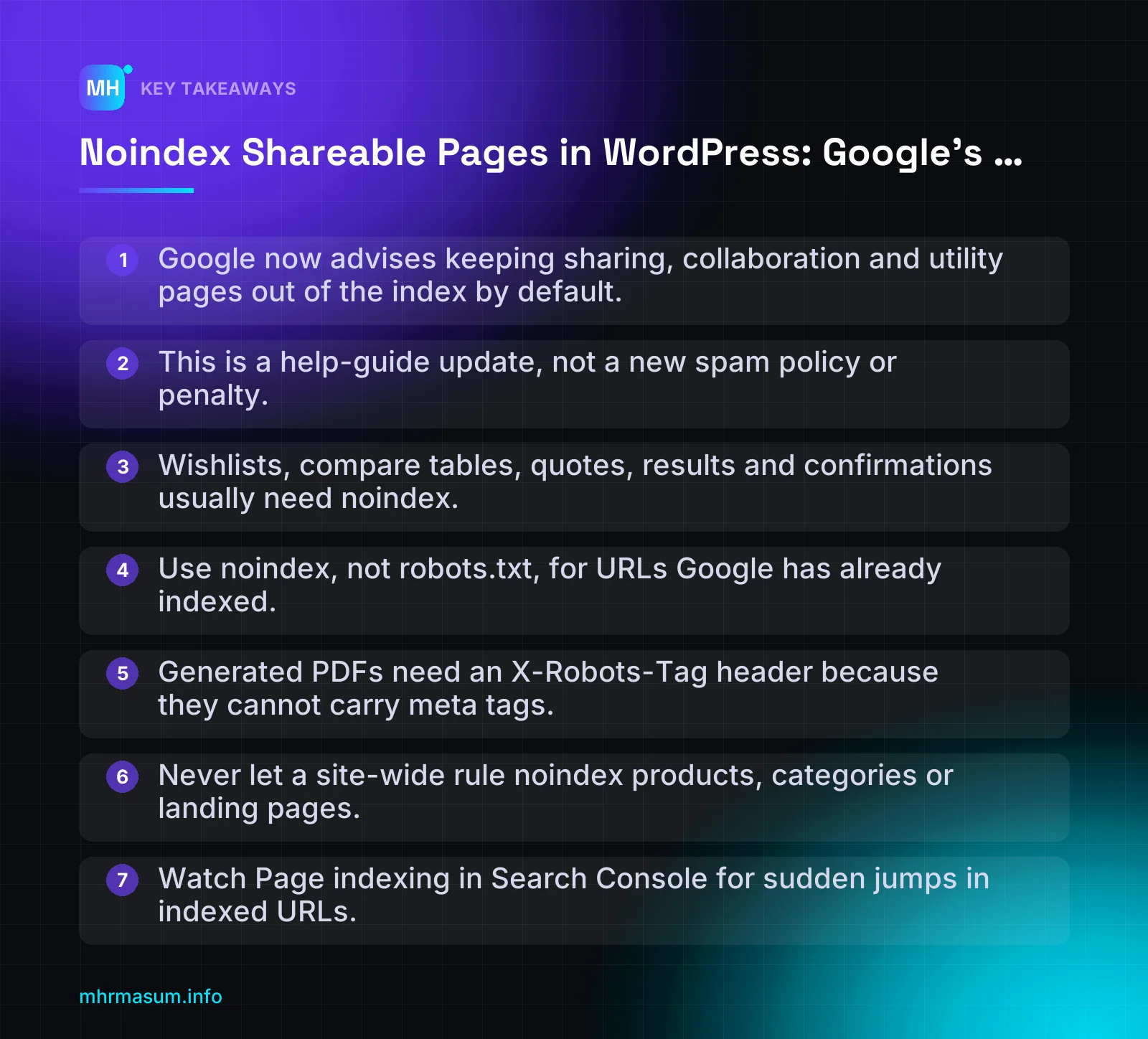
- Google now advises keeping sharing, collaboration and utility pages out of the index by default.
- This is a help-guide update, not a new spam policy or penalty.
- Wishlists, compare tables, quotes, results and confirmations usually need noindex.
- Use noindex, not robots.txt, for URLs Google has already indexed.
- Generated PDFs need an X-Robots-Tag header because they cannot carry meta tags.
- Never let a site-wide rule noindex products, categories or landing pages.
- Watch Page indexing in Search Console for sudden jumps in indexed URLs.
What Google Changed on 26 October 2026 (and What It Didn’t)
On 26 October 2026, Google updated its help guide Prevent user-generated spam on your site and platform (Google Search Central). The previous update to that page was on 10 December 2025.
The headline change is simple. Pages built for sharing, collaboration or utility should be kept out of Google’s index by default.
The new ‘Only index content meant for Search’ section
The guide now has a section titled “Only index content meant for Search”. In plain terms, it says:
- Some pages exist so people can share a link directly, work on something together, or use a tool. They are not meant to be found through search.
- Those pages should not be indexable by default.
- Use a
noindexrule, either in a robotsmetatag or anX-Robots-TagHTTP header, or block crawling in robots.txt.
The guide’s scope has also widened. It now covers tools that let users publish shared pages, generated content or web apps, as well as comment forms and hosting platforms. Industry coverage from Search Engine Land, Search Engine Journal and Search Engine Roundtable reports the same points.
Note the words “or” and “by default”. Noindex and a robots.txt block do different jobs, and choosing the wrong one can backfire. Sections 3 and 4 cover this.
The new Search Console monitoring advice
The update also gives more detail on monitoring. Google recommends you:
- Verify your site in Search Console so you receive manual action and security emails.
- Check the Page indexing and Search results performance reports regularly for unexpected jumps in indexed pages or impressions, or for queries that have nothing to do with your business.
- Track how many URLs are created and indexed, and set alerts for anomalies. One example is a small number of users creating a large share of indexable URLs.
- Keep using the
site:operator, Google Alerts and server logs as extra checks.
Treat a Performance spike carefully. Search Engine Journal has reported November 2026 click spikes in Search Console caused by bot traffic. A spike in clicks is not the same as a spike in indexed pages. Confirm it in the Page indexing report before you react.
What it didn’t change
The changelog describes this as a help-guide update, not a change to Google’s spam policies. No new manual action type has been announced. The guide lists no new penalties either (Ecommerce Paradise).
So this is not a reason to panic. It is Google writing down good practice that sites should already follow.
Why this matters for ordinary WordPress sites, not just big platforms
“Only big UGC platforms need to worry about this.”
That is wrong. Any WordPress or WooCommerce site that creates URLs from user actions is affected. That includes wishlists, compare tables, quote tools, calculators, form confirmations and member profiles.
These URLs carry three risks:
- They are effectively unlimited. Every visitor, bot or script can create new ones.
- They are thin or near-duplicate. A wishlist page is just a set of products you already have pages for.
- Spammers can abuse them. If a tool accepts text input and publishes a public URL, someone can fill it with spam links or keywords and get Google to index it on your domain.
For context, Search Engine Roundtable reported on 5 November 2026 that AI-generated Facebook Answers pages were being indexed at scale. On a large platform this is a news story. On a small store, the same problem shows up as wasted crawling, index bloat and pages Google decides are low value, which often appear as Crawled – currently not indexed.
If spam has already been indexed on your domain, the policy-by-policy spam audit is the right place to start.
Which WordPress and WooCommerce URLs Count as Shareable Pages
A shareable page is any URL that a user action creates or personalises and that is meant to be sent to someone, not found in search. In WordPress, plugins create most of these, not core.
Start with an inventory. You can’t noindex what you don’t know exists.
Inventory table
| URL type | Typical pattern (illustrative) | Who creates it | Indexing risk |
|---|---|---|---|
| Shared wishlist | ?wishlist_id= or /wishlist/view/token/ |
Shopper | High: one URL per user, duplicates product listings |
| Product compare | /compare/?ids=12,45,78 |
Shopper | High: product combinations multiply quickly |
| Add-to-cart links | ?add-to-cart=123 |
Shopper, marketer or bot | Medium: action URLs crawled from links |
| Cart, checkout, my account | /cart/, /checkout/, /my-account/ |
WooCommerce | Low to medium: check what your setup outputs |
| Quote / estimate | /quote/abc123 |
Shopper or sales tool | High: unique, thin, often personal |
| Calculator / quiz result | /result/?score=82 |
Visitor | High: unlimited input values |
| Generated PDF | /quotes/quote-abc123.pdf |
Plugin | Medium: non-HTML, needs a header |
| Form confirmation | /thank-you/?entry=5521 |
Form plugin | Medium: thin, may show personal data |
| User / member profile | /members/username/ |
Registered user | High: spam accounts can publish links |
| Forum / community threads | /forums/topic/… |
Registered user | Varies: real discussions may deserve indexing |
The patterns below are examples only. Each plugin uses its own parameters and slugs, so check your own site.
/?wishlist_id=8f3a2c
/compare/?ids=101,204,309
/?add-to-cart=4521
/quote/abc123
/thank-you/?entry=5521
/members/username/
WooCommerce: wishlists, compare, cart and quote links
- Wishlists repeat product names, prices and images from pages you already have. Each shared list is a near-duplicate with no unique value.
- Compare pages grow with every product combination. Ten products give you dozens of possible pairs before you count larger sets.
- Add-to-cart URLs are actions, not content. Crawlers that follow them waste crawl activity and can trigger cart sessions.
- Quote links are personal and thin, and are often created by a single click.
Wishlist and compare plugins handle share URLs in different ways. Some use query strings, some use rewrite slugs, and their robots handling differs. Don’t assume a plugin noindexes its share pages. Open a shared URL, view the source and look for a robots meta tag. Then check the response headers for X-Robots-Tag.
Do the same for cart, checkout and my account. Many WooCommerce setups output noindex on these pages, but themes and SEO plugins can change that output. Confirm what your own site actually sends. This is closely related to controlling WooCommerce filter URLs, which have the same “unlimited combinations” problem.
Generated outputs: calculators, quizzes, PDF quotes
Calculators and quizzes often put results in the URL so users can share them. Every possible input becomes a crawlable page, and almost all of them are thin variations of one template.
Keep the calculator page itself indexable. That page is the useful content. Noindex the result URLs.
Generated PDFs, such as quotes, invoices and certificates, can’t carry a meta tag. They need an X-Robots-Tag header, which section 6 covers. If you publish PDFs you do want to rank, keep them separate. See PDF SEO for that case.
Forms and accounts: confirmation pages, user profiles, membership and forum pages
- Confirmation pages are thin by design. If they show the submitted entry, they can also expose personal data.
- User profiles are the classic spam target. Bots register, add a bio link and wait for Google to index the profile.
- Membership and forum pages need judgement. A busy, moderated forum can be valuable search content. An empty profile or a “new topic” page is not.
Real staff and author profiles are a different case. Those should be strong, indexable pages, as explained in author pages SEO in WordPress.
Build your plugin list
- Go to Plugins → Installed Plugins and note every plugin that creates front-end pages or URLs.
- For each one, use the feature as a visitor and record the URL it produces.
- Check that URL’s robots meta tag and response headers.
- Search Search Console’s Page indexing report for the same patterns.
If you’d like a second pair of eyes on the list, the free SEO check flags indexable utility URLs.
Index, Noindex or Block: The Decision Table
Most shareable URLs need one of three treatments. The right choice depends on who the page is for and whether Google has already seen it.
Google’s updated guide lists both noindex (robots meta tag or X-Robots-Tag header) and a robots.txt crawl block as valid defaults (Google Search Central). They do different jobs, and they don’t work together the way many site owners assume.
| URL type | Recommended action | Reason |
|---|---|---|
| Wishlist share links | Noindex | Only useful to the person who received the link. Often a thin list of products that already have their own pages. |
| Product compare results built by users | Noindex | Random product combinations with no editorial value. A store can generate thousands of them. |
| Shared cart and quote links | Noindex | Personal, short-lived and often tied to a session or customer. |
| Cart, checkout and My Account | Noindex (check what your setup already outputs) | Utility pages. View the page source and confirm the robots meta tag rather than assuming WooCommerce or your theme handles it. |
| Form confirmation / thank-you pages | Noindex | No value to a searcher. They can also skew conversion tracking if visited from Search. |
| Calculator or quiz result URLs | Noindex | Each result is generated from one user’s inputs. The calculator page itself can stay indexed. |
| Internal site search results | Noindex now, block later | Endless combinations and a common target for spam queries. Block crawling only after they’ve dropped out of the index. |
| A brand-new share path that has never gone live | Robots.txt block from day one, or noindex | Google has never seen these URLs, so a block can’t leave stale entries behind. |
| Products, categories and landing pages | Index | These earn organic traffic and support Merchant Center listings. |
| Curated public profiles, editorial comparisons, public tools | Index, if unique and useful | Built for discovery, not just for the person holding a link. |
Decision rules
- If the page is only useful to someone who already has the link, noindex it. That covers shared wishlists, carts, quotes, results and drafts.
- If Google has already indexed the URLs, use noindex, not robots.txt. Google has to crawl a page to see the noindex.
- Use a robots.txt block only in two cases. The first is URL paths that have never been indexed and have no links pointing at them. The second is crawl waste, and only after noindex has removed the URLs from the index.
- If you can’t decide, choose noindex. It is reversible and visible to Google. A badly placed block hides the problem without fixing it.
When a shareable page should stay indexable
Google’s guidance targets pages that exist for sharing or utility. It doesn’t target every page a user touches.
Keep these indexable if they offer something a searcher would actually want:
- Curated public profiles. For example, a vetted supplier directory or an author page with real content. Empty or auto-created profiles should still be noindexed.
- Editorial comparison pages. “Model A vs Model B” pages written by your team are content. User-built compare tables are not.
- Useful public tools. A shipping cost calculator page can rank. The result URL each visitor generates should not.
Don’t noindex product, category or landing pages that Merchant Center or organic traffic depends on. If a site-wide rule catches them by mistake, products can drop out of Search, and Merchant Center may flag problems with the landing pages. If you see a sudden wave of issues, check them against the Merchant Center diagnostics guide.
Filter and sort URLs are their own category, with different trade-offs. The faceted navigation guide covers them in detail.
The Robots.txt Trap: When a Block Hides Your Noindex
This is the most common mistake I see when sites react to guidance like this. The owner adds noindex and a robots.txt block together, and the block stops the noindex from working.
Google is explicit about this. A noindex rule only works if the page is not blocked by robots.txt and is otherwise crawlable (Google Search Central). If robots.txt disallows a URL, Google never reads its robots meta tag or X-Robots-Tag header, so those rules are ignored (Google Search Central).
Google also doesn’t support a noindex line inside robots.txt. If an old plugin or tutorial added one, it does nothing.
“I disallowed /wishlist/ so it won’t be indexed.”
Disallow controls crawling, not indexing. It tells Googlebot not to fetch the page. It doesn’t tell Google to remove the URL or to keep it out of results.
Why a blocked URL can still appear in Google
Google can index a URL it has never crawled if other pages link to it. Those links might come from social posts, forums, spam sites or your own templates.
In Search Console, these URLs show up in the Page Indexing report as Indexed, though blocked by robots.txt.
Because Google couldn’t read the page, the result usually appears with no description, or with a note that no information is available. That’s a poor result for you. It’s also a useful clue for spammers, because the URL stays in the index while you believe it’s hidden.
Here’s the broken setup:
# robots.txt (WRONG when the URLs are already indexed)
User-agent: *
Disallow: /wishlist/
Disallow: /*?add-to-wishlist=
<!-- On /wishlist/view/abc123/ — Google never fetches this -->
<meta name="robots" content="noindex, follow">
The parameter above is only an example. Check the actual paths and parameters your wishlist plugin uses before writing any rule.
Here’s the fixed version:
# robots.txt — remove the Disallow so Googlebot can see the noindex
User-agent: *
# Disallow: /wishlist/   (removed until URLs have dropped out of the index)
<!-- Now crawlable, so Google reads it and drops the page -->
<meta name="robots" content="noindex, follow">
WordPress core made the same change for the same reason. Since version 5.3, the “Discourage search engines from indexing this site” setting outputs noindex instead of adding a robots.txt Disallow.
The safe order: noindex first, block later (if ever)
- Add noindex to the URL pattern, using a meta tag or an X-Robots-Tag header.
- Remove any robots.txt rule that blocks those URLs.
- Test a sample URL with the URL Inspection tool. Confirm that crawling is allowed and that “Indexing allowed?” shows No because of noindex.
- Wait and watch. The count in the Page Indexing report should fall as Google recrawls the URLs. How long this takes depends on how often Google visits them.
- Decide whether a block is worth it. Only add one if those URLs still waste meaningful crawl activity, which you can check in the Crawl Stats report and your server logs. Many small sites never need this step.
Even after the clean-up, a later block has a cost. If links to those URLs keep appearing, Google can index them again as “Indexed, though blocked”. From then on, your noindex is invisible.
Google’s guide does offer robots.txt as an option, and in one situation it’s fine. A brand-new URL path that has never been public, never linked and never crawled can be blocked from launch. Examples include a new /share/ route you’re about to release.
It backfires on any path that’s already live, already indexed or already being linked to by spammers. In those cases, noindex has to come first.
If you’re not sure which state your URLs are in, the indexing status diagnosis guide explains how to read each Page Indexing status. You can also run a free SEO check to find conflicts between your robots.txt and your noindex rules.
How to Add Noindex in WordPress: Plugin Settings and the wp_robots Filter
WordPress core has no per-post “noindex” checkbox. Per-page indexing control comes from an SEO plugin or from your own code.
Core does provide the plumbing. Since WordPress 5.7, the Robots API builds the robots meta tag from an array of directives, and you can change that array with the wp_robots filter (WordPress Developer Resources).
Core already uses this API itself. Since WordPress 5.3, the Settings → Reading → Discourage search engines option outputs noindex instead of a robots.txt Disallow. That way Google can actually see the instruction, which is the same robots.txt trap covered in the previous section.
Using your SEO plugin’s settings
For normal posts, pages and post types, start with your SEO plugin. It is the easiest place to manage indexing, and it keeps the setting visible to the next person who edits the site.
- Single pages: most SEO plugins add a robots or “advanced” panel in the post editor where you can set noindex for one page, such as a wishlist or compare page.
- Whole post types or taxonomies: look for a global “search appearance” or “titles and meta” area where you can noindex an entire content type that a plugin registers.
- Parameter URLs: most plugins cannot target query strings like
?share=abc123from the settings screen. That is where thewp_robotsfilter helps.
Menu names and paths differ between plugins and versions, so check your own plugin’s documentation. Don’t follow a screenshot written for a different plugin. If you use MHR LumeRank SEO, set the robots option in the page’s SEO panel, then confirm it in the source as shown below.
PHP: noindex shareable pages with wp_robots
Put this code in a must-use plugin, not in a parent theme’s functions.php. Theme updates overwrite parent theme files, and switching themes drops child theme code without any warning.
Create wp-content/mu-plugins/noindex-shareable.php. WordPress loads files in mu-plugins automatically, and they can’t be deactivated by accident from the Plugins screen.
<?php
/**
 * Plugin Name: Noindex Shareable Pages
 * Description: Adds noindex, follow to shareable and utility URLs.
 */

add_filter( 'wp_robots', 'mhr_noindex_shareable_pages', 20 );

function mhr_noindex_shareable_pages( $robots ) {

    // EXAMPLE parameter names. Replace them with the ones your plugins really use.
    $share_params = array( 'share_key', 'compare_ids' );

    // EXAMPLE page IDs, e.g. wishlist, compare and quote pages.
    $utility_page_ids = array( 123, 456 );

    $match = false;

    foreach ( $share_params as $param ) {
        if ( isset( $_GET[ $param ] ) ) { // Exact key match only.
            $match = true;
            break;
        }
    }

    if ( is_page( $utility_page_ids ) ) {
        $match = true;
    }

    if ( $match ) {
        $robots['noindex'] = true;
        $robots['follow']  = true;   // Let Google follow links to real products.
        unset( $robots['nofollow'] );
    }

    return $robots;
}
Core then prints a tag such as <meta name='robots' content='noindex, follow, max-image-preview:large' />. The max-image-preview part is a core default on public sites and does no harm.
For form confirmations and other private-feeling pages, core has a helper. wp_robots_sensitive_page() adds noindex plus noarchive, the same treatment WordPress gives its login screen (WordPress Developer Resources).
add_filter( 'wp_robots', function ( $robots ) {
    if ( is_page( 789 ) ) { // EXAMPLE: your "thank you" page ID.
        $robots = wp_robots_sensitive_page( $robots );
    }
    return $robots;
}, 20 );
There is also wp_robots_no_robots(). It adds noindex, and it adds follow on public sites or nofollow when search engines are discouraged (WordPress Developer Resources).
Matching URL parameters safely
- Find the real parameter names first. Open a shared wishlist or compare link from your own store and copy the exact query string. Never guess, because plugins and versions differ.
- Match exact keys, not substrings. Checking whether the URL “contains share” can catch
?shared_category=or a tracking parameter. - Never target core parameters such as
p,page_id,sorpagedunless you mean to. - Use
$_GETfor arbitrary parameters.get_query_var()only returns query vars that have been registered. - Don’t pair noindex with a canonical that points to another URL. That sends Google mixed signals. Pick one approach per URL type.
- Test both versions: the base page and the shared URL. Make sure you haven’t noindexed a product or category by mistake. Filter URLs need their own rules, covered in Faceted Navigation SEO for WooCommerce.
Verify the result in a logged-out or private window. Open the URL, view the source (Ctrl+U or Cmd+Option+U), and search for robots.
| What you see in the source | Meaning | Action |
|---|---|---|
One robots tag containing noindex, follow |
Working | Confirm with a URL Inspection live test in Search Console |
| Two robots tags | The SEO plugin and core are both printing a tag | Use the plugin’s own setting or filter so only one tag is output |
| A robots tag without noindex | The SEO plugin replaces core output, so your filter never runs | Check the plugin’s developer docs for its own robots filter |
| No robots tag at all | The theme may not call wp_head(), or you are seeing a cached page |
Purge the cache and check the theme’s header.php |
X-Robots-Tag Examples for Headers, PDFs and Non-HTML Outputs
A robots meta tag only works on HTML pages, because it has to sit in the <head>. Google accepts any robots meta rule as an X-Robots-Tag HTTP header as well (Google Search Central).
Use a header instead of a meta tag when:
- The output is a PDF, for example a generated quote, invoice or wishlist export.
- The output is JSON, XML or an AJAX/REST response that Google has found through links.
- The output is a file served directly by the web server, such as a file in an uploads folder.
- You want one server-level rule that covers a whole folder or file type.
“If it isn’t an HTML page, Google won’t index it.”
That is wrong. Google indexes PDFs and other file types it can read. If you want public PDFs to rank, see PDF SEO. If the PDF is a customer’s quote, give it a noindex header. The same robots.txt warning applies here: Google must be able to crawl the file to see the header.
If a URL has both a meta tag and a header, Google combines them. Where they conflict, the more restrictive rule applies.
PHP header() in WordPress
Use template_redirect for front-end pages. It runs after WordPress has worked out which page is being requested, so conditionals like is_page() work there. On the earlier send_headers hook, the main query hasn’t run yet, so only check $_GET values there.
add_action( 'template_redirect', 'mhr_x_robots_shareable', 1 );

function mhr_x_robots_shareable() {
    if ( headers_sent() ) {
        return;
    }

    // EXAMPLE matches. Replace them with your real parameters and page IDs.
    $match = isset( $_GET['share_key'] ) || is_page( array( 123, 456 ) );

    if ( $match ) {
        header( 'X-Robots-Tag: noindex', true );
    }
}
For PDFs or CSV files generated by your own PHP code, send the header just before the file output:
header( 'Content-Type: application/pdf' );
header( 'X-Robots-Tag: noindex' );
// ...then output the generated file.
template_redirect doesn’t fire for REST API requests. For a custom REST route, set the header on the response object instead, for example $response->header( 'X-Robots-Tag', 'noindex' );.
PHP never runs for static files that the web server delivers directly. For those, use server configuration.
Apache .htaccess
This requires mod_headers, which most hosts enable. To cover all PDFs, add this to .htaccess:
<IfModule mod_headers.c>
  <FilesMatch "\.pdf$">
    Header set X-Robots-Tag "noindex"
  </FilesMatch>
</IfModule>
That rule also hides any PDFs you want to rank. A safer option is to save generated quotes in their own folder, such as wp-content/uploads/quotes/, and put this one-line .htaccess inside that folder:
Header set X-Robots-Tag "noindex"Matching query strings in Apache needs mod_rewrite and environment variables, and that conflicts easily with WordPress rewrites. For parameter URLs, use the PHP method instead.
Nginx
Google’s documentation gives this Nginx pattern (Google Search Central):
location ~* \.pdf$ {
  add_header X-Robots-Tag "noindex";
}

location /wp-content/uploads/quotes/ {
  add_header X-Robots-Tag "noindex";
}
There are two Nginx catches:
- An
add_headerinside alocationblock stops that block inheritingadd_headerlines from the server level. Repeat your security headers in that block, or you will lose them. - By default,
add_headeronly applies to success and redirect responses. Addalwaysif you also need the header on error responses.
Run nginx -t before reloading. On managed hosting, ask support to add the rule.
How to check the header
From a terminal, run:
curl -I "https://example.com/wp-content/uploads/quotes/quote-1042.pdf"

HTTP/2 200
content-type: application/pdf
x-robots-tag: noindex
cache-control: max-age=3600
Some setups answer HEAD requests differently. If the header is missing, run a normal GET request that only prints the headers: curl -s -D - -o /dev/null "URL".
In the browser, open DevTools (F12), go to the Network tab and reload. Click the main request and look under Headers → Response Headers for x-robots-tag.
Caching: the step people skip
- Purge the page cache and the CDN cache after you add a rule. Then request the URL twice. The second response usually comes from the cache, and that is the one that matters.
- Some page cache plugins serve stored HTML through server rewrites that bypass PHP. When that happens, a
header()call never runs. Check that the header is still present on the cached response. - Check the CDN’s header rules, so the CDN passes
X-Robots-Tagthrough rather than stripping it. - Look at cache status headers in the response, such as
cf-cache-statuson Cloudflare, so you know which layer answered.
If you would like a second pair of eyes on your robots setup before Google recrawls, start with the free SEO check.
WooCommerce Specifics: Wishlists, Compare, Cart and Quote Links
WooCommerce stores create more shareable and utility URLs than almost any other WordPress site. Each plugin you add, such as a wishlist, product compare or request-a-quote tool, can add its own set of them.
Google’s updated guide says pages built for direct sharing or utility, rather than search discovery, should be kept out of the index by default (Google Search Central). The work for a store owner is to find these URLs, confirm what they already output, and fix the gaps. You should not assume a plugin handles this for you.
Wishlist and compare share URLs
Plugins such as YITH WooCommerce Wishlist and TI WooCommerce Wishlist can produce wishlist links that customers share with friends. Compare plugins can produce URLs that list a chosen set of products.
The URL structure and default robots output differ between plugins, and can change between versions and settings. Test your own install rather than relying on a blog post, including this one.
- Create a wishlist or compare list as a logged-out visitor, or as a test customer.
- Click the plugin’s share button and copy the link it gives you.
- Open the link in a private window and note the URL pattern. It may be a page path, a token in the path, or a query parameter.
- View the page source and search for
name="robots". - Check the response headers for
X-Robots-Tagusing your browser’s developer tools (Network tab), or runcurl -I. - Run the URL through URL Inspection in Search Console. Use “Test live URL” to see what Googlebot receives.
If you find no noindex, add one. When the wishlist or compare list lives on a fixed WordPress page, target that page by ID with the wp_robots filter from the previous section:
add_filter( 'wp_robots', function ( $robots ) {
    // Replace 123 and 124 with your wishlist and compare page IDs.
    if ( is_page( array( 123, 124 ) ) ) {
        $robots['noindex'] = true;
    }
    return $robots;
} );
A page ID is a precise target. A word match on “wishlist” in the URL is not, as the last sub-section explains.
Cart, add-to-cart and quote links
Cart, checkout and My account pages should never be indexed. Many stores already output noindex on them, either from WooCommerce itself or from an SEO plugin. Confirm this on your live site with the same source and header checks listed above.
The ?add-to-cart= parameter needs extra care. WooCommerce accepts it on many URLs, so a link such as /shop/?add-to-cart=57 or /product/blue-mug/?add-to-cart=57 puts an item in the cart. Bots that crawl these links waste crawl activity, and every visit changes cart state.
- Noindex any page loaded with the parameter. See the snippet below.
- Use buttons or nofollow links in your templates. Look at your theme’s archive and product templates, and any custom “Buy now” blocks, for plain
<a href="?add-to-cart=…">links withoutrel="nofollow". A<button>in a form is better still. - Do not hand-build add-to-cart links in emails or ads that end up on public pages. Link to the product page instead.
add_filter( 'wp_robots', function ( $robots ) {
    if ( isset( $_GET['add-to-cart'] ) ) {
        $robots['noindex'] = true;
    }
    return $robots;
} );
Some stores also add Disallow: /*?add-to-cart= to robots.txt to save crawl activity. That is a reasonable choice for a new store. If these URLs are already indexed, though, Google cannot see the noindex once they are blocked. Let the noindex take effect first, and add the robots.txt block afterwards. This is the same trap covered earlier in this article.
Quote and RFQ links need more than noindex. Request-a-quote plugins often email the customer a link to view or accept their quote. That page can show a name, address, phone number and prices.
“If the quote page is noindexed, it’s private.”
It is not. noindex asks well-behaved search engines to keep the page out of results. It does nothing to stop anyone else who has the link, or a crawler that ignores robots rules. For any URL that holds customer data:
- Require a login, or use a long, random, unguessable token in the URL.
- Expire the link after the quote is accepted or after a set number of days.
- Add
noindexas well, using a meta tag or anX-Robots-Tagheader for PDF quotes (see the previous section). - Make sure quote PDFs are not stored in a public, guessable uploads folder.
Keeping Merchant Center and product pages safe
The most expensive mistake here is a rule that catches the wrong URLs. Product and category pages earn your organic sales and serve as your Merchant Center landing pages. A noindex or robots.txt rule that touches them can cost far more than a few indexed wishlists.
// Too broad: also matches /product/cart-organiser/ and /shop/shopping-carts/
if ( strpos( $_SERVER['REQUEST_URI'], 'cart' ) !== false ) { … }

// Better: use WooCommerce's own conditionals
if ( is_cart() || is_checkout() || is_account_page() ) { … }
The same risk applies to a rule that noindexes every URL containing ?. That rule also catches filter and pagination URLs that you may want handled differently. If your store has layered filters, follow the approach in Faceted Navigation SEO for WooCommerce rather than one blanket rule.
Run these checks after any change:
| Check | Where | Expected result |
|---|---|---|
| A sample product URL | Search Console → URL Inspection → Test live URL | Indexing allowed, crawl allowed |
| A category and the main shop page | Page source and response headers | No noindex, no X-Robots-Tag: noindex |
| Product landing pages in your feed | Merchant Center → Products → Diagnostics | No new crawl or landing page errors |
| Feed link values | Your feed plugin’s output | Clean product URLs with no add-to-cart parameter |
| robots.txt | yoursite.com/robots.txt |
No rule matching /product/ or /shop/ |
If Merchant Center starts reporting landing page problems after a robots change, work through WooCommerce Merchant Center Diagnostics before you change anything else.
Form Confirmations, Calculator Results and User Profiles
These page types are not limited to shops. They appear on service businesses, SaaS sites, membership sites and community sites. All three are created by a user action, not written for searchers, which makes them a close match for Google’s “utility rather than search discovery” description.
Thank-you and confirmation pages
Noindex every thank-you, confirmation and “order received” page. These pages contain nothing a searcher needs. They sometimes include personal details, such as a name, a booking time or an order summary.
There is also a measurement reason. Many GA4 setups record a lead or purchase when someone views the thank-you URL. If that page is indexed and a visitor arrives from Search, GA4 records a conversion that never happened, credited to organic traffic.
- List every confirmation URL. Check your form plugin’s redirect settings, your booking tool and your WooCommerce order-received endpoint.
- Add
noindexusing your SEO plugin’s per-page setting, or thewp_robotsfilter with the page ID. - In GA4, trigger key events from the actual form submission or purchase event where possible, not from a page view alone.
- In GA4 → Reports → Engagement → Pages and screens, add a filter for the thank-you path and a comparison by session source. Organic sessions that land on the thank-you page are a warning sign.
- Search Console → Performance → Pages: check whether the thank-you URL shows impressions.
Do not block thank-you pages in robots.txt as well. Google needs to crawl them to see the noindex.
Calculator and quiz result URLs
Mortgage calculators, shipping estimators, ROI tools and quizzes often put the inputs in the URL so users can share or bookmark a result:
/loan-calculator/?amount=250000&term=25&rate=5.4
/skin-quiz/result/?type=dry&age=30-39
Every combination of inputs is a new URL, so the number of possible URLs is effectively unlimited. None of them is more useful to a searcher than the tool itself.
Rule: noindex all result URLs by default, and keep one indexable explainer page per tool. That page should explain what the tool does, how the calculation works, what the inputs mean and its limits. That content is what deserves to rank.
add_filter( 'wp_robots', function ( $robots ) {
    // Replace 456 with the calculator page ID and use your own parameter names.
    $result_params = array( 'amount', 'term', 'rate' );
    if ( is_page( 456 ) && array_intersect( $result_params, array_keys( $_GET ) ) ) {
        $robots['noindex'] = true;
    }
    return $robots;
} );
The clean URL /loan-calculator/ stays indexable, and only the versions with parameters get noindex.
If the tool stores results after a # in the URL (a fragment), Google generally ignores the fragment, so no extra URLs are created. If results live on separate paths such as /result/abc123/, use a path check or an X-Robots-Tag header for that folder.
User profiles on membership, forum and BuddyPress-style sites
Open registration combined with public profile pages is a classic spam target. Spammers create accounts, fill in a bio with links and keywords, and wait for the profile to be indexed.
Google’s abuse guide has long recommended trust-based handling of user content, such as treating new or unverified users differently from established ones (Google Search Central). The October 2026 update applies the same default-closed thinking to shareable pages. Noindex new and low-activity profiles by default, and allow indexing only once a profile has earned it.
Typical trust signals you can check in code:
- Account age, for example at least 30 days.
- A minimum number of approved posts, replies or reviews.
- A completed profile with a real bio and avatar.
- Manual approval by a moderator, stored as a user meta flag.
add_filter( 'wp_robots', function ( $robots ) {
    if ( function_exists( 'bp_is_user' ) && bp_is_user() ) {
        $user_id = bp_displayed_user_id();
        // 'profile_trusted' is a custom flag your moderators set.
        if ( ! get_user_meta( $user_id, 'profile_trusted', true ) ) {
            $robots['noindex'] = true;
        }
    }
    return $robots;
} );
Also add rel="ugc" or rel="nofollow" to website links in profiles, and moderate bios on sites with open registration. For author archives on a normal blog, real staff profiles should usually stay indexable. Author Pages SEO in WordPress covers how to build them properly.
Checklist by page type
| Page type | Default | Method | Extra step |
|---|---|---|---|
| Contact or lead thank-you page | Noindex | SEO plugin per-page setting or wp_robots |
Fire GA4 key events on submission, not page view |
| Order received or booking confirmation | Noindex | wp_robots or plugin setting |
Confirm no personal data is visible without the order key |
| Calculator or quiz result with parameters | Noindex | wp_robots parameter check |
Keep one indexable explainer page per tool |
| Calculator explainer page | Index | None needed | Write real content about method and limits |
| New or low-activity user profile | Noindex | wp_robots with trust check |
Make profile links ugc or nofollow |
| Trusted, complete profile or staff author page | Index | Allow after manual or rule-based approval | Review regularly for spam edits |
After you deploy these rules, expect some of these URLs to move into “Excluded by ‘noindex’ tag” in Search Console. That is the result you want. The next section explains how to confirm it and how to spot anything that slipped through.
If you would rather have someone map these URL types on your site first, the free SEO check is a good starting point.
Step-by-Step Audit in Google Search Console
Before you change any settings, find out what Google has already indexed. Search Console shows you which shareable URLs are in the index and why. It also lets you confirm that your noindex fixes are being picked up.
Work through the four checks below in order. Keep a spreadsheet open so you can record each URL pattern you find.
Page Indexing report: find shareable URLs that are indexed
- Open Search Console and select the correct property. A Domain property is best because it covers every protocol and subdomain.
- Go to Indexing > Pages.
- Use the dropdown at the top of the report. It lets you switch between All known pages, All submitted pages and each individual sitemap.
- Start with All known pages. Note the total for indexed pages.
- Switch to All submitted pages and note that indexed total as well.
- Click View data about indexed pages to open the sample list of indexed URLs.
- Export the list. Then filter it in a spreadsheet for share and utility patterns such as
wishlist,compare,add-to-cart,quoteandthank-you. - Go back to the “Why pages aren’t indexed” table. Look for Indexed, though blocked by robots.txt, Blocked by robots.txt and Excluded by ‘noindex’ tag, and open each one to see which URLs it contains.
The gap between “All known pages” and “All submitted pages” is your first clue. Your sitemap should only list pages you want found in Search. If the known indexed count is much higher than the submitted count, Google is indexing URLs you never asked for.
The list is a sample, and exports are capped at 1,000 rows. On a large store, treat it as evidence of a pattern rather than a complete inventory.
Compare the indexed count with what you actually published
Work out roughly how many pages you meant to be indexable. Then compare that figure with Google’s number.
| Source | Where to find it | What to note |
|---|---|---|
| Published posts and pages | WordPress admin > Posts and Pages (the “Published” count) | Only include content that should rank |
| Products | Products > All Products (Published) | Leave out hidden or noindexed products |
| Categories and tags you index | Products > Categories, Posts > Categories | Leave out taxonomies your SEO plugin noindexes |
| Sitemap total | Your SEO plugin’s sitemap index | This should roughly match the sum above |
| Google’s indexed count | Indexing > Pages (All known pages) | Compare it with your sitemap total |
Suppose you published around 800 indexable URLs and Google reports several thousand indexed. That difference needs an explanation. Filter URLs, parameters and share pages are the usual causes. Our guide to faceted navigation SEO for WooCommerce covers the filter side of the problem.
URL Inspection: confirm ‘Excluded by noindex tag’
- Paste one example of each share URL pattern into the inspection bar at the top of Search Console.
- Click Test Live URL. This shows what Googlebot sees now, not what it saw on the last crawl.
- Open the page indexing details and check Crawl allowed? The answer must be Yes. If robots.txt blocks the URL, Google cannot read your noindex.
- Check Indexing allowed? You want to see No: ‘noindex’ detected in ‘robots’ meta tag or in ‘X-Robots-Tag’ http header.
- Once Google has recrawled the page, the indexed (non-live) result should show Excluded by ‘noindex’ tag.
Inspect one URL per pattern rather than hundreds. If one wishlist share URL is set up correctly, the others built by the same template normally will be too.
Performance report: regex filters for share paths
The Performance report shows whether share URLs are actually getting impressions. Indexed pages that appear in search results are the most urgent ones to fix.
- Open Performance > Search results.
- Set the date range to the last 3 months.
- Click + Add filter > Page > Custom (regex) and choose Matches regex.
- Paste the pattern below. Then open the Pages and Queries tabs.
(?i)(wishlist|compare|add-to-cart|quote|thank-you)Search Console uses RE2 syntax. The (?i) prefix makes the match case-insensitive.
Change the pattern to fit your own slugs. For example, quote will also match a blog post about “quotes”. You can narrow it to the exact path or parameter your plugin uses:
(?i)(/wishlist/|/compare/|add-to-cart=|/request-a-quote/|/thank-you/)Check what your plugins actually output before you rely on a pattern. To see everything else, switch the filter to Doesn’t match regex.
site: searches as a quick cross-check
site: results are rough estimates, not an index count. They are still a fast way to spot a pattern Search Console has not surfaced yet.
site:example.com inurl:wishlist
site:example.com inurl:compare
site:example.com inurl:add-to-cart
site:example.com inurl:quote
site:example.com inurl:thank-you
site:example.com inurl:share
If a search returns results, inspect a few of those URLs in Search Console. Do not try to judge the size of the problem from the result count.
Validate Fix and the Removals tool
After you have fixed the cause, use the report and the tools in this order:
- Validate Fix: Open the issue in Indexing > Pages that you fixed and click Validate Fix. A typical example is Indexed, though blocked by robots.txt, which you fix by removing the block so Google can see the noindex. Google then recrawls the affected URLs, which can take days or weeks.
- Removals tool (urgent only): Go to Indexing > Removals > New request. Choose Remove this URL only or Remove all URLs with this prefix. This hides the URLs from results for about six months.
“I submitted the URLs in the Removals tool, so they’re gone for good.”
A temporary removal hides URLs, it does not deindex them. When the removal expires, the URLs can come back unless they return a noindex, a 404/410, or need a login. Use the Removals tool to buy time, and use noindex as the permanent fix.
If URLs stay excluded for the wrong reasons after cleanup, our guide to Crawled – Currently Not Indexed explains how to tell the statuses apart.
Monitoring and Alerts for Sudden Jumps in Indexed URLs
Fixing shareable pages once is not enough. Every new plugin, theme update or feature can create a new URL pattern.
Google’s updated guide asks site owners to verify their site in Search Console so they receive manual action and security emails. It also asks them to check the Page Indexing and Search performance reports regularly for unexpected spikes in indexed pages, impressions, or queries that don’t match the site’s purpose (Google Search Central).
What a suspicious spike looks like
A healthy indexed count grows at roughly the same pace as your publishing. Treat any sudden step up that you cannot match to new content as a problem until you have proved otherwise.
| Signal | Likely cause | First check |
|---|---|---|
| Indexed pages jump by hundreds in a week | New plugin share URLs, filter parameters, or user-generated pages | Export the indexed sample and look for a repeated path |
| New queries with no link to your products or services | Spam or off-topic user-created pages being indexed | Performance > Queries, sorted by impressions, then open the matching pages |
Top pages include ?share=, /wishlist/ or random IDs |
Utility pages missing noindex | URL Inspection, Test Live URL |
| A handful of accounts create a large share of new public URLs | Abuse of profile, list or sharing features | Database or plugin logs for URL creation per user |
| Clicks spike but indexed pages stay flat | Possibly bot activity, not an indexing problem | Compare with Page Indexing before you change anything |
Large platforms run into the same problem. On 5 November 2026, Search Engine Roundtable reported AI-generated Facebook Answers pages being indexed at scale (Search Engine Roundtable). On a small WooCommerce store the numbers are smaller, but the cause is the same: pages built for one use end up in Search.
Do not confuse bot click spikes with indexing spikes
Search Engine Journal has reported click spikes in Search Console in November 2026 that were caused by bots (Search Engine Journal). A Performance spike on its own does not mean new pages were indexed.
Check Indexing > Pages first, before you react to a Performance spike:
- If indexed pages are flat but clicks jumped, investigate the traffic quality. Your indexing rules are probably fine.
- If indexed pages and impressions both rose, and the new pages are share or utility URLs, you have an indexing problem.
For a reporting setup built around Search Console data, see our Search Console-first SEO report.
Building a simple alert routine
Search Console does not send an alert when your indexed count rises. You need your own routine. Start with these settings:
- Turn on email notifications. In Search Console, open the account menu (the settings gear or your profile, depending on the layout) and check your email preferences. Make sure each owner receives messages. These cover new issues detected in your reports, manual actions and security issues.
- Add a second owner or user. Then alerts still reach someone if one person leaves.
- Record the indexed count weekly. Neither the Search Console API nor the Looker Studio connector provides Page Indexing report totals. Copy the number from Indexing > Pages into a spreadsheet each week.
- Automate the performance side. Use the Looker Studio Search Console connector or the Search Analytics API to chart impressions and clicks for pages matching your share-path regex. Set a manual threshold, such as “investigate if share-path impressions exceed zero”.
- Spot-check key patterns. The URL Inspection API lets you check the status of one example URL per pattern on a schedule, within its daily quota.
Weekly monitoring checklist
| Check | Where | Action trigger |
|---|---|---|
| Indexed count trend | Indexing > Pages (All known pages) | A rise you cannot explain with new content |
| New query themes | Performance > Queries, compare the last 7 days with the previous period | Queries unrelated to your products or services |
| Top new pages | Performance > Pages, sorted by impressions, with the share-path regex | Any share or utility URL getting impressions |
| New URL patterns crawled | Server access logs | Googlebot requesting paths you do not recognise |
| Manual action and security emails | Security & Manual Actions, plus your inbox | Any message at all |
For the server log check, a single command shows which utility paths Googlebot is requesting most. This example assumes the common combined log format, where the request path is field 7:
grep "Googlebot" access.log \
  | awk '{print $7}' \
  | grep -Ei "wishlist|compare|add-to-cart|quote|share" \
  | sort | uniq -c | sort -rn | head -50
Anyone can fake the Googlebot user agent, so verify suspicious crawlers with a reverse DNS lookup before you draw conclusions.
Seasonal launches deserve an extra check. If you add a gift-list or wishlist feature for Black Friday, review the new URLs the same week. Our Black Friday SEO for WooCommerce guide covers the sale pages you do want indexed.
If you would rather have someone else check your indexing setup, start with a free SEO check.
Common Mistakes and Troubleshooting
Most noindex problems on WordPress come from a small set of causes. Google cannot see the rule, two signals disagree, or a conditional matches far more URLs than you meant.
Use the table below to match what you see to the likely cause. Then read the sub-sections for the detail.
| Symptom | Likely cause | Fix |
|---|---|---|
| Shared URLs show as “Indexed, though blocked by robots.txt” | A robots.txt Disallow stops Googlebot from crawling the page, so it never sees the noindex | Remove the Disallow for that pattern, keep the noindex, and let Google recrawl |
| Noindex appears when you are logged in but not in URL Inspection | The page cache or CDN is serving older HTML without the tag | Purge the page cache and CDN, then run a live test in URL Inspection |
| Two robots meta tags in the source | A theme or older plugin prints its own tag as well as the WordPress Robots API output | Keep one source of truth. Remove the hard-coded tag or disable the duplicate setting |
| Noindex only exists in the rendered DOM | JavaScript adds the tag after the page loads | Output the noindex server-side in the initial HTML or as an X-Robots-Tag header |
| Some share URLs are noindexed and others are not | The conditional checks the wrong page, template or query parameter | Log the URLs that fail and fix the condition. Test on staging first |
| “Submitted URL marked ‘noindex'” in Page Indexing | Noindexed URLs are still listed in the XML sitemap | Exclude those post types, taxonomies or URLs from the sitemap |
| Sudden rise in “Excluded by ‘noindex’ tag” for real content | A site-wide noindex, from the Reading setting, a broad filter or a server rule | See “Accidental site-wide noindex” below |
Noindex not being picked up
First, confirm the rule is actually reaching Googlebot. Google states that noindex only works if the page is not blocked by robots.txt and can otherwise be crawled (Google Search Central).
“I’ve blocked the wishlist URLs in robots.txt and added noindex, so I’m doubly protected.”
This is the opposite of what happens. The robots.txt block stops Google from reading the noindex, so the noindex is ignored (Google Search Central). If you want shared URLs removed from the index, choose noindex and allow crawling.
Next, check what a logged-out visitor receives. Your admin view often bypasses the cache, so it can show a tag that visitors and Googlebot never get.
# Check the HTTP header (X-Robots-Tag)
curl -sI "https://example.com/wishlist/view/abc123/" | grep -i "x-robots-tag"

# Check the robots meta tag in the raw HTML
curl -s "https://example.com/wishlist/view/abc123/" | grep -i 'name="robots"'
If neither command returns a noindex, the rule is missing from the response. Common reasons:
- Cached HTML. Purge the page cache, any object or edge cache, and the CDN after you deploy.
- Cache ignores query strings. If your share links use a parameter, some cache setups serve one cached copy for every value. A conditional that reads
$_GETwill then run only once. - JavaScript-only tags. Google says that if a noindex is in the original HTML it may skip rendering. A tag added only by JavaScript is less reliable, so output it server-side.
- Headers stripped. Some proxies and CDN rules drop or rewrite custom headers. Test the live URL, not the origin server alone.
Then open URL Inspection, run Test live URL, and check Indexing allowed? under Page indexing. A noindex is only processed after Google recrawls the page, so already-indexed URLs will take time to drop out.
Conflicting signals
Google combines robots rules. Where they conflict, the more restrictive rule applies. That makes duplicate tags less dangerous for Google, but they still make audits confusing and can behave differently in other search engines.
<!-- Two sources writing robots rules: avoid this -->
<meta name="robots" content="index, follow" />
<meta name="robots" content="noindex, follow, max-image-preview:large" />
Since WordPress 5.7, plugins should add rules through the wp_robots filter so core prints a single tag. A hard-coded tag in header.php or an old plugin echoing its own tag is the usual culprit.
Don’t keep noindexed URLs in your XML sitemap. A sitemap asks Google to index a URL, while noindex says the opposite. Search Console reports this as “Submitted URL marked ‘noindex'”. Exclude wishlist, compare, quote and result post types or taxonomies in your sitemap settings.
Be careful about mixing a canonical pointing elsewhere with noindex on the same template. The canonical says “this is a duplicate, consolidate signals to that URL”. The noindex says “drop this URL”. Google has to choose which hint to trust, and the outcome is not guaranteed.
- For private share pages with no search value, use noindex alone, or a self-referencing canonical plus noindex.
- For genuine duplicates of indexable pages, such as sorted or filtered views, a canonical is usually the better tool. See faceted navigation SEO for WooCommerce for that trade-off.
Accidental site-wide noindex
This is the most expensive mistake, and it is easy to make while you are fixing shareable pages. Watch for a sharp rise in “Excluded by ‘noindex’ tag” alongside falling impressions.
Check these four places first:
- Settings > Reading > Search engine visibility. If “Discourage search engines from indexing this site” is ticked, WordPress outputs noindex on every page. This often happens when a staging database is pushed live. See site migration SEO for WordPress.
- Your
wp_robotscode. A missing condition or an earlyreturncan apply noindex everywhere. - Server config. An Nginx
add_header X-Robots-Tag "noindex";placed in the wronglocationblock, or in theserverblock, covers the whole site. - SEO plugin defaults. Content-type or archive-level noindex settings can hit products or posts you meant to keep indexed.
Write conditionals narrowly and test them on staging before going live:
add_filter( 'wp_robots', function ( $robots ) {
    // Narrow: only the wishlist view page, never the whole site
    if ( is_page( 'wishlist' ) ) {
        $robots['noindex'] = true;
    }
    return $robots;
} );
On staging, list one sample URL per template: home, product, category, post, cart, a wishlist share, a compare page and a quote link. Confirm that each one returns the expected rule. After you deploy, run the same samples through URL Inspection on the live site.
The same header logic applies to files. If you add X-Robots-Tag to PDFs, make sure it only matches files you want hidden. See PDF SEO for PDFs you do want to rank.
Final quick-reference checklist
- Shareable URL patterns are listed and each one has a decision: index, noindex or block.
- Noindexed URLs are not disallowed in robots.txt.
- Each page has one robots meta tag, output server-side or as an X-Robots-Tag header.
- Caches and the CDN are purged, and logged-out
curlchecks show the rule. - Noindexed URLs are excluded from every XML sitemap.
- No template combines a cross-URL canonical with noindex unless you have chosen to on purpose.
- The “Discourage search engines” option is unticked on the live site.
- Sample URLs pass a live test in URL Inspection.
- Page Indexing and Performance reports are checked on a fixed schedule.
If you are not sure which of your URLs are leaking into the index, start with a free SEO check. You can also book a free consultation to go through your Search Console data together.
Frequently Asked Questions
What is a shareable page in WordPress?
It is any URL that a user action creates or personalises so it can be sent to someone, rather than found in search. Common examples are shared wishlists, product compare results, quote links, calculator results and form confirmation pages. Plugins create most of them, not WordPress core.
Should I use noindex or robots.txt for shareable pages?
Use noindex if Google has already seen the URLs, because Google must crawl a page to read the noindex rule. A robots.txt block suits brand-new paths that have never been indexed, or crawl waste after noindex has cleared the index. If you are unsure, choose noindex because it is visible to Google and easy to reverse.
Does WooCommerce noindex cart, checkout and My Account pages automatically?
Many WooCommerce setups do output noindex on these pages, but themes and SEO plugins can change that. Open each page, view the source and look for a robots meta tag, then check the response headers for X-Robots-Tag. Confirm what your own site sends rather than assuming.
Will Google penalise my site for indexed wishlist or compare pages?
Google described the October 2026 change as a help-guide update, and no new manual action type or penalty has been announced. The real costs are wasted crawling, index bloat and low-value pages on your domain. The bigger risk is spammers using public tools or profiles to get spam indexed on your site.
How do I noindex generated PDF quotes or invoices?
PDFs cannot contain a robots meta tag, so you need to send an X-Robots-Tag: noindex HTTP header for them. This is usually set in your server configuration or through code that serves the files. Keep any PDFs you do want to rank in a separate folder so the rule does not catch them.
How can I check whether these pages are already indexed?
Open the Page indexing report in Google Search Console and look for URL patterns such as wishlist, compare, quote or thank-you paths. You can also use the site: operator with those patterns and review your server logs. Look for sudden jumps in indexed pages or queries unrelated to your business.
Should member profiles and forum threads be noindexed?
It depends on their value. Empty or auto-created profiles are a common spam target and should be noindexed. Curated profiles, real author pages and active, moderated forum discussions can stay indexable if they offer something useful to searchers.
Final Thoughts
Start with an inventory. List every plugin that creates front-end URLs, open each URL type and check what robots meta tag and X-Robots-Tag header it actually sends.
Then apply the decision rules. Noindex anything that is only useful to the person holding the link, use robots.txt only for never-indexed paths or after noindex has done its job, and protect your products, categories and landing pages from broad rules.
Finally, verify your site in Search Console and check the Page indexing report regularly. Confirm any spike there before you react, and fix new share paths before they go live rather than after Google finds them.
Want help applying this to your site? Run the free SEO check or book a free consultation with MD Harunur Rashid. Free SEO check · Book a free consultation