You have uploaded brochures, menus, price lists and spec sheets as PDFs, and you are not sure whether Google can read them. PDF SEO is mostly about one fact: Google does not rank your PDF as a PDF. It ranks a converted HTML version of it.
That changes where your effort should go. Fancy file settings matter far less than whether the text can be extracted, reached and understood.
Many PDFs never stand a chance. Some are scanned images with no text layer. Others sit behind email forms, inside JavaScript flipbooks, or in the media library with no links pointing to them.
This guide explains how Google crawls, converts and indexes PDFs, what survives that conversion, the 64MB fetch limit, and whether PDFs can appear in AI Overviews and AI Mode.
You will also get a decision table for choosing between a PDF and an HTML page for menus, price lists, brochures, spec sheets and reports, plus the practical fixes that make every PDF readable.
It is written for small business owners, WooCommerce store owners, marketers and in-house SEOs who want their documents to support search visibility instead of quietly competing with their own pages.
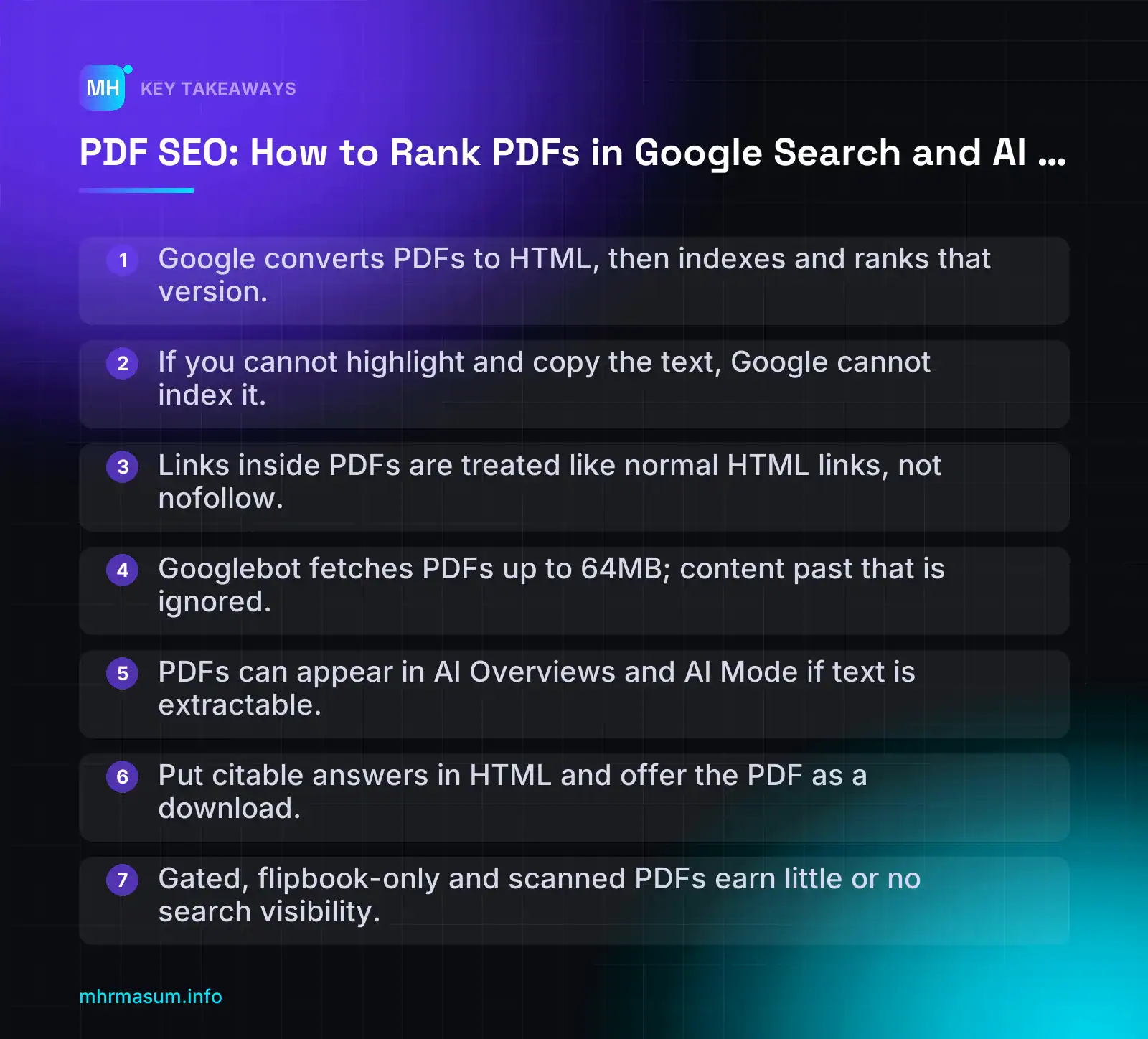
Key Takeaways
- Google converts PDFs to HTML, then indexes and ranks that version.
- If you cannot highlight and copy the text, Google cannot index it.
- Links inside PDFs are treated like normal HTML links, not nofollow.
- Googlebot fetches PDFs up to 64MB; content past that is ignored.
- PDFs can appear in AI Overviews and AI Mode if text is extractable.
- Put citable answers in HTML and offer the PDF as a download.
- Gated, flipbook-only and scanned PDFs earn little or no search visibility.
How Google crawls, indexes and ranks PDFs
Most PDF SEO advice treats PDFs as a special kind of file with special rules. That framing is misleading.
Google does not index your PDF as a PDF. It indexes a converted version of it, and that changes what you should focus on.
PDFs are converted to HTML before indexing
On a recent Google podcast, Martin Splitt explained that Google runs PDFs through a converter that turns them into HTML. Google then indexes that HTML version, not the original file (Search Engine Journal).
Splitt also said indexing and ranking then work “pretty much the same as any other document”. In practice, the process looks like this:
- Googlebot finds the PDF URL, usually through a link or a sitemap.
- It fetches the file, up to the PDF size limit.
- A converter extracts the text and structure and produces an HTML representation.
- That HTML is indexed and ranked like a normal page.
PDF is on Google’s official list of indexable file types (Google Search Central). You can see which of your PDFs Google already knows about with a simple query:
site:example.com filetype:pdfTreat this as a quick spot check, not a full index report. Search Console is the reliable source.
What survives conversion: text, headings, links
Because ranking happens on the converted output, ranking signals only apply to text the converter can extract. If there is no text layer, there is nothing to index.
Splitt’s test is simple: if you can highlight the text and copy it into a text file, Google can convert it (PPC Land). A scanned brochure saved as images fails this test, so it cannot rank for the words printed on it.
Links inside PDFs can also be seen. Splitt said they are treated like links in HTML documents.
“Links in PDFs are nofollow, so they don’t pass any value.”
This claim still circulates on some SEO sites, but it contradicts what Google has said. Do not rely on PDFs as a “safe” place for links you don’t want followed. Use descriptive anchor text in PDFs and link to the relevant HTML pages, just as you would on the web.
What is unclear: images inside PDFs
Splitt was not sure whether images embedded in PDFs are indexed. Until Google says more, assume they are not.
- Never put key information only inside an image, such as a price table exported as a picture.
- Repeat important figures, product codes and specifications as real text.
- If images matter for search, publish them on an HTML page with proper alt text. My guide to multimodal SEO for AI search covers this in detail.
The 64MB PDF fetch limit
Google’s Search Central blog documents that Googlebot fetches up to 2MB per URL for most files, but PDFs have a 64MB limit. Content past the limit is cut off, and Google indexes only the part it downloaded (Google Search Central Blog).
| File type | Fetch limit | What happens beyond it |
|---|---|---|
| HTML and most other files | 2MB | Content after the cutoff is ignored |
| 64MB | Content after the cutoff is ignored |
Most text PDFs are far below 64MB. The files that hit the limit are usually catalogues full of uncompressed, high-resolution photos.
- Check file size before uploading. Anything over 10–20MB deserves a second look.
- Compress images with “reduce file size” or “optimise PDF” export options.
- Split very large catalogues into logical parts, such as one PDF per product range.
- Put the most important text near the start, not in an appendix at the end.
Can PDFs appear in AI Mode and AI Overviews?
Yes. But being eligible and being the source Google actually cites are not the same thing.
Why PDFs are eligible for AI answers
Splitt confirmed that the converter model also applies to AI Overviews and AI Mode. Internally, the PDF becomes a normal HTML page, so it can be used like any other indexed document (Search Engine Journal).
John Mueller added that, at least at Google, PDFs work for GEO. The same condition applies: the text must be selectable and copyable. An image-only PDF gives AI features nothing to quote (PPC Land).
If you want to see whether any of your content, PDFs included, is showing in Google’s AI features, start with my guide to Search Console generative AI performance reports.
Why HTML usually wins citations anyway
Google’s position remains that HTML is generally easier to process and to use. PDFs suit print layouts, precise formatting and forms (Search Engine Journal; Ken Ashe).
The weak point is extraction. The following is an industry view, not Google guidance, but it matches what you see when you copy text out of a designed PDF (SubscribePR):
- Multi-column layouts can be read across columns, so sentences from column one merge with column two.
- Tables can flatten into a jumble of words and numbers with no clear row or column relationships.
- Footnotes, headers and page numbers can end up mixed into the body text.
Here is what a flattened spec table can look like after extraction:
Model Power Weight Price X100 1200W 4.2kg
Prices exclude VAT 1 X200 1800W 5.1kg Page 3 of 12
A human can just about guess the meaning. An AI system writing a precise answer is more likely to pick a cleaner source.
The same source says third-party AI crawlers such as GPTBot and PerplexityBot fetch reachable PDFs but do not run JavaScript. If you manage those bots, see AI crawler control for WordPress.
Access is the other problem. If a PDF has no crawlable URL, AI search cannot use it.
| How the PDF is published | Crawlable URL? | Usable by AI search? |
|---|---|---|
Direct link to /files/spec-sheet.pdf |
Yes | Yes, if it has a text layer |
| Behind an email form (“download the guide”) | No | No |
| Only shown in a JavaScript viewer or flipbook | Often no | Unlikely |
| Scanned image PDF with a public URL | Yes | No usable text |
Decision rule
Put the citable answer in HTML, and offer the PDF as the downloadable version.
- Publish the key facts, prices, specifications or steps on an HTML page with clear headings and real tables.
- Link to the PDF from that page for people who want to print or save it.
- Keep the PDF text-based, publicly reachable and consistent with the HTML.
- Use gated PDFs for lead generation only, and accept they will not earn search or AI visibility.
Later sections show how to connect the two versions with a canonical so they don’t compete.
PDF or HTML page? A decision table for brochures, menus, price lists and spec sheets
PDFs can rank, but that does not make them the best default. Google’s own position is that HTML is generally easier to process and to use, while PDFs suit print layouts, precise formatting and forms (Search Engine Journal).
The question for each document is not “PDF or HTML?” but “which format carries the main answer, and what job does the other one do?”
The decision table
| Content type | Best primary format | Role of the PDF | Why |
|---|---|---|---|
| Restaurant menu | HTML page | Printable copy, linked from the menu page | People search for dishes, prices and dietary options, often on mobile. An HTML menu is easier to read on a phone, easier to update and easier to link from Google Business Profile. |
| Price list | HTML page | Optional download for quotes or offline use | Prices change. A PDF copy that nobody updates keeps ranking with old figures, and searchers then see the wrong price. |
| Product spec sheet | HTML (the product page) | Downloadable data sheet for engineers and buyers | The product page is where people buy, and where product structured data and Merchant Center data belong. The PDF supports the purchase decision. |
| Brochure | HTML service or landing pages | Print and sales hand-out | Brochures are usually designed for layout, not for answering searches. Split the content into proper pages and keep the brochure for events and email. |
| Whitepaper or research report | HTML summary page plus PDF | Full document for reading, citing and sharing | A strong HTML summary with key findings can rank and be quoted in AI answers. The PDF holds the complete version for people who need it. |
| Application or order form | HTML form if possible | Printable or fillable fallback | An HTML form can be completed on any device. A PDF form is fine where a printed signature or offline process is genuinely required. |
| Safety data sheet (SDS) | PDF, linked from an HTML product page | The official document | These documents often follow a fixed format and are expected as files. Link each one from its product page with a clear label. |
| Annual report | PDF, with an HTML highlights page | The formal record | The fixed print layout matters. An HTML page with the key figures and a short summary helps people who only want the headline points. |
A simple decision rule: if the content changes often, or if people need to act on it on a phone, make HTML the primary version. If the exact layout is the point, keep a PDF and support it with an HTML page.
The myth: uploading the PDF is enough
“Uploading our PDF brochure is enough for Google.”
It is not. A PDF uploaded to the media library is often not linked from anywhere useful, has a file name like brochure-final-v3.pdf and contains text designed for a printed page.
Even if it gets indexed, it competes poorly against well-structured HTML pages. A visitor who lands on it also arrives with no navigation, no contact button and, as covered later in this guide, no GA4 tracking.
Use the brochure as a supporting asset. Put the services, locations and answers into real pages, then link the PDF from them. If you are not sure which pages are missing, the WordPress technical SEO checklist is a good place to start.
Local businesses: menus and prices belong on your site
For restaurants, cafés, salons and clinics, this is where PDF-only content costs you the most.
- Create an HTML menu or price page on your website, with dish or service names, prices and short descriptions in real text.
- Link that HTML page from Google Business Profile. Food businesses can usually add a menu link, and other categories can link to services or booking pages. The fields available depend on your business category, so check what your profile shows when you edit it.
- Keep the PDF for printing and link it from the HTML page as “Download printable menu (PDF)”.
- Update both together. Delete or replace old PDF versions rather than uploading new files beside them.
This gives Google, AI systems and customers one clear, current source for your prices.
Text layers vs scanned images: make every PDF readable
Google converts PDFs to HTML before indexing them. That conversion only works if there is real text to convert.
Image-only (scanned) PDFs cannot rank for their text, because there is no text layer for Google to extract. Martin Splitt has also said he was unsure whether images inside PDFs get indexed (Search Engine Journal). So treat any text that exists only as a picture as invisible.
The copy-and-paste test
Splitt’s test is simple: if you can highlight the text and copy it into a text file, Google can convert it (PPC Land).
- Open the PDF in a normal viewer, such as a browser or Adobe Acrobat Reader.
- Select the text with the cursor, or use Select All (Ctrl+A or Cmd+A).
- Copy it and paste it into a plain text editor, such as Notepad or TextEdit in plain-text mode. Avoid Word, which can hide problems.
- Check the result against the checklist below.
| What you see | What it means | Action |
|---|---|---|
| Nothing selects, or the whole page selects as one block | Image-only page | Run OCR or re-export from the source file |
| Text pastes, but words are mangled or symbols appear | Font encoding problem | Re-export with embedded fonts |
| Text pastes, but columns or table cells are mixed together | Poor reading order | Simplify the layout or export as a tagged PDF |
| Headings, paragraphs and prices appear in a sensible order | Readable | No fix needed |
Reading order matters more than many people expect. Here is a two-column price list pasted out:
Bad (columns merged line by line):
Haircut Colour treatment
£25 from £60
Beard trim Highlights

Good (logical order):
Haircut – £25
Beard trim – £12
Colour treatment – from £60
Highlights – from £75
Some in the industry also report that AI crawlers extract multi-column layouts and tables poorly (SubscribePR). That is an industry view, not Google guidance, but it points the same way: simpler layouts produce cleaner text.
Fixing scanned PDFs with OCR
OCR (optical character recognition) reads the image of each page and adds a hidden, selectable text layer on top of it. The page looks the same, but the text becomes copyable and indexable.
- Adobe Acrobat (the paid version, not the free Reader) has a text recognition or scan/OCR tool. Adobe changes its menus often, so check Adobe’s current help pages for the exact path.
- Many scanner apps and other PDF editors offer OCR too. Look for an option such as “recognise text” or “searchable PDF”.
After running OCR, always repeat the copy-and-paste test. OCR makes mistakes, especially with prices, small print, product codes and non-English text. Correct errors before you publish.
OCR is a rescue tool. If you still have the original Word, InDesign or Canva file, re-exporting it is almost always cleaner.
Export settings that keep real text
Most unreadable PDFs are created at the export stage. Use these rules:
- Export as a standard PDF with text, never “flatten to image”. If your tool, such as Canva, offers a flatten option, leave it off for any PDF you want found in search.
- Use real fonts, not outlined text. Designers sometimes convert text to outlines (vector shapes) for printing. That looks perfect but removes the text completely.
- Embed fonts so characters map correctly when copied.
- Don’t “print to PDF” from a screenshot or save a page as a JPG and then convert it.
- Keep important text out of images. Prices, headings and key claims should be live text, not part of a graphic. The same principle applies to images on web pages, as explained in multimodal SEO for AI search.
Tagged PDFs and logical headings
A tagged PDF contains a hidden structure that marks headings, paragraphs, lists, tables and reading order. It is mainly an accessibility feature for screen readers, but the same structure gives any converter a clearer map of the document.
- Word: use the built-in Heading 1, Heading 2 styles rather than bold body text. In the PDF export options, look for the setting that includes document structure tags for accessibility.
- InDesign: use paragraph styles for headings and enable tagged PDF creation in the export dialog.
- Canva and other design tools: check whether they produce tagged output. If not, keep the layout simple and test the reading order carefully.
Give the document one clear main heading, then logical sub-headings in order. Google has not confirmed how it uses PDF tags, so treat this as good practice rather than a ranking factor.
If you have dozens of PDFs and are not sure which ones are image-only, a free SEO check can help you find the files that need attention first.
Optimise PDF titles, metadata, file names and content
Google runs PDFs through a converter that turns them into HTML, then indexes that HTML version rather than the original file (Search Engine Journal). Whatever survives that conversion is what can rank.
That means three things matter most: the document properties, the file name and URL, and how cleanly the text and structure come out the other side.
Document properties: Title, Subject, Author
Every PDF has embedded properties. Most are left blank or filled with whatever the authoring tool added, such as “Untitled”, “Document1” or “Microsoft Word – final_v3.docx”.
Set the Title property to a clear, descriptive title that matches the document’s main heading.
- Adobe Acrobat: File > Properties > Description tab. Fill in Title, Author and Subject.
- Acrobat display setting: In the same dialog, open the Initial View tab and set “Show” to “Document Title”. This shows your title in the PDF viewer’s title bar instead of the file name.
- Microsoft Word: File > Info, then edit Title in the Properties panel before exporting.
- LibreOffice: File > Properties > Description.
| Property | Weak value | Better value |
|---|---|---|
| Title | Document1 | Acme X200 Centrifugal Pump: Technical Specification |
| Subject | (blank) | Flow rates, dimensions and power ratings for the X200 pump |
| Author | jsmith | Acme Pumps Ltd |
“Google always uses the PDF’s Title property as the search result title, so that’s the only field that matters.”
There is no current official Google source confirming whether the Title property, the first heading or something else becomes the result title. Treat a good Title property as best practice, not a guaranteed ranking lever. Make the Title property and the visible first heading say the same thing, so either source gives a good result.
Leave the Keywords field alone or keep it short. Stuffing it adds nothing useful for readers.
File names and URLs
The file name becomes part of the URL. It is visible in search results, in shared links and in people’s download folders.
- Use lowercase, hyphenated, descriptive names:
acme-pump-x200-spec-sheet.pdf - Avoid scanner and export defaults:
scan_0034.pdf,Final FINAL v2.pdf - Skip spaces and capitals, which turn into
%20and inconsistent URLs. - Leave out dates and version numbers unless the document really is tied to a date, such as an annual report.
Weak:   https://example.com/wp-content/uploads/2026/05/Scan_0034-1.pdf
Better: https://example.com/wp-content/uploads/2026/05/acme-pump-x200-spec-sheet.pdf
Keep the URL stable when you update the document. In WordPress, uploading a new file with the same name creates a new URL (for example, -1.pdf). This leaves the old version indexed and splits links. Replace the file in place with a media-replace plugin, or 301-redirect the old URL to the new one.
If you are renaming many PDFs at once, plan the redirects the same way you would for a migration (see Site Migration SEO for WordPress).
Writing the content so it extracts cleanly
Because the PDF becomes an HTML page inside Google, write it as if it were a well-structured web page.
- One H1-style heading at the top that states exactly what the document is.
- Real headings, not just bold text. In Word, use the Heading 1, Heading 2 and Heading 3 styles. When saving as PDF, go to Options and tick “Create bookmarks using: Headings” and “Document structure tags for accessibility”. This keeps the structure in the file.
- Short answer paragraphs that open each section with the key fact, then explain it.
- Business details inside the document: company name, address, phone, email and website URL. A PDF often gets shared or opened without your website around it.
- A visible date or version so readers, and you, know whether it is current.
Acme X200 Centrifugal Pump: Technical Specification   ← single main heading

Overview
The X200 delivers up to 120 L/min at 3 bar and runs on a 0.75 kW motor.

Dimensions and weight
...

Contact
Acme Pumps Ltd, 12 Example Road, Leeds LS1 1AA
+44 113 000 0000 · sales@example.com · https://example.com/pumps/x200/
Version 3, updated October 2026
Add alt text to images and charts. In Word, right-click an image and choose Edit Alt Text before exporting. In Acrobat, use the accessibility tools to set alternate text.
Martin Splitt said he was unsure whether images inside PDFs are indexed (Search Engine Journal). Put every key fact in the text as well, such as prices, dimensions and opening hours. Do not leave them only inside a chart, a table image or a photographed label. For more on visual content, see Multimodal SEO for AI Search.
Some industry writers report that multi-column layouts and complex tables can extract in the wrong order for AI crawlers (SubscribePR). This is not Google guidance, but the fix is cheap. Prefer a single-column flow for the main text and keep tables simple.
Finally, run Splitt’s test. Highlight the text, copy it into a plain text file and read it. If it comes out garbled, out of order or not at all, fix the source document before you publish.
Internal linking and discovery for PDFs
A well-optimised PDF still needs to be found. Google discovers PDFs the same way it discovers pages: mostly through links. An orphaned file sitting in /wp-content/uploads/ with no links pointing to it may never be crawled.
Link every PDF from a relevant, indexable HTML page
Each PDF should have a “parent” page. This is the HTML page that covers the same topic and is itself indexable, such as a product page, service page or menu page.
Use descriptive anchor text that says what the file is. “Download” and “Click here” tell Google and users nothing.
| Weak anchor | Better anchor |
|---|---|
| Download | Download the X200 pump spec sheet (PDF, 1.2 MB) |
| Click here | Printable dinner menu (PDF) |
| Brochure | 2026 commercial cleaning services brochure (PDF) |
<p>Need the full technical details?
<a href="https://example.com/wp-content/uploads/2026/05/acme-pump-x200-spec-sheet.pdf">Download the X200 pump spec sheet (PDF, 1.2 MB)</a>.</p>
Telling people the format and file size up front also helps mobile users decide whether to tap.
Make sure the parent page is not blocked or noindexed. A link from a page Google never crawls helps discovery very little. Check the parent page with URL Inspection in Search Console.
Put links back to your site inside the PDF
Splitt confirmed that Google can see links inside PDFs (Search Engine Journal). You may read claims elsewhere that PDF links are treated as nofollow. Google’s own comments do not support that, so use in-document links as you would on a web page.
- Link to the matching HTML page (product, service or menu page), ideally near the top.
- Link to your contact or quote page so a reader who lands on the PDF from search has a next step.
- Use full, absolute URLs (
https://example.com/pumps/x200/). Relative links break once the file is downloaded. - Make them clickable. Word and Google Docs keep hyperlinks when you export to PDF. A URL typed as plain text inside an image is not a link.
This matters for visitors too. Someone who opens a PDF straight from Google never sees your navigation. The links inside the document are their only route back to your site.
Optionally add PDFs to your XML sitemap
A sitemap is a discovery hint, not a substitute for internal links. It is useful for large PDF libraries such as technical documents, reports or product manuals.
<url>
  <loc>https://example.com/wp-content/uploads/2026/05/acme-pump-x200-spec-sheet.pdf</loc>
  <lastmod>2026-10-01</lastmod>
</url>
Many WordPress SEO plugins exclude media files from their sitemaps by default. Some only list attachment pages, not the file URLs themselves. Open your sitemap index and check whether any .pdf URLs actually appear before assuming they are included.
Only list PDFs you want indexed. A PDF that duplicates an HTML page, or carries a noindex header, should stay out of the sitemap. Later sections cover canonicals and X-Robots-Tag.
Do not try to push PDFs through the Indexing API. It is limited to specific content types, and PDFs are not one of them (see Google Indexing API in 2026).
Avoid JavaScript-only flipbook viewers
Flipbook and embedded viewer plugins look polished, but many load the document through JavaScript or serve it as images. If there is no plain link to a real .pdf URL, crawlers may never reach the file.
An industry view is that AI crawlers such as GPTBot and PerplexityBot fetch reachable PDFs but do not run JavaScript. On this view, PDFs inside JS viewers or behind forms may never be fetched (SubscribePR). Treat that as a practical warning rather than official guidance.
| Setup | Discoverable? | What to do |
|---|---|---|
| Plain HTML link to the .pdf | Yes | Keep it |
| Embedded viewer plus a visible direct link | Yes, via the link | Keep the link in the page HTML, not injected by script |
| JavaScript-only flipbook, no file URL | Unreliable | Add a direct “Download PDF” link with descriptive anchor text |
| PDF behind an email form or login | No | Decide: gated lead magnet or indexable asset. It cannot be both |
If you control which AI crawlers can fetch your files, also check that your robots.txt rules do not block /wp-content/uploads/ by accident (see AI Crawler Control for WordPress).
Check what Google has found
PDF is on Google’s list of indexable file types, and the filetype: operator works with it (Google Search Central). Run a quick spot check:
site:example.com filetype:pdfThis is a sample, not a full count. For individual files, paste the PDF URL into URL Inspection in Search Console. For heavy documents, remember that Google’s PDF fetch limit is 64MB, and anything past it is cut off (Google Search Central).
If your important PDFs are missing, the cause is usually one of the issues above: an orphaned file, a JS viewer or a robots.txt block. If you want a second pair of eyes on it, start with a free SEO check.
Canonical HTML versions and duplicate PDFs
Many businesses publish the same content twice: once as an HTML page and once as a downloadable PDF. Google sees two documents competing for the same queries.
Since Google converts PDFs to HTML and indexes them “pretty much the same as any other document” (Search Engine Journal), the PDF can outrank your HTML page. That usually leads to a worse visit: no navigation, no tracking and no clear next step.
When to canonicalise a PDF to its HTML page
A typical case is a price list that exists as both an HTML page and a printable PDF. You want /price-list/ to rank, and the PDF to remain available for people who want to print or save it.
Pointing the PDF at the HTML page with a canonical tells Google which version you prefer, while visitors can still download the file.
| Situation | Best signal | Why |
|---|---|---|
| PDF duplicates an HTML page (price list, menu, spec sheet) | rel=canonical in an HTTP Link header pointing to the HTML page | Consolidates signals to the HTML page and keeps the PDF available |
| PDF is the only version and is useful to searchers | No canonical, let it index | It is the primary document |
| PDF should never appear in search (internal rates, staff forms) | X-Robots-Tag: noindex | Removes it from results without blocking the crawl |
Same PDF uploaded several times (brochure.pdf, brochure-1.pdf) |
301 redirect the copies to one URL | Removes true duplicates completely |
A canonical is a hint, not a command. To make it work, the HTML page should contain everything the PDF says. Link to the HTML page internally, and list the HTML page in your XML sitemap rather than the PDF.
Sending rel=canonical in an HTTP Link header
A PDF has no <head>, so you can’t add a <link rel="canonical"> tag. Instead, the server sends the canonical in an HTTP Link header when the PDF is requested (PPC Land).
On Apache, add this to the .htaccess file in your site root. Place it outside the # BEGIN WordPress block so WordPress doesn’t overwrite it:
<IfModule mod_headers.c>
  <Files "price-list-2026.pdf">
    Header set Link "<https://example.com/price-list/>; rel=\"canonical\""
  </Files>
</IfModule>
The <Files> directive matches the file name in any subfolder, including wp-content/uploads/2026/10/. Use a unique file name so you don’t match the wrong file.
On Nginx, the equivalent is:
location = /wp-content/uploads/2026/10/price-list-2026.pdf {
    add_header Link "<https://example.com/price-list/>; rel=\"canonical\"" always;
}
Two rules stop this from working if you break them:
- Don’t block the PDF in robots.txt. Google can only read the header if it is allowed to fetch the file. A blocked PDF never delivers its canonical.
- Don’t combine canonical with noindex. “This page is a duplicate of that page” and “drop this page” are contradictory signals. Choose one.
Keep the PDF URL stable when you update it
This is a very common WordPress problem. If you upload price-list-2026.pdf again through the Media Library, WordPress saves it as price-list-2026-1.pdf. That gives you a new URL, breaks your canonical rule and leaves old links pointing to an out-of-date file.
Use one of these approaches instead:
- Overwrite the file at the same path via SFTP or your host’s file manager, or use a reputable media-replace plugin that keeps the URL.
- Use a version-free file name, such as
price-list.pdfrather thanprice-list-oct-2026.pdf, so the URL doesn’t need to change each year. - If a new URL can’t be avoided, add a 301 redirect from old to new. The same principles apply as in a WordPress site migration.
To find duplicate copies already indexed, search site:example.com filetype:pdf (Google Search Central). Look for -1, -2 suffixes and old versions.
X-Robots-Tag for PDFs in WordPress
Some PDFs should not appear in search at all: internal rate cards, staff handbooks, expired promotions or supplier forms. PDFs can’t carry a meta robots tag, so Google’s documented method is the X-Robots-Tag HTTP header (Google Search Central).
Why SEO plugins can’t noindex your PDFs
Files in wp-content/uploads/ are served directly by the web server (Apache, Nginx or a CDN). WordPress and PHP don’t run when someone requests a PDF, so your SEO plugin never gets the chance to add a robots directive.
“My SEO plugin is set to noindex media, so my PDFs are noindexed.”
That setting controls the attachment page, which is a separate HTML URL WordPress can create for each upload. It doesn’t control the PDF file itself. Recent WordPress versions turn attachment pages off by default for new sites (introduced in 6.4; check the release notes on wordpress.org for how this applies to your install). Either way, the .pdf URL still needs a server-level header.
Google supports these directives for PDFs. Values are not case sensitive:
| Directive | Effect | Typical PDF use |
|---|---|---|
noindex |
Keeps the file out of search results | Internal documents, forms, duplicates you won’t canonicalise |
nosnippet |
No text snippet shown for the result | Licensed or sensitive text you still want findable |
unavailable_after: DATE |
Stops showing the file after the date | Seasonal menus, expiring price lists, event programmes |
googlebot: noindex |
Applies only to the named crawler | Rare; when you need crawler-specific rules |
Apache (.htaccess) examples
Add these to the root .htaccess, outside the WordPress block. This requires mod_headers, which most Apache hosts enable.
Noindex every PDF on the site (the (?i) flag also catches .PDF):
<IfModule mod_headers.c>
  <FilesMatch "(?i)\.pdf$">
    Header set X-Robots-Tag "noindex"
  </FilesMatch>
</IfModule>
Noindex a single file:
<IfModule mod_headers.c>
  <Files "trade-rates-internal.pdf">
    Header set X-Robots-Tag "noindex"
  </Files>
</IfModule>
Expire a price list after a set date:
<IfModule mod_headers.c>
  <Files "christmas-menu-2026.pdf">
    Header set X-Robots-Tag "unavailable_after: 2027-01-05"
  </Files>
</IfModule>
Think carefully before using the site-wide rule. It also removes PDFs that currently bring you traffic. Check Search Console first (covered in the next section).
Nginx examples
Nginx doesn’t read .htaccess. Add the rule to your server block:
location ~* \.pdf$ {
    add_header X-Robots-Tag "noindex" always;
}
Then test the config and reload the server:
sudo nginx -t && sudo systemctl reload nginxWatch for one common catch. An add_header inside a location block cancels any add_header lines inherited from the server level, including security headers. Repeat those headers inside the PDF block if you need them.
Managed hosting and Cloudflare options
Many managed WordPress hosts run Nginx and don’t give you access to the config. In that case you have two options:
- Ask support to add the X-Robots-Tag rule for
.pdffiles, or for named files. Send them the exact header you want. - Use CDN response-header rules. In Cloudflare, a response header transform rule can add
X-Robots-Tagwhen the URI path ends in.pdf.
Menu names and rule limits change, so check your host’s or CDN’s current documentation before you set this up. If you also manage AI bots at the CDN level, keep those rules consistent with your AI crawler controls.
Test the header with curl
Never assume the rule works. Request the file and inspect the response headers:
$ curl -I https://example.com/wp-content/uploads/2026/10/trade-rates-internal.pdf

HTTP/2 200
content-type: application/pdf
content-length: 284311
last-modified: Mon, 19 Oct 2026 08:12:40 GMT
x-robots-tag: noindex
Check three things in the output:
- The status is 200. A redirect means you are testing the wrong URL.
content-type: application/pdfconfirms you received the file, not an HTML error page.- The
x-robots-tagline is present. If it is missing, a CDN cache may be serving an old response. Purge the cache and test again.
In Search Console, the URL Inspection live test should report that indexing isn’t allowed because of the X-Robots-Tag header. Noindex only takes effect after Google recrawls the file.
Check Google’s latest content controls
On 21 October 2026, Google updated its “Control what you share with Google Search” help document. It now mentions the robots meta tag, data-nosnippet, X-Robots-Tag and a Search generative AI control (Search Engine Roundtable).
Before you use any directive to keep PDF content out of AI Overviews or AI Mode, read that document and confirm exactly what each control covers. A directive may affect classic results as well, which could cost you traffic you want to keep.
If your PDF headers, canonicals and redirects have grown messy over the years, a free SEO check is a good starting point. You can also review the wider setup with the WordPress technical SEO checklist.
Check PDFs in Google Search Console and GA4
Once your PDFs are optimised, you need to confirm that Google can crawl them, index them and send traffic to them. Search Console answers all three questions. GA4 answers almost none of them for PDF landings, for reasons explained below.
URL Inspection for a PDF
URL Inspection works on PDFs the same way it works on HTML pages. Use it on your most important PDFs: price lists, spec sheets, menus and anything else you want to rank.
- In Search Console, paste the full PDF URL into the inspection bar at the top, for example
https://example.com/files/price-list-2026.pdf. - Read the Page indexing section. Check Crawl allowed? If it says no, robots.txt is blocking the file.
- Check Page fetch. It should be successful. A failure here usually points to a server error, a redirect loop or a login wall.
- Check Indexing allowed? If it says no, an X-Robots-Tag
noindexheader is almost always the cause. - Compare User-declared canonical with Google-selected canonical. If you sent a canonical Link header to the HTML page, the Google-selected canonical should eventually match it.
- Click Test live URL to see what Googlebot gets right now, not what it saw on its last crawl.
- If the live test passes and the PDF should be indexed, click Request indexing.
Requesting indexing does not guarantee indexing. It asks Google to recrawl the file. Don’t use the Indexing API for PDFs either, because it is limited to specific content types (see Google Indexing API in 2026).
Pages report and site:/filetype: checks
For a site-wide view, open Indexing > Pages. Click into each reason under “Why pages aren’t indexed” and look for URLs ending in .pdf. The most common reasons for PDFs are:
- Excluded by ‘noindex’ tag: an X-Robots-Tag header, intended or not.
- Blocked by robots.txt: often a blanket
Disallow: /wp-content/uploads/rule. - Alternate page with proper canonical tag: expected if you canonicalised the PDF to its HTML page.
- Duplicate, Google chose different canonical than user: Google ignored your canonical hint, usually because the HTML page is weaker or substantially different.
- Crawled – currently not indexed: often thin, image-only or near-duplicate PDFs.
For a quick spot check, PDF is one of Google’s indexable file types and the filetype: operator works (Google Search Central):
site:example.com filetype:pdf
site:example.com filetype:pdf "price list"
site:example.com/wp-content/uploads/ filetype:pdf
Treat this as a sample, not a count. The number of results from site: searches is an estimate. Use it to spot old or unexpected PDFs, then confirm each one in URL Inspection.
Performance report filtered to .pdf
This is where you see whether your PDFs actually earn clicks.
- Go to Performance > Search results.
- Click Add filter and choose Page.
- Select URLs containing and enter
.pdf. - Set the date range to at least the last three months.
- Switch between the Queries and Pages tabs to see which PDFs rank and for what.
Then look for these patterns:
| What you see | What it usually means | Action |
|---|---|---|
| PDF gets clicks for a query your HTML page targets | The PDF is competing with the HTML page | Canonicalise the PDF to the HTML page and strengthen the HTML |
| An old PDF (e.g. a 2024 price list) still gets impressions | Outdated content is still indexed | Noindex it or 301 it to the current version |
| High impressions, very low CTR | Poor title or a weak snippet | Fix the document title, the first heading and the opening text |
| A PDF ranks well and has no HTML equivalent | Real demand for that content | Consider building an HTML page for it and linking to the PDF |
If you report SEO performance to clients or managers, keep PDF clicks as a separate line. I explain how to build that kind of report in Rank Tracking Accuracy: A Search Console-First SEO Report.
Why GA4 misses organic PDF visits
“GA4 shows our PDF downloads, so we know how much search traffic the PDFs get.”
It doesn’t. GA4 records data when its tag runs, and the tag lives on your HTML pages. A PDF file cannot run your GA4 tag. When someone clicks a PDF result in Google and lands straight on the file, GA4 records nothing at all.
GA4’s enhanced measurement includes a file_download event. It fires when a visitor clicks a link to a file on one of your tracked HTML pages. So it measures downloads from your site, not visits from search.
| Visit path | GA4 records it? | Search Console records it? |
|---|---|---|
| Google result → PDF file directly | No | Yes (as a click on the PDF URL) |
| Google result → HTML page → clicks PDF link | Yes (page view, plus file_download if enabled) | Yes (as a click on the HTML URL) |
| AI chat answer → PDF file directly | No | Only if the click came from Google Search |
To confirm file download tracking is on, go to Admin > Data streams, select your web stream and open Enhanced measurement. Check that file downloads is enabled. The event parameter names can change, so check the current list in Google’s Analytics help before you build reports on them.
For organic clicks to PDFs, Search Console is your source of truth. If you are also trying to measure AI referrals, note the same blind spot applies when an AI tool links directly to a PDF. See Track AI Referral Traffic in GA4 for what GA4 can and cannot capture.
Common PDF SEO mistakes and how to fix them
Most PDF problems come from a small set of causes. Use this table to match the symptom you see to the most likely fix.
| Symptom | Likely cause | Fix |
|---|---|---|
| PDF indexed but never ranks for its own text | Scanned, image-only PDF with no text layer | Run OCR or re-export from the source file. Test: can you highlight the text and paste it into a text file? |
| “Blocked by robots.txt” in Search Console | Robots.txt disallows the uploads folder or *.pdf |
Remove the rule. Remember a blocked PDF can’t deliver its canonical or noindex header either |
| “Excluded by ‘noindex’ tag” on a PDF you want indexed | A stray X-Robots-Tag noindex from a server rule, plugin or CDN | Find the rule in .htaccess, Nginx config, plugin settings or CDN rules and narrow it to the right files |
| PDF never appears in Google or AI tools | Gated behind a form, or only loaded inside a JavaScript viewer | Give every public PDF a plain, crawlable <a href> link to the file URL |
| Only the early pages of a large catalogue get found | File over 64MB; content past the limit is cut off | Split the file, compress images, and put key content first (Google Search Central Blog) |
| Old price list or menu still ranks | Outdated PDF still live and linked | 301 to the current version, or noindex it if it must stay online |
| PDF opens as a download or garbled text; indexing fails | Wrong Content-Type header (e.g. application/octet-stream) |
Serve PDFs as application/pdf |
| “Discovered – currently not indexed” or never discovered | Orphan PDF with no internal links | Link to it from a relevant HTML page and include the parent page in your sitemap |
To check the headers on any PDF, run this from a terminal:
curl -I https://example.com/files/price-list-2026.pdf

HTTP/2 200
content-type: application/pdf
link: <https://example.com/price-list/>; rel="canonical"
You want a 200 status, application/pdf as the content type, and only the robots or canonical headers you intended. If you see both x-robots-tag: noindex and a canonical Link header, remove one. Noindex and canonical send contradictory signals (PPC Land).
If your Apache server sends the wrong Content-Type, this line in .htaccess usually fixes it:
AddType application/pdf .pdf“Links inside PDFs are nofollow, so they don’t help SEO.”
You will see this claim on some SEO sites. Martin Splitt said Google sees links inside PDFs like links in HTML (Search Engine Journal). Make the links in your PDFs useful, especially a link back to the matching HTML page.
Troubleshooting: PDF not indexed
Work through these checks in order. Stop when you find the cause.
- Is the file reachable? Open the URL in a private browser window. If it asks for a login or an email, Googlebot can’t get it either.
- Is it allowed in robots.txt? Check URL Inspection for “Crawl allowed?”
- Is there a noindex header? Run
curl -Iand check forx-robots-tag. - Is the Content-Type correct? It should be
application/pdf. - Does it have a text layer? Try to highlight and copy a paragraph.
- Is it linked from an HTML page? A file that only exists in the Media Library is easy to miss.
- Is it a duplicate? If URL Inspection shows a different Google-selected canonical, Google may have folded it into another URL. That can be the correct outcome.
- Is it useful enough? Thin one-page flyers often sit in “Crawled – currently not indexed”. Add the content to an HTML page instead.
Once you fix the cause, run a live test in URL Inspection and request indexing. If many PDFs went missing after a domain move or HTTPS switch, the problem is probably redirects or robots rules. See Site Migration SEO: Fix a WordPress Domain That Won’t Index.
Troubleshooting: PDF outranks the HTML page
This is the most common PDF complaint from small businesses. The printable menu or price list ranks, and visitors land on a file with no navigation, no booking button and no tracking.
Fix it in three steps:
- Send a canonical Link header from the PDF to the HTML page. This tells Google which version you prefer. The PDF must stay crawlable for Google to read the header.
- Strengthen the HTML page. If the PDF has a full price table and the HTML page only says “download our price list”, Google will keep preferring the PDF. Put the full content on the HTML page as real text and tables, then link to the PDF as a print option.
- Link from the PDF back to the HTML page. Add a clear line near the top, such as “View the latest prices online: example.com/price-list/”. This helps people who land on the PDF anyway, and it gives Google another signal.
A canonical is a hint, not a command. If Google still picks the PDF after several weeks, compare the two versions. The HTML page usually has less content or fewer internal links.
Removing outdated PDFs
Old price lists, expired offers and last year’s menus cause real problems. Customers quote the wrong prices, and AI answers can repeat outdated details.
| Situation | Best option |
|---|---|
| A newer version of the same document exists | 301 redirect the old PDF URL to the current PDF or HTML page |
| The old file must stay online (archives, compliance) | X-Robots-Tag noindex, and add a “superseded” note at the top of the file |
| The content is gone with no replacement | Delete the file and return 404 or 410 |
| It must disappear from results today (wrong price, private data) | Search Console Removals tool, plus one of the permanent fixes above |
The Removals tool only hides a URL temporarily. It does not remove it from the index. If you don’t also redirect, noindex or delete the file, it can return once the temporary removal expires.
A practical habit: give your current PDF a stable URL such as /files/price-list.pdf and replace the file in place, rather than uploading price-list-2026-v3-final.pdf each time. This keeps your links, rankings and canonical headers working.
If you are not sure which PDFs on your site are indexed, duplicated or outdated, start with a free SEO check, then work through the wider WordPress technical SEO checklist.
PDF SEO checklist
Use this checklist before you publish a new PDF, and again when you audit the PDFs already on your site. Each row is a single check with a clear way to verify it, so you can hand it to a developer, a content editor or a VA.
Start with your highest-value files: price lists, spec sheets, menus, brochures and guides that people actually search for. Leave the rest until those pass.
How to use the table
- Check: what must be true for the PDF to be crawled, indexed and understood.
- How to verify: the exact test, tool or report to use.
- Pass / fail: what a pass looks like, and what counts as a fail you must fix.
| Check | How to verify | Pass / fail |
|---|---|---|
| Text layer exists | Open the PDF, highlight a paragraph, copy it and paste it into a plain text file. | Pass: the text pastes cleanly in reading order. Fail: nothing highlights, or the paste is garbled. Run OCR or re-export from the source file. |
| Title document property set | In Acrobat: File > Properties > Description. In other readers, look for Document Properties. | Pass: a descriptive title such as “Commercial Cleaning Price List 2026 – Sydney”. Fail: blank, “Untitled”, “Microsoft Word – Document1” or the designer’s working name. |
| Descriptive file name | Check the URL in the browser address bar. | Pass: lowercase words separated by hyphens, e.g. commercial-cleaning-price-list-2026.pdf. Fail: Final_v3_NEW(2).pdf, scan0042.pdf or spaces in the name. |
| Size under 64MB, key content early | Check the file size in your Media Library or file manager. Read the first two pages. | Pass: well under 64MB, and the main facts appear on the first pages. Fail: over the limit, or the key content sits after large image-only pages. Google indexes only the part it downloads. |
| Linked from a relevant HTML page | Search your site for the PDF URL, or use a crawler and look at the inlinks for the PDF. | Pass: at least one crawlable <a href> link from a related page, with descriptive anchor text. Fail: only in the Media Library, behind a form, or loaded through a JavaScript viewer. |
| Links inside the PDF work | Click every link in the PDF. | Pass: real, clickable links that point to live HTTPS pages on your site. Fail: plain-text URLs, broken links or links to old domains. |
| HTML version and canonical decision made | Check whether an HTML page covers the same content. Inspect the PDF’s response headers. | Pass: either the PDF is the only version, or it sends a Link: rel="canonical" header that points to the HTML page. Fail: two competing versions with no signal, or a canonical combined with noindex. |
| X-Robots-Tag set correctly | Run curl -I on the PDF URL (example below). |
Pass: no noindex on PDFs you want to rank, and noindex only on PDFs you deliberately want kept out. Fail: a site-wide rule that noindexes every PDF by accident. |
| Not blocked in robots.txt | URL Inspection: Crawl allowed? You can also test the URL against your robots.txt. | Pass: crawl allowed. Fail: blocked. Google then cannot see the file’s headers, including canonical and noindex. |
| Content-Type is application/pdf | Check the content-type line in the curl -I output. |
Pass: application/pdf. Fail: text/html, application/octet-stream, or an HTML login or error page served at the PDF URL. |
| Stable URL | Compare the current URL with the one in old links, emails and Search Console data. | Pass: the same URL every year, with the file replaced in place. Fail: a new URL for every revision, or a dated upload path that changes, with no 301 redirect. |
| URL Inspection passed | Search Console > URL Inspection > paste the full PDF URL. | Pass: “URL is on Google”, crawl allowed, indexing allowed. Fail: excluded, blocked or “Crawled – currently not indexed”. Fix the cause before you request indexing. |
| Search Console performance monitored | Performance > Search results > Add filter > Page > URLs containing .pdf. |
Pass: a monthly review of impressions, clicks and queries for PDFs. Fail: relying on GA4, which records no visit when someone lands on a PDF straight from Google. |
Google lists PDF as an indexable file type (Google Search Central). Indexable does not mean indexed, though, so every row above still matters. The 64MB fetch limit for PDFs comes from Google’s crawler documentation (Google Search Central Blog).
A note on the Title property: there is no current official Google source that says whether Google uses the Title property or the first heading as the result title. Set both clearly and keep them consistent, so the result reads well either way.
Check headers in one command
Four rows in the table depend on HTTP headers: Content-Type, X-Robots-Tag, canonical and status code. One command shows all of them.
curl -I https://example.com/files/commercial-cleaning-price-list-2026.pdf

HTTP/2 200
content-type: application/pdf
content-length: 1843200
link: <https://example.com/commercial-cleaning-prices/>; rel="canonical"
This response passes. The status is 200, the type is correct, and the canonical points to the HTML price page. There is no noindex, which is right, because a canonical and a noindex should never appear together.
For a PDF you want kept out of the index, you would expect x-robots-tag: noindex and no canonical Link header.
Fix failures in this order
- Access first. Fix robots.txt blocks, wrong status codes and the wrong Content-Type. If Google cannot fetch the file, nothing else matters.
- Index signals next. Remove accidental noindex rules and settle the canonical decision.
- Readability. Add a text layer and check that the reading order makes sense.
- Discovery. Add links from relevant HTML pages.
- Presentation. Improve the Title property, the file name and the internal links.
- Verify. Re-run URL Inspection, then watch the Performance report over the following weeks.
If PDFs are only one part of a wider crawl or indexing problem, work through the WordPress technical SEO checklist as well. To report PDF clicks properly alongside your HTML pages, use the method in Search Console-first SEO reporting.
“Google can index PDFs now, so we don’t need HTML pages any more.”
Google can index PDFs, and says they are processed much like other documents, including for AI features (Search Engine Journal). That makes PDFs eligible to appear. It does not make them the better format.
HTML is still easier for search engines to process and easier for people to use on a phone. It is also simpler to update, link to and measure. Other AI crawlers may handle PDFs less reliably than Google, especially files with multi-column layouts or complex tables.
The rule to remember
HTML first for answers, PDF for portability.
Put the prices, specifications, opening hours and key facts on an HTML page that people and AI systems can read directly. Offer the PDF as the printable, downloadable or shareable copy, and link the two together.
If you want a second pair of eyes on how your PDFs and pages are indexed, start with a free SEO check, or book a free consultation to go through your Search Console data together.
Frequently Asked Questions
Does Google index PDF files?
Yes. PDF is on Google’s list of indexable file types. Google converts the PDF into HTML and indexes that version, so ranking works much like any other page, provided the file has a crawlable URL and real text.
Can a scanned PDF rank in Google?
Not for the words printed on it. A scanned PDF is just images, so there is no text layer for Google to extract. Run it through OCR or re-export it from the original document so the text can be selected and copied.
Are links in PDFs nofollow?
No. Google has said links in PDFs are treated like links in HTML documents. Use descriptive anchor text and link to relevant pages on your site, and do not treat PDFs as a place to hide links you do not want followed.
How big can a PDF be for Google to crawl it?
Googlebot fetches up to 64MB of a PDF, compared with 2MB for most other files. Anything beyond the limit is cut off and not indexed. Most text PDFs are far smaller, but image-heavy catalogues should be compressed or split.
Should my restaurant menu be a PDF or a web page?
Make an HTML menu page the main version, with dishes, prices and dietary notes in real text. It reads better on phones, is easier to update and can be linked from Google Business Profile. Keep the PDF as a printable download linked from that page.
Can PDFs be cited in Google AI Overviews and AI Mode?
They are eligible, because Google treats the converted PDF like any indexed page. In practice, well-structured HTML is often the cleaner source, since multi-column layouts and tables in PDFs can extract badly. Publish the key facts in HTML as well.
How do I check which of my PDFs Google has indexed?
For a quick spot check, search site:yourdomain.com filetype:pdf in Google. For reliable data, use Search Console: inspect individual PDF URLs with the URL Inspection tool and filter the Pages and Performance reports by URLs containing .pdf.
Final Thoughts
Start with an audit. List every PDF on your site, check that each one has selectable text, a public URL and a sensible file size, and confirm which ones Google already knows about in Search Console.
Then decide the job of each document. Anything people need to read on a phone, or that changes often, belongs on an HTML page, with the PDF linked as the printable copy.
Finally, clean up. Replace outdated PDFs instead of uploading new versions beside them, keep the PDF and HTML content consistent, and connect the two versions so they support each other rather than compete in search and AI answers.
Want help applying this to your site? Run the free SEO check or book a free consultation with MD Harunur Rashid. Free SEO check · Book a free consultation