Discontinued products SEO becomes urgent the week after Black Friday and Cyber Monday. Your WooCommerce store has sold out of some lines for good, paused others until next season and replaced a few with newer models.
Every one of those old product URLs now needs a deliberate decision. Leaving them to WooCommerce, your theme or a plugin default is how stores lose links, traffic and Shopping listings in January.
The good news is that Google has confirmed that 404s are normal and do not penalise your healthy pages. The real risk is giving the wrong response to a URL that still earns links, clicks or sales.
This guide covers five product states: temporarily out of stock, seasonal, permanently discontinued, replaced by a newer model and deleted variations.
For each state, you get the right HTTP status, Product schema availability, Merchant Center action, internal linking and sitemap treatment, set out in one decision table.
It is written for WooCommerce store owners, marketers and in-house SEOs who need to clean up their catalogue without guessing.
Key Takeaways
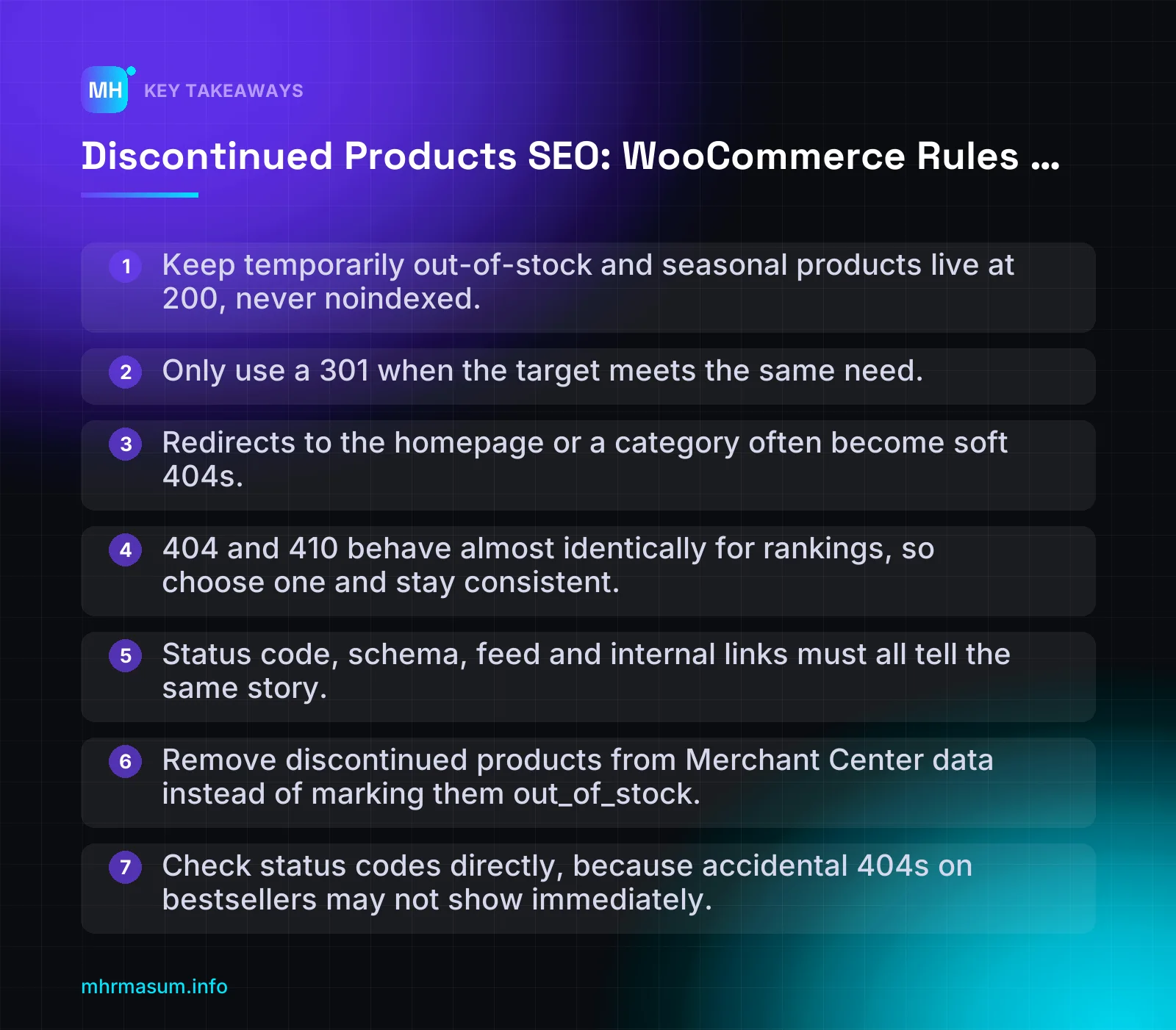
- Keep temporarily out-of-stock and seasonal products live at 200, never noindexed.
- Only use a 301 when the target meets the same need.
- Redirects to the homepage or a category often become soft 404s.
- 404 and 410 behave almost identically for rankings, so choose one and stay consistent.
- Status code, schema, feed and internal links must all tell the same story.
- Remove discontinued products from Merchant Center data instead of marking them out_of_stock.
- Check status codes directly, because accidental 404s on bestsellers may not show immediately.
Why discontinued products SEO decisions matter after BFCM
After Black Friday and Cyber Monday, most WooCommerce stores clear out stock. Some lines sell out for good, some go quiet until next season, and some are replaced by a newer model.
Every one of those old product URLs now needs a deliberate decision. Leaving them to whatever WooCommerce, your theme or a plugin does by default is how stores lose links, traffic and Shopping listings in January.
Start with some reassurance. On 28 October 2026, Google published a Non-Canonical Cabinet video in which Gary Illyes and Cherry Prommawin explained that 404s are normal (Search Engine Roundtable). The main points were:
- A 404 does not trigger a penalty.
- A 404 does not harm the site’s other, healthy pages.
- Normal 404s do not use up crawl capacity.
- Google drops a 404 URL from its index over time.
- 500 and 429 errors are the real problem, because they make Google slow down crawling.
“If Search Console shows hundreds of 404s after we delete old products, our rankings will drop.”
That is not how it works. John Mueller has also said that 404 and 410 responses are not negative quality signals, and that a 410 is essentially a 404 (Search Engine Roundtable).
The real risk is choosing the wrong response for a URL that still earns links or sales. Two common examples are a 404 on a page with strong backlinks, and a lazy redirect that Google treats as a soft 404.
What is actually at stake: links, traffic, Shopping eligibility and user trust
For each product URL, four things can be won or lost:
- Links: Review sites, forums and bloggers link to specific products. If a successor exists, a 301 passes those signals to it. A 404 lets them lapse.
- Organic traffic: Pages that still rank for model numbers or long-tail queries can keep earning clicks. Removing them throws that traffic away.
- Shopping eligibility: Merchant Center disapproves products when the landing page or checkout disagrees with the feed (Google Merchant Center Help). A product page that says “discontinued” while the feed says “in stock” is a disapproval waiting to happen.
- User trust: A visitor who clicks a product result and lands on your homepage, with no explanation, usually leaves.
There is also a monitoring trap. On 5 November 2026, Gary Illyes said that when an important URL returns a 4xx, Google can temporarily keep it in the index. In that state the result shows only the link and the last known good title, with no snippet and no favicon (Search Engine Roundtable).
An accidental 404 on a bestseller may not show up as an instant ranking loss. Check status codes directly instead of waiting for rank tracking to warn you. A result that suddenly loses its snippet and favicon is a clue worth investigating. That is a different problem from the one covered in favicon not showing in Google.
The five product states this guide covers
- Temporarily out of stock: the product will return, and you may or may not take orders meanwhile.
- Seasonal: the product sells for part of the year and comes back on a predictable cycle.
- Permanently discontinued: the product is gone, with no direct replacement.
- Replaced by a newer model: a successor meets the same need.
- Deleted variations: one size, colour or option is gone, but the parent product continues.
Whatever state applies, four signals must agree:
- The HTTP status: 200, 301, 404 or 410.
- Product schema availability: for example InStock, OutOfStock, BackOrder or Discontinued.
- The Merchant Center feed: whether the item is kept, updated or removed.
- Internal links: categories, related products, blog posts and menus.
If any of these contradict each other, Google, shoppers and Merchant Center each see a different story. If you set up evergreen sale pages for the season, review them alongside this clean-up. The approach in Black Friday SEO for WooCommerce keeps those URLs reusable.
The decision table: keep live, 301, 404 or 410
You do not need a complicated framework. Three questions, answered honestly for each URL, settle most cases.
Three questions to ask for every URL
- Is the product coming back? If yes, whether next month or next season, the page stays live at 200. Do not delete and recreate it.
- Is there a close equivalent? This means a successor or near-identical product that meets the same need: same use, similar specification and similar price band. A whole category is not a close equivalent.
- Does the URL have backlinks, organic clicks or sales history? Check external links in Search Console under Links, or in your backlink tool. Check clicks under Performance > Search results, filtered by page. Check past orders in WooCommerce reports.
Record the answers in a simple log so the decision is traceable later:
URL: /product/trailpro-40l-backpack/
Coming back?        No
Close equivalent?   Yes – /product/trailpro-45l-backpack/
Value?              14 linking domains, ~60 clicks/month
Decision:           301 to /product/trailpro-45l-backpack/
Feed:               Remove old item ID, successor already in feed
Internal links:     Update category + 2 blog posts to new URL
Date / owner:       06-11-2026 / MHR
Decision table by product state
| State | HTTP status | Schema availability | Merchant Center action | Internal links | Sitemap |
|---|---|---|---|---|---|
| Temporarily out of stock | 200 | OutOfStock (not taking orders) or BackOrder (taking orders) | Keep in feed; set out_of_stock or backorder to match the page |
Keep; optionally add links to alternatives on the page | Keep |
| Seasonal | 200, kept live all year | InStock in season; OutOfStock off season | Keep the same item ID; update availability (verify the reappearance-time question with Merchant Center Help) | Keep in category; restore prominent links in season | Keep |
| Replaced by a new model | 301 to the successor | None on the old URL; successor has its own | Remove the old item; successor listed | Point all links straight to the successor | Remove the old URL; add the successor |
| Discontinued, no equivalent, useful content | 200 as an archive page | Discontinued, or remove the Offer | Remove from product data | Remove from category grids; keep in support or blog content | Keep if you want it indexed |
| Discontinued, no value | 404 or 410 | None | Remove from product data | Remove every link | Remove |
| Deleted variation | Parent stays 200 | Remove the deleted variant’s Offer from the parent | Remove that variant’s item; keep the rest of the group | Point variant-specific links to the parent | Parent stays |
Do not set out_of_stock in the feed for products you no longer sell. Google’s guidance is to remove discontinued products from your product data. Reserve preorder for new products that have not been released yet (Google Merchant Center Help). If disapprovals appear after the clean-up, work through WooCommerce Merchant Center diagnostics.
Stale internal links quietly undo good decisions. The category and related-product patterns in WooCommerce internal linking make the “Internal links” column easier to maintain.
The decision rule for redirects
Only use a 301 when the target meets the same need as the old product. In that case the 301 hands the old URL’s ranking signals to the new URL, which becomes the canonical (Search Engine Journal; Google Search Central).
Everything else should get a 404 or 410, or stay live. John Mueller has explained why (Search Engine Roundtable):
- A redirect to the homepage can be treated as a soft 404.
- A redirect to a category may help the category briefly. Longer term, it confuses users and turns into a soft 404.
- If you do redirect to a category, explain on the page why the visitor landed there.
- A page that returns 200 but shows “not found” content is definitely a soft 404.
Choosing between 404 and 410 is not a ranking decision, because Google treats them almost the same. Pick whichever your setup handles cleanly, and apply it consistently.
If you have hundreds of post-BFCM URLs to sort and want a second pair of eyes, start with a free SEO check.
Temporarily out of stock: keep the page live and honest
A product that will be back in stock is still a product you sell. The URL should keep returning a 200 status code, stay indexable and stay in your XML sitemap.
The page has already earned links, rankings and Shopping history. Removing it for a few weeks throws that away for no benefit. Customers searching for the product also still want to know whether, and when, they can buy it.
“Out-of-stock pages are thin content, so noindex them until the stock comes back.”
This is wrong for temporary stock gaps. A noindexed page has to be recrawled and reprocessed before it can return to the index, which can take longer than the stock gap itself. Being honest about availability is better for users than hiding the page.
What the page should show
An out-of-stock page should still answer the visitor’s question and give them a next step. Include:
- Clear availability text near the price, such as “Out of stock” or “Sold out”. Do not hide it in a tab.
- A restock date, but only if you actually know it. “Back in mid-December” is helpful. A made-up date that keeps slipping damages trust.
- A back-in-stock email signup, using a notification plugin or extension, so the visit isn’t wasted.
- In-stock alternatives, such as a similar model, another colour or the parent category. Upsells and related products work well here.
- All the useful content you already have, including specs, sizing, reviews and FAQs. Do not strip the page down.
For Merchant Center, the buy button matters. Google’s availability help page says an out-of-stock landing page can show “sold out” text or a disabled, greyed-out buy button. The page must also agree with your feed, or the product can be disapproved (Google Merchant Center Help).
Search Engine Land reported in 2026 that Google now expects the buy button to be visibly disabled, not active and not hidden, with on-page wording that matches the feed (Search Engine Land). Check the current wording on the Merchant Center help page before you change your theme. The safe pattern is to show “Out of stock” text and a greyed-out button that cannot be clicked.
Here is an example of an availability block:
Price: £49.00
Availability: Out of stock – expected back w/c 8 December
[ Add to basket ]  ← greyed out, not clickable
Email me when it's back: [ your@email ] [ Notify me ]
In stock now: Merino Crew Jumper (Navy) · Merino V-Neck (Grey)
If you get disapprovals after a stock change, work through the steps in WooCommerce Merchant Center Diagnostics.
WooCommerce settings to check
Verify these in your own install, because themes and plugins can override them:
- Go to WooCommerce > Settings > Products > Inventory.
- Find Out of stock visibility and the option to hide out-of-stock items from the catalogue.
- Open the product and go to Product data > Inventory. Confirm the stock status, which can be In stock, Out of stock or On backorder. If you manage stock, also check the backorders setting.
- Run the product URL through an HTTP header checker and confirm it returns
200, not a redirect or a 404. - View the page source and check the
availabilityvalue in the Product structured data. It should match the stock status.
The hide-from-catalogue setting involves a trade-off. If you turn it on, out-of-stock products disappear from category and shop pages. That also removes the internal links pointing to them. Search engines and shoppers then have fewer paths to the product, even though the product page itself still exists.
| Setting | Benefit | Cost | Best for |
|---|---|---|---|
| Show out-of-stock items | Internal links are kept and the page stays discoverable | Shoppers see some products they can’t buy | Most stores with short stock gaps |
| Hide out-of-stock items | Cleaner category pages | Internal links are lost, so the product can only be reached through the sitemap, search or direct links | Stores with many permanently empty lines (deal with those separately) |
If you hide them, link to important out-of-stock products from related products, buying guides or blog posts. See WooCommerce Internal Linking for practical ways to do this.
Backorder or out of stock?
The decision rule is simple: use backorder only if you actually accept orders and payment now. Otherwise, use out of stock.
| Situation | WooCommerce status | Merchant Center availability | Buy button |
|---|---|---|---|
| Coming back, and you’re not taking orders | Out of stock | out_of_stock |
Visibly disabled |
| Coming back, and you’re taking orders now | On backorder | backorder |
Active, with dispatch timing shown |
| New product, not yet released | Depends on your setup or plugin | preorder |
Active, with release timing shown |
Google says backorder is for existing products that will return while you continue to take orders. Preorder is only for new products that haven’t been released yet (Google Merchant Center Help). If you use backorder or preorder, check the help page for the availability date attribute and supply it where it applies.
Mistake to avoid
Do not noindex, draft or delete a product that will be back in three weeks. You lose the page’s links, it drops out of Shopping, and you have to rebuild everything when the stock arrives.
Accidental removals can also go unnoticed. Gary Illyes has explained that when an important URL starts returning a 4xx, Google can temporarily keep it in the index with only the link and the last known title, with no snippet and no favicon (Search Engine Roundtable). Rankings won’t warn you straight away, so check status codes instead.
Seasonal products: keep URLs alive year after year
Seasonal products follow the same logic as temporary stock gaps, but on a longer cycle. Use the same URL every season. Each year the page builds on its links, reviews, rankings and Shopping history, instead of starting again from nothing.
The most common mistake is creating a new product every year:
Bad:   /product/christmas-jumper-2025/
       /product/christmas-jumper-2026/

Good:  /product/fair-isle-christmas-jumper/
Keep years out of slugs and product titles unless the product really does change each year. If an old year-stamped URL already exists, 301 it to the evergreen version and update your internal links. The same principle applies to sale pages, as covered in Black Friday SEO for WooCommerce.
Seasons also vary by market. A store selling into several countries may never have a true off-season for some lines:
| Product | Peak timing (typical) | Off-season approach |
|---|---|---|
| Christmas jumpers | UK and US: November to December. AU: low demand because Christmas falls in summer. | Keep the page live, mark it out of stock and link to year-round knitwear |
| Garden furniture | UK and US: spring to summer. AU: roughly spring to late summer (September to February). | Keep the page live and promote covers, storage or indoor furniture |
| School uniforms | AU and BD: around January. UK and US: around August to September. | Keep size guides and FAQs live, with a “new stock arrives in…” note |
Off-season page content
An off-season page should still be useful. Include:
- When the product returns, for example “Back in stock from September”. Only give a specific date once you’re sure of it.
- Links to related in-season items, such as rain jackets in place of sun loungers.
- Durable content, including specs, size guides, care instructions, reviews and FAQs. This is the content that keeps the page ranking between seasons.
- A back-in-stock signup, which lets you contact interested buyers on launch day.
- Accurate signals, meaning out-of-stock text, a disabled buy button and structured data showing
OutOfStock.
Keep the URL in your XML sitemap and make sure it still returns 200. Re-test it a few weeks before the season starts, because plugin updates and theme changes can break pages without anyone noticing.
Feed handling between seasons
In Merchant Center, set the item to out_of_stock rather than deleting it and adding it back later. Google’s guidance supports this. Out of stock is for items that are temporarily unavailable, while products you no longer sell should be removed from your product data (Google Merchant Center Help).
Some secondary sources report that products removed from Merchant Center and added back can take longer to reappear than products kept in the feed (Sumtracker). Google doesn’t state this clearly in the help page I’ve linked, so treat it as a practical risk rather than a confirmed rule. Either way, keeping the item in the feed avoids the problem.
Follow this pre-season routine about four to six weeks before peak:
- Change the WooCommerce stock status to In stock, or to On backorder if you’re taking early orders.
- Confirm the feed has updated the availability, and check the Merchant Center diagnostics for mismatches.
- Refresh the title and description if needed. Merchant Center Product Title Optimization explains how.
- Restore the item to category pages, menus and seasonal landing pages.
- Use the URL Inspection tool in Search Console to confirm Google sees the current version.
If you have dozens of seasonal lines and aren’t sure what state they’re in, a free SEO check is a quick way to find broken or redirected product URLs before the season starts.
Replaced by a new model: when a 301 redirect is right
When a manufacturer releases a successor, the old product page has links, rankings and search demand behind it. A permanent redirect to the new model passes that value on instead of letting it disappear.
Gary Illyes and Cherry Prommawin explained on 5 November 2026 that a 301 hands the old URL’s ranking signals to the new URL, which becomes the canonical. A 302 does not transfer them in the same way (Search Engine Journal). Both help Google group related URLs, but a 301 is the recommended choice when you want the target to be the canonical (Google Search Central).
If you get it wrong, it is not a disaster. The page still gets indexed. Only which URL Google shows changes. A 301 is still the clean and correct signal for a product that has been replaced for good.
The equivalence test
A redirect is only right if the new page genuinely answers the same need. Before you add a redirect, check all four of these:
- Same product type: a cordless drill goes to a cordless drill, not to a drill bit set.
- Same use: the replacement does the job the original buyer needed done.
- Similar price band: a £40 item should not land on a £400 item.
- No surprise: a visitor arriving from an old link or a review would not feel tricked.
If any answer is “no”, the product is discontinued, not replaced. Use the next section instead.
Redirect map example
Keep a written redirect map rather than adding redirects ad hoc in a plugin. It shows what each rule is for, who added it and when, and stops rules from piling up into chains.
| Old URL | New URL | Status | Reason |
|---|---|---|---|
| /product/aero-kettle-v1/ | /product/aero-kettle-v2/ | 301 | Direct successor, same capacity |
| /product/trail-pack-30l-2025/ | /product/trail-pack-30l/ | 301 | Year removed from slug |
| /product/desk-lamp-classic/ | None | 404 | No equivalent, fails price test |
The same map as a CSV that your team can version and import:
old_url,new_url,status,reason,date_added,owner
/product/aero-kettle-v1/,/product/aero-kettle-v2/,301,Direct successor same capacity,2026-11-06,Store manager
/product/trail-pack-30l-2025/,/product/trail-pack-30l/,301,Year removed from slug,2026-11-06,SEO
/product/desk-lamp-classic/,,404,No equivalent product,2026-11-06,SEO
Three rules keep the map healthy:
- Keep redirects permanent. Use 301 or 308, not 302, for replacements.
- Point straight at the final URL. If v1 already redirects to v2 and v2 is replaced by v3, update the v1 rule to go directly to v3. Do not leave v1 → v2 → v3.
- Do not delete old rules unless you are sure nothing links to the old URL any more.
The same discipline applies to large-scale moves. My guide to site migration SEO for WordPress uses the same mapping approach.
Telling visitors what changed
Someone clicking an old review link expects model X and lands on model Y. Tell them why. Add a short note near the top of the new product page:
<p class="replaces-note">This model replaces the Aero Kettle V1.
Same 1.7 L capacity, now with a keep-warm setting.</p>
Then remove the old URL from your own site. A redirect is a safety net for external links, not a substitute for correct internal links. Update:
- Main menus and mega-menus
- Category descriptions and blog posts
- Related products, upsells and cross-sells in the WooCommerce product data panel
- Buying guides and comparison tables
My WooCommerce internal linking guide covers how to find and fix these links across categories, products and posts.
Permanently discontinued: 404, 410 or keep an archive page
Some products are simply gone. There is no successor, no stock coming back and no close equivalent. For these, the honest answer is a not-found status or an archive page, not a redirect to whatever happens to be nearby.
This is less risky than many store owners fear. In a Search Off the Record discussion published on 28 October 2026, Google explained that 404s cause no penalty and do not harm your other healthy pages. Normal 404s do not use up crawl capacity, and Google drops the URL from the index over time (Search Engine Roundtable). The errors that really slow crawling are 500s and 429s.
404 vs 410 in practice
John Mueller has said that a 410 is essentially a 404, and that neither is a negative quality signal (Search Engine Roundtable).
| Status | Meaning | Practical use |
|---|---|---|
| 404 Not Found | Nothing is at this URL | Default when you delete a product. Needs no extra setup in WooCommerce. |
| 410 Gone | Removed on purpose, not coming back | Useful if you want logs and reports to clearly separate intentional removals from broken links. |
Pick one and use it consistently. Do not spend time debating it product by product. A 410 needs a rule or snippet (covered later in this article). A 404 is what you get by default.
Whichever you pick, test the deleted URL with an HTTP header checker. WordPress can redirect a missing URL to a similar slug through its 404 guessing or old-slug redirects. That means your “deleted” product may actually be answering with a 301 to an unrelated page.
When an archive page is better
Sometimes people still search for a product long after you stop selling it. They want the manual, spare parts, compatibility details or reviews. In that case, keep the page live with a 200 status as an archive page.
A good archive page:
- States clearly at the top that the product is discontinued, with no add-to-cart button.
- Keeps the useful content: specifications, manuals and compatible accessories or spares you still sell.
- Links to the closest current alternatives and the parent category.
- Uses the
https://schema.org/Discontinuedavailability value in its Product structured data.
WooCommerce’s stock statuses (In stock, Out of stock, On backorder) do not include “Discontinued”. Check what your theme or SEO plugin outputs for availability before you rely on this. The implementation section below shows how.
Use the archive approach only when there is real demand. Check the URL in Search Console’s Performance report. If it still gets impressions for support-type queries, it has earned an archive page. If it gets nothing, let it 404.
Why not the homepage or the category
“Redirect every dead product to the homepage to keep the link juice.”
This does not work the way people expect. Mueller has explained that a redirect to the homepage can be treated as a soft 404. A redirect to the category may help that category briefly, but it confuses users and turns into a soft 404 over the longer term (Search Engine Roundtable). Google documents how it handles soft 404s on its HTTP status code page.
If you do send a discontinued product to its category, for example because the range clearly continues, explain on the category page why the visitor landed there. Never return a 200 status on a page that shows “product not found” text. That is definitely a soft 404.
Instead, make your 404 template do the work a redirect pretends to do:
- A clear “This product is no longer available” message
- A product search box
- Links to your top categories
- A short row of bestsellers
This gives a real visitor a next step while still sending Google an honest status code.
Remove it from Merchant Center
For Shopping, the rule is clear. Google says not to set out_of_stock on products you no longer sell. Remove discontinued products from your product data (Google Merchant Center Help).
In WooCommerce, that usually means excluding the product from your feed plugin or deleting it so it drops out at the next sync. Leaving it in the feed while the landing page returns a 404 creates mismatches. My guide to WooCommerce Merchant Center diagnostics shows how to find and fix those disapprovals.
Deleted variations and variable products
Variable products cause more confusion after BFCM than simple products. A size sells out for good, a colour is dropped, and the store owner wonders whether each one needs its own redirect.
In most WooCommerce stores, a deleted variation does not need a redirect at all. The reason is in how variation URLs work.
“I deleted the red XL variation, so I need to 301 its URL somewhere.”
In a standard WooCommerce setup there usually is no separate red XL URL to redirect. The variation lives on the parent product page, and the parent stays live.
How variation URLs work in WooCommerce
Variations are stored as child items of the parent product. By default they do not get their own public permalink. Shoppers pick a variation on the parent page, and links to a specific variation usually look like this:
https://example.com/product/merino-jumper/?attribute_pa_colour=red&attribute_pa_size=xlThat is the parent URL with attribute parameters added. When the red XL variation is deleted, the parent page still loads. WooCommerce simply does not preselect a variation that no longer exists.
So the rules are simple:
- Keep the parent product at 200 as long as at least one variation is still for sale or coming back.
- Do not redirect the parent because one size or colour is gone.
- If a variation will return, do not delete it. Set its stock status to Out of stock so its history, SKU and identifiers stay intact.
Check old variation parameter URLs
Sometimes parameter URLs pick up links from emails, ads, affiliates or social posts. Open a few of them and check three things:
- The page returns 200 and shows the parent product, not an error or an empty template.
- The page’s canonical tag points to the clean parent URL without parameters. Most SEO plugins do this, but view the source to confirm it.
- The page makes it clear that the old option is no longer available, for example in the variation dropdown or a short note in the description.
If your theme or a filter plugin creates indexable parameter URLs at scale, deal with that separately. My guide to faceted navigation SEO for WooCommerce covers how to keep filter and parameter URLs under control.
Feed and schema clean-up
The page may be fine, but the feed is where deleted variations usually cause trouble. In Merchant Center, each variation is normally its own item, grouped under the parent with item_group_id.
After deleting a variation:
- Remove the variation’s item from the feed, so it does not stay in Merchant Center as stale data. Google’s guidance is to remove products you no longer sell from your product data rather than marking them
out_of_stock(Merchant Center Help). - Check the
item_group_idon the remaining variants. They should all still share the same group ID as before. - Check the remaining variants’ attributes: price, availability, size, colour, GTIN and image should all match what the landing page shows.
- Check the structured data on the parent page with the Rich Results Test. The price range and offers should no longer include the deleted variation. If they do, clear your page cache and any object cache, then test again.
If Merchant Center flags mismatches after the change, my guide to WooCommerce Merchant Center diagnostics explains how to trace them.
| Situation | Parent page | Feed action |
|---|---|---|
| One variation discontinued, others on sale | Keep live at 200 | Remove that variation’s item |
| One variation temporarily sold out | Keep live at 200 | Keep item, set out_of_stock |
| One variation returning, taking orders now | Keep live at 200 | Keep item, set backorder |
| Every variation discontinued | Treat as discontinued and use the decision table | Remove all items in the group |
Edge case: every variation is gone
If you delete or permanently retire every variation, the parent page becomes a product nobody can buy. At that point, treat the parent as a discontinued product.
Go back to the decision table. Redirect it with a 301 if there is a true replacement, return a 404 or 410 if there is not, or keep an archive page if it still has real reference value for visitors.
Implementing it in WooCommerce: PHP snippet, plugins and status checks
Once you have decided what each URL should do, you need to implement it reliably. You have three options: a small PHP snippet, a redirect plugin, or server rules.
Whichever you pick, test the actual HTTP status code. Do not just look at what the page shows in a browser.
PHP snippet: 301 map and 410 list
This snippet keeps all discontinued-product rules in one file. It holds a map of old product paths to new URLs for 301s, and a list of paths that should return 410 Gone with your theme’s 404 template.
<?php
/**
 * Plugin Name: Discontinued Product Rules
 * Description: 301 redirects and 410 responses for retired WooCommerce products.
 */

// Priority 1 runs before WordPress core's canonical redirect and 404 guessing.
add_action( 'template_redirect', 'mhr_discontinued_product_rules', 1 );

function mhr_discontinued_product_rules() {

    $request = isset( $_SERVER['REQUEST_URI'] ) ? wp_unslash( $_SERVER['REQUEST_URI'] ) : '';
    $path    = strtolower( trim( (string) wp_parse_url( $request, PHP_URL_PATH ), '/' ) );

    if ( '' === $path ) {
        return;
    }

    // 301: old product path => replacement URL (path relative to the site root).
    $redirects = array(
        'product/trail-runner-2'    => '/product/trail-runner-3/',
        'product/desk-lamp-classic' => '/product/desk-lamp-pro/',
    );

    // 410: permanently discontinued, no replacement, no archive page.
    $gone = array(
        'product/winter-gift-box-2024',
        'product/enamel-mug-green',
    );

    if ( isset( $redirects[ $path ] ) ) {
        wp_safe_redirect( home_url( $redirects[ $path ] ), 301 );
        exit;
    }

    if ( in_array( $path, $gone, true ) ) {
        global $wp_query;
        $wp_query->set_404();
        status_header( 410 );
        nocache_headers();

        $template = get_404_template();
        if ( $template ) {
            include $template;
        } else {
            echo '<h1>This product has been discontinued.</h1>';
        }
        exit;
    }
}
A few notes before you use it:
- Put it in a small site-specific plugin or a code snippets plugin, not in your theme’s
functions.php. A theme update or theme change would remove it. - Test it on staging first. A typo in PHP can take the whole store down. If you need a staging workflow, the one in my guide to updating PHP in WordPress and WooCommerce works here too.
- Paths are matched without the domain, without the query string and without leading or trailing slashes. If WordPress is installed in a subfolder, include the subfolder in the path.
- Only list URLs whose products are deleted or unpublished. Because the snippet runs early, a live product listed here would become unreachable.
- Make your 404 template helpful. Link to the parent category and to search, so visitors who arrive from an old link still have somewhere to go.
- Purge your page cache and CDN after editing the lists. Otherwise an old response may keep being served.
Use 410 only if you want a firmer “gone” signal. John Mueller has said a 410 is essentially a 404 for Google, and neither is a negative quality signal (Search Engine Roundtable). A plain 404 from deleting the product is perfectly acceptable.
Plugin option
If you prefer not to touch code, a redirect manager does the same job:
- The Redirection plugin from wordpress.org handles 301s and can log 404s, which helps you spot old product URLs that still get traffic.
- Your SEO plugin’s redirect manager, if it has one. Some SEO plugins include one only in paid tiers.
Features change between versions. Before you rely on a plugin, check that it can return a 410 (not only 301 and 302), can import a CSV of URLs, and stores rules in a way you can export later.
Watch out for WordPress redirect guessing
This is the trap most stores miss. When a URL returns a 404, WordPress core tries to guess what you meant through redirect_guess_404_permalink(). A deleted product URL can quietly 301 to a different product with a similar slug.
For example, a deleted /product/trail-runner-2/ might redirect to /product/trail-runner-2-pack/, a product that is not a real replacement. Google may then treat that redirect as a soft 404, and visitors land on the wrong item.
WordPress also has old-slug redirects. If you renamed a product’s slug, the old URL redirects to the new one. That is usually what you want, but it is worth knowing about when a URL behaves unexpectedly.
If guessing causes problems on your store, you can turn it off with one line. Test it on staging first:
add_filter( 'do_redirect_guess_404_permalink', '__return_false' );Testing status codes
Check every URL on your list with an HTTP header checker or curl from the command line:
curl -I https://example.com/product/trail-runner-2/

HTTP/2 301
location: https://example.com/product/trail-runner-3/

curl -I https://example.com/product/winter-gift-box-2024/

HTTP/2 410
content-type: text/html; charset=UTF-8

curl -I https://example.com/product/enamel-mug-blue/

HTTP/2 301
location: https://example.com/product/enamel-mug-blue-set/
(Redirect guessing sent a deleted product to a different product.)
To follow the full chain and confirm the final destination returns 200, use:
curl -sIL https://example.com/product/trail-runner-2/ | grep -iE "^HTTP|^location"

HTTP/2 301
location: https://example.com/product/trail-runner-3/
HTTP/2 200
Do not use rankings to confirm your setup. Gary Illyes explained that when an important URL starts returning a 4xx, Google can keep it in the index temporarily, showing only the link and the last known title (Search Engine Roundtable). An accidental 404 on a bestseller may not show up as an immediate ranking drop, so check the status codes directly.
Keep redirects in one place
Redirects can live on the server, in a plugin or in PHP. Pick one place and keep all your product rules there. When rules are split across all three, you get chains, loops and redirects nobody remembers creating.
| Location | Good for | Watch out for |
|---|---|---|
| Server (.htaccess, Nginx, CDN rules) | Large lists, sitewide patterns, fastest response | Runs before WordPress, so it silently overrides plugin and PHP rules |
| Redirect plugin | Non-developers, 404 logging, CSV import | Extra database queries; rules are lost if the plugin is removed without exporting |
| PHP snippet | A short, version-controlled list | Needs a developer to edit; errors can break the site |
Before adding new rules, export what already exists and check for chains, such as A to B to C. Point every old URL straight at its final destination. The same discipline applies to larger moves, as covered in my site migration SEO guide.
If you would like a second pair of eyes on your redirect map before you publish it, start with a free SEO check.
Product schema and Merchant Center sync
Your status code decisions only cover half the job. The product page, its structured data, your Merchant Center feed and your checkout all need to say the same thing about availability.
If they disagree, Google can disapprove the product in Shopping. Shoppers also lose trust when a “free listing” says in stock and the page says sold out.
Availability values and how they map
Merchant Center accepts five availability values: in_stock, out_of_stock, preorder, backorder and build_to_order. Google also explains how schema.org availability values on your page are read against those feed values (Google Merchant Center Help).
| Schema.org availability on the page | Merchant Center feed value | When to use it |
|---|---|---|
| InStock | in_stock | You have stock and are taking orders |
| OutOfStock, SoldOut, Discontinued | out_of_stock | Temporarily unavailable and you are not taking orders |
| BackOrder | backorder | An existing product that will return, and you are taking orders now |
| PreOrder | preorder | A new product that has not been released yet |
Two rules catch stores out most often:
- Preorder is only for new products. A restocking bestseller that accepts orders is
backorder, notpreorder. - Do not use out_of_stock for products you no longer sell. Google’s guidance is to remove discontinued products from your product data.
Here is what the Offer should look like on a temporarily out-of-stock product page:
{
  "@context": "https://schema.org",
  "@type": "Product",
  "name": "Merino Crew Neck Jumper",
  "sku": "MCJ-NAVY",
  "offers": {
    "@type": "Offer",
    "url": "https://example.com/product/merino-crew-neck-jumper/",
    "price": "49.00",
    "priceCurrency": "GBP",
    "availability": "https://schema.org/OutOfStock"
  }
}
WooCommerce core outputs Product structured data and builds availability from the product’s stock status. In a current install, set a test product to In stock, Out of stock and On backorder in turn, then check the output with the Rich Results Test. If an SEO plugin also outputs Product schema, make sure only one source is printing the Offer, or that both agree.
Keeping page, schema, feed and checkout consistent
Google says a product is disapproved when the landing page or checkout disagrees with the feed. Merchant Center Help also explains that an out-of-stock page can show “sold out” wording or a disabled, greyed-out buy button.
“I’ll just hide the add to cart button on out-of-stock products. That’s clear enough.”
Search Engine Land reported in 2026 that Google now expects the buy button to appear visibly disabled, not active and not hidden, with on-page wording that matches the feed (Search Engine Land). Check the current wording on the availability help page before you change your theme. A greyed-out button with “Sold out” text is the safest pattern either way.
Run this check after every big stock change:
- Page: the visible stock text and button state match the real stock level.
- Schema: the Offer availability matches the page. View source, or use the Rich Results Test.
- Feed: open your feed plugin and confirm it syncs stock changes, and how often. A feed that refreshes once a day will be wrong for most of a BFCM sell-out.
- Checkout: an out-of-stock product cannot be added to the basket. A backorder product can.
- Merchant Center: open the Products area and look for availability mismatch issues in the diagnostics or “needs attention” view. Menu names change often, so follow the current labels in your account.
For discontinued items, exclude them from the feed in your feed plugin rather than leaving them as out_of_stock. Seasonal products are different. One secondary source suggests that products removed and later re-added can take longer to reappear than products kept in the feed (Sumtracker). Google has not confirmed this, so treat it as a reason to keep returning seasonal items in the feed as out_of_stock, not as a firm rule.
If you already have disapprovals, my guide to WooCommerce Merchant Center diagnostics walks through each issue type.
Reading 404 and soft 404 reports in Search Console without panicking
After a clean-up, Search Console will show more 404s. That is the expected result of deleting pages, not a sign that something is broken.
In a Non-Canonical Cabinet video published on 28 October 2026, Gary Illyes and Cherry Prommawin said 404s cause no penalty, do not harm your other healthy pages and do not use up crawl capacity. Google drops 404 URLs from the index over time (Search Engine Roundtable).
“Search Console shows 300 new 404 errors. My rankings are going to drop.”
They won’t, if those URLs were meant to go. John Mueller has also said that 404 and 410 are not negative quality signals, and that a 410 is essentially a 404 (Search Engine Roundtable).
Not found (404) vs Soft 404 in the Page indexing report
Go to Indexing > Pages and scroll to the list of reasons why pages are not indexed. Two rows matter here.
| Report row | What it means | Typical WooCommerce cause |
|---|---|---|
| Not found (404) | The server returned a 404 or 410 | Deleted discontinued products, old slugs, mistyped internal links |
| Soft 404 | The server returned 200 or redirected, but Google sees a page with no real content | Thin out-of-stock pages, homepage or category redirects, empty archive pages |
Intentional 404s in the first row are fine. Click into the row, export the list, and compare it with your record of deleted products. Anything on your list can be ignored.
Soft 404s deserve more attention because they usually point to a decision that was not made cleanly. Mueller has said that a homepage redirect can be treated as a soft 404, and a category redirect may help briefly but tends to become a soft 404 longer term. A 200 page showing “not found” content is definitely a soft 404. Google explains how it handles these in its HTTP status and network errors documentation.
The fix is to make each page what it claims to be:
- Thin out-of-stock page: add real content, alternatives and a restock note, or return a proper 404/410 if it is gone for good.
- Homepage redirect: replace it with a 404/410, or a 301 to a true replacement product.
- Category redirect: keep it only if the category is a close match, and explain on the page why the visitor landed there.
- Empty archive or tag page: add products, noindex it, or remove it.
Which 404s are worth fixing
Fix a 404 only when at least one of these is true:
| Signal | Where to check | Action |
|---|---|---|
| The URL should exist | Your product list, URL Inspection | Restore the product or fix the slug |
| It has backlinks | Links report in Search Console, or a link tool | 301 to the closest true replacement, if one exists |
| It still gets internal links | A site crawler, “Referring page” in URL Inspection | Update the links to point at live pages |
| It still earns clicks | Performance report, filtered by page | Investigate why; restore or redirect to a real equivalent |
Internal links to deleted products are the most common fixable issue. Menus, related-product blocks and old blog posts keep pointing at them. My guide to WooCommerce internal linking covers how to keep those links clean.
Monitoring important URLs
The bigger risk is the opposite problem: a bestseller returning a 4xx by accident, after a slug edit, a plugin update or a stock automation going wrong.
On 5 November 2026 Gary Illyes said that when an important URL returns a 4xx, Google can temporarily keep it in the index. The result then shows only the link and the last known good title, with no snippet and no favicon (Search Engine Roundtable).
The practical lesson: an accidental 404 on a top product will not show up as an instant ranking loss, so rank tracking will not warn you. If a key result suddenly loses its snippet and favicon, check the status code first. A missing favicon has other causes too, covered in Favicon Not Showing in Google?
Set up a simple routine:
- List your top 50 products by clicks from the Performance report.
- Check their status codes weekly with a header checker or a crawler in list mode.
- Add the top 10 to an uptime monitor that alerts on any non-200 response.
curl -I https://example.com/product/merino-crew-neck-jumper/

HTTP/2 200        ← healthy
HTTP/2 404        ← investigate today
HTTP/2 301        ← confirm the target is correct
Finally, open Settings > Crawl stats and look at the breakdown by response. A rise in 5xx server errors or 429 responses is the real alarm. Illyes and Prommawin noted these make Google slow down crawling, which delays every price and stock update you publish. Normal 404s do not.
If you cannot tell which of your indexing issues matter, start with a free SEO check.
Common mistakes and a post-BFCM clean-up checklist
After BFCM, most stores have a large batch of zero-stock products and very little time. That is when expensive shortcuts happen.
Avoid the mistakes below first. Then work through the checklist in order, so every product ends up with one clear state, one status code and one matching feed value.
Mistakes to avoid
- Deleting products that are only temporarily out of stock. Deleting a product throws away its URL, its links and its history. When stock returns, you start again from nothing. If a restock is planned, keep the page live and mark it out of stock or on backorder.
- Mass redirects to the homepage. John Mueller has said a homepage redirect can be treated as a soft 404. A redirect to a category may help that category briefly, but it confuses visitors and also tends to become a soft 404 over time (Search Engine Roundtable). If you do send people to a category, explain on the page why they landed there.
- Redirect chains. Last year’s model redirects to this year’s model, and this year’s model now redirects to next year’s. Each extra hop slows visitors and wastes crawling. Google documents that Googlebot follows only a limited number of redirect hops (Google Search Central). Point every old URL directly at the final target.
- Using 302s for permanent changes. A 301 passes the old URL’s ranking signals to the new URL and makes the new URL the canonical. A 302 does not pass them (Search Engine Journal). Many redirect plugins default to 302, so check the setting.
- Leaving discontinued items in the feed as out_of_stock. Google says not to set out_of_stock on products you no longer sell. Remove discontinued products from your product data instead (Google Merchant Center Help).
- Internal links still pointing at redirected URLs. Menus, related-product blocks, blog posts and BFCM landing pages often still link to old URLs. Update them to the final URL. This guide on WooCommerce internal linking shows where those links usually hide.
- Buy buttons that stay active on out-of-stock pages. Merchant Center Help says an out-of-stock page can show “sold out” text or a disabled, greyed-out buy button. Search Engine Land reported in 2026 that Google now expects the button to be visibly disabled, not active and not hidden (Search Engine Land). Check the current wording on the Merchant Center help page, and test how your theme behaves.
“We have hundreds of 404s after the sale. We need to redirect all of them before Google penalises us.”
404s do not cause a penalty. In Google’s 28 October 2026 video, Gary Illyes and Cherry Prommawin explained that 404s do not harm your other healthy pages. Normal 404s do not use up crawl capacity, and Google drops them from the index over time (Search Engine Roundtable).
The status codes that deserve urgent attention are 500 and 429, because they make Google slow down crawling.
Step-by-step clean-up checklist
- Export products with zero stock. In WooCommerce, go to Products, filter by stock status “Out of stock”, and use the built-in CSV exporter. Include the SKU, URL, parent ID and stock status columns. Add products set to “On backorder” as well.
- Classify each product into one of the five states. The states are:
- Temporarily out of stock
- Seasonal
- Replaced by a new model
- Permanently discontinued
- Deleted variation
If you cannot decide, ask the buyer or supplier. Do not guess.
- Check links and clicks. In Search Console, open Performance > Search results, filter by page and pull the last 12 months of clicks. Add backlink counts from your link tool. A product with links and clicks deserves an archive page or a precise redirect. A product with neither can usually return a 404 or 410.
- Decide the status for each URL. Use the decision table from earlier in this article:
- 200 for products you are keeping live
- 301 to a true replacement
- 404 or 410 for dead products with no close match
Mueller describes a 410 as essentially a 404, so do not agonise over the choice between them.
- Update the redirect map. Add every new 301. Then search the “target” column for URLs you are now retiring, and repoint those old rows directly at the new final target.
- Update schema and the feed. Make sure the page, the structured data and the feed all show the same availability. Remove discontinued products from the feed. Recheck Merchant Center diagnostics for availability mismatches.
- Fix internal links and the sitemap. Replace links to redirected URLs with the final URLs. Make sure your XML sitemap lists only URLs that return 200. Then test a sample of retired URLs with an HTTP header checker, because WordPress redirect guessing can quietly send deleted products to a similar slug.
- Recheck Search Console in 2 to 4 weeks. Review three reports:
- Indexing > Pages: look for new soft 404s and “Page with redirect” entries.
- Settings > Crawl stats: look for 5xx and 429 responses.
- Performance: check your bestsellers.
Gary Illyes noted on 5 November 2026 that Google can temporarily keep an important URL in the index even after it returns a 4xx. In that state, the result shows only the last known title, with no snippet (Search Engine Roundtable). Rankings will not warn you quickly, so monitor status codes directly.
curl -sI https://example.com/product/blue-kettle-2025/
HTTP/2 301
location: https://example.com/product/blue-kettle-2026/
Keep the redirect map as a living spreadsheet
Decision rule: never delete a row, and never let a row point at a URL that itself redirects. When a target retires, update every row that points at it in the same session.
Use one shared sheet with these columns:
| Old URL | State | Action | Target | Date | Reason | Recheck |
|---|---|---|---|---|---|---|
| /product/blue-kettle-2025/ | Replaced | 301 | /product/blue-kettle-2026/ | 2026-11-10 | Same product, new model | 2026-12-08 |
| /product/xmas-jumper-red/ | Seasonal | 200 | — | 2026-11-10 | Returns each December | 2027-10-01 |
| /product/old-charger-x1/ | Discontinued | 410 | — | 2026-11-10 | No links, no replacement | 2026-12-08 |
This sheet also becomes your safety net if a plugin update or site migration wipes your redirects.
Use it alongside your evergreen Black Friday pages so next year’s clean-up starts from a known state.
If you would like a second pair of eyes on your zero-stock list, start with a free SEO check or book a free consultation.
Frequently Asked Questions
Do 404 errors from deleted products hurt my WooCommerce rankings?
No. Google has said that 404s do not trigger a penalty, do not harm your other pages and do not use up crawl capacity. The URL simply drops out of the index over time. Server errors such as 500 and 429 are the bigger concern, because they make Google slow down crawling.
Should I use a 404 or a 410 for discontinued products?
For rankings, it makes almost no difference, because Google treats a 410 essentially as a 404. Pick whichever your server or plugin setup returns cleanly. Then apply it consistently across every discontinued URL with no value.
Can I redirect all discontinued products to my homepage?
It is not a good idea. Google can treat redirects to the homepage, or to a loosely related page, as soft 404s, so no signals are passed. Visitors who land somewhere unexpected also tend to leave. Redirect only to a true successor or near-identical product.
Should I noindex out-of-stock products in WooCommerce?
Not if the product is coming back. A noindexed page has to be recrawled and reprocessed before it returns to the index, which can take longer than the stock gap itself. Keep the page live, mark it clearly as out of stock and offer alternatives or a back-in-stock signup.
What should I do with discontinued products in Google Merchant Center?
Remove them from your product data. Do not leave them in the feed marked as out_of_stock. Keep out_of_stock for products that will return, and make sure the landing page wording and buy button match the feed so items are not disapproved.
What happens to SEO when I delete a product variation?
The parent product stays live at 200, so its rankings are unaffected. Remove the deleted variant's Offer from the parent's schema and its item from the Merchant Center feed. Then point any links that referenced that size or colour to the parent product.
How do I find which discontinued product URLs are worth redirecting?
Check external links in Search Console's Links report or your backlink tool. Check clicks under Performance, filtered by page, and review past orders in WooCommerce reports. URLs with links, clicks or sales history and a close equivalent are the strongest redirect candidates.
Final Thoughts
Start with an export of every product you cleared during BFCM. Answer the three questions for each URL: is the product coming back, is there a close equivalent, and does the URL have links, clicks or sales? Record each decision in a simple log.
Next, make the four signals agree. Set the HTTP status, update schema availability, fix the Merchant Center feed and update internal links in categories, menus and blog posts. Then check the status codes directly. Do not wait for rank tracking or disapprovals to tell you something went wrong.
Repeat the review every time a season ends or a model is replaced. A short, consistent routine protects your links, traffic and Shopping listings far better than a big clean-up once a year.
Want help applying this to your site? Run the free SEO check or book a free consultation with MD Harunur Rashid. Free SEO check · Book a free consultation