Your WooCommerce products are in Merchant Center, approved and live, yet they show for too few searches. Merchant Center product title optimization is usually the fastest fix, because the title is the text Google uses to match your product to a shopper’s search.
Most feed plugins copy the WooCommerce product name straight into the feed. That short name suits your product page. It rarely suits search matching.
A vague title causes two problems. It misses searches that include size, material or compatibility. It also lets Google rewrite your wording.
This guide covers the four text attributes you control word by word: title, description, product_type and product_highlight. You will see the hard limits, what gets products disapproved, and how to write in shopper language.
It also explains when to use structured_title and structured_description for AI-written text. It shows how to keep feed text consistent with your landing pages for Shopping, AI Mode and chat assistants.
It is written for WooCommerce store owners, marketers and in-house SEOs in Australia, the UK, the USA and Bangladesh.
Key Takeaways
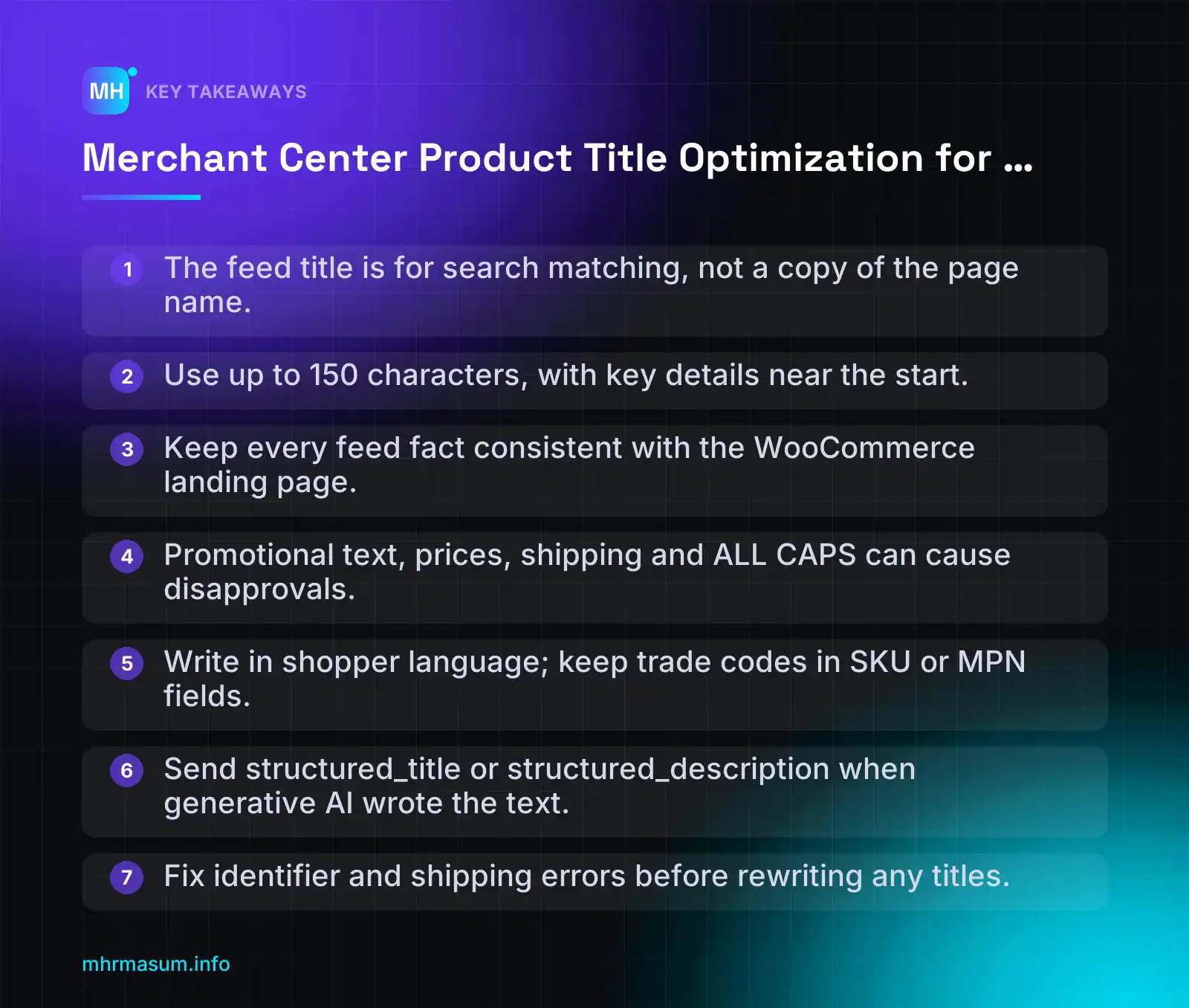
- The feed title is for search matching, not a copy of the page name.
- Use up to 150 characters, with key details near the start.
- Keep every feed fact consistent with the WooCommerce landing page.
- Promotional text, prices, shipping and ALL CAPS can cause disapprovals.
- Write in shopper language; keep trade codes in SKU or MPN fields.
- Send structured_title or structured_description when generative AI wrote the text.
- Fix identifier and shipping errors before rewriting any titles.
What Merchant Center reads from your feed text, and why the title matters most
Your product feed carries a lot of data: price, availability, identifiers, images, shipping. Only a few attributes are written text that you control word by word.
Those text attributes decide which searches your products can match and how they are described to shoppers. Of all of them, the title does the most work.
The four text attributes this guide covers
| Attribute | What it is | Limit |
|---|---|---|
title (or structured_title) |
The product’s name as shown in Shopping results and ads. It is written for search matching. | 1–150 characters |
description (or structured_description) |
An accurate description of the product only. It must match your landing page. | Up to 5,000 characters |
product_type |
Your own category path, separated with >. It should match your store’s navigation. |
0–750 characters |
product_highlight |
Short bullet points that cover selling benefits. You can send several. | 1–150 characters per highlight |
You send either title or structured_title, not both. Google says to use structured_title when the title was written with generative AI. If you break the title rules, the product can be disapproved (Google Merchant Center Help: Title).
The same choice applies to descriptions: use structured_description for AI-written text (Google Merchant Center Help: Description).
Why the title carries the most weight
Google describes the title as what it uses to match your product to a shopper’s search. That is why its best practice is to use all 150 characters, not a short brand-style name.
Google also says that if your title already fits a query best, it leaves the title unchanged. The opposite also applies: when your title fits less well, Google can rewrite it.
A vague title therefore causes two problems:
- It matches fewer relevant searches, because important words such as size, material or compatibility are missing.
- It hands control of your listing’s wording to Google’s systems instead of keeping it with you.
“The feed title is just the WooCommerce product name.”
That is the default in many feed plugins, but it is a different job. The product name works for the page: it sits in your H1, breadcrumbs and category grids, where a short name reads well. The feed title is written for search matching: brand, product type and the attributes shoppers filter by.
The two should still be consistent. The feed title should expand the page name with true details from the page and never contradict it.
WooCommerce product name:  Harbour Linen Shirt
Feed title:                Northway Harbour Men's Linen Shirt – Long Sleeve, Relaxed Fit, Sky Blue, Size M
What this guide leaves to other articles
This guide covers text only. Other parts of a healthy feed have their own guides:
- GTIN, MPN and brand: see WooCommerce GTIN, MPN & Brand: Product Identifier Guide.
- Shipping and returns: see Merchant Center Shipping and Returns: WooCommerce Data Guide.
- Diagnostics and disapprovals: see WooCommerce Merchant Center Diagnostics: Fix Disapprovals.
- Variants and
item_group_id: this is a separate topic. Here we only cover how variant details such as colour and size appear in titles.
If the identifiers or shipping data in your feed are broken, fix those first. A well-written title cannot help a product that is disapproved.
Why shopper language and feed-to-page consistency matter for AI shopping
Shoppers now find products through classic Shopping results, AI Mode and chat assistants. These surfaces reward the same two things: product text in the words shoppers actually use, and product facts that agree everywhere they appear.
How Google Shopping, AI Mode and ChatGPT shopping draw on the same data
On Google’s side, this is documented. Google says product_highlight helps shoppers find products on AI surfaces such as AI Mode, as well as in traditional search (Google Merchant Center Help: Product highlight). Your feed text feeds both.
For other assistants, the evidence is less direct. Peec AI’s own research suggests that ChatGPT shopping results can largely be explained by roughly the top 40 organic Google Shopping products, which are then re-ranked (Peec AI). Treat this as one company’s third-party research. OpenAI and Google have not confirmed it. Still, it suggests that strong Shopping visibility may carry over to other assistants.
An industry view from a Search Engine Journal webinar with seoClarity gives four practical moves (SEJ recap):
- Make product pages retrievable: crawlable, indexable and fast.
- Use shopper language in titles and product text.
- Connect feeds with pages so both say the same thing.
- Test the results and refine.
seoClarity claims that up to 80% of a catalogue can be invisible to conversational search and calls it a language problem. That is a vendor figure, not a measured benchmark. The point behind it is still worth checking in your own catalogue.
Why the feed must match the page
Google’s rule is direct: the description must describe the product accurately and match your landing page (Google Merchant Center Help: Description).
Mismatches usually come from editing one place and forgetting the other. Common examples:
- The feed says “100% cotton”, but the page says “cotton blend”.
- The feed says “fits iPhone 15”, but the page lists only iPhone 14.
- The title says “King size”, but the variant on the page is Double.
Conflicting facts confuse Google’s systems about what the product is. They also break trust when a shopper clicks and sees something different. Edit the WooCommerce product first, then let the feed pull from it, rather than patching feed text by hand.
Shopper words vs catalogue words
Supplier sheets and internal naming rarely match how people search. Rewrite the words you use for searching in the shopper’s terms, and keep trade codes in the MPN or SKU fields.
| Internal or trade term | Shopper term |
|---|---|
| SKU-44 LED batten 1200 | 4ft LED tube light |
| Polycotton duvet | Easy-care double duvet cover |
| Ergo task chair Mk2 | Ergonomic office chair with lumbar support |
| PU tote, tan | Faux leather tote bag, tan |
| Hand tool kit 120pc | 120-piece home tool set |
To find the right words, use language from Search Console queries on your product pages, customer reviews and support emails. Also adjust for regional terms, such as “duvet” in the UK, “doona” in Australia and “comforter” in the USA.
For measurement, note that Search Console does not report AI Mode or AI shopping queries separately. On 2 November 2026, Google indicated that AI click or query data is not coming soon (Search Engine Journal). To see visits from assistants, track AI referral traffic in GA4.
Character limits and hard rules at a glance
Before you rewrite a single title, know which rules are hard limits and which are just good practice. Breaking a hard rule can get a product disapproved. Ignoring a best practice only costs you visibility.
The table below summarises Google’s documented limits for the four text attributes in this guide. It also gives a practical target for each.
Limits table
| Attribute | Required? | Limit | What Google prohibits | Practical target |
|---|---|---|---|---|
title or structured_title |
Required (send one of the two) | 1–150 characters (Google Merchant Center Help) | Promotional text, all capitals, gimmicky characters. Check the current list on the title help page. | Use as much of the 150 characters as you can fill with accurate detail. Put the most distinguishing words in roughly the first 70 characters. That figure is an industry observation, not a Google rule. |
description or structured_description |
Required (send one of the two) | Up to 5,000 characters (Google Merchant Center Help) | Price, sale price, sale dates, shipping, delivery dates, other time-related details, company name, keyword lists, all capitals, gimmicky foreign characters, promotional text | Several short, factual paragraphs that match the landing page. Lead with what the product is and who it suits. |
product_type |
Optional | 0–750 characters (Google Merchant Center Help) | Not a free-text keyword field. Use your own category path, separated with >. |
Mirror your store’s navigation, 3–5 levels deep |
product_highlight |
Optional | 1–150 characters per highlight (Google Merchant Center Help) | Repeating anything already in the title, description, question_and_answer or product_detail |
Send at least 2. Google’s Manufacturer Center help recommends 4–6 (Manufacturer Center Help). Check the current maximum on the Merchant Center highlight page. |
“Only about 70 characters show anyway, so a short title is safer.”
This mixes up display with matching. Several feed guides say titles are commonly truncated around 70 characters. Check your own listings to confirm.
Google’s own best practice is to use all 150 characters, because the title is used to match your product to a shopper’s search. Google also says it leaves your title unchanged if it already fits the query best. In other words, a weak title is more likely to be rewritten. Write long, but front-load.
What gets a product disapproved vs what just performs badly
Sort problems into two buckets. A disapproval blocks the product from showing. A performance problem lets it show, but for fewer and less relevant searches.
Likely to cause disapproval or warnings (check the Diagnostics page in Merchant Center):
- A missing title, or a title over 150 characters
- A missing description, or one over 5,000 characters
- Promotional text such as “SALE”, “Free shipping”, “20% off” or “Best price”
- Price, shipping cost, sale dates or delivery dates written into the text
- Text in ALL CAPS, or gimmicky characters such as ★, ✔ or ➤ used for decoration
- A description that doesn’t match what the landing page says
If you already have flagged items, work through them using our WooCommerce Merchant Center diagnostics guide.
Allowed, but hurts performance:
- Titles that are only the brand and a model number
- Titles stuffed with keyword variations (“dress dresses women dress maxi”)
- Your shop name in the title of every product
- Colour or size missing from variant titles, so every variant looks identical
- A
product_typethat doesn’t follow your store’s real categories - Highlights that only repeat the title
Shipping details belong in shipping settings, not in the description. Our Merchant Center shipping and returns guide shows where that data should go.
Title vs structured_title, description vs structured_description
Google offers a second version of each text attribute for content written with generative AI.
- Send
titlewhen a person wrote the text, or used a template built from your product data. - Send
structured_titlewhen generative AI wrote the text. Google asks you to use this version for AI-written titles (Google Merchant Center Help). - The same rule applies to
descriptionandstructured_description. - Send one or the other for each product, not both.
Each structured attribute has two parts:
- a digital source type, which says how the text was made
- the content, which is the text itself
The limits don’t change: 150 characters for the title and 5,000 for the description.
If you use the Merchant API, the ProductAttributes reference shows structuredDescription with digitalSourceType and content fields (Merchant API reference). Here is the general shape:
"structuredDescription": {
  "digitalSourceType": "TRAINED_ALGORITHMIC_MEDIA",
  "content": "Lightweight waterproof hiking jacket with taped seams and an adjustable hood..."
}
Confirm the current enum values in the reference before you deploy, and check how your WooCommerce feed plugin exposes these fields. Many plugins only map the plain title and description, so you may need a supplemental data source.
Highlight formatting rules
product_highlight is a repeated attribute, which means one product carries several values. That affects how you format it:
- In XML or the API, send each highlight as its own value.
- In text feeds (TSV or Google Sheets), values are separated with commas. Any single highlight that contains a comma or colon must be wrapped in straight double quotes (“), not curly quotes.
- Each highlight must be 1–150 characters.
- Keep highlights to selling benefits. Technical, checkable specs belong in
product_detail. - Don’t repeat anything that already appears in the title, description,
question_and_answerorproduct_detail.
product_highlight
Keeps drinks cold for up to 24 hours,"Leak-proof lid: safe to carry upright or sideways in a bag","Fits most car cup holders, including smaller older models"
Curly quotes often get pasted in from Word or Google Docs. They are a common reason highlights break into the wrong pieces, so check this first.
Title formulas by product category
A title formula is a fixed order of attributes that you fill from product data. It keeps thousands of titles consistent. It also makes them easy to generate in a feed plugin or a supplemental feed.
Two principles apply to every formula below.
Front-load the distinguishing words. The end of a title may be cut off, especially on mobile. Put the words that separate this product from similar ones near the start: brand (if known), product type, and the key attribute.
Lead with brand only when the brand helps. If shoppers search for the brand by name (Nike, Samsung, Dyson), start with it. If you sell a private label nobody searches for yet, start with the product type and move the brand later in the title. “Linen Bedsheet Set…” matches more searches than “Rashid Home Linen Bedsheet Set…” when nobody knows “Rashid Home”.
Every attribute you use in a title should also be sent in its own feed attribute (brand, color, size, material, gtin, mpn). If your identifiers aren’t clean yet, start with our WooCommerce GTIN, MPN and brand guide.
Apparel and footwear
Shoppers filter clothing by gender, fit, colour and size. Variant titles must include colour and size, or every variant looks like a duplicate.
Formula:
Brand + Gender + Product type + Key attribute (material/fit) + Colour + Size

Example (UK feed):
Adidas Women's Running Trainers Lightweight Mesh Upper Cushioned Sole Black/White Size 6 UK
For private-label clothing, swap the order so the product type comes first:
Women's Linen Wide-Leg Trousers Relaxed Fit High Waist Olive Green Size 12 – Dhaka LoomElectronics and accessories
Electronics shoppers search for model numbers and specs. The model and the key capacity or size must appear early.
Formula:
Brand + Product line + Model + Product type + Key spec (capacity/size) + Colour

Example:
Samsung Galaxy Tab S9 FE 10.9" Android Tablet 128GB Wi-Fi Grey
For accessories, add the device type and compatibility near the end. Check the trademark rules for your market and use “for” or “compatible with” honestly.
Home, furniture and lighting
Shoppers check whether a piece will fit and match their room. Dimensions, material and finish do more work here than the brand.
Formula:
Brand + Product type + Material + Style/key feature + Dimensions + Colour/finish

Example:
Solid Oak Dining Table Extendable 6–8 Seater 160–200 cm Natural Oil Finish – Northwood
Lighting example:
Philips Hue White Ambiance LED Smart Bulb E27 Dimmable 800 Lumens 2-PackHealth, beauty and personal care
Size, shade, skin type and SPF are what separate one product from the next. Never add health or medical claims to a title that the product page and packaging don’t support.
Formula:
Brand + Product line + Product type + Key attribute (skin type/shade/SPF/scent) + Size

Example:
La Roche-Posay Anthelios UVMune 400 Invisible Fluid Sunscreen SPF50+ Sensitive Skin 50ml
Food, drink and consumables
Pack size and count matter, because shoppers compare value. Only include claims such as “organic” or “gluten-free” if they are true and appear on the label.
Formula:
Brand + Product + Flavour/variety + Key attribute (organic/gluten-free) + Weight/volume + Pack count

Example:
Taylors of Harrogate Yorkshire Tea Decaf Tea Bags 240 Bags (4 x 60)
Private label example:
Sundarban Raw Honey Unfiltered Single-Origin 500g Glass Jar – Madhu FarmSpare parts and compatibility products
People who buy parts search with an exact part number or a device model. Put the part number and the compatible models in the title, and keep them identical to the product page.
Formula:
Brand + Part type + Part number + "for" / "compatible with" + Device brand + Model(s)

Example:
Genuine Bosch Dishwasher Drain Pump 00620774 for Bosch SMS40, SMS50, SMS65 Series
If the list of compatible models is long, put the best-selling models in the title. Send the full list in the description and on the page.
Bangladesh and multi-market stores
One product can need different words in different markets. Use the words shoppers in that market actually type, not a single global version.
| UK / Australia | USA |
|---|---|
| colour | color |
| trainers | sneakers |
| nappies | diapers |
| jumper | sweater |
| trousers | pants |
| torch | flashlight |
Units and sizes change by market too: cm vs inches, UK vs US shoe sizes, 240V plugs vs 120V.
Practical rules for multi-market stores:
- Use a separate feed or data source for each country and language where the wording differs. Don’t force US spelling into a UK feed, or the reverse.
- Keep the landing page wording consistent with each feed. If one page serves several markets, choose neutral wording or localise the page as well.
- For Bangladeshi exporters, test both the local term and the term buyers use abroad: “saree” vs “sari”, “panjabi” vs “kurta”. Use whichever your target market searches for, and put the other one in the description.
- Before you build a Bangladesh-targeted feed, check Merchant Center’s current list of supported countries and languages for the programme you want.
Same product, two feeds:

UK/AU: Women's Handwoven Jamdani Saree Cotton Silk Blend Teal with Gold Border 5.5 m
US:    Women's Handwoven Jamdani Sari Cotton Silk Blend Teal Color with Gold Border 6 yd
If you sell across several countries and aren’t sure where your feed text is holding products back, a free SEO check is a quick way to find the biggest gaps first.
Before and after examples
The rules and formulas are easier to apply once you see them on real-looking products. All brands below are fictional, and every product detail is invented for illustration only.
Character counts include spaces. Check them in your own spreadsheet with a formula such as =LEN(A2) before you upload.
Title rewrites
Each “before” title has a typical problem: too short, keyword-stuffed, promotional, or missing the attributes shoppers filter on. Each “after” title puts the product’s identity first and adds verified details.
| Category | Before (chars) | After (chars) | Why it changed |
|---|---|---|---|
| Apparel | Women’s Dress – SALE!! (22) | Fernbrook Women’s Linen Maxi Dress, Sleeveless, Sage Green, Size 12 (67) | Removed promotional text. Added brand, material, style, colour and size, which shoppers use to filter. |
| Electronics | Wireless Earbuds Best Bluetooth Earbuds Earphones Headphones (60) | Kestrelo Pulse 2 Wireless Earbuds, Bluetooth 5.3, Active Noise Cancelling, 30-Hour Battery, Black (97) | Replaced synonym stuffing with brand, model and the specs buyers compare. |
| Lighting | Outdoor Light (13) | Harrowgate Outdoor Wall Light, IP44 Weatherproof, Black Aluminium, E27 Fitting, Up and Down Light (97) | Added the product type, rating, material, bulb fitting and light direction. |
| Beauty | AMAZING Face Serum ★ Free Shipping (34) | Solenne Vitamin C Face Serum 30ml, 15% Ascorbic Acid, Fragrance-Free, for Dull and Uneven Skin (94) | Removed capitals, the symbol and shipping text. Added size, key ingredient and skin concern. |
| Cycling parts | Disc Pads (9) | Torvane TP-22 Sintered Disc Brake Pads for Hydraulic Road Bike Brakes, 1 Pair (77) | Added brand, model number, compound, compatibility and pack quantity. |
| Furniture | Oslo (4) | Brindlewood Oslo 3-Seater Sofa, Oak Legs, Washable Boucle Fabric, Oatmeal, W210 x D90 cm (88) | An internal model name means nothing to shoppers. Added product type, size, materials, colour and dimensions. |
| Grocery | Organic Coffee Beans 1kg Organic Coffee (39) | Highmoor Organic Whole Coffee Beans 1kg, Medium Roast, Single-Origin Colombia, Chocolate Notes (94) | Removed the repeated words. Added roast, origin and flavour. Only use “Organic” if the product is certified. |
Notice that none of the rewrites reach 150 characters. Google’s best practice is to use the space available (Google Merchant Center Help). However, accurate detail beats padding. Add attributes only if they are true and useful.
Titles are commonly truncated around 70 characters in many placements. This is an industry observation, not an official Google number, so check your own listings. Either way, put brand, product type and the key differentiator first.
Description rewrites
Here is a weak description for the fictional outdoor wall light. It breaks several of Google’s description rules.
BEST OUTDOOR LIGHT EVER!!! Shop now at Brightway Lighting.
Free delivery on orders over £50. Sale ends Sunday!
Great quality light for your home.
outdoor light, garden light, wall lamp, exterior light, porch light
The problems:
- All capitals and promotional text, which the product data spec tells you to avoid (Product data specification).
- It mentions the store name, a delivery offer and a sale date. Google says to leave these out of descriptions (Google Merchant Center Help).
- It ends with a keyword list instead of describing the product.
- There are no specs, so a shopper or an AI system cannot tell if it fits their wall, bulb or weather.
The rewritten version follows this order: what it is, who it is for, then material, dimensions, use cases, compatibility and care.
The Harrowgate outdoor wall light is an up-and-down wall light for
front doors, porches, patios and garden walls. It suits homeowners
who want soft, indirect light rather than a bright floodlight.

The body is powder-coated aluminium in matt black with a frosted
glass diffuser. It measures 18 cm high, 9 cm wide and projects
12 cm from the wall.

It is rated IP44, which means it is protected against splashing
water from any direction. It takes two E27 bulbs up to 10W LED
each (bulbs not included) and works with most standard dimmable
LED bulbs on a compatible dimmer switch.

Installation should be done by a qualified electrician. To clean,
switch off the power and wipe with a soft, damp cloth. Do not use
abrasive cleaners on the powder coating.
There is no price, no shipping, no store name and no keyword list. Every sentence answers a question a buyer might ask before purchasing. The same text should appear on the product page.
Highlight rewrites
Weak highlights usually repeat the title, list search terms or make vague claims.
| Weak highlight | Problem |
|---|---|
| Harrowgate Outdoor Wall Light IP44 Black | Copies the title word for word. |
| garden light, patio light, porch light | A keyword list, not a benefit. |
| Best quality on the market | Unverifiable claim. |
| Free delivery this week | Promotional and time-limited. |
Good highlights are benefit-led, factual and easy to scan:
- Casts light both up and down for a soft wash across doorways and house numbers
- Protected against splashing water, so it suits exposed walls as well as covered porches
- Takes two standard bulbs, so you can choose your own colour temperature
- Slim 12 cm projection keeps it clear of doors and gates that open outwards
- Powder-coated finish resists fading and is easy to wipe clean
Each highlight adds a reason to buy that the title doesn’t already state. The highlights also stay consistent with the facts in the description.
Writing descriptions, product_type and product_highlight that do different jobs
Many WooCommerce feeds send the same text in three or four attributes. That wastes space and adds nothing. Each text attribute has a distinct job, and your feed works harder when each one does only that job.
Use this decision rule when you decide where a piece of information belongs:
| Information | Where it goes | Example |
|---|---|---|
| What the product is (identity) | title |
Brand, product type, model, key attribute |
| Full facts and context | description |
Who it’s for, materials, dimensions, use cases, care |
| Where it sits in your store | product_type |
Home > Lighting > Wall Lights > Outdoor Wall Lights |
| Why someone should buy it | product_highlight |
Short benefit bullets |
| Checkable technical specs | product_detail |
IP rating, bulb fitting, wattage, weight |
A useful test: if you can’t decide where a sentence goes, ask whether it describes what it is, why it matters or a measurable fact. The answer tells you which attribute to use.
Description: the full factual story
The description can be up to 5,000 characters. If the text was written with generative AI, Google asks you to use structured_description instead (Google Merchant Center Help).
Google’s core rule is simple: describe the product accurately and match the description on your landing page. Leave out price, sale price, sale dates, shipping, delivery dates, other time-related details and your company name. Don’t list keywords or search terms.
A practical structure for most products:
- Opening sentence: what it is and who it is for.
- Materials and construction.
- Dimensions, weight, capacity or size guidance.
- Use cases: where and how people use it.
- Compatibility: what it works with and what it doesn’t.
- Care, maintenance or safety notes.
Put the most important facts in the first two or three sentences. Shoppers skim, and placements that show a description may cut it short.
product_type: your store’s category tree in shopper words
product_type is optional and allows 0 to 750 characters. It holds your own category path, separated by >. Google says it is used to structure bidding and reporting in Shopping campaigns and should match your store’s navigation (Google Merchant Center Help).
It is not the same as google_product_category, which uses Google’s fixed taxonomy. You can send both.
Some industry guides also describe product_type as a relevance signal. Google officially documents only its campaign and reporting role, so treat any ranking benefit as unconfirmed.
Most feed plugins can pull the WooCommerce category path directly. The problem is that store categories are often vague or internal. Rename them in WooCommerce first so the feed and the site navigation stay in sync.
| Vague WooCommerce path | Shopper-language path |
|---|---|
| Home > Lighting > Range B > Exterior | Home > Lighting > Wall Lights > Outdoor Wall Lights |
| Shop > New In > Collection 7 | Women > Dresses > Maxi Dresses > Linen Maxi Dresses |
| Parts > Misc > Pads | Cycling > Brakes > Disc Brake Pads > Road Bike Disc Brake Pads |
Why this helps your campaigns:
- You can build Shopping or Performance Max listing groups by real product groups, such as “Outdoor Wall Lights”, instead of “Range B”.
- Reports become readable. You can see which category drives sales without needing a lookup sheet.
- You can bid differently on high-margin and low-margin categories.
Avoid seasonal paths like “Shop > Black Friday”. They break reporting when the season ends. If you run seasonal sale pages, keep them separate from your category tree, as explained in my guide to evergreen Black Friday pages for WooCommerce. If renaming categories changes your filter or category URLs, check the impact on faceted navigation and category URLs first.
product_highlight: 4–6 benefit bullets
Highlights are short bullet points. Google says they help shoppers find your products on AI surfaces such as AI Mode, as well as in traditional search (Google Merchant Center Help).
The rules to follow:
- Each highlight can be 1 to 150 characters.
- Send at least 2. Google’s Manufacturer Center help recommends 4 to 6 (Manufacturer Center Help).
- Some third-party guides say the Merchant Center maximum is 10. Check the current maximum on the official highlight help page before you build a template around it.
- Focus on selling benefits. Don’t repeat anything already in the title, description,
question_and_answerorproduct_detail.
Aim for 4 to 6 highlights per product. Start each one with the benefit, then add the fact that supports it.
Where product_detail fits
product_detail holds technical, checkable data, such as specs a shopper would compare in a table. Google separates it from highlights: highlights sell and details verify.
Each detail has a section name, an attribute name and a value. Good candidates include IP rating, bulb fitting, maximum wattage, weight, battery capacity and compound type.
Identifiers such as GTIN, MPN and brand have their own attributes. Don’t put them in product_detail. My WooCommerce GTIN, MPN and brand guide covers those.
XML feed example
Here is how the four attributes look together for one item in an XML feed. Note the repeated g:product_highlight and g:product_detail elements.
<item>
<g:id>HG-OWL-BLK-01</g:id>
<g:title>Harrowgate Outdoor Wall Light, IP44 Weatherproof, Black Aluminium, E27 Fitting, Up and Down Light</g:title>
<g:description>The Harrowgate outdoor wall light is an up-and-down wall light for front doors, porches, patios and garden walls...</g:description>
<g:product_type>Home > Lighting > Wall Lights > Outdoor Wall Lights</g:product_type>
<g:product_highlight>Casts light both up and down for a soft wash across doorways and house numbers</g:product_highlight>
<g:product_highlight>Takes two standard bulbs, so you can choose your own colour temperature</g:product_highlight>
<g:product_highlight>Slim 12 cm projection keeps it clear of doors and gates that open outwards</g:product_highlight>
<g:product_highlight>Powder-coated finish resists f ading and corrosion in coastal and wet weather</g:product_highlight>
<g:product_highlight>Fixings and a mounting template are in the box for a quicker install</g:product_highlight>
<g:product_detail>
<g:section_name>Electrical</g:section_name>
<g:attribute_name>Bulb fitting</g:attribute_name>
<g:attribute_value>E27</g:attribute_value>
</g:product_detail>
<g:product_detail>
<g:section_name>Electrical</g:section_name>
<g:attribute_name>Maximum wattage per bulb</g:attribute_name>
<g:attribute_value>40 W</g:attribute_value>
</g:product_detail>
<g:product_detail>
<g:section_name>Build</g:section_name>
<g:attribute_name>IP rating</g:attribute_name>
<g:attribute_value>IP44</g:attribute_value>
</g:product_detail>
<g:product_detail>
<g:section_name>Build</g:section_name>
<g:attribute_name>Projection</g:attribute_name>
<g:attribute_value>12 cm</g:attribute_value>
</g:product_detail>
</item>The product, specs and wording above are an illustrative example, not a real listing. Only put specs in your feed that you can confirm from the manufacturer or your own measurements.
Spreadsheet and supplemental feed format
If you manage data in a spreadsheet or Google Sheet, product_detail is usually written as section, attribute and value separated by colons.
id              | product_detail
HG-OWL-BLK-01   | Build:IP rating:IP44
HG-OWL-BLK-01   | Electrical:Bulb fitting:E27
How you submit several highlights or several details in one row differs between file types. Check the text and spreadsheet formatting notes in the Merchant Center product data specification before you upload (Google Merchant Center Help).
How to add these attributes in WooCommerce
WooCommerce has no built-in fields for highlights or product details. You need somewhere to store the data, and a way to map it into your feed.
There are three practical routes. Pick the one that matches how many products you have and who maintains them.
| Route | Best for | Trade-off |
|---|---|---|
| Custom fields (product meta) mapped by a feed plugin | Stores where the team edits products inside WordPress | Needs a feed plugin that lets you map custom fields to any Merchant Center attribute |
| Supplemental feed from a Google Sheet | Small catalogues, or a quick test on best sellers | Data lives outside WooCommerce, so it can drift out of date when products change |
| Product attributes in WooCommerce | Specs you also want on the product page, such as IP rating or fitting | Attributes can clutter filters and the “Additional information” tab if you add too many |
Option 1: Custom fields and a feed plugin
- Create custom fields on the product edit screen, for example with Advanced Custom Fields or your theme’s field tool. Name them clearly, such as
feed_highlight_1tofeed_highlight_6. - For details, use one field per spec, such as
spec_ip_ratingandspec_bulb_fitting. - In your feed plugin, map each highlight field to
product_highlightand each spec field toproduct_detailwith its section and attribute name. - Regenerate the feed and open the XML file in your browser to confirm the elements are present and repeated correctly.
Not every feed plugin supports repeated or nested attributes such as product_detail. Check your plugin’s documentation, or test with one product, before you fill in hundreds of fields.
If you use the official Google for WooCommerce extension, check its current attribute mapping options on woocommerce.com. Don’t assume it sends every optional attribute.
Option 2: A supplemental feed from Google Sheets
A supplemental data source adds or overrides attributes for products already in your main feed. It matches rows by id.
- Export your product IDs exactly as they appear in Merchant Center. A WooCommerce ID that doesn’t match will be ignored.
- Build a sheet with an
idcolumn plusproduct_highlightandproduct_detailcolumns. - In Merchant Center, add it as a supplemental data source linked to your main source. Menu names change between Merchant Center versions, so look under the data sources section of the Products area.
- Run a fetch, then open a few products to confirm the new attributes appear.
This is the fastest way to test the impact on your top 20 to 50 products before you change WooCommerce itself.
Why this data matters for AI shopping results
Google’s shopping surfaces, including AI Overviews and AI Mode, draw on structured product data. Google has not published exactly which attributes each AI feature uses, or how heavily.
“If I fill in product highlights, my products will show up in AI Mode.”
No attribute guarantees a placement. What highlights and details do is give Google clean, specific facts it can match to detailed shopper questions, such as “outdoor wall light that won’t hit the door when it opens”.
That is the same reason they help ordinary Shopping ads and free listings. Treat them as better product data, not
Keep your feed and your product page consistent. If the feed says IP44 and the page says IP65, you create doubt and risk a mismatch issue. My identifiers guide explains why consistency across sources matters.
How to check the attributes in Merchant Center
After the next fetch, confirm Google has actually received and accepted the data.
- Open a product in Merchant Center and view its attribute list. Look for each highlight and each detail.
- Check the product’s issues. Look for warnings about invalid or too-long values on these attributes.
- Use the diagnostics or “needs attention” views to spot attribute problems across the whole catalogue, not just one item.
- Compare performance for products before and after the change in the Merchant Center performance reports. Give it several weeks, and compare similar products, because season and stock also move the numbers.
Common mistakes to avoid
| Mistake | Why it’s a problem | Fix |
|---|---|---|
| Copying the title into highlights | Adds nothing new for the shopper or for Google | Use highlights for benefits that the title has no space for |
| Promotional text such as “Best price” or “Free shipping” | Highlights describe the product, not the offer | Use the shipping and promotion attributes instead |
| Putting GTIN or brand in product_detail | Identifiers have their own attributes | Use gtin, mpn and brand |
| Inconsistent units, such as “12cm”, “120 mm” and “0.12m” | Makes specs hard to compare across products | Pick one unit style per attribute and stick to it |
| Same highlights on every variant | Misses variant-specific facts, such as colour or finish | Write shared highlights once, then adjust per variant where the fact changes |
| Unverified claims such as “waterproof” | Misleading if the IP rating only covers splashes | State the rating and what it means in plain words |
Quick checklist before you submit
- Title starts with brand or product name and includes the main buying attributes.
- Description explains use, fit and who it’s for, without promotional text.
- product_type reflects your own category path.
- 4 to 6 highlights, each a distinct benefit, within the current character limit.
- product_detail holds checkable specs, with consistent section names and units.
- No identifiers, prices or offers inside highlights or details.
- Feed values match the product page.
- Tested on a few products before a full rollout.
Where to start this week
Don’t try to rewrite the whole catalogue at once. Start with your 20 best-selling or highest-margin products.
Fix their titles and descriptions, add highlights and details through a supplemental sheet, and confirm Merchant Center accepts them. Once the format works, move the data into WooCommerce fields so it stays maintained.
Before you build templates, re-check the current limits and formats in the Merchant Center product data specification. Google updates these attributes from time to time, and the official page is the source to trust.
Mapping WooCommerce fields to feed attributes
Your title formulas only work if the feed plugin pulls text from the right WooCommerce field. Most title and description problems in Merchant Center are really mapping problems, not writing problems.
WooCommerce has no built-in Merchant Center feed. A plugin such as Google for WooCommerce, CTX Feed or Product Feed PRO reads your product data and turns it into feed attributes. Each one has its own mapping screen and defaults, so treat the table below as a generic map, not a description of any one plugin.
Default mapping most plugins use
Out of the box, most feed plugins map the product name to title and one of the two description fields to description. Everything else depends on how you configure the plugin.
| WooCommerce source field | Feed attribute | Recommended setting |
|---|---|---|
| Product name | title |
Use it directly if your product names already follow your category formula. Otherwise map a dedicated feed-title field (see below). |
| Long description | description |
Use only if it is clean product copy. Strip HTML and shortcodes. Exclude tab content, size charts and shipping text. |
| Short description | description (alternative) |
Often the cleaner choice because it is plain, visible and product-focused. Expand it on the page if it is too thin to be useful. |
| Product categories | product_type |
Send the full category path separated with >, matching your breadcrumbs. Pick the deepest category when a product sits in several. |
| Product categories (mapped) | google_product_category |
Map each store category to Google’s fixed taxonomy in the plugin’s category-mapping screen. This is a separate attribute from product_type. |
| Attributes (global or custom) | color, size, material, pattern, gender, age_group |
Map variation attributes to the matching feed attributes so each variant gets its own correct values. |
| Custom meta / ACF field | title override, product_highlight, brand, gtin, mpn |
Use meta fields for anything WooCommerce has no native field for. Keep highlights as separate values, not one long string. |
Identifiers deserve their own setup. If brand, gtin or mpn are missing or wrong, fix them first using the WooCommerce GTIN, MPN and brand guide, because a perfect title won’t rescue a product with bad identifiers.
Using a dedicated feed-title field without breaking consistency
You have two ways to get an optimised title into the feed. Each has a trade-off.
| Option | Pros | Cons |
|---|---|---|
| Change the WooCommerce product name | One source of truth. The H1, page title, Product schema name and feed title all match automatically. |
A 140-character name can look cluttered as an H1, in menus and in cart emails. Changing names on live pages also changes what Search sees. |
| Override in a custom feed-title field | Freedom to add attributes and a longer formula without touching the page layout. | The feed title and page can drift apart. Someone must keep both updated. |
My decision rule: use the product name when the formula reads naturally as a heading. Use an override field when it doesn’t, but build the override from the same core name, so it adds detail instead of describing a different product.
For example, a page H1 of “Fernbrook Linen Maxi Dress” can safely become a feed title of “Fernbrook Women’s Linen Maxi Dress, Sleeveless, Sage Green, Size 12”, provided sleeveless, sage green and size 12 are all visible on that landing page.
Many feed plugins can map a custom meta key straight to title without any code. Check that first. If you need a fallback rule (use the override if it exists, otherwise the product name), a small snippet works. The first two hooks below are standard WooCommerce hooks. The feed filter name is a placeholder.
<?php
// 1. Add a "Feed title" field to the product edit screen (General tab).
add_action( 'woocommerce_product_options_general_product_data', function () {
    woocommerce_wp_text_input( array(
        'id'          => '_feed_title',
        'label'       => 'Feed title (Merchant Center)',
        'description' => 'Optional. Max 150 characters. Every detail must be visible on the product page.',
        'desc_tip'    => true,
        'custom_attributes' => array( 'maxlength' => 150 ),
    ) );
} );

// 2. Save the field.
add_action( 'woocommerce_process_product_meta', function ( $post_id ) {
    if ( isset( $_POST['_feed_title'] ) ) {
        update_post_meta( $post_id, '_feed_title', sanitize_text_field( wp_unslash( $_POST['_feed_title'] ) ) );
    }
} );

// 3. Use the override in the feed, falling back to the product name.
// 'your_feed_plugin_title_filter' is a PLACEHOLDER. Replace it with the
// real filter name and arguments from your feed plugin's documentation.
add_filter( 'your_feed_plugin_title_filter', function ( $title, $product ) {
    $override = trim( (string) get_post_meta( $product->get_id(), '_feed_title', true ) );
    return $override !== '' ? $override : $title;
}, 10, 2 );
Confirm the plugin’s own filter name, argument order and whether it passes a product object or an ID before you deploy. Test on staging, and if you’re also upgrading PHP, follow the safe PHP update steps for WooCommerce first.
Long description vs short description
The long description is where problems hide. Page builders, tab plugins and themes often store layout code inside it. When the plugin reads that field, the feed can end up with:
- Leftover shortcodes such as
[vc_row]or[et_pb_section] - HTML tags, inline styles and encoded entities
- Size charts, delivery details and returns text from tabs
- Repeated boilerplate shared by every product
Google’s rule is to describe only the product and leave out shipping, delivery dates and promotional text (Google Merchant Center Help). Leaked tab content breaks that rule.
Most feed plugins have a “strip HTML” or “clean text” option. Turn it on. If you build descriptions in code, clean them like this:
<?php
function mhr_clean_feed_description( $text ) {
    $text = strip_shortcodes( $text );                 // removes registered shortcodes
    $text = preg_replace( '/\[\/?[a-z0-9_\-]+[^\]]*\]/i', '', $text ); // removes leftover builder tags
    $text = wp_strip_all_tags( $text );                // removes HTML, scripts and styles
    $text = html_entity_decode( $text, ENT_QUOTES, 'UTF-8' );
    $text = preg_replace( '/\s+/', ' ', $text );       // collapses whitespace and line breaks
    return mb_substr( trim( $text ), 0, 5000 );        // description limit is 5,000 characters
}
Note that strip_shortcodes() only removes shortcodes registered on that request. That is why the extra pattern catches builder tags from plugins that aren’t loaded during feed generation.
Plugin options to check
Open your plugin’s current mapping screens and documentation on woocommerce.com or the plugin’s own site. Interfaces change between versions, so check rather than assume. Confirm:
- Which WooCommerce field feeds
title, and whether you can map a custom meta key instead. - Whether variation titles add the variant’s colour or size, or repeat the parent name.
- Which description field is used, and whether HTML stripping is switched on.
- How
product_typeis built: full path, deepest category only, or primary category. - Whether
product_highlightcan be sent as multiple values from a repeater or meta field. - How often the feed regenerates and how Merchant Center fetches it.
With Black Friday and December peak close, make mapping changes early and then freeze them. Changing the title source mid-peak can trigger reprocessing across the whole catalogue, and you can’t control how fast Google picks it up. If you’re running sale pages, pair this with the Black Friday SEO plan for WooCommerce.
Keeping feed text and product page text consistent
Merchant Center doesn’t judge your feed in isolation. Google compares it with the landing page, and the description rules say your feed description should match the description on your landing page (Google Merchant Center Help).
“Google only reads the feed, so the page copy doesn’t matter.”
This is wrong. Google’s own description guidance asks for accurate text that matches the landing page. Industry advice points the same way: a webinar recap on AI shopping from Search Engine Journal and seoClarity lists “connect feeds with pages” as one of four core moves (Search Engine Journal). That is an industry view, not a Google rule, but it fits the official guidance. The feed and the page are two views of one product, and they need to agree.
The core rule is simple: every fact in the feed must be visible on the landing page. If you add a highlight such as “Machine washable at 30°C”, add it to the page too. If you can’t show it on the page, don’t put it in the feed.
The consistency checklist
Run this check on your top sellers first, then on a sample from each category.
| Feed attribute | Compare with | Pass condition | Common failure |
|---|---|---|---|
title |
H1 / product name | Same brand and core product name. Extra attributes in the feed title are visible on the page. | Feed says “Size 12, Sage Green”, but the page loads with no variant selected and shows a different colour. |
description |
Visible description text | Every material, dimension and spec in the feed appears on the page. | Feed text written by an agency months ago. The page was edited since. |
product_type |
Breadcrumbs | Same path, same order, same category names. | Feed uses the first category; breadcrumbs use a primary category set in an SEO plugin. |
product_highlight |
Visible bullet list | Each highlight appears on the page, ideally as a bullet near the buy button. | Highlights exist only in a meta field and never render on the page. |
Product schema name / description |
Feed title / description |
Describes the same product and variant. No contradicting facts. | Schema pulls a generic SEO meta description that mentions free shipping and a sale. |
For variable products, test the exact URL sent in the feed’s link attribute. If that URL doesn’t preselect the variant, the page may show a different colour or size from the one in the title.
Price, availability and shipping mismatches are a separate and stricter problem. If Merchant Center flags them, work through the Merchant Center diagnostics guide for WooCommerce.
Structured data alignment
Product structured data is the machine-readable layer on your page. Google can use it to show merchant listing experiences in Search, and it gives Google a clean way to confirm that the page and the feed describe the same item.
Most WooCommerce setups output Product schema through WooCommerce itself or an SEO plugin. Check that these properties match the feed for the same URL:
namematches the product name or core titledescriptiondescribes the product only, with no promotionsoffers.priceandoffers.availabilitymatch the feedgtin,mpnandbrandmatch the feed identifierscolorandsizeon variants match the feed’s variant values
Here’s a simplified example of a schema snippet that lines up with the earlier feed title. All values are fictional.
{
  "@context": "https://schema.org",
  "@type": "Product",
  "name": "Fernbrook Women's Linen Maxi Dress",
  "description": "Sleeveless maxi dress in 100% linen with a relaxed fit and side pockets.",
  "brand": { "@type": "Brand", "name": "Fernbrook" },
  "color": "Sage Green",
  "size": "12",
  "offers": {
    "@type": "Offer",
    "price": "89.00",
    "priceCurrency": "GBP",
    "availability": "https://schema.org/InStock"
  }
}
To check it:
- Rich Results Test: paste the product URL and confirm Google detects Product markup with no critical errors. Open the detected items and compare the values with the feed.
- URL Inspection in Search Console: inspect the same URL, run a live test and review the detected structured data. This shows what Googlebot sees after rendering, which matters if your schema is added by JavaScript.
- Search Console’s Shopping reports: watch the merchant listings and product snippets reports for site-wide issues after a template change.
If your WooCommerce theme, SEO plugin and feed plugin each pull text from different fields, consistency breaks without anyone noticing. If you want a second pair of eyes on that setup, start with a free SEO check.
Common mistakes and how to fix them
Most title and description problems fall into two groups. Policy and quality mistakes get products disapproved or limited. Performance mistakes keep products approved but invisible for the searches that matter.
Fix the first group before you start on the second.
Policy and quality mistakes
These come straight from Google’s attribute rules. A title that breaks the rules can lead to disapproval (Google Merchant Center Help: title). The description rules exclude promotional text, all capitals, company names, shipping details and keyword lists (Google Merchant Center Help: description).
| Mistake | Symptom | Fix |
|---|---|---|
| Promo text in titles (“Free Shipping”, “50% Off”, “Best Seller”) | Item issues in Merchant Center, or a disapproval | Remove it. Send prices through sale_price and offers through promotions |
| ALL CAPS titles or descriptions | Item warnings, and listings that look spammy | Use sentence or title case. Only acronyms such as “USB-C” or “LED” stay in capitals |
| Keyword lists (“dress, maxi dress, summer dress, beach dress”) | Quality warnings and poor matching | Write one natural description of the product and drop the list |
| Store name in the description | Against the description rules | Remove brand-of-store text. Keep the product’s own brand in brand |
product_type exported as “Uncategorized” |
Messy campaign structure and useless reports | Give every product a real WooCommerce category, or map product_type from a custom field |
| Fewer than 2 highlights, or bad quoting | Highlights missing from processed data, or split into broken pieces | Send at least 2. Wrap any value that contains a comma or colon in straight double quotes |
HTML or shortcode residue ([vc_row], , <div>) |
Junk text in the processed description | Strip shortcodes in the plugin, or map a clean custom field |
Here is what bad and good highlight quoting looks like in a text feed. Check the exact syntax for repeated values in the product_highlight help page, which also confirms the current maximum number of highlights.
Broken (the comma splits one highlight into two):
Fits 13-inch and 14-inch laptops, with a padded sleeve

Correct:
"Fits 13-inch and 14-inch laptops, with a padded sleeve"
"Water-resistant base: wipe clean after use"
Shortcode residue usually comes from page builders that store layout code in the long description. If you see it, map the WooCommerce short description or a dedicated custom field instead. There’s more on clearing item issues in WooCommerce Merchant Center Diagnostics.
Performance mistakes
These won’t trigger a warning, but they cost you matches.
- Variant facts missing from titles. If ten variants all share the title “Linen Shirt”, Google can’t tell the size, colour or material apart. Add the attributes that make each variant different, such as “Linen Shirt, Navy, Men’s L”.
- Short, vague titles. Google’s best practice is to use the available 150 characters because the title is used to match the product to searches (Google Merchant Center Help). Front-load the important words. Industry guides say titles are commonly cut off at around 70 characters, so check how your own listings display.
- Highlights that repeat the title. Google says highlights shouldn’t repeat what is already in the title, description or
product_detail(Google Merchant Center Help). Use them for benefits.
“Google shows the exact title I submit, so whatever I send is what shoppers see.”
Not always. Google says it leaves your title unchanged when it already fits the query best. Titles that fit poorly can be rewritten.
To spot a rewrite:
- Open the product in Merchant Center and note the title Google processed.
- Search for the product on the Shopping tab, using the words a shopper would use.
- Compare the two. If the words or their order differ, your title is missing something shoppers search for. Add it.
BFCM and AI-written titles
Don’t put “Black Friday”, “Cyber Monday” or discount wording into titles or descriptions. Use sale_price, sale price dates and Merchant Center promotions, then build sale landing pages on your site. Black Friday SEO for WooCommerce explains how to set up those pages.
If you generate titles in bulk with AI, submit them in structured_title, not title, as Google asks. Declare the AI source in the format shown on the title help page.
Before you upload, have a person check every title against the product page. Look for wrong sizes, invented materials and incorrect compatibility claims.
A test plan using Merchant Center and Search Console
Rewriting a whole catalogue at once tells you nothing. A small, controlled test shows whether your new text actually changed visibility before you roll it out to every product.
Pick test and control groups
- Choose 20–50 products in one category. They should have similar prices, stock levels and current traffic.
- Split them into two groups. Rewrite titles, descriptions and highlights for the test group only. Leave the control group as it is.
- Change nothing else. Hold prices, images and ad bids steady for both groups, or a change in results won’t mean anything.
- Record the change date and the old and new text in a spreadsheet.
- Wait several weeks before judging. Allow time for reprocessing and for normal weekly swings in demand.
What to measure in Merchant Center
- Processed attributes. Open each test product and confirm that Google received your new title, description and highlights as you intended.
- Item issues. Look for any new warnings after the change, especially about quoting or text quality.
- Performance. Compare clicks and impressions on free listings for the test and control groups.
Merchant Center report names and layouts change often. Confirm the current names in your account rather than relying on screenshots from older guides.
What to measure in Search Console and GA4
In Search Console, open the Performance report. Where it’s available, filter by Search appearance for merchant listings or product snippets, then filter by the test product URLs.
Also check the Merchant listings enhancement report for structured data errors on the same pages. For a Search Console-first approach to reporting, see Rank Tracking Accuracy.
Search Console won’t show AI Mode or AI shopping queries. Google indicated on 2 November 2026 that AI click and query data is not coming soon (Search Engine Journal).
In GA4, segment sessions to the test product pages by source. Include utm_source=chatgpt.com referrals where they appear. Then compare product-page conversions before and after the change. Track AI Referral Traffic in GA4 explains how to set this up.
Manual AI check
Write 10–20 fixed shopper questions, such as “waterproof hiking boots for wide feet under £150”. Ask them in AI Mode and ChatGPT once a month and log the results.
| Question | Surface | Product shown? | Facts correct? | Notes |
|---|---|---|---|---|
| Wide-fit waterproof hiking boots | AI Mode | Yes / No | Yes / No | Wrong size range quoted |
Treat this as directional only. Answers vary by location, history and timing. Use the log to spot trends and factual errors, not to prove what caused a change.
Timing around BFCM and December
- Finish your text changes before BFCM traffic begins, so Google has time to process them and you can check the processed attributes.
- Freeze bulk rewrites during peak weeks. A mass change in late November makes problems harder to diagnose and results impossible to read.
- Only make urgent fixes during the freeze, such as disapprovals, factual errors or pricing mismatches.
- Restart testing in January, once demand settles back to normal.
If you’d like help designing a test for your catalogue, book a free consultation.
Advanced tips for larger catalogues
Once a catalogue grows past a few hundred products, editing titles one by one stops working. You need ways to test changes safely, add richer data without duplication, and generate titles at scale that still read like a person wrote them.
These techniques work best after the basics are clean. If you still have disapprovals, start with the WooCommerce Merchant Center diagnostics guide.
Supplemental data sources and feed rules
Merchant Center lets you change product data without touching WooCommerce. There are two main tools:
- Supplemental data sources: a separate file or Google Sheet that holds only
idplus the attributes you want to override, such astitle. Merchant Center matches rows byidand applies them on top of your primary source. - Feed rules: rules inside Merchant Center that transform attribute values. For example, they can add the brand to the start of a title or fill a missing value. Check what the rules feature is called in your account, because the interface has changed over time.
This is useful for testing new title formulas on a subset of products before you commit to them site-wide.
- Pick one category with steady impressions, for example 30–50 products.
- Write the new titles in a Google Sheet with two columns:
idandtitle. The IDs must match the IDs your feed plugin sends exactly. - Add the sheet as a supplemental source and link it to the primary source your plugin uses. Confirm it applies to the right primary source.
- Open a few products in Merchant Center and confirm the final title shows the supplemental value.
- Note the date, then compare performance over the following weeks using the test plan in the previous section.
The trade-off is feed-to-page consistency. A supplemental title changes only the feed. Your product page H1 and on-page text stay the same.
| Approach | Strength | Risk | Use it for |
|---|---|---|---|
| Supplemental source / feed rules | Fast, reversible, no site edits | Feed and page drift apart over time | Short, time-boxed tests |
| Edit in WooCommerce | Feed and page stay aligned | Slower, touches live pages | Permanent changes that won a test |
My rule: treat supplemental titles as experiments, not as a permanent layer. When a formula wins, move it into WooCommerce and remove the override. Never use a supplemental source for descriptions that contradict the landing page. Google requires the description to match the page (Google Merchant Center Help: description).
“I’ll fix everything in the feed and leave the website alone. Google only sees the feed.”
That is wrong. Google checks the landing page as well as the feed. AI shopping surfaces also draw on page content. A feed that says one thing while the page says another is a long-term liability, not a shortcut.
Conversational attributes
Google has introduced optional conversational attributes. They help AI systems understand product nuances on surfaces such as AI Mode (Google Merchant Center Help: conversational attributes). One example is question_and_answer, which holds real questions shoppers ask and your answers.
The key rule is no duplication. Don’t repeat details you already send in description, product_highlight or product_detail. Each attribute should add something new.
- Good source material: questions customers email you, pre-sale chat logs, product reviews and returns reasons (“Does it fit a 15-inch laptop?”).
- Poor source material: rewording the description as questions, or adding keyword-led FAQs nobody actually asks.
- Where to start: your top 20 products by revenue, not the whole catalogue.
These attributes are newer than most of the feed spec. Plugin support may lag behind. Check the current list of attributes on Google’s help page and confirm your feed plugin can map them before you plan any work. If it can’t, a supplemental source is a practical way to send them.
Scaling with templates without sounding robotic
For large catalogues, build titles from WooCommerce attributes using a template per category. The common failure is empty values. A product with no colour ends up with titles like Acme Linen Shirt - - Large or a trailing comma.
The fix is simple. Collect the parts, drop the empty ones, then join what remains.
Template (apparel):
{brand} {gender} {product_name} {material} {colour} {size}

Product A (all values present):
Acme Men's Oxford Shirt Cotton Navy Size L

Product B (no colour, no gender):
Acme Oxford Shirt Cotton Size L      ← no stray gaps or separators
Here is an illustrative PHP version using standard WooCommerce product methods. How you plug it into your feed depends on your plugin. Check its documentation for supported filters or custom field options rather than assuming a hook name.
<?php
function mhr_build_feed_title( WC_Product $product ) {
    $parts = array(
        $product->get_attribute( 'pa_brand' ),   // or your brand taxonomy/meta
        $product->get_name(),
        $product->get_attribute( 'pa_material' ),
        $product->get_attribute( 'pa_colour' ),
        $product->get_attribute( 'pa_size' ),
    );

    // Trim values and remove empty ones so no separators are left hanging.
    $parts = array_filter( array_map( 'trim', $parts ), 'strlen' );

    $title = implode( ' ', array_unique( $parts ) );

    // Respect Google's 150-character limit.
    return mb_substr( $title, 0, 150 );
}
Note the array_unique. If the product name already contains the brand or colour, it is not repeated. That check is not perfect, though. Brand names inside longer strings still need a manual review.
To keep templates from reading like a spreadsheet:
- Use different templates per category. Shoppers search for laptops by specs and for dresses by style and fit. One template for everything reads badly.
- Add a free-text “differentiator” field, for example a custom field or ACF meta such as “Water-Resistant” or “Machine Washable”, and drop it in after the product type.
- Write attribute values the way shoppers do. Use “Navy”, not “NVY-02”, and “Size L”, not “L/40”.
- Spot-check 20 random outputs per template before publishing, and again after any bulk import.
- Keep identifiers clean too. Templates depend on reliable brand data, which ties into your GTIN, MPN and brand setup.
Remember that the title template should normally drive the product page name as well, not just the feed. That keeps the consistency rule intact.
Per-market feeds for AU, UK, US and BD stores
If you sell into several countries, you will usually send a feed per target country. Currency, tax and shipping are separate topics and out of scope here. For shipping, see Merchant Center shipping and returns for WooCommerce. What matters for titles is that spelling and product terminology change by market.
| Concept | UK | Australia | USA |
|---|---|---|---|
| Colour spelling | Colour | Colour | Color |
| Metal | Aluminium | Aluminium | Aluminum |
| Sports shoes | Trainers | Runners / sneakers | Sneakers |
| Knitwear | Jumper | Jumper | Sweater |
| Open sandals | Flip-flops | Thongs | Flip-flops |
For Bangladesh, shoppers often search in English with British-style spelling, mixed with local product names such as saree or panjabi. Don’t guess. Check the Search Console queries for each country with the Country filter in the Performance report, and use the words people actually type.
Watch the consistency trade-off here too. If you have one English product page serving every country, keep feed differences to spelling and terminology swaps. Don’t make different claims per market. A supplemental source per country feed handles this neatly without duplicating your catalogue.
Timing changes around BFCM and December
Large title changes on a big catalogue can cause re-review and short-term volatility. With Black Friday and the December peak close, set a freeze window. Make only essential fixes, such as disapprovals or wrong data, until trading calms down.
If a new title formula is not already tested and live, run the test in January instead. For sale-period content that doesn’t depend on feed changes, use evergreen Black Friday pages for WooCommerce.
If you want a second pair of eyes on a large feed before peak season, you can book a free consultation.
Frequently Asked Questions
How long should a Google Shopping product title be?
Merchant Center allows 1 to 150 characters, and Google's best practice is to use as much of that as accurate detail allows. Shoppers may only see the first part of a long title, so put the most distinguishing words early. Long and front-loaded beats short and vague.
Can my Merchant Center title differ from my WooCommerce product name?
Yes, and it usually should. The feed title can expand the page name with brand, product type, colour, size or material. It must never contradict what the landing page says.
Why does Google change my product titles?
Google says it leaves your title unchanged when it already fits the query best. When a title is thin or unclear, Google's systems may adjust the wording shown. Detailed, accurate titles give you more control.
Should I include colour and size in variant titles?
Yes. If every variant shares the same title, shoppers and Google cannot tell them apart. Add the variant's real colour, size or other differentiating attribute, taken from the variant data in WooCommerce.
Can I use AI to write Merchant Center product titles?
You can, but Google asks you to send AI-written text in structured_title or structured_description instead of title or description. Send one version per product, not both. Always check AI output against the product page for accuracy.
What makes a product title get disapproved?
Common causes are a missing title, going over 150 characters, promotional phrases such as SALE or free shipping, all capitals and decorative symbols. Check the Diagnostics page in Merchant Center for the exact issue. Confirm the current rules on Google's title help page.
Should I put my shop name in every product title?
Usually not. Your shop name uses characters that could describe the product, and it is rarely what shoppers search for. Include the product's brand instead, which belongs in the title and the brand attribute.
Final Thoughts
Start with the basics. Clear any disapprovals and fix broken identifiers or shipping data, because a better title cannot help a product that is not showing.
Then rewrite titles for your best sellers first. Lead with brand and product type, add the attributes shoppers filter by, and use words from Search Console queries, reviews and support emails.
Make WooCommerce your single source of truth. Edit the product there, let the feed pull from it, and check that title, description, product_type and highlights all match the landing page.
Finally, measure. Compare clicks and impressions in Merchant Center before and after each batch of changes, track AI referral traffic in GA4, and refine the titles that still underperform.
Want help applying this to your site? Run the free SEO check or book a free consultation with MD Harunur Rashid. Free SEO check · Book a free consultation