Your merchant center shipping and returns data now shapes buying decisions before a shopper ever sees your store. Google Shopping, AI Mode and AI agents read your delivery costs, dates and return terms, then compare you with competitors.
If that data is missing, vague or contradicts your checkout, the agent guesses, skips your offer, or promises something you cannot honour.
For most WooCommerce stores, the problem is not one wrong setting. The same facts are stated in five places, set up at different times by different people, and they no longer agree.
This guide shows where your policy data lives, which source Google trusts when they conflict, and how to build one fact sheet that every setting copies from.
It is written for WooCommerce store owners, marketers and in-house SEOs in Australia, the UK, the USA and Bangladesh, especially if you ship to the US.
It covers shipping costs, delivery times, pickup, returns and cancellation. It does not cover product disapprovals or setting up UCP itself.
Key Takeaways
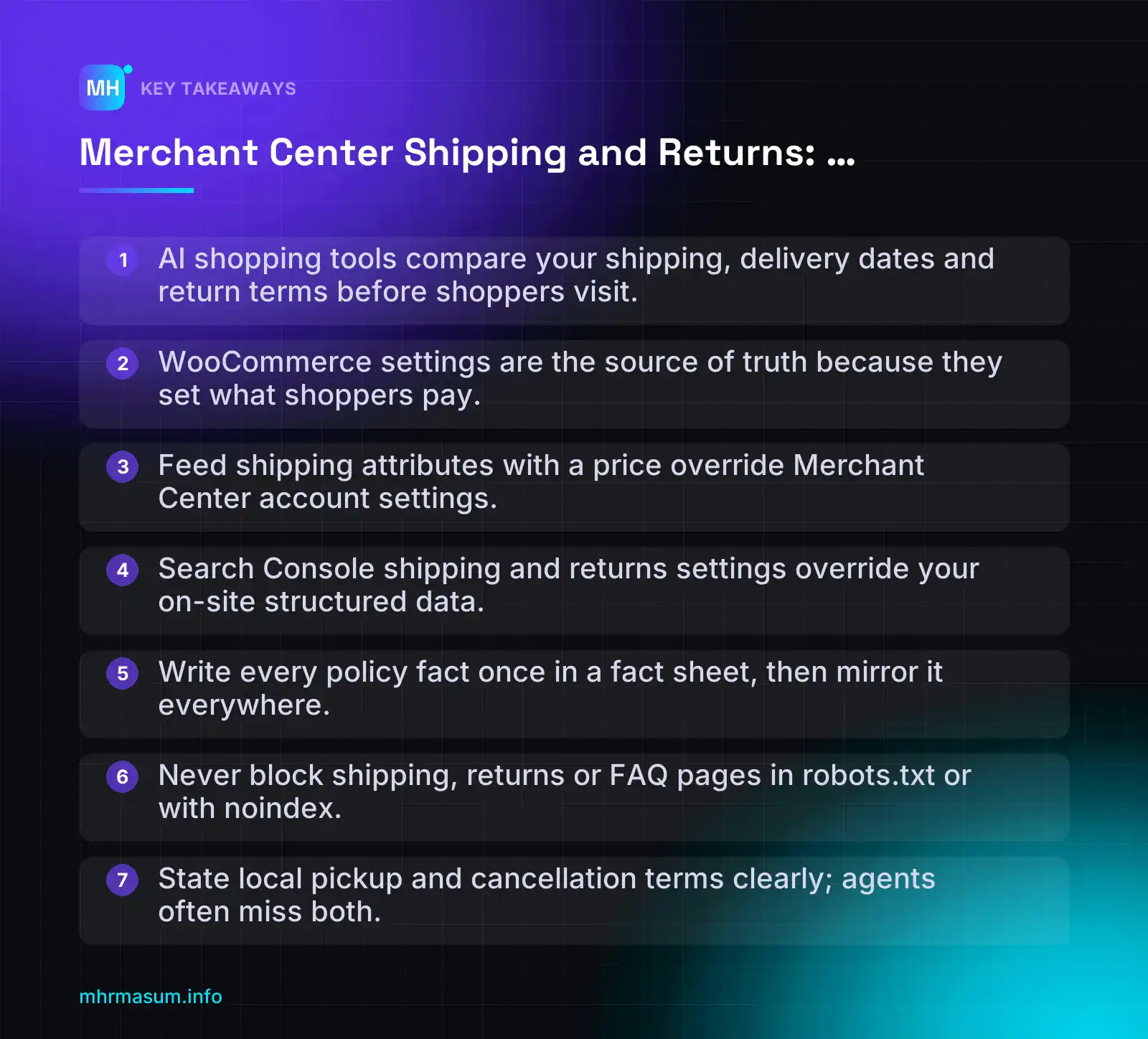
- AI shopping tools compare your shipping, delivery dates and return terms before shoppers visit.
- WooCommerce settings are the source of truth because they set what shoppers pay.
- Feed shipping attributes with a price override Merchant Center account settings.
- Search Console shipping and returns settings override your on-site structured data.
- Write every policy fact once in a fact sheet, then mirror it everywhere.
- Never block shipping, returns or FAQ pages in robots.txt or with noindex.
- State local pickup and cancellation terms clearly; agents often miss both.
Why shipping and returns data now decides AI shopping answers
Shoppers used to compare delivery costs and return windows by opening tabs. Now Google and AI agents do much of that comparison for them, before the shopper ever reaches your site.
If your shipping and returns data is missing, vague or contradictory, the agent either guesses, skips your offer, or gives the shopper an answer you cannot honour.
What Universal Cart changes for merchants
Google’s Universal Cart launched on 15 October 2026 in the US across Google Search (including AI Mode) and the Gemini app. It was not available on YouTube at launch (PPC Land).
A shopper who builds a cart has two ways to finish:
- Pay with Google Pay without leaving Google’s interface.
- Send the cart to your own site. This handoff uses the UCP Cart API, which creates a cart on your system (Search Engine Journal).
The handoff is one-way. Changes the shopper makes on your site do not sync back to Google (XenoSpectrum).
That matters because the shopper’s decision was already shaped by what Google showed them. If Google said “free delivery by Friday” and your checkout says otherwise, you either lose the sale at checkout or win it and face a complaint or chargeback later.
Universal Cart is US-only. If you are in Australia, the UK or Bangladesh and ship to the US, your US shipping and returns data is what gets compared.
When agents compare offers, they look at the same facts a careful shopper would:
- Total shipping cost to the shopper’s location
- Estimated delivery date
- Whether pickup is available
- Return window, return cost and refund method
What the 122-store test revealed
Bill Hunt tested 122 Shopify stores against nine decision checks an agent would need to answer. None of the 122 stores passed all nine (Search Engine Journal).
| Question an agent asked | Result |
|---|---|
| What is the return window? | Found for 70 of 88 stores |
| Shipping cost and arrival date to a Boston address | Never answered |
| Can I cancel my order? | Usable answer from only 2 stores; two returned their shipping FAQ instead |
| Is pickup available? | All 93 stores with a UCP fulfilment declaration listed shipping only, including stores offering Click & Collect |
The answers often existed on the policy pages. The tool missed them unless the question was phrased like a page title (Shopifreaks). A separate audit found 51 of the 122 stores blocked /policies/ in robots.txt (Ecommerce Paradise).
This data is Shopify-only. There is no equivalent published test of WooCommerce stores, so do not read these numbers as WooCommerce figures. Treat them as a warning about the failure patterns.
Here is why the warning applies even more to WooCommerce. Shopify has since moved agent facts into Admin > Agentic > Knowledge base (Search Engine Journal). WooCommerce has no built-in equivalent. Your policy pages, product feed and structured data have to carry every fact on their own.
The same failures map directly:
- Blocked policy pages: check robots.txt, noindex settings and any AI crawler rules on your shipping and returns pages. See AI crawler control for WordPress.
- Missing pickup: if you offer local pickup in WooCommerce but never state it in your feed or pages, agents will assume shipping only.
- Vague cancellation terms: UCP cannot yet cancel, change or return an order, so the shopper relies on your written policy.
Scope of this guide: it is about making your shipping and returns data accurate and consistent. It does not cover fixing product disapprovals (see WooCommerce Merchant Center diagnostics) or setting up UCP itself (see agentic commerce and UCP for WooCommerce).
The five places your policy data lives (and which one Google trusts)
A typical WooCommerce store states its shipping and returns terms in five different places. Most conflicts happen because these five were set up at different times by different people.
Before you change anything, understand what each source does and which one wins when they disagree.
WooCommerce settings
Your shipping zones, methods, rates and local pickup options live in WooCommerce. This is what the shopper actually pays at checkout, so it is the ground truth for cost.
Google does not read these settings directly. It only sees them if a plugin syncs them to Merchant Center, or if you repeat them in your feed, markup or pages. Check your feed plugin’s current documentation on woocommerce.com to confirm what it syncs and what you must set manually.
Merchant Center account settings and feed attributes
In Merchant Center, go to Products & store > Shipping and returns. You will see Shipping policies and Return policies tabs. You can add up to 20 shipping policies per country, and Google says costs “should be as close as possible to what’s on your website” (Merchant Center Help).
The feed can override these account settings. A shipping attribute with a price overrides the account-level setting for that location (Merchant Center Help).
shipping: US::Standard:9.95 USD
shipping: GB::Standard:4.50 GBP
If a product carries these values, the account-level rates for the US and UK are ignored for that product.
For returns, Google asks you to confirm the policy matches your footer, returns page and any banners (Merchant Center Help).
Search Console shipping and returns settings
Since November 2025, you can set shipping and return policies in Search Console. These settings take precedence over structured data on your site (Google Search Central blog).
This is useful for stores without a Merchant Center account. It is also a common source of silent conflict: someone sets it once, the policy changes, and the markup update has no effect.
Structured data: Organization vs Offer level
Site-wide policies go in Organization markup: hasShippingService for shipping and hasMerchantReturnPolicy for returns (Google Search Central; Google Search Central).
Product exceptions go under the Offer, using OfferShippingDetails or an offer-level return policy. Product-level details override organisation-level ones. Offer-level returns support only a subset of properties, so check the return policy documentation before relying on it.
Policy pages and FAQs
Your shipping, returns and FAQ pages are what humans read, what Google checks your settings against, and what AI agents fall back on when structured fields are missing.
“If the returns page is clear, Google and AI tools will work it out.”
The Shopify test above shows the opposite: answers on policy pages were often missed. Pages are essential, but they are the weakest machine-readable signal, not a substitute for structured settings.
Who reads what, and what overrides what
| Source | Who reads it | Precedence |
|---|---|---|
| WooCommerce settings | Shoppers at checkout; feed plugins | Not read by Google directly |
Feed shipping attribute (with price) |
Google Shopping, AI Mode, agents using Google data | Overrides Merchant Center account settings for that location |
| Merchant Center account settings | Google Shopping, AI Mode, agents using Google data | Overridden by product-level feed values |
| Search Console settings | Google Search | Overrides on-site structured data |
| Offer-level structured data | Google Search, other crawlers and agents | Overrides Organization-level markup |
| Organization-level structured data | Google Search, other crawlers and agents | Weakest structured source |
| Policy pages and FAQs | Humans, AI agents, Google reviewers | Must match everything above |
Google’s shipping policy documentation publishes the full strongest-to-weakest order, running from product-level feed data down to organisation-level markup. Check the current list there before you decide where an exception belongs (Google Search Central).
Decision rule: one source of truth, mirrored everywhere
- Pick WooCommerce as the source of truth for cost and methods, because that is what the shopper is charged.
- Write the general policy once, in a fact sheet (next section).
- Mirror it into Merchant Center account settings or Search Console, not both with different values.
- Use feed attributes and Offer-level markup only for genuine product exceptions.
- Make the policy pages say exactly the same thing in plain language.
If you are not sure where your current conflicts are, a free SEO check is a quick way to spot mismatched markup and blocked policy pages.
Build a single policy fact sheet before touching any settings
Your shipping and returns facts end up in at least five places: WooCommerce settings, Merchant Center, Search Console, structured data and your policy pages. If you edit each one from memory, they will drift apart within weeks.
Google expects these sources to agree. Its return policy help asks you to confirm that the policy matches your footer, returns page and banners (Google Merchant Center Help). AI agents that read your pages will repeat whichever version they find first.
The fix is simple. Write every fact once, in one document, and copy from it in every later step.
“Merchant Center is the only place that matters. The website can say whatever it likes.”
That is wrong. Google compares your account settings with your landing pages. AI tools such as Gemini, ChatGPT and Perplexity also read your policy pages directly. A mismatch can cost you a listing and give shoppers an answer you cannot honour.
Shipping fields
Use one row per destination, or per destination and method. Fill in real numbers rather than marketing phrases such as “fast delivery”.
| Field | What to write | Example |
|---|---|---|
| Destinations | Countries or regions you actually ship to | Australia (all states), New Zealand |
| Shipping methods | Each method a buyer can choose | Standard, Express |
| Cost rules | Flat, by weight, by order value or by shipping class | Standard A$9.95 flat; Bulky items A$29 |
| Free-shipping threshold | Amount, currency and whether it applies before or after discounts | Free Standard over A$100 after coupons |
| Handling time | Business days from order to dispatch (minimum and maximum) | 0–1 business days |
| Order cutoff time | Time and time zone after which orders count as next day | 2:00 pm AEST, Mon–Fri |
| Transit time | Business days from dispatch to delivery, per method and region | Standard 2–6 days; Express 1–3 days |
| Pickup locations | Full address of each pickup point | Unit 4, 12 Example St, Parramatta NSW |
| Pickup ready time | How soon an order is ready to collect | Same day if ordered before 12:00 pm |
Returns fields
| Field | What to decide |
|---|---|
| Return window | Number of days, and whether it starts at delivery or at purchase |
| Conditions | Unused, original packaging, tags attached and so on |
| Defective vs non-defective | Whether the rules differ for faulty items and change-of-mind returns |
| Return method | By post, in store, or both |
| Who pays return shipping | Free, customer pays, or a fixed fee deducted from the refund |
| Restocking fee | Fixed amount or percentage, or “none” |
| Refund time | Days from receiving the return to issuing the refund |
| Exceptions | Sale items, open-box, personalised or made-to-order, hygiene products |
Write the exceptions as named groups, for example final-sale or personalised. These names become your return_policy_label values in Merchant Center later.
Check consumer law in each market before you finalise these fields. Statutory rights for faulty goods in Australia, the UK and the US are not something your policy can remove.
Cancellation fields
Cancellation is the question agents struggle with most. In the Shopify test described above, only 2 of 122 stores gave a usable cancellation answer (Search Engine Journal). Record these three facts:
- Can an order be cancelled before dispatch? Yes, no, or only within a set number of hours.
- How to cancel: account page, email address or phone number, plus the order number the customer needs to give.
- How fast: your response time and refund time for cancelled orders.
The Merchant Center return policy flow covers returns, not cancellations. Check the current Merchant Center Help for a cancellation setting before you rely on this. Either way, put the cancellation answer in plain language on your policy page, under a heading that actually says “Cancelling an order”.
Keep the sheet as the source of truth
- Store it as a shared spreadsheet, with a “last changed” date on each row.
- Name one owner who approves changes.
- When a fact changes, update the sheet first, then work through every source in the same order as this guide.
Every step that follows copies from this sheet. That is what stops the five sources disagreeing.
Step 1: Set up WooCommerce shipping so it matches reality
WooCommerce is where the buyer actually pays for shipping. If its rates differ from Merchant Center, Google can flag a price mismatch, and the shopper sees one cost in Search and another at checkout.
Google says your Merchant Center shipping costs should be as close as possible to what is on your website (Google Merchant Center Help). So set up WooCommerce correctly first, then mirror it.
Shipping zones, methods and classes
Go to WooCommerce > Settings > Shipping > Shipping zones. Each zone is a group of regions with its own methods.
- Create one zone for each destination row in your fact sheet.
- Add regions to each zone: countries, states, or postcodes where your rates genuinely differ.
- Inside each zone, click Add shipping method and choose Flat rate, Free shipping or another method.
- Enter costs exactly as they appear in the fact sheet.
- Review the “Locations not covered by your other zones” fallback zone. Leave it empty if you do not ship elsewhere.
Zone order matters. WooCommerce checks zones from top to bottom and uses the first one that matches the customer’s address. If a broad zone such as “Australia” sits above “Sydney metro”, Sydney buyers never get the metro rate. If you have a catch-all zone near the top, overseas buyers can be charged a domestic rate. Drag zones so the most specific ones come first.
Next, go to WooCommerce > Settings > Shipping > Classes. Shipping classes group products that cost differently to send, such as bulky or fragile items.
- Create a class for each cost group in your fact sheet.
- Assign classes under Product data > Shipping > Shipping class on each product, or with bulk edit.
- In each Flat rate method, set the cost per class.
Use the same names as your Merchant Center shipping_label values. Merchant Center shipping policies can be limited to products carrying a given label, so a one-to-one mapping keeps both systems aligned.
| WooCommerce shipping class (slug) | Merchant Center shipping_label | Rule in fact sheet |
|---|---|---|
| standard | standard | A$9.95 flat, free over A$100 |
| bulky | bulky | A$29 flat, never free |
| digital | digital | No shipping charge |
Check whether your feed plugin sends the shipping class as shipping_label. If it does not, map it in your feed rules. A product feed line might look like this:
id: SKU-1042
title: Oak Bookshelf 180cm
shipping_label: bulky
min_handling_time: 1
max_handling_time: 2
If you are fixing feed errors at the same time, see WooCommerce Merchant Center diagnostics.
Free-shipping thresholds and conditions
The Free shipping method has a “Free shipping requires…” setting. Options include a valid free shipping coupon, a minimum order amount, either, or both.
The trap is coupons. When you set a minimum amount, WooCommerce gives you an option to apply the minimum order rule before coupon discounts. Decide which behaviour you want, write it in the fact sheet, and set the checkbox to match.
- If the threshold is checked after discounts, a A$110 cart with a A$20 coupon does not get free shipping.
- Merchant Center thresholds are based on the product price it knows about, not your coupons. Say “after discounts” on your policy page so shoppers are not surprised.
- Exclude classes that are never free, such as bulky, by giving them a separate paid method or zone rule. Then check the cart total behaves as expected.
Test this. Build carts just below and just above the threshold, with and without a coupon, and with a bulky item. Record the results.
Local Pickup in block checkout
Pickup is often invisible to machines. In the Shopify test, all 93 stores with a UCP fulfilment declaration listed shipping only, and none declared pickup, even stores that offered Click & Collect (Search Engine Journal). That data is about Shopify, not WooCommerce, but the lesson applies: if pickup is not configured as real data, agents will not know it exists.
With the block-based checkout, Local Pickup has its own settings under WooCommerce > Settings > Shipping > Local pickup.
- Enable Local Pickup.
- Add each pickup location with its full street address. Avoid labels such as “our warehouse”.
- Add pickup details, such as opening hours and ready time, from the fact sheet.
- Set a cost, or leave it free.
Block-based Local Pickup only appears in the Checkout block. If your site still uses the classic checkout shortcode, check which pickup option your setup actually displays. Also check the current Google for WooCommerce documentation on woocommerce.com to see how it handles pickup. Do not assume it is sent to Merchant Center automatically.
Make sure your pickup addresses match your Google Business Profile exactly. For stores that also serve customers on site, the Google Business Profile setup guide covers address consistency.
Plugin-calculated carrier rates
Live-rate plugins for Australia Post, Royal Mail, UPS and similar carriers calculate prices at checkout from weight, dimensions and address. Merchant Center cannot reproduce a live quote exactly.
- Use Merchant Center’s carrier-calculated rates where your carrier is supported in that country.
- Otherwise, build a weight or price table in Merchant Center that approximates your plugin rates. Then spot-check 10 real products against checkout.
- Where the gap is large, use the feed
shippingattribute for those products. It overrides account settings for that location.
For how these settings feed into agent checkouts, read Agentic Commerce and UCP for WooCommerce.
Step 2: Mirror shipping in Merchant Center (account settings vs feed)
Your WooCommerce zones from Step 1 are now the source of truth. Merchant Center should copy them, not reinvent them.
Google is clear on this. Shipping costs in Merchant Center “should be as close as possible to what’s on your website” (Google Merchant Center Help). If Google shows “Free delivery” and your checkout then adds £4.99, the shopper notices and the listing can be flagged. If you need help reading those warnings, see WooCommerce Merchant Center diagnostics.
Check what the Google for WooCommerce plugin does first
Before you type any rates, find out whether your plugin is already sending them. Two sources writing the same rules causes confusion.
- Open the Google for WooCommerce settings and look at the shipping options you chose during setup.
- Check the current Google for WooCommerce documentation on woocommerce.com to see which WooCommerce shipping methods it syncs, and which it skips.
- Check whether it sends delivery times as well as costs, or costs only.
- Check how it treats Local Pickup. Do not assume pickup carries over to Google.
The plugin’s options and limits change between releases, so confirm them in your installed version. Decision rule: if the plugin syncs your zones accurately, let it own shipping. If your rules are complex, such as per-item costs, class-based rates or carrier plugins, choose the manual option in the plugin and build the policies yourself in Merchant Center. Do not run both.
Account-level shipping policies
Account-level policies apply to every product sold to a country unless something more specific overrides them. Most small stores need only these.
- Go to Products & store > Shipping and returns.
- Open the Shipping policies tab and click Add shipping policy.
- Name it clearly, for example AU Standard or US Tracked International.
- Choose the country and currency.
- Set the delivery times (see below).
- Set the cost: free, flat rate, a free-shipping threshold, or a rate table by order value, weight or number of items.
- Save, then wait for Diagnostics to process and check for warnings.
You can add up to 20 shipping policies per country (Google Merchant Center Help). That is enough for standard, express and a few product-group exceptions.
Worked example: matching a WooCommerce flat rate
Say your Australian WooCommerce zone uses a Flat rate method with cost 9.95 + ( 2 * [qty] ) and a Free shipping method for orders of $150 or more.
Merchant Center has no formula field. Use a rate table by number of items instead.
| Cart | WooCommerce charges | Merchant Center setting | Match? |
|---|---|---|---|
| 1 item, $60 | $11.95 | 1 item: $11.95 | Yes |
| 2 items, $90 | $13.95 | 2 items: $13.95 | Yes |
| 3 items, $120 | $15.95 | 3+ items: $15.95 | Close, but 4+ items cost more in WooCommerce |
| Any cart over $150 | Free | Free shipping threshold: $150 | Yes |
Google lists products one at a time, so the single-item row is the one most shoppers see. Get that exact. If the gaps on bigger carts bother you, simplify the WooCommerce rule rather than guess in Merchant Center.
Also check tax. Australian and UK shoppers expect shipping shown with GST or VAT included. If WooCommerce shows shipping including tax, enter the same tax-inclusive figure in Merchant Center.
Delivery times: handling, transit and cutoff
Each policy asks for three timing facts. Take them straight from your fact sheet.
- Order cutoff time and its time zone. Orders after this time start handling the next business day.
- Handling time: business days from order to dispatch, as a minimum and maximum.
- Transit time: business days from dispatch to delivery, as a minimum and maximum.
Also set which days count as business days for handling and transit. A store that only packs Monday to Friday should not count Saturdays.
“A faster delivery estimate will win more clicks, so round down.”
It may win the click, but it loses the customer and damages trust. Use your slowest normal week, not your best one. AI shopping answers repeat these dates to shoppers as fact.
Example: AU, UK or BD sellers shipping to the US
Never let a home-country policy apply to US orders. Create separate US policies in USD.
| Policy | Cost | Cutoff | Handling | Transit |
|---|---|---|---|---|
| US Standard (from Dhaka) | $18.00 USD flat | 3 pm Asia/Dhaka | 2–3 days | 10–15 days |
| US Express (from Sydney) | $35.00 USD flat | 2 pm Australia/Sydney | 1–2 days | 4–7 days |
These numbers are placeholders. Use your carrier’s real ranges, and keep customs delays in mind. This matters more now that Google’s Universal Cart is live for US shoppers on Search, AI Mode and the Gemini app. A US shopper can send a cart straight to your site, so the shipping promise they saw on Google must hold at your checkout. For the wider picture, read agentic commerce and UCP for WooCommerce.
When to use the feed shipping attribute or shipping_label
Use the feed only for products that break your account rules, such as bulky items, fragile goods or items that ship from another warehouse.
You have two options:
shipping_label: tag products in the feed, then create a Merchant Center policy that applies only to that label. Rules stay in one place. This is usually the cleaner choice.shippingwith a price: put the cost on the product itself. Google says this overrides account-level settings for that location (Google Merchant Center Help). Use it sparingly, because every feed value becomes something extra to maintain.
<!-- Option A: label, rule lives in Merchant Center -->
<g:shipping_label>bulky</g:shipping_label>
<g:min_handling_time>2</g:min_handling_time>
<g:max_handling_time>4</g:max_handling_time>

<!-- Option B: product-level override for the US -->
<g:shipping>
  <g:country>US</g:country>
  <g:service>Standard</g:service>
  <g:price>45.00 USD</g:price>
</g:shipping>
Check these attribute and sub-attribute names against the current Merchant Center product data specification before you go live. If you are moving to the Merchant API, the names in API requests can differ from the feed names. My guide to the Content API to Merchant API migration covers that.
A note on local pickup
WooCommerce’s Local Pickup method for block checkout is set up under WooCommerce > Settings > Shipping, with named pickup locations. It does not automatically become a pickup option in Google.
Pickup on Google is part of local inventory, using attributes such as pickup_method and pickup_sla. If you offer click and collect, check the local inventory requirements in Merchant Center Help. If you are not set up for local listings, at least state pickup clearly on your shipping page. It is easy to leave out, and AI agents cannot report a pickup option you never mention.
Step 3: Set return policies and exceptions in Merchant Center
Return terms decide purchases, especially for clothing, shoes and anything shipped overseas. Google can show them next to your products, and AI shopping tools quote them in answers.
Return policies can be added in the Merchant Center interface, through Data sources, or through the Merchant API (Google Merchant Center Help). For most WooCommerce stores, the interface is the simplest option.
Walk through the Add return policy flow
Go to Products & store > Shipping and returns, open the Return policies tab and add a policy. Fill each field from your fact sheet.
| Field | What to enter | Common trap |
|---|---|---|
| Policy URL | Your live returns page, e.g. /returns/ |
Linking to a general FAQ or a page that is noindexed or blocked |
| Countries | Each country this policy covers | Applying a domestic policy to international buyers |
| Defective and non-defective returns | Whether you accept both, or faulty items only | Saying “all returns” when change-of-mind returns are refused |
| Product condition | New only, or used items too | Not stating that items must be unworn or have tags attached |
| Return window | Days, e.g. 30 | Mixing up order date and delivery date |
| Holiday extension | Extended window for holiday purchases, if you offer one | Turning it on without updating the returns page |
| Return method | By post, in store, or both | Listing in-store returns for an online-only business |
| Restocking fee | Fixed amount or percentage, or none | Hiding a fee that is shown only in the terms |
| Refund time | Days from receiving the item to issuing the refund | Promising faster refunds than your payment gateway can deliver |
Every answer must match the wording on your returns page. If the page says “30 days from delivery”, the policy should not imply 30 days from purchase.
Exception policies with return_policy_label
Most stores have items that cannot follow the main policy. Typical examples:
- Final sale: clearance items, no returns.
- Personalised: engraved or made-to-order goods, faulty returns only.
- Open box: shorter window, possible restocking fee.
- Hygiene items: earrings, swimwear, cosmetics once opened.
Create one extra return policy for each group, and give it a label. Then tag the matching products in your feed.
<!-- Personalised necklace -->
<g:return_policy_label>personalised</g:return_policy_label>

<!-- Clearance item -->
<g:return_policy_label>final_sale</g:return_policy_label>
In WooCommerce, the easiest approach is to add the label as a product attribute or custom field, then map it to return_policy_label in your feed plugin. Keep labels lowercase and consistent. A typo in a label means the product quietly falls back to the main policy.
“If an item is final sale, I’ll just say so in the product description.”
Shoppers may read it, but Google will still show your main 30-day policy next to that product. Use the label so the structured fact matches the description.
Add an international “no returns” policy where it applies
Many AU, UK and Bangladeshi stores ship overseas but cannot accept change-of-mind returns from abroad. That is a legitimate policy. Hiding it is the problem.
Create a separate policy for those countries and state the terms plainly. Google’s return policy help explains how to set policies per country, including cases where returns are not accepted (Google Merchant Center Help). Follow its examples, and make sure consumer law in the buyer’s country still lets customers return faulty goods.
A clear “No change-of-mind returns for US orders. Faulty items replaced or refunded” is better than silence. Silence lets an AI agent guess from your domestic policy.
Keep the footer, returns page and banners consistent
Google asks you to confirm that your policy matches your footer, returns page and banners (Google Merchant Center Help). These are often edited by different people at different times.
Run this check every time you change a policy:
- Returns page: window, condition, fees, refund time.
- Footer text and links, such as “Free 30-day returns”.
- Site-wide banners and announcement bars.
- Product page snippets, tabs and checkout notices.
- Order confirmation and shipping emails.
- Merchant Center return policies and labels.
- Search Console shipping and returns settings, if you use them.
Make sure the returns page itself is crawlable and indexed. If Search Console reports it as not indexed, start with Crawled – Currently Not Indexed. If you would like a second pair of eyes on your policies before the holiday rush, you can book a free consultation.
Step 4: Add shipping and return structured data to WooCommerce
Merchant Center now holds your shipping and returns. Your website should say the same thing in a form machines can read.
This matters most for organic results, AI Overviews and AI Mode. These surfaces read your pages as well as your feed. Structured data removes guesswork about which number on the page is the shipping cost.
Know the hierarchy before you add code. Google added Shipping and returns settings to Search Console in November 2025, and those settings take precedence over structured data on your site (Google Search Central Blog). Product-level data also overrides organisation-level data. Google’s shipping policy documentation lists the full order of sources from strongest to weakest. Read that list before you decide where each rule lives.
“If I add shipping schema, Google will use it instead of my Merchant Center settings.”
It will not. Markup is one of the weaker sources. Its job is to confirm your Merchant Center and Search Console data, not compete with it. If the two disagree, fix the disagreement. Do not try to win with code.
Organization-level ShippingService and MerchantReturnPolicy
Your site-wide rules belong on your Organization entity. Use hasShippingService for delivery and hasMerchantReturnPolicy for returns. An online-only shop can use OnlineStore, which is a type of Organization.
Follow Google’s recommendation and place this block on your shipping and returns policy pages. Those are the pages whose visible text it describes.
Here is an example for a UK store that ships to the UK and the US. Swap in the values from your policy fact sheet.
{
  "@context": "https://schema.org",
  "@type": "OnlineStore",
  "@id": "https://example.co.uk/#organization",
  "name": "Example Store",
  "url": "https://example.co.uk/",
  "hasShippingService": {
    "@type": "ShippingService",
    "@id": "https://example.co.uk/shipping/#standard",
    "name": "Standard delivery",
    "fulfillmentType": "FulfillmentTypeDelivery",
    "handlingTime": {
      "@type": "ServicePeriod",
      "cutoffTime": "14:00:00+00:00",
      "duration": {
        "@type": "QuantitativeValue",
        "minValue": 0,
        "maxValue": 1,
        "unitCode": "DAY"
      }
    },
    "shippingConditions": [
      {
        "@type": "ShippingConditions",
        "shippingDestination": { "@type": "DefinedRegion", "addressCountry": "GB" },
        "orderValue": { "@type": "MonetaryAmount", "minValue": 50, "currency": "GBP" },
        "shippingRate": { "@type": "MonetaryAmount", "value": 0, "currency": "GBP" },
        "transitTime": {
          "@type": "ServicePeriod",
          "duration": { "@type": "QuantitativeValue", "minValue": 1, "maxValue": 3, "unitCode": "DAY" }
        }
      },
      {
        "@type": "ShippingConditions",
        "shippingDestination": { "@type": "DefinedRegion", "addressCountry": "GB" },
        "orderValue": { "@type": "MonetaryAmount", "minValue": 0, "maxValue": 49.99, "currency": "GBP" },
        "shippingRate": { "@type": "MonetaryAmount", "value": 4.99, "currency": "GBP" },
        "transitTime": {
          "@type": "ServicePeriod",
          "duration": { "@type": "QuantitativeValue", "minValue": 1, "maxValue": 3, "unitCode": "DAY" }
        }
      },
      {
        "@type": "ShippingConditions",
        "shippingDestination": { "@type": "DefinedRegion", "addressCountry": "US" },
        "shippingRate": { "@type": "MonetaryAmount", "value": 14.99, "currency": "GBP" },
        "transitTime": {
          "@type": "ServicePeriod",
          "duration": { "@type": "QuantitativeValue", "minValue": 5, "maxValue": 8, "unitCode": "DAY" }
        }
      }
    ]
  },
  "hasMerchantReturnPolicy": [
    {
      "@type": "MerchantReturnPolicy",
      "applicableCountry": "GB",
      "returnPolicyCountry": "GB",
      "returnPolicyCategory": "https://schema.org/MerchantReturnFiniteReturnWindow",
      "merchantReturnDays": 30,
      "returnMethod": "https://schema.org/ReturnByMail",
      "returnFees": "https://schema.org/FreeReturn",
      "refundType": "https://schema.org/FullRefund",
      "merchantReturnLink": "https://example.co.uk/returns/"
    },
    {
      "@type": "MerchantReturnPolicy",
      "applicableCountry": "US",
      "returnPolicyCountry": "GB",
      "returnPolicyCategory": "https://schema.org/MerchantReturnFiniteReturnWindow",
      "merchantReturnDays": 30,
      "returnMethod": "https://schema.org/ReturnByMail",
      "returnFees": "https://schema.org/ReturnFeesCustomerResponsibility",
      "refundType": "https://schema.org/FullRefund",
      "merchantReturnLink": "https://example.co.uk/returns/"
    }
  ]
}
A few details people often get wrong:
returnPolicyCountryis where the item is sent back to, not where the shopper lives. A US customer returning to a UK warehouse usesGB. Google’s return policy documentation sets out which properties are required. Check that list, because missing required fields make the block ineligible.- Split policies by country when the terms differ. Free UK returns and paid US returns cannot share one block.
- Prices must match your WooCommerce zones exactly. This includes the £49.99/£50 threshold edge.
- Check property names against the current docs. The shipping markup is relatively new, so confirm field names and nesting before you go live.
Offer-level OfferShippingDetails for exceptions
Product-level markup overrides the organisation-level rule for that product. That makes it powerful, and also easy to misuse.
Use it only for genuine exceptions. Good examples are a bulky item with a courier surcharge, a final-sale product with no returns, or a product you do not ship abroad. Repeating your standard rate on every product page adds no value. It also creates hundreds of places where an old price can survive after you change your rates.
"offers": {
  "@type": "Offer",
  "price": "249.00",
  "priceCurrency": "GBP",
  "availability": "https://schema.org/InStock",
  "shippingDetails": {
    "@type": "OfferShippingDetails",
    "shippingDestination": { "@type": "DefinedRegion", "addressCountry": "GB" },
    "shippingRate": { "@type": "MonetaryAmount", "value": 29.00, "currency": "GBP" },
    "deliveryTime": {
      "@type": "ShippingDeliveryTime",
      "handlingTime": { "@type": "QuantitativeValue", "minValue": 1, "maxValue": 2, "unitCode": "DAY" },
      "transitTime": { "@type": "QuantitativeValue", "minValue": 2, "maxValue": 4, "unitCode": "DAY" }
    }
  }
}
Offer-level return policies support only a subset of the properties available at organisation level (Google Search Central). Keep the full policy on the Organization. Use the Offer only for the property that differs.
The exception must also exist in Merchant Center. In practice, that means a shipping attribute in the feed or a return_policy_label linked to a return-policy exception. Otherwise your feed and your page will disagree.
Avoiding conflicts with SEO plugin and WooCommerce schema
Most WooCommerce stores already output Product and Offer markup. WooCommerce core outputs it, and so do Yoast, Rank Math and many themes. Adding a third source is how you end up with two Offers showing two different shipping costs.
Check what is already on the page:
- Open a product page and a policy page. View the source and search for
"@type": "Product","Offer",shippingDetailsandMerchantReturnPolicy. - Count the Product entities. More than one Product for the same item is a red flag. Usually one plugin should be switched off or merged into the other’s graph.
- Check whether your SEO plugin already has shipping or return fields. If it does, fill them in there instead of adding custom code.
- Make sure the Organization
@idin your custom block matches the one your SEO plugin uses. This keeps them as one entity, not two. - Run each page through Google’s Rich Results Test. Then use the Schema Markup Validator to see the full graph.
| Check | Pass | Fail: what to do |
|---|---|---|
| Product entities per product page | One | Disable the duplicate source (theme, extra schema plugin) |
| Shipping cost in markup vs checkout | Identical | Update the markup from your fact sheet |
Organization @id |
One shared ID | Align the custom block with your SEO plugin’s ID |
| Rich Results Test | No errors for merchant listing fields | Fix missing required properties first |
| Search Console Shipping and returns settings | Match the markup | Update whichever is wrong. Search Console wins if they differ |
If you are also preparing for AI shopping agents, this same markup feeds into the work in Agentic Commerce and UCP for WooCommerce.
Step 5: Write policy pages that agents and humans can actually parse
Structured data covers the numbers. Your policy pages cover everything else: exceptions, conditions, pickup and cancellation. AI agents read these pages in plain text, and so do shoppers.
There is a useful warning from Shopify here. Bill Hunt at Search Engine Journal tested 122 Shopify stores, and none passed all nine decision checks (Search Engine Journal). The policy tool found the return window for 70 of 88 stores. It never gave a shipping cost or arrival date for the Boston test address. Only two stores produced a usable cancellation answer.
The answers usually existed on the policy pages. The tool missed them unless the question was phrased like a page title (Shopifreaks).
This is Shopify data, not WooCommerce data. The lesson still applies, and arguably more so. Shopify has since added an agent knowledge base in its admin (Search Engine Journal). WooCommerce has no built-in equivalent. On WooCommerce, your policy pages and your markup are the knowledge base.
Answer-first sentences for each question
Build each policy page around the questions shoppers actually ask. Use the question as the H2 or H3, then put the answer in the first sentence below it.
| Heading (question-style) | First sentence must state |
|---|---|
| How much is shipping to the UK? | Price, free-shipping threshold, carrier tier |
| How much is shipping to the US? | Price in a named currency, any duties note |
| When will my order arrive? | Cut-off time with time zone, handling days, transit days |
| Can I collect my order in store? | Yes/no, address, when it is ready |
| Can I cancel my order? | Yes/no, time limit, how to do it |
| How long do I have to return an item? | Number of days, counted from delivery or purchase |
| Who pays for return shipping? | Free, fixed fee or customer pays, by country |
| Which items can’t be returned? | Named categories (e.g. personalised items, earrings) |
Here is a typical vague paragraph and a clear rewrite.
Before:
We aim to dispatch orders promptly and work with trusted couriers
worldwide. Delivery times may vary depending on your location.
Customer satisfaction is our priority, so please get in touch if you
have any questions about returns.
After:
How much is shipping to the US?
US delivery costs £14.99 per order and arrives in 5–8 business days.

When will my order arrive?
Orders placed before 2pm UK time (Mon–Fri) ship the same day.
UK orders arrive in 1–3 business days.

How long do I have to return an item?
You can return unused items within 30 days of delivery.
Returns are free in the UK. US customers pay return postage.
The “after” version gives an agent a quotable fact under every heading. It also matches the markup from Step 4 and your Merchant Center settings, word for word on the numbers.
Pickup and cancellation wording
Two gaps from the Shopify test map directly onto WooCommerce.
Pickup. All 93 stores with a UCP fulfilment declaration listed shipping only. None declared pickup, even stores that offered Click & Collect. If you use WooCommerce Local Pickup (in the block checkout this sits under WooCommerce > Settings > Shipping > Local pickup), state it in plain text on the shipping page. Include:
- The pickup address, or each location by name
- When orders are ready, for example “within 2 hours during opening hours”
- Whether pickup is free
- What the customer needs to bring
Cancellation. The Merchant Center return-policy flow asks for return windows, methods, fees and refund times (Google Merchant Center Help). It does not include a cancellation field. UCP also cannot yet cancel, change or return an order. So your policy page is the only place a shopper or agent will find a cancellation answer.
Write one explicit sentence, even if the answer is no:
Can I cancel my order?
You can cancel free of charge until your order ships, usually within
2 hours of purchase. Email orders@example.co.uk with your order number.
Once shipped, the order cannot be cancelled but can be returned.
Hunt’s point is worth remembering: an honest “no information” is better than a wrong answer. In his test, two stores returned their shipping FAQ when asked about cancellation. A clear “No, orders cannot be cancelled after payment” prevents that.
This is especially important if you sell to the US. Universal Cart hands carts from Google Search, AI Mode and Gemini to your site one way only. Anything the shopper changes on your site does not sync back (Search Engine Journal). If a shopper asks Gemini “can I cancel this?” before checking out on your site, your policy page is the answer it will use.
Step 6: Check that every source says the same thing
An agent can read your policy from several places: the visible page, your structured data, your Merchant Center settings and your product feed. When these disagree, you lose control of which answer the shopper gets.
Do a single side-by-side check. Put each value in a row and fill in what each source says.
| Fact | Policy page | Structured data | Merchant Center | Checkout |
|---|---|---|---|---|
| Return window | 30 days | merchantReturnDays: 30 | 30 days | n/a |
| Return cost (UK) | Free | FreeReturn | Free | n/a |
| UK delivery time | 1–3 business days | transitTime 1–3 | 1–3 days | Shown at shipping step |
| Order cut-off | 2pm UK time | cutoffTime | 2pm | n/a |
| Local pickup | Stated with address | Optional | Only if set up | Local pickup option |
| Cancellation | Explicit sentence | No field | No field | n/a |
Any cell that differs is a fix, not a note. Change the source of truth first (usually the policy page), then update the others to match.
Where to check each source
- Policy page: read it logged out, in a private window, so you see what crawlers see.
- Structured data: run the product and policy URLs through the Rich Results Test and read the parsed values, not just the pass/fail.
- Merchant Center: open the shipping and returns settings and compare each value. The return policy setup is described in Google Merchant Center Help.
- Checkout: add a product to the cart and go to the shipping step with a UK and a US address.
The precedence question
Google’s merchant listing documentation describes how return and shipping information can be supplied through structured data and Merchant Center (Google Search Central). Check the current wording there for which source wins when both exist.
Don’t rely on precedence rules to hide a mismatch. Make them identical and the question goes away.
Step 7: Test your answers the way an agent will
You don’t need special tools. Ask the questions a shopper would ask, and see what comes back.
- Open Google AI Mode, Gemini, ChatGPT and Perplexity in separate tabs.
- Ask each one the same set of questions, naming your store.
- Record the answer and the source it cites.
- Mark each answer as correct, wrong, or “no information”.
Use a fixed question set so you can repeat the test after changes:
What is the return policy at [store name]?
How long does delivery take from [store name] to the UK?
Does [store name] ship to the US, and how much does it cost?
Can I pick up my order from [store name]?
Can I cancel an order at [store name] after paying?
What time do I need to order by at [store name] for same-day dispatch?
How to read the results
| Result | What it usually means | What to do |
|---|---|---|
| Correct, cites your policy page | Page is clear and crawlable | Nothing. Re-test after policy changes. |
| Correct, cites a third-party site | Your page is hard to quote or not found | Add question headings and one-line answers. |
| Wrong number | Old page, cached copy or conflicting source | Run the Step 6 check. Search for old policy pages. |
| Answers a different question | No section matches the question | Add an explicit heading and sentence for it. |
| “No information” | Topic not covered, or page not indexed | Add the answer. Check indexing in Search Console. |
AI answers vary between runs. Treat a single wrong answer as a signal to check, not proof of a problem. Repeat the question two or three times before changing anything.
Confirm the page is indexed
In Google Search Console, paste the policy URL into the URL Inspection bar at the top. Check that it says the URL is on Google, and that the user-declared and Google-selected canonical match.
If you have several similar pages (Delivery, Shipping, Shipping & Returns, an old FAQ), Google may pick the wrong one as canonical. Merge them or redirect the old ones to a single page.
Common mistakes to avoid
“Our policy is in Merchant Center and the footer, so agents already know it.”
Merchant Center covers returns and shipping, but not cancellation, pickup instructions or anything conditional. Footer links help discovery, but the content on the page is what gets quoted.
- Policy text inside a PDF or image. Put it in plain HTML on the page.
- Answers hidden in accordions that load by JavaScript after a click. Check the text appears in the page source or in URL Inspection’s rendered HTML.
- Vague wording. “Fast delivery” and “hassle-free returns” give an agent nothing to quote. Use numbers.
- Different numbers per page. A product page that says “14-day returns” while the policy says 30 days creates a conflict.
- Old policy pages left live. Redirect them with a 301 to the current page.
- Country rules mixed in one sentence. Give UK, US and other regions their own lines.
- Policy pages set to noindex. Some SEO plugin setups do this to “thin” pages. Check the robots meta tag on each policy URL.
Keep it accurate over time
Policies change with carriers, seasons and sales. An out-of-date answer is worse than no answer, because the shopper trusts it.
Each time anything changes:
- Update the policy page first.
- Update structured data (or the plugin settings that generate it).
- Update Merchant Center shipping and return settings.
- Check the WooCommerce shipping zones and Local pickup settings match.
- Request reindexing of the policy page in Search Console URL Inspection.
- Re-run the Step 7 question set a week later.
For seasonal changes, such as Christmas cut-off dates or extended returns, add the dates to the page with a clear start and end. Remove them when they expire.
Quick checklist
| Item | Done? |
|---|---|
| Policy page uses shopper questions as headings | ☐ |
| Every heading has a one-sentence answer with a number | ☐ |
| Return window, cost and method stated per country | ☐ |
| Delivery times and cut-off time stated per country | ☐ |
| Local pickup described with address, timing and cost (if offered) | ☐ |
| Explicit cancellation sentence, even if the answer is no | ☐ |
| Structured data values match the page | ☐ |
| Merchant Center shipping and returns match the page | ☐ |
| Old or duplicate policy pages redirected | ☐ |
| Policy page indexed, correct canonical, not noindex | ☐ |
| Question set tested in AI Mode, Gemini, ChatGPT and Perplexity | ☐ |
Start with the cancellation and pickup sentences. They take ten minutes to write, no other system covers them for you, and they close the gaps most stores leave open.
Audit: test what Google and AI agents say about your store
You have now set shipping and returns in five places. The audit checks one thing: does every surface give the same answer to the same question?
Run it after any policy change, after plugin updates, and at least once before peak season. Plan for about an hour for a small store.
Why this audit matters more than it used to
Google’s Universal Cart launched in the US on 15 October 2026 across Google Search (including AI Mode) and the Gemini app (PPC Land). Shoppers can pay with Google Pay or send the cart to your site.
That handoff is one-way. It uses the UCP Cart API to create a cart on your system (Search Engine Journal). Changes made on your site do not sync back to Google (Xenospectrum). If Google shows one shipping cost and your checkout shows another, the shopper sees the mismatch at the worst possible moment.
Universal Cart is US-only. If you are in Australia, the UK or Bangladesh and ship to the US, it still applies to you.
There is also a warning from outside WooCommerce. Bill Hunt tested 122 Shopify stores for Search Engine Journal, and none passed all nine decision checks (Search Engine Journal). The policy tool found the return window for 70 of 88 stores. It never gave a shipping cost or arrival date to the Boston test address. Only 2 stores gave a usable cancellation answer.
That data is about Shopify, not WooCommerce. But the failure points are the same ones you can check on your own store: unclear policy pages, missing pickup data and blocked policy URLs.
Part 1: Build the comparison table
Copy this table into a spreadsheet. Fill each cell with the exact value you find, not “yes” or “looks fine”.
| Fact | WooCommerce checkout | Merchant Center | Search Console | Schema | Policy page | AI answers |
|---|---|---|---|---|---|---|
| Shipping cost to a US address | Price shown at checkout | Shipping policy or feed [shipping] value | Shipping settings (if used) | ShippingService / OfferShippingDetails rate | Rate stated in text | What each AI tool says |
| Free shipping threshold | Cart value that triggers free shipping | Policy minimum order value | Settings value | Threshold in markup | Text value | Answer |
| Delivery time | Estimate shown (if any) | Handling + transit time, cutoff | Settings value | Handling and transit time in markup | Text value | Arrival date given |
| Local pickup | Pickup option and locations | Pickup attributes (if local listings used) | Not applicable | Not usually marked up | Pickup explained? | Does AI know pickup exists? |
| Return window | Shown at checkout or in emails? | Return policy window | Settings value | merchantReturnDays | Text value | Answer |
| Return cost and method | Not applicable | Return method, fees | Settings value | returnFees, returnMethod | Text value | Answer |
| Restocking fee | Not applicable | Restocking fee | Settings value | Fee in markup | Text value | Answer |
| Refund time | Not applicable | Refund time | Settings value | Not always supported | Text value | Answer |
| Cancellation | Can customers cancel online? | Check whether a field exists | Check whether a field exists | Not applicable | Plain-language answer | Answer |
Any row with two different values is a bug. Your policy fact sheet from earlier is the tie-breaker.
On cancellation: I have not been able to confirm a dedicated cancellation-policy field in Merchant Center’s return policy flow. Check the current flow yourself. If there is no field, your policy page is the only place that answer lives, so write it in plain language.
Part 2: Test checkout to a real US address
- Pick a real US address in a region you ship to. Use a different state from your nearest warehouse or carrier hub, so zone pricing is tested.
- Add one typical product to the cart in a private browser window. Go to checkout and enter the address.
- Record the shipping options, prices and any delivery estimate shown.
- Repeat with a cart just under and just over your free shipping threshold.
- Repeat with a heavy or oversized product if you have shipping exceptions.
- In Merchant Center, open the same product and check the shipping it shows for the US. Compare it with your checkout numbers.
Google says shipping costs should be “as close as possible” to what’s on your website (Google Merchant Center Help). Treat any difference as something to fix, not to explain away.
Checkout test log – 2 Nov 2026
Address: [US address, state]
Product: [SKU], cart value USD 48
WooCommerce: Standard USD 9.95 / Express USD 24.00, "5–8 business days"
Merchant Center: USD 9.95, 4–7 days
Result: delivery time mismatch → update transit time in shipping policy
Part 3: Ask the AI tools directly
Ask AI Mode, Gemini, ChatGPT and Perplexity the same questions. Use a fresh session each time. Phrase them the way a shopper would, not like your page titles.
That last point matters. In the Shopify test, the answers existed on the policy pages, but the tool missed them unless the question was phrased like a page title (Shopifreaks).
How much is shipping from [store name] to Boston, MA?
If I order from [store name] today, when will it arrive in Texas?
Can I collect my order from [store name] in person?
How long do I have to return something to [store name]?
Do I pay for return shipping at [store name]?
Can I cancel an order from [store name] after I've paid?
What happens if [product name] from [store name] arrives damaged?
Record each answer in the “AI answers” column. Mark it as one of four results:
- Correct – matches your fact sheet.
- Wrong – states a value you do not offer.
- Missing – says it could not find the information.
- Wrong page – answers a different question, such as giving shipping text when asked about cancellation.
“Missing” and “wrong page” answers usually point to the policy page structure or crawl access. Check robots.txt next. In the Shopify study, 51 of 122 stores blocked /policies/ in robots.txt (Ecommerce Paradise). On WordPress, the equivalent risk usually comes from a security or AI-blocking plugin. My guide on AI crawler control for WordPress shows how to check what you are blocking.
Part 4: Check the status reports
- Merchant Center return policy status: go to Products & store > Shipping and returns > Return policies. Confirm each policy is active and covers the right countries.
- Merchant Center product issues: filter product issues for anything mentioning shipping or delivery. My WooCommerce Merchant Center diagnostics guide walks through the common ones.
- Rich Results Test: test your shipping policy page, returns page and two product URLs. Confirm the shipping and return properties are detected without errors.
- Search Console merchant listings report: open the Merchant listings report under Shopping. Look for warnings about shipping details or return policy.
Part 5: Watch UCP analytics if you are enrolled
If your store is enrolled in UCP checkout, Merchant Center has a UCP analytics dashboard. Search Engine Journal found it tracks Buy clicks through to purchases and cancellations (Search Engine Journal).
A rising cancellation rate is often a policy-data signal. Shoppers cancel when the delivery date or cost they expected is not what they got.
Note the gap: the dashboard has no metric for cart saves. You cannot see how many shoppers saved a cart and never returned. Pair it with GA4 data, as covered in tracking AI referral traffic in GA4.
Common mistakes and how to fix them
Most shipping and returns problems are not technical failures. They are small mismatches that build up because the same fact is stored in five places and updated in one.
Mistake 1: Treating approval as accuracy
“If Merchant Center approved my products, my shipping data is correct.”
Approval means your data passed Google’s checks. It does not mean the data matches your checkout.
If your account says USD 5 flat rate and your checkout charges USD 12 to Alaska, the product can still be approved. Approval is not the same as accuracy. The mismatch may only surface later as a warning, a suspended product or an unhappy shopper.
The fix is the checkout test from the audit above. Run it on a schedule, not only when something breaks.
Mistake 2: Holiday changes made in one place only
This is the most common mismatch I see in peak season. A store adds a banner saying “Order by 18 December for Christmas delivery” and extends returns to 31 January. The website changes. Nothing else does.
Now Merchant Center still shows standard transit times, the markup still says 30 days, and AI answers repeat the old policy.
Use one checklist for every seasonal change:
- Update the policy fact sheet first.
- Update WooCommerce shipping zones, methods and checkout notices.
- Update Merchant Center shipping policies (cutoff time, handling time) and the return policy holiday extension.
- Update Search Console shipping and returns settings if you use them.
- Update the structured data on the policy pages.
- Update the policy page text, footer and banners. Google asks you to confirm the return policy matches these (Google Merchant Center Help).
- Diary a date to reverse every change.
Step 7 is the one people forget. A holiday return extension still showing in March is also a mismatch.
Mistake 3: Carrier-rate plugins Merchant Center cannot match
Live carrier-rate plugins calculate prices by weight, size and postcode at checkout. Merchant Center account settings use fixed rules. If the account settings cannot express the same logic, the two will never agree on every product.
You have two fixes.
- Group products with
shipping_label. Add a label such asoversizedorlightin your feed. Then create matching shipping rules in Merchant Center for each label. This works when your rates fall into a few clear bands. - Send a feed
[shipping]override. A feed [shipping] attribute with a price overrides account-level settings for that location (Google Merchant Center Help). Use it for products whose rates do not fit any band.
Feed examples
shipping_label: oversized
shipping: US:::24.00 USD
min_handling_time: 1
max_handling_time: 2
If you use the Google for WooCommerce plugin, check which shipping mode you selected in its settings. Depending on that choice, it either syncs your store’s shipping settings or leaves you to configure Merchant Center manually. Confirm the current options in the plugin documentation on woocommerce.com before you rely on either.
Mistake 4: Pickup offered in WooCommerce but missing everywhere else
WooCommerce’s Local Pickup method for the block checkout makes collection easy to switch on, under WooCommerce > Settings > Shipping. Many stores then forget to tell anyone else.
The Shopify study showed the same gap. All 93 stores with a UCP fulfilment declaration listed shipping only, and none declared pickup, even stores offering Click & Collect (Search Engine Journal). Again, that is Shopify data, but the lesson carries over.
Fix it in this order:
- Write a clear pickup section on your shipping page: locations, hours, cost, and how customers know the order is ready.
- If you run local listings, check the
pickup_methodandpickup_slaattributes in Merchant Center Help and add them to your local data. - Make sure your Google Business Profile matches the pickup address and hours.
- Re-run the AI question: “Can I collect my order from [store name]?”
Mistake 5: Stale Search Console settings overriding newer markup
Search Console shipping and returns settings take precedence over structured data on your site (Google Search Central Blog). That is useful until someone forgets they exist.
A typical case: a previous agency entered a 14-day return window in Search Console. You later change to 30 days and update the markup perfectly. Google keeps using 14 days.
Fix: open the shipping and returns settings in Search Console and check every value against your fact sheet. Either keep them updated or remove them and let your markup do the job. Do not leave them half-maintained.
Mistake 6: Blocking or hiding policy pages
Policy pages are often set to noindex by an SEO plugin, blocked by a security plugin, or loaded only inside a pop-up. Agents and crawlers then have nothing to read.
Check each policy URL with the URL Inspection tool in Search Console. If it is not indexed, see my guide to crawled – currently not indexed.
Troubleshooting table
| Symptom | Likely cause | Fix |
|---|---|---|
| Shipping cost in Google differs from checkout | Account rules cannot match carrier-rate plugin | Add shipping_label groups or feed [shipping] overrides |
| Delivery dates in Google too optimistic | Handling time, transit time or cutoff not set or outdated | Update handling and transit times and the cutoff in each shipping policy |
| Old return window still shown after update | Search Console settings or Merchant Center policy not updated | Update or remove the Search Console values; edit the Merchant Center return policy |
| Holiday return extension still showing in spring | Seasonal change never reversed | Remove the extension everywhere using your seasonal checklist |
| AI tools say pickup is not available | Pickup only exists in WooCommerce checkout | Add pickup to the policy page, local data and Business Profile |
| AI answers “I couldn’t find a cancellation policy” | No plain-language cancellation text | Add a short, clearly headed cancellation section to the policy page |
| AI gives shipping text when asked about returns | Shipping and returns mixed on one page with vague headings | Use separate, question-style headings for each topic |
| Rich Results Test finds no return policy | Markup missing, on the wrong page or missing returnPolicyCountry | Add MerchantReturnPolicy to Organization and check required properties in Google’s docs |
| Policy pages not indexed | noindex, robots.txt block or security plugin | Remove the block and request indexing |
| UCP cancellations rising | Shoppers see different cost or date after handoff | Re-run the US checkout test and align every source |
If you want a second pair of eyes on these mismatches, start with my free SEO check.
Holiday-season maintenance and advanced tips
Peak season is when policy data drifts. Cutoffs change, carriers slow down, and return windows get extended, often only on a homepage banner.
An AI answer built from last month’s data is a wrong answer. This section covers how to keep every surface in sync while things are changing every week.
Update all five places on the same day
Google compares sources. When it finds a conflict, it follows its own precedence rules, not the page you updated most recently. For example, Search Console shipping and returns settings take precedence over structured data on your site (Google Search Central).
Treat every policy change as one release. Make the change everywhere in a single session:
- Fact sheet: update the master document first and give it a new version number.
- WooCommerce: change shipping zones, rates, free-shipping thresholds and any checkout notices.
- Merchant Center: go to Products & store > Shipping and returns and update the Shipping policies and Return policies tabs. Check any feed-level
[shipping]values too, because a feed price overrides account settings for that location (Google Merchant Center Help). - Search Console: update the shipping and returns settings if you use them.
- Policy pages and structured data: edit the shipping page, returns page, footer, banners and the
ShippingService/MerchantReturnPolicymarkup. Then re-run the Rich Results Test.
If you can’t update one surface that day, don’t announce the change anywhere. A delay is better than a conflict.
A sample peak-season calendar
Adjust the timing to your carriers and markets. The dates below are placeholders, not carrier deadlines.
| When | What changes | Where to update |
|---|---|---|
| 6–8 weeks before peak | Holiday return extension goes live | Merchant Center return policy (holiday extension field), returns page, return markup, banner |
| 4 weeks before | Check carrier peak surcharges and transit times | WooCommerce rates, Merchant Center transit times, shipping page |
| 2 weeks before each cutoff | Publish last-order dates per service and country | Merchant Center order cutoff and handling time, shipping page, checkout notice |
| When a carrier reports delays | Widen delivery estimates | Merchant Center transit time, feed max_handling_time if handling is the bottleneck, shipping page |
| After the last cutoff | Switch to “arrives after the holiday” wording | Banner, shipping page, checkout notice |
| End of extension | Remove the extension and restore the standard window | All five places, same day |
“I’ll just put the holiday return extension in a banner. Google will figure it out.”
It won’t, reliably. Google tells merchants to confirm that the Merchant Center return policy matches the footer, returns page and banners (Google Merchant Center Help). A banner-only extension creates the exact mismatch you’re trying to avoid. Use the holiday extension option in the return policy flow and state the same dates on the returns page.
Use the Merchant API or a feed tool when policies multiply
Manual editing works for a store with one or two countries. It breaks down when you sell into several markets with different carriers, or when you use return_policy_label for exceptions such as final-sale or oversized items.
You can manage return policies through the UI, through Data sources or through the Merchant API (Google Merchant Center Help). Merchant Center allows up to 20 shipping policies per country (Google Merchant Center Help). If you’re getting close to that number, scripting changes is safer than clicking through them. If you’re still on an old Content API integration, start with the Merchant API migration guide for WooCommerce.
Whichever method you use, version the fact sheet so you can see what changed and roll it back:
policy-facts v2026.11.3   (changed: 2 Nov 2026, by: ops)
- US standard: cutoff 12:00 ET, handling 1-2 days, transit 3-6 days (was 2-5)
- UK standard: unchanged
- Returns: purchases 1 Nov-24 Dec returnable until 31 Jan (holiday extension)
- Exceptions: label "final-sale" = no returns (unchanged)
Surfaces updated: WooCommerce [x] MC [x] feed [x] Search Console [x] pages/markup [x]
Rich Results Test: passed 2 Nov
The “surfaces updated” line is the most important one. It turns the five-place rule into a checklist someone can actually sign off.
Universal Cart: make the final cost obvious at checkout
If you ship to the US, Universal Cart matters even if you’re based in Australia, the UK or Bangladesh. The handoff to your site is one-way and uses the UCP Cart API to create a cart on your system (Search Engine Journal). Changes made on your site after the handoff do not sync back to Google (Xenospectrum).
So if your peak surcharge or a new shipping rate appears only at your checkout, the shopper sees one price on Google and a different one on your site. To reduce that gap:
- Keep WooCommerce rates and Merchant Center rates identical. Google says shipping costs should be as close as possible to what’s on your website (Google Merchant Center Help).
- Show the shipping line and the order total on the cart page, not only on the final checkout step.
- If a rate depends on the postcode, show a clear “shipping to [state/ZIP]” line so the shopper understands why the cost changed.
- Add any peak surcharge to Merchant Center before it goes live in WooCommerce, not after.
For the wider setup, see Agentic Commerce and UCP for WooCommerce.
Measure the effect with GA4 and Merchant Center
Use three sources and compare them every week during peak:
- Merchant Center: check performance reports and Diagnostics for shipping or return mismatches. The UCP analytics dashboard tracks Buy clicks through to purchases and cancellations, but it has no metric for cart saves (Search Engine Journal).
- GA4: check purchases by session source. Watch for growth in Direct or Unassigned around peak. The GA4 unassigned traffic audit and tracking AI referral traffic in GA4 cover how to separate these sources.
- WooCommerce orders: this is your ground truth for what was actually sold.
On the Shopify side, there have been reports that some agent-driven checkouts don’t fire the usual storefront analytics. Don’t assume WooCommerce behaves the same way, or differently. Verify it for your own setup.
To check, compare WooCommerce order counts with GA4 purchase events for the same days. Then open a sample of orders that arrived through a handoff and check their attribution data in the order screen. If GA4 consistently records fewer purchases than WooCommerce, find out which checkout path is missing the tag before you judge any campaign.
If shipping or return mismatches keep appearing in Diagnostics, work through WooCommerce Merchant Center Diagnostics. If you’d like a second pair of eyes before peak, you can book a free consultation.
Frequently Asked Questions
Where do I set shipping and returns in Google Merchant Center?
Go to Products & store > Shipping and returns, where you will find Shipping policies and Return policies tabs. You can add up to 20 shipping policies per country. Keep the costs as close as possible to what shoppers actually pay at your WooCommerce checkout.
Does WooCommerce send shipping rates to Merchant Center automatically?
No, Google does not read WooCommerce settings directly. Rates only reach Merchant Center if your feed plugin syncs them, or if you add them yourself. Check your plugin's current documentation to see exactly what it syncs and what you must set manually.
Does the shipping attribute in my product feed override Merchant Center settings?
Yes. A shipping attribute that includes a price overrides the account-level setting for that location on that product. Use feed-level values only for genuine exceptions, such as bulky items, so your account settings stay the main rule.
Should I set shipping and return policies in Search Console or in structured data?
Both work, but Search Console settings take precedence over structured data on your site. The risk is setting Search Console once and forgetting it, so later markup changes have no effect. Pick one place for your general policy and keep every other source matching it.
Does Google Universal Cart affect stores outside the US?
Universal Cart is US-only, available in Google Search, AI Mode and the Gemini app. If you are based in Australia, the UK or Bangladesh and ship to the US, your US shipping and returns data is what gets compared. Make sure your US costs, delivery times and return terms are accurate.
Why can't AI agents find my return or cancellation policy?
Common causes are policy pages blocked in robots.txt, noindex tags, AI crawler rules, or answers buried in long text. Agents also rely on structured fields first and fall back on pages when those are missing. Clear structured data plus plainly worded, crawlable policy pages fixes most cases.
What should a return policy include for Merchant Center and AI shopping?
Include the return window and when it starts, item conditions, return method, who pays return shipping, any restocking fee and refund time. List exceptions such as final-sale or personalised items as named groups. Check consumer law in each market, because statutory rights for faulty goods cannot be removed by your policy.
Final Thoughts
Start with the fact sheet. Write down every shipping, returns and cancellation fact in one document, using real numbers rather than marketing phrases.
Then audit the five sources against it: WooCommerce settings, Merchant Center, Search Console, structured data and your policy pages. Fix conflicts at the highest-precedence source first, because a stale override will silently cancel any change made below it.
Finally, confirm that your shipping, returns and FAQ pages are crawlable and say exactly what your settings say. When every source agrees, Google and AI agents can give shoppers an answer you can actually honour.
Want help applying this to your site? Run the free SEO check or book a free consultation with MD Harunur Rashid. Free SEO check · Book a free consultation