Your impressions keep rising, your clicks are not, and you are wondering whether to opt out of AI Overviews. It is a fair question, but the decision to opt out of AI Overviews is not one switch, and the wrong control can cost you more traffic than AI features ever did.
Google now gives you several levers: a site-wide Search Console setting, page-level snippet rules, passage-level data-nosnippet, and Google-Extended for Gemini training. Each one changes something different.
The published evidence points both ways. One single-site test estimated that AI features drove about 21% of that site’s clicks. Another report describes a site that lost a large number of impressions and saw barely any change in clicks.
Neither result tells you what will happen to your site. Only your own measurement can do that.
This guide explains what each control does, what it costs your normal listings, how to measure the value of AI features on your site, and when it is safe to test.
It is written for small business owners, WooCommerce store owners and in-house SEOs who want to base this decision on their own data, not on someone else’s anecdote.
Key Takeaways
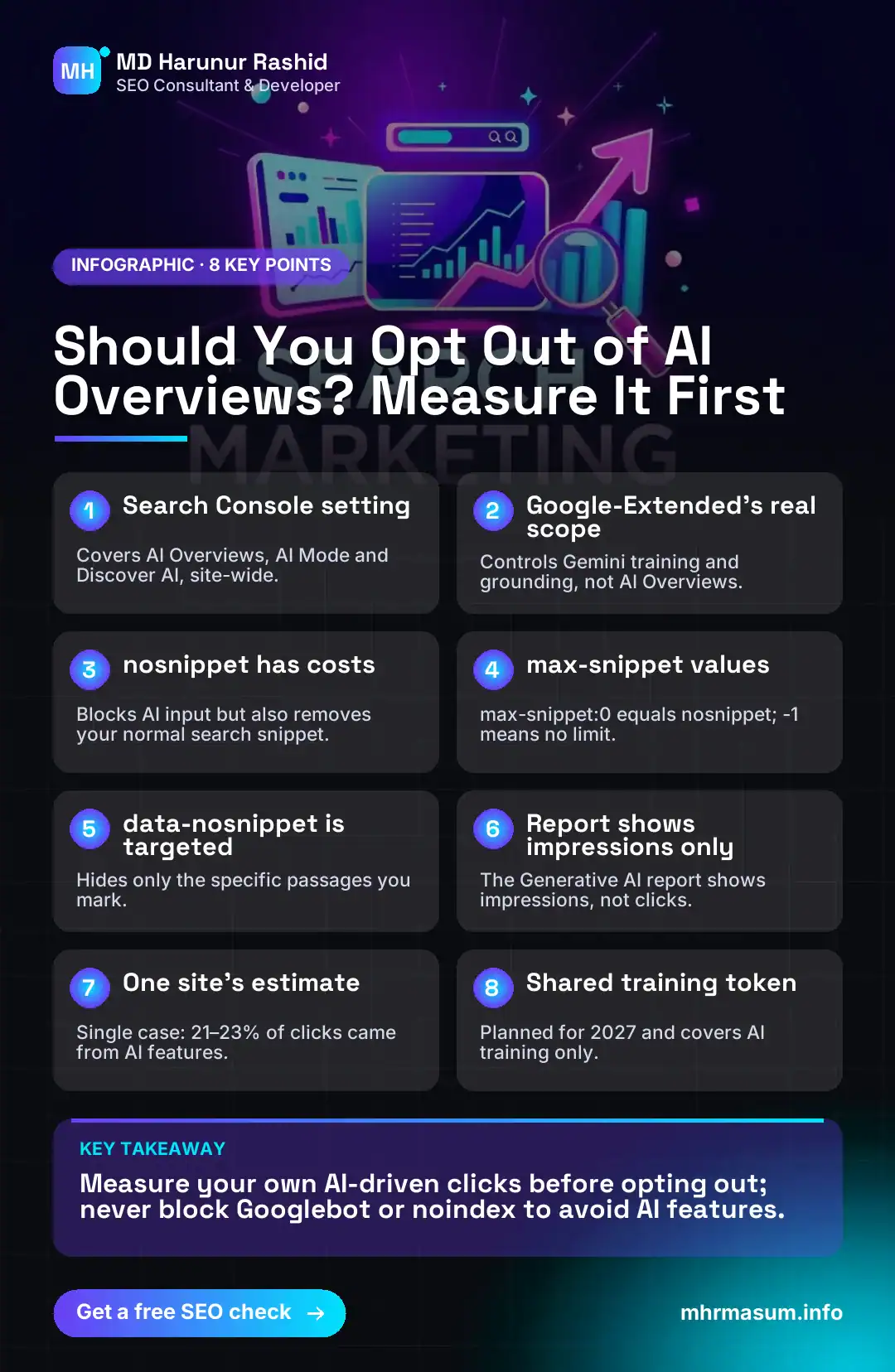
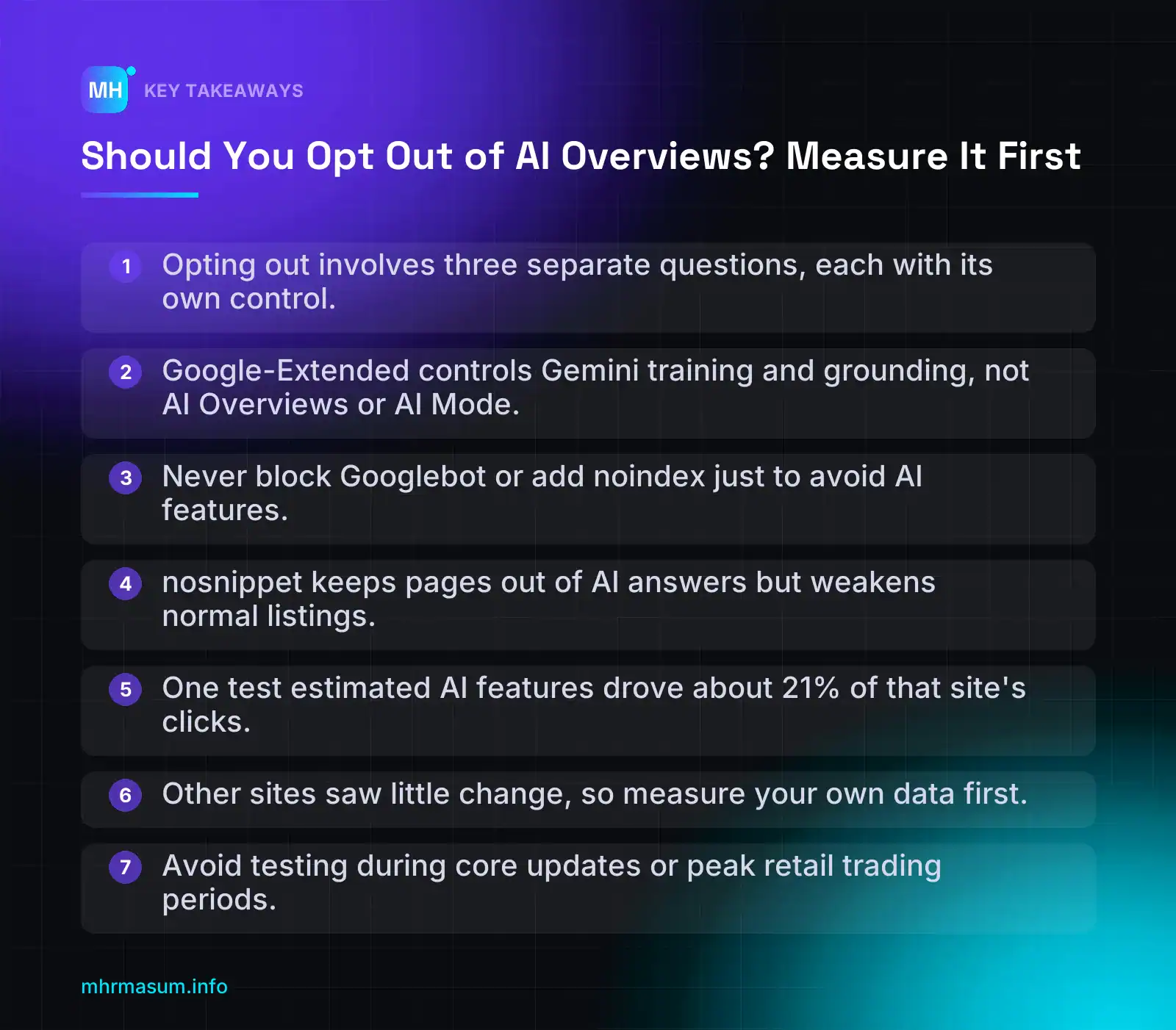
- Opting out involves three separate questions, each with its own control.
- Google-Extended controls Gemini training and grounding, not AI Overviews or AI Mode.
- Never block Googlebot or add noindex just to avoid AI features.
- nosnippet keeps pages out of AI answers but weakens normal listings.
- One test estimated AI features drove about 21% of that site’s clicks.
- Other sites saw little change, so measure your own data first.
- Avoid testing during core updates or peak retail trading periods.
What ‘opting out of AI Overviews’ actually means in 2026
“Opting out of AI Overviews” sounds like one switch. In practice, three separate questions are often mixed together, and each has its own control.
If you use the wrong control, you can block something you wanted to keep, or block nothing at all.
Three different questions: AI answers, AI training, crawling
Before you change any setting, decide which of these you actually care about:
- AI answers in Search. Should your pages appear as links in AI Overviews and AI Mode, or be used to ground those answers?
- AI model training. Should Google use your content to train Gemini models, or to ground answers in the Gemini app and Vertex AI?
- Crawling and indexing for Search. Should Googlebot crawl your site so it can rank in normal search results at all?
Here is the main rule. The Search Console “Search generative AI” setting controls Search AI features. Google-Extended controls Gemini training and grounding. A robots.txt Disallow for Googlebot removes you from Search entirely.
| Question | Control | What it changes | What it does not change |
|---|---|---|---|
| Appear in or ground AI Overviews and AI Mode | Search Console > Settings > “Search generative AI” (site-wide include/exclude) | AI Overviews, AI Mode and generative AI features in Discover | Conventional rankings (as reported), Gemini app, AI training |
| Limit AI use page by page | nosnippet, max-snippet, data-nosnippet |
Snippets and direct input for AI Overviews and AI Mode | Indexing. But it also removes or shortens your normal snippet |
| Gemini training and grounding | Google-Extended in robots.txt |
Use in Gemini model training, Gemini Apps and Vertex AI grounding | AI Overviews, AI Mode and Search crawling |
| Search crawling | Disallow for Googlebot in robots.txt |
Googlebot’s access to your pages | Nothing is spared. You lose normal Search visibility as well |
According to reporting from Search Engine Journal, the Search Console setting does not change conventional rankings. With the default “include”, your content can appear as links and ground AI responses (Search Engine Journal).
The same report says excluding your site will likely also remove it from Top Stories shown inside AI Overviews. News publishers should account for this.
Google’s rollout dates for this setting are reported differently by different sources. Do not assume you have it. Open your own property, go to Settings, and check whether “Search generative AI” appears.
“Blocking Google-Extended keeps me out of AI Overviews.”
This is the most common mix-up. Google-Extended controls Gemini training and grounding in Gemini Apps and Vertex AI. It does not control whether you appear in AI Overviews or AI Mode, and it does not affect Search crawling (Search Engine Journal).
This robots.txt rule affects training and Gemini grounding only:
User-agent: Google-Extended
Disallow: /
Your AI Overviews exposure stays exactly the same after adding it.
Why blocking crawlers is the wrong tool
Some site owners try to block AI by disallowing Googlebot in robots.txt. That removes the site from Google Search, not just from AI features. AI Overviews, AI Mode and the normal blue links all rely on the same Search crawling and indexing.
Likewise, noindex takes a page out of AI features only because it takes the page out of Search completely. Use it for pages that should not rank at all, as covered in our guide to noindexing shareable pages in WordPress. Do not use it
Also watch out for made-up tags. There is no “noai” meta tag for Google. Google documents its supported rules on its robots meta tag page (Google Search Central). Anything not listed there is ignored:
<!-- Does nothing in Google Search -->
<meta name="robots" content="noai">
<meta name="robots" content="noaioverviews">
If your robots.txt, SEO plugin and Search Console settings have built up over the years and you are not sure what each rule does, get technical SEO help before adding more. Conflicting rules cause more lost traffic than AI features do.
Why this decision matters now
Until recently, the only way to reduce AI Overviews exposure was a page-level snippet control that also damaged your normal listings. A site-wide Search AI switch changes that trade-off, and it has made many owners ask whether they should use it.
The honest answer: you cannot know until you measure your own site.
The 21% estimate and what it does not prove
Cyrus Shepard of Zyppy opted one site out of AI Overviews and AI Mode for 28 days. He then compared that period with the 28 days after opting back in (Zyppy; Search Engine Journal).
His estimates:
- AI features were about 10% of search impressions.
- They were about 21% of clicks, because their click-through rate was nearly twice that of regular results.
- Adding a small “halo” lift on regular listings brought the estimate to about 23% of clicks.
For that site, opting out would have cost far more clicks than the impression share suggested.
Shepard is clear about the limits. It is one site, and he presents it as a directional yardstick, not a benchmark. It tells you a cost of this size is possible. It does not tell you your site will see 21%, or anything close to it.
The opposite anecdote
PPC Land reports a site that opted out, lost hundreds of thousands of daily impressions, and saw barely noticeable changes in clicks (PPC Land).
No site name, dates or exact figures were published, so treat it as an anecdote. It still matters, because it shows that the opposite result is also possible.
| Zyppy test | PPC Land report | |
|---|---|---|
| Method | 28 days out vs 28 days back in | Opt-out, outcome reported |
| Impressions | AI features about 10% of total | Hundreds of thousands lost daily |
| Clicks | AI features an estimated 21–23% of total | Barely changed |
| Figures published | Yes, with caveats | No |
The lesson is simple: results depend on the site. Query mix, niche, brand strength and how often your pages are cited all change the outcome. The only number that should drive your decision is one you measure yourself.
Measuring is harder than it looks. Search Console’s Generative AI performance report shows impressions only, and AI-feature clicks are counted inside the normal “Web” search type. Unexplained click spikes can distort any comparison too, so filter out Search Console bot traffic before you start counting.
Timing matters as well. The November 2026 core update finished on 24 November, and Google has preannounced a December 2026 core update (Google Search Status Dashboard). A test run during a core update or peak retail season will give you misleading results. WooCommerce stores in the middle of Black Friday and holiday trading should not change their AI settings now.
There is a second reason owners are reviewing their settings. On 30 October 2026, Google announced plans to support a shared AIPREF/IETF training-policy token in robots.txt. If a site opts out of training with it and does not specify Google-Extended, Google plans to treat that as a Google-Extended disallow (Google Search Central Blog).
That token covers training only, not AI Overviews or AI Mode. Google aims to support it in 2027. Do not rely on it yet, and check the exact syntax once Google documents it.
If you would rather have the measurement and decision handled for you, our AI SEO services start with the same test-first approach described in the rest of this article.
Every Google AI control compared: what it changes and what it costs your normal listings
Google gives you several levers. Each works at a different level: the whole site, a single page, or a single passage. Most of them also change how your normal blue-link listings look, and many site owners miss that cost.
Here is the full picture first. The sub-sections below explain each control.
| Control | Where you set it | Scope | AI Overviews / AI Mode effect | Gemini / training effect | Effect on normal blue-link listings | Reversible? |
|---|---|---|---|---|---|---|
| Search Console “Search generative AI” setting | Search Console > Settings | Whole site (property) only | Excludes the site from AI Overviews, AI Mode and generative AI features in Discover | None. It does not cover the Gemini app or training | Reported to leave conventional rankings unchanged. Top Stories inside AI Overviews likely lost | Yes. Switch back to “include” |
nosnippet / max-snippet:0 |
Robots meta tag or X-Robots-Tag header | Page (or file) | Content not used as a direct input | None | Removes the text snippet, video preview and featured snippet | Yes, after recrawl |
max-snippet:[n] |
Robots meta tag or X-Robots-Tag header | Page (or file) | Limits how much content can be used as direct input | None | Snippets capped at n characters | Yes, after recrawl |
data-nosnippet |
HTML attribute on span, div, section |
Passage | Marked text kept out of snippets | None | Only the marked text is hidden. The rest of the snippet works normally | Yes, after recrawl |
Google-Extended |
robots.txt | Site or path | None | Controls Gemini model training and grounding in Gemini Apps and Vertex AI | None. Search crawling is unaffected | Yes |
| Shared AI training token (planned) | robots.txt | Site or path | None | Training only. Google plans support in 2027 | None | Yes |
noindex |
Robots meta tag or X-Robots-Tag header | Page (or file) | Page cannot appear | Not a training control | Page removed from Search entirely | Yes, but rankings must be re-earned |
Search Console ‘Search generative AI’ setting
This is the most direct opt-out. In Search Console, go to Settings > Search generative AI and choose include or exclude.
The default, “include”, lets your content appear as links in AI responses and ground them. Choosing “exclude” covers AI Overviews, AI Mode and generative AI features in Discover (Search Engine Journal).
- It is site-wide only. You cannot exclude one folder or one page with it.
- Reports say it does not change conventional rankings.
- It will likely remove your site from the Top Stories carousel shown inside AI Overviews.
- It does not cover the Gemini app or AI training.
- Third-party sources report changes take about one to two days to apply. Google has not confirmed this, so verify it in your own data.
The rollout has been gradual and sources disagree on dates. Check whether the setting appears in your own property before planning around it, and read the official Search Console Help article linked from the setting itself.
nosnippet and max-snippet:0
Without the Search Console setting, nosnippet is the only page-level way to keep an indexed page out of AI Overviews and AI Mode. It applies to web search, Images, Discover, AI Overviews and AI Mode (Google Search Central).
<meta name="robots" content="nosnippet">
<!-- identical effect -->
<meta name="robots" content="max-snippet:0">
The cost is real. nosnippet also removes your normal text snippet, video preview and featured snippet. A blue link with no description usually looks weaker than its neighbours, so expect lower click-through rate on regular listings.
For PDFs and other non-HTML files, send the same rule as an HTTP header. My PDF SEO guide covers how PDFs appear in Search and AI Mode.
X-Robots-Tag: nosnippetmax-snippet:[n]
Treat max-snippet as a dial, not a switch. It caps snippet length and limits how much of the page can be used as direct input for AI features.
max-snippet:0is the same asnosnippet.max-snippet:-1means no limit, which is the default behaviour.max-snippet:160allows a normal-length description but limits longer extracts.
When rules conflict, the more restrictive one wins. If a theme outputs max-snippet:50 and an SEO plugin adds nosnippet, Google applies nosnippet. Check the rendered source for duplicate robots tags before testing anything.
“There must be a noai meta tag I can add.”
There isn’t. Google lists nosnippet, data-nosnippet, max-snippet and noindex as the page-level controls. Any “noai” tag you add is ignored by Google.
data-nosnippet
This is the surgical option. It hides only the passages you mark, so the rest of the page can still produce a normal snippet and appear in AI answers.
It works on span, div and section elements. Good uses:
- Trade or wholesale prices you don’t want quoted out of context.
- The paid or gated part of an article.
- Proprietary data, formulas or research figures.
- Sensitive legal or medical wording that must not be shown in a shortened form.
<p>Our service covers all of Greater Sydney.</p>
<div data-nosnippet>
  <p>Trade rate: contact us for account pricing.</p>
</div>
Google-Extended and the planned shared training token
Google-Extended is a robots.txt token. It controls whether your content is used to train Gemini models and for grounding in Gemini Apps and Vertex AI.
User-agent: Google-Extended
Disallow: /
“Blocking Google-Extended removes my site from AI Overviews.”
It doesn’t. Google-Extended has no effect on AI Overviews, AI Mode or Search ranking, and it does not change how Googlebot crawls your site.
On 30 October 2026, Google announced plans to support a shared AIPREF/IETF training token in robots.txt (Google Search Central Blog). If you opt out of training with that token and don’t specify Google-Extended, Google plans to treat it as a Google-Extended disallow.
- Support is aimed at 2027, so don’t rely on it yet.
- Third parties report the token as
__usage_ai-training. Confirm the exact syntax when Google documents it. - A
User-agent: *group does not match it. - It covers training only, not AI Overviews or AI Mode.
noindex
noindex removes the page from Search entirely, so it cannot appear in AI features either. That makes it a blunt tool for this decision. Use it only for pages that shouldn’t be in Search at all, not
A decision framework: who should stay in, who should test, who might opt out
The right answer depends on how your visitors search and what a click is worth to you. Published one-site tests have pointed in opposite directions. One site estimated AI features drove a meaningful share of its clicks. Another lost large numbers of impressions with barely any change in clicks. Your site is its own case.
Use this table as a starting point, not a verdict.
| Site type | Starting stance | Why | What to check first |
|---|---|---|---|
| Local service business | Stay in | AI answers to “best plumber near me” type queries can cite you and send high-intent visitors | Calls and enquiries from organic, brand searches |
| WooCommerce store | Stay in | Product and comparison queries in AI Mode can drive buyers and brand discovery | Revenue per organic session, product page impressions in AI features |
| Affiliate / review site | Test | AI may summarise the verdict, but citations can still send readers ready to buy | CTR trends on “best X” and “X vs Y” pages |
| News publisher | Test carefully | The opt-out likely removes you from Top Stories inside AI Overviews | How much traffic comes from Top Stories and Discover |
| SaaS / B2B | Stay in or test | Being named in AI answers during research builds the shortlist, even without a click | Branded search growth, demo requests, assisted conversions |
| Reference / how-to site | Test | Short factual answers are often fully summarised, so the click may never happen | Pages with falling CTR but stable or rising impressions |
Signals for staying in
Stay in when an AI citation is likely to start a buying journey rather than end it.
- Your queries are commercial or local. People still need to call, visit or buy, and AI can’t do that for them.
- You sell products with clear identifiers and reviews. Strong product data helps you get cited, as covered in my guide to WooCommerce product reviews SEO.
- Your brand is not well known yet. Being named in an AI answer is discovery you can’t easily buy.
- Your conversions come from a small number of high-value visits, not huge page-view volume.
Signals for testing
Test when your content answers the question so completely that a summary replaces the visit.
- You are an informational publisher earning from ad impressions or affiliate clicks.
- Impressions are steady or rising but CTR keeps falling on question-style queries.
- Your top pages answer definitions, conversions, quick facts or short how-tos.
- You can run a clean test. The November 2026 core update finished on 24 November, and Google has preannounced a December core update (Google Search Status Dashboard). Tests that overlap a core update or peak retail season will give muddy results.
Signals for opting out
Some reasons to opt out have nothing to do with traffic.
- Licensing: your content is licensed to partners on terms that exclude AI reuse.
- Legal or regulatory: wording must not be shortened or reworded, for example in finance, health or legal advice.
- Paywalled content: you don’t want subscriber material summarised for free.
- Proprietary data: original research, price databases or datasets that are the product itself.
Before going sitewide, ask whether data-nosnippet on the sensitive passages is enough. Often it is, and the rest of the site keeps both its AI citations and normal snippets.
For news sites, weigh the likely loss of Top Stories inside AI Overviews carefully. That carousel can be a major traffic source during breaking news.
If you want to see how Google decides which links appear in AI answers, Google has published a document on attribution and factuality in Search generative AI features (Search Engine Roundtable). It is optional reading, but useful context.
The decision rule
Don’t opt out sitewide on instinct. Measure your AI share first, then decide with numbers.
- Write down your reason: traffic, licensing, legal or data protection.
- If the reason is not traffic, try
data-nosnippetor page-levelnosnippetfirst. - If the reason is traffic, measure your current AI exposure (next section) before changing anything.
- Only use the Search Console exclude setting after a controlled test shows a net gain or a non-traffic reason outweighs the loss.
If you are unsure which group you are in, a free SEO check is a sensible first step before you touch any setting.
Measure your current AI exposure before touching anything
You cannot judge an opt-out if you do not know how much of your search visibility already comes from AI features. Measure first, change nothing yet.
The aim is a baseline: which pages appear in AI Overviews and AI Mode, how often, and what those pages earn in normal clicks, sessions and revenue.
Generative AI performance report
Search Console’s Generative AI performance report shows impressions only, with no clicks. You can break impressions down by pages, countries, dates and devices (PPC Land).
Clicks from AI features are not reported separately. They are counted inside the normal “Web” search type in the standard Performance report, mixed in with clicks from regular blue links.
That is the core measurement problem. You can see how often you appear in AI features, but you cannot read what those appearances are worth. The value of AI clicks has to be estimated with a controlled test, which the next section covers.
If you cannot find the report in your property, it may not be available to you yet. Check Google’s Search Console Help documentation for the report’s current name and location rather than relying on third-party screenshots.
Standard Performance report baseline
Export at least 8–12 weeks of data. Shorter windows exaggerate weekly noise.
- Open the Generative AI performance report, set the date range to the last 8–12 weeks, select the Pages tab and export AI impressions by page.
- Export daily AI impressions as well (the Dates tab). You will need this to spot trends and anomalies.
- Open Performance > Search results, set Search type: Web and the same date range. Export clicks, impressions, CTR and position by page.
- Export the same data by query, and if possible by query and page together.
- Note the date range, country filters and device filters you used, so later exports match exactly.
The interface export is limited to 1,000 rows. Larger sites should use the Search Console API or the BigQuery bulk export so long-tail pages are not cut off.
Use page-level totals for your main numbers. Query-level data leaves out anonymised queries, so it will never add up to the page totals.
Now calculate AI impression share by page:
AI impression share = AI impressions ÷ total Web impressions (same page, same dates)Sort by AI impression share and by absolute AI impressions. Your top exposed pages are the ones high on both lists. These pages have the most to lose, or gain, from any change.
Treat the ratio as an indicator, not an exact figure. The two reports may not count impressions the same way. Look for patterns rather than decimal points.
Before you trust the clicks column, rule out spikes from automated traffic. My guide to filtering Search Console click spikes was linked earlier and is worth checking first.
GA4 baseline
Search Console tells you about visibility. GA4 tells you whether that visibility makes money. Record both for the same pages.
- In GA4, go to Explore and create a Free form exploration.
- Add dimensions: Landing page + query string and Session source / medium.
- Filter session source / medium to google / organic.
- Add metrics: Sessions, Key events and Total revenue (or Purchase revenue for stores).
- Use the same date range as your Search Console exports and export the table.
GA4 cannot tell an AI Overview click from a normal organic click. Both arrive as Google organic. Use GA4 as the business outcome, not
If WooCommerce revenue is missing or unreliable, fix it before you run any test. The guide to fixing missing WooCommerce purchase revenue in GA4 covers the usual causes. A rising share of unassigned sessions will also distort organic totals; see how to find and fix GA4 unassigned traffic.
Here is a simple baseline worksheet. The figures are placeholders to show the layout, not benchmarks.
BASELINE WORKSHEET  |  Dates: [start] to [end] (12 weeks)  |  Country: All  |  Device: All

Page                     AI impr   Web impr   AI share   Web clicks   Web CTR   GA4 sessions   Key events   Revenue
/guide-a/                 [ ]        [ ]        [ ]%        [ ]         [ ]%        [ ]            [ ]          [ ]
/category-b/              [ ]        [ ]        [ ]%        [ ]         [ ]%        [ ]            [ ]          [ ]
/product-c/               [ ]        [ ]        [ ]%        [ ]         [ ]%        [ ]            [ ]          [ ]

Site total                [ ]        [ ]        [ ]%        [ ]         [ ]%        [ ]            [ ]          [ ]

Notes:
- Known anomalies (bot spikes, outages, sales):
- Core updates in window:
- Tracking changes in window:
“If the Generative AI report shows lots of impressions, those impressions must be sending me lots of clicks.”
Not necessarily. Impressions in AI features tell you exposure, not value. One site may earn a large share of clicks from AI features while another sees almost no change when it leaves them. Only a test can tell you which describes yours.
The controlled test plan: estimate AI-driven clicks before committing sitewide
Published tests point in different directions. Cyrus Shepard opted one site out of AI Overviews and AI Mode and estimated AI features were roughly 10% of impressions but about 21% of clicks, or 23% including a small halo lift on regular listings (Zyppy). He is clear that this is one site and a directional yardstick only.
Another site that opted out reportedly lost hundreds of thousands of daily impressions with barely noticeable click changes (PPC Land). Results vary by site, so you need your own numbers.
There are two practical ways to get them.
| Option | What it measures | Main strength | Main weakness | Best for |
|---|---|---|---|---|
| A: Search Console off/on | AI features alone | Clean signal, site-wide, fully reversible | Whole site loses AI visibility during the test; time-based, so seasonality interferes | Sites with steady traffic and a quiet period available |
| B: Page-level nosnippet | AI features plus normal snippets | Runs on a subset; test and control share the same dates | Confounded by snippet removal; needs many comparable pages | Larger sites that cannot risk a sitewide change |
Option A: Search Console off/on test (Zyppy-style)
This uses the site-wide Search generative AI setting under Search Console > Settings. It excludes the whole property from AI Overviews, AI Mode and generative AI features in Discover, and is reported not to change conventional rankings (Search Engine Journal). Confirm the setting appears in your own property before planning dates.
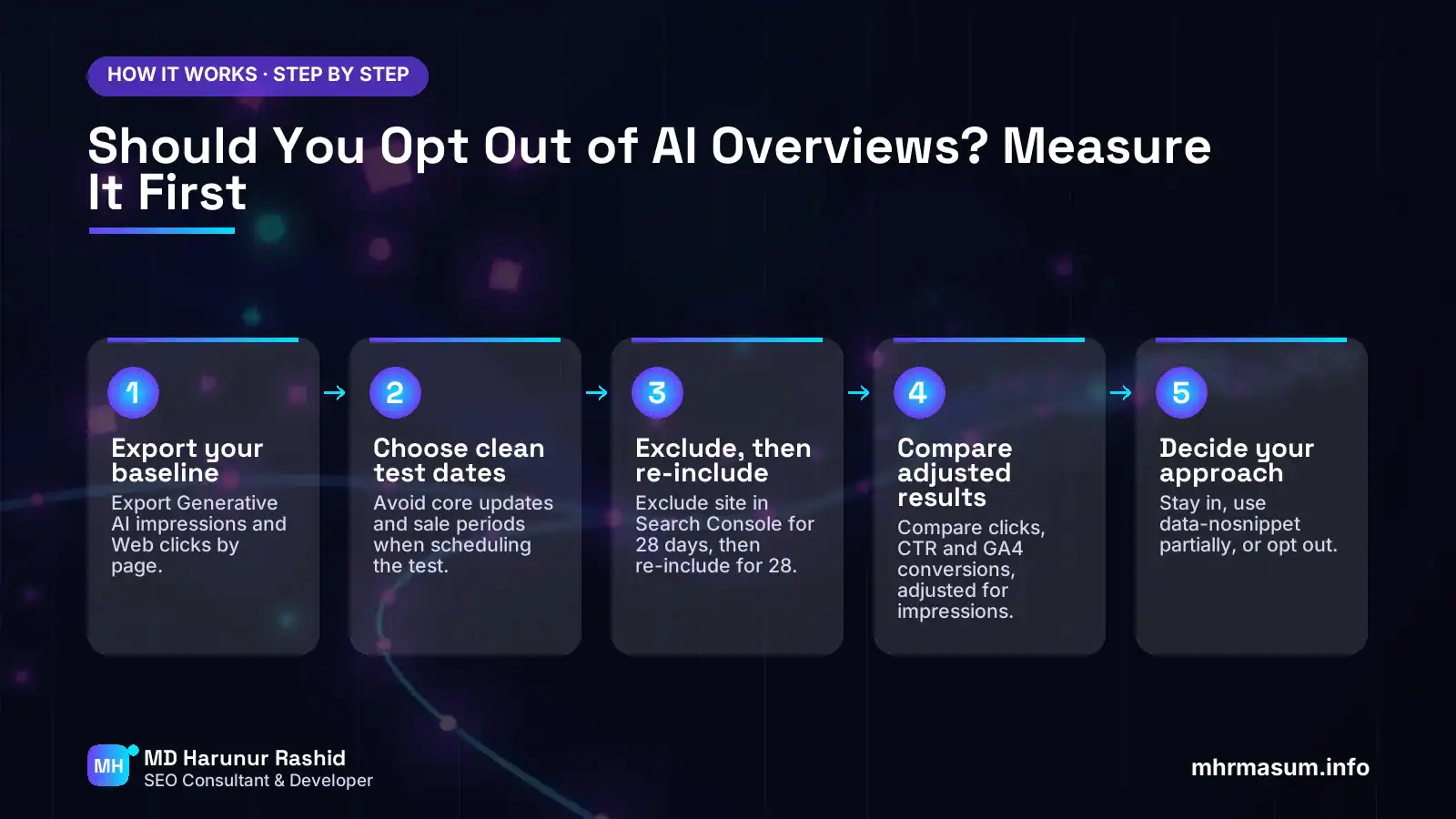
- Baseline (28 days, included): record Web clicks, Web impressions and AI impressions by page and day.
- Exclude (28 days): switch the setting to exclude. Annotate the date and time.
- Re-include (28 days): switch back. This second “on” period tells you whether changes reverse or were caused by something else.
- Compare clicks while controlling for impressions. Do not just compare raw clicks.
The calculation works like this:
Excluded period:
  Regular CTR (off) = Web clicks ÷ Web impressions

Included periods (baseline and re-include):
  Regular impressions (est.) = Web impressions − AI impressions
  Expected regular clicks    = Regular impressions × Regular CTR (off)
  Estimated AI clicks        = Actual Web clicks − Expected regular clicks
  AI share of clicks         = Estimated AI clicks ÷ Actual Web clicks
This is an estimate. It assumes regular-listing demand and CTR stay stable across periods, which is why you need clean dates.
The halo check. Being cited in AI features may slightly change how often people click your regular listing below. To check, take queries that appear in all three periods at a similar average position. Compare their regular-listing CTR in the excluded period against the included periods.
- If regular CTR is higher when included, part of the AI benefit shows up in normal listings. Add it to your AI estimate.
- If CTR is the same, ignore the halo.
- If CTR is lower when included, AI features may be absorbing clicks your regular listing would have earned.
Opting out will likely also remove your site from Top Stories shown inside AI Overviews (Search Engine Journal). News publishers should expect that in the excluded period.
Option B: page-level nosnippet test and its confound
If switching the whole site off is too risky, test a matched subset of pages with the nosnippet robots meta tag:
<meta name="robots" content="nosnippet">Google’s documentation says nosnippet stops content being used as a direct input for AI Overviews and AI Mode. It also removes the normal text snippet, video preview and featured snippet (Google Search Central).
That is the confound. Option B measures “AI plus snippet”, not AI alone. A listing with no description usually performs worse in normal results too, so any click loss overstates the AI effect. Treat the result as an upper bound.
Check the Generative AI report during the test to see how far AI impressions on test pages actually fall. Do not assume they drop to zero.
How to match pages:
- Similar AI impression share, using your baseline worksheet.
- Same traffic band, for example 500–1,000 Web clicks per month.
- Same intent and template: guides against guides, category pages against category pages.
- At least a few dozen pages in each group if you have them. A handful of pages produces noise, not evidence.
- Pair similar pages, then randomly assign one of each pair to test and one to control. Do not hand-pick.
Compare the change in each group, not the raw totals:
Test effect = (Test clicks after ÷ Test clicks before) − (Control clicks after ÷ Control clicks before)The control group absorbs seasonality and algorithm movement that hit both groups equally.
Choosing dates and test length
Timing matters more than most people expect. The November 2026 core update finished on 24 November, and Google has preannounced a December 2026 core update (Google Search Status Dashboard). A test that overlaps a core update cannot separate the AI effect from ranking changes.
Avoid these windows:
- Any core update, from rollout start until the dashboard shows it complete, plus a settling week.
- Black Friday, Cyber Monday and Christmas for stores. Demand changes too sharply.
- Site migrations, redesigns and URL changes. If you have one planned, finish it and run a WordPress redirect audit before testing.
- Big content or pricing changes on test pages.
For most stores, that puts the earliest clean start after the December update completes and post-Christmas sales have settled. Starting a three-period test this week would run straight through both.
Third-party sources report that the Search Console setting takes about 1–2 days to apply. This is unverified. Leave 3–5 buffer days after each switch and exclude them from your calculations. For nosnippet, pages must be recrawled first, so use URL Inspection to confirm Google has seen the tag before counting.
Annotate every change: the setting state, the time you switched it, and anything else that happened on the site.
TEST LOG  |  Site: [domain]  |  Option: A / B  |  Owner: [name]

Date range        Period       Setting state      Buffer?   AI impr   Web impr   Web clicks   Web CTR   GA4 sessions   GA4 key events   Revenue   Notes
[dd–dd mmm]       Baseline     Included           No        [ ]       [ ]        [ ]          [ ]%      [ ]            [ ]              [ ]
[dd–dd mmm]       Switch       Excluded (set)     Yes       -         -          -            -         -              -                -         Switched [time]
[dd–dd mmm]       Excluded     Excluded           No        [ ]       [ ]        [ ]          [ ]%      [ ]            [ ]              [ ]
[dd–dd mmm]       Switch       Included (set)     Yes       -         -          -            -         -              -                -         Switched [time]
[dd–dd mmm]       Re-include   Included           No        [ ]       [ ]        [ ]          [ ]%      [ ]            [ ]              [ ]

Other events: [core updates, sales, outages, tracking changes]
If you would rather have a second pair of eyes on the test design before switching anything off, you can book a free consultation and we can walk through your baseline together.
How to read the results and calculate the trade-off
A test only helps if you read it honestly. You are not looking for a dramatic drop. You want an estimate of the clicks, and the money, that AI features were sending you, with a clear sense of how much of that estimate is noise.
“Clicks fell after we opted out, so AI Overviews must have been sending those clicks.”
Not necessarily. Clicks also move with seasonality, core updates, competitors, bot activity and your own site changes. A raw before-and-after comparison is not a result. You need a baseline adjusted for what would have happened anyway.
Estimating AI click share
The core formula is simple:
AI-attributed clicks ≈ expected clicks while included − actual clicks while excluded

Expected clicks = clicks in the "included" period × adjustment factor
Adjustment factor = how much control pages (or the same weeks last year) changed

AI click share ≈ AI-attributed clicks ÷ expected clicks
The adjustment factor is the important part. Choose it based on the control you tested:
- Search Console setting (site-wide): every page is affected, so there are no control pages inside the property. Use the same weeks from the previous year, or a comparable site you own that stayed included.
- Page-level nosnippet or max-snippet test: use a matched group of similar pages that you left untouched. This is a cleaner comparison because both groups go through the same weeks.
- Opt-out then opt back in: this is the approach Cyrus Shepard used. He compared 28 days excluded with the following 28 days after re-including the site (Zyppy). Measuring both directions helps you spot a change that only appears once.
Also check impressions. If impressions in the Generative AI performance report fall close to zero after excluding, the setting has taken effect. If regular Web impressions also fall sharply, look for another cause before blaming the opt-out.
Worked example (illustrative numbers only)
These figures are invented to show the arithmetic. They are not a benchmark for any niche.
| Metric | Test pages | Control pages |
|---|---|---|
| Clicks, 28 days included | 10,000 | 6,000 |
| Clicks, 28 days excluded (nosnippet) | 8,600 | 5,820 |
| Change | −14% | −3% |
| Adjustment factor | 5,820 ÷ 6,000 = 0.97 | |
| Expected clicks on test pages | 10,000 × 0.97 = 9,700 | |
| AI-attributed clicks | 9,700 − 8,600 = 1,100 | |
| Estimated AI click share | 1,100 ÷ 9,700 ≈ 11% |
Note what nosnippet also does: it removes the normal text snippet and featured snippets, not just AI inputs. A page-level nosnippet test therefore overstates the pure AI effect, because some of the loss comes from weaker blue-link snippets. The Search Console setting is the cleaner way to isolate AI features.
Is the result bigger than the noise?
Before you trust 11%, measure normal variation. Take the eight or more weeks before the test and look at how much weekly clicks on the test pages moved without any change.
- If weekly clicks usually swing by around ±10%, an 11% estimate is within noise.
- If they usually swing by ±3%, an 11% estimate is a meaningful signal.
Real sites differ widely. Zyppy estimated about 21% of clicks came from AI features on one site, but Shepard describes that as a directional yardstick only (Search Engine Journal). PPC Land reports another site that lost large numbers of impressions with barely noticeable click changes (PPC Land). Your own number is the only one that counts.
Turning clicks into revenue
Clicks are not the goal. Value the result in GA4 conversions and revenue, because AI-driven visitors may arrive on different pages, with different intent, than your average organic visitor.
- In GA4, go to Explore > Free form.
- Add the dimensions Landing page + query string and Session default channel group.
- Filter the channel group to Organic Search and limit landing pages to your test group.
- Add the metrics Sessions, Key events, Purchase revenue (or lead value) for both test periods.
- Calculate revenue per organic session for the test pages during the included period.
Continuing the illustrative example:
AI-attributed clicks:            1,100
Clicks that became sessions:     ~90% → 990 sessions
Revenue per organic session:     £1.20 (from GA4, test pages)
Estimated AI-driven revenue:     990 × £1.20 ≈ £1,188 per 28 days
This assumes AI visitors convert like other organic visitors on the same pages. You cannot isolate them in GA4, so state that assumption in your report. If revenue tracking is incomplete, the whole calculation fails. Check that purchases are recorded properly before you trust any revenue figure.
Set a decision threshold before you look
| Result | What it suggests |
|---|---|
| Estimated AI share clearly above noise, with meaningful revenue | Stay included. Opting out would cost real money. |
| Estimate within noise | The traffic case is neutral. Other reasons, such as licensing, content reuse or brand control, can decide. |
| Clicks rise after excluding (beyond noise) | Possible, but rare. Rerun the test before acting. |
| Result distorted by an update or sale period | Discard it and repeat in a quieter window. |
Timing matters. The November 2026 core update finished on 24 November, and Google has preannounced a December 2026 core update (Google Search Status Dashboard). A test that overlaps either, or peak retail weeks, will be confounded.
One test is directional, not permanent. Rerun it after major Google changes to AI Overviews, AI Mode or link display. For background on how links are chosen in these features, Google’s new document on attribution and factuality is optional reading (Search Engine Roundtable).
How to implement each control correctly
Each control does something different. Using the wrong one can remove snippets from normal listings or leave you in AI features when you thought you had left.
| Control | Scope | AI Overviews / AI Mode | Normal snippets | Gemini training |
|---|---|---|---|---|
| Search Console “Search generative AI” | Whole property | Excludes | Reported as unchanged | No effect |
| nosnippet | Page or file | Stops use as direct input | Removed | No effect |
| max-snippet:[n] | Page or file | Limits direct input | Shortened | No effect |
| data-nosnippet | Marked passages | Passage hidden | Passage hidden | No effect |
| Google-Extended | robots.txt | No effect | No effect | Controls |
Search Console setting
- Open the property in Search Console.
- Go to Settings > Search generative AI.
- Choose Include (default) or Exclude.
- Write down the date and time of the change in your test log.
You need owner access to the property. If you do not see the setting, check your permission level first, then check Google’s Search Console Help for current availability. Sources disagree on rollout timing, so do not assume every property has it yet.
What it covers: AI Overviews, AI Mode and generative AI features in Discover. Reports say it does not change conventional rankings (Search Engine Journal). The same report notes that excluding will likely also remove you from Top Stories shown inside AI Overviews. It does not cover the Gemini app or AI training.
Third parties report changes take about one to two days to apply. That is unverified, so wait for impressions in the Generative AI performance report to fall before starting your test clock.
Robots meta tag and X-Robots-Tag
Google’s robots meta tag documentation confirms that nosnippet applies to web search, Images, Discover, AI Overviews and AI Mode (Google Search Central). There is no “noai” tag.
<!-- Remove snippets and stop direct use in AI Overviews / AI Mode -->
<meta name="robots" content="nosnippet">

<!-- Keep a normal-length snippet but cap how much text can be used -->
<meta name="robots" content="max-snippet:160">

<!-- Apply the rule to Google only, not other search engines -->
<meta name="googlebot" content="nosnippet">
Key rules:
- max-snippet:0 equals nosnippet. max-snippet:-1 means no limit.
- When rules conflict, the more restrictive one wins. nosnippet beats max-snippet:50.
- nosnippet also removes video previews and featured snippets. Use it only where you accept that cost.
For PDFs and other non-HTML files, send an X-Robots-Tag HTTP header instead.
# Apache (.htaccess)
<FilesMatch "\.pdf$">
  Header set X-Robots-Tag "nosnippet"
</FilesMatch>

# Nginx (server block)
location ~* \.pdf$ {
  add_header X-Robots-Tag "nosnippet";
}
Confirm the header with your browser’s developer tools (Network tab) or Search Console’s URL Inspection tool.
In WordPress, you can add rules for specific pages with the core wp_robots filter:
add_filter( 'wp_robots', function ( $robots ) {
    if ( is_page( 'pricing-guide' ) ) {
        $robots['nosnippet'] = true;
    }
    return $robots;
} );
Check what your SEO plugin already outputs
Many SEO plugins add max-snippet:-1, max-image-preview:large, max-video-preview:-1 by default. That is usually fine, but it can conflict with rules you add elsewhere, or produce two robots tags on one page.
- Open the page, choose View page source and search for
robots. - Make sure there is one clear set of directives, or that the combined result is what you intend.
- Repeat on a product, a category, a post and a PDF.
Whatever plugin you use, whether Yoast, Rank Math, AIOSEO or the MHR LumeRank SEO plugin, the page source is the final truth, not the settings screen.
data-nosnippet in WordPress and WooCommerce
Use data-nosnippet when you want to hide specific passages, such as wholesale terms or a paid recipe method, while keeping the page snippet. It works on span, div and section elements only.
<div data-nosnippet>
  <h3>Trade pricing terms</h3>
  <p>Minimum order of 50 units. Net 30 payment for approved accounts.</p>
</div>
In a block theme: the editor cannot add custom attributes to a Group block. Either use a Custom HTML block, or add the class no-snippet under Block > Advanced > Additional CSS class(es) and wrap it with this snippet in a child theme or code snippets plugin:
add_filter( 'render_block', function ( $content, $block ) {
    $class = $block['attrs']['className'] ?? '';
    if ( str_contains( $class, 'no-snippet' ) ) {
        return '<div data-nosnippet>' . $content . '</div>';
    }
    return $content;
}, 10, 2 );
In WooCommerce: copy the template you need, such as single-product/tabs/description.php, into yourchildtheme/woocommerce/ and wrap only the passage you want hidden. Never edit plugin files directly, because updates overwrite them.
To avoid breaking structured data:
- Do not wrap price, availability or review markup you want shown in rich results.
- Product JSON-LD sits in a separate script tag, so leave that output alone.
- Keep the HTML valid. Do not put a
divinside ap. - Test the product URL in the Rich Results Test after deploying.
Google-Extended in robots.txt
“If I block Google-Extended, I’m out of AI Overviews.”
No. Google-Extended controls whether your content is used to train Gemini models and to ground answers in Gemini Apps and Vertex AI. It does not control AI Overviews or AI Mode, and it does not affect Search crawling (Search Engine Journal).
User-agent: Google-Extended
Disallow: /
Googlebot keeps crawling and ranking your pages as normal.
The planned shared training token
On 30 October 2026, Google announced plans to support a shared AIPREF/IETF training policy token in robots.txt, aiming for 2027 (Google Search Central Blog). If you opt out of training with it and do not specify Google-Extended, Google plans to treat that as a Google-Extended disallow.
# REPORTED token name only – not yet documented or supported by Google
# __usage_ai-training
# Reports say User-agent: * groups do not match it.
Do not deploy this yet. It covers training only, not AI Overviews or AI Mode. Keep your explicit Google-Extended rule in place, and check the exact syntax once Google publishes its documentation.
Common mistakes that cost normal search traffic
Most of the damage I see from AI opt-outs does not come from the AI controls themselves. It comes from using the wrong control, or the right control in the wrong place. Each mistake below can cost you more normal clicks than AI Overviews were ever sending.
Mistake 1: Using noindex or blocking Googlebot to “escape AI”
Noindex is listed as a control on Google’s AI features page, but it works by removing the page from Google Search entirely. You lose AI Overviews, AI Mode and every blue link for that page.
Blocking Googlebot in robots.txt is worse. Google can no longer crawl the page, and it also cannot read any snippet rules on it.
- Use noindex only for pages you genuinely do not want in Search at all.
- Never use a Googlebot disallow
Mistake 2: Adding nosnippet sitewide
According to Google’s robots meta tag documentation, nosnippet applies to web search, Images, Discover, AI Overviews and AI Mode. It also removes your normal text snippet, video preview and featured snippet.
A listing with no description is a weaker listing. If you only want to protect specific passages, mark those passages instead:
<!-- Removes ALL snippets for the page, including normal descriptions -->
<meta name="robots" content="nosnippet">

<!-- Hides only this passage from snippets and AI input -->
<div data-nosnippet>
  Our trade pricing table and supplier terms...
</div>
data-nosnippet works on span, div and section elements. Test it on a few templates before you roll it out widely.
Mistake 3: Assuming Google-Extended removes you from AI Overviews
Google-Extended does not control AI Overviews or AI Mode. It controls whether your content is used to train Gemini models and for grounding in Gemini Apps and Vertex AI. It does not affect Search crawling (Search Engine Journal).
The same applies to the shared AI training token Google announced on 30 October 2026. Google plans to treat a training opt-out with that token as a Google-Extended disallow when Google-Extended is not specified, and aims to support it in 2027 (Google Search Central Blog). It covers training only. Do not rely on it yet, and check the exact syntax once Google documents it.
There is also no “noai” meta tag. Adding one does nothing.
Mistake 4: Blocking a URL in robots.txt while relying on meta tags
Meta robots tags and X-Robots-Tag headers only work if Google can crawl the URL and read them. If robots.txt disallows the URL, Google never sees your nosnippet or noindex.
Worse, a blocked URL can still be indexed from links pointing to it, just without Google knowing what is on the page. If you want a page-level rule to apply, the page must stay crawlable.
Mistake 5: Judging the test on impressions or during noisy periods
The Generative AI performance report shows impressions only. When you opt out, those impressions disappear by design. That tells you nothing about clicks or revenue.
Timing matters too. The November 2026 core update finished on 24 November, and Google has preannounced a December 2026 core update (Google Search Status Dashboard). A test running through a core update or Black Friday to Christmas trading is confounded from day one. Wait, or extend the baseline and treat the result as low-confidence.
Mistake 6: Forgetting the Search Console setting is site-wide
The “Search generative AI” setting in Search Console covers AI Overviews, AI Mode and generative AI features in Discover. Search Engine Journal also reports that the opt-out will likely remove the site from Top Stories shown inside AI Overviews.
Publishers who rely on Discover should model that loss before switching, not after.
The myth that drives most bad decisions
“AI Overviews never send clicks, so opting out costs nothing.”
Cyrus Shepard’s test on one site suggests otherwise. He opted the site out of AI Overviews and AI Mode for 28 days, then compared it with 28 days after opting back in. He estimated AI features were about 10% of search impressions but about 21% of clicks, because their CTR was nearly twice that of regular results. With a small halo lift on regular listings, the estimate rose to 23% (Zyppy).
He is clear that this is one site and a directional yardstick, not a benchmark. PPC Land reports the opposite pattern on another site: hundreds of thousands of lost daily impressions and barely noticeable click changes (PPC Land). Both outcomes are possible, which is exactly why you test your own site.
Troubleshooting: when the opt-out or snippet controls don’t seem to work
When a control “doesn’t work”, the cause is usually one of five things: timing, the wrong property, a missing recrawl, a tag that never reaches Google, or a different product entirely. Work through them in that order.
Your pages still appear in AI Overviews or AI Mode
Allow processing time first. Third-party sources report the Search Console setting takes about one to two days to apply. Google has not confirmed that figure, so give it at least a few days before assuming a fault.
Then check these points:
- Is the setting available and saved? Go to Search Console > Settings and look for “Search generative AI”. Rollout timing has varied by region, so confirm it exists in your property and shows “exclude”.
- Is it the right property? Make sure you changed the setting in the property that covers the URLs you are checking. If you manage a domain property and several URL-prefix properties, confirm against Google’s Search Console Help documentation which one the setting applies to.
- For page-level rules, has Google recrawled the page? Open URL Inspection, check “Last crawl”, and request indexing for priority URLs. A nosnippet tag added yesterday means nothing until Google crawls the page again.
If URL Inspection shows the page is crawled but not indexed, that is a separate issue. My guide to diagnosing crawled – currently not indexed covers it.
The meta tag is not reaching Google
What you see in your CMS is not always what Googlebot receives. Caching plugins, CDNs, page builders and SEO plugins can drop, duplicate or override robots tags.
- In URL Inspection, open View crawled page > HTML and search for
robotsanddata-nosnippet. - Run Test live URL and compare the live HTML with the crawled version.
- For PDFs and other non-HTML files, check the response headers for
X-Robots-Tag.
curl -I https://example.com/guides/pricing-guide.pdf

HTTP/2 200
content-type: application/pdf
x-robots-tag: nosnippet
If the header is missing at the edge but present on the origin server, your CDN or cache is stripping it. Purge the cache and check the CDN’s header rules.
Conflicting rules are overriding each other
When rules conflict, Google applies the more restrictive one. For example, nosnippet beats max-snippet:50, and max-snippet:0 behaves like nosnippet.
<!-- Theme outputs this -->
<meta name="robots" content="max-snippet:-1">
<!-- SEO plugin outputs this -->
<meta name="googlebot" content="max-snippet:0">
<!-- Result: Google treats the page as nosnippet -->
This cuts both ways. A stray restrictive rule can remove snippets you wanted to keep. Search the rendered HTML and headers for every robots directive, not just the one you added.
The Gemini app still shows or uses your content
This is expected. The Search Console setting covers Search features only. It does not cover the Gemini app or AI training.
Gemini Apps grounding and training are governed by the Google-Extended robots.txt token:
User-agent: Google-Extended
Disallow: /
This line does not affect AI Overviews, AI Mode or normal crawling. Decide on it separately, based on your stance on training, not on Search traffic.
Impressions dropped but clicks barely moved
This is usually not a fault. After an opt-out, AI-feature impressions disappear from the Generative AI report, and your total impressions can fall sharply. If AI features were sending few clicks, clicks stay flat, as in the PPC Land case.
Judge the result on clicks, conversions and revenue against your adjusted baseline, as covered in the previous section.
Troubleshooting checklist
| Symptom | Likely cause | How to check |
|---|---|---|
| Site still appears in AI Overviews days after opting out | Processing delay, or setting saved in the wrong property | Search Console > Settings > Search generative AI in the correct property; recheck after several days |
| One page still used in AI answers despite nosnippet | Page not recrawled since the change | URL Inspection > Last crawl date; request indexing |
| Tag visible in CMS but not effective | Cache, CDN or plugin stripping or overriding the tag | URL Inspection > View crawled page > HTML; compare with Test live URL |
| PDF still shows a snippet | X-Robots-Tag header missing at the edge | curl -I on the file URL; check CDN header rules |
| Normal description or featured snippet disappeared | A restrictive rule (nosnippet or max-snippet:0) is winning | Search rendered HTML and headers for every robots and googlebot directive |
| Meta tag ignored entirely | URL disallowed in robots.txt, so Google cannot read it | URL Inspection crawl status; robots.txt report in Search Console |
| Gemini app still shows your content | Search Console setting does not cover Gemini | Check robots.txt for a Google-Extended rule |
| Impressions fell, clicks flat | Expected loss of AI impressions | Compare clicks and revenue with your adjusted baseline, not impressions |
If you want to understand how Google chooses which links appear in these features, its newer document “Attribution and factuality in Search generative AI features” is worth reading (Search Engine Roundtable). It is optional, but it helps explain why some pages are cited and others are not.
Advanced tips for agencies and multi-site owners
If you manage ten or fifty properties, one wrong setting can hurt a whole portfolio at once. Treat AI controls as a staged rollout, not a bulk toggle. The tips below keep your risk small and your evidence clean.
Test on one property before touching the rest
The Zyppy test and the PPC Land case pointed in different directions, so you cannot assume every site in your portfolio will respond the same way.
- Group your sites by type. Use groups such as WooCommerce stores, local service sites, publishers and B2B lead-generation sites.
- Pick one representative site per group. Choose one with steady traffic and enough Generative AI impressions to give you a readable signal.
- Run the controlled test on that site only. Use the before and after windows from the test plan above.
- Apply the result to similar sites in stages. Never apply it to the whole portfolio in one step. Roll out to two or three sites, wait a full comparison window, then continue.
- Do not copy one group’s decision to another group. A result from a publisher tells you very little about a WooCommerce store.
Also check how the “Search generative AI” setting behaves in your own account. Confirm which property it applies to (Domain or URL-prefix) before you assume it covers every subdomain or country folder.
Use data-nosnippet for partial protection while staying included
Most clients don’t need to choose between “all in” and “all out”. You can stay included and hide only the passages that carry your real value. Examples include proprietary pricing logic, paid research findings or a calculator’s methodology.
Google’s robots meta tag documentation says data-nosnippet works on span, div and section elements and keeps those passages out of snippets. Google’s AI features page lists it alongside nosnippet and max-snippet as a control. The rest of the page can still be shown and cited.
<section data-nosnippet>
  <h3>Our 2026 benchmark method</h3>
  <p>Full methodology and raw figures...</p>
</section>

<p>Summary: what the benchmark means for your store.</p>
Keep your summary paragraphs outside the marked block. That way Google still has something useful to quote and link. If you wrap the whole page, you have effectively applied nosnippet and lose your normal snippet too.
Keep one change log for every property
Six months from now, nobody will remember who changed robots.txt on which site. A shared change log is the only way to separate your own changes from Google’s. Record every edit to robots.txt, robots meta tags, X-Robots-Tag headers and the Search Console setting.
| Date | Property | Change | Scope | Owner | Overlaps Google event? |
|---|---|---|---|---|---|
| YYYY-MM-DD | store-a.com | Search generative AI: Exclude | Sitewide | Analyst name | Check dashboard |
| YYYY-MM-DD | store-b.co.uk | data-nosnippet on sizing guide | 12 URLs | Developer name | Check dashboard |
| YYYY-MM-DD | clinic-c.com.au | No change (control site) | None | None | Check dashboard |
Next to each entry, note core updates from the Search Status Dashboard. The November 2026 core update finished on 24 November, and Google has preannounced a December 2026 core update. Any test window that overlaps either update should be flagged as unreliable.
Understand how Google picks links
Before you advise a client to leave, it helps to know why some pages get linked and others don’t. Google has published a document called “Attribution and factuality in Search generative AI features” that explains how links are selected in AI Overviews and AI Mode (Search Engine Roundtable). It is optional reading, but it gives you better answers when a client asks why a competitor is cited and they are not.
Review the decision every quarter
An opt-out decision is not permanent. Google’s AI features, the Search Console reports and your clients’ business models all change. Put a quarterly review in the calendar with this checklist:
- Has the share of Generative AI impressions changed for each property?
- Have revenue or lead value per click changed since the last test?
- Has any setting been changed without a log entry?
- Has Google updated the robots meta tag or AI features documentation?
- Has a core update made the last test result out of date?
Plan a separate review for 2027. Google has said it plans to support a shared AI training token in robots.txt. Third parties report the token as __usage_ai-training, and wildcard User-agent: * groups do not match it. It covers training only, not AI Overviews or AI Mode. Do not deploy it across client sites until Google documents the final syntax.
If you want a second pair of eyes on a portfolio rollout, see my SEO consulting services.
Frequently Asked Questions
Can I opt out of AI Overviews without losing my Google rankings?
Reports say the Search Console ‘Search generative AI’ exclude setting does not change conventional rankings. It will likely remove you from Top Stories shown inside AI Overviews, though. Check that the setting appears in your own property first. Never use a Googlebot disallow or noindex for this, because both remove pages from Search entirely.
Does blocking Google-Extended remove my site from AI Overviews?
No. Google-Extended controls whether your content is used for Gemini model training and for grounding in Gemini Apps and Vertex AI. Your appearance in AI Overviews and AI Mode stays the same after you block it.
Is there a noai meta tag that works in Google?
No. Google ignores robots rules that are not listed on its robots meta tag documentation, and noai or noaioverviews are not listed. Use the Search Console setting, nosnippet, max-snippet or data-nosnippet instead.
How can I tell how much traffic AI Overviews send to my site?
Search Console’s Generative AI performance report shows impressions only. Clicks from AI features are counted inside the normal Web search type. The practical method is a controlled before-and-after comparison over equal periods, with bot traffic filtered out and no core update running during the test.
Can I exclude only certain pages from AI Overviews?
Not with the Search Console setting, which applies to the whole property. For individual pages, use nosnippet or max-snippet, and use data-nosnippet for specific passages. Remember that these also shorten or remove your normal search snippets.
How quickly does opting out take effect, and can I undo it?
Third-party sources report the Search Console setting applies in about one to two days, but Google has not confirmed this, so check your own data. You can switch back to include at any time. Page-level robots rules only change after Google recrawls the page.
Should WooCommerce stores opt out of AI Overviews before the holidays?
Do not change AI settings during Black Friday and holiday trading. Seasonal demand and the preannounced December 2026 core update would make any result unreliable. Plan a test for a stable period instead, once updates have settled.
Final Thoughts
Start by working out which question you are actually answering: AI answers in Search, AI training, or crawling. Then audit your robots.txt, SEO plugin and Search Console settings so you know which rules already exist and what each one does.
Leave everything as it is until the December core update and your peak trading season are over. After that, run a clean, time-boxed test and compare clicks, not just impressions, against a matching period.
Opt out only if your own numbers show AI features cost you more than they bring in. If they do not, put that effort into getting your pages cited more often instead.
Want help applying this to your site? Run the free SEO check or book a free consultation with MD Harunur Rashid. Free SEO check · Book a free consultation