Many WooCommerce stores have products Google rarely crawls and categories that never quite rank. The cause is often weak WooCommerce internal linking, not missing content or a lack of backlinks.
In a store, internal links do three separate jobs. They help Googlebot discover URLs, show which pages matter most, and explain what each page is about.
When those jobs get mixed up, “add more links” fixes one problem and creates another. A bloated mega menu, a Load more button with no real URLs or an empty brand archive can all weaken the pages you most want to rank.
This guide shows you how to:
- use your category hierarchy as the main crawl path
- choose primary categories
- keep paginated products reachable
- decide when brand and tag archives deserve links
- write anchor text
- connect blog posts to categories and products
It is written for WooCommerce store owners, marketers and in-house SEOs who want clear steps, HTML examples and decision rules, not theory.
Key Takeaways
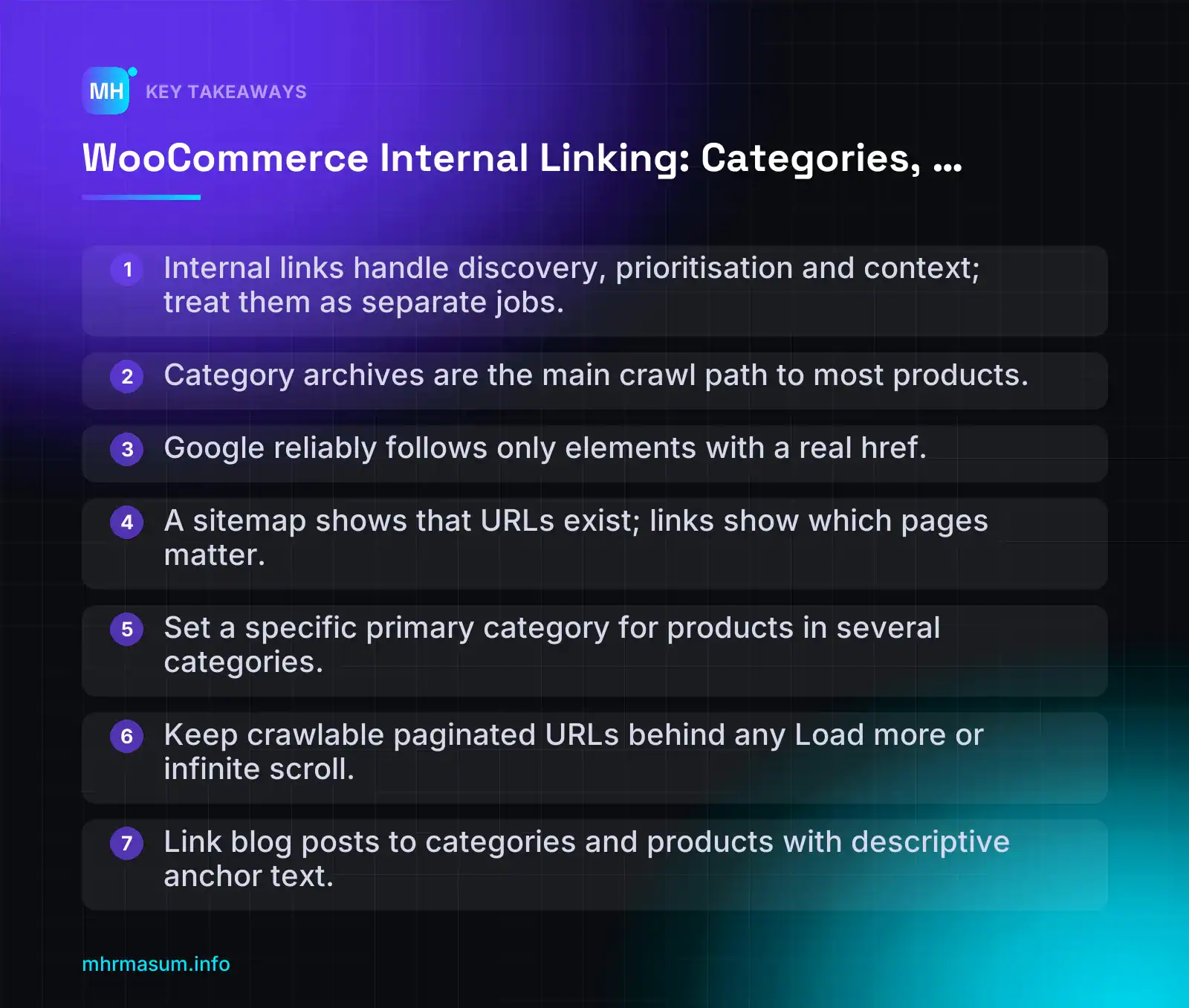
- Internal links handle discovery, prioritisation and context; treat them as separate jobs.
- Category archives are the main crawl path to most products.
- Google reliably follows only elements with a real href.
- A sitemap shows that URLs exist; links show which pages matter.
- Set a specific primary category for products in several categories.
- Keep crawlable paginated URLs behind any Load more or infinite scroll.
- Link blog posts to categories and products with descriptive anchor text.
What WooCommerce internal linking actually controls
In a WooCommerce store, internal linking does three separate jobs: discovery, prioritisation and context. If you treat them as one job (“add more links”), you usually fix one and break another.
- Discovery: Googlebot finds a product or category URL by following a link from a page it already knows.
- Prioritisation: The pages you link to most often, and from the most important places, are the pages you are telling Google matter most.
- Context: The anchor text and the surrounding page explain what the target page is about and how it relates to the rest of the store.
Crawl paths: how Googlebot reaches a product
Googlebot moves through your store by following links. Google states that it can reliably follow only <a> elements with an href attribute that resolves to a URL (Google Search Central). Buttons and script-driven “links” without a real href are not reliable crawl paths.
A typical WooCommerce store has these link sources:
| Link source | What it usually links to | Crawl value |
|---|---|---|
| Main menu | Top-level and key child categories | High: appears on every page |
| Category archives | Products, subcategories, paginated pages | High: the main path to most products |
| Product page breadcrumbs | Parent categories and Home | High: links back up the hierarchy |
| Upsells and related products | Other product pages | Medium: product-to-product paths |
| Brand archives | All products from one brand | Medium to high, if the archive is a real hub |
| Blog posts | Categories and products in context | Medium: strong context, fewer links |
| Footer | Policy pages, sometimes key categories | Low to medium: sitewide but generic |
Cart cross-sells are not on this list on purpose. Shoppers see them in the cart, but the cart is not a crawl path. Section 5 covers this in detail.
Authority flow: which pages get the most internal links
Every store has a natural link hierarchy. The home page and main menu links appear on every page. Category archives link to their products. Products deep in page 6 of an archive get very few links.
That distribution is a signal. If your best-selling category has two internal links and your returns policy has two thousand, the link graph tells Google the policy page matters more.
“Every product is in the XML sitemap, so Google already knows which pages matter.”
A sitemap is a list of URLs. It does not tell Google which URLs are central to your business or how a product relates to its category, brand and buying guide. Links show importance and relationships; a sitemap only shows existence. A product that appears only in the sitemap is often the one that ends up in Crawled – currently not indexed.
Context: what anchor text tells Google about the target
Google uses anchor text to understand the linked page. Its guidance is that good anchor text is descriptive, reasonably concise and relevant to both the source and the target page. For image links, the image’s alt text acts as the anchor text (Google Search Central).
<!-- Weak: no context -->
<a href="/product-category/women/knitwear/">Click here</a>

<!-- Clear: describes the target -->
<a href="/product-category/women/knitwear/">women's knitwear</a>
Section 7 sets out full anchor text rules for categories, products and posts.
Why this matters now
In an interview reported on 2 November 2026, Google’s John Mueller said AI systems build on SEO and that technical SEO will stay very relevant. He described different AI crawling purposes as another flavour of technical SEO, not a replacement for it (Search Engine Journal).
Be realistic about what that means. Clean internal links help pages get crawled and understood. Nothing guarantees a product appears in AI Overviews or gets cited by an AI assistant. Internal linking is a foundation, not a shortcut.
What this article does not cover
Filter, facet, sorting and attribute-filter URLs create a separate crawl problem with its own fixes. Read Faceted Navigation SEO for WooCommerce for that. This article focuses on links between categories, products, brands and blog posts.
Design the category hierarchy as your main crawl path
For most stores, category archives carry more crawl paths to products than anything else. If the hierarchy is messy, no amount of related-product widgets or blog links will fully fix it.
Google has long advised that important pages should be clickable from the home page, and noted that crawlers rarely type into search boxes or use pulldown menus (Google Search Central blog, 2008). That guidance is old, but the principle has not changed: if a shopper has to search to find a product, Googlebot may not find it at all.
The three-click rule as a decision aid, not a law
The “three-click rule” says every page should be reachable within three clicks of the home page. Google has never set a click limit. Use it as a prompt to check your structure, not as a target to hit at any cost.
Here is an example hierarchy for a clothing store:
| Level | Example URL | Clicks from home | What links to it |
|---|---|---|---|
| Home | / | 0 | Logo on every page, breadcrumbs |
| Women | /product-category/women/ | 1 | Main menu, footer, breadcrumbs |
| Knitwear | /product-category/women/knitwear/ | 2 (1 if in the menu dropdown) | Women archive, menu dropdown, breadcrumbs, buying guides |
| Wool Jumpers | /product-category/women/knitwear/wool-jumpers/ | 3 | Knitwear archive, breadcrumbs, blog posts |
| Product | /product/merino-crew-neck-jumper/ | 4 (or more if on page 3 of the archive) | Wool Jumpers archive, upsells, related products, blog posts |
The product is four clicks deep, and that is fine. The real risk is a product on page 9 of a paginated archive with no other links. Depth matters less than whether a clear, linked path exists.
Parent and child categories: when to split, when to merge
Create a subcategory only when all three conditions are true:
- Enough products: the archive would look like a real shop page, not two lonely items.
- Distinct search demand: people search for it as its own thing (check Search Console queries and Google autocomplete).
- Unique intro copy: you can write a helpful intro that is not a reworded version of the parent’s.
If any condition fails, keep the products in the parent category. Thin child categories split links across near-duplicate pages and give shoppers an extra click for nothing.
Merge when two categories have heavily overlapping products and intent, such as “Jumpers” and “Sweaters” in the same market. Redirect the retired archive with a 301 to the one you keep.
Choosing a primary category for products in several categories
A WooCommerce product can belong to many product_cat terms. That is useful for shoppers, but the breadcrumb can only show one path.
Yoast SEO and Rank Math both let you set a primary category. It controls which category appears in the breadcrumb and, depending on your permalink settings and plugin, sometimes the category used in the product URL. Look for the primary option inside the Product categories box on the product edit screen, and verify the exact location in your plugin version, as interfaces change.
Rule of thumb: pick the most specific category that matches the main search intent. “Wool Jumpers” is a better primary than “Women” or “New In”.
Permalinks and the product base
WooCommerce adds a Product permalinks section to the WordPress Settings > Permalinks screen. Check it on your own install. The usual options are:
- Default:
/product/product-name/ - Shop base:
/shop/product-name/ - Shop base with category:
/shop/category-name/product-name/ - Custom base
The same screen also has optional category and tag base fields (product-category and product-tag by default).
Do not change the product base on an established store without a redirect plan. Every product URL changes at once, every internal link points at an old address, and every external link needs a redirect. If you must change it, map old to new URLs first and follow a site migration process. For slug choices, see SEO Friendly URLs in WordPress.
Brand archives and tag archives: hub or noise?
Product brands are now part of WooCommerce core. Each brand can have its own name, description, image and archive page (WooCommerce documentation). That makes brand archives a crawlable hub type.
Treat a brand archive as a hub only if it has unique copy: who the brand is, what you stock and how to choose between lines. An empty brand archive with a logo and a product grid adds little. Keep brand data consistent with your feed too (see WooCommerce GTIN, MPN & Brand).
Product tag archives are usually thin. Tags such as “blue”, “gift” or “sale” often overlap with categories. Do not link thin tag archives sitewide through a tag cloud or the footer.
Pagination: keep deep products reachable
Products past page 1 of a category rely on pagination links. Those links must be plain <a href> elements.
<!-- Passes: crawlable page links -->
<nav class="woocommerce-pagination">
  <a href="/product-category/women/knitwear/page/2/">2</a>
  <a href="/product-category/women/knitwear/page/3/">3</a>
</nav>

<!-- Fails: JavaScript-only button, no URL to follow -->
<button onclick="loadMoreProducts()">Load more</button>
A “Load more” or infinite scroll feature is fine for shoppers as long as real paginated URLs still exist in the HTML. Without that fallback, every product beyond the first batch is a crawl dead end.
Mistake to avoid: the 300-category mega menu
Putting every category in a mega menu feels like a quick way to make everything “one click from home”. It backfires.
- It flattens the signal: your top categories get the same sitewide weight as minor ones.
- It confuses shoppers, who scan a wall of links and give up.
- It adds a large block of links to the HTML of every page, which can make mobile menus slower to use.
Keep the menu to your main categories and a few key children. Let category archives, breadcrumbs and buying guides carry the deeper links. If you want a second opinion on your structure, start with a free SEO check.
Make every link crawlable: HTML examples that pass and fail
A well-designed category hierarchy only helps if Googlebot can actually follow the links in it. A link Google cannot extract does nothing for discovery, prioritisation or context, however obvious it looks to a shopper.
This matters more now, not less. In an interview reported on 2 November 2026, John Mueller said AI systems build on SEO and that technical SEO will stay very relevant. He described different AI crawling purposes as another flavour of technical SEO, not a replacement for it (Search Engine Journal). Crawlable links are part of that foundation.
Google’s rule is simple. Google can reliably follow only <a> elements with an href attribute that resolves to a real URL. Google cannot reliably extract URLs from elements that only behave like links through script events (Google Search Central).
Good and bad link markup
These patterns pass. Each one is an <a> element with a real URL, and each gives Google useful anchor text.
<!-- Category link: plain anchor, descriptive text -->
<a href="https://example.com/product-category/running-shoes/">Running shoes</a>

<!-- Product card: the title and the image both link to the product URL -->
<li class="product">
  <a href="https://example.com/product/trail-runner-gtx/">
    <img src="/wp-content/uploads/trail-runner-gtx.jpg"
         alt="Trail Runner GTX waterproof running shoe">
  </a>
  <h2>
    <a href="https://example.com/product/trail-runner-gtx/">Trail Runner GTX</a>
  </h2>
</li>

<!-- Image link: the alt text acts as the anchor text -->
<a href="https://example.com/product-category/running-shoes/womens/">
  <img src="/wp-content/uploads/womens-running.jpg" alt="Women's running shoes">
</a>
For image links, Google uses the image’s alt text as the anchor text (Google Search Central). That makes alt text on category tiles and product images part of your internal linking, not just accessibility.
These patterns fail, or are weak:
<!-- FAIL: no <a> element, the URL only exists inside a script event -->
<span onclick="location.href='/product/trail-runner-gtx/'">Trail Runner GTX</span>

<!-- FAIL: <a> with no href -->
<a class="product-link" data-id="482">Trail Runner GTX</a>

<!-- FAIL: href does not resolve to a URL -->
<a href="javascript:void(0)" onclick="openProduct(482)">Trail Runner GTX</a>

<!-- FAIL: a button is not a link, data-url is not followed -->
<button data-url="/product/trail-runner-gtx/">View product</button>

<!-- WEAK: crawlable URL, but empty alt means no anchor text -->
<a href="/product-category/running-shoes/womens/">
  <img src="/wp-content/uploads/womens-running.jpg" alt="">
</a>
“Google renders JavaScript, so it will work out where my clickable cards go.”
Rendering is not the same as clicking. Google renders the page and reads the resulting HTML. If the rendered HTML has no <a href> for a product, there is no link to follow. Google does not reliably trigger click handlers to discover where they lead.
The same applies to dropdown navigation. Google’s long-standing link architecture guidance notes that crawlers rarely type into search boxes or use pulldown menus, and that important pages should be clickable from the home page (Google Search Central Blog). A <select> that jumps to a category on change is not a crawl path.
Product grids, swatches and quick-view popups
Most WooCommerce crawl problems come from theme and plugin features, not from WooCommerce core. These are the patterns to check first.
| Theme pattern | How it breaks crawling | What to check or change |
|---|---|---|
| Quick-view modals | The product title or image opens a popup instead of linking to the product URL. The product page may get no link from the category at all. | Keep a normal <a href> to the product on the title and image. Put quick view on a separate button. |
| Swatch-driven product cards | The card link is built or rewritten by JavaScript when a swatch is clicked. The default state may have no href, or only a variation URL. |
Confirm the default card has a crawlable link to the parent product URL before any swatch is touched. |
| AJAX category tabs | Only the first tab’s products are in the HTML. Other tabs load on click, so Google never sees those links. | Make sure every tab’s products are also reachable through a crawlable category link, or render all tabs in the HTML. |
| Sliders and carousels | Cards are injected after load, sometimes as <div> elements with click handlers and no href. |
Inspect the rendered HTML. Every slide should contain a real <a href>. |
| “Load more” and infinite scroll | Products beyond the first batch appear only after a click or scroll. | Keep crawlable paginated archive links, or make sure those products are linked elsewhere in the hierarchy. |
Heavy quick-view, swatch and slider scripts often hurt responsiveness too. If you are reworking them, it is worth reading how to fix INP on WooCommerce at the same time.
Filter, facet, sorting and attribute-filter URLs are a separate problem with different rules. I cover them in faceted navigation SEO for WooCommerce, so they are left out here.
Add-to-cart links are actions, not navigation
Product loops often include buttons such as ?add-to-cart=482. These URLs perform an action; they are not pages you want crawled or ranked.
- Do not count them as internal links to the product.
- Check what your theme outputs on loop buttons. View the rendered HTML and look at the
relattribute on the add-to-cart<a>element. - Themes and plugins override these templates, so do not assume a default. Check your own store.
- Make sure the product title and image, not the add-to-cart button, carry the real product link.
Checking rendered HTML with URL Inspection
Links inserted with JavaScript are fine, as long as they use the same <a href> markup. Google recommends checking the rendered HTML with the URL Inspection tool (Google Search Central).
- In Search Console, paste a category URL into the inspection bar at the top.
- Click Test live URL and wait for the test to finish.
- Click View tested page, then open the HTML tab.
- Use the search icon or copy the HTML into a text editor and search for a product slug, for example
trail-runner-gtx. - Confirm the slug appears inside an
<a href="…">, not only in adata-attribute, a script block or anonclick. - Repeat for a product in the second tab, the third slide and the second page of the archive.
If the URL only appears in JSON or a data attribute, Google has the text but not a link. Fix the template, then retest.
If many products show as crawled but not indexed, weak internal links are one of the causes worth ruling out. See Crawled – Currently Not Indexed: how to diagnose and fix it.
Breadcrumbs: the cheapest internal links you will ever add
Breadcrumbs give every product a link back up to its category, and every subcategory a link back to its parent. Once the template is set up, every new product gets these links automatically.
They also carry good anchor text for free. The anchor is the category name, which is usually exactly the phrase that describes the category page.
- Discovery: products deep in the store still link to their category and parent categories.
- Prioritisation: category pages collect a link from every product inside them.
- Context: the trail shows where the product sits in the hierarchy.
WooCommerce breadcrumbs vs SEO plugin breadcrumbs
Most stores have up to three breadcrumb sources available. Pick one and switch the others off.
| Source | Which category it shows on a product | Where breadcrumb schema comes from | Notes |
|---|---|---|---|
WooCommerce core breadcrumb (woocommerce_breadcrumb()) |
Core has no “primary category” setting. On multi-category products it selects one of the assigned categories using its own term ordering. | WooCommerce can output BreadcrumbList data alongside its breadcrumb. Check the page source to confirm on your store. | Appears only where your theme calls it. Many themes customise or replace it. |
| Yoast SEO or Rank Math breadcrumbs | Both let you set a primary category, and their breadcrumbs follow it. Confirm it applies to product categories in your version. | The plugin’s own schema output. | Usually added via a shortcode, block or theme setting. May replace or sit alongside the core breadcrumb. |
| Theme or block breadcrumbs | Depends on the theme. Some use WooCommerce core logic, some build their own. | Varies: none, the theme’s own, or inherited from WooCommerce. | Block themes may use a WooCommerce breadcrumbs block in the product template. Test what it outputs. |
My decision rule: if you rely on an SEO plugin’s primary category, use that plugin’s breadcrumbs and remove the others from the template. If you do not use primary categories, the core breadcrumb is fine, but check what it shows on multi-category products.
Breadcrumb markup and structured data
A breadcrumb is only useful for crawling if every ancestor is a real link. Here is a clean pattern:
<nav aria-label="Breadcrumb">
  <ol>
    <li><a href="https://example.com/">Home</a></li>
    <li><a href="https://example.com/product-category/running-shoes/">Running shoes</a></li>
    <li><a href="https://example.com/product-category/running-shoes/trail/">Trail running shoes</a></li>
    <li aria-current="page">Trail Runner GTX</li>
  </ol>
</nav>- Every item except the current page uses
<a href>. - The current page is plain text. A link to itself adds nothing.
- The anchors are the category names, not “Back” or “Category”.
If you also output breadcrumb structured data, it should describe the same trail the visitor sees. Do not mark up a different category path in JSON-LD than the one shown on the page.
Requirements for breadcrumb structured data can change. Confirm the current required and recommended properties in Google’s breadcrumb structured data documentation on developers.google.com. Then test a product URL with the Rich Results Test and check that only one BreadcrumbList is detected.
Breadcrumb mistakes on multi-category products
Products in more than one category cause most breadcrumb problems. These are the ones I check first.
| Mistake | Why it hurts | Fix |
|---|---|---|
| Trail goes Home > Shop > Product | Every product links to the shop page only. Categories get no breadcrumb links at all. | Configure breadcrumbs to include the product category path. In SEO plugins, check the taxonomy shown for products. |
| No primary category set | Similar products show different trails, or the trail uses a broad or seasonal category instead of the main one. | Set a primary category on every multi-category product. Audit products in sale or gift categories especially. |
| Product assigned to a parent and a child category | The breadcrumb may stop at the parent and skip the subcategory you actually want to strengthen. | Assign the deepest relevant category and set it as primary. |
| Duplicate breadcrumb schema | The theme or WooCommerce and an SEO plugin each output a BreadcrumbList, sometimes with different paths. | Keep one source. Disable the other in the theme or plugin settings, then retest with the Rich Results Test. |
| Breadcrumb hidden on mobile with JavaScript or removed from the template | Visitors on mobile lose the trail, and the links may be missing from the HTML Google renders. | Keep the breadcrumb in the HTML on all devices. Restyle it compactly rather than removing it. |
Seasonal and promotional categories need extra care. If a product sits in a sale category, make sure the sale category is never its primary category. My Black Friday SEO guide for WooCommerce covers how to keep sale pages from taking over your main structure.
To check quickly, open five products from different categories, including at least two multi-category products. Compare the visible trail with the BreadcrumbList in the page source. If the trails are inconsistent or the schema is duplicated, a free SEO check will flag it alongside other template issues.
Related products, upsells and cross-sells: what helps crawling and what doesn’t
WooCommerce adds three blocks of product links: related products, upsells and cross-sells. They look similar to shoppers, but they do very different jobs for crawling.
Most of the difference comes down to two questions. Who chooses the links? And where do they appear?
How each block is generated
According to the WooCommerce documentation on related products, up-sells and cross-sells:
- Related products are generated automatically from shared categories or tags. You cannot pick them in the Linked Products tab.
- Upsells are chosen manually for each product and shown on the product page. They are usually alternatives, such as a better or premium version.
- Cross-sells are chosen manually for each product and shown in the cart. They are complementary items. In the Cart block, they are displayed with a Product Collection block set to the Cross-Sells collection.
| Block | How it is set | Where it shows | SEO value for internal linking |
|---|---|---|---|
| Related products | Automatic, from shared categories and tags | Product page | Useful if your taxonomy is clean. The links are only as relevant as your categories and tags. |
| Upsells | Manual, per product (Linked Products tab) | Product page | High. You control the targets, so you can send links to priority or under-linked products. |
| Cross-sells | Manual, per product (Linked Products tab) | Cart | Little or none for crawling. They help average order value, not discovery. |
Which blocks create crawlable product-to-product links
Cross-sells live on the cart, and the cart is not a crawl path. The cart only shows content based on what a session has added. Googlebot does not add products to a basket, so it sees an empty cart with no cross-sells to follow.
Many stores also noindex the cart or block it from crawling, which is sensible. In any case, do not count cross-sells as internal links.
“We’ve set cross-sells on every product, so our product pages are well interlinked.”
Not for Google. Cross-sells are a sales feature. Upsells and related products are the links that count, because they appear on product pages that Googlebot actually crawls.
Related products depend on taxonomy hygiene
Because related products are built from shared categories and tags, your taxonomy decides where those links point.
- Messy tags give random related links. A tag like “sale”, “new” or “gift” can be shared by unrelated items, so a leather wallet ends up linking to a phone case.
- Clean categories give relevant ones. If products sit in a specific, accurate category, related products stay close to the topic of the page.
- Remove or merge one-off and near-duplicate tags. A tag used by one product creates no useful relationships.
- Avoid putting every product into a broad parent category as well as its specific child, unless your theme needs it. Broad shared categories widen the pool and dilute relevance.
The related selection can also change between page loads on some setups. Load the same product page a few times and see whether the links stay stable. If they rotate, treat related products as a useful extra, not as your planned link structure. Upsells are where you plan.
Check what happens to out-of-stock items
Some sources say out-of-stock linked products are hidden. Whether that happens on your store depends on your settings and theme, so check it yourself.
- Go to WooCommerce > Settings > Products > Inventory.
- Look at Hide out of stock items from the catalogue.
- If it is ticked, open a product whose upsells include an out-of-stock item and see whether that card still appears.
- If the links disappear, your linked-product structure shrinks every time stock runs out. Choose upsells that are usually in stock, or link important products from categories and guides as well.
Curating upsells for priority products
Upsells are the one product-to-product link you fully control. Use them deliberately.
- Go to Products > All Products and click Edit on the source product.
- Scroll to the Product data panel and open Linked Products.
- In the Upsells field, type a product name and pick it from the list. Add two to four genuine alternatives.
- Click Update, then view the live page and confirm the upsell block appears. Some themes and block templates need the upsell block included in the single product template.
Decide which products to add with simple rules:
- Prioritise under-linked products that make sense for the shopper. A newer model, a higher-margin variant or a product with few category links is a good target.
- Link from well-linked, high-traffic products to weaker ones. That spreads discovery towards the pages that need it.
- Never add irrelevant products just to create links. Upsells are visible, and a shopper who sees a random recommendation trusts the page less.
- Keep a short list per product. A wall of twenty upsells helps nobody and weakens each link.
Mistake to avoid: sliders with no hrefs
Some related-product and upsell sliders load cards only after a user clicks an arrow or scrolls. Others use click handlers instead of real links. In both cases, the rendered HTML may contain no hrefs, and Google cannot reliably follow links that only work through script events (Google link best practices).
<!-- Fails: no href, the URL only exists in a script event -->
<div class="product-card" onclick="goTo('/product/oak-desk/')">Oak Desk</div>

<!-- Fails: cards injected only after the user clicks "next" -->
<div class="slider" data-load-on="click"></div>

<!-- Passes: a real link present in the rendered HTML -->
<a href="https://example.com/product/oak-desk/">Oak Desk</a>
Test this in Search Console with URL Inspection > Test live URL > View tested page > HTML. Search for the slug of a product in your slider. If it is missing, change the slider settings or the plugin.
Heavy sliders often slow interactions too. If yours is laggy, see how to fix INP on WooCommerce, and review the scripts behind it with a third-party script audit.
Blog-to-product and blog-to-category linking
Your blog often earns links and traffic that product pages never will. People share a buying guide; they rarely share a product page.
Internal links from posts pass that discovery and context on to your store. Without them, the blog and the shop sit side by side as two separate sites.
Which post types should link to which store pages
The rule is simple. Link to a category when the intent is broad, and to a product when the post names a specific item.
Never send every post to the homepage. The homepage is already your most linked page. A link to it from a post about cleaning suede boots tells Google nothing and gives the reader nothing to do.
| Content type | Main link target | Example |
|---|---|---|
| Buying guide | The category | “How to choose a standing desk” links to the Standing Desks category |
| How-to guide | Specific products or accessories used in the steps | “How to assemble a standing desk” links to the cable tray and anti-fatigue mat |
| Care guide | The products it applies to, plus care accessories | “How to clean an oak desk” links to the oak desk and the wood care kit |
| Comparison | Two or three named products, plus the category | “Oak vs walnut desks” links to both desks and to Wooden Desks |
| Seasonal or gift post | The category or a curated collection page | “Gifts for home workers” links to the Desk Accessories category |
| Brand-focused post | The brand archive | A post about one manufacturer links to its brand page |
Brand archives are worth including. Product brands are now part of WooCommerce core, and each brand gets its own name, description, image and archive page (WooCommerce core products documentation). That makes them a crawlable hub, just like a category.
Link to clean category and brand URLs, not filtered or sorted versions. Parameter URLs are a separate problem, covered in faceted navigation SEO for WooCommerce.
Placement: in-copy links vs product blocks
In-copy contextual links come first
A link inside a relevant sentence beats a sidebar widget. Google’s link best practices point out that the words around a link give context about the target (Google Search Central). A sidebar showing “Popular products” on every post has no such context.
<!-- Weak: generic, out of context -->
<p>Want a new desk? <a href="/shop/">Click here</a>.</p>

<!-- Strong: descriptive anchor inside a relevant sentence -->
<p>If you work standing for more than two hours a day, a desk with a
memory keypad saves time, which is why our
<a href="/product-category/standing-desks/">electric standing desks</a>
all include one.</p>
Practical rules for in-copy links:
- Place the first store link where the reader is ready to act, often after the explanation, not in the opening line.
- Link each target once per post. Repeating the same link adds clutter, not value.
- Keep the total reasonable. A guide with three to eight well-placed store links reads better than one with thirty.
Product blocks as a visual extra
The WooCommerce blocks in the editor, such as Product Collection, can show product grids inside posts. They are useful below a comparison or at the end of a buying guide.
Before relying on them, check that the output contains real <a href> links:
- Publish or preview the post.
- Run URL Inspection > Test live URL in Search Console and open the rendered HTML.
- Search for the slug of one product in the block.
- Confirm it sits inside an
<a href="…">element, and that the image alt text describes the product. For image links, Google uses the alt text as the anchor text.
Use blocks alongside in-copy links, not instead of them.
Linking back from products and categories to guides
Links should run both ways. Guides help shoppers decide, and they help Google see how your store and content connect. This supports the topic signals discussed in topic-level authority SEO.
- Category pages: add a short “Buying guide” link block in the category description, above or below the product grid.
- Product descriptions: link the relevant care or setup guide, for example “How to look after your oak desk”.
- Comparison posts: link them from each product they compare.
<p><strong>Buying guide:</strong> Not sure which height range you need?
Read <a href="/blog/how-to-choose-a-standing-desk/">how to choose a
standing desk</a>.</p>
Keep it to one or two guide links per page. The goal is to help a hesitant shopper, not to turn a category into a blog index.
Maintenance: when products are discontinued
Blog posts outlive products. A guide written two years ago may link to items you no longer sell.
When a product is discontinued, update the blog links to its replacement or its category. Do not leave the link pointing at a redirect or a 404. Redirects add an extra hop, and Google’s guidance advises against chaining links. A 404 gives the reader a dead end.
- Before removing a product, search your posts for its URL slug. In WordPress, Posts > All Posts search covers post content.
- Replace each link with the successor product, or the category if there is no direct replacement.
- Adjust the surrounding sentence so it still describes the new target accurately.
- Only then redirect the old product URL, as a safety net for external links and bookmarks.
Run this check every quarter and before big sale periods. If you would like a second pair of eyes on your store’s link structure, start with a free SEO check.
Anchor text rules for categories, products and posts
Anchor text is the clickable text of a link. Google uses it to understand what the target page is about, and shoppers use it to decide whether to click.
Google’s link guidance says good anchor text is descriptive, reasonably concise, and relevant to both the page it sits on and the page it points to (Google Search Central). It also gives a simple test: read the anchor text out of context and check that it still makes sense.
“Click here” fails that test. “Merino wool jumpers” passes it.
Good, acceptable and bad anchors
Use this table as a quick reference when you write category descriptions, product descriptions and blog posts.
| Target type | Good anchor | Weak but acceptable | Bad anchor |
|---|---|---|---|
| Category | merino wool jumpers | shop jumpers | click here |
| Subcategory | women’s waterproof hiking boots | hiking boots | see more |
| Brand archive | Acme kitchen knives | Acme range | this brand |
| Product | Highland Merino Crew Neck Jumper | this crew neck jumper | buy now |
| Guide or blog post | how to wash merino wool without shrinking it | our washing guide | read more |
The “weak” column is not wrong. Short anchors like “shop jumpers” are fine in navigation, where the surrounding menu gives context. In body copy, aim for the “good” column, because that is where you have room to be specific.
Avoiding over-optimised exact-match patterns
“Every internal link should use the exact keyword I want to rank for.”
This is one of the most common mistakes on WooCommerce sites. Google’s own guidance asks for anchors that are descriptive and natural, not repeated keywords. Two hundred identical anchors pointing to one category add no extra meaning after the first few, and they make your copy read as if it was written for a bot.
Follow these rules instead:
- Vary anchors naturally. “merino jumpers”, “our merino wool range” and “lightweight merino knitwear” can all point to the same category.
- Use the product name for product links. The product name is already the most descriptive anchor you have. If your product titles are vague, fix them first; the same principles apply as in Merchant Center product title optimisation.
- Never use one anchor for two different targets. If “running shoes” links to a category in one post and a single product in another, you are sending mixed signals about which page is about running shoes.
- Keep anchors relevant to the source page too. A link to a jumper category from a post about washing wool makes sense. The same link dropped into a post about returns policy does not.
- Don’t stuff navigation labels. A menu item called “Cheap Merino Wool Jumpers UK Sale” helps nobody. “Jumpers” is fine there.
Don’t chain links together
Google advises against chaining links, meaning several links placed next to each other with no separating text (Google Search Central). Each link should have its own context.
<!-- Avoid: links run together with no context -->
<p>Shop <a href="/jumpers/">jumpers</a><a href="/cardigans/">cardigans</a><a href="/scarves/">scarves</a></p>

<!-- Better: each link has its own context -->
<p>Pair a <a href="/jumpers/merino/">merino wool jumper</a> with one of our
<a href="/scarves/wool/">wool scarves</a> for colder days.</p>

<!-- Also fine: a list, where each item is clearly separate -->
<ul>
  <li><a href="/jumpers/">Jumpers</a></li>
  <li><a href="/cardigans/">Cardigans</a></li>
</ul>
Image and product card anchors
A typical WooCommerce product card has two links to the same product: the image and the title. For an image link, Google uses the image’s alt text as the anchor text (Google Search Central).
That means an empty alt attribute leaves that link without useful anchor text, unless your theme adds something else.
To fix product image alt text:
- Go to Media > Library in WordPress.
- Switch to list view, so you can work through images faster.
- Open each product image and fill in the Alternative Text field.
- Describe the image, usually including the product name: “Highland merino crew neck jumper in navy”.
- View a category page, inspect a product card and confirm the alt appears in the rendered
<img>tag.
Gallery images can describe the specific view: “Highland merino jumper, close-up of ribbed cuff”. Don’t paste the same keyword string into every image; write for someone who can’t see the photo.
Find orphan and under-linked products
An orphan product is published and indexable, but has no internal links from any crawlable page. Google may still find it through your sitemap, but it gets no context from your category structure and no signal that you consider it important.
An under-linked product has links, but very few, usually from deep pagination or a single old blog post.
Google’s long-standing advice is that crawlers rarely type into search boxes or use pulldown menus, and that important pages should be clickable from the home page (Google Search Central Blog). A product that can only be reached through your site search fails that test.
This matters more now, not less. In an interview reported on 2 November 2026, John Mueller said technical SEO remains very relevant as AI systems build on traditional search (Search Engine Journal). Internal links won’t guarantee a product appears anywhere, but a page that can’t be discovered through links starts at a disadvantage.
Method 1: sitemap vs crawl comparison
This is the most reliable method. The idea is simple: your sitemap lists the products you want indexed, and a crawl shows the products your links actually reach.
- Find your product sitemap. With an SEO plugin it is often something like
/product-sitemap.xml. With the WordPress core sitemap, look under/wp-sitemap.xmlfor the products entry. Check your plugin settings for the exact location. - Export the URL list from the sitemap into a spreadsheet.
- Crawl the site from the home page with a desktop crawler that can compare a crawl against a sitemap. Make sure it renders JavaScript if your theme loads product grids with script.
- Compare the two lists. URLs in the sitemap but not found in the crawl are your orphans.
- Check crawl depth for the remaining products. Products that need many clicks to reach are under-linked candidates.
Before you trust the result, check your crawler’s settings. If it is set to ignore query strings or limit depth, it may report false orphans.
Method 2: Search Console Links report export
Search Console gives you Google’s own view, without running a crawler.
- In Search Console, open Links.
- Under Internal links, find Top linked pages and click More.
- Export the full list.
- Match it against your product URL list (from the sitemap or Method 3) with a VLOOKUP or XLOOKUP.
- Products that are missing from the export, or sitting near the bottom, are your candidates.
The list is sorted from most to fewest links, which makes the weak end easy to find (Search Console Help). Keep in mind that this data is not a full, live crawl. New links take time to show, so use it to spot patterns, not to confirm a fix you made yesterday. The next section covers how to read this report properly.
Method 3: WP-CLI or database product list
Your sitemap may not list every published product. For example, products set to noindex are usually excluded. To get the complete list, ask WordPress directly.
If you have WP-CLI access, run this on a staging copy first:
wp post list --post_type=product --post_status=publish --fields=ID,post_name --format=csv > products.csvThis gives you the ID and slug of every published product. If your WP-CLI version supports the url field, you can export full URLs instead:
wp post list --post_type=product --post_status=publish --fields=ID,post_name,url --format=csv > products-urls.csvCompare this list against both your sitemap and your crawl. You will find three groups:
- In the database, sitemap and crawl: healthy.
- In the database and sitemap, not in the crawl: orphans to fix.
- In the database only: check why. They may be noindexed on purpose, or excluded by mistake.
Variations are not separate product pages, so this command lists parent products only. That is what you want for this audit.
Intentional orphans: hidden catalogue visibility
Some orphans are deliberate. In the product editor, the Catalogue visibility setting (in the Publish box) controls where a product appears.
| Catalogue visibility | Shown in shop and categories? | Linking effect |
|---|---|---|
| Shop and search results | Yes | Normal internal links |
| Shop only | Yes | Normal links, hidden from on-site search |
| Search results only | No | Reachable only via site search, which crawlers rarely use |
| Hidden | No | Orphan by design |
The product URL still works in the last two cases. So decide whether these products should be indexable at all.
- Private, wholesale or bundle-only products: usually noindex them and keep them out of the sitemap.
- Products that should rank: change visibility to “Shop and search results” and place them in a proper category.
- Products hidden because they’re discontinued: consider redirecting to the closest replacement or category.
An indexable, hidden product sitting in your sitemap often ends up as Crawled – currently not indexed.
Common causes and fixes
| Cause | How to spot it | Fix |
|---|---|---|
| Product only in “Uncategorised” | Filter Products by the Uncategorised category in the admin | Assign a real category; hide or remove Uncategorised from menus |
| Empty parent category | Parent shows no products and links poorly to its children | Add an intro, link to subcategories, or show subcategories on the archive |
| Pagination with no hrefs | “Load more” button or infinite scroll with no <a href> to page 2 in the rendered HTML |
Output real paginated links, check with URL Inspection |
| Removed menu item | Category or product dropped out of the crawl after a menu change | Restore the link in the menu, or link it from its parent category |
| Deleted blog post | Product lost its only contextual link | Add the link to a live, relevant post or category description |
Fixing orphans is usually a category problem, not a blog problem. Put every product in at least one meaningful category first, then add contextual links from guides. If you build those guides around your core product topics, topic-level authority and internal linking support each other.
If you’d like a second pair of eyes on your store’s link structure, start with a free SEO check.
Use the Search Console Links report to check your results
After all the work on categories, breadcrumbs, upsells and blog links, you need to check what Google has actually picked up. The Links report in Search Console is the simplest free way to see your internal linking from Google’s side.
It will not tell you everything. It will show whether your priority categories and products are getting the attention you planned, or whether that attention is going to the cart, tag archives and filter URLs instead.
Where to find it and what each table shows
Open your property in Search Console and go to Search Console > Links in the left-hand menu. The report has two halves (Search Console Help).
| Section | Table | What it tells a store owner |
|---|---|---|
| External links | Top linked pages | Which of your URLs other sites link to most |
| External links | Top linking sites | Which domains link to you |
| External links | Top linking text | The anchor text other sites use for you |
| Internal links | Top linked pages | Which of your URLs your own site links to most. This is the table for this article. |
The internal section has one table only. It does not show internal anchor text or which pages the links come from.
Each table shows a short preview. Click More under Top linked pages in the Internal links section to open the full list. Use Export to download it to Google Sheets, Excel or CSV.
The list is sorted from most links to fewest. Your under-linked pages sit at the bottom, so scroll down or sort the export in ascending order.
Reading the internal links table for a store
A healthy WooCommerce store usually shows a clear pattern near the top of the list:
- The home page, because the logo and breadcrumbs link to it from every page.
- Main product categories that appear in the menu and breadcrumbs.
- Key subcategories and brand archives that act as hubs.
- Top-selling products that get upsell, related product and blog links.
- Policy pages such as shipping and returns, which are linked from the footer. This is normal.
The key check is the order. Your main categories should not be outranked by tag archives, author archives or utility pages. If /product-tag/sale/ has more internal links than /product-category/womens-jackets/, your templates are sending links to the wrong place.
Watch for these red flags:
| What you see | What it usually means | What to do |
|---|---|---|
/cart/, /my-account/ or /checkout/ with high counts |
Header icons and theme templates link to them sitewide | Usually harmless, but make sure these pages are not taking menu space from categories |
?add-to-cart= URLs |
Product cards output add-to-cart buttons as plain links | Check your theme’s loop markup. Do not create pages to target these URLs. |
| Filter or sorting URLs near the top | Layered navigation is crawlable without limits | Follow the faceted navigation guide for WooCommerce |
| Priority products near the bottom | They rely on one category page or a deep pagination page | Add upsells, related products and contextual blog links |
Staging domain or http:// URLs |
Hard-coded links left over in content, menus or widgets | Search and replace in the database, then update the menus |
“The product with the most internal links will rank highest.”
No. The counts are not a ranking score. They are a sign of how your site is structured. A product with 40 footer links can perform worse than one with five links from relevant categories and buying guides. Use the report to find imbalances, not to chase numbers.
Before and after: measuring a linking change
Treat every linking project as a small test. Follow these steps:
- Export a baseline. Download the full internal links list before you change anything. Name the file with the date.
- Record the key URLs. List the 10–30 categories and products you plan to support.
- Make the changes. Add breadcrumbs, upsells, blog links or menu items as planned.
- Wait for the data to refresh. The report is not live. Check the help page for current refresh timing and give it several weeks.
- Re-export and compare. Put both exports in one sheet and match them on URL.
URL                                   | Links (baseline) | Links (after) | Change | Impressions before | Impressions after | Last crawl
/product-category/womens-jackets/     | 212              | 340           | +128   | 4,100              | (fill in)         | (from URL Inspection)
/product/merino-hooded-jacket/        | 3                | 19            | +16    | 120                | (fill in)         | (from URL Inspection)
The figures above are placeholders that show the layout. They are not real results.
Pair the link counts with two other checks:
- Performance report: filter by page and compare impressions for the same length of time before and after. The Search Console-first reporting guide explains how to set up fair date comparisons.
- URL Inspection: check the last crawl date for each key URL. A product that was crawled rarely before and more often after is a good sign that Google is finding it more easily.
Keep the limitations in mind:
- The counts are Google’s processed view, not a live crawl of your site.
- The report may not show every link type. Check the help page for how links are sampled, counted and deduplicated, and whether canonical or image links are included.
- For a full picture of anchor text and source pages, run a desktop crawler alongside Search Console.
Priority checklist and advanced tips
Google’s John Mueller has said recently that AI systems build on SEO and that technical SEO will stay very relevant (Search Engine Journal). Crawlable internal links are a basic part of technical SEO. Get the basics right in order before you try anything clever.
Priority checklist (do in this order)
| Priority | Task | Where to do it | How to verify |
|---|---|---|---|
| 1 | Make product cards, menus and pagination use <a href> links |
Theme templates, page builder, block settings | URL Inspection > View crawled page > HTML. Search for the target URL inside an href. |
| 2 | Fix the category hierarchy and main menu | Products > Categories, Appearance > Menus or the Site Editor | Every main category can be reached from the home page in one click |
| 3 | Enable breadcrumbs and set a primary category | Theme or SEO plugin settings, product edit screen | Breadcrumb links show in the rendered HTML and follow the correct category path |
| 4 | Make sure pagination outputs real href links, not only “Load more” |
Theme or shop page settings | Page 2 and later have crawlable URLs in the HTML. Check Google’s current pagination guidance on developers.google.com. |
| 5 | Add upsells to priority products | Product data > Linked Products | Upsell links appear on the product page as <a href> links |
| 6 | Add blog-to-product and blog-to-category links | Post editor | Each buying guide links to 2 or more relevant products or categories with descriptive anchors |
| 7 | Run an orphan sweep | Crawler compared with the product sitemap | No published, in-stock product has zero internal links |
| 8 | Export a Links report baseline | Search Console > Links | A dated export is saved and ready for comparison |
Remember that cross-sells only show in the cart. They help sales but do not add crawlable product-to-product links. Do not count them in step 5.
Advanced: hub pages for top sellers and seasonal collections
Google’s long-standing advice is that important pages should be clickable from the home page. It also notes that crawlers rarely type into search boxes or use pulldown menus (Google Search Central Blog). Hub pages put this advice into practice.
- Best sellers hub: a curated page that links to your top 20–40 products, linked from the home page and the menu. Update it by hand or with a product collection based on sales.
- Brand archives: product brands are now part of WooCommerce core, and each brand has its own archive page (WooCommerce docs). Add a short description and link the archives from product pages and a brands index.
- Seasonal collections: link pages such as BFCM, Eid or Christmas from the home page and the menu while they are live.
When the season ends, keep the URL. Remove it from the main menu, link it from a “Past sales” or seasonal archive page, and reuse the same URL next year. Deleting the page every January throws away the links and history it has built up. The evergreen Black Friday pages guide covers this setup in detail.
Advanced: footer and sitewide link discipline
Sitewide links appear on every page, so they add little context about any single page. Fifty product links in a footer dilute the signal and clutter the page for shoppers.
Keep the footer to:
- Shipping, returns, privacy and terms pages
- Contact and about pages
- Three to six key category or brand hubs
Link products from relevant places, such as categories, upsells, related products and buying guides. Do not try to fix weak product linking with the footer.
Troubleshooting: links added but nothing changed
| Symptom | Likely cause | Check |
|---|---|---|
| Product not indexed despite good links | noindex, a canonical tag pointing elsewhere, or thin or duplicate content |
Run URL Inspection on the product and review the indexing and canonical fields. See Crawled – currently not indexed for help with quality issues. |
| Links not seen by Google | Product cards or sliders built with JavaScript click events instead of <a href> |
Search the rendered HTML in URL Inspection for the target URL |
| Link counts not updating | The report has not refreshed yet | Check the help page for refresh timing, then check again in a few weeks |
| Wrong breadcrumb trail | Product belongs to several categories and no primary category is set | Set the primary category in your SEO plugin, then view the rendered breadcrumb |
If you would like a second opinion on your store’s structure, start with the free SEO check.
Finish with a 30-minute monthly routine:
- Export the Links report and compare it with last month’s export. Look for priority URLs that have dropped and utility URLs that have climbed.
- Check new products from the past month. Each one should have at least two contextual links, such as an upsell from a related product and a link from a category description or blog post.
- Check discontinued products. Make sure each one has been redirected to the closest alternative or category, and that blog posts and upsells now point to a replacement instead of a dead or redirected URL.
Frequently Asked Questions
How many internal links should a WooCommerce product page have?
Google does not set an ideal number. What matters is that every product has a clear, crawlable path. That usually means links from its category archive, a breadcrumb, relevant related products or upsells, and blog posts where the link genuinely helps the reader.
Do WooCommerce related products and upsells help SEO?
They can, because they create product-to-product paths with useful context. Check that they are rendered as plain links in the page HTML. Cart cross-sells are different: shoppers see them in the cart, but the cart is not a crawl path.
Should I noindex WooCommerce product tag pages?
Tag archives are often thin and overlap with categories, so first stop linking them sitewide through tag clouds or footers. If a tag has real search demand and enough products, turn it into a proper hub with unique copy. Otherwise, noindexing it or removing the tag are both reasonable options.
Does infinite scroll or a Load more button hurt WooCommerce SEO?
Only if it replaces real pagination. If the HTML still contains crawlable links to /page/2/, /page/3/ and so on, Googlebot can reach deeper products. A JavaScript-only button with no URL leaves those products as crawl dead ends.
How do I find orphan products in my WooCommerce store?
Crawl the site with a desktop crawler, then compare the URLs it finds with your product sitemap or a product export. Products that appear in the sitemap but were not found in the crawl have no internal links. In Search Console, also check the Pages report for products listed as Crawled – currently not indexed.
Should blog posts link to category pages or product pages?
Link to both, depending on the sentence. Link to a category when you discuss a type of product, and to a product when you mention a specific item. Use descriptive anchor text that matches the target, and only add links a reader would actually want to click.
Does internal linking help products appear in AI Overviews or AI assistants?
Clean internal links help pages get crawled and understood, and AI search features build on that foundation. Nothing guarantees a product will be shown or cited, though. Treat internal linking as groundwork, not a shortcut.
Final Thoughts
Start with crawlability. Check that your menu, category archives, pagination, breadcrumbs and product cards all use plain links, and that no products depend on the sitemap alone.
Next, tidy the structure. Merge thin or duplicate categories, set a specific primary category for each product, and decide which brand archives deserve unique copy and links. Keep your mega menu limited to the categories that matter most.
Finally, add context. Link buying guides and blog posts to the categories and products they discuss, using descriptive anchors. Then use Search Console’s Pages report over the following weeks to see whether previously ignored products start being crawled and indexed.
Want help applying this to your site? Run the free SEO check or book a free consultation with MD Harunur Rashid. Free SEO check · Book a free consultation