You moved your WordPress site to a new domain, set up redirects and submitted a sitemap. Weeks later, most of your pages still are not indexed, and you are wondering what went wrong with your site migration SEO.
This is a common situation. It is not always a technical failure.
Sometimes the redirects are fine and Google has crawled the new URLs. It has simply chosen not to index them. That points to how Google judges the content, not to whether it can reach it.
This guide shows you how to work out which problem you have. It covers which type of move you are making, when the Change of Address tool applies, what to benchmark before launch, and how to check content quality before and after the move.
It is written for small business owners, WooCommerce store owners, marketers and in-house SEOs who are planning a domain change or trying to recover from one.
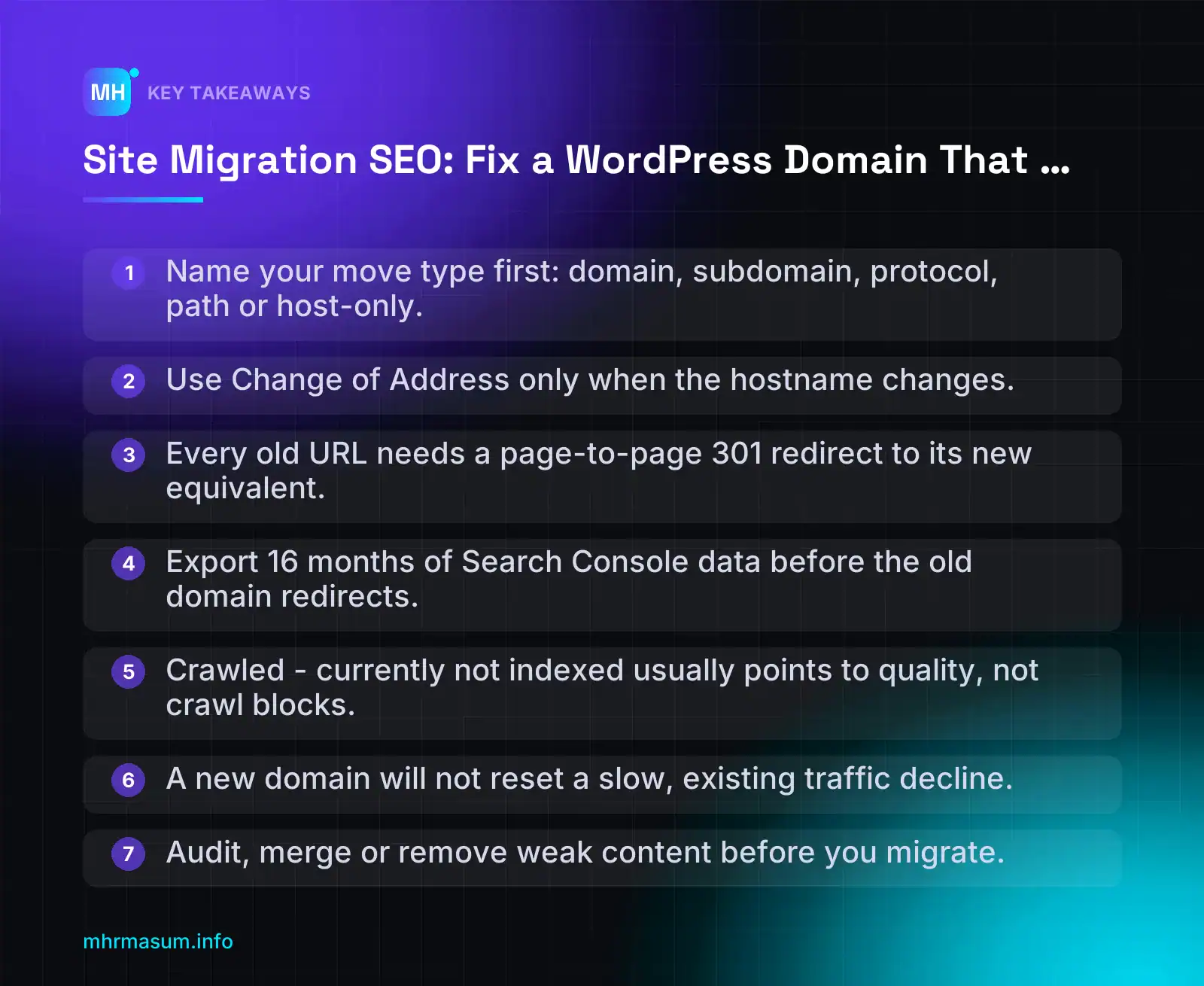
Key Takeaways
- Name your move type first: domain, subdomain, protocol, path or host-only.
- Use Change of Address only when the hostname changes.
- Every old URL needs a page-to-page 301 redirect to its new equivalent.
- Export 16 months of Search Console data before the old domain redirects.
- Crawled – currently not indexed usually points to quality, not crawl blocks.
- A new domain will not reset a slow, existing traffic decline.
- Audit, merge or remove weak content before you migrate.
What Site Migration SEO Covers (and Which Type of Move You Are Making)
Site migration SEO is the work of moving a website without losing the search visibility it has already earned. That means keeping URLs discoverable, passing signals from old pages to new ones, and helping Google understand what changed.
Not every migration carries the same risk. The first step is to name the exact type of move you are making, because that decides which tools you need and which you can skip.
Domain change vs HTTPS vs URL path change
Google defines a site move with URL changes as any move where the addresses of your pages change. Its site move guide gives three typical examples (Google Search Central):
- Protocol change:
http://example.comtohttps://example.com - Domain change:
example.comtoexample.co.uk, or an old brand domain to a new one - URL path change:
example.com/shop/product-nametoexample.com/product/product-name
All three need server-side redirects from old URLs to new URLs. Only some of them need the Change of Address tool in Search Console.
Protocol change:  http://example.com/blue-widget/   -> https://example.com/blue-widget/
Domain change:    https://oldbrand.com/blue-widget/ -> https://newbrand.com/blue-widget/
Path change:      https://example.com/shop/blue-widget/ -> https://example.com/product/blue-widget/
Host-only move:   https://example.com/blue-widget/  -> https://example.com/blue-widget/ (new server, same URL)
Does your move need the Change of Address tool?
The Change of Address tool tells Google that a whole domain or subdomain has moved. You submit it from the old property, only after the new site and redirects are live, and both properties must be verified in Search Console (Search Console Help).
| Type of move | Use Change of Address? | What to do instead or as well |
|---|---|---|
| New domain (rebrand) | Yes, from the old property | 301 redirects for every old URL, 301 from old homepage to new homepage, updated canonicals, new sitemap |
Domain moved to a path on another domain (e.g. oldbrand.com to group.com/oldbrand/) |
Yes, this is supported | 301 redirects to matching paths, canonicals pointing to the new URLs |
Subdomain change (e.g. shop.example.com to example.com) |
Yes, the hostname changes | Page-to-page 301s, updated internal links and sitemap |
| HTTP to HTTPS on the same domain | No | Site-wide 301s to HTTPS, HTTPS canonicals, HTTPS sitemap |
| www to non-www (or reverse) | Historically no. Check the live guide: a June 2026 update reportedly says to use it for www and non-www variants | 301s to the preferred host, consistent canonicals and internal links |
| URL path changes within one domain | No | Page-to-page 301s, updated internal links, new sitemap |
| New host, same URLs | No (no URLs change) | Keep URLs identical, keep robots.txt reachable, monitor crawl errors and server responses |
On the www point: PPC Land reported that Google updated the site move guide on 17 June 2026 to cover every subdomain variant, including www and non-www (PPC Land). Read the current wording on the Google page before you act on it, because guidance like this can be edited again.
Why a host-only move is lower risk than a rebrand
When you change hosting but keep every URL the same, Google sees the same addresses serving the same content. There is nothing to remap and no signals to transfer. The main risks are downtime, slow responses and misconfigured robots.txt.
A rebrand to a new domain is different. Every URL Google knows becomes a redirect, and Google has to crawl the old URLs, follow the redirects and process the new ones. Google says a small to medium site can take a few weeks for most pages to move, and larger sites take longer (Google Search Central).
During that window, any weakness in the redirect map, internal links or content quality shows up as lost visibility.
Decision rule
- If the hostname changes (new domain, new subdomain, or domain into a path on another domain): follow the full playbook in this article, including Change of Address.
- If only paths or protocol change on the same hostname: use page-to-page 301 redirects, updated canonicals, internal links and sitemaps, and skip Change of Address.
- If nothing in the URL changes: treat it as a hosting move. Focus on uptime, response codes and robots.txt.
Why a Technically Perfect Migration Can Still Fail
Most migration advice focuses on redirects, sitemaps and Search Console settings. Those matter. But a correct technical setup does not guarantee that Google will index the new domain.
If the content was already weak, the move can expose it.
The site quality theory
In October 2026, Marie Haynes described a hobby blog migration that was done by the book: Change of Address submitted, redirects mapped, internal links updated, the site crawlable and a new sitemap submitted (Search Engine Journal). Even so, 98% of URLs showed as not indexed, and inspected pages reported “Crawled – currently not indexed”.
The site had been declining slowly for about a year before the move. Her theory is that a migration triggers a fresh quality assessment, and that originality was the main problem. She states clearly that she cannot prove this, so treat it as a working theory, not a confirmed Google mechanism.
What makes the theory useful is the status itself. “Crawled – currently not indexed” means Google fetched the page and chose not to index it. That points away from crawl blocks and towards how Google judges the page.
What Google’s own examples show
A separate case points the same way. When javatpoint moved to tpointtech, rankings collapsed after the domain change. John Mueller explained that the migration came before the de-indexing but did not cause it. The real cause was low-quality content (Search Engine Journal).
Interestingly, Mueller used a Bing site: search on the new domain to show the content problem. You can run the same quick check yourself:
site:newdomain.com            (in Bing and in Google)
site:newdomain.com "keyword"  (look at what kind of pages appear)
Read the titles and snippets as a stranger would. Are they thin, repetitive, or similar to what dozens of other sites already publish? That is the question Google is likely asking too.
“My site ranked fine before the move, so the content must be fine.”
This is the most common wrong assumption I see. Past rankings are not proof of current quality. Older pages can hold positions on accumulated signals while Google’s view of the site slowly weakens. A slow decline over months is often that process in action. A migration simply makes the problem visible all at once, and it is easy to blame the move.
Practical takeaway: audit quality before you move
If traffic has been sliding for six months or more, do not assume a new domain will reset anything. Fix the content first, or at least know what you are carrying over.
- In Search Console, open Performance → Search results and compare the last 16 months. Note whether clicks and impressions were falling before any migration plans. For cleaner trend reading, see Search Console-first reporting.
- Open Indexing → Pages on the old property. A growing “Crawled – currently not indexed” count before the move is a warning sign.
- List pages with no clicks in 12 months. Decide for each: improve, merge, or remove.
- Check originality. Pages that restate common information without first-hand detail are the most exposed. Generic AI content is a frequent culprit.
- If the decline lines up with a known update, work through the core update recovery checklist before you change domains.
| Pre-move signal | What it may mean | Action before migrating |
|---|---|---|
| Slow, steady traffic decline | Quality reassessment already in progress | Content audit and pruning first |
| Rising “Crawled – currently not indexed” | Google is choosing not to index pages | Improve or consolidate affected pages |
| Many near-duplicate posts | Low originality across the site | Merge into stronger single pages |
| Stable traffic, healthy indexing | Lower quality risk | Proceed with the technical playbook |
If you want a second opinion before committing to a domain change, start with a free SEO check. The next section covers the full pre-migration audit.
Pre-Migration Audit: Benchmark and Quality Check Before You Move
A migration is the one moment when you can see clearly what changed. That only works if you record where you stood before the move.
This audit has two jobs. It gives you a baseline to compare against after launch, and it shows you weak content that should not move to the new domain at all.
Export your baseline data
Save each export with the date in the file name and store it outside the website. Once the old domain redirects, some of this data becomes much harder to rebuild.
- Search Console Performance report. Set the date range to the full 16 months that Search Console keeps. Export the Queries and Pages tabs. The interface export is limited to 1,000 rows per table, so on larger sites use the Search Console API, Looker Studio or the bulk data export to BigQuery to get every URL.
- Page Indexing counts. Go to Indexing → Pages. Record the number of indexed and not indexed pages, then export each “Why pages aren’t indexed” reason. If thousands of URLs already show Crawled – currently not indexed, that problem will follow you to the new domain.
- Top linked pages. Go to Links → External links → Top linked pages and export the list. These URLs carry your backlink value. Every one of them needs a precise redirect target.
- GA4 landing pages. Open Reports → Engagement → Landing page, add a comparison or filter for Session default channel group = Organic Search, and export at least 12 months. Note conversions or key events per landing page, not only sessions.
If you already report from Search Console rather than a rank tracker, keep the same method after the move so the numbers stay comparable. My guide to Search Console-first SEO reporting explains how to set that up.
| Export | Where | What you use it for after launch |
|---|---|---|
| Queries and pages (16 months) | Search Console → Performance | Compare clicks and impressions on old and new URLs |
| Indexed / not indexed counts | Search Console → Indexing → Pages | Check whether the new property reaches a similar indexed count |
| Top linked pages | Search Console → Links | Check that high-value URLs redirect one-to-one |
| Organic landing pages | GA4 → Engagement → Landing page | Spot pages that lost traffic or conversions |
Quality and originality pre-check
Before you look at redirects, look at the 12-month organic trend in the Performance report. Use Compare to put the last six months against the six months before.
If clicks and impressions have been sliding slowly, run a quality review before launch. Do not expect the move to reset anything.
“Our traffic has been dropping, so a fresh domain will give us a clean start.”
A domain change does not wash away quality problems. In the javatpoint to tpointtech case, John Mueller explained that the migration happened before the de-indexing but did not cause it. Low-quality content was the real reason (Search Engine Journal).
Marie Haynes described a hobby blog that was migrated correctly but ended up with 98% of URLs not indexed, mostly Crawled – currently not indexed. The site had been declining for about a year beforehand. Her theory is that a migration triggers a fresh quality assessment and that originality was the main issue. She says she cannot prove it, so treat it as a working theory, not a rule (Search Engine Journal).
Either way, the practical lesson is the same. Fix quality before the move, not after.
Use this originality checklist on your top pages and on a random sample of the rest:
- Does the page add something not already available elsewhere? First-hand detail, original photos, real data, a clear opinion or a better explanation all count.
- Is it a thin AI rewrite? Pages that restate what already ranks, in smoother words, rarely survive a re-evaluation. See why generic AI content does not rank anymore.
- Is there tag and archive bloat? Hundreds of tag pages with one or two posts each, date archives and author archives on single-author sites add crawl load with no value.
- Are product descriptions near-duplicates? Manufacturer copy, or variants that differ by one word, look the same as every other store selling that product.
- Does the page still serve a real search? Check whether it earned any impressions in 16 months.
If the decline lines up with a core update, work through the core update recovery checklist as part of this review.
Decide what to prune or merge now
Make content decisions before you build the redirect map, not after launch. Otherwise you migrate weak URLs, then have to redirect them a second time and create chains.
| Situation | Decision | Action on the new site |
|---|---|---|
| Useful page with traffic or links | Keep | Migrate and redirect one-to-one |
| Useful topic, weak page | Improve | Rewrite before launch, then migrate |
| Several thin pages on the same topic | Merge | Combine into one page; 301 all old URLs to it |
| No traffic, no links, no purpose | Remove | Do not migrate; let the old URL return 404 or 410 |
| Thin tag or archive pages | Remove or noindex | Disable the archives, or keep them out of the sitemap |
Check your migration or backup plugin first
Many WordPress moves rely on a backup or migration plugin. In October 2026, Search Engine Journal reported backdoor attacks through the UpdraftPlus plugin (Search Engine Journal).
Before you use any plugin to move a site, confirm you are on a patched version. Check the changelog on the plugin’s wordpress.org page and the vendor’s security advisory. Scan the old site for unknown admin users and modified files, because a backup copies any backdoor straight onto the new domain.
Build the Redirect Map: Every Old URL to Its Closest New URL
The redirect map is a spreadsheet with one row per old URL and its new destination. Google’s site move guide places it right after preparing the new site and before setting up server-side redirects (Google Search Central).
Every URL you miss becomes a 404 that throws away links and traffic. So the first job is to find all of them.
Where to collect old URLs
No single source lists every URL. Combine all of these, then remove duplicates.
| Source | What it catches |
|---|---|
| Old XML sitemaps | The URLs you told Google about. Save a copy before you change anything. |
| Full crawl (Screaming Frog, Sitebulb or similar) | Everything linked internally, including pages missing from sitemaps |
| Search Console Performance export | URLs that actually earned impressions and clicks |
| Search Console Page Indexing export | Indexed URLs and known URLs that are not indexed |
| Search Console Links report | URLs with external backlinks, including old URLs you forgot existed |
| GA4 landing pages | URLs that receive visits from any channel, including email and social |
| Server logs | URLs that Googlebot and users still request, including legacy and orphan URLs |
Server logs often reveal URLs from a previous redesign that still get hits. Those are the ones most likely to be missed.
Mapping rules
- One-to-one where possible. Each old page goes to the new page with the same content or purpose.
- Use 301 or 308 only. Permanent redirects send a canonical signal to Google. Temporary redirects (302, 307) do not.
- No mass redirects to the homepage. Sending hundreds of old URLs to the homepage confuses users, and Google may treat those redirects as soft 404s.
- No replacement? Return 404 or 410. If a page was pruned and nothing similar exists, an honest 404 or 410 is better than a redirect to something unrelated.
- Merged pages go to the merged page. Use the decisions from your pre-migration audit.
- No chains. Google says to ideally keep redirect chains to no more than 3 hops and fewer than 5 (Google Search Central). If an old URL already redirects, point the original straight at the final new URL.
- Final destination must return 200. It must also be indexable and self-canonical.
“A domain-wide rule is enough, so I don’t need a map.”
A pattern rule is fine only if every path stays identical on the new domain. The moment you change permalinks, merge pages or remove content, you need row-level entries for those URLs, placed above the general rule.
# Apache .htaccess on the OLD domain: path-preserving rule (only for unchanged paths)
RewriteEngine On
RewriteCond %{HTTP_HOST} ^(www\.)?old-example\.com$ [NC]
RewriteRule ^(.*)$ https://www.new-example.com/$1 [R=301,L]
Example redirect map
Keep the map in a spreadsheet and export it as CSV. Add a type column so you can check coverage by template.
old_url,new_url,status,type,notes
https://old-example.com/2023/04/seo-tips/,https://www.new-example.com/blog/seo-tips/,301,post,permalink changed
https://old-example.com/about-us/,https://www.new-example.com/about/,301,page,slug shortened
https://old-example.com/product/blue-linen-shirt/,https://www.new-example.com/product/blue-linen-shirt/,301,product,path unchanged
https://old-example.com/product-category/shirts/,https://www.new-example.com/product-category/shirts/,301,category,path unchanged
https://old-example.com/product-category/sale-2022/,https://www.new-example.com/product-category/sale/,301,category,merged
https://old-example.com/tag/linen/,,410,tag,archive removed
https://old-example.com/old-guide-part-1/,https://www.new-example.com/blog/complete-guide/,301,post,merged with part 2
https://old-example.com/wp-content/uploads/2024/05/blue-shirt.jpg,https://www.new-example.com/wp-content/uploads/2024/05/blue-shirt.jpg,301,media,image search
https://old-example.com/discontinued-hat/,,410,product,no replacement
WooCommerce notes
- Product URLs. Check your product base under Settings → Permalinks. If you change it, for example from
/product/to/shop/, every product needs a new mapping. - Product categories and tags. Check the
/product-category/and/product-tag/bases the same way. Nested categories change the path if the parent changes. - Attribute and filter URLs. Attribute archives such as
/colour/red/only exist if you enabled archives for that attribute. Layered-nav filters like?filter_colour=redshould not be mapped one by one. Preserve the query string in your rule and let the canonical point to the main category. - Variation links. URLs such as
?attribute_pa_size=largeare used in feeds and ads. Confirm they still resolve to the right variation after redirecting. - Image URLs. Files in
/wp-content/uploads/can rank in Google Images and appear in your product feed. Keep the same folder structure so a path-preserving rule covers them. - Merchant Center. Product links in your feed must point to the new domain once you launch, or items may be disapproved. My Merchant Center diagnostics guide covers the checks.
Before launch, run your old URL list through a crawler in list mode against a staging copy. Every row should reach its target in one hop with a final 200. The WordPress technical SEO checklist covers the indexability checks to run on those destinations.
If you want a second pair of eyes on a large map, you can book a free consultation before the redirects go live.
Step-by-Step: Moving a WordPress Site to a New Domain
This is the mechanical part of site migration SEO. Most WordPress moves that go wrong fail here, through a broken database, a forgotten noindex or redirects that drop the path.
Work through the steps in order. Do not point Googlebot at the new domain until every check below passes.
Prepare and test on the new domain
- Install SSL on both domains. The new domain needs a valid certificate before launch. The old domain needs one too. Without it, anyone who visits
https://old-domain.comgets a certificate error before the redirect can fire. - Take a full backup of files and database, and store it off the server.
- Check your migration plugin before you use it. In October 2026, Search Engine Journal reported backdoors being installed through the UpdraftPlus plugin, which many people use to move sites (Search Engine Journal). Check the plugin’s changelog and confirm you are on a patched version before you install or run it.
- Clone the site to the new domain using your host’s tools, WP-CLI or a trusted migration plugin.
- Update the site URLs. Go to Settings > General and change both WordPress Address (URL) and Site Address (URL) to the new domain. If these are locked, they are hard-coded as
WP_HOMEandWP_SITEURLinwp-config.php. Change them there instead. - Keep the new site private while you test. Use HTTP authentication or a noindex, and write down exactly what you added so you can remove it at launch.
Search-replace the database safely
Changing the two URL settings does not update the old domain inside your content, menus, widgets and page builder data. You need a database search-replace for that.
Never use a raw SQL REPLACE query for this. WordPress stores many settings as PHP serialized data, which records the length of each string:
s:22:"https://old-domain.com";If you swap in a domain of a different length and leave s:22 unchanged, PHP cannot read the value. Widgets, theme options and plugin settings can then disappear without any error message.
WP-CLI’s search-replace command handles serialized data correctly. Always run it with --dry-run first:
# 1. Preview: shows how many replacements per table, changes nothing
wp search-replace 'https://old-domain.com' 'https://new-domain.com' --all-tables --skip-columns=guid --dry-run

# 2. Run it for real once the numbers look sensible
wp search-replace 'https://old-domain.com' 'https://new-domain.com' --all-tables --skip-columns=guid

# 3. Catch JSON-escaped URLs (common in page builder data)
wp search-replace 'https:\/\/old-domain.com' 'https:\/\/new-domain.com' --all-tables --skip-columns=guid --dry-run
Page builders need extra attention. Elementor stores layouts as JSON in post meta, where slashes are often escaped. Run the escaped search as well, and check whether your Elementor version offers its own Replace URL tool under Elementor > Tools. After that, regenerate CSS files and clear every cache layer.
Finally, search for any old-domain URLs that are left: hard-coded links in theme files, custom menu links, CDN settings and image URLs written into CSS.
Server-level redirects
Every old URL should send a single 301 to its mapped new URL, with the path kept. Permanent redirects pass a canonical signal and temporary ones do not (Google Search Central).
Apache (.htaccess on the old domain). Put specific rules first, then the catch-all:
RewriteEngine On

# Single URL that changed slug (from your redirect map)
RewriteRule ^old-services-page/?$ https://new-domain.com/services/ [R=301,L]

# Whole domain: keep the path and query string
RewriteCond %{HTTP_HOST} ^(www\.)?old-domain\.com$ [NC]
RewriteRule ^(.*)$ https://new-domain.com/$1 [R=301,L]
Nginx (server block for the old domain):
server {
    listen 80;
    listen 443 ssl;
    server_name old-domain.com www.old-domain.com;

    ssl_certificate     /etc/ssl/old-domain/fullchain.pem;
    ssl_certificate_key /etc/ssl/old-domain/privkey.pem;

    # Single URL that changed slug
    location = /old-services-page/ {
        return 301 https://new-domain.com/services/;
    }

    # Whole domain: keep path and query string
    location / {
        return 301 https://new-domain.com$request_uri;
    }
}
Use server-level rules rather than a PHP redirect plugin wherever you can. A server rule fires before WordPress loads. That makes it faster, and it keeps working if WordPress, a plugin or the database breaks. If a plugin is your only option, keep WordPress installed and maintained on the old domain for as long as the redirects need to run.
For the same reason, keep the old domain registered, hosted and on valid SSL. If the domain expires or the certificate lapses, the redirects stop working and the signals they pass are lost.
“Once everything redirects, I can cancel the old hosting.”
Not true. The redirects run on the old domain’s server or DNS. When that goes, every old backlink and bookmark ends in an error.
Test redirects in bulk against your redirect map. Every row should return one 301 to the expected URL. Fix any chains: Google advises keeping them as short as possible, ideally three hops or fewer (Google Search Central).
Launch-day checks
| Check | Where | Pass condition |
|---|---|---|
| Search engine visibility | Settings > Reading | “Discourage search engines from indexing this site” is unticked |
| Staging protection | Host panel, .htaccess, SEO plugin |
Password removed, no noindex meta or X-Robots-Tag header |
| robots.txt | new-domain.com/robots.txt |
No Disallow: / and the new sitemap is listed |
| Canonicals | Page source | Self-referencing tags that use the new domain |
| hreflang | Page source or sitemap | All alternates point to new-domain URLs |
| Structured data | Organization or LocalBusiness schema | url, logo and @id use the new domain |
| Internal links | Crawl the new site | No links point to the old domain |
Do not rely on redirects to handle internal links. Each redirected internal link wastes a crawl and tells Google your own site still points to the old address. Crawl the new domain and fix every remaining reference. Our WordPress technical SEO checklist covers the wider crawl.
Use URL Inspection on a few key pages. “Crawl allowed? No” means robots.txt is blocking the page. “Indexing allowed? No” means a noindex tag or header is present (Search Console Help).
If you need downtime
If the server goes down during the move or a PHP update, serve a 503 that is generated outside PHP, and keep robots.txt reachable (Search Engine Journal). A WordPress maintenance plugin cannot do this if PHP itself is down.
# Apache: return 503 while maintenance.flag exists, but keep robots.txt available
RewriteCond %{DOCUMENT_ROOT}/maintenance.flag -f
RewriteCond %{REQUEST_URI} !^/robots\.txt$
RewriteRule ^ - [R=503,L]
ErrorDocument 503 /maintenance.html
Delete the flag file as soon as the work is finished. A 503 left in place for days starts to look like a site that is permanently down.
Search Console Setup: Change of Address, Sitemaps and Verification
The redirects do the real work. Search Console helps Google understand the move and gives you the reports you need to watch it.
Verify both properties
The old and new sites must both be verified in Search Console (Search Console Help). Verify them under the same Google account so you can submit the move and compare reports side by side.
- Use Domain properties where you can. DNS TXT verification covers HTTP, HTTPS, www, non-www and every subdomain in one property.
- Keep the old property verified. Keep the DNS TXT record on the old domain in place for as long as you own it. If you remove it, you lose the reports you need for monitoring.
- Verify the new property before launch, so data starts collecting from the first crawl.
Submit Change of Address on the old property
Use the tool only when the domain or subdomain changes. You do not need it for HTTP to HTTPS or for path changes within the same domain (Google Search Central). You can also use it to move a domain to a path on another domain.
Submit it only after the new site is live and the redirects are working:
- Open the old property.
- Go to Settings > Change of address.
- Select the new property from the list.
- Run the validation and read every result before you confirm.
The tool checks a few conditions before it lets you submit. The main ones come from the Change of Address help page:
| Check | What it needs | If it fails |
|---|---|---|
| Homepage redirect | A 301 from the old homepage to the new homepage | Submission is blocked. Fix the server rule first. |
| Verification | You are verified on both properties | The new site will not be available to select. |
| Canonical page redirects | 301s from the old site’s important pages to their new equivalents | Google recommends these. Treat any failure as a mapping bug to fix. |
The exact wording of the checks and which results count as warnings can change. Read the messages on screen rather than clicking past them.
www and non-www variants
On 17 June 2026, Google updated its site move guide. According to PPC Land, the guide now says the Change of Address tool should be used for every subdomain variant, including www and non-www.
In practice, if both www.old-domain.com and old-domain.com were live or indexed, you may need to submit a move for each variant. Confirm this on the live Google site move page before you act, because guidance like this can be reworded.
Sitemaps: new and old
- Submit the new sitemap in the new property on launch day. It should list only final, indexable URLs that return 200.
- Optionally, keep a temporary sitemap of old URLs so Google finds the redirects faster. Make it a static XML file, leave it out of the catch-all redirect so it stays reachable, and submit it in the old property. Check this approach against Google’s current site move guidance.
- Remove the old-URL sitemap once the old property’s Page Indexing report shows most of those URLs as redirected.
Do not use the Indexing API to push the move through. Its supported use is narrow, as explained in our Indexing API guide.
How long to keep redirects
| Source | Guidance |
|---|---|
| Change of Address help | At least 180 days |
| Site move guide | As long as possible, generally at least 1 year |
| Recommendation | Treat 1 year as the minimum and keep redirects indefinitely if you can |
Backlinks and bookmarks do not expire after a year. Keeping a redirect costs you a domain renewal and a few server rules.
Other places to update
| Platform | What to change | Note |
|---|---|---|
| Bing Webmaster Tools | Verify the new site and use its site move option if offered | Check Bing’s current help for the exact steps |
| GA4 | Web data stream URL, referral exclusions, cross-domain settings | Check Google Analytics Help for the current way to edit stream details |
| Google Business Profile | Website link and any appointment or menu links | Keep the business name and address unchanged |
| Merchant Center | Website URL, claim and verification, feed and product URLs | Changing the website can |
Monitoring the Page Indexing Report After Launch
Once the redirects are live and the Change of Address has been submitted, your job changes from building to watching. The Page Indexing report in Search Console is the clearest early warning system you have.
You need to watch two properties side by side: the old domain and the new one. Each should move in a predictable direction. If either one stalls or moves the wrong way, you want to know in days, not months.
What a healthy migration looks like
On the old property, the number of indexed pages should fall. At the same time, the “Page with redirect” count should rise. That is Google confirming it has followed your 301s.
On the new property, indexed pages should climb steadily. Google says a small to medium site can take a few weeks for most pages to move, and larger sites take longer (Google Search Central).
- Healthy: the old property’s indexed count falls while the new property’s rises at roughly the same pace.
- Warning: the old property drops but the new property stays flat. Pages are leaving the index without arriving anywhere.
- Warning: both properties show indexed pages for the same content. Something is still serving a parallel copy, or the redirects are not firing for every URL.
The Page Indexing report is not real-time. Check the “Last updated” date on the report before you react to a number.
Statuses to watch on old vs new properties
The same status can be good news on one property and a problem on the other. Use this table to read them correctly.
| Status | What it means | On the old property | On the new property |
|---|---|---|---|
| Page with redirect | Google found a redirect at this URL | Expected. It should rise as Google recrawls. | Fine for http, www or trailing-slash variants. If real content URLs appear here, look for a redirect loop or a redirect back to the old domain. |
| Discovered – currently not indexed | Google knows the URL but has not crawled it yet | Rarely matters | Normal in week 1. If it persists, check server speed, internal links and sitemap accuracy. |
| Crawled – currently not indexed | Google crawled the page and chose not to index it | Not usually relevant | A few is normal. A large and growing share is a quality signal. See Branch 4 below. |
| Duplicate, Google chose different canonical than user | Google ignored your declared canonical | Check whether old URLs still serve content | Check that canonicals point to the new domain and that no copy is still live on the old one. |
| Excluded by ‘noindex’ tag | A noindex meta tag or X-Robots-Tag header was found | Not relevant if redirects work | Critical. Usually a leftover staging setting or SEO plugin option. Fix immediately. |
| Blocked by robots.txt | robots.txt stopped Google crawling the URL | Critical. Google cannot see the redirect if it cannot crawl the old URL. | Critical. Often a staging robots.txt copied across. |
| Not found (404) | The URL returned a 404 | A URL your redirect map missed. Add a redirect to its closest equivalent. | Broken internal links or a redirect target that does not exist. Fix the link or the target. |
Use URL Inspection live tests on samples
Pick 10 to 20 important URLs: the homepage, top category pages, top products or posts, and a few deep pages. Inspect the new URL and click Test live URL.
Two fields matter most, according to Google’s URL Inspection help (Google Search Console Help):
- Crawl allowed? No means robots.txt is blocking the page.
- Indexing allowed? No means a noindex tag or header is present.
Also inspect a handful of old URLs in the old property. The live test should show the redirect, and the final URL should be the correct new page, not the homepage.
Check Crawl Stats and Performance
In the new property, go to Settings → Crawl stats. Look at Host status for robots.txt fetch, DNS and server connectivity problems. Then look at the By response breakdown. A rise in 5xx or 404 responses after launch needs attention straight away.
In the Performance report, compare clicks on the old property against the new one over the same dates. Clicks on the old property should fall as clicks on the new one rise. If you need a clean way to report this, see my guide to Search Console-first SEO reporting.
A monitoring schedule
| Period | Frequency | What to check |
|---|---|---|
| Week 1 | Daily | URL Inspection live tests on sample URLs, Crawl stats host status and response codes, robots.txt and noindex checks, new 404s on the old property |
| Weeks 2–8 | Weekly | Page Indexing trends on both properties, share of “Crawled – currently not indexed”, canonical issues, clicks on old vs new in Performance |
| Months 3–12 | Monthly | Organic traffic against your pre-migration benchmark, remaining old-property indexed pages, redirect health. Keep redirects in place for at least a full year. |
Diagnostic Tree: Why Your New Domain Won’t Index
When a new domain refuses to index, people tend to guess. They request indexing, resubmit the sitemap and wait. Work through the causes in order instead, because technical blockers hide every other problem.
Use this tree from the top. Stop at the first “yes”, fix it, wait for Google to recrawl, then start again.
1. Does URL Inspection show "Crawl allowed? No" or "Indexing allowed? No"?
   YES → Branch 1: Technical blockers. Fix robots.txt / noindex first.
   NO  → go to 2.

2. Do old URLs fail to return a single 301/308 to the matching new URL?
   (302s, chains, loops, homepage redirects, 5xx, 401 password prompt)
   YES → Branch 1: Fix the redirects and server responses.
   NO  → go to 3.

3. Are most non-indexed new URLs "Discovered – currently not indexed"?
   YES → Branch 2: Discovery and crawl issues.
   NO  → go to 4.

4. Are many URLs "Duplicate, Google chose different canonical than user",
   or do canonicals still point to the old domain?
   YES → Branch 3: Canonical and duplication.
   NO  → go to 5.

5. Are most non-indexed URLs "Crawled – currently not indexed"
   and have checks 1–4 all passed?
   YES → Branch 4: Quality and originality.
Branch 1: Technical blockers
These are the most common causes and the quickest to fix. Check each one on the new domain.
- robots.txt: open
https://new-domain.com/robots.txt. A staging rule such asDisallow: /blocks everything. Also check the old domain’s robots.txt. If it blocks crawling, Google cannot see your redirects. - noindex in HTML: in WordPress, check Settings → Reading → Search engine visibility is unticked. Then check your SEO plugin’s per-post-type and archive settings.
- noindex in headers: an
X-Robots-Tag: noindexheader can come from the server, a CDN or a security plugin. You will not see it in the page source. - Redirect chains and loops: Google advises avoiding chains, ideally no more than 3 hops and fewer than 5 (Google Search Central).
- 302s instead of 301s: permanent redirects (301, 308) send a canonical signal. Temporary ones do not.
- Mixed hosts: http and https, or www and non-www, both serving content on the new domain instead of one redirecting to the other.
- Staging password: HTTP authentication left on returns a 401. Googlebot cannot log in.
- Server errors: 5xx responses in Crawl stats. During planned downtime, serve a 503 from outside PHP and keep robots.txt reachable (Search Engine Journal).
Check headers and redirects from the command line:
curl -sIL https://old-domain.com/blue-widgets/ | grep -iE "^HTTP|^location|^x-robots-tag"

Good result:
HTTP/2 301
location: https://new-domain.com/blue-widgets/
HTTP/2 200

Problem results:
HTTP/2 302                         → temporary redirect, change to 301
location: https://new-domain.com/  → path dropped, page sent to homepage
x-robots-tag: noindex              → header blocking indexing
HTTP/2 401                         → staging password still on
For a fuller list of WordPress settings to verify, use my WordPress technical SEO checklist.
Branch 2: Discovery and crawl issues
If most new URLs are stuck in “Discovered – currently not indexed”, Google knows they exist but is not getting round to crawling them.
- Server speed: in Crawl stats, check average response time. A slow or overloaded server limits how much Google will crawl.
- Internal links: run a crawler against the new domain. Every internal link should point directly to a new URL that returns 200, not to the old domain or through a redirect.
- Sitemap accuracy: the new sitemap should list only canonical, indexable URLs on the new domain that return 200. No redirects, no 404s, no noindexed pages.
- Orphan pages: compare the sitemap with your crawl. URLs that are in the sitemap but receive no internal links are weak candidates for crawling.
Resist the urge to push everything through indexing tools. My guide to the Google Indexing API in 2026 explains why it is not a general fix for discovery problems.
Branch 3: Canonical and duplication
Here Google can crawl the pages but treats them as duplicates of something else.
- Canonicals still pointing to the old domain: this often happens when the search-replace missed serialised data, hard-coded theme settings or SEO plugin fields. View source and search for the old domain name.
- Google choosing a different canonical: inspect the URL and compare “User-declared canonical” with “Google-selected canonical”. If Google picks an old URL, the old page is probably still returning 200.
- A parallel copy still live: the old site, a staging subdomain or a server IP address that still serves the full site. Each one should redirect or be removed.
Branch 4: Quality and originality
This is the branch most people do not want to reach. Every technical check passes, yet most inspected pages show “Crawled – currently not indexed”.
“The migration broke our indexing. If we keep requesting indexing, Google will pick the pages up eventually.”
Not necessarily. When John Mueller looked at the javatpoint move to tpointtech, the migration came before the de-indexing but did not cause it. Low-quality content was the real cause, and he used a Bing site: search on the new domain to show the content problem (Search Engine Journal).
Marie Haynes described a hobby blog migration that was done correctly, with Change of Address, mapped redirects, updated internal links and a new sitemap, where 98% of URLs showed as not indexed. The site had been declining slowly for about a year before the move. Her theory is that a migration triggers a fresh quality assessment and that originality was the main problem, though she says herself that she cannot prove this (Search Engine Journal). Treat it as a useful working theory, not a confirmed rule.
What to do:
- Run a Bing check: search
site:new-domain.comon Bing and read what comes up. Thin, near-duplicate or templated pages become obvious quickly. - Compare against the pre-migration trend: go back to the benchmark you took before the move. If clicks were already sliding on the old domain, the migration probably exposed an existing problem rather than creating a new one.
- Check originality: ask whether each page adds anything beyond what already ranks. Rewritten summaries and generic AI copy are common weak points. See why generic AI content does not rank anymore.
- Stop requesting indexing repeatedly: it does not change Google’s assessment of the page, and it wastes time you could spend improving it.
Decision rule: if more than half of the new URLs are still in “Crawled – currently not indexed” after several weeks, and Branches 1 to 3 are clean, treat it as a quality problem, not a migration problem. The next section covers how to fix it. If you want a second pair of eyes before you start rewriting, you can book a free consultation.
Fixing Quality and Originality Problems After a Migration
If the diagnostic tree has ruled out robots.txt, noindex, redirects and canonicals, and pages still show “Crawled – currently not indexed”, the problem is probably not the move. The likely problem is the content Google now has to re-evaluate on the new domain.
John Mueller made this point about the javatpoint to tpointtech move. The migration happened before the de-indexing, but low-quality content was the real cause (Search Engine Journal). He used a Bing site: search on the new domain to show the content problem. You can run the same check on your own site.
Marie Haynes described a hobby blog that was migrated correctly. It had a Change of Address, mapped redirects, updated internal links and a new sitemap, yet 98% of URLs were not indexed (Search Engine Journal). The site had been declining slowly for about a year before the move. Her theory is that a migration triggers a fresh quality assessment and that originality is the main issue. She says herself that she cannot prove this, so treat it as a useful working theory, not a confirmed mechanism.
“Our content ranked fine for years, so it can’t be a quality problem. Google must be punishing the new domain.”
Not necessarily. Old pages often keep ranking on accumulated signals while their quality slowly slips. If your traffic was already declining before the move, assume the migration exposed an existing weakness rather than created a new one.
Prioritise your strongest pages
You can’t rewrite everything at once, and you don’t need to. Start where improvement is most likely to be rewarded.
- In the old Search Console property, open Performance → Search results. Set the date range to the 12 months before the move and export pages by clicks.
- Pull your top linked pages from Search Console’s Links → Top linked pages report on the old property.
- Combine both lists. Pages with clicks and links go to the top.
- Check each one in URL Inspection on the new domain and note its indexing status.
Then improve each priority page with things a competitor or an AI summary can’t copy:
- First-hand detail: what you actually did, measured or tested, including what went wrong.
- Original data: your own prices, test results, survey answers or before-and-after figures.
- Original photos and screenshots instead of stock images.
- Clear authorship: a named author, a short bio with relevant experience and a link to an author page.
If your posts read like everything else on page one, this is the core issue. See why generic AI content does not rank anymore for a rewriting approach.
Prune, merge or improve
Every URL on the new domain asks Google to spend crawl and quality attention. Weak URLs dilute the overall picture of the site. Use a simple decision rule for each one:
| Page type | Typical action | How |
|---|---|---|
| Strong page with clicks or links | Improve | Add first-hand detail, data, photos and authorship |
| Two or more posts covering the same query | Merge | Combine into the best URL and 301 the others to it |
| Thin tag, date and author archives | Noindex | SEO plugin archive settings; remove them from the sitemap |
| Near-duplicate pages (e.g. city pages with swapped names) | Merge or remove | 301 to the main page, or 410 if nothing is relevant |
| Outdated post with no traffic, links or purpose | Remove | Return 404 or 410 |
When you merge, point the old domain’s redirect straight at the final URL to avoid chains:
# Old domain .htaccess – merged posts go straight to the final new URL
Redirect 301 /seo-tips-2023/  https://newdomain.com/wordpress-seo-guide/
Redirect 301 /wordpress-seo-basics/  https://newdomain.com/wordpress-seo-guide/

# New domain – also redirect the merged slugs that now exist there
Redirect 301 /seo-tips-2023/  https://newdomain.com/wordpress-seo-guide/
If Google has also flagged policy issues such as scaled content or site reputation abuse, work through the policy-by-policy spam audit before you invest in rewriting.
WooCommerce stores: product pages are the quality problem
Stores often migrate thousands of product pages that use the same manufacturer description as every other retailer. That is a classic originality problem.
- Replace manufacturer copy on your best-selling and most-linked products first.
- Add a specs table with dimensions, materials, compatibility and what’s in the box.
- Add sizing guidance based on real fit feedback, not only a generic size chart.
- Add product FAQs drawn from real customer questions and support tickets.
- Show genuine reviews and keep them when you migrate. Check that the review import carried over.
Handle stock status deliberately:
- Temporarily out of stock: keep the page live and indexable, show the restock date, and set availability correctly in your product schema and feed.
- Permanently discontinued with a close replacement: 301 to that replacement product.
- Discontinued with no equivalent: 301 to the most specific category, or return 410. Never send every discontinued product to the homepage.
For a practical method that avoids generic AI text, see the WooCommerce AI product advisor guide.
Signals that help recovery
- Internal links: link to improved pages from your homepage, category hubs and related posts. Use descriptive anchor text.
- External links: ask partners, directories, suppliers and your own social profiles to update links to the new domain. Start with the most important referring sites.
- Topic focus: group improved pages into clear clusters so the new domain has an obvious specialism. See topic-level authority SEO.
- Resubmit the sitemap after major changes so Google finds the updated
lastmoddates. Only changelastmodwhen content really changes.
Set realistic expectations
There is no fixed recovery time. Google says a small to medium site can take a few weeks for most pages to move, and larger sites take longer (Google Search Central). Quality improvements are reassessed on Google’s schedule, not yours. Anyone who promises a recovery date is guessing.
Rolling back to the old domain is a last resort. It is effectively a second migration:
- Reverse the redirects so that new URLs 301 to the old URLs, and remove the old-to-new redirects.
- Withdraw the Change of Address in the old property. Check the current steps on the Change of Address help page.
- Restore the old canonicals, sitemaps, internal links and the WordPress
siteurlandhomevalues. - Expect another period of instability.
If the cause is content quality, a rollback moves the same problem back to the old domain. Only consider it if the new domain itself is the issue, for example a previously penalised expired domain. If you’re unsure which applies, a free consultation can help you decide before you reverse anything.
Common Site Migration SEO Mistakes and an Advanced Checklist
Most failed migrations come down to a small set of repeat mistakes. Each one is easy to prevent and slow to fix.
Mistakes to avoid
- Removing redirects early. Google’s site move guide says to keep redirects for as long as possible, generally at least one year, and to consider keeping them indefinitely for users. The Change of Address help page mentions 180 days. Treat one year as the minimum.
- Letting the old domain expire. If it lapses, every redirect and backlink stops working, and someone else can register the domain.
- Redirecting everything to the homepage. Map each old URL to its closest new equivalent. Mass homepage redirects lose relevance and Google may treat them as soft 404s.
- Launching with noindex. The WordPress setting Settings → Reading → Discourage search engines is often left on from staging. URL Inspection will show “Indexing allowed? No” (Search Console Help).
- Copying a staging robots.txt. “Crawl allowed? No” in URL Inspection means robots.txt is blocking the page.
- Forgetting media and feed URLs.
/wp-content/uploads/images, PDFs,/feed/and product feed URLs need redirects too. - Changing design, URLs and content all at once. When something breaks, you won’t know which change caused it. Move first, then redesign.
- Using Change of Address for an HTTPS or path change. It is only for domain or subdomain changes. Google updated its guide in June 2026 to cover www and non-www variants (PPC Land). Check the current wording on the live Google page before you act.
- Using temporary redirects. 301 and 308 redirects send a canonical signal. 302 and 307 redirects do not.
- Building redirect chains. Old URL → HTTP → HTTPS → www → new slug adds up fast. Google advises keeping chains short. Ideally redirect in one hop.
Test a sample of old URLs from the command line to count hops:
curl -sIL https://olddomain.com/old-post/ | grep -iE "^HTTP|^location"

HTTP/1.1 301 Moved Permanently
location: https://newdomain.com/new-post/
HTTP/2 200
One 301 followed by a 200 is what you want. More than one location line means there is a chain to fix.
Advanced tips
- Move smaller sites all at once. For most small business and WooCommerce sites, a single cutover is simpler and easier to diagnose than a staged move.
- Test with server logs. After launch, filter the access logs on both domains for Googlebot. Look for 404s, 5xx errors, redirect loops, and old URLs that Google requests but your map missed.
- Submit an old-URL sitemap. Commonly cited guidance suggests listing the old URLs in a temporary sitemap alongside the new one so redirects are discovered faster. Verify this against Google’s current site move page.
- Keep the old domain registered on auto-renew for years, with DNS and hosting that still serve the redirects.
- Monitor structured data. Compare the Search Console enhancement reports (Products, Merchant listings, Breadcrumbs, Review snippets) on both properties. A drop in valid items often means schema did not carry over.
- Update Merchant Center. The website URL, claim, verification and feed links all need attention, and product approvals should be watched closely. Follow the current Merchant Center help steps, and use the Merchant Center diagnostics guide if disapprovals appear.
- Check your CDN and WAF. A new Cloudflare or host firewall can challenge or block Googlebot and AI crawlers. Check rules and bot settings, as covered in AI crawler control for WordPress.
- Serve 503s during downtime. If you take the server down for PHP patching, serve a 503 from outside PHP and keep robots.txt reachable (Search Engine Journal).
- Patch migration plugins first. Backdoors have been reported via UpdraftPlus (Search Engine Journal). Confirm you are running a patched version before using it to move a site.
Final pre and post launch checklist
| Phase | Task | Where | Done |
|---|---|---|---|
| Before | Export 12 months of pages, queries and top linked pages | Search Console (old property) | ☐ |
| Before | Crawl the full old site, including media and feeds | Crawler + XML sitemaps | ☐ |
| Before | Build a one-to-one redirect map | Spreadsheet | ☐ |
| Before | Fix thin, duplicate and outdated content before moving | WordPress | ☐ |
| Before | Verify both domains as Domain properties | Search Console | ☐ |
| Before | Update and patch migration and backup plugins | WordPress → Plugins | ☐ |
| Launch day | Turn off “Discourage search engines” and check robots.txt | Settings → Reading; /robots.txt | ☐ |
| Launch day | Activate server-side 301s and test samples for single hops | .htaccess / Nginx / curl | ☐ |
| Launch day | Check canonicals, hreflang and schema use the new domain | Page source / URL Inspection | ☐ |
| Launch day | Submit Change of Address (domain changes only) | Old property → Settings | ☐ |
| Launch day | Submit new sitemap (and old-URL sitemap) | Search Console → Sitemaps | ☐ |
| Week 1 | Review Page Indexing on both properties | Search Console | ☐ |
| Week 1 | Check logs for Googlebot 404s, 5xx errors and blocks | Server logs / CDN | ☐ |
| Week 1 | Update Merchant Center, GA4 and Bing following current help docs | Each platform | ☐ |
| Week 1 | Update Google Business Profile website and social links | GBP / profiles | ☐ |
| Months 1–3 | Compare clicks per page against the benchmark | Performance report | ☐ |
| Months 1–3 | Request key backlink updates | Outreach | ☐ |
| Months 1–3 | Improve, merge or prune pages with weak indexing | WordPress | ☐ |
| Months 4–12 | Monitor enhancements and product approvals | Search Console / Merchant Center | ☐ |
| Months 1–12+ | Keep the old domain renewed and redirects live | Registrar / hosting | ☐ |
If you want a second pair of eyes before or after launch, start with a free SEO check of the new domain.
Frequently Asked Questions
How long does it take Google to index a site after a domain change?
Google says a small to medium site can take a few weeks for most pages to move, and larger sites take longer. If very few pages are indexed after a month or two, check the Page Indexing report for the reason before assuming it is just slow.
Why are my pages showing Crawled – currently not indexed after a migration?
This status means Google fetched the page but decided not to add it to the index. When redirects and sitemaps are correct, the likely cause is how Google rates the content, such as low originality or thin pages. Review those pages for quality rather than only rechecking technical settings.
Do I need the Change of Address tool for an HTTP to HTTPS move?
No. A protocol change on the same domain only needs site-wide 301 redirects to HTTPS, HTTPS canonicals and an HTTPS sitemap. Change of Address is for moves where the domain or subdomain changes.
Should I use 301 or 302 redirects for a site migration?
Use permanent server-side redirects, usually 301s, from each old URL to its closest new equivalent. Avoid sending every old URL to the new homepage, because that loses the page-to-page relevance Google needs to transfer signals.
How long should I keep redirects from the old domain?
Keep them for as long as you can. Google’s site move guidance recommends at least a year, and keeping them longer protects backlinks and bookmarks that still point to old URLs. Keep the old domain registered so the redirects do not disappear.
Will moving to a new domain fix a site that is losing traffic?
Usually not. If clicks and impressions were already falling, the same content problems move with you and can become more visible after the switch. Fix or consolidate weak pages first, then migrate.
How can I quickly check whether content quality is the problem?
Run a site: search for the new domain in both Google and Bing and read the titles and snippets as a stranger would. If pages look thin, repetitive or similar to what many other sites publish, quality is a likely factor. Compare this with your Page Indexing report to confirm.
Final Thoughts
Start by naming the exact type of move you are making, because that decides whether you need Change of Address or only redirects, canonicals and sitemaps.
Before you launch, export your baseline data and review content quality. If traffic was already sliding, deal with weak pages first instead of carrying them to a new domain.
If your new domain is already live and not indexing, check the Page Indexing report. Crawl and redirect errors need technical fixes. A large Crawled – currently not indexed count needs a content audit, followed by improving, merging or removing the pages Google is passing over.
Want help applying this to your site? Run the free SEO check or book a free consultation with MD Harunur Rashid. Free SEO check · Book a free consultation