You publish a page, wait days, and it still is not in Google. So you install an instant indexing plugin, or read that the Google Indexing API can get any page crawled within hours.
On 16 October 2026, Google rewrote the Google Indexing API documentation. The approval form and the guidance on requesting more quota disappeared, which led many site owners to assume the API is now open to everyone.
It is not. The rules on what you may submit have not changed.
This guide explains what changed in the docs, what the API actually does, how to check your real quota in Google Cloud Console and when the daily limit resets where you live.
It also covers the safe alternatives for ordinary pages: accurate XML sitemaps, URL Inspection and IndexNow.
It is written for job boards, livestream publishers, WordPress and WooCommerce site owners, and agencies running indexing plugins across client sites.
Key Takeaways
- The Indexing API is still limited to JobPosting and BroadcastEvent pages.
- Google removed the approval form, but the scope rules did not change.
- The process for getting more quota is now undocumented.
- Check your real quota in Google Cloud Console, not on blogs.
- Quota is per Cloud project, so sites sharing one project share limits.
- A 200 response means Google received the notice, not that it indexed.
- For ordinary pages, use accurate sitemaps, internal links and URL Inspection.
What Google changed in the Indexing API docs on 16 October 2026
On 16 October 2026, Google rewrote three pages of the Indexing API documentation. The rules on what you may submit stayed the same. The information on how to get access and more quota largely disappeared.
If you run a job board or a livestream site, or you use an “instant indexing” plugin on an ordinary WordPress site, you need to understand what moved.
The three pages that were rewritten
Three documentation pages were updated on the same day:
- Quickstart: the overview of what the API is for and the setup steps (Google Search Central).
- Using the Indexing API: how to send update, delete and status requests.
- Quota and pricing: the request limits for each Google Cloud project (Google Search Central).
What was removed: approval form, testing language, sitemap note
Search Engine Journal compared the old and new versions and listed what was taken out (Search Engine Journal). Here is the comparison:
| Item | Before 16 Oct 2026 | After 16 Oct 2026 |
|---|---|---|
| Approval form | Linked form to request access and quota | Removed |
| “Request quota and approval” section | On the Quota and pricing page | Removed |
| Quality line | Said quota may rise or fall depending on document quality | Removed |
| “Default quota for testing” notes | On the usage page | Removed |
| Quickstart step | “Request approval and quota” listed as a setup step | Removed |
| Sitemaps note | Quickstart recommended the API over sitemaps for short-lived pages | Removed |
What Google’s changelog does and does not say
The Search Central changelog mentions only the quota page. It says the update reflects the “current quota limits and process” and removes an “outdated form” (Google Search Central updates; Search Engine Roundtable).
The changelog does not mention the Quickstart or usage page edits. It also does not say whether approval is still required. Removing a form tells you a form is gone. It does not tell you that the gate behind it is gone.
“Google removed the approval form, so the Indexing API is now open to any website and any page.”
That reading is wrong. The allowed scope has not changed. The API is still only for pages with JobPosting structured data, or BroadcastEvent embedded in a VideoObject (Google Search Central). Since September 2024 Google has also stated that submissions go through spam detection and that trying to exceed quotas may get access revoked (Google Search Central updates).
Conflicting reports about default quotas
Two industry sources describe the new quota page differently:
- Search Engine Roundtable reports that the default quota details were removed.
- Search Engine Journal reports that the page still lists 200 publish requests per day per project (
URL_UPDATEDplusURL_DELETEDcombined), 180getMetadatarequests per minute and 380 requests per minute across all endpoints. It says the daily limit resets at midnight Pacific Time and that the page no longer explains how to request more.
Do not rely on either report, or on third-party figures such as “600 per minute”. Before you plan any workflow, check these two places:
- The live Quota and pricing page.
- Your own project in Google Cloud Console. Go to APIs & Services → Enabled APIs & services → Web Search Indexing API, then open the quotas tab. The tab is labelled “Quotas & System Limits” in current consoles, but labels change.
The number in your console is the limit that actually applies to your project.
Practical takeaway
- Nothing new is allowed. Posts, products, categories and service pages are still out of scope.
- The scope is unchanged: JobPosting and BroadcastEvent pages only.
- The route to more quota is now undocumented. Job-board owners have reported waiting months for approval. One job-board consultant claims quota increases stopped being approved in October 2025 (Alexander Chukovski). Google has not confirmed this, so treat it as a reported claim.
If your crawling and indexing setup depends on the API, now is a good time to review it. Our WordPress technical SEO checklist covers the sitemap and internal linking basics that should do most of that work.
What the Google Indexing API actually does (and what it does not)
The Google Indexing API is a notification channel. It tells Google that a URL has been added, updated or removed, so Googlebot can schedule a crawl.
It does not index pages. It does not guarantee indexing, and it has no effect on rankings. Google still crawls the page, evaluates it and makes its own decision.
URL_UPDATED, URL_DELETED and getMetadata
The API has three main actions:
URL_UPDATED: a new or changed page should be crawled.URL_DELETED: a page has been removed, for example an expired job or a finished livestream. The URL should return 404 or 410 before you send this.getMetadata: a read-only check that shows when Google last received a notification for a URL.
Publish requests go to one endpoint as a POST with a small JSON body:
POST https://indexing.googleapis.com/v3/urlNotifications:publish
Authorization: Bearer [OAuth access token from your service account]
Content-Type: application/json
{
"url": "https://example.com/jobs/warehouse-supervisor-sydney/",
"type": "URL_UPDATED"
}To check a URL’s status, send a GET request with the URL encoded:
GET https://indexing.googleapis.com/v3/urlNotifications/metadata?url=https%3A%2F%2Fexample.com%2Fjobs%2Fwarehouse-supervisor-sydney%2FThe response shows the latest notification Google received for that URL:
{
"url": "https://example.com/jobs/warehouse-supervisor-sydney/",
"latestUpdate": {
"url": "https://example.com/jobs/warehouse-supervisor-sydney/",
"type": "URL_UPDATED",
"notifyTime": "2026-10-18T09:12:44.123Z"
}
}notifyTime is when Google received your notification. It is not a crawl date and it is not an indexing date.
Batch requests still use quota
You can combine up to 100 calls in one batch request. This cuts the number of HTTP connections you open. It does not save quota: each call inside the batch counts towards your limit.
Quota belongs to the Google Cloud project, not to each website. If an agency connects ten client sites to one project, all ten share the same daily allowance.
Why an HTTP 200 does not mean indexed
A 200 OK response means only that Google received the notification. It does not mean any of the following:
- The page has been crawled.
- The page has been indexed.
- The structured data is valid or eligible for job or video features.
- The submission passed spam detection.
To confirm indexing, check the page in Search Console → URL Inspection. Then review Indexing → Pages for the wider pattern across your site.
How it differs from sitemaps and URL Inspection
Each tool has a different job. Choose based on page type and scale.
| Method | Scope | Scale | Search engines | Who should use it |
|---|---|---|---|---|
| Google Indexing API | JobPosting and BroadcastEvent (in VideoObject) pages only | Limited daily project quota | Job boards, employers’ careers sites, livestream publishers | |
XML sitemap with accurate lastmod |
Any indexable URL | Whole site, thousands of URLs | Google, Bing and others | Every website |
| URL Inspection → Request indexing | Any URL in a verified property | A few individual URLs, subject to quota | Anyone fixing or launching a small number of key pages | |
| IndexNow | Any URL | Bulk notifications | Bing, Yandex and other participating engines, not Google | Sites that want faster discovery outside Google |
Google’s own recrawl guidance says crawling can take days to weeks. It says repeat requests for the same URL do not speed things up, and that a sitemap is the right tool for many URLs (Google Search Central).
Even for job sites, Google recommends the Indexing API for job URLs plus a sitemap for the whole site. The sitemap’s lastmod values must be accurate (Google Search Central).
Not sure why your pages are slow to index? Start with a free SEO check. If you run a job or livestream site and want help setting up the API properly, book a free consultation.
Current Indexing API quotas and how to check yours
The quota page was one of the three pages Google rewrote on 16 October 2026. Reports disagree on what it now says, so treat any figure in this section as something to confirm, not something to rely on.
Search Engine Roundtable reported that the default quota details were removed. Search Engine Journal reported that the page still lists default limits but no longer explains how to request more (Search Engine Journal). Before you plan any workflow, read the live Quota and pricing page yourself.
The documented default limits
These are the defaults that Search Engine Journal says still appear on the quota page. The 380-per-minute figure matches the correction Google made in September 2024 (Google Search Central updates).
| Limit | Default value | What counts towards it | Status |
|---|---|---|---|
| Publish requests | 200 per day, per project | Every URL_UPDATED and URL_DELETED notification combined |
Verify on the live page |
| getMetadata requests | 180 per minute, per project | Status checks on URLs you have already submitted | Verify on the live page |
| All endpoints | 380 per minute, per project | Publish and getMetadata requests together | Verify on the live page |
Ignore higher figures quoted on third-party blogs, such as “600 per minute”. The only numbers that matter are on Google’s page and in your own Cloud project.
Where to see your project’s real quota in Google Cloud Console
The documentation shows defaults. Your project may differ, for example if quota was raised under the old approval process. To check:
- Sign in to Google Cloud Console with the account that owns the project.
- Select the correct project from the project picker at the top.
- Go to APIs & Services > Enabled APIs & services.
- Click Web Search Indexing API.
- Open the Quotas tab (it may appear as “Quotas & System Limits”).
Here you will see each limit, its current value and how much you have used. Check the usage chart after a busy publishing day. If you regularly reach 80–90% of the daily limit, you have a capacity problem to plan around now, because there is no documented route to more quota.
Quota is per project, not per site
The quota belongs to the Google Cloud project, not to a website or a Search Console property. Every site that uses a service account from the same project draws from the same 200-a-day budget.
This catches agencies and multi-site owners out. A typical example:
- One Cloud project, one service account JSON key.
- That key is pasted into an indexing plugin on five client sites.
- One busy site uses 180 notifications by mid-morning.
- The other four sites get
429errors for the rest of the day.
If you manage several eligible sites, such as job boards, give each one its own Cloud project and service account. That keeps quotas separate and makes problems easier to trace.
The daily reset happens at midnight Pacific Time
Google resets the daily publish quota at midnight Pacific Time, not at midnight where you are. That matters for scheduling. Bulk job imports, for example, should run just after the reset, not just before it.
| Location | Reset time now (Pacific Daylight Time, until 1 Nov 2026) | Reset time after US clocks change (Pacific Standard Time) |
|---|---|---|
| UTC | 07:00 | 08:00 |
| London | 08:00 BST (07:00 GMT from 25 Oct to 1 Nov) | 08:00 GMT |
| Sydney / Melbourne | 18:00 AEDT | 19:00 AEDT |
| Perth | 15:00 AWST | 16:00 AWST |
| Dhaka | 13:00 BST (UTC+6) | 14:00 BST (UTC+6) |
The UK, Australia and the USA all change their clocks on different dates. Schedule automated jobs in UTC so they stay aligned with the reset all year.
What happens when you hit the limit
- HTTP 429 (RESOURCE_EXHAUSTED) means the quota is used up. The notification was not accepted, so queue it and retry after the reset.
- Do not loop, rotate keys or spread requests across extra projects to get around the limit. Since September 2024, Google’s changelog has stated that submissions are subject to spam detection and that attempts to exceed quotas may lead to access being revoked (Google Search Central).
- There is no documented way to request more quota. The request form and the “Request quota and approval” section were removed. One job-board consultant reports that quota approvals stopped entirely from October 2025 (Alexander Chukovski). Google has not confirmed this.
Also remember that an HTTP 200 response only means Google received the notification. It does not mean the page has been crawled or indexed.
The only supported uses: JobPosting and BroadcastEvent pages
The 16 October rewrite did not widen the scope. The Indexing API may only be used for pages with JobPosting structured data, or pages with BroadcastEvent embedded in a VideoObject (Indexing API Quickstart).
Both page types are short-lived. A job ad can be filled in a week. A livestream is only “live” for a few hours. If Google crawls these pages late, searchers see them too late. If Google removes them late, searchers land on expired jobs or finished streams. That is why Google offers a push notification for these two types only.
Job posting pages
An eligible page is a single job ad with valid JobPosting markup in the HTML. Include validThrough so Google knows when the listing expires.
{
"@context": "https://schema.org/",
"@type": "JobPosting",
"title": "Junior Warehouse Operative",
"description": "<p>Pick, pack and dispatch orders in our Manchester warehouse.</p>",
"datePosted": "2026-10-18",
"validThrough": "2026-11-15T23:59",
"employmentType": "FULL_TIME",
"hiringOrganization": {
"@type": "Organization",
"name": "Example Logistics Ltd",
"sameAs": "https://www.example.com"
},
"jobLocation": {
"@type": "Place",
"address": {
"@type": "PostalAddress",
"addressLocality": "Manchester",
"postalCode": "M1 1AA",
"addressCountry": "GB"
}
}
}A typical workflow looks like this:
- Send
URL_UPDATEDwhen the job is published or materially changed, such as a new salary or location. - Send
URL_DELETEDwhen the job is filled and the page is removed or returns 404/410. - Keep the URL in your XML sitemap while the job is live.
Google’s JobPosting structured data documentation still recommends using the Indexing API for job URLs alongside a sitemap for whole-site coverage. It also says Google recrawls pages whose lastmod is more recent than their last crawl, so lastmod must reflect real changes.
Livestream pages with BroadcastEvent in a VideoObject
The second eligible type is a video page where the VideoObject contains a BroadcastEvent in its publication property. A video page without BroadcastEvent markup does not qualify.
{
"@context": "https://schema.org",
"@type": "VideoObject",
"name": "Live Q&A: Local SEO for Sydney Tradies",
"description": "A live session answering Google Business Profile questions.",
"thumbnailUrl": "https://www.example.com/thumbs/live-qa.jpg",
"uploadDate": "2026-10-18T08:00:00+11:00",
"embedUrl": "https://www.example.com/embed/live-qa",
"publication": {
"@type": "BroadcastEvent",
"isLiveBroadcast": true,
"startDate": "2026-10-20T19:00:00+11:00",
"endDate": "2026-10-20T20:00:00+11:00"
}
}Send URL_UPDATED when the page goes up and again when the stream starts or ends. Update endDate once the broadcast finishes so the markup matches what is on the page.
Quick eligibility check
| Page type | Indexing API? | Use instead |
|---|---|---|
| Individual job ad with JobPosting markup | Allowed | API plus sitemap |
| Livestream page with BroadcastEvent in VideoObject | Allowed | API plus sitemap |
| Blog post | Not allowed | Sitemap with accurate lastmod, internal links |
| WooCommerce product | Not allowed | Sitemap plus a Merchant Center product feed |
| Category or tag archive | Not allowed | Sitemap, internal links |
| Service or location page | Not allowed | Sitemap, internal links, URL Inspection for key pages |
| News article | Not allowed | Sitemap (and a news sitemap if relevant) |
A simple rule: if the page does not carry valid JobPosting or BroadcastEvent markup for its main content, do not submit it. Adding fake job markup to a product or blog page to qualify is a structured data abuse and adds risk.
For product URLs, the faster and supported route into Google is a healthy Merchant Center feed. See WooCommerce Merchant Center Diagnostics for fixing feed issues. For the wider crawl setup, use our WordPress technical SEO checklist.
Not sure whether your plugin is sending ineligible URLs? Start with a free SEO check, or book a call to review your indexing setup.
Why using the Indexing API for posts, products and service pages is risky
Plenty of WordPress tutorials still show the Indexing API as a general “instant indexing” trick for blog posts, product pages and service pages. That use has never been supported, and the October 2026 doc changes did not widen it.
“The Indexing API works for any page, Google just doesn’t advertise it.”
This is wrong. The quickstart states that the API can only be used for pages with JobPosting structured data, or BroadcastEvent embedded in a VideoObject (Google Indexing API Quickstart).
Google has also stated that all submissions are subject to spam detection, and that trying to exceed quotas may get access revoked (Google Search Central updates). An API call succeeding for an unsupported URL is not the same as Google allowing it.
Spam detection and revoked access
Here is what is documented, and what is not.
| Claim | Status |
|---|---|
| The API is only for JobPosting and livestream (BroadcastEvent) pages | Documented in the quickstart |
| Submissions go through spam detection | Documented (September 2024 changelog) |
| Attempts to exceed quotas may lead to revoked access | Documented (September 2024 changelog) |
| Off-label use causes a ranking penalty for the whole site | Not documented by Google |
| Off-label use is quietly ignored with no consequences | Not documented either |
The honest position is that the documented risk is to your API access, not a confirmed ranking penalty. Since there is no supported reason to take that risk for posts or products, the trade-off is easy.
This matters most if you also run real job or livestream pages. Losing API access because a plugin pushed every blog post through the same Cloud project would hurt the one use case where the API actually helps.
Wasted quota and false confidence
Quota is set per Google Cloud project and shared by every site using that project. Each URL in a batch request still counts towards it.
- Quota spent on unsupported URLs is quota you cannot use for genuine job or livestream updates.
- An HTTP 200 response only means Google received the notification. It does not mean the page was crawled, indexed or ranked.
- Plugin logs full of green “success” messages make owners think indexing is solved, so they stop checking the Page indexing report in Search Console.
Google’s recrawl guidance says crawling can take days to weeks, and that repeating requests does not speed things up (Google Search Central: Ask Google to recrawl your URLs).
Why it does not fix ‘Crawled – currently not indexed’
“Crawled – currently not indexed” means Google has already fetched the page and decided not to index it, at least for now. The page has a selection problem, not a discovery problem.
Sending another notification asks Google to crawl a page it has already crawled. It does not change the decision. Usual causes are worth checking first:
- Thin or near-duplicate content, such as service pages for each suburb with the same text.
- Product variations or filtered URLs that duplicate the main product.
- Weak internal linking, so the page looks unimportant within the site.
- Generic content that adds nothing new. See why generic AI content does not rank anymore.
Pushing these URLs through the API hides the real issue. Fix the page, strengthen internal links, then let normal crawling pick it up.
What WooCommerce stores should do instead
Product pages are not a supported Indexing API use, however often they change. Use the supported routes:
- XML sitemaps with an accurate
lastmodthat changes only when the product genuinely changes (price, stock, content). - Internal links from category pages, related products and relevant guides, so new products are found quickly.
- Google Merchant Center product feeds for product data in Shopping surfaces. This is a separate, supported channel built for frequent price and stock changes. If products are being rejected there, see WooCommerce Merchant Center Diagnostics, and if your feed still relies on the old API, read the Content API to Merchant API migration guide.
Do WordPress ‘instant indexing’ plugins still work and are they allowed?
The plugins still work technically. They call the same endpoint, https://indexing.googleapis.com/v3/urlNotifications:publish, under the same rules and the same project quota.
The October 2026 doc change did not make broader use acceptable. Google removed the approval form and some quota text, but the supported scope in the quickstart is still JobPosting and BroadcastEvent pages only.
Access is also harder to rely on for new setups. Job board owners have reported waiting months for approval, and one job-board consultant claims quota approvals stopped entirely from October 2025 (Alexander Chukovski). Google has not confirmed this, so treat it as a reported experience, not policy.
Rank Math Instant Indexing for Google
Rank Math’s free Instant Indexing for Google plugin (stable version 1.1.22 at the time of writing) uses a Google Cloud service account JSON key and can submit URLs automatically when you publish or update content (Rank Math on GitHub).
Rank Math’s own support team has said the API is recommended only for job posting and livestream sites, which is why it is kept as a separate plugin rather than built into Rank Math SEO (WordPress.org support forum).
So the plugin is fine on a job board or livestream site, set up correctly. On a blog, brochure site or WooCommerce store, it has no supported purpose.
IndexNow is not the Google Indexing API
Rank Math and several other SEO plugins also include IndexNow. This is a different protocol that notifies Bing, Yandex and similar engines when URLs change. It does not notify Google.
| Google Indexing API | IndexNow | |
|---|---|---|
| Search engines | Google only | Bing, Yandex and other participating engines |
| Supported content | JobPosting and BroadcastEvent pages only | General website URLs |
| Setup | Cloud project, service account, Search Console owner | Key file on your site |
| Keep it on for a store or blog? | No | Yes, it is safe to keep on |
Turning off Google Indexing API submissions does not mean turning off IndexNow. They are separate settings.
How to audit what your plugin is sending
Most problems come from default post-type settings. Check them in this order:
- Open the plugin settings. With Rank Math active this is usually under Rank Math > Instant Indexing; otherwise look under Settings. Menu labels can change between versions, so check the plugin’s own help if it moves.
- Find the setting that controls which post types are submitted automatically.
- Untick Posts, Pages and Products. Untick any service, portfolio or location post types too.
- Keep only post types whose pages carry valid
JobPostingor livestreamBroadcastEventmarkup. - Check the plugin’s submission history or log for recent URLs that should not be there.
- In Google Cloud Console, open APIs & Services, select the Indexing API and review its metrics and quota usage. Volume should roughly match how many job or livestream pages you actually publish or remove.
Each automatic notification is a simple request like this:
{
  "url": "https://example.com/jobs/warehouse-supervisor-sydney/",
  "type": "URL_UPDATED"
}If the logged URLs look like /blog/…, /product/… or /services/…, your setup is sending unsupported pages.
| Post type | Auto-submit to Indexing API? |
|---|---|
| Job listings with JobPosting markup | Yes |
| Livestream pages with BroadcastEvent in VideoObject | Yes |
| Blog posts | No |
| Pages and service pages | No |
| WooCommerce products | No |
Checklist for removing an instant indexing plugin
If you have no job or livestream pages, remove the setup completely. Uninstalling the plugin alone leaves working credentials behind.
- Delete the JSON key from the plugin settings, then deactivate and delete the plugin.
- In Google Cloud Console, go to IAM & Admin > Service accounts, open the service account and delete its key (or the whole service account if nothing else uses it).
- In Search Console, open Settings > Users and permissions and remove the service account email as an owner.
- In Google Cloud Console, go to APIs & Services > Enabled APIs & services and disable the Web Search Indexing API for that project.
- Confirm your XML sitemap is submitted in Search Console and that IndexNow (if used) is still on.
If you are unsure what is connected to your site, a free SEO check is a quick way to review sitemaps, plugin settings and indexing status together. For the wider technical checks, use the WordPress technical SEO checklist.
Step-by-step: set up the Indexing API in WordPress for job or livestream pages
Only follow this setup if your site publishes JobPosting pages, or livestream pages with BroadcastEvent embedded in a VideoObject. For anything else, skip to the sitemap section below.
Before you start, open the live Indexing API quota page. Since the 16 October 2026 update, reports disagree on what it still lists. Plan your usage around what the page says on the day you set up, not around older tutorials.
Create a Cloud project and enable the API
- Go to Google Cloud Console and sign in with the Google account that will manage this integration.
- Click the project selector at the top, then New project. Give it a clear name such as jobs-site-indexing.
- Open APIs & Services > Library and search for “Indexing API”. In the library it is listed as Web Search Indexing API.
- Click Enable.
- Open APIs & Services > Enabled APIs & services, select the Indexing API, and check its Quotas tab. This tab shows the limits for your project.
Use one Cloud project per site. Quota belongs to the project and every site on that project shares it. An agency that puts ten client job boards on one project gives all ten the same daily allowance.
Create a service account and JSON key
- Go to IAM & Admin > Service accounts > Create service account.
- Enter a name, for example indexing-bot. You do not need to grant it any Cloud project roles for this purpose.
- Click Done, then open the new service account.
- Go to the Keys tab, then Add key > Create new key > JSON. The file downloads once. Google does not keep a copy you can download again.
- Copy the service account email. It looks like
indexing-bot@your-project-id.iam.gserviceaccount.com.
If key creation is greyed out, your organisation may block service account keys with an org policy. Ask whoever manages your Google Cloud organisation before you look for a workaround.
Treat the JSON key like a password:
- Never commit it to a Git repository, public or private. Add
*.jsonkey files to.gitignore. - If you write your own code, store the file outside the web root so it can never be requested over HTTP.
- If a plugin asks you to paste the key, it is stored in the WordPress database. Protect database backups and admin accounts accordingly.
- If the key is ever exposed, delete it under Keys straight away. Then create a new one and update the site.
// wp-config.php – point custom code at a key stored outside public_html
define( 'JOBS_INDEXING_KEY_PATH', '/home/account/private/indexing-key.json' );
Add the service account as an Owner in Search Console
- Open the Search Console property that matches the job URLs exactly. A Domain property works, or a URL-prefix property with the correct protocol and www/non-www version.
- Go to Settings > Users and permissions > Add user.
- Paste the service account email and set the permission to Owner. Full or Restricted access is not enough.
- Click Add.
You must be a verified owner yourself to grant Owner. If Owner does not appear in the dropdown, check your own permission level first.
Configure the plugin for the right post types only
Rank Math’s free Instant Indexing for Google plugin is the common choice. It uses a service account JSON key and can submit URLs automatically on publish. Rank Math’s own support team has said the API is recommended only for job posting and livestream sites (WordPress.org support).
- Install the plugin and open its settings. The location depends on whether Rank Math SEO is also active.
- Paste or upload the JSON key.
- In the auto-submit post types setting, tick only your job or livestream post type, such as
job_listing. Untick Posts, Pages and Products. - Save the settings.
Then match the notification type to what happened to the page:
| Event | Notification | Page state |
|---|---|---|
| New job or livestream published | URL_UPDATED | Live with valid structured data |
| Job edited (salary, location, closing date) | URL_UPDATED | Live with updated markup |
| Job filled or expired, page removed | URL_DELETED | Returns 404 or 410 |
| Job expired, page kept for reference | URL_UPDATED | JobPosting markup removed, or validThrough in the past |
URL_DELETED only makes sense once the page has actually gone. If the URL still returns 200, send URL_UPDATED so Google recrawls it and sees the markup change.
Test a URL and confirm with getMetadata
Submit one live job URL using the plugin’s console or your own call to https://indexing.googleapis.com/v3/urlNotifications:publish. Then call getMetadata for the same URL. A typical successful result looks like this:
POST urlNotifications:publish  ->  HTTP 200
GET  urlNotifications/metadata?url=https%3A%2F%2Fexample.com%2Fjobs%2Fwarehouse-supervisor-sydney%2F

{
  "url": "https://example.com/jobs/warehouse-supervisor-sydney/",
  "latestUpdate": {
    "url": "https://example.com/jobs/warehouse-supervisor-sydney/",
    "type": "URL_UPDATED",
    "notifyTime": "2026-10-18T03:12:45.123Z"
  }
}
Read the result like this:
- HTTP 200 means Google received the notification. It does not mean the page is crawled or indexed.
latestUpdateshows the most recent URL_UPDATED that Google has on record. AlatestRemoveblock would show the most recent URL_DELETED.- To confirm the page is indexed, use URL Inspection in Search Console a while later.
If you get a 403, check two things:
- Ownership. Is the service account listed as Owner on the property that matches the URL exactly, including https and www?
- Project access. Is the Indexing API enabled in the same project that issued the key? Has that project been granted access to the API?
A 429 means you have hit a quota limit. Stop and check your usage. Do not keep retrying.
The safe alternative for everything else: XML sitemaps and accurate lastmod
For blog posts, service pages, category pages and products, the supported route is an XML sitemap with honest lastmod dates. It scales to thousands of URLs and costs no quota.
Google’s Ask Google to recrawl guide recommends a sitemap when you have many URLs. It also warns that crawling can take days to weeks, and that repeat requests for the same URL do not speed things up.
Even for job sites, Google’s JobPosting documentation recommends a sitemap for whole-site coverage alongside the API. The same page explains how lastmod is used: Google recrawls URLs whose lastmod is more recent than their last crawl, and the lastmod value must be accurate.
WordPress core, Yoast and Rank Math sitemaps
| Source | Default URL | Notes |
|---|---|---|
| WordPress core | /wp-sitemap.xml |
Basic. Post entries do not include lastmod unless you add it with a filter. |
| Yoast SEO | /sitemap_index.xml |
Includes lastmod and replaces the core sitemap. Configure it under the Yoast settings for site features. |
| Rank Math | /sitemap_index.xml |
Includes lastmod. Configure it under Rank Math > Sitemap Settings. |
Use one sitemap generator. If you run an SEO plugin, let it own the sitemap. Check that /wp-sitemap.xml redirects to the plugin’s sitemap or is disabled.
lastmod rules that Google trusts
A healthy sitemap entry looks like this:
<url>
  <loc>https://example.com/services/technical-seo-audit/</loc>
  <lastmod>2026-10-14T09:30:00+00:00</lastmod>
</url>
Update lastmod only when something meaningful changes. That includes the main content, prices, availability, structured data or important links.
These changes should not move lastmod:
- A new footer year
- A sidebar widget refresh
- A comment count change
- A cache rebuild
“Setting lastmod to today on every page makes Google crawl everything more often.”
It has the opposite effect. Google relies on lastmod only when it is accurate. A date that changes every day without a real change in the content teaches Google to ignore your signal.
Common mistakes to avoid:
- lastmod generated on every page load. Some custom or cached sitemaps print the current time. Reload the sitemap twice. If the dates change, fix the generator.
- Noindex, redirected or canonicalised-away URLs in the sitemap. List only indexable URLs that return 200 and are self-canonical. Tag archives set to noindex should not appear.
- Several sitemap plugins at once. For example, Yoast and Rank Math both active, or a separate “Google XML Sitemaps” plugin left installed. These produce conflicting dates and duplicate entries.
For a full crawl and indexability review, use our WordPress technical SEO checklist.
Submit and monitor in Search Console
- Go to Indexing > Sitemaps.
- Under Add a new sitemap, enter
sitemap_index.xmland click Submit. - Check that the status says Success. “Couldn’t fetch” usually points to a robots.txt block, a firewall or a security plugin blocking Googlebot.
- Open the sitemap and compare the number of discovered pages with the number of URLs you expect.
- Click See page indexing to view the Page indexing report filtered to that sitemap. Look for “Crawled – currently not indexed” and “Discovered – currently not indexed”.
- Add a
Sitemap: https://example.com/sitemap_index.xmlline to robots.txt so other crawlers can find it too.
WooCommerce products and Merchant Center feeds
For product listings in Shopping results, the Merchant Center feed matters more than crawl speed. Price and stock changes reach Google through the feed. Make sure your feed plugin syncs on product updates and on a schedule, and that feed values match the price and availability on the page and in the structured data.
If you are moving off the old Content API, see our Merchant API migration guide. For mismatch warnings, see Merchant Center diagnostics.
Keep URL handling consistent across the store:
| Situation | Page | Sitemap | Feed | |||||||||||||||||||||||||||||||||||||||||||||||||||||||||||||||||||
|---|---|---|---|---|---|---|---|---|---|---|---|---|---|---|---|---|---|---|---|---|---|---|---|---|---|---|---|---|---|---|---|---|---|---|---|---|---|---|---|---|---|---|---|---|---|---|---|---|---|---|---|---|---|---|---|---|---|---|---|---|---|---|---|---|---|---|---|---|---|---|
| Temporarily out of stock | Ke
Internal links and URL Inspection: getting important pages crawled fastFor most posts, products and service pages, speed of indexing depends on how quickly Google discovers and prioritises the URL. You can influence that with internal links and sitemaps. A single manual request can also help, but only to a point. Set expectations first. Google’s own recrawl documentation says crawling can take anywhere from a few days to a few weeks, and requesting a crawl does not guarantee that the page will be indexed (Google Search Central). Link new pages from pages Google already crawls oftenGooglebot finds new URLs mainly by following links from pages it already knows. Your homepage, main category pages and popular articles are usually crawled most often. A link from one of those pages is the fastest natural route to a new URL.
A page with no internal links (an “orphan” page) can sit in a sitemap for a long time without being prioritised. Strong topic hubs also help Google understand what the page is about, which I cover in Topic-Level Authority SEO. When to use Request IndexingURL Inspection is the right tool for one or a few important URLs. Examples include a new service page, a page you have just fixed, or a product whose price or availability has changed significantly.
Google states that individual URL submissions have a quota, and submitting the same URL repeatedly does not get it crawled faster (Google Search Central). Google does not publish a fixed daily number for this tool, so do not rely on it for bulk work.
It will not. Once the request is queued, extra clicks do nothing. If a page still is not indexed after a reasonable wait, the cause is usually discovery or quality, which the troubleshooting section below covers. Use the right tool for the job
Monitoring with Page indexing and Crawl statsAfter you publish, check progress in Search Console rather than guessing.
If Crawl stats shows slow responses or frequent 5xx errors, fix hosting and caching first. My WordPress Technical SEO Checklist covers the server and speed checks that affect crawling. Troubleshooting: Indexing API errors and pages that still won’t indexIndexing API problems fall into two groups. Errors mean the notification never reached Google correctly. Non-indexing means Google received it but chose not to index the page. They need very different fixes. 403, 429 and 400 errorsRead the full error body, not just the status code. The message usually names the exact problem.
A correct publish request body looks like this: Remember that a batch of up to 100 calls still counts as 100 requests towards quota. Batching saves HTTP connections, not quota. Google’s September 2024 documentation update also states that submissions are subject to spam detection, and that attempts to exceed quota may lead to access being revoked (Google Search Central). Rotating keys or projects to bypass limits is the fastest way to lose access entirely. Submitted but not indexedAn HTTP 200 response only means Google received the notification. It does not mean the page was crawled, and it certainly does not mean it was indexed. To confirm what Google received, call the metadata endpoint: This shows the latest notification time for that URL. Then use URL Inspection to see whether Google actually crawled and indexed it.
Pinging again changes nothing. If Google has crawled the page and decided not to index it, the reason is almost always quality, duplication, canonicalisation or weak internal linking. The same is true for pages submitted by sitemap. Discovered or crawled – currently not indexedThese two statuses in Indexing > Pages mean different things:
Thin or templated content is a frequent cause on job boards and large WooCommerce catalogues. Why Generic AI Content Does Not Rank Anymore explains what makes a page worth indexing. Run this diagnostic checklist in URL Inspection for each problem URL:
Job boards stuck on 200 requests a dayIf your Cloud project shows the default of 200 publish requests per day, you need to ration it. Job board owners have reported long waits or no response to quota requests, but Google has not published any official statement about approvals, so plan around the quota you actually have.
Also check whether other sites share the same Cloud project. One busy site can quietly consume the quota for all of them. If you have worked through this list and pages still are not indexing, a fresh pair of eyes often helps. Start with a free SEO check, or book a free consultation to review your crawl and indexing setup together. Advanced tips and a decision checklist for 2026By now the rule should be clear. The Indexing API is a narrow tool for job and livestream pages, and everything else depends on sitemaps, internal links and good content. This final section covers how to get the most from a limited daily quota, how agencies should structure projects, and how to keep up with future changes. Job boards: expiry, validThrough and URL_DELETEDJob boards benefit most from the API. They also make the most mistakes with it, usually around expired listings. Google’s JobPosting documentation lets you handle an expired job in more than one way. You can set
Prioritise your daily quotaWhen I checked, the quota figure reported for the updated page was 200 publish requests per day per project, with If you publish more changes than your quota allows, use this order:
Remember that batch requests can contain up to 100 calls, but each call still counts towards the quota. Batching reduces HTTP overhead, not usage. Agencies running multiple sitesQuota belongs to the Google Cloud project, and every site using that project shares it. If one agency project serves ten job boards, a busy client can use up the quota for the other nine. Here is a cleaner setup:
Stay within Google’s rules. Separate projects are for separate sites, not for multiplying quota on one site. Google’s September 2024 update says submissions are subject to spam detection and that attempts to exceed quotas may lead to revoked access (Google Search Central).
There isn’t a documented one. The October 2026 update removed the approval form and the “Request quota and approval” section. Google has not said whether the approval requirement itself has changed. One job-board consultant reports that quota approvals stopped in October 2025, but Google has not confirmed this. Do not pay any third party that promises extra quota or “indexing for any page”. At best, they are using an API outside its supported scope. At worst, they are putting your site or your client’s site at risk. What to watch for nextGoogle changed three Indexing API pages but mentioned only one in the changelog. Do not rely on that changelog alone.
Decision checklist: which method for which page
If your non-job pages still are not getting indexed after a few weeks, the cause is usually technical or related to quality, not a missing API. Work through the WordPress technical SEO checklist, run a free SEO check, or book a free consultation if you want a second opinion on your job board or store setup. 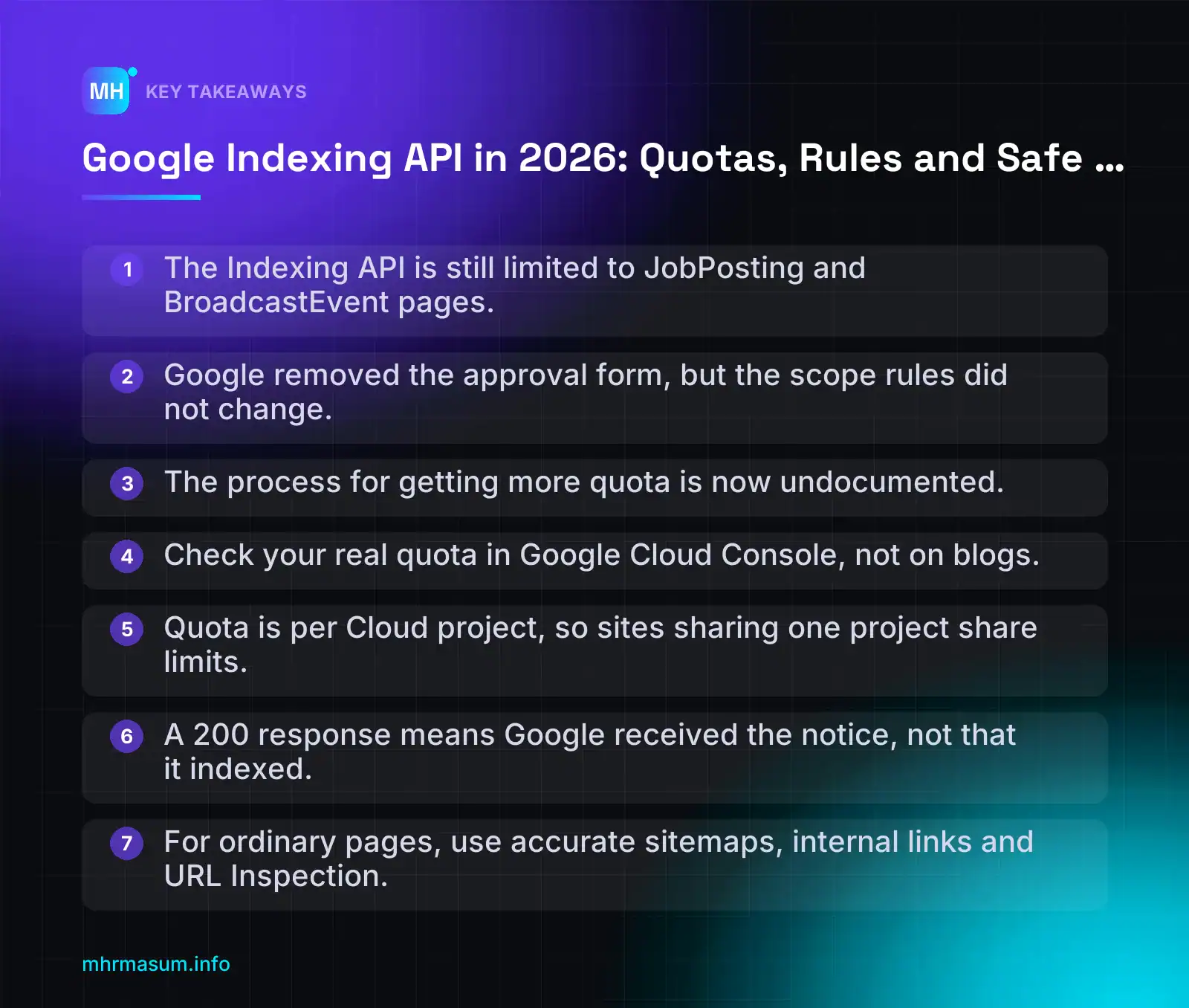 Frequently Asked QuestionsCan I use the Google Indexing API for blog posts or product pages?No. Google’s documentation limits the API to pages with JobPosting structured data, or BroadcastEvent embedded in a VideoObject. Blog posts, products, categories and service pages are out of scope. Submitting them risks spam detection and loss of access. Is approval still needed to use the Indexing API after October 2026?Google removed the approval form but has not said whether approval is still required. Removing a form does not mean the gate behind it has gone. Treat access and quota increases as uncertain until Google says otherwise. What is the daily quota for the Google Indexing API?Industry reports say the default is 200 publish requests per day per project, but sources disagree on what the live page now shows. Check the official Quota and pricing page and the Quotas tab for the Web Search Indexing API in your Google Cloud project. The figure in your console is the one that applies. Does the Indexing API guarantee my page will be indexed?No. It only notifies Google that a URL was added, updated or removed. Google still crawls the page, evaluates it and decides whether to index it. Confirm indexing with URL Inspection in Search Console. Are instant indexing plugins safe on a normal WordPress site?Not if they send non-job, non-livestream URLs through the Indexing API. That breaks Google’s usage rules and can lead to revoked access. For ordinary pages, rely on accurate XML sitemaps and strong internal linking instead. Does IndexNow work with Google?No. IndexNow notifies Bing, Yandex and other participating search engines, but not Google. It is useful for faster discovery outside Google. For Google, use sitemaps with accurate lastmod values and URL Inspection for a few key pages. When does the Indexing API quota reset?The daily publish quota resets at midnight Pacific Time, not your local midnight. That is 07:00 UTC during Pacific Daylight Time and 08:00 UTC after US clocks change. Schedule automated jobs in UTC to stay aligned all year. Final ThoughtsIf you run a job board or a livestream site, open your Google Cloud project today, check your real quota and usage, and give each eligible site its own project and service account. If you use an instant indexing plugin on an ordinary WordPress or WooCommerce site, stop sending non-eligible URLs through the API. Move that effort into accurate XML sitemaps, clean internal linking and URL Inspection for the few pages that matter most. Then watch Indexing > Pages in Search Console over the next few weeks. If pages are still slow to index, the cause is usually crawl, quality or site structure, not a missing API call. A free SEO check is a good place to start. Want help applying this to your site? Run the free SEO check or book a free consultation with MD Harunur Rashid. Free SEO check · Book a free consultation |