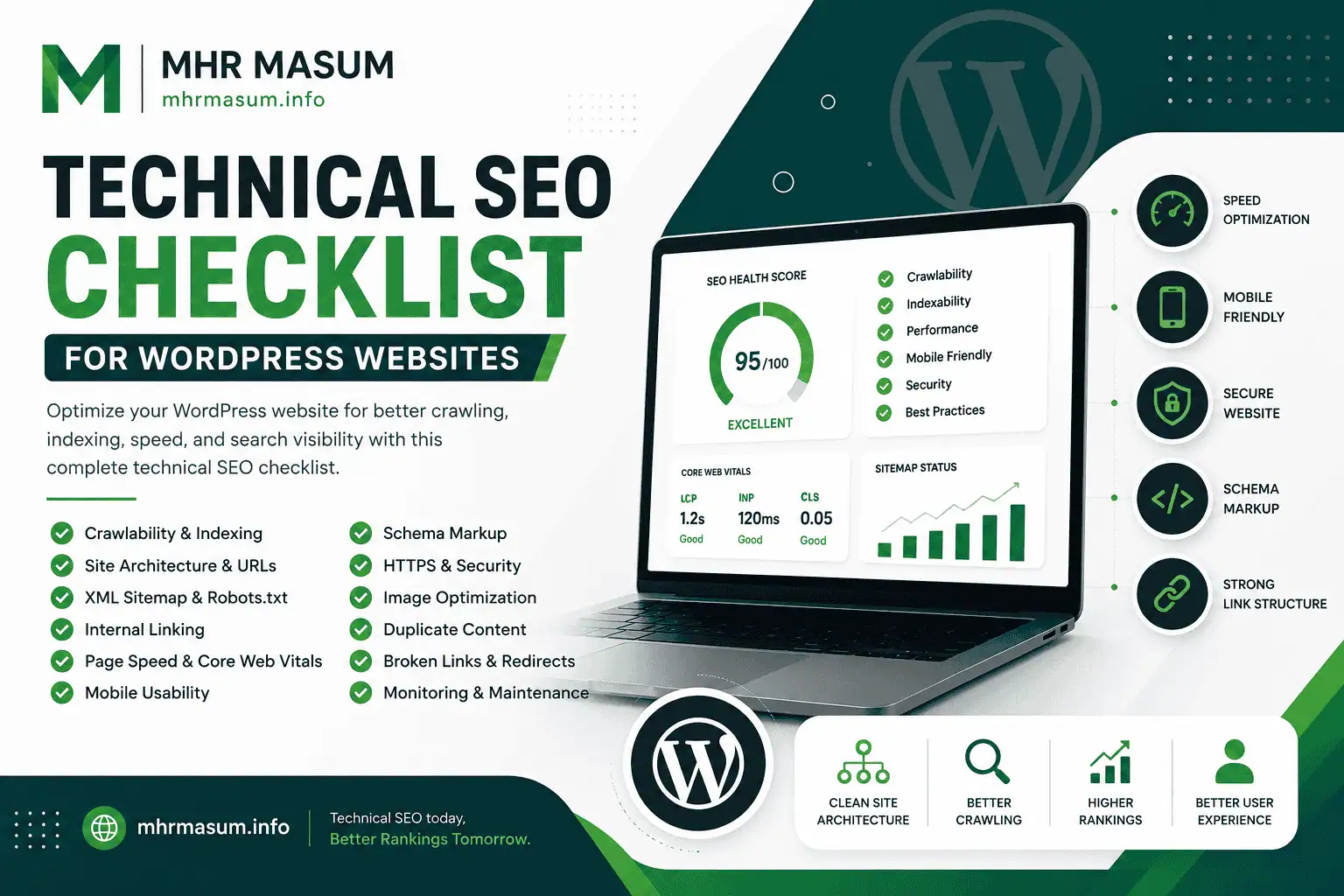
WordPress is one of the most powerful platforms for building websites, blogs, business sites, portfolios, service pages, eCommerce stores, and content hubs.
But WordPress does not automatically guarantee SEO success.
A WordPress website can have great content, beautiful design, and strong branding, but still struggle to rank if the technical SEO foundation is weak. Search engines need to crawl, understand, index, and evaluate your website properly before your content can perform well.
Technical SEO is the process of improving the behind-the-scenes structure of your website so search engines and users can access it easily.
For WordPress websites, technical SEO includes:
- Crawlability
- Indexability
- URL structure
- Site architecture
- Internal linking
- XML sitemap
- Robots.txt
- Canonical tags
- Redirects
- Page speed
- Core Web Vitals
- Mobile usability
- Schema markup
- Image optimization
- Security
- Duplicate content control
- Broken link fixes
- Content structure
- WordPress theme and plugin performance
- Server and hosting quality
Google’s SEO Starter Guide explains that SEO helps make it easier for search engines to crawl, index, and understand your content. That is the core purpose of technical SEO. It is not only about plugins. It is about making your website technically clean, fast, understandable, and useful.
If you are serious about AI SEO, Entity SEO, Local SEO, and long-term organic growth, your WordPress technical SEO must be strong.
This complete checklist will help you audit and improve your WordPress website step by step.
What Is Technical SEO?
Technical SEO is the process of optimizing the technical parts of a website so search engines can crawl, render, index, understand, and rank the website more effectively.
It focuses on how your website is built, loaded, linked, structured, and delivered to users and search engines.
Technical SEO does not replace content. It supports content.
A technically weak website can stop good content from performing. A technically strong website gives your content a better chance to rank.
Technical SEO Covers
- Website crawlability
- Indexing control
- Page speed
- Mobile performance
- Site architecture
- Internal links
- Sitemaps
- Robots.txt
- Canonicals
- Redirects
- Broken links
- Schema markup
- Security
- HTTPS
- Duplicate content
- Thin pages
- Pagination
- Image SEO
- JavaScript rendering
- Server response time
- Core Web Vitals
For WordPress, technical SEO also includes theme quality, plugin setup, database bloat, caching, image compression, permalink settings, taxonomy management, and WooCommerce structure where relevant.
Why WordPress Websites Need a Technical SEO Checklist
WordPress is flexible, but that flexibility can create SEO issues.
Many WordPress websites have technical problems because of:
- Poor theme structure
- Too many plugins
- Heavy page builders
- Slow hosting
- Unoptimized images
- Duplicate category and tag pages
- Poor permalink settings
- Broken internal links
- Missing schema
- Wrong noindex settings
- Incorrect sitemap settings
- Multiple SEO plugins
- Poor mobile layout
- Bloated CSS and JavaScript
- Unused plugin assets
- Weak internal linking
- Thin service pages
- Duplicate content
- Poor heading structure
A checklist helps you review everything properly.
Technical SEO should not be done randomly. It should follow a clear process.
Technical SEO and Modern Search
Technical SEO is more important now because search has changed.
Google Search, AI Overviews, ChatGPT Search, Gemini, Perplexity, and other AI-powered systems need clean, accessible, structured, and trustworthy content.
If your WordPress website is slow, messy, hard to crawl, or poorly structured, your content may struggle in both traditional search and AI search.
Technical SEO supports:
- Google crawling
- Better indexing
- Stronger content understanding
- Better internal linking
- Improved user experience
- Schema clarity
- AI search readiness
- Better Core Web Vitals
- Higher conversion potential
- Stronger topical authority
A technical SEO checklist is not only for fixing errors. It helps build a stronger search foundation.
For a broader view of AI search visibility, read this guide on AI SEO and how to rank in Google AI Overviews, ChatGPT, Gemini, and Perplexity.
1. Check Website Crawlability
Crawlability means search engines can access and discover your pages.
If Google cannot crawl your pages, those pages cannot rank.
Crawlability Checklist
- Check whether your website is accessible to search engines
- Make sure important pages are not blocked
- Check robots.txt
- Check noindex tags
- Check server errors
- Check broken internal links
- Check redirect chains
- Check orphan pages
- Check sitemap submission
- Check blocked CSS and JavaScript files
- Check crawl stats in Google Search Console
WordPress Crawlability Issues
Common WordPress crawlability problems include:
- Accidentally blocking search engines in WordPress settings
- Noindex applied by an SEO plugin
- Important pages excluded from sitemap
- Broken menu links
- Broken internal links
- Redirect chains after URL changes
- Old staging URLs still indexed
- Category or tag pages creating crawl waste
- Parameter URLs creating duplicate crawl paths
WordPress Setting to Check
Go to:
Settings → Reading → Search engine visibility
Make sure this option is not checked:
“Discourage search engines from indexing this site”
This option should only be checked on staging or development websites.
2. Check Indexability
Indexability means search engines are allowed to store your page in their index.
A page can be crawlable but not indexable if it has a noindex tag or canonical pointing elsewhere.
Indexability Checklist
- Check if important pages are indexed
- Check if service pages are indexed
- Check if blog posts are indexed
- Check if portfolio pages are indexed
- Check if important category pages are indexed
- Check if thin or private pages are noindexed
- Check canonical tags
- Check robots meta tags
- Check Google Search Console indexing reports
- Check if old staging pages are indexed
- Check if duplicate URLs are indexed
Pages That Should Usually Be Indexed
For a business WordPress website, these pages should usually be indexable:
- Homepage
- About page
- Service pages
- Important blog posts
- Portfolio pages
- Case studies
- Contact page
- Product pages
- Important category pages
- Location pages
- Main resource pages
Pages That May Be Noindexed
These pages may be noindexed depending on the site:
- Thank-you pages
- Login pages
- Cart pages
- Checkout pages
- Internal search result pages
- Thin tag pages
- Duplicate archive pages
- Admin pages
- Test pages
- Private landing pages
- Staging pages
Index only pages that provide value to users and search engines.
3. Check WordPress Permalink Structure
Your URL structure should be clean, readable, and logical.
Google recommends using simple and understandable URLs where possible. Clean URLs help users and search engines understand the page topic.
Good WordPress URL Examples
- /local-seo-services/
- /technical-seo-checklist-for-wordpress-websites/
- /portfolio/local-seo/
- /blog/entity-seo-guide/
- /services/wordpress-seo/
Poor URL Examples
- /?p=123
- /page-id-456/
- /2026/06/18/post-name-with-too-many-random-words/
- /category/uncategorized/post-name/
- /service?id=78&ref=abc
WordPress Permalink Setting
Go to:
Settings → Permalinks
For most websites, use:
Post name
This creates clean URLs like:
/sample-post/
URL Checklist
- Use short and descriptive URLs
- Avoid unnecessary dates in URLs unless needed
- Avoid random numbers
- Avoid special characters
- Avoid keyword stuffing
- Avoid changing URLs without redirects
- Keep URLs lowercase
- Use hyphens between words
- Keep service URLs simple
- Keep blog URLs readable
A clean URL structure helps both users and search engines.
4. Check XML Sitemap
An XML sitemap helps search engines discover important pages on your website.
Google explains that a sitemap provides information about pages, videos, and other files on your site and helps search engines crawl your site more efficiently.
Most WordPress SEO plugins can generate XML sitemaps automatically.
Sitemap Checklist
- Make sure your sitemap exists
- Submit sitemap in Google Search Console
- Submit sitemap in Bing Webmaster Tools
- Include important pages
- Include important posts
- Include portfolio pages if useful
- Include products if WooCommerce is used
- Exclude thin or private pages
- Exclude duplicate pages
- Check sitemap for 404 URLs
- Check sitemap for redirected URLs
- Check sitemap for noindexed URLs
- Keep sitemap updated
Common WordPress Sitemap URLs
Depending on your setup, sitemap URLs may look like:
- /sitemap.xml
- /wp-sitemap.xml
- /sitemap_index.xml
- /page-sitemap.xml
- /post-sitemap.xml
- /product-sitemap.xml
Sitemap Mistakes to Avoid
- Including noindex pages in sitemap
- Including redirected URLs
- Including 404 URLs
- Including staging URLs
- Including thin tag pages
- Not submitting sitemap to Google Search Console
- Using multiple SEO plugins that create conflicting sitemaps
Your sitemap should only include important, indexable, canonical URLs.
5. Check Robots.txt
Robots.txt tells search engine crawlers which areas of your website they can or cannot crawl.
Robots.txt should be used carefully.
It should not be used as the main way to hide private content. It only controls crawling, not necessarily indexing if a URL is discovered elsewhere.
Robots.txt Checklist
- Check if robots.txt is accessible
- Make sure important pages are not blocked
- Make sure CSS and JavaScript are not blocked
- Add sitemap URL if appropriate
- Avoid blocking /wp-content/uploads/
- Avoid blocking important plugin assets
- Avoid blocking service pages
- Avoid blocking blog posts
- Avoid blocking category pages you want indexed
- Avoid blocking pages that need to be crawled for canonical tags
Basic WordPress Robots.txt Example
User-agent: *
Disallow: /wp-admin/
Allow: /wp-admin/admin-ajax.php
Sitemap: https://example.com/sitemap.xml
This is a simple setup for many WordPress websites.
6. Check Canonical Tags
Canonical tags help search engines understand the preferred version of a page when similar or duplicate URLs exist.
WordPress can create duplicate URLs through:
- Categories
- Tags
- Archives
- Pagination
- Parameters
- HTTP and HTTPS versions
- WWW and non-WWW versions
- Trailing slash differences
- Filter pages
- WooCommerce variations
- Print pages
Canonical Checklist
- Check homepage canonical
- Check service page canonical
- Check blog post canonical
- Check product page canonical
- Check category page canonical
- Check paginated pages
- Check filter URLs
- Check duplicate content pages
- Check HTTP to HTTPS canonical consistency
- Check WWW vs non-WWW consistency
Common Canonical Mistakes
- Canonical points to the wrong page
- Canonical points to homepage for all pages
- Canonical missing on important pages
- Canonical points to a noindex page
- Canonical points to a redirected URL
- Canonical conflicts with sitemap URL
- Multiple canonical tags appear on one page
A correct canonical setup helps prevent duplicate content confusion.
7. Check Website Architecture
Website architecture is how your pages are organized and connected.
A strong structure helps users and search engines understand your website.
Good Website Architecture Includes
- Clear homepage
- Clear service pages
- Clear blog categories
- Clear portfolio structure
- Clear product structure
- Internal links between related pages
- Breadcrumbs
- Logical menus
- Clean URL paths
- Important pages within a few clicks
WordPress Site Structure Example
Homepage
→ Services
→ Local SEO Services
→ Google Business Profile Optimization
→ Local SEO Case Studies
→ Contact
Homepage
→ Blog
→ AI SEO
→ Entity SEO
→ GEO vs AEO vs SEO
→ Brand Authority for AI Search
Homepage
→ Portfolio
→ Local SEO
→ Technical SEO
→ Website Speed Optimization
This kind of structure helps build topical authority.
8. Improve Internal Linking
Internal linking is one of the most important technical and content SEO elements.
Google’s link best practices say links help Google discover pages and understand relevance, and anchor text helps people and Google make sense of the linked page.
Internal links connect your posts, pages, services, portfolio, and topic clusters.
Why Internal Linking Matters
Internal links help:
- Search engines discover pages
- Users find related content
- Pass authority between pages
- Build topical relevance
- Support entity relationships
- Reduce orphan pages
- Improve crawl paths
- Improve engagement
- Guide users toward conversion
- Strengthen service pages
- Support AI SEO and topical authority
Internal Linking Checklist
- Link blog posts to relevant service pages
- Link service pages to related blog posts
- Link portfolio pages to services
- Link case studies to contact page
- Link old posts to new posts
- Link new posts to old posts
- Use descriptive anchor text
- Avoid generic anchors like “click here”
- Fix broken internal links
- Find orphan pages
- Add links from high-authority pages
- Keep internal links natural
- Do not over-optimize anchor text
- Add breadcrumb links
- Use related posts where useful
Good Internal Link Examples
Use natural anchors like:
- AI SEO
- Entity SEO
- Local SEO strategy
- GEO vs AEO vs SEO
- brand authority for AI search
- technical SEO and keyword research
- website speed optimization
- SEO portfolio
- SEO and digital marketing services
- contact page
Internal Linking for Blog Posts
Every blog post should link to:
- One or more related blog posts
- One relevant service page
- One relevant portfolio or case study page where possible
- Contact page or consultation CTA
- Main topic cluster page where available
Example:
A post about AI content should link to:
Internal Linking for Service Pages
Each service page should link to:
- Related services
- Relevant blog guides
- Portfolio examples
- Case studies
- Contact page
- About page
Example:
A Technical SEO service page should link to:
- WordPress technical SEO checklist
- Website speed optimization portfolio
- Technical SEO and keyword research portfolio
- Schema markup guide
- Contact page
Internal Linking for Portfolio Pages
Portfolio pages should link to:
- Related service page
- Related blog guides
- Similar case studies
- Contact page
Example:
A Local SEO portfolio page should link to:
- Local SEO guide
- Google Business Profile optimization content
- Review strategy content
- Local SEO service page
- Contact page
Internal Linking for Pages
Important pages should link to each other naturally.
For example:
- Homepage should link to Services, Portfolio, Blog, About, Contact
- About page should link to Services, Portfolio, Blog, Contact
- Services page should link to main service details and portfolio examples
- Portfolio page should link to relevant service pages
- Contact page should link back to services or consultation content where appropriate
- Blog posts should support service and portfolio pages
Internal linking should help users move naturally from learning to trust to action.
9. Fix Orphan Pages
An orphan page is a page that has no internal links pointing to it.
Search engines may find orphan pages through sitemaps, but they are weaker because they are not connected to the website structure.
Orphan Page Checklist
- Find pages with no internal links
- Add links from related blog posts
- Add links from service pages
- Add links from category pages
- Add links from portfolio pages
- Add links from homepage if important
- Remove or noindex weak orphan pages
- Merge duplicate orphan pages where needed
Common WordPress Orphan Pages
- Old blog posts
- Old landing pages
- Portfolio pages
- Test pages
- Imported posts
- Tag archives
- Product pages
- Author pages
- Location pages
Every important page should have internal links pointing to it.
10. Check Broken Links and 404 Errors
Broken links create bad user experience and waste crawl budget.
A 404 page is not always bad, but broken important URLs should be fixed.
Broken Link Checklist
- Find broken internal links
- Find broken external links
- Check old URLs
- Check menu links
- Check footer links
- Check sidebar links
- Check CTA buttons
- Check image links
- Check PDF links
- Check sitemap URLs
- Check portfolio links
- Check WooCommerce product links
How to Fix Broken Links
- Update the link to the correct URL
- Redirect old URL to new URL
- Restore deleted page if needed
- Remove the broken link
- Replace dead external sources
- Update image paths
- Fix button URLs
Broken links should be reviewed regularly.
11. Fix Redirect Chains
A redirect chain happens when one URL redirects to another URL, which redirects again to another URL.
Example:
Old URL → New URL → Final URL
This creates unnecessary delay and can confuse crawlers.
Redirect Checklist
- Use one-step redirects
- Avoid long redirect chains
- Avoid redirect loops
- Redirect HTTP to HTTPS
- Redirect non-preferred domain version
- Redirect old URLs after slug changes
- Redirect deleted pages to relevant pages
- Do not redirect everything to homepage
- Check www vs non-www consistency
- Check trailing slash consistency
Good Redirect Practice
If you change a URL, redirect the old URL directly to the new final URL.
Old blog post URL → New blog post URL
Do not redirect old URLs to irrelevant pages.
12. Improve Website Speed
Website speed is important for user experience and SEO.
A slow WordPress website can hurt engagement, conversions, and crawl efficiency.
Common WordPress Speed Problems
- Heavy theme
- Too many plugins
- Large images
- No caching
- Slow hosting
- Unoptimized database
- Render-blocking CSS
- Unused JavaScript
- Too many fonts
- Too many third-party scripts
- Large sliders
- Heavy page builders
- Unoptimized WooCommerce scripts
- Poor server response time
WordPress Speed Checklist
- Use good hosting
- Use lightweight theme
- Remove unused plugins
- Optimize images
- Use WebP or AVIF
- Enable caching
- Minify CSS where safe
- Defer non-critical JavaScript where safe
- Optimize fonts
- Use lazy loading
- Clean database
- Use CDN if needed
- Reduce third-party scripts
- Avoid unnecessary sliders
- Optimize WooCommerce assets
- Test mobile speed
- Monitor Core Web Vitals
For practical examples, see this website speed optimization portfolio page.
13. Optimize Core Web Vitals
Core Web Vitals are user experience metrics related to loading, interactivity, and visual stability.
The main metrics include:
- Largest Contentful Paint
- Interaction to Next Paint
- Cumulative Layout Shift
Core Web Vitals Checklist
- Improve server response time
- Optimize hero image
- Preload important fonts
- Avoid layout shifts
- Set image width and height
- Avoid injecting late-loading banners
- Reduce JavaScript execution
- Remove unused CSS
- Optimize above-the-fold content
- Use caching
- Use CDN where needed
- Avoid excessive animations
- Optimize mobile layout
WordPress Core Web Vitals Issues
WordPress sites often fail Core Web Vitals because of:
- Large hero images
- Heavy page builders
- Too many plugins
- Unoptimized fonts
- Lazy-loaded critical images
- Ads and popups
- Third-party scripts
- Sliders
- Poor hosting
- Render-blocking CSS
Core Web Vitals should be checked after every major design or plugin update.
14. Optimize Images for SEO
Images affect speed, accessibility, and SEO.
Unoptimized images are one of the biggest WordPress performance problems.
Image SEO Checklist
- Compress images before upload
- Use WebP or AVIF
- Use descriptive file names
- Add relevant alt text
- Add image width and height
- Use lazy loading
- Avoid oversized images
- Avoid duplicate image uploads
- Use correct image dimensions
- Use responsive images
- Add captions where helpful
- Use original images where possible
- Avoid generic stock images where possible
Good Image File Name
technical-seo-checklist-wordpress.jpg
Bad Image File Name
IMG_89384.jpg
Good Alt Text
Technical SEO checklist for WordPress websites showing crawlability, indexing, speed, schema, and internal linking.
Bad Alt Text
SEO image
Images should support the content, not slow it down.
15. Check Mobile Usability
Most users browse websites on mobile.
A WordPress website must be mobile-friendly.
Mobile SEO Checklist
- Responsive layout
- Readable font size
- Proper button spacing
- No horizontal scrolling
- Fast mobile loading
- Mobile-friendly menu
- Clear CTA buttons
- Forms work on mobile
- Tables are responsive
- Images resize properly
- Popups do not block content
- Sticky headers do not cover content
- Tap targets are large enough
- Content is not too narrow
- Important sections are visible
Common WordPress Mobile Issues
- Header menu broken
- CTA buttons overflow
- Tables too wide
- Images too large
- Forms not responsive
- Sticky elements overlapping
- Hidden content on mobile
- Font too small
- Too much spacing
- Horizontal scroll
Mobile UX is now part of basic SEO quality.
16. Check HTTPS and Security
HTTPS is essential for trust and security.
Users do not trust websites that show security warnings.
Security Checklist
- Use HTTPS
- Redirect HTTP to HTTPS
- Fix mixed content
- Keep WordPress updated
- Keep themes updated
- Keep plugins updated
- Remove unused plugins
- Use strong passwords
- Limit login attempts
- Use security plugin if needed
- Backup website regularly
- Scan for malware
- Protect wp-admin
- Use reputable hosting
Common HTTPS Issues
- Images loaded from HTTP
- Scripts loaded from HTTP
- Old internal links using HTTP
- Mixed content warnings
- Expired SSL certificate
- Incorrect redirect setup
Security supports trust and user confidence.
17. Add Structured Data and Schema Markup
Schema markup helps search engines understand your content better.
Google explains that structured data can help Google understand the content of a page and may make a page eligible for rich results.
Eligibility is not the same as a guaranteed rich result. Google has also retired several rich result types since 2025, so some schema types no longer get any special display in Search. The next sub-section lists what changed.
What Changed in 2025–2026
Google has been cutting down the number of rich result types it shows. If your WordPress SEO plugin still says a schema type will “get you rich results”, check that claim against Google’s current list.
FAQ rich results stopped appearing in Google Search on 7 May 2026. After that, Google removed the FAQ report in Search Console, dropped FAQ support from the Rich Results Test and took down the FAQ structured data documentation (Elementera). Check the dates and details yourself on Google’s official changelog (Google Search Central: Latest updates).
| Feature / schema type | Current status in Google Search | What to do | Source |
|---|---|---|---|
| FAQ (FAQPage) | Rich results stopped showing on 7 May 2026. The Search Console report, Rich Results Test support and documentation were removed later | Keep FAQ content that is useful to readers. Don’t expect any rich result from it | Elementera; confirm on Search Central updates |
| Course Info | Phased out | Don’t add it for Google rich results | Google Search Central Blog |
| Claim Review | Phased out | Don’t add it for Google rich results | Google Search Central Blog |
| Estimated Salary | Phased out | Don’t add it for Google rich results | Google Search Central Blog |
| Learning Video | Phased out | Keep standard VideoObject markup where it is valid | Google Search Central Blog |
| Special Announcement | Phased out | Don’t add it for Google rich results | Google Search Central Blog |
| Vehicle Listing | Phased out | Don’t add it for Google rich results | Google Search Central Blog |
| Book Actions | Reinstated after it was first listed for phase-out | Still supported. Check the current documentation before you implement it | Search Central updates |
| Practice Problems | Phased out of Search results | Don’t add it for Google rich results | Search Central updates |
| Dataset | Phased out of Search results | Check the updates page for any separate use outside main Search | Search Central updates |
| Breadcrumbs (BreadcrumbList) | Google reports that breadcrumbs have not been shown in mobile results since January 2025 | Keep the markup. Look at how your breadcrumbs appear on desktop and on mobile in your own SERPs | Google announcement (January 2025); confirm on Search Central updates |
Existing FAQPage markup is harmless. Google doesn’t penalise you for leaving it on the page. It simply won’t produce a Google rich result any more.
Visible FAQ content is still useful for readers. A clear question-and-answer section deals with objections and answers follow-up questions. It also gives people short, direct answers they can scan. Keep it wherever it helps the reader.
“Add FAQ schema to every post for extra SERP space.”
Correction: FAQ rich results no longer appear in Google Search, so FAQPage schema won’t get you any extra SERP space. Only add an FAQ section to a post when readers actually have those questions. Treat the markup as optional, not as a ranking or visibility tactic.
To decide what to do with FAQ blocks already on your site, use this rule:
FAQ section helps readers?        -> Keep the visible content
FAQPage markup already present?   -> Leaving it is fine (no Google rich result)
Adding FAQs only for SERP space?  -> Don't. Spend the time on content or other schema
FAQ markup for hidden content?    -> Remove it (schema must match visible content)
Schema still worth maintaining includes the types Google still uses for rich results or for understanding your site:
- Organization: name, logo, URL and social profiles that match your real business details
- Article: headline, author, dates and image on blog posts
- BreadcrumbList: matches the breadcrumb trail visible on the page (check how it displays on desktop vs mobile)
- Product: price, availability and identifiers that match your WooCommerce product page and Merchant Center feed
- LocalBusiness: address or service area, phone number and opening hours that match your Google Business Profile
- Review snippets: only for genuine reviews that are visible on the page and follow Google’s guidelines
Important Schema Types for WordPress
- Organization schema
- Person schema
- WebSite schema
- WebPage schema
- Article schema
- BlogPosting schema
- BreadcrumbList schema
- FAQPage schema (optional: harmless, but no Google rich result since 7 May 2026)
- LocalBusiness schema
- Product schema
- Review schema where valid
- Service schema
- VideoObject schema
Schema Checklist
- Add Organization schema
- Add Person schema where relevant
- Add Article schema to blog posts
- Add Breadcrumb schema
- Add FAQ schema only where it is valid and the FAQ content is visible. It is optional and no longer produces a Google rich result
- Add LocalBusiness schema for local businesses
- Add Product schema for WooCommerce
- Add Service schema where appropriate
- Validate schema (use Google’s Rich Results Test for supported rich result types and the Schema Markup Validator for general Schema.org syntax, including FAQPage)
- Avoid fake review schema
- Avoid adding schema not visible on page
- Avoid duplicate schema from multiple plugins
- Keep schema consistent with page content
- Check the Search Central updates page every few months for retired or reinstated rich result types
WordPress Schema Mistakes
- Multiple SEO plugins output duplicate schema
- Wrong organization name
- Wrong logo URL
- Missing author details
- Missing featured image
- Incorrect review markup
- FAQ schema added for content not visible
- Adding FAQ schema to every post in the hope of getting FAQ rich results, which Google no longer shows
- LocalBusiness schema missing address/service area
- Product schema missing price or availability
- Schema conflicts with visible page content
Schema should clarify truth, not create fake signals.
18. Improve Breadcrumbs
Breadcrumbs help users and search engines understand page structure.
Google supports BreadcrumbList structured data and says breadcrumbs can categorize information from a page in search results.
Breadcrumb Checklist
- Enable breadcrumbs
- Add Breadcrumb schema
- Show breadcrumbs on posts
- Show breadcrumbs on pages where useful
- Use logical hierarchy
- Avoid duplicate breadcrumb paths
- Keep breadcrumb labels clean
- Make breadcrumbs crawlable
- Ensure breadcrumbs work on mobile
Breadcrumb Example
Home → Blog → Technical SEO → Technical SEO Checklist for WordPress Websites
Breadcrumbs support site architecture and user navigation.
19. Check Heading Structure
Headings help organize content.
A clear heading structure improves readability and helps search engines understand page sections.
Heading Checklist
- Use one H1 per page
- Use H2 for main sections
- Use H3 for subsections
- Use H4 only where needed
- Do not skip heading levels unnecessarily
- Do not use headings only for styling
- Do not leave headings empty
- Add text under every heading
- Include keywords naturally
- Keep headings useful for readers
Bad Heading Structure
H1
H4
H2
H5
Better Heading Structure
H1
H2
H3
H3
H2
H3
For blog posts, headings should help users scan the article easily.
20. Fix Duplicate Content
WordPress can create duplicate content through categories, tags, archives, pagination, author archives, date archives, and parameter URLs.
Duplicate Content Checklist
- Review category pages
- Review tag pages
- Review author archives
- Review date archives
- Review search result pages
- Review pagination
- Review product filter URLs
- Review duplicate service pages
- Review copied content
- Review printer-friendly pages
- Check canonical tags
- Noindex thin archives where needed
WordPress Duplicate Content Examples
- Same post appears in multiple categories
- Tag pages with only one post
- Author archive same as blog archive
- Date archives with duplicate post lists
- Product filters generating many URLs
- Similar location pages with only city name changed
Duplicate content should be controlled with better structure, canonical tags, noindex where needed, and unique content.
21. Optimize Category and Tag Pages
Categories and tags can help SEO if used properly.
But many WordPress sites create too many thin tag pages.
Category Checklist
- Use limited, meaningful categories
- Add category descriptions
- Link category pages internally
- Use categories for topic clusters
- Avoid overlapping categories
- Index only useful categories
- Add unique content to important categories
Tag Checklist
- Use tags carefully
- Avoid creating hundreds of tags
- Avoid one-post tag pages
- Noindex thin tags if needed
- Merge duplicate tags
- Do not use tags as keyword stuffing
- Keep tag taxonomy clean
For most business websites, categories are more important than tags.
22. Improve Blog Post Technical SEO
Every blog post should follow a technical SEO checklist.
Blog Post SEO Checklist
- Clear SEO title
- Strong meta description
- Clean URL
- One H1
- H2 and H3 structure
- Short paragraphs
- Internal links
- External references where useful
- Featured image
- Image alt text
- FAQ section
- Article schema
- Author bio
- Updated date
- Related posts
- CTA
- Mobile-friendly layout
- Fast loading
- No broken links
Internal Linking for Blog Posts
A blog post should connect with related content.
Example for a technical SEO article:
- Link to AI SEO
- Link to Entity SEO
- Link to Local SEO in 2026
- Link to Technical SEO and keyword research
- Link to SEO services
- Link to contact page
This helps build topical relationships.
23. Improve Service Page Technical SEO
Service pages are important for leads and rankings.
A service page should not be thin.
Service Page Checklist
- Clear service title
- Strong opening section
- Service description
- Benefits
- Process
- Who needs the service
- What is included
- Case studies
- Testimonials
- FAQs
- CTA
- Internal links
- Service schema
- Fast loading
- Mobile-friendly layout
- Contact option
Internal Links for Service Pages
Service pages should link to:
- Related blog posts
- Related portfolio examples
- Contact page
- About page
- Related services
For example, a WordPress SEO service page can link to:
- Technical SEO checklist
- Website speed optimization
- Schema markup guide
- WordPress content optimization
- Contact page
This creates a stronger conversion path.
24. Improve Portfolio and Case Study SEO
Portfolio pages are powerful trust signals.
They support E-E-A-T, entity authority, and conversion.
Portfolio SEO Checklist
- Clear project title
- Client or industry context
- Problem solved
- Strategy used
- Work completed
- Results where available
- Screenshots
- Testimonials where available
- Related services
- Internal links
- CTA
- Image alt text
- CaseStudy or Article schema where appropriate
Internal Links for Portfolio Pages
Portfolio pages should link to:
- Relevant service page
- Related blog guide
- Similar case studies
- Contact page
Example:
A technical SEO and keyword research portfolio page should connect with a technical SEO article and a service CTA.
A website speed optimization page should connect with speed-related content, Core Web Vitals content, and contact page.
25. Check WordPress Theme Quality
Your theme affects speed, layout, accessibility, mobile usability, and SEO.
Theme SEO Checklist
- Lightweight code
- Responsive design
- Proper heading structure
- Clean HTML
- Schema compatibility
- Fast loading
- Good accessibility
- No layout shift
- Compatible with SEO plugins
- Regular updates
- No unnecessary scripts
- Good mobile menu
- Supports breadcrumbs
- Works with block editor
A heavy theme can make SEO harder.
For WordPress SEO, lightweight themes such as GeneratePress-style setups are often easier to optimize than bloated designs.
26. Audit WordPress Plugins
Plugins can improve functionality, but too many plugins can slow down your site and create conflicts.
Plugin Audit Checklist
- Remove unused plugins
- Avoid duplicate SEO plugins
- Avoid multiple cache plugins
- Avoid heavy slider plugins
- Avoid unnecessary tracking scripts
- Update plugins regularly
- Check plugin impact on speed
- Check plugin-generated pages
- Check plugin schema output
- Check plugin redirects
- Check plugin sitemap settings
- Check plugin security history
Common Plugin Problems
- Duplicate schema
- Duplicate meta tags
- Slow frontend scripts
- Broken JavaScript
- Plugin conflicts
- Database bloat
- Unused CSS
- Security issues
- Poor mobile layout
Use plugins carefully.
Every plugin should have a clear purpose.
27. Optimize WordPress Database
Over time, WordPress databases can become bloated.
Database Cleanup Checklist
- Remove post revisions
- Remove trashed posts
- Remove spam comments
- Remove unused transients
- Clean expired cache data
- Remove unused plugin tables
- Optimize database tables
- Backup before cleanup
- Avoid deleting data blindly
Database optimization can help performance, especially on older websites.
28. Check JavaScript and CSS Issues
JavaScript and CSS can affect rendering, speed, and layout.
CSS and JavaScript Checklist
- Remove unused CSS
- Minify CSS where safe
- Defer non-critical JavaScript
- Delay third-party scripts where safe
- Avoid blocking critical content
- Avoid layout shifts from scripts
- Avoid too many animation libraries
- Avoid loading page builder assets everywhere
- Check mobile rendering
- Test after optimization
Be careful. Aggressive optimization can break forms, sliders, menus, checkout pages, and tracking scripts.
Always test after changes.
29. Check Contact Forms and Conversion Elements
Technical SEO should support conversions.
A website that ranks but does not convert has a business problem.
Conversion Checklist
- Contact form works
- Phone number clickable
- Email link works
- WhatsApp link works
- CTA buttons work
- Forms work on mobile
- Thank-you page works
- Tracking works
- Error messages are visible
- Spam protection works
- Form fields are not broken
- Submit button is visible
- Confirmation message appears
For service websites, conversion testing is part of SEO quality.
30. Check Google Search Console
Google Search Console is essential for technical SEO.
Search Console Checklist
- Verify website
- Submit sitemap
- Check indexing report
- Check pages not indexed
- Check crawl errors
- Check Core Web Vitals (look at the Mobile tab first)
- Check mobile usability. Note: Search Console no longer has a Mobile Usability report. Google retired it in December 2023. Check mobile usability with Lighthouse, the Core Web Vitals report (Mobile tab) and URL Inspection instead. See “How to check mobile usability now” below.
- Check manual actions
- Check security issues
- Check the HTTPS report (it should show no HTTP URLs)
- Check search performance
- Check top queries
- Check top pages
- Check internal links
- Check external links
- Check rich results
- Check the rich result reports under Enhancements (and Shopping for product markup) for errors and invalid items
- Inspect important URLs
- Use URL Inspection > Test live URL > View tested page (Screenshot tab) on key templates to see how Googlebot Smartphone renders them
What Happened to the Mobile Usability Report?
A lot of older checklists still tell you to open the Mobile Usability report. That report no longer exists.
In April 2023, Google announced it would retire the Mobile Usability report in Search Console, the Mobile-Friendly Test tool and the Mobile-Friendly Test API in December 2023 (Google Search Central). Google went ahead with this, and the old Mobile-Friendly Test URL now redirects to Lighthouse documentation (Search Engine Land).
“Google removed the Mobile Usability report, so mobile-friendliness doesn’t matter for SEO any more.”
That’s wrong. Google removed the tools, not the principle. Mobile usability is still part of Google’s page experience guidance, along with Core Web Vitals, HTTPS and avoiding intrusive interstitials (Google Search Central).
Google also indexes your site using its smartphone crawler. So if the mobile version of a page is broken, that’s the version Google sees.
How to Check Mobile Usability Now
Use these three checks instead of the old report. Each one covers a different part of the picture.
- Lighthouse in Chrome DevTools. Open the page in Chrome, press F12 (Cmd+Option+I on Mac), go to the Lighthouse panel, set Device to Mobile and click Analyze page load. Go through the flagged issues, such as a missing viewport tag, layout problems and slow mobile performance.
- Core Web Vitals report (Mobile tab). In Search Console, go to Experience > Core Web Vitals and open the Mobile report. This shows field data from real Chrome users, grouped by URL type, so you can spot templates that perform poorly on phones.
- URL Inspection > View tested page. Paste a URL into the inspection bar, click Test live URL, then View tested page and open the Screenshot tab. This shows how Googlebot Smartphone renders the page. Look for missing content, broken layouts and blocked CSS or JavaScript.
| Tool | Data type | Best for |
|---|---|---|
| Lighthouse (Chrome DevTools) | Lab data, one page at a time | Finding and fixing specific mobile issues before and after changes |
| Core Web Vitals report (Mobile) | Field data from real users, site-wide | Spotting templates or page groups that perform badly on phones |
| URL Inspection > View tested page | Googlebot Smartphone render | Confirming Google can see and render your mobile content |
On WordPress, check one URL from each template: homepage, a blog post, a category page, a product page and the cart or checkout. Problems usually come from the theme or a plugin, so they repeat across every page that uses that template.
A quick basic check: your theme should output a responsive viewport meta tag in the <head>. Most modern themes do this already.
<meta name="viewport" content="width=device-width, initial-scale=1">Check Rich Results / Enhancements Reports
Search Console shows a separate report for each rich result type it finds on your site, such as breadcrumbs, product snippets, merchant listings or videos. A report only shows up once Google has found that markup type on your site.
- Open each report under Enhancements (and Shopping for WooCommerce product markup).
- Fix invalid items first, because they can’t appear as rich results at all.
- Next, look at warnings for missing recommended fields.
- Once the fix is live, click Validate fix.
When Google retires a rich result type, it removes the report for it from Search Console. FAQ is the latest example. Google says FAQ rich results stopped appearing in Search on 7 May 2026, and it removed the related reporting and testing support from Search Console and the Rich Results Test (Bluehost). If an old FAQ report has disappeared from your property, your site isn’t broken. Before you rely on a rich result type, check that it’s still listed in Google’s Search Central structured data documentation.
Check the HTTPS Report
The HTTPS report shows how many of your indexed URLs are HTTP and how many are HTTPS. It’s only available for Domain properties and HTTPS URL-prefix properties (Search Console Help).
Ideally, the report shows no HTTP URLs. If a page has both an HTTP and an HTTPS address, Google prefers to index the HTTPS version (Search Console Help).
- Go to Experience > HTTPS.
- Click into each issue to see sample affected URLs.
- On WordPress, check that Settings > General uses
https://for both the WordPress Address and the Site Address. - Make sure every HTTP URL 301-redirects to its HTTPS version, and that your sitemap lists HTTPS URLs only.
Google Search Console should be reviewed regularly.
Google Indexing API and Instant Indexing Plugins: What WordPress Sites Should Know
Many WordPress SEO plugins now include an “instant indexing” feature. It asks for a Google Cloud service account key and then sends your new or updated URLs to Google automatically.
That sounds useful. The catch is that Google only supports its Indexing API for a very small set of pages, and most WordPress sites have none of them.
What the Indexing API is actually for
Google’s documentation says the Indexing API can only be used to crawl pages that have either JobPosting markup or a BroadcastEvent embedded in a VideoObject. In other words, job listings and livestream video pages (Google Search Central).
Blog posts, service pages, location pages, category archives and WooCommerce product pages are outside that scope. Some plugins will still let you submit any URL, but that doesn’t make it a supported use.
“If the plugin gets a 200 OK back from Google, my page is indexed.”
That’s not right. A successful response only means Google may try to recrawl the URL soon. It doesn’t guarantee that the page will be crawled, indexed or ranked (Google Search Central).
For reference, this is all a publish request contains. The API doesn’t check whether your page is eligible when it accepts the request:
{
  "url": "https://example.com/jobs/senior-php-developer/",
  "type": "URL_UPDATED"
}
The spam and misuse warning
Google’s documentation warns that all Indexing API submissions go through spam detection. It also says that attempts to abuse the API, such as using multiple accounts to get around quotas, may get your access revoked (Search Engine Journal).
Some “bulk indexing” tools rotate several service accounts or projects to send more URLs per day. Avoid them.
October 2026: approval form removed from the docs
On 16 October 2026, Google updated the Indexing API quota page “to reflect the current quota limits and process” and to remove an outdated form (Google Search documentation updates).
Search Engine Journal reports that Google removed the approval form and the approval steps from its documentation. The changelog doesn’t say whether the approval requirement itself has changed (Search Engine Journal).
Industry write-ups also disagree on how many default quota numbers are still listed. So don’t rely on quota figures from older blog posts or plugin tutorials. If you run a job board or livestream site, open the Google API Console, choose your project and check the Indexing API quotas for that project.
Decision table: which method should you use?
| Page type | Recommended method | Notes |
|---|---|---|
| Job board listings with valid JobPosting markup | Google Indexing API | Send URL_UPDATED when a job is posted or changed, and URL_DELETED when it expires. |
| Livestream pages with BroadcastEvent inside VideoObject | Google Indexing API | Only for the livestream page itself, not your whole video library. |
| Blog posts, service pages, landing pages | XML sitemap + internal links + URL Inspection “Request indexing” | Use Request indexing for a handful of important URLs, not as a daily routine. |
| WooCommerce products and categories | XML sitemap + internal links + URL Inspection | For Shopping surfaces, keep your Merchant Center feed healthy instead (see Merchant Center diagnostics). |
| Any page, for Bing and other participating engines | IndexNow | IndexNow doesn’t send anything to Google. |
Checklist: is your SEO plugin using the Indexing API for unsupported pages?
- List your indexing plugins. In Plugins → Installed Plugins, look for “Instant Indexing”, “Indexing API” or “Google indexing” features. Check standalone plugins and modules inside SEO suites.
- Look for a service account key. If a settings screen has a field for a Google service account JSON key, the plugin can call the Indexing API.
- Check which post types it submits. If posts, pages or products are set to auto-submit on publish or update, it’s sending unsupported URLs.
- Check Google Cloud. In the Google Cloud Console, go to APIs & Services → Enabled APIs & services and open the Indexing API. If the traffic graph shows requests but you have no job or livestream pages, something is submitting ineligible URLs.
- Check Search Console owners. Under Settings → Users and permissions, look for a service account email ending in
iam.gserviceaccount.com.
How to switch it off safely
- Turn off the plugin’s instant indexing module, or deactivate the standalone plugin.
- Delete the JSON key from the plugin settings.
- In Google Cloud, delete the service account key (or the whole service account if nothing else uses it). Then disable the Indexing API for that project.
- Remove the service account from your Search Console property owners.
- Leave IndexNow switched on if you use it for Bing. It’s a separate feature.
- Check that your XML sitemap is submitted in Search Console and that new content gets internal links from relevant pages.
Edge case: if your site mixes a job board with a normal blog, limit the API to the job post type only. Make sure expired jobs send URL_DELETED or return a 404/410.
If you’re not sure what your plugins are sending to Google, run a free SEO check or book a free consultation and we’ll review your indexing setup together.
31. Check Bing Webmaster Tools
Bing Webmaster Tools is also useful.
It can help with:
- Indexing
- Crawl errors
- Sitemaps
- Backlinks
- Keyword data
- Site scan
- URL inspection
- Bing search visibility
- IndexNow submissions (see below)
Bing also matters because some AI search and Microsoft-powered experiences use Bing-related search infrastructure.
For example, Microsoft Copilot’s answers draw on Bing’s index (Nuxt SEO). If Bing hasn’t crawled your latest version of a page, Copilot’s answers can’t use it either.
IndexNow: Tell Bing When Your URLs Change
IndexNow is an open protocol started by Microsoft Bing and Yandex. It lets your site notify participating search engines as soon as a URL is added, updated or deleted, so you don’t have to wait for them to recrawl it (Wikipedia).
Bing has released an official WordPress plugin for IndexNow (Wikipedia). Several SEO plugins also include their own IndexNow option.
This matters for pages that change often, such as product prices and stock, news posts, event pages and updated guides.
“If I turn on IndexNow, Google will index my pages faster too.”
That’s wrong. Google does not support IndexNow (Nuxt SEO). For Google, keep your XML sitemap submitted in Google Search Console and use URL Inspection for important pages.
IndexNow also doesn’t replace your sitemap and doesn’t guarantee indexing. It only tells search engines that a URL has changed. They still decide whether to crawl and index it.
How to Set Up IndexNow on WordPress
- Use one IndexNow implementation only. Choose either Bing’s official IndexNow plugin or the IndexNow option built into your SEO plugin. Don’t run both, because every change would then be submitted twice.
- Check for hidden duplicates. Some hosts, CDNs and caching plugins have their own IndexNow feature. If one is already turned on, keep that one and switch off the others.
- Confirm the API key file is reachable. The plugin creates a key and serves it as a text file on your domain. Open the file in a browser and check that it loads and isn’t blocked by a security plugin or firewall.
- Publish or update a test page so the plugin sends a submission.
- Confirm submissions in Bing Webmaster Tools. Open the IndexNow report for your verified site and check that your recent URLs appear there. Menu names can change, so look in the left-hand navigation if you can’t find it.
- Don’t resubmit URLs that haven’t changed. Only submit pages that were added, updated or deleted. Bulk-pinging your whole site or resubmitting unchanged pages adds noise and doesn’t make crawling faster.
Here is what a single IndexNow submission looks like behind the scenes. The plugin does this for you automatically:
Key file (hosted at your site root):
https://www.example.com/your-indexnow-key.txt
(file contains only: your-indexnow-key)

Ping sent when a URL changes:
https://api.indexnow.org/indexnow?url=https://www.example.com/updated-page/&key=your-indexnow-key
IndexNow Quick Checklist
| Check | What good looks like |
|---|---|
| Number of implementations | Exactly one: the official plugin or your SEO plugin’s option, not both |
| Key file | Loads in a browser and isn’t blocked |
| Bing Webmaster Tools | Recently changed URLs appear in the IndexNow report |
| What gets submitted | Only new, updated or deleted URLs |
| Still handled through your sitemap and Search Console, because Google doesn’t use IndexNow |
32. Check Analytics and Tracking
You need tracking to measure SEO performance.
Tracking Checklist
- GA4 installed
- Google Search Console connected
- Bing Webmaster Tools verified
- Conversion tracking configured
- Form submissions tracked
- Phone clicks tracked
- Email clicks tracked
- WhatsApp clicks tracked
- Booking clicks tracked
- Scroll tracking where useful
- Important events marked
- Spam traffic filtered where possible
- AI referral sources (ChatGPT, Perplexity, Gemini) monitored, with tracking changes annotated
SEO should be measured by leads, calls, sales, and business outcomes, not only rankings.
Track AI Referral Traffic (and Know When the Data Is Wrong)
Visits from AI assistants are now a reporting line many businesses watch. But AI referral numbers depend on tags and referrers the AI platforms control, not you. When they change, your reports change even if your real traffic doesn’t.
October 2026 showed this clearly. ChatGPT-attributed traffic fell sharply in several analytics datasets, and analysts tied the fall to ChatGPT links opening without tracking tags or a referrer, so some visits showed up as Direct instead (Search Engine Journal).
According to Adobe’s Cedric Huesler, as reported by Search Engine Journal, OpenAI confirmed that the missing utm_source=chatgpt.com tag was a bug. He said the affected period ran from 8 to 15 October, and that a fix started rolling out on 15 October (Search Engine Journal). He also said most ChatGPT clicks still arrive without a referrer, so the UTM tag is still the main signal GA4 can use to count them.
Google also changed how links appear in AI Mode and AI Overviews. The update adds more inline links, a dedicated section for official websites, visual news carousels and clickable creator profiles (Google). Changes to link layout can change click patterns, so record these dates too.
“Our ChatGPT traffic halved this month, so we must have lost visibility in AI answers.”
Not necessarily. A drop in referral counts can be a labelling problem, not a traffic problem. Before you change your content strategy, check whether total sessions, Direct traffic and conversions moved too.
Step 1: Filter GA4 by AI Session Source
- In GA4, go to Reports > Acquisition > Traffic acquisition.
- Change the table’s primary dimension from Session primary channel group to Session source.
- Filter for
chatgpt.com,perplexity.aiandgemini.google.com. You can use the table search box, or add a report filter on Session source with a regex match. - Set the date range to cover at least four weeks, then compare it with the previous period.
- Add Landing page + query string as a secondary dimension so you can see which pages each AI tool sends visitors to.
A regex that matches all three sources:
chatgpt\.com|perplexity\.ai|gemini\.google\.comCheck the exact source values in your own property first. Source strings can vary by platform and over time, so add any other AI sources you find to the regex.
Clicks from Google AI Mode and AI Overviews won’t appear as a separate AI source here. They generally arrive under Google organic, so use Search Console for them (see Step 4).
Step 2: Look for Unexplained Direct Traffic to Deep Pages
People rarely type a long blog post or product URL into their browser. So a sudden rise in Direct traffic to deep landing pages often means referral data was lost, not that more people typed the address.
- In the same Traffic acquisition report, filter Session primary channel group to Direct.
- Keep Landing page + query string as the secondary dimension.
- Compare the period after a tracking change with the period before it.
- Check whether the pages that lost AI referrals are the same pages that gained Direct sessions.
Search Engine Journal suggests reviewing ChatGPT and Direct traffic side by side for each page ChatGPT sent visitors to, and for your homepage as well (Search Engine Journal).
Quick decision rule: if total sessions stay roughly flat while AI referrals fall and Direct rises on the same pages, treat it as an attribution issue until you have evidence of a real loss.
Step 3: Annotate the Dates of Tracking Changes
Months later, nobody remembers why a chart dropped. Annotations stop you and your clients from mistaking a tracking break for lost traffic.
- Add an annotation in GA4 on the report’s time-series chart. If your property doesn’t offer annotations, keep a shared change log alongside your reports.
- Mark 8–15 October 2026 as the window when ChatGPT links went out without UTM tags.
- Mark 15 October 2026 for Google’s AI Mode and AI Overviews link changes.
- Note your own changes too: consent banner updates, GA4 tag changes, theme or plugin updates, and site migrations.
Data lost during a tracking gap is not filled in later. A fix only helps reports from that date onwards, so exclude the affected window when you compare trends, or label it clearly.
Step 4: Cross-Check Against Search Console and Conversions
Never judge AI performance on referral counts alone. Check the number against at least two other sources of data.
- Google Search Console: compare clicks and impressions for the same pages and dates. If Search stayed steady while AI referrals fell, the problem is probably limited to AI tracking.
- Search Console’s AI reports: Google’s generative AI performance reports count impressions in AI Overviews and AI Mode, but at the time of writing they don’t show clicks (BetaNews). Check what metrics are available in your property now.
- Conversions: compare key events, leads and WooCommerce orders for the affected pages. If conversions held steady while AI referrals fell, the visitors are probably still arriving under a different label.
- Bing Webmaster Tools and server logs: these are useful extra checks on whether AI platforms are still finding and citing your pages.
- Ask customers: a “How did you hear about us?” field on enquiry and checkout forms picks up AI-driven visits that analytics misses.
The aim is the same as the rest of this checklist: report AI search on leads, sales and business outcomes, and use referral counts as one signal among several.
33. Check WooCommerce Technical SEO
WooCommerce websites need extra technical SEO care.
WooCommerce SEO Checklist
- Product URLs clean
- Category pages optimized
- Product schema valid
- Product images optimized
- Duplicate product pages controlled
- Filter URLs managed
- Out-of-stock products handled
- Cart and checkout noindexed if needed
- Product titles unique
- Product descriptions unique
- Related products useful
- Breadcrumbs enabled
- Reviews managed properly
- Pagination handled
- Product variations controlled
- Sitemap includes important products
WooCommerce can create many duplicate or thin URLs if not managed properly.
34. Check Local SEO Technical Setup
Local businesses need technical SEO plus local signals.
Local SEO Technical Checklist
- NAP consistent
- Contact page optimized
- Location pages clear
- Service area listed
- Google Business Profile linked
- LocalBusiness schema added
- Embedded map if useful
- Reviews added where valid
- Local service pages created
- Local internal links added
- Local citations consistent
- Phone number clickable
- Opening hours visible
For deeper strategy, read Local SEO in 2026 and How Reviews Help Local SEO and AI Search Visibility.
35. Check AI SEO Readiness
Technical SEO now supports AI search visibility.
AI search systems need clear, structured, trustworthy content.
AI SEO Technical Checklist
- Content is crawlable
- Content is indexable
- Site has strong internal linking
- Author information is clear
- About page is strong
- Schema markup is accurate
- Topic clusters are organized
- Content answers questions clearly
- FAQs are included where useful
- Content is original and helpful
- Brand entity is clear
- Services are clearly defined
- Reviews and case studies support trust
- Pages load fast
- Mobile UX is strong
AI SEO is not separate from technical SEO. It builds on technical SEO.
Read more about GEO vs AEO vs SEO and brand authority for AI search.
36. Technical SEO Checklist Summary
Here is the complete technical SEO checklist for WordPress websites.
Crawlability
- Website accessible to search engines
- Robots.txt checked
- No important pages blocked
- CSS and JavaScript crawlable
- Crawl errors fixed
Indexability
- Important pages indexable
- Thin pages noindexed where needed
- Canonicals correct
- Sitemap clean
- Search Console checked
URL Structure
- Clean permalinks
- Short URLs
- No random parameters
- Redirects set after URL changes
Sitemap
- Sitemap exists
- Important URLs included
- No 404 URLs
- No redirected URLs
- Submitted to Search Console
Internal Linking
- Blog posts link to services
- Services link to posts
- Portfolio pages link to services
- Orphan pages fixed
- Descriptive anchor text used
Speed
- Images optimized
- Cache enabled
- Unused plugins removed
- CSS and JavaScript optimized
- Hosting checked
Mobile
- Responsive design
- No horizontal scroll
- Menu works
- Forms work
- CTA buttons visible
Schema
- Organization schema
- Article schema
- Breadcrumb schema
- LocalBusiness schema where needed
- Product schema for WooCommerce
- Schema validated
Content Structure
- One H1
- Clear H2 and H3 headings
- No empty headings
- Short paragraphs
- Useful lists
- FAQs added
Security
- HTTPS enabled
- Mixed content fixed
- WordPress updated
- Plugins updated
- Backups active
37. 30-Day WordPress Technical SEO Action Plan
Week 1: Crawl and Indexing Audit
- Check Google Search Console
- Submit sitemap
- Check robots.txt
- Check noindex settings
- Fix crawl errors
- Check important pages
- Review sitemap quality
Week 2: Structure and Internal Links
- Review site architecture
- Fix orphan pages
- Add internal links
- Improve menu structure
- Add breadcrumbs
- Fix broken links
- Fix redirect chains
Week 3: Speed and Mobile Optimization
- Compress images
- Enable caching
- Remove unused plugins
- Optimize CSS and JavaScript
- Test mobile usability
- Fix layout shift
- Improve Core Web Vitals
Week 4: Schema, Content and Conversion
- Add schema markup
- Fix heading structure
- Add FAQs
- Improve service pages
- Add CTA sections
- Test contact forms
- Track conversions
- Review analytics
This 30-day plan can fix many common WordPress technical SEO issues.
FAQs About Technical SEO for WordPress Websites
Technical SEO can feel complicated at first, but it becomes easier when you follow a clear checklist. These FAQs answer the most common questions about WordPress crawlability, indexing, speed, schema, internal linking, and technical optimization.
What Is Technical SEO in WordPress?
Technical SEO in WordPress means optimizing the website’s structure, speed, crawlability, indexability, internal links, schema, mobile usability, and technical setup so search engines can understand and rank the website properly.
Is WordPress Good for SEO?
Yes, WordPress can be very good for SEO when it is set up properly. But poor themes, too many plugins, slow hosting, duplicate pages, and weak internal linking can create SEO problems.
Which Technical SEO Issues Are Most Common in WordPress?
Common issues include slow speed, poor mobile layout, duplicate tag pages, missing schema, broken links, wrong noindex settings, bad redirects, unoptimized images, and weak internal linking.
How Often Should I Audit WordPress Technical SEO?
A full technical SEO audit should be done at least every 3 to 6 months. Important websites should also be checked after theme changes, plugin updates, migrations, redesigns, or major content updates.
Do Internal Links Help WordPress SEO?
Yes. Internal links help search engines discover pages, understand relationships, build topical relevance, and guide users to important content and service pages.
Should I Index WordPress Tags?
Only index tags if they are useful, unique, and have enough content. Thin tag pages should usually be noindexed or cleaned up.
Does Website Speed Affect SEO?
Website speed affects user experience, conversions, and Core Web Vitals. A faster website can help users engage better and reduce technical friction.
Do I Need Schema Markup on WordPress?
Yes, schema markup can help search engines understand your pages better. Common schema types include Organization, Article, Breadcrumb, LocalBusiness, Product, FAQ, and Service schema.
Can Too Many Plugins Hurt SEO?
Yes. Too many plugins can slow down a website, create conflicts, add duplicate schema, inject unnecessary scripts, and increase security risks.
What Is the Best Technical SEO Plugin for WordPress?
There is no single best plugin for every website. Popular SEO plugins can help with titles, meta descriptions, sitemap, schema, and indexing settings, but technical SEO still needs manual review and proper setup.
Should I still add FAQ schema to my WordPress posts?
FAQ rich results stopped appearing in Google Search on 7 May 2026, so FAQPage markup no longer gets you a rich result. Existing markup is harmless. Keep visible FAQs where they genuinely help readers, and put your schema effort into Organization, Article, BreadcrumbList, Product and LocalBusiness instead.
Where did the Mobile Usability report in Search Console go?
Google retired it, along with the Mobile-Friendly Test, in December 2023. Check mobile issues with Lighthouse in Chrome DevTools, the mobile Core Web Vitals report and the screenshot in URL Inspection.
Can I use the Google Indexing API or an instant indexing plugin to get blog posts indexed faster?
No. Google only supports the Indexing API for job posting and livestream video pages, and misuse can get your access revoked. For normal WordPress pages, use a clean XML sitemap, strong internal links and Request indexing in URL Inspection. Use IndexNow for Bing.
Need Help with WordPress Technical SEO?
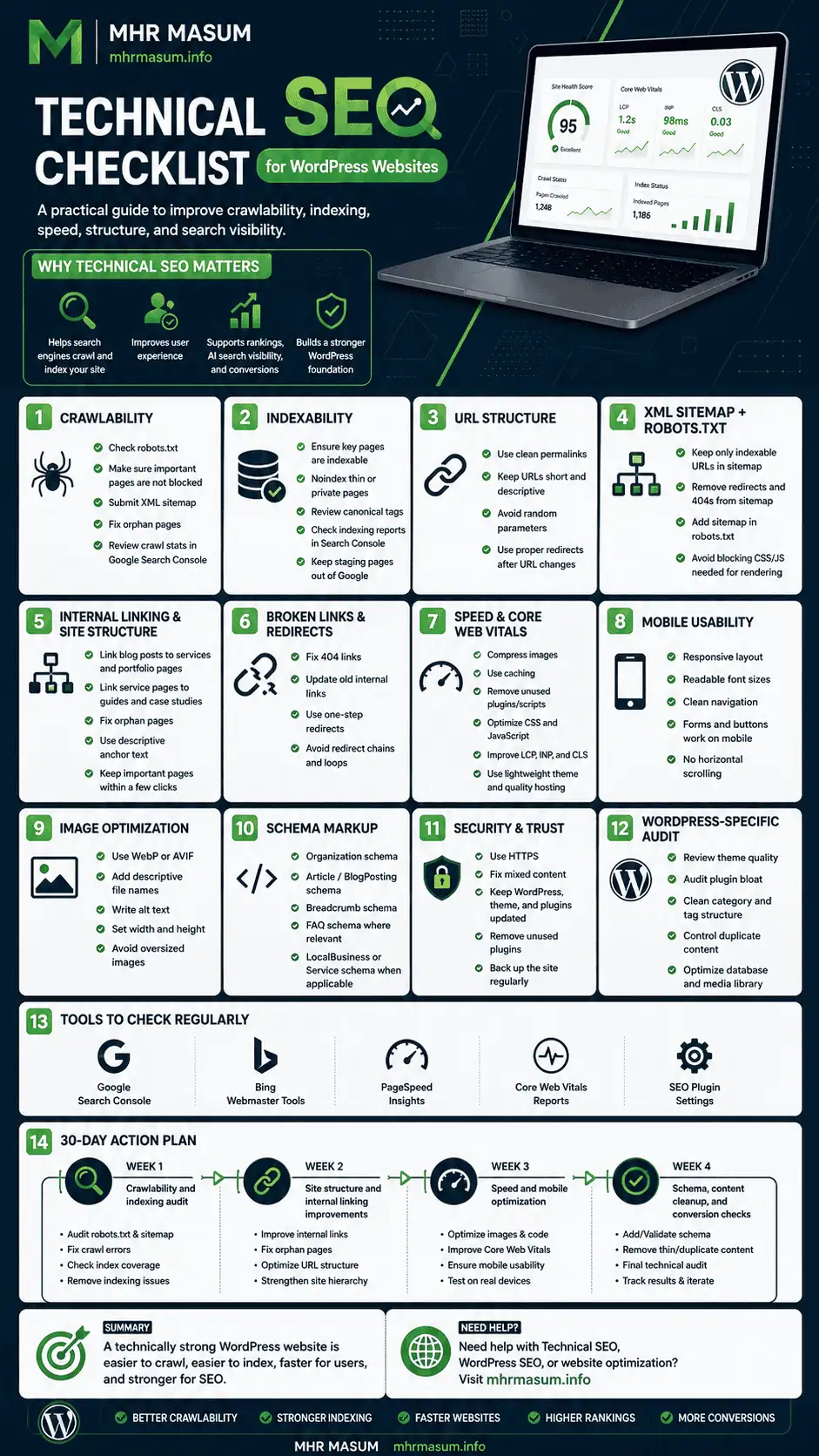
Technical SEO is the foundation of strong WordPress search visibility.
If your website has indexing issues, slow loading speed, poor Core Web Vitals, weak internal links, missing schema, duplicate pages, or crawl errors, your rankings and conversions may suffer.
A clean technical SEO setup helps search engines understand your website and helps users trust your business.
If you need help with WordPress technical SEO, website speed, schema markup, internal linking, AI SEO, or full website audit, explore my SEO and digital marketing services or contact me here for a consultation.
Conclusion
Technical SEO is not optional for WordPress websites.
A WordPress website needs more than good design and content. It needs a clean technical foundation that supports crawling, indexing, speed, mobile usability, schema, internal linking, and user experience.
If your technical SEO is weak, your best content may not perform well.
If your technical SEO is strong, your website becomes easier for search engines to crawl, easier for users to navigate, and easier for AI systems to understand.
Start with the basics.
Fix crawlability.
Improve indexability.
Clean your sitemap.
Optimize speed.
Strengthen internal links.
Add schema.
Improve mobile usability.
Fix broken links.
Control duplicate content.
Build a better site structure.
Modern SEO is built on strong technical foundations.
For WordPress websites, technical SEO is the bridge between good content and better search visibility.