If you have been putting off the job to update PHP version WordPress and WooCommerce sites run on, the October 2026 PHP security release ends that delay. Two critical vulnerabilities sit in PHP itself, and WooCommerce has told store owners to update PHP immediately.
Updating plugins and WordPress core will not fix this. The vulnerable code lives on the server, one layer below WordPress.
Many store owners still hesitate because they worry a PHP switch will hurt rankings or break checkout just before Black Friday. That worry is understandable, but it points at the wrong risk.
This guide explains what the security release means for your store and which PHP branch to target: 8.3, 8.4 or 8.5. It also covers what can go wrong for SEO and how to upgrade safely with staging, backups and testing.
It is written for WordPress and WooCommerce owners, marketers and in-house SEOs on their own hosting, VPS or a non-Automattic host. If that is you, plan this for this week, at your lowest-traffic hour.
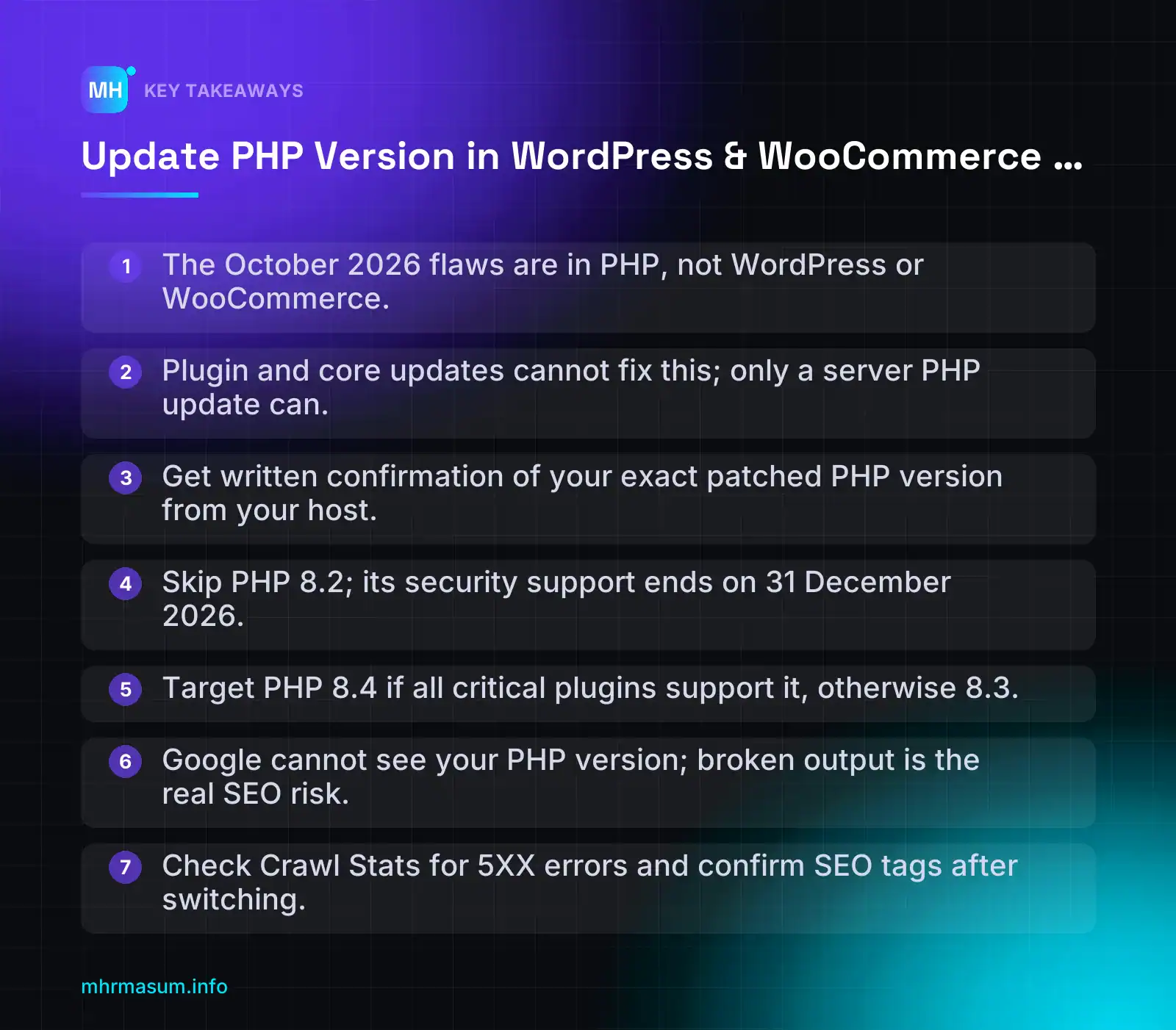
Key Takeaways
- The October 2026 flaws are in PHP, not WordPress or WooCommerce.
- Plugin and core updates cannot fix this; only a server PHP update can.
- Get written confirmation of your exact patched PHP version from your host.
- Skip PHP 8.2; its security support ends on 31 December 2026.
- Target PHP 8.4 if all critical plugins support it, otherwise 8.3.
- Google cannot see your PHP version; broken output is the real SEO risk.
- Check Crawl Stats for 5XX errors and confirm SEO tags after switching.
What the October 2026 PHP security release means for your store
On 21 October 2026, PHP released fixes for two critical vulnerabilities in PHP itself. WooCommerce published an advisory telling store owners to update PHP immediately (WooCommerce Developer Blog).
The advisory also quotes UK NCSC guidance: if you cannot fix a vulnerable system straight away, consider taking it offline. That shows how seriously this release should be treated.
If you run a WordPress or WooCommerce site on your own hosting account, VPS or a non-Automattic host, this needs your attention this week. It should not wait until after Black Friday.
Why this is a server problem, not a plugin problem
WooCommerce is clear that the flaws are in PHP, not in WooCommerce or WordPress. No WooCommerce or WordPress update is planned to fix them, because the code involved does not belong to either project.
“I’ve updated all my plugins and WordPress core, so I’m covered.”
You are not covered. Plugin and core updates change files inside your WordPress install. The vulnerable code is the PHP runtime on the server, which is a layer below WordPress. Only a PHP update on the server closes the hole.
In practice, that means one of the following has to happen:
- Your host updates PHP to a patched release on the branch you already use.
- You switch your site to a newer PHP branch that has a patched release.
- On a VPS or dedicated server, you or your sysadmin update the PHP packages yourselves.
Patched versions by branch
Third-party sources list these patched releases (PluginHive, HeroDevs). These are secondary sources, so confirm the exact version numbers on php.net before you rely on them.
| PHP branch | Patched release (verify on php.net) | What to do |
|---|---|---|
| 8.5 | 8.5.12 | Confirm your host has applied it |
| 8.4 | 8.4.27 | Confirm your host has applied it |
| 8.3 | 8.3.36 | Confirm your host has applied it |
| 8.2 | 8.2.35 | Patch now, then plan a move off 8.2 (end of life 31 Dec 2026) |
| 8.1 and older | No standard release | Upgrade the branch as soon as you have tested it |
The same sources call the flaws “PHP2Shell” and list two CVE IDs. Treat those labels as unconfirmed until you see them in the official php.net changelog.
Patch update vs branch upgrade
Two kinds of update are involved here, and they carry very different levels of risk.
| Type | Example | Who usually does it | Risk |
|---|---|---|---|
| Patch-level update | 8.3.x to 8.3.36 | The host, often automatically | Low. These are security and bug fixes only. |
| Branch upgrade | 7.4 or 8.1 to 8.3 or 8.4 | You, through the hosting panel | Higher. Old plugin or theme code can throw fatal errors. |
The branch upgrade is the one that needs staging, backups and testing. The rest of this guide covers that process.
Who is already protected
WooCommerce says stores hosted by Automattic are already protected. That covers WordPress.com, WordPress VIP, Pressable and WP Cloud.
Everyone else should get written confirmation from their host. Do not accept “we keep things updated” as an answer. Ask a specific question, for example:
Subject: PHP October 2026 security release – patch status

Hi,
Please confirm in writing:
1. The exact PHP version (including patch number) my site runs, e.g. 8.3.36
2. Whether the October 2026 PHP security fixes are applied to that version
3. Which PHP branches you offer on my plan, and when the patched builds were deployed

Domain: example.com
Thanks
The new WooCommerce admin notice
WooCommerce has merged an admin notice for stores running below PHP 8.1, with a backport to the 11.3 release branch (WooCommerce GitHub PR #70196). The notice warns about the vulnerabilities and recommends the latest PHP 8.3 release.
Whether you see the notice depends on your WooCommerce version, so check your own dashboard. Do not treat a missing notice as an all-clear. Stores on 8.1 or 8.2 will not see it, and they still need a patched build.
On timing: do this now, at your lowest-traffic hour. Do not do it during peak sale days. If you are also preparing your sale pages, see Black Friday SEO for WooCommerce.
Which PHP version should a WordPress or WooCommerce site run?
Once you know you have to move branches, the next question is where to move. The answer depends on two things: how long the branch gets security fixes, and whether your plugins and theme support it.
Supported PHP versions and end-of-life dates
These dates come from the PHP project’s support schedule. Check the current table on php.net, since schedules can be revised.
| Version | Status on 3 Nov 2026 | Security support ends |
|---|---|---|
| 8.1 and older | End of life (8.1 ended 31 Dec 2025) | Ended |
| 8.2 | Security fixes only | 31 Dec 2026 (about 8 weeks away) |
| 8.3 | Security fixes only | 31 Dec 2027 |
| 8.4 | Active support until 31 Dec 2026, then security only | 31 Dec 2028 |
| 8.5 | Active support | 31 Dec 2029 |
What WordPress and WooCommerce recommend
The official recommendations differ slightly, and they are updated at different times.
| Source | Recommended | Minimum |
|---|---|---|
| WordPress Hosting Handbook | PHP 8.4 or later for production | WordPress 7.1 requires PHP 7.4+ (minimum raised in 7.0) |
| WordPress requirements page | Secondary sources report “PHP 8.3 or greater”. Check the current wording. | PHP 7.4 |
| WooCommerce advisory | PHP 8.3 or newer | PHP 7.4, rising in future releases |
The Hosting Handbook also states that WordPress 6.7+ fully supports PHP 8.4 and WordPress 6.9+ fully supports PHP 8.5. Core is rarely the problem. Your plugins and theme are the limiting factor.
Minimum supported is not the same as secure
“WooCommerce still supports PHP 7.4, so my store is fine on 7.4.”
“Minimum supported” means the software will still run on that version. It does not mean the PHP version is still receiving security fixes. PHP 7.4 and 8.1 get no standard patches, including for this October release. Your store can work perfectly and still be exposed.
WooCommerce has also said its minimum will rise. Staying on the floor means you will be forced into a rushed upgrade later.
Decision rule: 8.3, 8.4 or 8.5
- Do not target 8.2. It reaches end of life in about eight weeks, so you would have to repeat all the testing in January.
- Choose 8.4 if WooCommerce, your theme, payment gateway, shipping, feed and SEO plugins all confirm 8.4 support and your staging tests pass. This matches the Hosting Handbook and gives you security fixes until the end of 2028.
- Choose 8.3 if one business-critical plugin, such as a payment gateway or ERP sync, has not yet confirmed 8.4. It meets WooCommerce’s recommendation and is supported until the end of 2027. Plan a move to 8.4 in 2027.
- Choose 8.5 only if every critical plugin and the theme explicitly confirm support. It has the longest runway, but older custom code is the most likely to break on it.
To check what you run now, go to Tools > Site Health > Info > Server in WordPress. Then write down the result next to your target branch:
Current:  PHP 8.1.x   (end of life – no October patch)
Target:   PHP 8.4.27  (verify patch number on php.net)
Blockers: Payment gateway plugin – 8.4 support not confirmed → fallback target 8.3.36
A PHP upgrade is also a good moment to remove abandoned plugins and old tracking code. These are often the first things to break. My third-party script audit guide helps you decide what to keep. If you would rather have someone review your setup before peak season, you can book a free consultation.
Does updating PHP hurt SEO? What actually puts rankings at risk
Many store owners delay a PHP upgrade because they fear losing rankings. That fear points at the wrong thing.
“Changing PHP version will drop my Google rankings.”
Google does not see your PHP version. Googlebot requests a URL and receives HTML, status codes, headers and resources. Whether PHP 8.1 or 8.3 produced that HTML is invisible to it. There is no ranking signal for PHP version.
The real risk is broken output. If the upgrade changes what your server returns, Google notices. That is the part you need to control.
What can actually go wrong for SEO
| Problem | How it happens after a PHP switch | What Google sees |
|---|---|---|
| 5xx server errors | A plugin or theme uses a function that was removed or changed, which causes a fatal error | 500 or 503 responses instead of pages |
| Fatal errors on specific templates | Only product, category or blog templates break, so the homepage still looks fine | Errors or half-rendered pages on important URL groups |
| Missing SEO tags | The SEO plugin fails silently or is auto-disabled by WordPress recovery mode | No canonical, no meta robots, no schema, wrong titles |
| Warnings printed into HTML | display_errors is on and deprecation notices appear in the page |
Junk text in the page, sometimes inside the <head> or broken JSON-LD |
| Slower responses | OPcache is off on the new version, or missing extensions force slower fallbacks | Higher response times, which can reduce how much Google crawls |
Recovery mode deserves extra attention. WordPress can pause a crashing plugin so the site stays up. If that plugin is your SEO plugin, the pages load normally but lose their canonicals and structured data without any visible error.
How 5xx errors show up in Search Console
Search Console’s Crawl Stats report is at Settings > Crawl stats. It shows total crawl requests, host status (DNS resolution, server connectivity and robots.txt fetch), crawl responses by type including Server error (5XX), and crawl purpose (Google Search Console Help).
Google states that 5XX errors cause availability warnings and should be fixed. It also notes that response percentages are counted per request, not per URL. So one URL that fails repeatedly can make the error share look larger than the number of broken pages.
A few minutes of errors during a controlled switch is not the issue. Errors that persist for hours or days are. When Googlebot keeps meeting server errors, it slows down. Fewer crawls mean price, stock and new product updates reach Google more slowly. If important URLs keep failing, you can also see indexing problems similar to those covered in Crawled – Currently Not Indexed.
This applies to AI search as well. Google’s John Mueller has said technical SEO still matters for AI search (Search Engine Journal). A page that returns a 500 error cannot be used as a source anywhere.
The bigger risk: staying on a vulnerable version
A hacked store does far more SEO damage than a careful upgrade. Attackers commonly add:
- Thousands of spam pages under your domain, often in other languages
- Conditional redirects that send only Google visitors or mobile users to scam sites
- Hidden outbound links injected into templates or the database
- Skimming code on checkout that steals card details
Cleaning this up can involve manual actions, Safe Browsing warnings, deindexed spam URLs and a loss of customer trust. If you have already been through this, the spam update recovery audit covers the clean-up. An upgrade risk lasts minutes and can be rolled back. A compromise can last months.
Store-specific risks that rankings reports will not show
For WooCommerce, revenue usually breaks before rankings do. Watch these three areas:
- Checkout. Payment gateway plugins, checkout field editors and custom snippets in
functions.phpoften fail first. The product page may load while the “Place order” step fails. - Payment webhooks. Gateways send server-to-server notifications to confirm payments. If the webhook endpoint returns a 500 error, customers can be charged while orders stay “Pending payment”, and stock is not reduced.
- Product feeds. Feed plugins usually run on WP-Cron, Action Scheduler or a server cron job. If that process fails on the new PHP version, the feed stops updating. Merchant Center then holds old prices and stock, which can lead to the disapprovals covered in WooCommerce Merchant Center Diagnostics.
With Black Friday weeks away, any of these failures costs more than usual. Do the upgrade now, at a low-traffic hour, and not during your peak sales window. The Black Friday SEO guide for WooCommerce covers the rest of your pre-sale preparation.
Step 1: Check your current PHP version and server setup
Before changing anything, find out exactly what you are running. You need two numbers, not one: the PHP version that serves web pages and the version that runs on the command line.
In WordPress Site Health
Go to Tools > Site Health > Info and expand the Server section. Note these values:
- PHP version: the version handling web requests
- PHP SAPI: usually
fpm-fcgi,litespeedorapache2handler. This tells you how PHP connects to the web server. - PHP memory limit: compare it with
WP_MEMORY_LIMITin the WordPress Constants section - PHP max input variables: if this is too low, large menus and variable product forms can be silently cut off when saved
- PHP time limit, upload max filesize and post max size
Click Copy site info to the clipboard and save the result to a text file. You will compare against it after the switch.
In WooCommerce System Status
Go to WooCommerce > Status > System Status. The Server environment section repeats the PHP version and limits. It also checks extensions and functions that WooCommerce depends on, including cURL, SoapClient, DOMDocument, GZip, multibyte string support, and remote GET and POST.
Red items here are what support teams ask about first. Common examples include:
- A missing extension such as
mbstringorsoap, which some gateways and shipping plugins need - Remote POST failures, which often break payment and shipping API calls
- Outdated template overrides listed under Templates, which are a frequent cause of theme errors after an upgrade
- A low WordPress memory limit
Click Get system report and save a copy. If your dashboard shows the new WooCommerce PHP security notice, read it in your own admin. Its wording depends on your WooCommerce version and your current PHP version.
In your hosting panel or via WP-CLI
On cPanel, the PHP version is set in MultiPHP Manager, which works per domain. On CloudLinux servers, Select PHP Version also controls extensions and PHP options. On Plesk, managed WordPress hosts and custom VPS setups, follow your host’s documentation. The location varies, and some hosts only change it through a support request.
If you have SSH access, run both of these commands:
$ wp --info
OS:            Linux 5.15.0 x86_64
Shell:         /bin/bash
PHP binary:    /usr/bin/php8.1
PHP version:   8.1.x
php.ini used:  /etc/php/8.1/cli/php.ini
WP-CLI version: 2.x.x

$ php -v
PHP 8.1.x (cli) (built: ...) (NTS)
Copyright (c) The PHP Group
Zend Engine v4.1.x, Copyright (c) Zend Technologies
    with Zend OPcache v8.1.x, Copyright (c), by Zend Technologies
The output above is illustrative, and your values will differ. To list extensions and check a single setting, use:
$ php -m
$ php -i | grep -E "memory_limit|max_input_vars"
Edge case: command-line PHP is not web PHP
The CLI can run a different PHP version from your website. It also reads its own php.ini. Site Health might report 8.3 while php -v reports 8.1.
This matters because the following processes use CLI PHP:
- Server cron jobs that replace WP-Cron (when
DISABLE_WP_CRONis set) - WP-CLI commands and deployment scripts
- Many feed generators and Action Scheduler runners
On cPanel, check the cron command itself. It may call a version-specific binary such as /opt/cpanel/ea-php81/root/usr/bin/php. If you upgrade the web version but leave cron on old PHP, the vulnerable version is still running, and your Merchant Center feed still depends on it.
Record a baseline before you change anything
| Item | Where to get it |
|---|---|
| Web PHP version and SAPI | Site Health > Info > Server |
| CLI PHP version and cron binary path | wp --info, php -v, cron job list |
| Loaded extensions | php -m, WooCommerce System Status, Select PHP Version |
memory_limit, max_input_vars |
Site Health, php -i |
| TTFB on key URLs | Homepage, top category, top product and cart pages |
| Crawl Stats average response time | Search Console > Settings > Crawl stats |
Measure TTFB from the command line. Run it 3–5 times per URL and note the median:
curl -o /dev/null -s -w "TTFB: %{time_starttransfer}s\n" https://example.com/product/sample/Include at least one uncached page, such as the cart page. Cached pages often bypass PHP entirely, so on their own they hide the effect of the upgrade.
Do not use a PageSpeed Insights score as your baseline. Lighthouse updates can change lab scores on pages that have not changed at all. Lab vs field data explains why TTFB and field data are the better comparison.
If you want a second pair of eyes on these numbers before the switch, you can book a free consultation.
Step 2: Pre-upgrade audit of plugins, theme, custom code and backups
Most PHP upgrade failures come from old code, not from PHP itself. A plugin written for PHP 7 calls a function that no longer exists, and the page returns a fatal error.
This audit finds those problems before they can reach Googlebot or a paying customer.
Update everything first
Update WordPress core, WooCommerce, every extension and your theme while you are still on your current PHP version. Then confirm the site works.
The reason is simple: change one thing at a time. If you update twenty plugins and switch PHP in the same hour, you cannot tell which change broke checkout.
- Take a backup (see the last part of this section).
- Update WordPress core.
- Update WooCommerce, then run any database update it asks for.
- Update extensions and the theme in small batches.
- Test the home page, a product page, cart and checkout.
- Leave it for a day if you can, so problems have time to show up.
Many plugin updates exist precisely to fix PHP 8.x compatibility. Leaving them out of date is the most common way to turn a routine upgrade into an outage.
Check plugin and theme PHP compatibility
For every active plugin and theme, check three things:
- “Requires PHP” on the WordPress.org plugin page. This is the minimum, not proof that newer versions work.
- “Tested up to” and the date of the last update. A plugin that has not been updated in two or more years is a risk.
- The changelog. Search it for “PHP 8”, “8.2”, “8.3” or “deprecated”.
Flag two groups for extra attention:
- Abandoned plugins: no updates, closed support threads, or removed from the directory. Plan to replace them.
- Premium plugins with expired licences: these often stopped receiving updates months ago. Your copy may be far behind the current release, even if the vendor’s version is fine.
Some plugin types matter more because a failure costs money or visibility straight away:
| Plugin type | Why it is high risk | What to confirm |
|---|---|---|
| Payment gateways | A fatal error at checkout stops sales | Current version, vendor states PHP 8.3 support |
| Shipping and tax | Wrong totals or blocked checkout | Rates still calculate after the update |
| Product feed plugins | Broken feeds lead to Merchant Center disapprovals | Feed regenerates without errors |
| Subscriptions | Renewals fail silently in the background | Scheduled actions run and complete |
| SEO plugins | Missing titles, canonicals, sitemaps or schema | Head output and sitemap XML still render |
| Page builders | Blank or half-rendered pages | Front end and editor both load |
Feed problems tend to show up days later in Merchant Center. If you have had feed trouble before, keep my guide to WooCommerce Merchant Center diagnostics to hand.
Scan custom code
Plugins from the directory get community testing. Your own code does not. Check these locations:
- Your child theme’s
functions.phpand any included files - Code snippet plugins (copy the snippets out to a file so you can scan them)
wp-content/mu-plugins/- Any custom plugin a developer built for you
The standard tool is PHPCompatibilityWP, a ruleset for PHP_CodeSniffer. Install it with Composer on your computer or staging server, not on the live site:
composer require --dev phpcompatibility/phpcompatibility-wp:"*"

vendor/bin/phpcs -p wp-content/themes/your-child-theme \
  --standard=PHPCompatibilityWP \
  --runtime-set testVersion 8.3- \
  --extensions=php
Composer may ask you to allow the dealerdirect/phpcodesniffer-composer-installer plugin. Say yes, because it registers the ruleset with PHP_CodeSniffer.
Treat the scan as a first pass, not a guarantee. Static analysis cannot catch every runtime problem, and coverage of the newest PHP 8.x changes depends on the PHPCompatibility version you install. Check the project’s GitHub page for its current status. Staging tests in Step 3 catch the rest.
The breakages I would look for first:
- Functions removed in PHP 8.0:
create_function()andeach()are gone. Old snippets copied from forums often use them. - Dynamic property deprecations (PHP 8.2): setting an undeclared property on an object, such as
$this->foo = 'bar';without declaring$foo, now raises a deprecation notice. - Stricter type errors: since PHP 8.0, many built-in functions throw a
TypeErrorinstead of a warning.count()on a non-countable value is the classic example. Passingnullto a non-nullable built-in parameter has been deprecated since 8.1.
Check required PHP extensions
A new PHP version on a host can come with a different set of enabled extensions. A missing extension can break image uploads, currency formatting or payment API calls.
Open Tools > Site Health > Info > Server on the current site and note what is loaded. After you switch on staging, confirm that these are still loaded:
curlfor payment gateway and shipping API callsmbstringfor multibyte text, including Bengali and other non-Latin product namesintlfor locale and currency formattingimagickorgdfor image resizing and thumbnailssodiumfor modern cryptographymysqlifor the database connection- ionCube Loader, but only if a licensed plugin is encoded with it. The loader must support your target PHP version, so check this before you switch.
The WordPress Hosting Handbook lists the full set of required and recommended extensions.
Take a restorable backup
“My host takes daily backups, so I’m covered.”
Maybe. A backup only counts if you know where it is, what it contains and how long a restore takes.
- Back up both files and the database. WooCommerce orders, customers and settings live in the database.
- Store one copy away from the server, such as cloud storage or your own computer.
- Test a restore, ideally into the staging site you will build next. A backup you have never restored is a hope, not a plan.
- Write down the exact restore steps and roughly how long they took. You will need them for your rollback plan.
Step 3: Test the new PHP version on staging first
Staging is a private copy of your live site. You break things there so that customers and Googlebot never see them.
With Black Friday and Cyber Monday close, this matters even more. Finding a fatal error on staging this week costs you nothing. Finding it on the live site during a sale costs you orders. If you are also preparing sale pages, see my guide to Black Friday SEO for WooCommerce.
Create a safe staging copy
Use your host’s one-click staging tool if it has one. If it does not, use a reputable staging or migration plugin to clone the site to a subdomain or subfolder.
Then lock it down before you do anything else:
- Password-protect it with HTTP authentication or the host’s protection setting. This is the strongest option because Googlebot cannot fetch any content.
- Set it to noindex. In Settings > Reading, tick “Discourage search engines from indexing this site”. Treat this as a second layer, not your only protection.
- Optionally add
define( 'WP_ENVIRONMENT_TYPE', 'staging' );towp-config.php. Some plugins use this to turn off live-only behaviour.
Indexed staging sites cause duplicate content and confused canonicals. If a staging copy has leaked into Google before, the clean-up steps in my site migration SEO guide apply.
Stop real-world side effects
A cloned store still holds real customers, real API keys and real scheduled jobs. Before testing, make sure it cannot act on them:
- Payment gateways: switch each gateway to test or sandbox mode, using the gateway’s test keys.
- Outgoing email: block or capture all email with a mail-logging or email-blocking plugin, or your host’s setting. Customers must not receive order emails from staging.
- Subscriptions: pause automatic renewals. WooCommerce Subscriptions has a staging mode that is meant to switch on when the site URL changes. Confirm it is active rather than assuming it is.
- Scheduled jobs: under Tools > Scheduled Actions, look for feed uploads, ERP or stock syncs, and marketing exports. Pause or disconnect anything that pushes data to an outside service.
- Analytics and pixels: remove or disable tracking so test orders do not pollute GA4 or ad conversions.
Switch PHP on staging and turn on logging
Change the PHP version for the staging site only. On cPanel this is usually in MultiPHP Manager, and on CloudLinux servers in Select PHP Version. On managed hosts, follow your host’s documentation. Choose PHP 8.3 or newer, in line with WooCommerce’s recommendation.
Confirm the change in Tools > Site Health > Info > Server. Some hosts apply it per domain, so make sure you changed the staging domain and not the live one.
Next, turn on error logging without showing errors to visitors. Edit wp-config.php above the line that says “That’s all, stop editing!”:
// Staging only: log errors, never display them
define( 'WP_DEBUG', true );
define( 'WP_DEBUG_LOG', true );       // writes to wp-content/debug.log
define( 'WP_DEBUG_DISPLAY', false );  // keep errors out of the HTML
@ini_set( 'display_errors', 0 );
By default, debug.log can be opened by anyone who knows the URL. You can give WP_DEBUG_LOG a file path outside the web root instead of true. Either way, delete the log when you finish, because it can expose file paths.
Staging test checklist
Work through every row. Do not stop at “the home page loads”. Product variations, checkout and background jobs are where PHP 8 errors tend to hide.
| Page or function | What to check | Pass / Fail |
|---|---|---|
| Home page | Loads fully, no blank sections, menus and sliders work | |
| Category page | Products, pagination, filters and sorting | |
| Simple product | Price, stock, images, add to cart | |
| Variable product | Variation selection updates price, image and stock | |
| Site search | Returns results, no error page | |
| Cart | Quantity changes, coupons, shipping estimate | |
| Checkout | Shipping, tax, a full sandbox payment, thank-you page | |
| My Account | Login, orders, addresses, subscriptions | |
| Order emails | Captured by the mail logger with the correct content | |
| Admin order edit | Opens, saves, refunds in sandbox, status changes | |
| Product feed generation | Feed regenerates, item count matches the live site | |
| Sitemap XML | Valid XML, no PHP warnings printed above the <?xml line |
|
| robots.txt | Same rules as live, apart from the staging block | |
| Schema output | Product and Organization JSON-LD present and valid in the page source |
The sitemap row is worth a moment. A single PHP notice printed before the XML declaration makes the whole sitemap invalid. On a page, that kind of notice is easy to miss.
Read the logs and sort what you find
After the checklist, read two logs:
wp-content/debug.log(or your custom log path)- WooCommerce > Status > Logs, filtered to the fatal-errors source
Each log entry names the file and line, which tells you which plugin or snippet is responsible. Sort what you find with one rule:
| Log level | Meaning | Action |
|---|---|---|
| Fatal error | Code stopped running. The page or process failed. | Blocker. Fix, update or replace it before going live. |
| Warning | Something went wrong, but the code carried on | Investigate. It may cause wrong output. |
| Deprecated | Works now, may break in a future PHP version | To-do list. Report it to the plugin author and track it. |
Only move to the live switch when the checklist is all passes and there are no fatal errors. If a critical plugin fails and there is no fix in sight, that is the moment to get help. You can book a free consultation and we can look at the options together.
Step 4: Switch PHP on the live site (cPanel, Plesk, managed hosts and VPS)
Once staging has passed, the live switch takes only a few minutes. The risk is not the click itself. It is what else changes with the click, such as PHP settings, extensions and old handler lines.
Pick the right time
Don’t leave this until Black Friday week. PHP versions before 8.2 no longer get security fixes, and the WooCommerce advisory says to update PHP straight away (WooCommerce Developer Blog).
- Do it this week or next, not during a sale, a product launch or BFCM week. Once you have switched, freeze server changes until after the sales period. My Black Friday SEO for WooCommerce guide covers how to prepare the rest of the store.
- Choose a low-traffic hour. In GA4, open Reports > Engagement > Pages and screens, then add “Hour” as a secondary dimension or build a quick Exploration. This shows you when orders are lowest.
- Have someone ready to test checkout straight after the switch, with a real payment method and access to the payment gateway dashboard.
- Write down the current version and settings before you change anything. You will need them for a rollback.
cPanel MultiPHP Manager
- Log in to cPanel and open Software > MultiPHP Manager.
- Find your domain in the list and note the PHP version currently shown.
- Tick the checkbox next to the domain. Only tick the one site you are upgrading.
- Choose the new version from the PHP Version dropdown and click Apply.
- In WordPress, go to Tools > Site Health > Info > Server and check that the PHP version has changed.
Next, open Software > MultiPHP INI Editor. Many hosts store limits separately for each PHP version, so your old custom values may not follow you to the new one. Select the domain and set the values again, using the numbers you wrote down:
memory_limit: large WooCommerce stores often need more than the default.max_input_vars: if this is too low, large menus and variable products save only partly, and you get no clear error.upload_max_filesizeandpost_max_size: these control image and CSV import uploads.max_execution_time: this affects imports, feed generation and backups.
Watch for old AddHandler lines in .htaccess
MultiPHP Manager writes its own handler block into .htaccess. Problems start when an older handler line is left behind. It might come from a previous host, a migration plugin or a manual edit. That line can keep forcing the old PHP version, or it can point to a handler that no longer exists. A missing handler gives you a 500 error, or makes the server offer raw PHP files as downloads.
# Leftover line from an old host or migration (remove it):
AddHandler application/x-httpd-php56 .php

# Normal cPanel-managed block (leave it to MultiPHP Manager):
# BEGIN cPanel-generated handler, do not edit
<IfModule mime_module>
  AddHandler application/x-httpd-ea-php83 .php .php8 .phtml
</IfModule>
# END cPanel-generated handler, do not edit
Search for AddHandler and SetHandler in the root .htaccess file. Also check any .htaccess files in subfolders such as /shop/ or /blog/. If Site Health still shows the old version after you click Apply, a leftover line like this is the most likely cause.
CloudLinux Select PHP Version
Many shared hosts use CloudLinux. If yours does, you will see Software > Select PHP Version in cPanel.
- Choose the new version from the current version dropdown and set it as current.
- Open the Extensions tab. Turn on the same extensions you had before. For WooCommerce, check intl, mbstring, gd or imagick, zip, curl, mysqli, opcache and, if you use object caching, redis.
- Open the Options tab and enter your memory, upload and input limits again.
Some servers show both MultiPHP Manager and Select PHP Version, and the two can override each other. If the version shown in Site Health does not match what you selected, ask your host which tool controls your site. Don’t keep changing both.
Plesk
In Plesk, open Websites & Domains, select the domain and open its PHP settings. Choose the new version and keep the same handler type you used before, normally an FPM application. On the same screen, check the performance and upload limits, because they can reset when you change version. The exact labels differ between Plesk releases and host themes, so use your host’s Plesk documentation if the screen looks different.
Managed WordPress hosts
Managed hosts usually follow this pattern: dashboard > your site > tools or settings > PHP version (sometimes called “PHP engine”). Some hosts switch PHP straight away. Others restart the container and take a minute or two.
- Follow your host’s own documentation, because menu names differ.
- Check whether the host lets you change staging and live separately. If it does, confirm you are changing live.
- Ask support whether the version they run is the latest patched release for that branch, not only the right major version.
- The WooCommerce advisory says stores hosted by Automattic (WordPress.com, VIP, Pressable, WP Cloud) are already protected.
VPS with PHP-FPM
On a VPS, the old and new versions can run side by side. This makes rollback simple. Leave the old FPM service running until you have finished testing. The example below is for Ubuntu with a PHP 8.3 package repository already added:
# 1. Install the new FPM and the extensions WordPress/WooCommerce need
sudo apt install php8.3-fpm php8.3-mysql php8.3-curl php8.3-gd php8.3-intl \
  php8.3-mbstring php8.3-xml php8.3-zip php8.3-bcmath php8.3-imagick php8.3-redis

# 2. Copy your custom pool and php.ini values across
#    /etc/php/8.2/fpm/pool.d/www.conf  ->  /etc/php/8.3/fpm/pool.d/www.conf
#    (user, group, listen socket, pm.* settings, memory_limit, etc.)

# 3. Point Nginx at the new socket (inside the PHP location block)
fastcgi_pass unix:/run/php/php8.3-fpm.sock;

#    Or for Apache with proxy_fcgi:
SetHandler "proxy:unix:/run/php/php8.3-fpm.sock|fcgi://localhost"

# 4. Test the config and reload (no full restart needed)
sudo nginx -t && sudo systemctl reload nginx

# 5. Switch the CLI too, so WP-CLI and system cron use the same version
sudo update-alternatives --set php /usr/bin/php8.3
php -v
Read the full output of php -v. The research I used lists patched releases for each branch, but confirm the current patched release number on php.net before you rely on it. If you are using distribution packages, also check that your distribution has published the fix.
If downtime is unavoidable, return a 503
A version switch should not need downtime. If it does, for example for a container rebuild or a slow extension install, serve a 503 status with a Retry-After header. Don’t show a “we’ll be back soon” page that returns 200. Google may treat a 200 maintenance page as your real content. A 503 tells crawlers the outage is temporary.
HTTP/1.1 503 Service Unavailable
Retry-After: 3600
WordPress’s own core-update maintenance screen already sends a 503. Many “coming soon” plugins send 200, so check yours with curl -I https://yourdomain.com/. For the details, read Google Search Central’s documentation on how HTTP status codes and server errors affect Google Search. Keep the outage short. Search Console warns that 5XX errors cause availability problems that should be fixed (Search Console Help), and Google may start dropping URLs if server errors last a long time.
Your rollback plan if something breaks
A rollback plan only works if you write it before the switch. Once checkout is failing and orders are being lost, you won’t have time to work out the steps.
Decision rule: fix forward or roll back
Agree on one rule with whoever owns the store: if checkout or payments fail and you cannot find the cause within a short, agreed window (for example 15–30 minutes), switch back to the previous PHP version first. Then debug on staging, where nobody is trying to pay.
| What you see | Action |
|---|---|
| Checkout, payment or order emails fail, and the cause is unknown | Roll back PHP now and debug on staging |
| One plugin has a fatal error, and that plugin is not needed for checkout | Fix forward: deactivate the plugin and stay on the new PHP |
| Whole site shows a 500 error after the switch | Check for a leftover .htaccess handler first. If that is not the cause, roll back |
| Deprecation notices only, and pages and checkout work | Stay on the new PHP. Hide on-screen errors and fix the notices on staging |
| Product or order data is missing or corrupted | Stop and assess. This is the only case for a backup restore (see below) |
How to revert in minutes
Start with the smallest fix that solves the problem:
- Set the PHP selector back. Use the same tool you changed it in: MultiPHP Manager, Select PHP Version, Plesk or your host’s dashboard. Check the INI values are still correct for the old version.
- Remove a leftover handler. If an old
AddHandlerline is causing the 500 error, deleting it may fix the site without rolling back at all. - Use the WordPress recovery mode email. When a plugin or theme causes a fatal error, WordPress emails the admin address a special login link. That link pauses the faulty extension so you can get into wp-admin. Check the spam folder too.
- Rename the plugin folder. Use SFTP or the host’s File Manager. Renaming
wp-content/plugins/plugin-nametoplugin-name.offdeactivates the plugin, and you don’t need wp-admin. - Use WP-CLI if you have SSH access:
wp plugin deactivate plugin-name --skip-plugins --skip-themes
wp plugin list --status=active
On a VPS, rollback means pointing fastcgi_pass back to the old socket and reloading Nginx. This is why you left the old FPM running.
When to restore from a backup instead
Switching PHP does not change your database. In most cases, reverting the PHP version is enough. Restore from a backup only if data really was changed, for example when a plugin’s update routine ran and damaged its tables.
Before you restore, protect any orders placed since the backup:
- Write down the newest order number in WooCommerce > Orders, and export the recent orders.
- Compare them with your payment gateway’s transaction list. That list is the record of who actually paid.
- If only files are damaged, restore files only. Don’t overwrite a database that contains new orders and customer accounts.
The security trade-off
A rollback can reopen the vulnerability. If you switch back to an unpatched build, or to an end-of-life branch such as 8.1 or 7.4, the store is exposed again. The WooCommerce advisory quotes UK NCSC advice to consider taking a system offline if you cannot fix it straight away (WooCommerce Developer Blog).
- Keep the rollback temporary. Set a deadline to fix the plugin that broke and switch again.
- Roll back to a patched build of the previous supported branch if you can, rather than to an end-of-life version.
- Ask your host whether they provide a patched build for the version you returned to. Get the answer in writing.
- Review the extensions and scripts that caused the failure. Old code often comes from plugins nobody maintains any more, as my third-party script audit guide explains.
If you would like a second pair of eyes on the upgrade or the rollback plan before BFCM, you can book a free consultation.
After the switch: fatal errors, checkout and payment tests
The new PHP version is live. For the next hour, your job is to find errors before customers or Googlebot do.
A homepage that loads proves very little. Most PHP 8.x breakages appear in particular places, such as a checkout hook, a payment callback, a scheduled feed job or a single admin screen.
“The homepage loads fine, so the PHP upgrade worked.”
The homepage is usually served from the page cache, so it may not run any new PHP at all. Cart, checkout, my-account and wp-admin are normally uncached, and that is where errors show up.
First-hour error checks
Check three logs, because each one catches different failures:
- Server error_log. You can usually find it in your hosting panel’s error log viewer, or in the site root or a
logs/folder. It records errors that happen before WordPress fully loads. - WordPress debug.log. This is at
wp-content/debug.log, but only if logging is turned on. Log errors to a file without showing them to visitors:
// wp-config.php – above "That's all, stop editing!"
define( 'WP_DEBUG', true );
define( 'WP_DEBUG_LOG', true );
define( 'WP_DEBUG_DISPLAY', false );
@ini_set( 'display_errors', 0 );- WooCommerce logs. Go to WooCommerce > Status > Logs and open any
fatal-errorsentries dated after the switch. Gateway logs are kept here too.
Search the logs for these strings, and only look at entries with timestamps after the switch:
PHP Fatal error
Uncaught Error
Uncaught TypeError
Uncaught ArgumentCountError
Call to undefined function
Deprecation notices are not urgent, but write them down for your plugin update list. A fatal error in a checkout or payment plugin means you start the rollback plan.
Next, smoke-test one page of each template:
- Homepage, a blog post and a static page
- A shop or category page with a filter applied
- A simple product and a variable product (change the variations)
- Cart, with quantities updated
- My Account while logged in: orders, addresses and downloads
- wp-admin: the Orders list, a single order edit screen, the product editor and the WooCommerce settings tabs
Checkout and payment test script
Go through this script in order and tick each row. If a gateway has no test mode, place a small real order and refund it.
| Test | What “pass” looks like |
|---|---|
| Guest checkout | The order is created and the thank-you page loads |
| Logged-in checkout | Saved addresses fill in and the order appears in My Account |
| Coupon applied | The discount is correct on the cart, checkout and order |
| Each shipping method | Rates calculate, including free shipping thresholds |
| Each payment gateway | Payment completes in test mode, or as a small real order you refund |
| Payment webhooks | The order moves from Pending payment to Processing without you touching it |
| Transactional emails | The customer and admin receive new order, processing and refund emails |
| Refund | The refund goes through the gateway and the order notes record it |
Webhooks are the failure people miss most often. The customer pays, but the order stays at pending because the callback hit a PHP error. Check the gateway’s own dashboard for failed webhook deliveries as well as the WooCommerce gateway log.
Feeds, schema and tracking
- Product feed. Trigger your feed plugin’s scheduled run, or wait for it. Then look under WooCommerce > Status > Scheduled Actions for failed actions. In Merchant Center, confirm the next fetch has no new errors. My Merchant Center diagnostics guide explains how to read them.
- Schema, canonicals and meta robots. View the source of a product, a category and a post. Confirm the JSON-LD,
rel="canonical"andmeta name="robots"are all there and correct. For an independent check, run the URL Inspection live test in Search Console and look at the rendered HTML. - GA4 purchase events. Place a test order with DebugView or the Realtime report open, and confirm that
purchasefires with the correct value and transaction ID. Broken tracking often shows up later as odd channel data, which my GA4 unassigned traffic audit helps you trace.
Monitor SEO and performance: Crawl Stats, caching and TTFB
A PHP change cannot affect rankings by itself. Server errors, slow responses and broken caching can. Watch these closely for the next one to two weeks.
Search Console Crawl Stats: host status and 5xx
In Search Console, go to Settings > Crawl stats and open the report. Google says it shows total crawl requests, host status, responses by type and crawl purpose (Search Console Help).
Over the following days, check these three things:
- Host status. Look at the server connectivity check in particular. A failure here after the switch points to PHP-FPM workers running out or the server timing out.
- By response > Server error (5XX). Google says 5XX errors cause availability warnings and should be fixed (Search Console Help). Click the row to see example URLs and find the pattern.
- Average response time. Compare the line with the weeks before the switch. A clear, lasting rise is worth investigating.
The percentages are counted per request, not per URL. On a small site with few crawl requests, a single failed fetch and its retry can make the 5XX share look alarming. Always open the example URLs before you react.
Check the Page indexing report as well. Look for a new Server error (5xx) reason, or a rise in pages Google is dropping. If you see pages being dropped, my guide to Crawled – Currently Not Indexed helps you tell a technical cause from a quality cause.
Fast, error-free responses matter for AI search too. John Mueller has said technical SEO remains key there (Search Engine Journal).
Clear and confirm caches
Old cached pages can hide problems, and a broken object cache can quietly slow every request. Flush the caches in this order:
- Page cache. This is your caching plugin or the host’s server cache.
- CDN cache, such as Cloudflare or your host’s CDN.
- Object cache (Redis or Memcached), using the plugin’s flush button or your host’s panel.
Next, confirm the new PHP version has the extensions your stack needs. Each PHP version has its own extension set, so redis or memcached can be missing even though they worked on the old version. In CloudLinux Select PHP Version, look at the extensions list. On a VPS, run:
php -v
php -m | grep -iE "redis|memcached|opcache"
php -i | grep -i "opcache.enable"
The CLI and the web server can use different PHP builds. Confirm the web version in Tools > Site Health > Info > Server, and check your object cache plugin’s status screen to see that it is connected.
Compare TTFB before and after
Test the same baseline URLs you recorded before the upgrade. Run each one several times and use the typical result, not the best one.
# Time to first byte (cached response)
curl -s -o /dev/null -w "Status: %{http_code}\nTTFB: %{time_starttransfer}s\nTotal: %{time_total}s\n" https://example.com/product/sample/

# Uncached origin response (unique query string)
curl -s -o /dev/null -w "TTFB: %{time_starttransfer}s\n" "https://example.com/product/sample/?nocache=12345"

# Cache-hit headers (names vary by host/CDN)
curl -sI https://example.com/product/sample/ | grep -iE "cf-cache-status|x-cache|x-litespeed-cache|age|cache-control"| Check | Good sign | Investigate if |
|---|---|---|
| Cached TTFB | Same as or better than the baseline | Clearly slower, which usually means the cache is not being hit |
| Uncached TTFB | Same as or better than the baseline | Much slower: check OPcache and the object cache |
| Cache header | HIT on the second request |
Always MISS or BYPASS |
| Crawl Stats response time | Flat or lower | A steady rise over several days |
“My PageSpeed Insights score jumped, so the PHP upgrade made the site faster.”
Don’t trust that conclusion. A recent Lighthouse update may raise PSI lab scores on pages that have not changed at all (Search Engine Journal). Judge the upgrade by TTFB, server response time and field data, not by the lab score. My guide to lab vs field data explains how to tell the difference.
If you want a second pair of eyes on the results, start with a free SEO check.
Troubleshooting and common mistakes
Most PHP upgrade problems are not caused by the new PHP version. They come from settings, extensions and handlers that did not carry over to the new version.
Each PHP version on a server usually has its own configuration file, its own extensions and its own command-line binary. Switching versions can quietly reset all three.
Symptom, cause and fix table
Find your symptom, check the likely cause, then apply the fix. Test again on cart, checkout and wp-admin after every change.
| Symptom | Likely cause | Fix |
|---|---|---|
| “There has been a critical error on this website” screen | A plugin or theme hits a PHP fatal error, such as a removed function or a stricter type check | Use the recovery mode link that WordPress emails to the admin address. If you have no access, rename the plugin’s folder in wp-content/plugins over SFTP. Then check the error log for the file and line number. |
| HTTP 500 on every page straight after switching | An old PHP handler line in .htaccess points to a version that is missing or was removed |
Remove the stale handler block, or apply the version again in MultiPHP Manager so it rewrites the block correctly. |
| Missing images, broken thumbnails, upload errors | The imagick or gd extension is not enabled for the new version |
Enable it for the new version, for example in CloudLinux “Select PHP Version”. Then regenerate thumbnails for any images uploaded while it was missing. |
| Product variations, menus or long settings pages don’t save | max_input_vars has gone back to the default of 1000 |
Raise it in the new version’s INI settings. A value of 3000–5000 is common for large variable products. |
| A licensed or encoded plugin stops working | The ionCube Loader is not installed for the new PHP version | Enable the loader for the new version. Also confirm that the vendor ships encoded files built for that PHP branch. |
| Scheduled feeds, backups or Action Scheduler jobs fail | Server cron jobs or WP-CLI still call the old PHP binary | Point cron jobs at the version-specific binary, as shown in the example below. |
| “Allowed memory size exhausted” errors | memory_limit was reset in the new version’s configuration |
Set memory_limit again, for example to 256M or 512M for WooCommerce, and confirm the new value in Tools > Site Health > Info > Server. |
On cPanel servers that use EasyApache 4, the handler block in .htaccess usually looks like this. The version in the handler name must match a version that is actually installed on the server.
# php -- BEGIN cPanel-generated handler, do not edit
<IfModule mime_module>
  AddHandler application/x-httpd-ea-php83 .php .php8 .phtml
</IfModule>
# php -- END cPanel-generated handler, do not edit
Cron is the failure people miss most often, because the website works while background jobs fail without any visible error. Check which version the command line actually uses:
php -v
wp --info

# cPanel EA4 example cron entry using the PHP 8.3 binary
*/5 * * * * /opt/cpanel/ea-php83/root/usr/bin/php /home/USER/public_html/wp-cron.php

# CloudLinux alt-php equivalent
/opt/alt/php83/usr/bin/php
Binary paths differ between hosts. If you are unsure of the path, ask your host before you edit any cron entries.
Feed jobs deserve a check of their own. If a scheduled product feed fails silently, Merchant Center can start showing out-of-date prices or stock. Check feed timestamps afterwards, and use the Merchant Center diagnostics guide if disapprovals appear.
Mistakes to avoid
- Upgrading during a sale. BFCM week is close. Do the upgrade now, at your lowest-traffic hour, and freeze major changes during peak trading. See the Black Friday SEO guide for WooCommerce for how to prepare sale pages.
- Skipping staging. A staging test takes an hour or two. Fixing a broken checkout on the live store costs you real orders.
- Leaving staging indexable or with live payments on. Put staging behind a password or block it with noindex. Set payment gateways to test or sandbox mode, and turn off customer emails and feed submissions.
- Choosing PHP 8.2. On the dates published on the PHP supported versions page, security support for 8.2 ends on 31 December 2026. That means you would have to upgrade again within weeks. Go to 8.3 or newer.
- Forgetting the INI limits. Before you switch, copy your current
memory_limit,max_input_vars,max_execution_timeandupload_max_filesizevalues. Apply them to the new version. - Getting deprecation notices wrong. Deprecation notices are not fatal errors, so don’t roll back because of them. Don’t ignore them either. They tell you which code will break on the next PHP branch, so pass them to the plugin developers.
- Showing errors on screen in production. On-screen notices can expose file paths and break JSON or AJAX responses at checkout. Write errors to the log instead.
Use these settings in wp-config.php while you monitor the site. Remove the debug settings when you have finished:
define( 'WP_DEBUG', true );
define( 'WP_DEBUG_LOG', true );
define( 'WP_DEBUG_DISPLAY', false );
@ini_set( 'display_errors', 0 );
“Once we’re on the new PHP version, we’re done for a few years.”
That is not correct. PHP releases security patches for each branch, and every branch has a fixed end date. Treat PHP as ongoing maintenance, not a one-off project.
Keep PHP on your maintenance calendar
- Add a quarterly PHP check to the same calendar you use for plugin updates and backups. At each check, record the exact version shown in Site Health.
- Ask your host how quickly they apply PHP patch releases, such as a new 8.3.x release, and whether they apply them automatically. A slow answer is a reason to consider changing host.
- Plan each branch move well before 31 December. Start testing the next branch on staging in September or October, not in the middle of peak trading.
- Read admin notices. After the October 2026 WooCommerce advisory, newer WooCommerce releases are expected to show a warning to stores below PHP 8.1. Check your own dashboard rather than assuming you will see it.
After any change, compare TTFB and field data rather than a single PageSpeed score. The lab vs field data guide explains why.
If you would like a second pair of eyes on the upgrade, or on what it did to your crawl stats, book a free consultation.
Frequently Asked Questions
How do I check which PHP version my WordPress site uses?
In your WordPress dashboard, go to Tools > Site Health > Info and open the Server section. It shows the PHP version your site runs. For the exact patch number, also check your hosting panel or ask your host in writing.
Will updating PHP break my WordPress or WooCommerce site?
A patch-level update within the same branch, such as 8.3.x to a newer 8.3 release, is low risk because it only contains fixes. A branch upgrade, such as 8.1 to 8.4, can cause fatal errors in old plugin or theme code. Test branch upgrades on staging first, and take a full backup.
Does changing the PHP version affect Google rankings?
No. Googlebot only sees the HTML, status codes, headers and resources your server returns, not the PHP version that produced them. Rankings are only at risk if the upgrade causes server errors, broken templates, missing SEO tags or slower responses.
Which PHP version is best for WooCommerce in 2026?
WooCommerce recommends PHP 8.3 or newer. PHP 8.4 is a strong choice if your theme, payment gateway and other critical plugins confirm support, as it gets security fixes until the end of 2028. Use 8.3 as a fallback if a key plugin has not confirmed 8.4 yet.
If WordPress and all my plugins are up to date, am I protected from the PHP vulnerabilities?
No. Those updates only change files inside your WordPress install. The vulnerable code is the PHP runtime on the server, so you need a patched PHP release from your host or your sysadmin.
Do I need to do anything if my site is on WordPress.com or Pressable?
WooCommerce says stores hosted by Automattic, including WordPress.com, WordPress VIP, Pressable and WP Cloud, are already protected. Hosting with anyone else means asking your host for written confirmation of your exact patched PHP version.
Is PHP 7.4 still safe because WooCommerce supports it?
Minimum supported only means the software still runs on that version. PHP 7.4 and 8.1 no longer receive standard security patches, including for the October 2026 fixes. Your store can work perfectly and still be exposed.
Final Thoughts
Start with the facts. Check your current PHP version in Site Health, then email your host and ask for the exact patched version in writing. Do not rely on a missing WooCommerce notice as proof you are safe.
If you are on 8.1 or older, or on 8.2, plan a branch upgrade to 8.4, or to 8.3 if a critical plugin is not ready. Test on staging, take a backup and switch at your lowest-traffic hour, well before peak sale days.
After the switch, check key product, category and checkout pages. Confirm your canonicals and schema are still in the HTML, and watch Crawl Stats for 5XX errors. A careful upgrade takes minutes and can be rolled back. A hacked store can take months to recover.
Want help applying this to your site? Run the free SEO check or book a free consultation with MD Harunur Rashid. Free SEO check · Book a free consultation