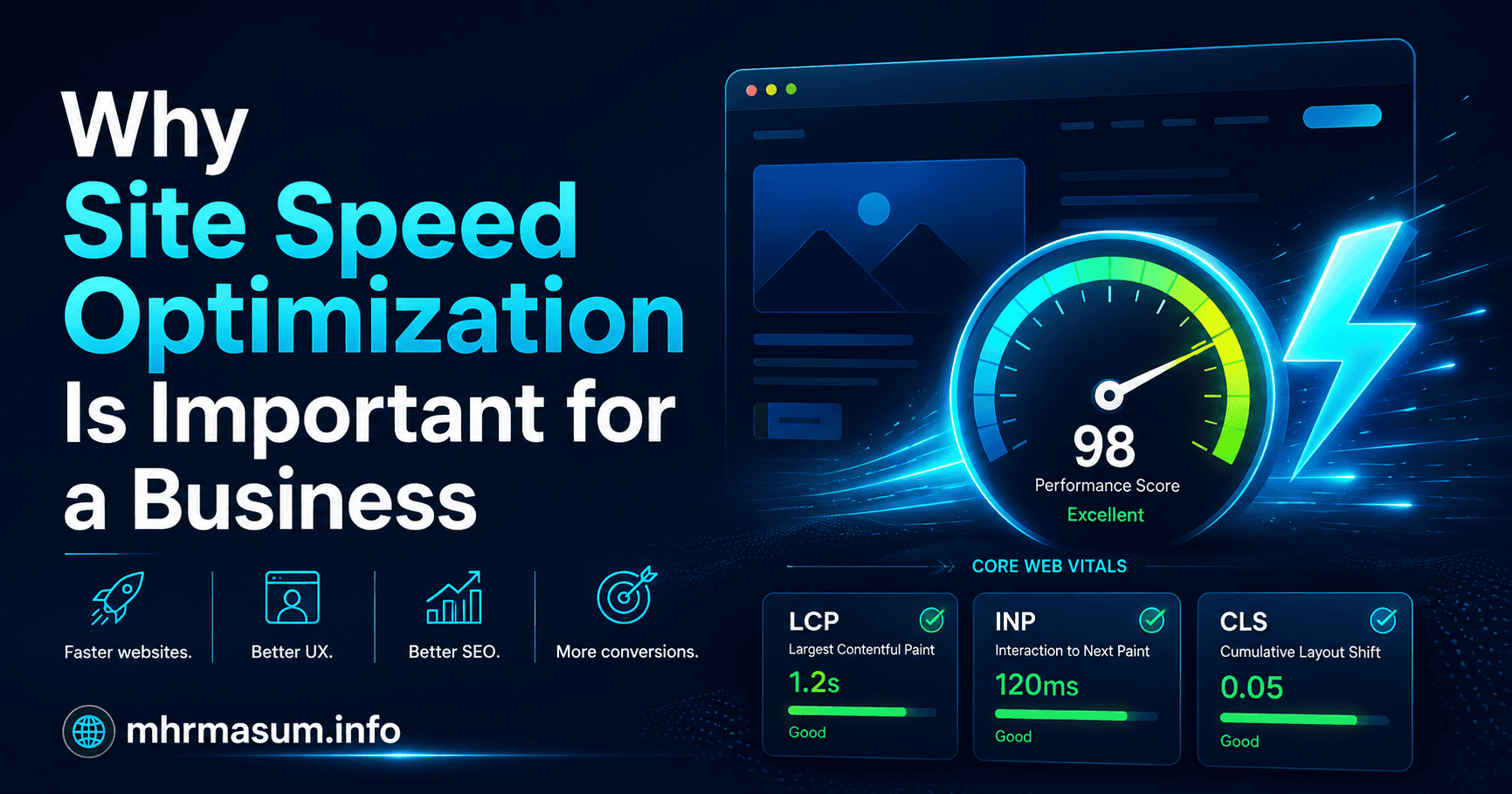
A website can have excellent content, attractive design, valuable products, and strong search visibility but still lose customers because it loads too slowly or responds poorly to user actions.
Visitors expect pages to display quickly, menus to open without delay, forms to respond immediately, and layouts to remain stable while content loads. When these expectations are not met, users may leave before reading the page, requesting a quote, booking a service, or completing a purchase.
Site speed optimization is therefore not only a technical SEO task.
It directly affects:
- User experience
- Conversion opportunities
- Mobile usability
- Search performance
- Advertising efficiency
- eCommerce sales
- Lead generation
- Customer trust
- Server efficiency
- Accessibility
- AI-agent usability
Google recommends that website owners achieve good Core Web Vitals for search success and for a strong user experience. However, Google also makes it clear that a perfect performance score does not guarantee high rankings because page experience is only one part of a much wider search-quality system.
The correct objective is not to chase a perfect PageSpeed Insights number at any cost. The objective is to create a website that loads quickly, responds smoothly, remains visually stable, and supports real business actions across different devices, networks, locations, and page types.
This complete 2026 guide explains:
- What site speed optimization means
- How website performance affects SEO and business growth
- How Core Web Vitals work
- How to test website speed correctly
- How to improve WordPress performance
- How to optimize images, fonts, CSS, JavaScript, caching, and hosting
- How to improve mobile and WooCommerce speed
- Which speed mistakes to avoid
- How to create a 30–90 day optimization roadmap
- How to maintain performance after improvements are completed
For a business-focused introduction to this subject, read Why Site Speed Optimization Is Important for a Business.
What Is Site Speed Optimization?
Site speed optimization is the process of improving how quickly and efficiently a website loads, displays its important content, responds to interactions, and remains visually stable for users.
This process may involve optimizing:
- Hosting
- Server response
- HTML
- CSS
- JavaScript
- Images
- Fonts
- Videos
- Caching
- Databases
- WordPress themes
- WordPress plugins
- External scripts
- Content delivery
- Mobile layouts
- Third-party integrations
A website is not truly fast merely because its homepage performs well in one test.
A complete site-speed strategy should evaluate multiple page types, including:
- Homepage
- Service pages
- Blog articles
- Product pages
- Product-category pages
- Location pages
- Contact forms
- Cart
- Checkout
- Account pages
- Search results
- Landing pages
Different templates may have different performance problems.
For example, a homepage may load quickly while WooCommerce product pages remain slow because they include product galleries, variation scripts, reviews, related products, tracking tags, and cart functionality.
Site speed optimization must therefore be approached at both page level and website-template level.
Site Speed, Page Speed and Website Performance Are Different
These terms are related, but they do not mean exactly the same thing.
Page Speed Refers to an Individual Page
Page speed describes the performance of a specific URL.
For example:
- Homepage performance
- Contact-page performance
- Product-page performance
- Blog-post performance
One page may be fast while another is slow.
Site Speed Refers to Wider Website Performance
Site speed describes general performance across a collection of pages or templates.
Search Console’s Core Web Vitals reporting groups pages with similar characteristics, helping website owners identify whether a performance problem affects one URL or an entire page group.
Website Performance Is a Wider Concept
Website performance includes speed but can also cover:
- Server stability
- Application responsiveness
- Database efficiency
- Scalability
- Error rates
- Resource usage
- Availability
- Network reliability
A website can display its first content quickly but still provide a poor experience if buttons freeze, filters respond slowly, or checkout requests fail.
Why Site Speed Optimization Matters for Businesses
Website speed affects nearly every stage of the customer journey.
A slow website can reduce the value of:
- SEO
- Google Ads
- Social campaigns
- Email marketing
- Local SEO
- Influencer traffic
- Referral traffic
- Content marketing
A business may pay to attract a qualified visitor but lose that person before the page becomes usable.
Faster Websites Create Better First Impressions
Website performance influences how visitors perceive a business.
A fast, stable website can appear:
- Professional
- Reliable
- Secure
- Modern
- Easy to use
A slow or unstable website can create concerns even when the business itself provides excellent service.
Visitors may assume that:
- The business is inactive
- The checkout is unsafe
- The form is broken
- The company does not maintain its website
- Other parts of the service may also be inefficient
Speed is therefore part of brand experience.
Faster Websites Support Better Conversion Opportunities
A website must become usable before a visitor can:
- Contact the business
- Complete a quote form
- Add a product to the cart
- Book an appointment
- Call a phone number
- Read a case study
- Compare services
- Subscribe
- Make a payment
Reducing delays and interaction problems can help more visitors reach these actions.
Speed optimization should therefore be measured alongside:
- Form completion
- Phone clicks
- Add-to-cart rate
- Checkout completion
- Conversion rate
- Revenue
- Qualified leads
- Bounce and engagement patterns
Faster Websites Improve Marketing Efficiency
Paid traffic becomes more expensive when visitors abandon slow landing pages.
Improving performance can help a business gain more value from the traffic it already pays for rather than increasing campaign spending immediately.
The same principle applies to SEO. More rankings and traffic will not produce their full value if users cannot navigate or convert efficiently.
How Site Speed Affects SEO
Google uses Core Web Vitals within its ranking systems and recommends good performance for search success. Google also explains that relevance and content quality remain central, and excellent Core Web Vitals alone do not guarantee a top position.
This distinction is important.
Site speed should not be treated as a shortcut capable of replacing:
- Helpful content
- Search-intent alignment
- Technical SEO
- Internal linking
- Authority
- Local relevance
- Accurate product information
- Brand trust
Instead, speed supports the wider SEO strategy by improving the quality and usability of the pages search engines may recommend.
Use my Technical SEO Checklist for WordPress Websites to review speed alongside indexing, canonicals, structured data, mobile usability, crawling, and internal linking.
How Website Speed Supports AI Search and AI Agents
AI search visibility still depends heavily on standard search foundations such as crawlability, indexing, page quality, structured information, and user experience.
Google recommends good page experience, low latency, clear primary content, accurate business information, and technically accessible pages when preparing for generative AI search experiences.
A faster website can help AI-driven visitors access information and complete tasks more reliably.
Browser agents may need to:
- Open navigation
- Read service details
- Apply filters
- Complete forms
- Check availability
- Add products to a cart
- Confirm task completion
Heavy JavaScript, delayed controls, unstable layouts, and blocked resources can make these workflows unreliable.
Read my complete Agentic SEO guide to understand how website performance, accessibility, semantic HTML, and interface stability support AI-agent interaction.
For broader AI search visibility, review AI SEO for Google AI Overviews, ChatGPT, Gemini and Perplexity.
Understanding Core Web Vitals in 2026
Core Web Vitals are user-centred performance metrics designed to measure loading, responsiveness, and visual stability.
The current Core Web Vitals are:
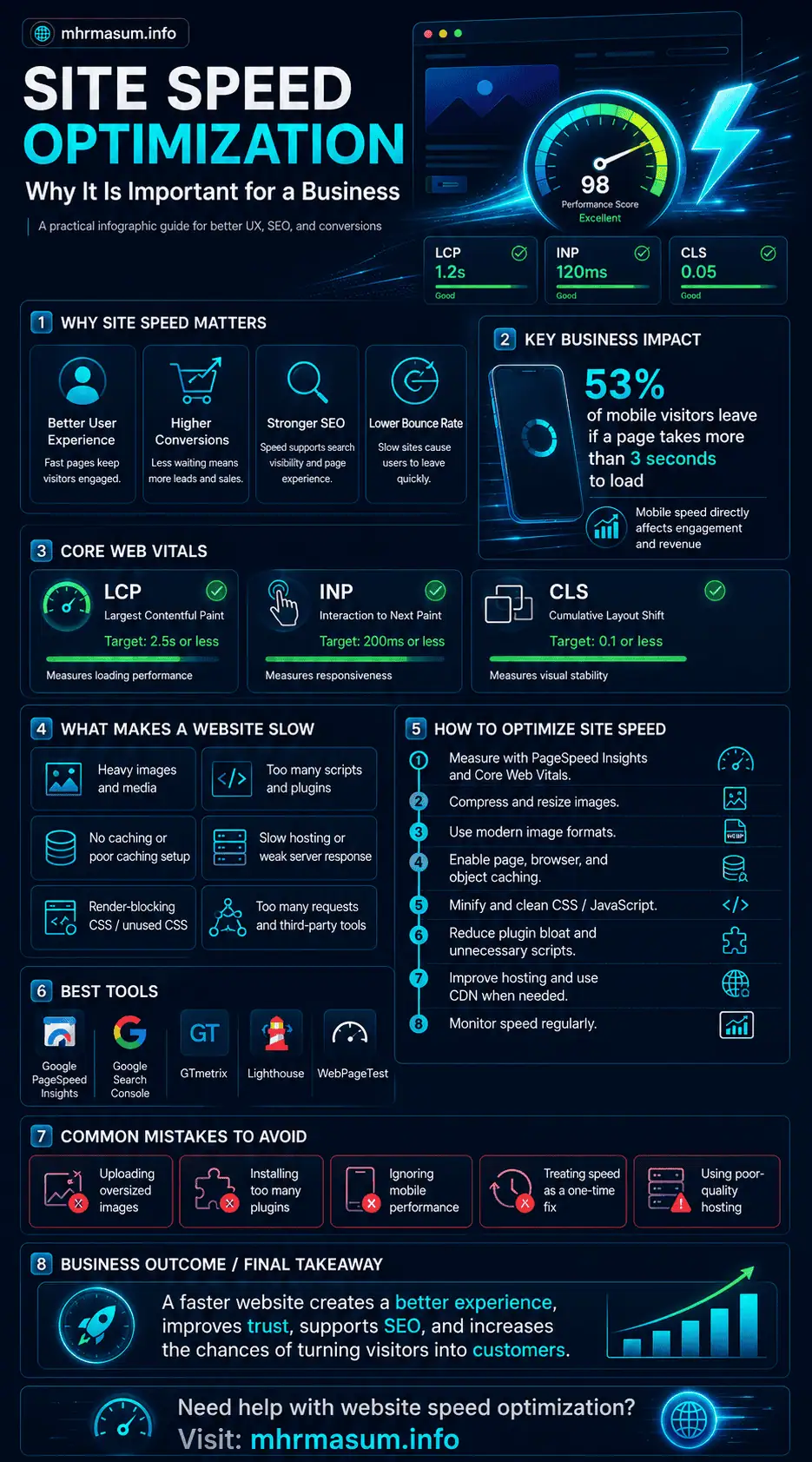
| Metric | What It Measures | Good Threshold |
|---|---|---|
| Largest Contentful Paint | Main-content loading performance | 2.5 seconds or less |
| Interaction to Next Paint | Responsiveness to user interaction | 200 milliseconds or less |
| Cumulative Layout Shift | Visual stability | 0.1 or less |
Google recommends meeting these thresholds for at least 75% of page visits to provide a good user experience.
What Is Largest Contentful Paint?
Largest Contentful Paint, or LCP, measures how long it takes for the largest visible content element in the initial viewport to render.
The LCP element may be:
- Hero image
- Featured image
- Main heading
- Large text block
- Product image
- Banner
- Video poster image
A good LCP is 2.5 seconds or less.
Common Causes of Poor LCP
Poor LCP may be caused by:
- Slow hosting
- High server response time
- Uncached HTML
- Oversized hero images
- LCP images loaded through JavaScript
- Lazy-loaded hero images
- Render-blocking CSS
- Large font files
- Redirects
- Third-party scripts
- Client-side rendering
- Weak CDN configuration
How to Improve LCP
The most important LCP resource should be discoverable in the original HTML and receive appropriate loading priority.
Google’s Chrome performance guidance recommends:
- Making the LCP resource discoverable in HTML
- Removing lazy loading from the LCP image
- Using
fetchpriority="high"for an important LCP image - Deferring non-critical resources
- Improving server response
- Using a CDN where appropriate
An optimized hero image could use markup similar to:
<img
    src="/images/site-speed-guide-1280.avif"
    srcset="
        /images/site-speed-guide-640.avif 640w,
        /images/site-speed-guide-960.avif 960w,
        /images/site-speed-guide-1280.avif 1280w
    "
    sizes="(max-width: 768px) 100vw, 1280px"
    width="1280"
    height="720"
    fetchpriority="high"
    decoding="async"
    alt="Site speed optimization performance dashboard">
Do not add loading="lazy" to the page’s primary LCP image. Google’s LCP guidance specifically warns that lazy-loading an LCP image introduces unnecessary delay.
What Is Interaction to Next Paint?
Interaction to Next Paint, or INP, measures how quickly a page provides visible feedback after a user interaction.
Interactions may include:
- Clicking a menu
- Opening an accordion
- Selecting a product variant
- Submitting a form
- Using a search field
- Applying filters
- Adding an item to the cart
- Switching tabs
A good INP is 200 milliseconds or less.
INP replaced First Input Delay as a Core Web Vital in March 2024 because it evaluates responsiveness across the user’s wider page experience rather than only the first interaction.
Common Causes of Poor INP
Poor INP is frequently caused by:
- Excessive JavaScript
- Long main-thread tasks
- Large DOM structures
- Complex page-builder output
- Slow event handlers
- Heavy analytics scripts
- Chat widgets
- Third-party advertisements
- Large rendering updates
- Unoptimized product filters
- Multiple plugins loading scripts globally
Even after a page appears visually complete, the browser may still be parsing, compiling, and executing JavaScript. This work can delay responses when a user tries to interact with the page.
How to Improve INP
Practical INP improvements include:
- Remove unnecessary JavaScript
- Break long tasks into smaller tasks
- Delay non-essential scripts
- Reduce DOM complexity
- Load scripts only where required
- Simplify event callbacks
- Reduce large rendering updates
- Move suitable work to web workers
- Avoid multiple plugins providing the same function
Google’s performance guidance recommends breaking up long tasks, reducing unnecessary JavaScript, and avoiding large rendering updates.
Use defer for scripts that can execute after HTML parsing:
<script src="/assets/site-navigation.js" defer></script>
Do not add defer or async automatically to every script without testing. Some scripts depend on execution order or must be available before another component initializes.
What Is Cumulative Layout Shift?
Cumulative Layout Shift, or CLS, measures unexpected movement of visible elements while a page is being used.
A good CLS score is 0.1 or less.
Layout shifts may cause visitors to:
- Click the wrong button
- Lose their reading position
- Select the wrong product
- Submit an unintended action
- Become frustrated
- Leave the website
Common Causes of Poor CLS
Google identifies common CLS causes such as:
- Images without dimensions
- Advertisements without reserved space
- Embeds and iframes without dimensions
- Dynamically inserted content
- Web-font changes
Other common causes include:
- Sticky banners appearing late
- Cookie notices pushing content
- Mobile menus changing header height
- Sliders without fixed dimensions
- Delayed form messages
- Product images with inconsistent aspect ratios
How to Improve CLS
Reserve the required space before content loads.
For example:
<img
    src="/images/seo-dashboard.webp"
    width="1200"
    height="675"
    loading="lazy"
    decoding="async"
    alt="SEO and website performance dashboard">
The browser uses the width and height attributes to calculate the image’s aspect ratio and reserve space before downloading it.
Additional CLS improvements include:
- Set dimensions or aspect ratios for videos and iframes
- Reserve advertisement spaces
- Avoid injecting content above existing content
- Use transform-based animations
- Optimize web-font loading
- Keep notification areas fixed
- Test sticky headers across breakpoints
Other Important Website Performance Metrics
Core Web Vitals are central, but they do not explain every performance problem.
Additional metrics help diagnose different stages of loading and interaction.
Time to First Byte
Time to First Byte, or TTFB, measures the time between requesting a page and receiving the first byte from the server.
TTFB can be affected by:
- Hosting quality
- Server location
- Database queries
- WordPress processing
- Caching
- CDN configuration
- Redirects
- Traffic load
- External API requests
Improving TTFB can help other resources begin loading earlier. Google’s Chrome performance guidance recommends serving content closer to users and caching it through a CDN where appropriate.
First Contentful Paint
First Contentful Paint, or FCP, measures when the browser first renders visible content such as text, an image, or a background element.
Poor FCP may be caused by:
- Render-blocking CSS
- Slow fonts
- Slow server response
- Redirects
- Large HTML
- Unused CSS and JavaScript
Total Blocking Time
Total Blocking Time, or TBT, is a lab metric that measures how much the main thread is blocked by long tasks during loading.
TBT is commonly used in Lighthouse diagnostics and can help identify JavaScript-related responsiveness problems.
A page with high TBT may also be at risk of poor real-user INP, although the two metrics are not identical.
Speed Index
Speed Index estimates how quickly visible page content becomes populated during a lab test.
It helps evaluate perceived visual progress but is not a Core Web Vital.
Field Data and Lab Data Are Different
One of the most common performance-analysis mistakes is treating a Lighthouse test as if it represents every real visitor.
Field Data Represents Real Users
Field data is collected from actual users across different devices, networks, geographic locations, and browsing conditions.
Chrome UX Report data is presented in PageSpeed Insights when sufficient data is available.
Lab Data Uses a Controlled Test
Lighthouse performs a controlled test using simulated conditions.
Lab data is useful for:
- Diagnosing problems
- Testing before deployment
- Comparing changes
- Finding optimization opportunities
- Investigating individual pages
PageSpeed Insights combines Chrome UX Report field data with Lighthouse lab diagnostics.
Why Field and Lab Results May Differ
Results can differ because of:
- Device capability
- Network speed
- Geographic distance
- Browser cache
- User interaction
- Personalization
- Logged-in status
- Third-party scripts
- Test location
- Traffic patterns
- Post-load layout shifts
For decisions about actual user experience, prioritize reliable field data. Use lab tools to diagnose and reproduce the causes.
Best Tools for Testing Website Speed
No single tool provides every answer. A professional workflow combines several sources.
Google PageSpeed Insights
PageSpeed Insights provides:
- Core Web Vitals field data where available
- Page-level and origin-level CrUX information
- Lighthouse diagnostics
- Mobile and desktop tests
- Performance opportunities
Use it to identify whether users are passing Core Web Vitals and to investigate likely causes.
Google Search Console Core Web Vitals
Search Console groups URLs according to performance patterns and reports whether page groups are:
- Good
- Need improvement
- Poor
This is useful for detecting template-wide problems.
For example, one report may indicate that every product page has poor CLS because the same product-gallery template is used throughout the store.
Chrome DevTools
Chrome DevTools can help developers inspect:
- Network requests
- Render-blocking resources
- Long tasks
- Layout shifts
- JavaScript execution
- Main-thread activity
- Unused CSS
- Unused JavaScript
- LCP elements
The Performance and Network panels provide deeper diagnostic information than a single summary score.
Lighthouse
Lighthouse can audit:
- Performance
- Accessibility
- Best practices
- SEO
Run tests in a clean browser profile or Incognito mode to reduce interference from extensions.
Chrome UX Report
The Chrome UX Report provides aggregated real-user experience data at page and origin level.
Chrome’s official documentation explains that CrUX and Lighthouse serve different purposes: CrUX reflects real-user experience, while Lighthouse provides controlled lab diagnostics.
How to Conduct a Complete Website Speed Audit
A proper audit should do more than test the homepage once.
Test Representative Page Types
Select URLs representing the website’s major templates.
For a service business, test:
- Homepage
- Main service page
- Location page
- Blog article
- Portfolio page
- Contact page
For an eCommerce website, test:
- Homepage
- Product category
- Product page
- Search results
- Cart
- Checkout
- Account page
Test Mobile and Desktop Separately
Mobile visitors may experience:
- Slower processors
- Higher network latency
- Smaller screens
- Mobile-menu issues
- Touch-interaction delays
- Heavier responsive images than required
A desktop result does not automatically represent mobile performance.
Record the Baseline
Before changing anything, record:
- LCP
- INP or TBT
- CLS
- TTFB
- FCP
- Page weight
- Number of requests
- Main-thread work
- Conversion rate
- Server and cache status
- Installed plugins
- Major third-party scripts
Without a baseline, you cannot measure the effect of optimization.
Identify the LCP Element
Find which element is being measured as LCP.
It may differ across:
- Mobile and desktop
- Homepage and article pages
- Logged-in and logged-out users
- Different screen sizes
Optimize the actual LCP element instead of compressing random images that do not affect the metric.
Review the Request Waterfall
The waterfall shows:
- Which resource loads first
- Which resources block others
- Where redirects occur
- Whether the LCP image starts late
- Whether third parties are delaying rendering
- Whether the server response is slow
Prioritize by Impact
Categorize issues as:
- Critical
- High impact
- Medium impact
- Low impact
- Cosmetic
A 5 MB hero image is usually more urgent than saving a few kilobytes from a small icon.
Improve Hosting and Server Performance
A website cannot consistently perform well if the hosting environment is overloaded, distant from its users, or poorly configured.
Choose Hosting Appropriate for the Website
Hosting requirements depend on:
- Traffic
- WordPress complexity
- WooCommerce usage
- Number of plugins
- Logged-in users
- Database size
- Geographic audience
- Dynamic functionality
- Traffic spikes
A simple portfolio website may perform well on optimized shared hosting, while a busy WooCommerce store may require more CPU, memory, database capacity, and server-level caching.
Monitor Server Resources
Review:
- CPU usage
- Memory usage
- Storage performance
- PHP workers
- Database connections
- Request queues
- Error logs
- Slow queries
A website can appear fast under low traffic but slow significantly during busy periods.
Keep Server Software Supported
Use supported versions of:
- PHP
- Database software
- Web server
- WordPress
- Theme
- Plugins
Updates may improve performance and security, but compatibility must be checked before changing production environments.
Create a backup and test major version changes on staging first.
Reduce Redirects
Every redirect introduces another request-and-response step.
Common unnecessary redirect chains include:
- HTTP to HTTPS
- Non-www to www
- Old URL to intermediate URL
- Intermediate URL to final URL
Redirect directly to the final canonical destination where possible.
Implement Effective Caching
Caching stores reusable responses so the website does not have to rebuild or redownload the same content repeatedly.
WordPress’s official optimization documentation identifies caching as one of the quickest ways to gain a significant performance improvement.
Page Caching
Page caching stores generated HTML for reuse.
Without page caching, WordPress may need to:
- Load PHP
- Query the database
- Execute theme code
- Execute plugin code
- Assemble the page
- Send the response
With page caching, many visitors can receive the stored page without repeating this process.
Browser Caching
Browser caching stores static resources locally, such as:
- Images
- CSS
- JavaScript
- Fonts
Returning visitors can reuse these assets instead of downloading them again.
Object Caching
Persistent object caching stores frequently requested database results.
This may be useful for:
- WooCommerce
- Membership sites
- Large WordPress sites
- High-traffic websites
- Complex database queries
CDN Caching
A content delivery network can cache resources closer to users.
CDNs can help reduce:
- Geographic latency
- Origin-server load
- Static-resource transfer time
- TTFB for cached content
Caching rules must be configured carefully for dynamic pages such as:
- Cart
- Checkout
- Account
- Personalized dashboards
- Logged-in sessions
These pages should not be served incorrectly from public cache.
Use a Content Delivery Network
A CDN distributes website resources across multiple geographic locations.
When a user requests a page, eligible content can be served from a nearby edge location rather than travelling to one origin server.
CDNs can help deliver:
- Images
- CSS
- JavaScript
- Fonts
- Video
- Cached HTML
Google’s performance guidance identifies CDN use as an effective way to reduce document and resource TTFB by serving content closer to users and caching reusable resources.
A CDN is not a substitute for:
- Good hosting
- Efficient code
- Optimized images
- Correct caching
- Database maintenance
It amplifies a well-configured website but cannot fix every origin problem.
Compress HTML, CSS and JavaScript
Text resources should be compressed before being transferred.
These resources include:
- HTML
- CSS
- JavaScript
- JSON
- SVG
Brotli and Gzip reduce transfer size, allowing resources to reach users more quickly.
Web performance guidance recommends reducing unnecessary downloads and compressing the resources that remain.
Compression is often managed through:
- Web-server configuration
- Hosting control panel
- CDN
- Caching plugin
Do not confuse file compression with image compression. Text and raster images require different optimization methods.
Optimize Images Correctly
Images are among the most common causes of slow websites.
A page may contain:
- Hero banners
- Product images
- Portfolio screenshots
- Team images
- Blog graphics
- Logos
- Background images
- Decorative icons
Resize Images Before Uploading
Do not upload a 5000-pixel image when it is displayed at 800 pixels.
The browser may scale the image visually, but the visitor still downloads the large file unless responsive image versions are available.
Use Modern Image Formats
WebP and AVIF generally provide better compression than older JPEG and PNG formats for many web use cases.
Use:
- AVIF for strong compression where the workflow supports it
- WebP as a widely supported modern format
- JPEG for compatible photographic fallback
- PNG where lossless quality or transparency is genuinely required
- SVG for suitable logos and icons
Serve Responsive Images
Use srcset and sizes so the browser can choose an appropriately sized image.
<img
    src="/images/portfolio-960.webp"
    srcset="
        /images/portfolio-480.webp 480w,
        /images/portfolio-768.webp 768w,
        /images/portfolio-960.webp 960w
    "
    sizes="(max-width: 600px) 100vw, 960px"
    width="960"
    height="540"
    loading="lazy"
    decoding="async"
    alt="Website speed optimization project results">
Responsive-image markup prevents small-screen users from downloading unnecessarily large desktop images.
Lazy-Load Offscreen Images
Images below the initial viewport can use native lazy loading:
<img
    src="/images/technical-seo-audit.webp"
    width="800"
    height="450"
    loading="lazy"
    decoding="async"
    alt="Technical SEO audit dashboard">
Modern browsers support native image lazy loading without requiring a separate JavaScript library.
Do not lazy-load the primary LCP image.
Avoid Large Animated GIFs
Large animated GIFs can create excessive transfer sizes.
Where suitable, replace them with optimized video formats and use a poster image.
Optimize CSS Delivery
CSS is required before the browser can render a styled page, which means large stylesheets can delay visible content.
Remove Unused CSS
WordPress websites may load CSS from:
- Theme
- Child theme
- Page builder
- Form plugin
- WooCommerce
- Slider plugin
- Icon library
- Animation plugin
- Blocks
- Custom snippets
Some assets may load globally even when the page does not use them.
Chrome DevTools Coverage can help identify unused CSS and JavaScript on a specific page.
Minify CSS
Minification removes unnecessary characters such as:
- Whitespace
- Comments
- Line breaks
The resulting saving may be modest for one file but useful across multiple assets.
Load Critical Styles Efficiently
Critical CSS refers to styles required for initial visible content.
Advanced implementations may inline critical CSS and load remaining styles later.
However, Google’s web performance guidance warns that aggressive critical-CSS techniques can introduce bugs and are not required for every site.
Test carefully after implementing:
- Menus
- Responsive breakpoints
- Forms
- Carousels
- WooCommerce
- Logged-in pages
- Dynamic content
Avoid Excessive CSS Frameworks
Loading an entire framework for a few utility classes can create unnecessary page weight.
Use only the components required by the design.
Reduce JavaScript Cost
JavaScript can affect both loading and interaction performance.
A script must often be:
- Downloaded
- Parsed
- Compiled
- Executed
Large scripts can block the browser’s main thread and delay user interactions.
Remove Unused JavaScript
Audit whether each script provides measurable value.
Common unnecessary scripts include:
- Old tracking tags
- Duplicate analytics
- Unused sliders
- Social-share libraries
- Animation scripts
- Disabled plugin assets
- Legacy compatibility files
- Multiple popup systems
Unused JavaScript still consumes network, parsing, compilation, memory, and main-thread resources.
Load Scripts Only Where Required
A contact-form script may not need to load on every article.
A product-gallery script may not need to load on the homepage.
WordPress developers can conditionally enqueue scripts according to:
- Page template
- Post type
- Shortcode
- Block
- WooCommerce page
- Logged-in state
Delay Non-Essential Scripts
Some scripts can load after the critical content or after user interaction.
Candidates may include:
- Chat widgets
- Social embeds
- Heatmaps
- Marketing popups
- Video players
- Review widgets
Delay must be balanced with measurement and functionality requirements.
Break Up Long Tasks
When a script performs too much work in one uninterrupted task, the page may become temporarily unresponsive.
Breaking long tasks into smaller pieces gives the browser more opportunities to respond to the user.
Control Third-Party Scripts
Third-party scripts are supplied by external services and are often outside the website owner’s direct control.
Examples include:
- Google Tag Manager
- Analytics
- Advertising platforms
- Live chat
- Social feeds
- Review widgets
- Embedded maps
- Video players
- A/B testing tools
- Scheduling systems
Third-party scripts can add network requests, JavaScript execution, rendering delays, privacy concerns, and layout shifts.
Audit Every Third-Party Service
Ask:
- Is the service still used?
- Does it generate measurable value?
- Is the script loaded on every page unnecessarily?
- Can it load after consent?
- Can it load after interaction?
- Is there a lighter alternative?
- Is another tool providing the same function?
Google’s performance guidance recommends removing third-party resources that do not add clear value and optimizing the loading process for those that remain.
Use Lightweight Embeds
Instead of loading a complete YouTube player immediately, use a lightweight preview that loads the player after interaction.
The same approach may apply to:
- Maps
- Social feeds
- Calendars
- Review widgets
Reserve the final dimensions to prevent CLS.
Optimize Web Fonts
Custom fonts can improve branding but may add requests, file size, rendering delays, and layout shifts.
Reduce Font Families and Weights
A website may not need:
- Multiple font families
- Every font weight
- Every italic variation
- Unused character sets
Use only the variants required by the design.
Use WOFF2
WOFF2 is a modern compressed web-font format supported by modern browsers.
Use Font Display Strategies
The font-display property controls how fallback and custom fonts are displayed.
Example:
@font-face {
    font-family: "Brand Sans";
    src: url("/fonts/brand-sans-regular.woff2") format("woff2");
    font-weight: 400;
    font-style: normal;
    font-display: swap;
}
Preload Only Critical Fonts
A critical font may be preloaded:
<link
    rel="preload"
    href="/fonts/brand-sans-regular.woff2"
    as="font"
    type="font/woff2"
    crossorigin>
Do not preload every font file because excessive preloading competes with more important resources.
Web performance guidance recommends careful font preloading, appropriate font-display settings, and reducing font-file size and variants.
Optimize Videos and Embedded Media
Videos can become some of the heaviest resources on a website.
Do Not Autoload Large Videos Without Need
Background videos can negatively affect:
- LCP
- Data usage
- Mobile performance
- Battery usage
- Accessibility
Consider whether a static image communicates the same message.
Use Poster Images
A poster image gives users an immediate visual while the video is not playing.
If the video or its poster becomes the LCP element, optimize it carefully and do not delay it unnecessarily.
Lazy-Load Offscreen Iframes
Offscreen video and map iframes can use:
<iframe
    src="https://example.com/embed"
    width="800"
    height="450"
    loading="lazy"
    title="Website speed optimization video">
</iframe>
Native iframe lazy loading can defer offscreen embeds until the user scrolls near them.
Optimize the WordPress Database
WordPress stores content and configuration in a database.
Over time, the database may accumulate:
- Post revisions
- Transients
- Expired sessions
- Deleted plugin tables
- Orphaned metadata
- WooCommerce logs
- Spam comments
- Old scheduled actions
- Autoloaded options
Database optimization should be based on diagnosis rather than deleting data blindly.
Review Autoloaded Options
Autoloaded options are loaded during many WordPress requests.
A very large autoloaded dataset can increase processing time.
Identify:
- Large plugin settings
- Deleted plugin remnants
- Expired data
- Unnecessary cached values
Take a database backup before modifying option data.
Limit Excessive Revisions
Revisions are useful but may become excessive on frequently edited websites.
Configure a sensible revision policy based on the editorial workflow.
Clean WooCommerce Data Carefully
WooCommerce stores dynamic business data.
Do not run broad cleanup commands without understanding whether they affect:
- Orders
- Customers
- Scheduled actions
- Sessions
- Subscriptions
- Inventory
- Reports
Test database maintenance on staging and maintain a verified backup.
Optimize WordPress Themes and Page Builders
A theme controls much of the website’s HTML, CSS, JavaScript, layout, and responsive behaviour.
WordPress’s official performance documentation identifies hosting, configuration, software, images, caching, compression, and database tuning as major performance factors.
Use a Lightweight Theme Foundation
A performance-focused theme should provide:
- Semantic HTML
- Limited dependencies
- Efficient CSS
- Accessible navigation
- Stable responsive layouts
- Selective feature loading
- Compatibility with caching
Avoid Excessive Page-Builder Nesting
Deeply nested page-builder layouts can create:
- Large DOM size
- Repeated CSS
- Unnecessary wrappers
- Slow style calculation
- Poor INP
- Difficult maintenance
Use the minimum number of containers required to create the layout.
Remove Unused Builder Features
Disable unused features such as:
- Animation libraries
- Icon packs
- Sliders
- Popups
- Global widgets
- Motion effects
- Parallax backgrounds
Optimize WordPress Plugins
A plugin is not automatically slow merely because it exists, and a low plugin count does not automatically mean the website is fast.
One poorly coded plugin can create more performance problems than several efficient plugins.
Audit Plugins by Impact
Review whether a plugin:
- Loads assets globally
- Creates database queries
- Calls external APIs
- Adds scheduled tasks
- Blocks caching
- Generates errors
- Duplicates another feature
- Is no longer maintained
Remove Inactive and Unused Plugins
Deactivated plugins do not usually execute normal frontend code, but unused plugins still create:
- Security risk
- Maintenance overhead
- Database remnants
- Administrative clutter
Delete plugins that are no longer required after confirming their data is not needed.
Avoid Overlapping Optimization Plugins
Using multiple caching or minification plugins can cause:
- Duplicate caching
- Conflicting rewrites
- Broken JavaScript
- Incorrect CSS order
- Cache purging problems
Use one coordinated optimization system unless there is a clear technical reason to combine tools.
Optimize WooCommerce Performance
WooCommerce websites are more complex because many pages must remain dynamic.
Do Not Cache Customer-Specific Pages Publicly
Exclude pages such as:
- Cart
- Checkout
- My Account
- Order confirmation
Correct exclusions depend on the caching system and WooCommerce configuration.
Optimize Product Images
Product pages may load:
- Main image
- Gallery images
- Thumbnails
- Zoom images
- Variation images
- Related-product images
Use responsive sizes and lazy-load images below the initial viewport.
Control Cart Fragment Scripts
WooCommerce cart updates can add JavaScript and AJAX activity.
Review whether cart-fragment functionality is required on every page or whether it can be limited without breaking the customer experience.
Optimize Product Variations
Products with many variations may generate large HTML payloads and slow JavaScript processing.
Consider:
- Better variation architecture
- Server-side search
- More focused product separation
- Optimized data loading
Review Checkout Scripts
Payment gateways, fraud detection, analytics, address tools, and live validation may all load during checkout.
Remove redundant integrations while preserving security and business functionality.
Improve Mobile Website Speed
Mobile optimization is not merely reducing image width.
A mobile visitor may experience:
- Slower network
- Lower processing power
- Limited memory
- Touch-input delay
- Smaller viewport
- Data restrictions
Simplify the Mobile Header
Large mobile headers can add:
- Multiple logos
- Hidden desktop menus
- Large JavaScript navigation
- Duplicate buttons
- Layout shifts
Keep the mobile header focused on:
- Logo
- Menu
- Primary contact or CTA
Test Mobile Forms
Confirm that:
- Fields fit the viewport
- Labels remain visible
- Buttons are tappable
- Error messages are clear
- Keyboard types are appropriate
- No horizontal scrolling occurs
- CAPTCHA works
- Success confirmation appears
Reduce Mobile-Only JavaScript
Do not assume that hiding an element with CSS prevents its resources from loading.
A hidden desktop slider may still download all images and scripts on mobile.
Use conditional loading or responsive resource strategies where possible.
Improve WordPress Admin Performance
Performance problems may also affect the WordPress dashboard.
Common causes include:
- Excessive admin notices
- Slow plugin API calls
- Large scheduled-action queues
- WooCommerce reports
- Broken cron jobs
- Database bloat
- External licence checks
- Security scans
A slow admin area does not always mean the public website is slow, but both may share server and database problems.
Site Speed Optimization and Local SEO
Local customers often use mobile devices and expect quick access to:
- Phone number
- Address
- Opening hours
- Service areas
- Directions
- Booking
- Quote forms
A slow local landing page can reduce the value of Google Business Profile visibility and local rankings.
Use my Local SEO in 2026 guide to connect website speed with Google Business Profile optimization, reviews, local content, and service-area visibility.
You can also review practical work in my Local SEO portfolio.
Site Speed Optimization and Content Quality
Do not remove important content merely to increase a performance score.
A fast but unhelpful page may fail to satisfy search intent.
Instead, optimize how useful content is delivered:
- Compress images
- Lazy-load supporting media
- Simplify markup
- Remove unnecessary scripts
- Optimize fonts
- Improve caching
- Reduce duplicate components
- Prioritize initial content
Google’s page-experience guidance explains that relevance remains essential and that performance is one component of a broader quality assessment.
Read Why Generic AI Content Does Not Rank Anymore to understand why speed must support useful, original, expert-led content rather than replace it.
How to Prioritize Website Speed Improvements
Not every recommendation deserves the same priority.
A useful prioritization framework considers:
- User impact
- Business impact
- Number of affected pages
- Technical risk
- Implementation effort
- Performance improvement
- Conversion relevance
High-Priority Issues
Examples include:
- Slow server response across the site
- Uncached HTML
- Oversized LCP images
- Lazy-loaded hero image
- Major JavaScript blocking
- Severe layout shifts
- Broken mobile menu
- Slow checkout
- Form submission delays
Medium-Priority Issues
Examples include:
- Non-critical font optimization
- Duplicate plugin assets
- Below-the-fold image improvements
- Unused CSS on selected templates
- Large social embeds
Low-Priority Issues
Examples include:
- Tiny icon savings
- Small score differences without user impact
- Minor minification gains
- Changes that create high implementation risk for negligible benefit
Common Site Speed Optimization Mistakes
Performance work can damage a website when implemented without proper testing.
Chasing a Perfect Score
A score of 100 does not automatically mean every visitor receives an excellent experience.
Focus on:
- Core Web Vitals
- Real-user data
- Conversion paths
- Reliability
- Business outcomes
Google advises that trying to achieve a perfect score purely for SEO may not be the best use of resources.
Testing Only the Homepage
The homepage may not represent product, service, article, cart, or checkout templates.
Applying Every Optimization Automatically
Aggressive script delay, CSS removal, and minification can break:
- Menus
- Sliders
- Forms
- Analytics
- Checkout
- Tracking
- Accessibility
Lazy-Loading the LCP Image
This delays the most important visible image and can worsen LCP.
Installing Too Many Optimization Plugins
Multiple performance plugins can create conflicting caching, minification, and delay rules.
Ignoring Third-Party Scripts
Compressing images will not solve a page dominated by chat, tracking, advertising, and embed scripts.
Ignoring Field Data
A good Lighthouse result does not prove that real users pass Core Web Vitals.
Optimizing Without Backups
Caching, database, code, and CDN changes can affect site functionality.
Always maintain:
- Current file backup
- Current database backup
- Staging environment
- Rollback plan
A Practical Site Speed Optimization Checklist
Use the following checklist to review your website.
Hosting and Server
- Use hosting appropriate for traffic and application complexity
- Monitor CPU and memory
- Review PHP workers
- Enable server-level caching where appropriate
- Reduce server response time
- Keep software supported
- Use HTTPS
- Review error logs
Caching and CDN
- Enable page caching
- Configure browser caching
- Use object caching where justified
- Configure a CDN
- Exclude dynamic customer pages
- Test cache purging
- Compress text responses
Images
- Resize before upload
- Use AVIF or WebP where appropriate
- Serve responsive sizes
- Compress images
- Set width and height
- Lazy-load offscreen images
- Prioritize the LCP image
- Avoid oversized GIFs
CSS and JavaScript
- Remove unused assets
- Minify files
- Defer non-critical scripts
- Avoid excessive frameworks
- Break up long tasks
- Load scripts only where needed
- Audit third-party code
- Test after every change
Fonts
- Reduce families and weights
- Use WOFF2
- Preload only critical fonts
- Use an appropriate
font-display - Match fallback metrics
- Avoid icon fonts where SVG is more efficient
WordPress
- Use a lightweight theme
- Audit page-builder output
- Remove unused plugins
- Review autoloaded options
- Clean expired data carefully
- Optimize WooCommerce scripts
- Monitor scheduled actions
- Keep backups
Core Web Vitals
- LCP at or below 2.5 seconds
- INP at or below 200 milliseconds
- CLS at or below 0.1
- Review both mobile and desktop
- Review field and lab data
- Test representative templates
A 30–90 Day Site Speed Optimization Roadmap
Site speed should be improved through a structured process rather than random plugin settings.
Days 1–30: Measure and Diagnose
During the first phase:
- Record baseline metrics
- Review Search Console Core Web Vitals
- Test representative URLs
- Identify LCP elements
- Review hosting and TTFB
- Audit caching
- Audit image delivery
- Review plugin and theme assets
- Identify third-party scripts
- Test mobile conversion journeys
- Document business-critical problems
The outcome should be a prioritized plan rather than a large unfiltered issue list.
Days 31–60: Fix High-Impact Problems
During the second phase:
- Configure page caching
- Improve CDN delivery
- Optimize LCP images
- Convert images to modern formats
- Fix layout shifts
- Reduce unnecessary CSS
- Delay or remove non-critical JavaScript
- Optimize font loading
- Improve mobile navigation
- Fix form and checkout delays
After every major change:
- Clear caches
- Test functionality
- Retest performance
- Review analytics and conversion tracking
- Document the result
Days 61–90: Refine and Monitor
During the final phase:
- Compare field-data trends
- Review conversion changes
- Optimize additional templates
- Improve WooCommerce-specific performance
- Review database health
- Create a performance budget
- Establish monthly monitoring
- Document plugin and script policies
- Train content editors on image optimization
Website speed is not a one-time project. New plugins, images, scripts, campaigns, and design updates can gradually reduce performance again.
How to Create a Website Performance Budget
A performance budget defines acceptable limits for website resources and metrics.
A budget may include:
- Maximum page weight
- Maximum JavaScript
- Maximum CSS
- Maximum image size
- Maximum number of third-party scripts
- Target LCP
- Target INP
- Target CLS
- Maximum request count
Performance budgets help prevent future updates from reversing optimization work.
For example:
A new marketing tool cannot be deployed globally until its performance impact has been tested on mobile and approved.
This turns performance into an operational standard rather than an emergency repair.
How to Measure the Business Impact of Speed Optimization
Do not report only PageSpeed scores.
Measure how optimization affects:
- Organic traffic
- Engagement
- Form completion
- Calls
- Add-to-cart rate
- Checkout completion
- Revenue
- Cost per lead
- Advertising conversion rate
- Mobile conversions
- Support complaints
- Server cost
Review performance before and after changes using comparable dates and traffic conditions.
My Website Speed Optimization portfolio provides examples of practical performance-focused work.
You can also review my broader portfolio for Technical SEO, Local SEO, WordPress, and digital growth projects.
Frequently Asked Questions About Site Speed Optimization
The following answers address common questions from business owners, WordPress users, marketers, and website developers.
What Is a Good Website Loading Speed?
There is no single loading number that describes every part of the user experience.
For Core Web Vitals, Google recommends:
- LCP of 2.5 seconds or less
- INP of 200 milliseconds or less
- CLS of 0.1 or less
Does Website Speed Affect Google Rankings?
Core Web Vitals are used by Google’s ranking systems, but speed is not the only ranking consideration.
Relevant, useful content may still outperform a faster but less helpful page.
Is PageSpeed Insights Score a Ranking Factor?
Google does not describe the Lighthouse performance score itself as a direct ranking factor.
The score is a lab diagnostic. Core Web Vitals use real-user experience data where available.
Why Does My PageSpeed Score Change?
The score can vary because of:
- Server response
- Test conditions
- Third-party services
- Network simulation
- Background processes
- Cache state
- Dynamic content
Use several tests and prioritize field data when available.
Should Every Website Score 100?
No. A perfect score may require changes that provide little practical benefit or create functional risk.
Prioritize user experience, conversions, Core Web Vitals, and reliability.
Which WordPress Plugin Is Best for Speed?
The correct tool depends on:
- Hosting
- Server technology
- Theme
- Plugins
- CDN
- WooCommerce
- Existing caching
A plugin should be selected according to the technical environment rather than popularity alone.
Can a CDN Make My Website Faster?
A CDN can reduce geographic latency, cache static resources, compress content, and reduce origin-server load.
It will not fix inefficient code, oversized images, or excessive JavaScript by itself.
Should I Lazy-Load Every Image?
No. Lazy-load images that are initially offscreen.
Do not lazy-load the primary LCP image.
Does Image Compression Reduce Quality?
Compression can reduce file size with little visible quality loss when configured correctly.
The appropriate format and compression level depend on the image’s purpose.
Can Too Many Plugins Slow WordPress?
Plugins can affect performance through scripts, styles, queries, API calls, scheduled tasks, and database data.
The impact depends more on plugin behaviour than the total number alone.
How Often Should Website Speed Be Tested?
Test after:
- Theme updates
- Plugin changes
- New tracking scripts
- Redesigns
- Hosting changes
- New page templates
- Large content uploads
Review real-user performance at least monthly for important commercial websites.
Can Speed Optimization Break a Website?
Yes. Incorrect caching, JavaScript delay, CSS removal, or database cleanup can break functionality.
Use staging, backups, controlled testing, and rollback procedures.
How Long Does Site Speed Optimization Take?
A basic website may improve within a few days, while a large WooCommerce, membership, or custom platform may require ongoing work.
The timeline depends on:
- Technical complexity
- Hosting
- Number of templates
- Plugin conflicts
- Development resources
- Performance targets
Final Thoughts on Site Speed Optimization
Site speed optimization is not about earning a decorative score.
It is about creating a website that allows users to:
- See important content quickly
- Interact without delay
- Navigate confidently
- Complete forms
- Make purchases
- Access information
- Trust the business
A complete strategy should connect:
- Hosting
- Caching
- CDN
- Images
- CSS
- JavaScript
- Fonts
- Database
- WordPress
- Mobile UX
- Core Web Vitals
- Conversion measurement
Businesses should optimize speed alongside content quality, search intent, authority, Local SEO, Entity SEO, and AI search readiness.
MD Harunur Rashid is an SEO, AI SEO and Digital Growth Consultant with 17+ years of experience helping businesses improve Technical SEO, WordPress performance, Local SEO, WooCommerce SEO, organic visibility, and conversion opportunities.
Explore my SEO and Digital Growth Services, learn more about MD Harunur Rashid, review my Website Speed Optimization portfolio, or contact MD Harunur Rashid to discuss a professional website speed and Technical SEO audit.